Who uses this: Admins create and edit teams, since team setup lives in Company Settings. Availability: All regions.A team is a group of users who work together, and creating one lets you organize job assignments, delegation, and scheduling around how your crews actually operate. You create a team in Company Settings, give it a name, and assign its managers and members. Every FieldPulse account already includes one team — the Default Team — because a business always needs at least one, so you are adding teams on top of that rather than starting from nothing.
Overview
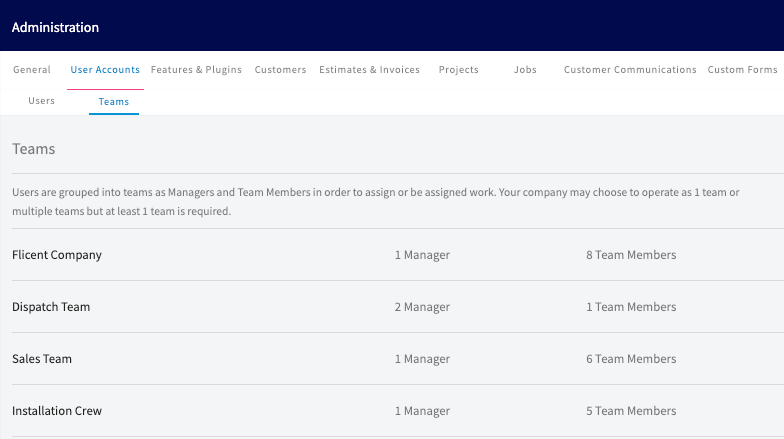
A team groups users together so you can delegate and schedule work by crew instead of from one long list of individuals. In FieldPulse, a user is an individual who has access to the account, and a team is a group of those users who work together on specific tasks or projects. Every business must have at least one team, so every account includes a team called Default Team automatically and every user joins it — you can rename or modify that team, but your account can never be left without a team. Add as many more teams as your business needs. You create and edit teams in Company Settings > User Accounts > Teams. Only Administrators and Team Managers can manage a team, while a user of any role can be a team member.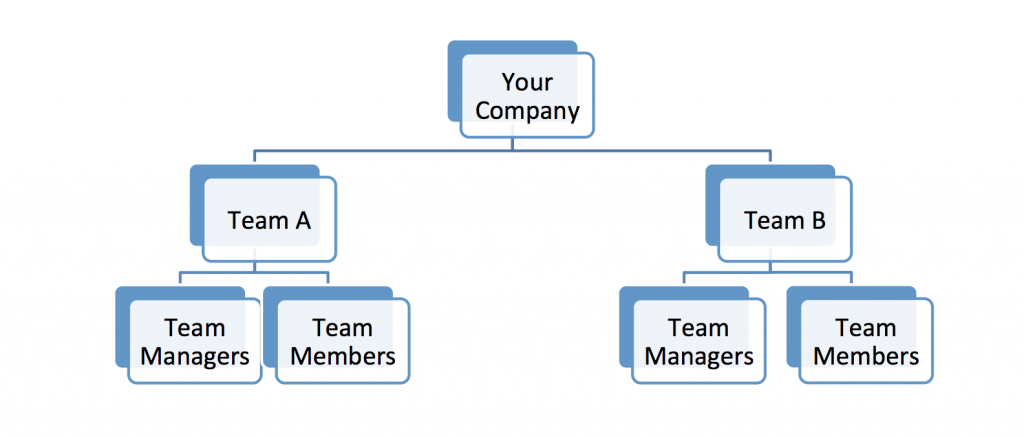
Video walkthrough
Watch a short walkthrough of teams and team member structure in FieldPulse, then follow the written steps below.Teams and Team Member Structure walkthrough
Before you begin
- Check whether you need a new team at all. Your account already has a Default Team that every user joins automatically, and you can rename or modify that team instead of creating a second one if a single team covers your business.
- Create the user accounts first. The people you assign should already have FieldPulse accounts — see How to Add New Users, which only Admins can do.
- Decide who will run the team. Only Administrators and Team Managers can manage a team, so pick the manager from those users — see User Roles and Permissions Details.
On web
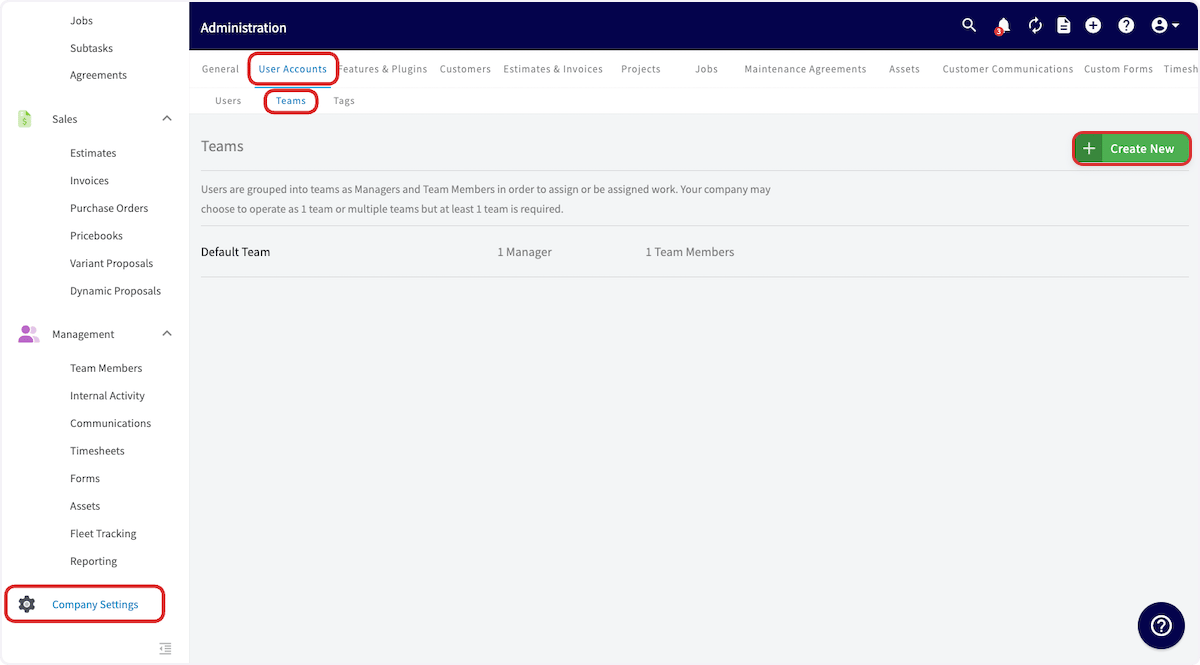
Open the Teams tab
- Select Company Settings from the left-side menu.
- Select User Accounts.
- Select the Teams tab.
Create the team
-
Select Create New.
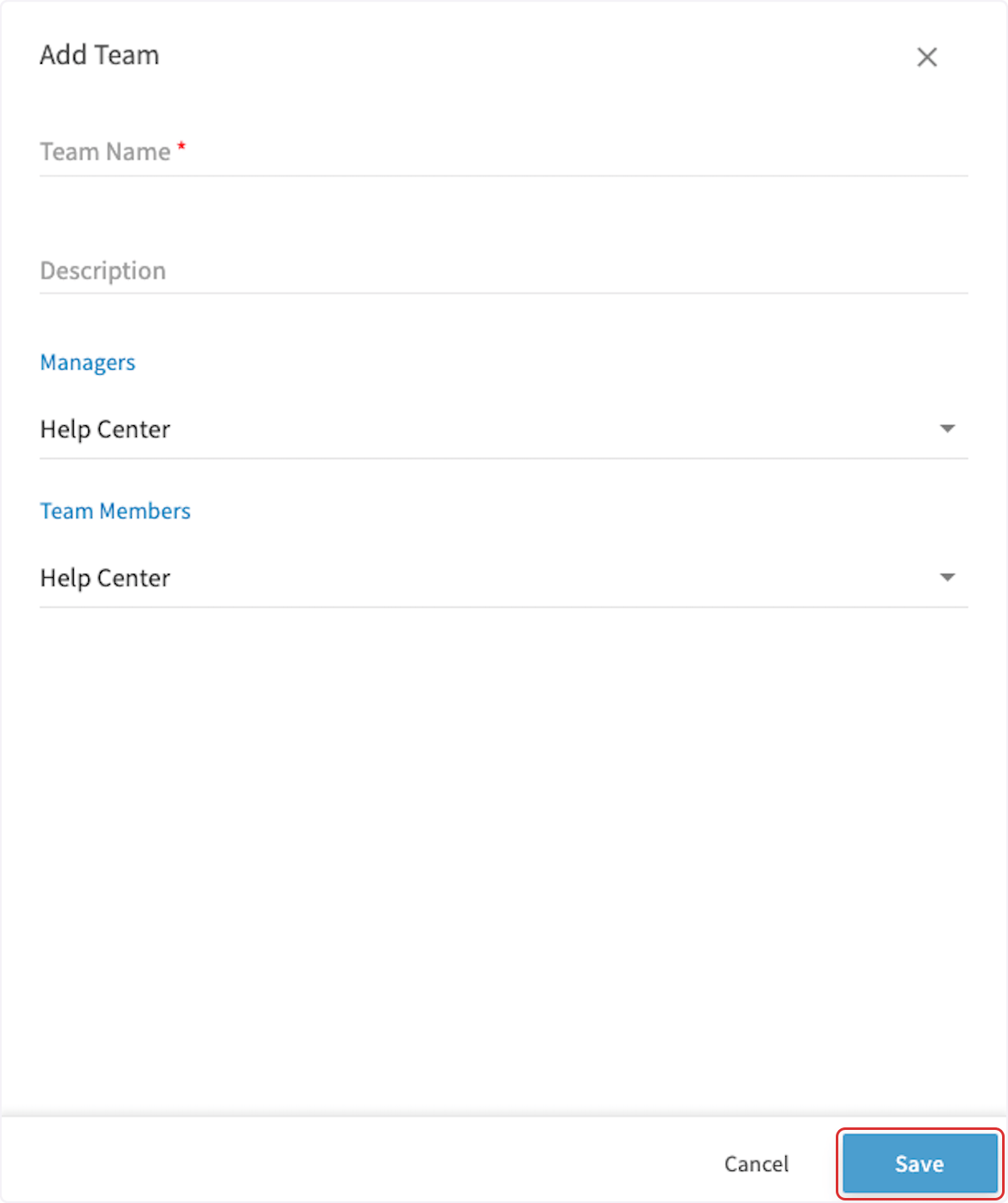
- Enter a Team Name, and a Description if you want one.
- Choose the team’s manager or managers under Managers. Only Administrators and Team Managers can manage a team.
- Choose the team’s members under Team Members. A user of any role can be a team member.
- Select Save.
Set the team order
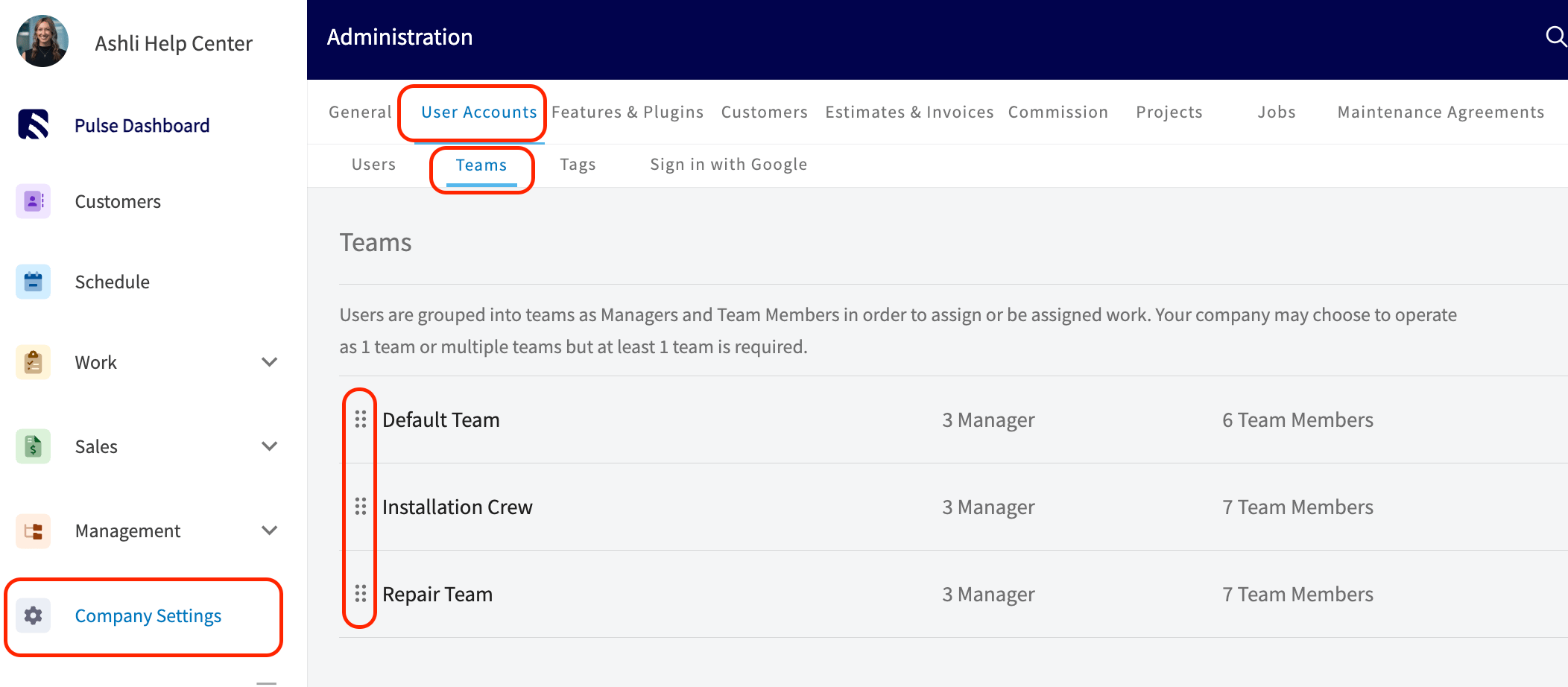
The order your teams appear in on the Teams tab carries across FieldPulse. The assignment fields on jobs, site visits, subtasks, and material lists, the team assignee field on projects, and the Schedule Dispatch view all list your teams in that order.- Go to Company Settings, then User Accounts, then the Teams tab.
- Find the drag handle to the left of a team’s name.
- Drag the team up or down to the position you want.