Documentation Index
Fetch the complete documentation index at: https://fieldpulse.mintlify.app/llms.txt
Use this file to discover all available pages before exploring further.
Importing Customers
Looking to import an existing customer base? Simply export your customers to Excel, Google Sheets, or CSV file and use our mass import tool to upload them into FieldPulse.Navigate to Import
Navigate to Company Settings then click on the Customers tab. From here, select Import Customers and then follow the on-screen prompts to download the Mass Job Import Excel template. (Note: If you do not have Excel, you can always utilize Google Sheets. Click here to learn how).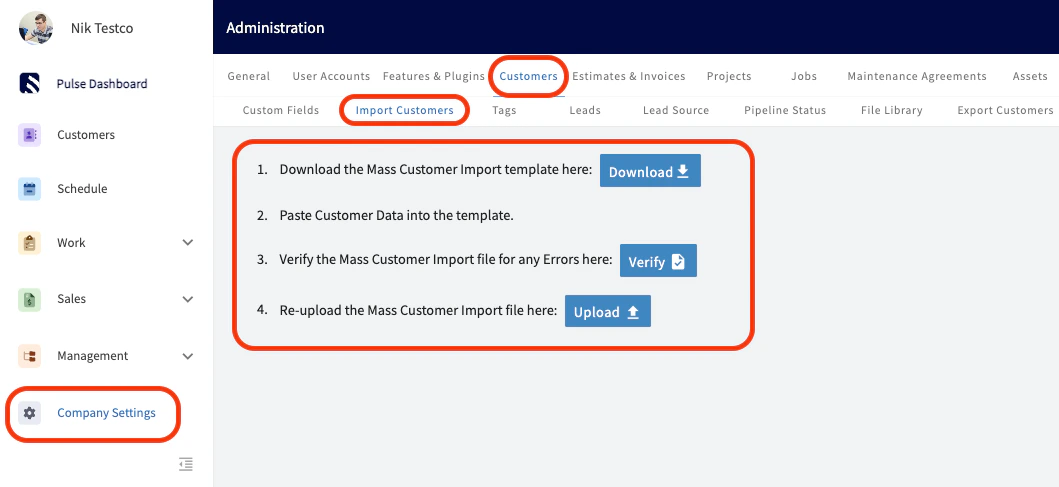
Fill in the template
You will need to fill in the template, ensuring that you do not alter the structure of the form.
Verify the data
After completing the template, verify the data you are trying to import by clicking the Verify button. Our system will flag any errors or missing required information. Fields with errors or missing information will appear in red.
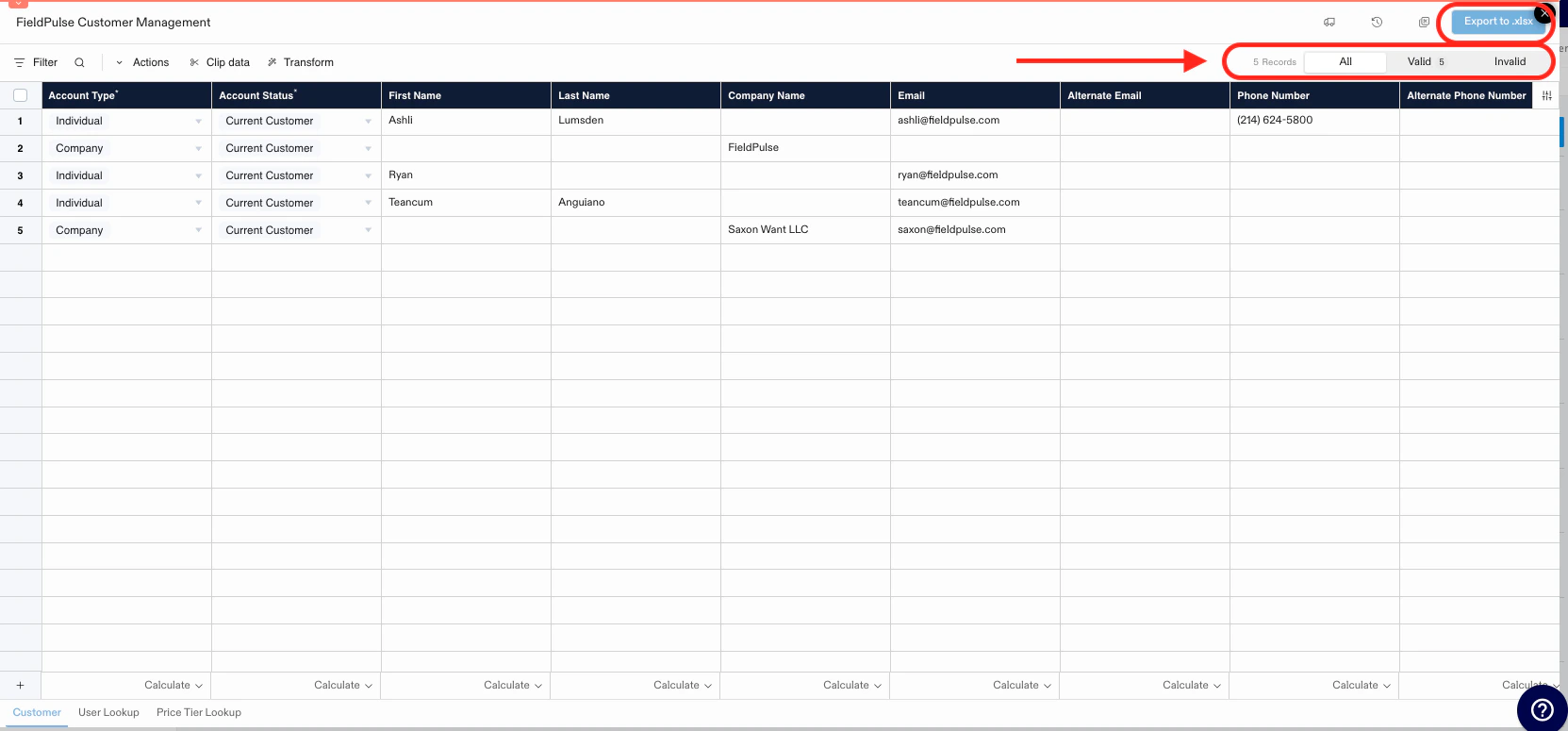
Interactive Demo
Explore the interactive demo of the customer import feature.Import Additional Contacts & Locations
To save time, you can use the import feature to upload additional contacts and additional locations to a customer record.- Additional Contacts
- Additional Locations
Click Import Contacts
On a customer record, scroll to find the Additional Contacts section then click the Import Contacts button.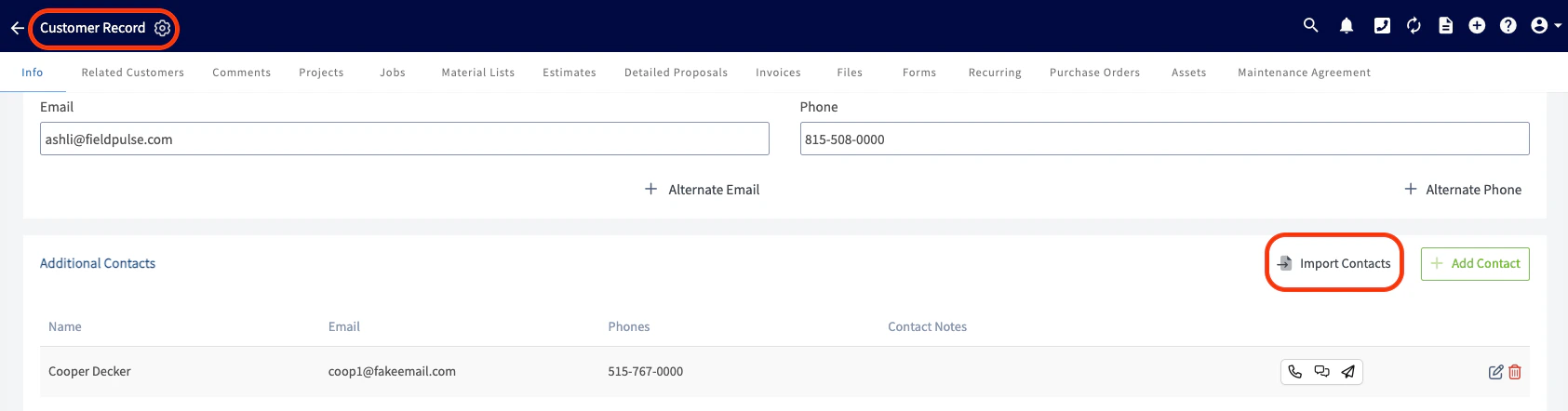
Download the template
A pop-up message will appear in the app, allowing you to download the necessary template for this import.
Fill in the template
Fill in the template, ensuring that you do not alter the structure of the form.




Exporting Customers
You can export all of your customer information from FieldPulse as a .CSV.Click Export
Click on Customers in the left side menu. On the Customers page, click Export at the top right.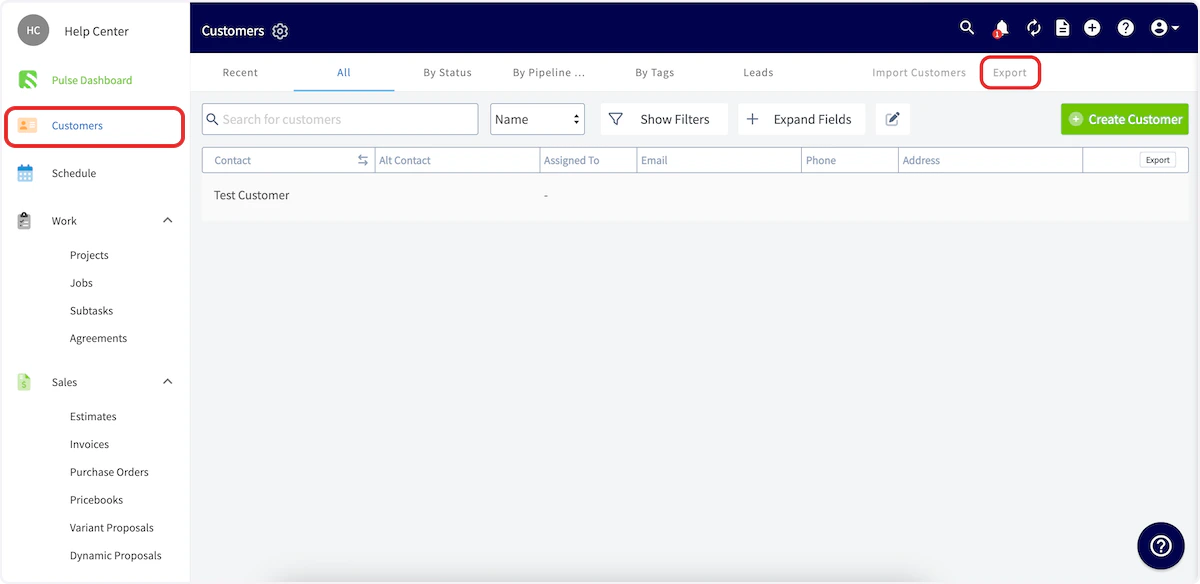
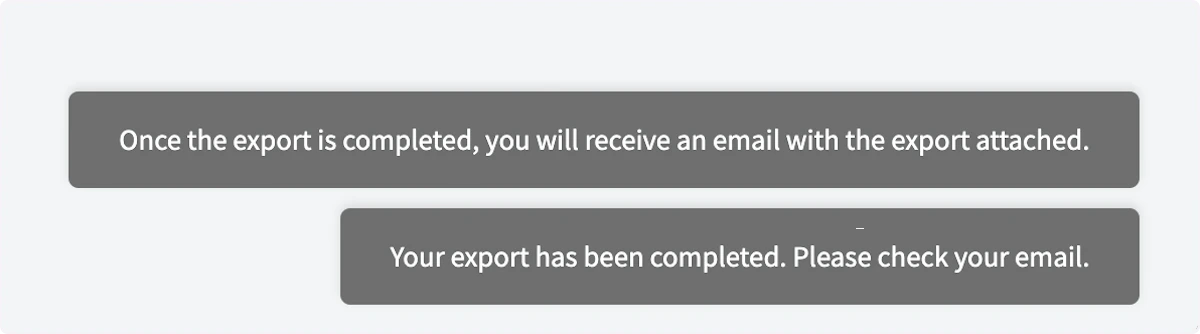
Wait for the export to complete
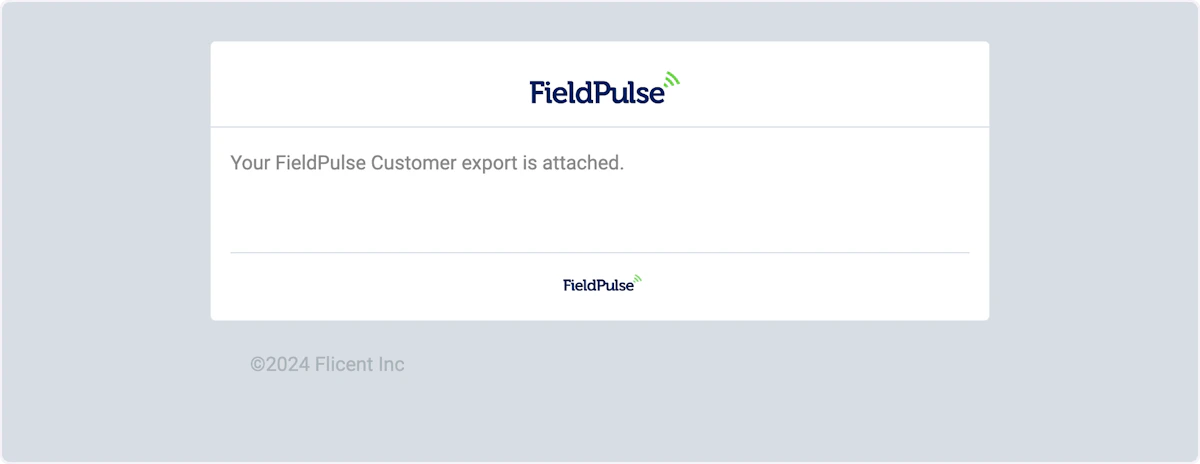
As soon as you click the Export button it will initiate the export. After the export has completed, a confirmation message will appear on your screen.