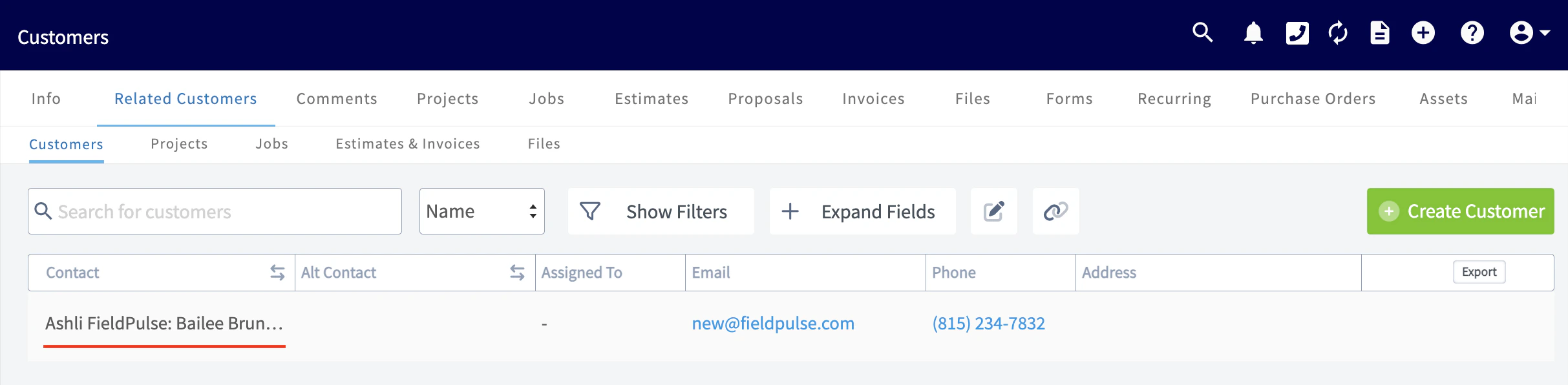
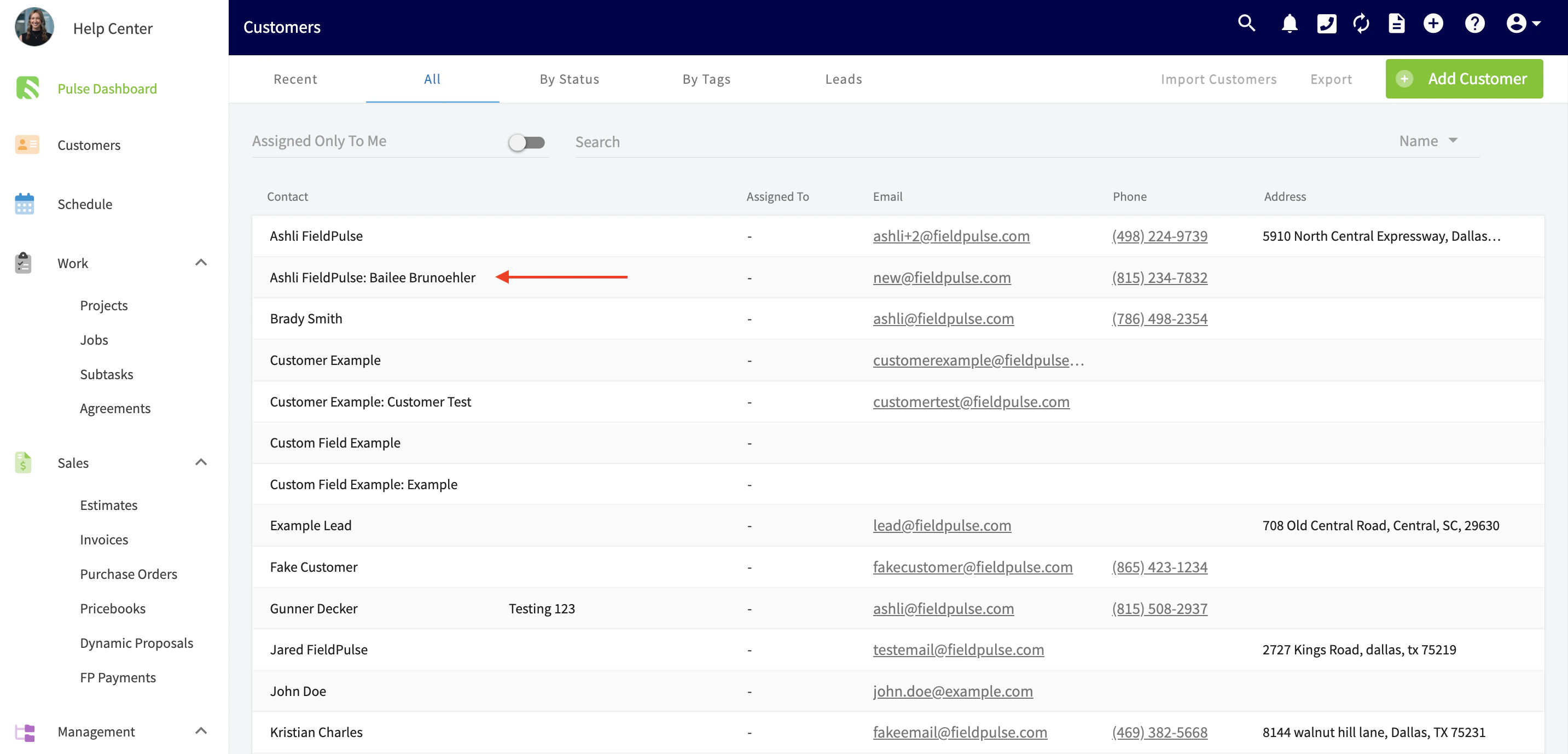
For some customer records, you may need to add additional contacts and/or additional locations under the same record. To do so, begin by creating a new customer record or editing an existing one.Documentation Index
Fetch the complete documentation index at: https://fieldpulse.mintlify.app/llms.txt
Use this file to discover all available pages before exploring further.
- Multi-Location & Contacts
- Parent/Child vs. Multi-Location
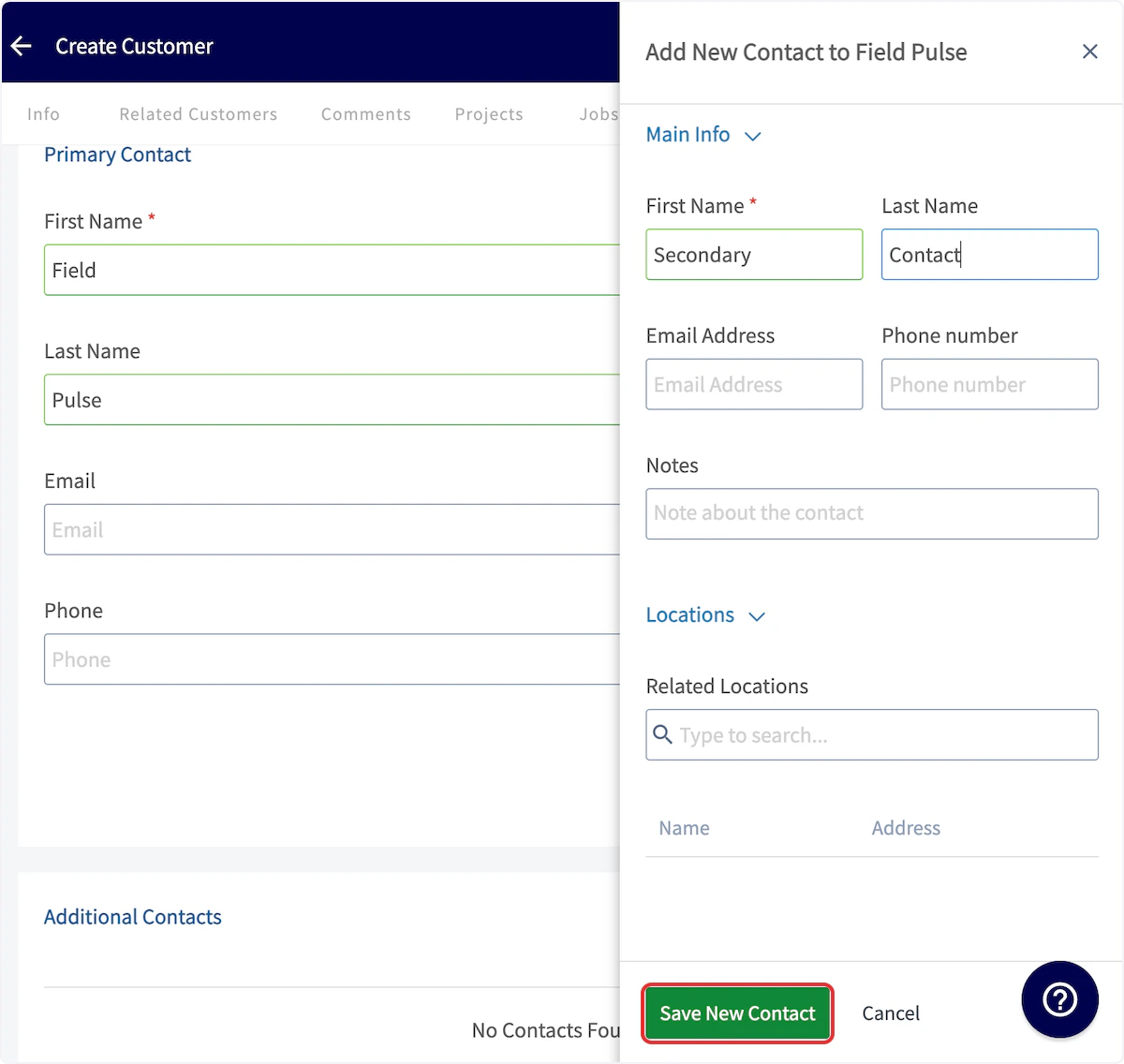
Adding Additional Contacts
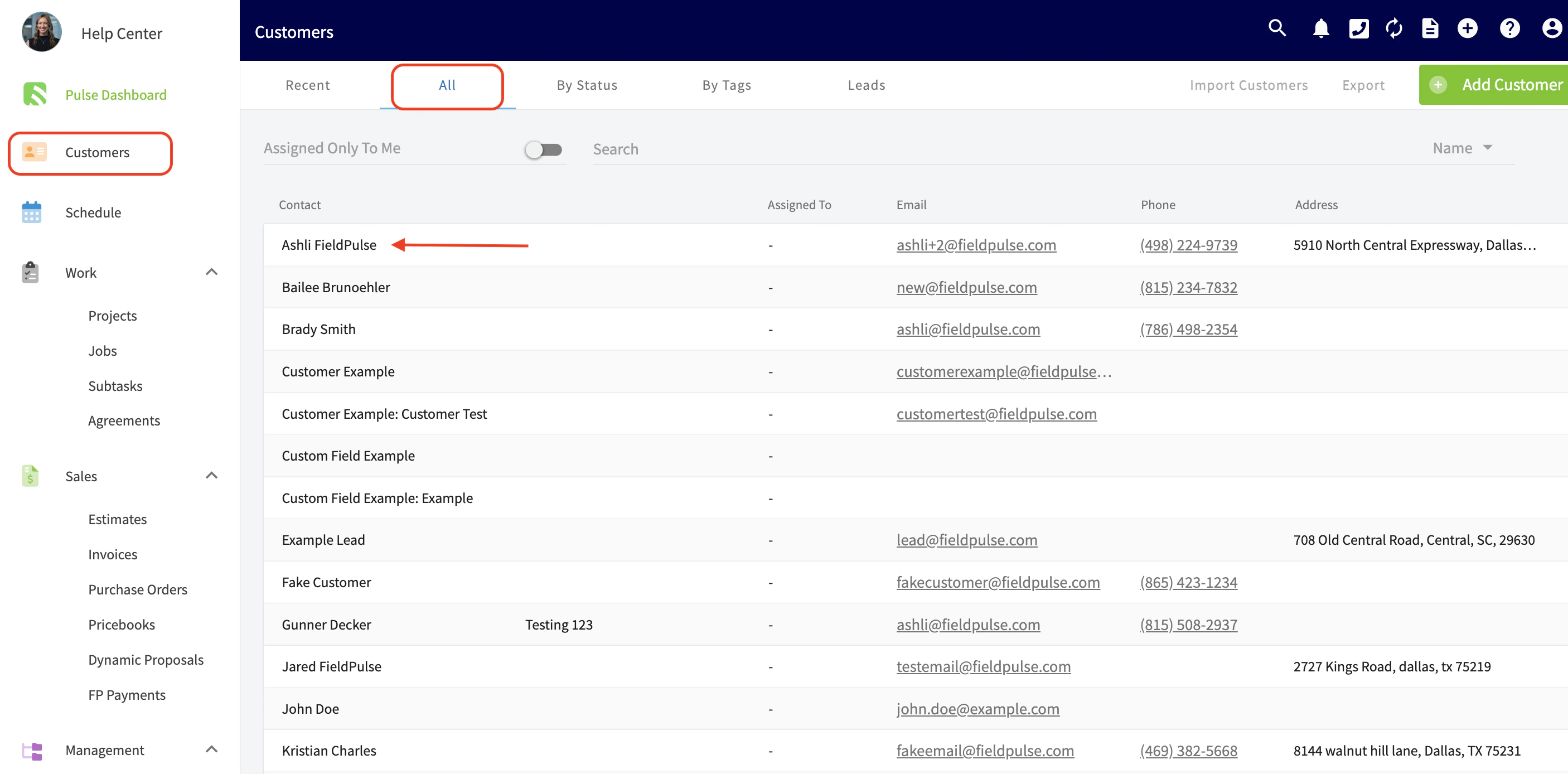
After entering the Primary Contact details, select Additional Contact.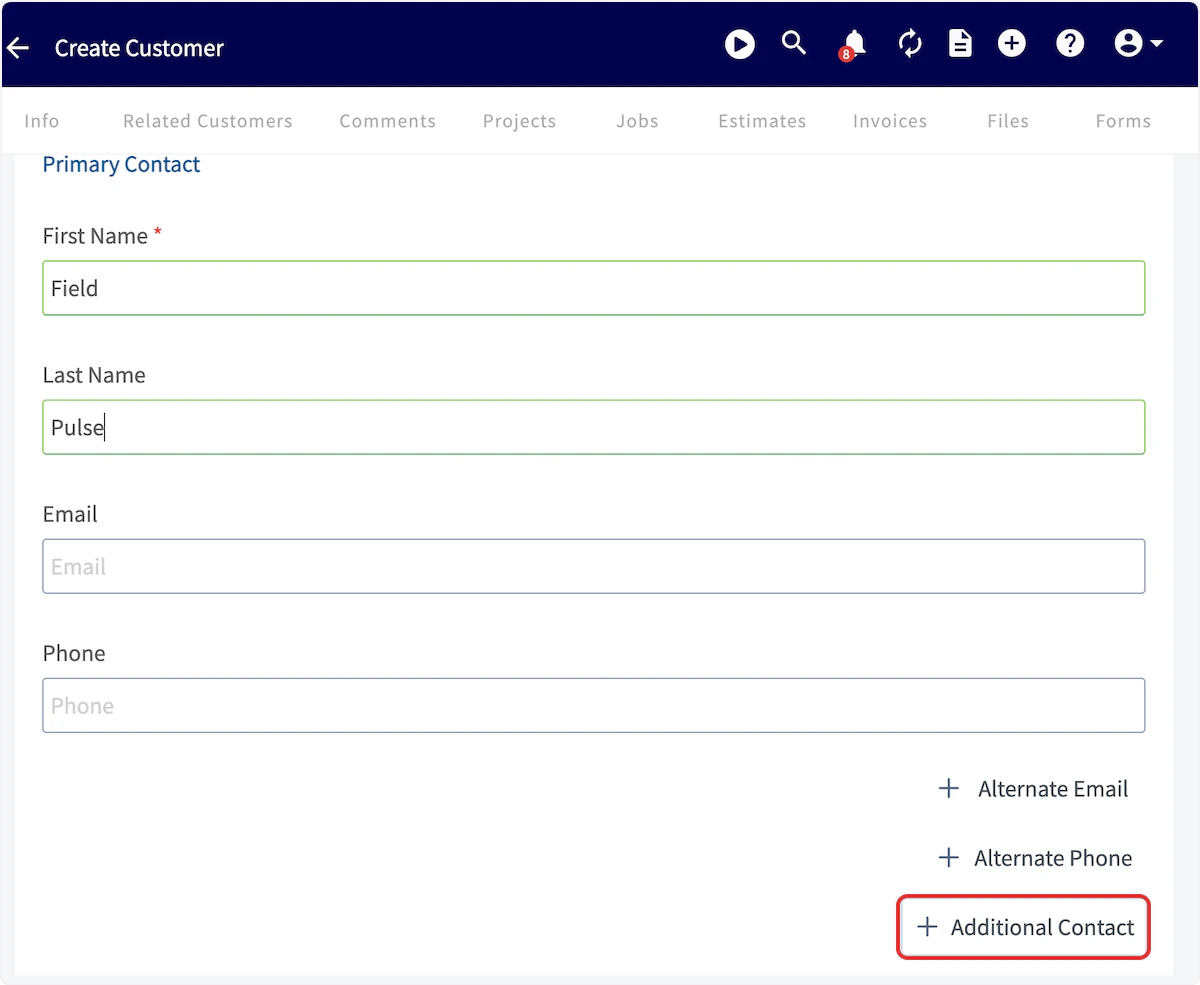
Adding Additional Locations
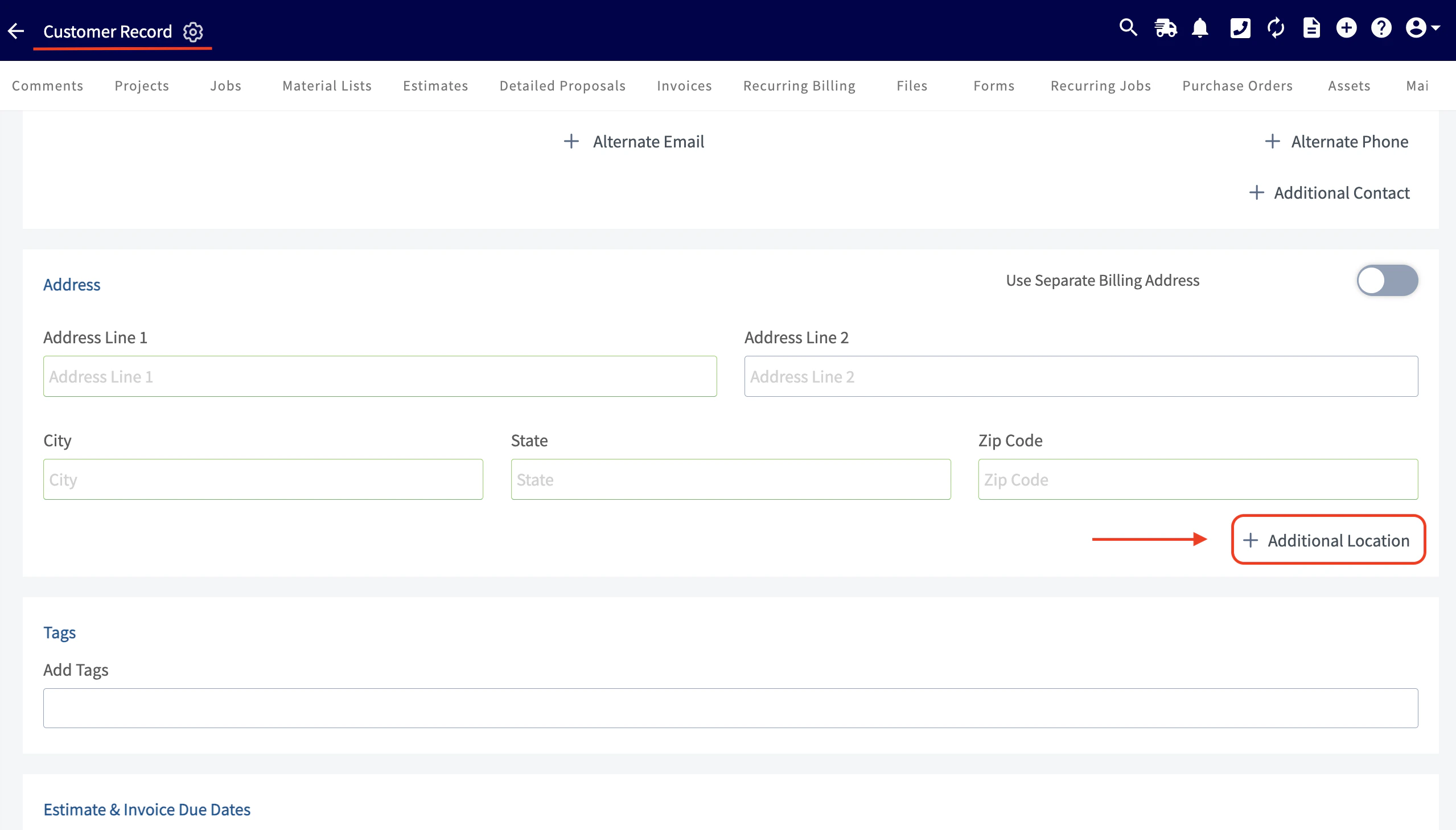
To add an additional location, enter the Primary Address, then select Additional Location. Enter the details for the additional location and press Save New Location.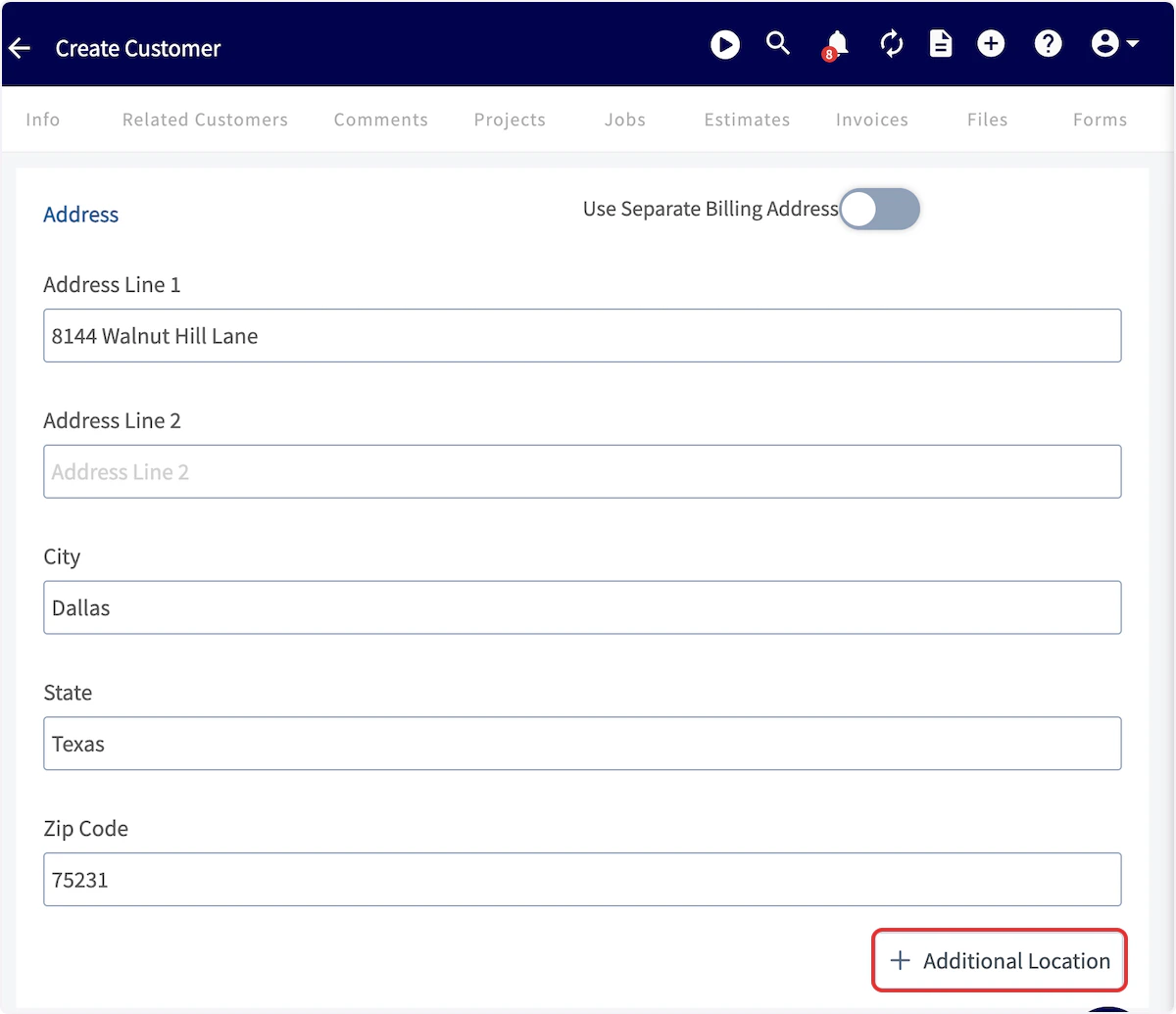
Connecting Locations & Contacts
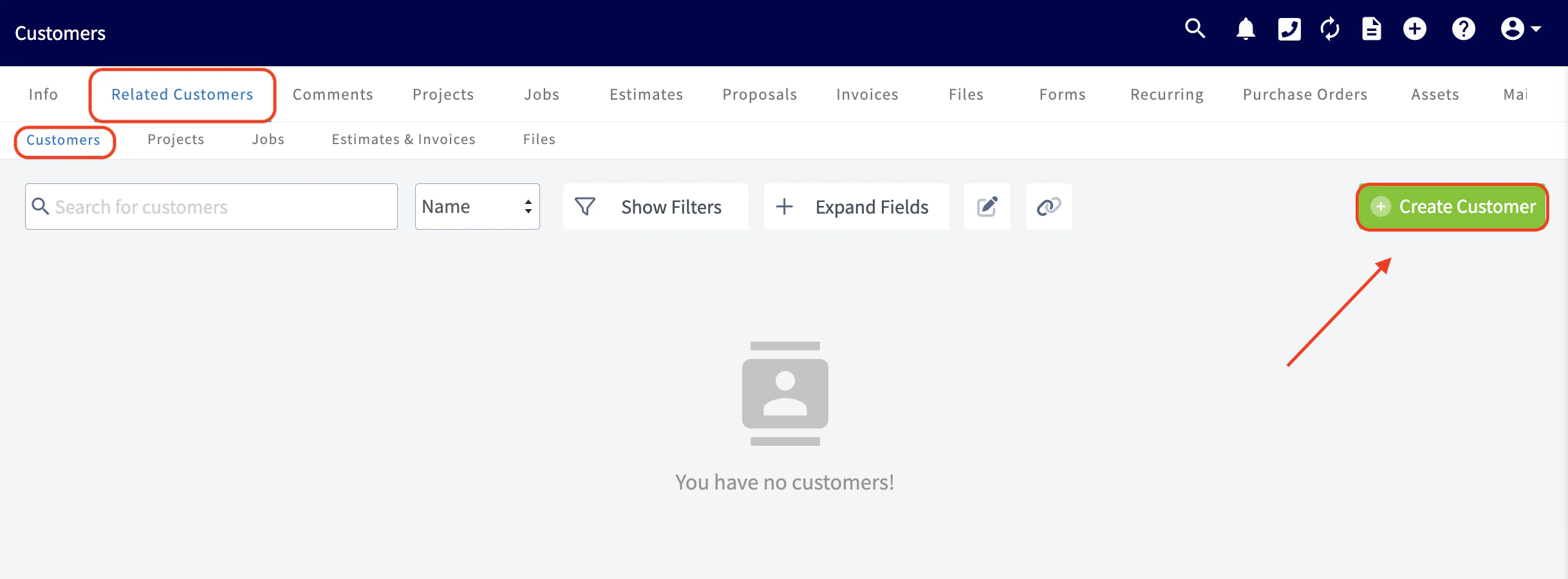
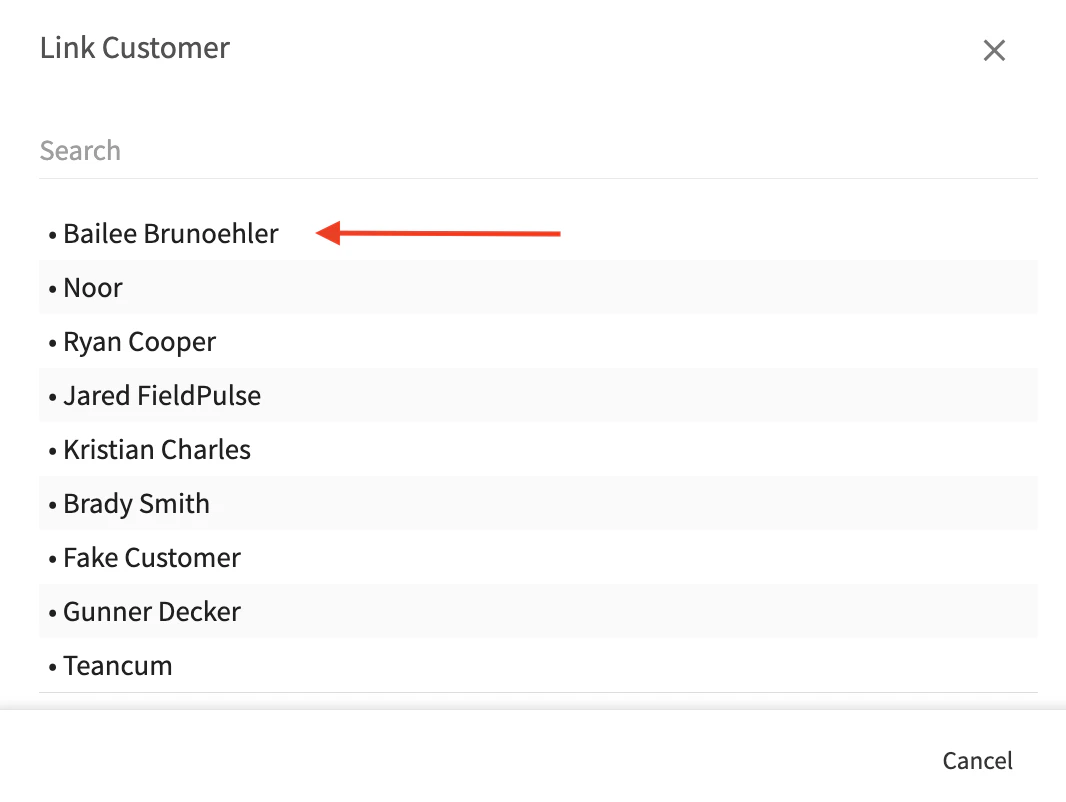
If you’d like to attach a contact to the additional location, search and select the contact in the Related Contacts field.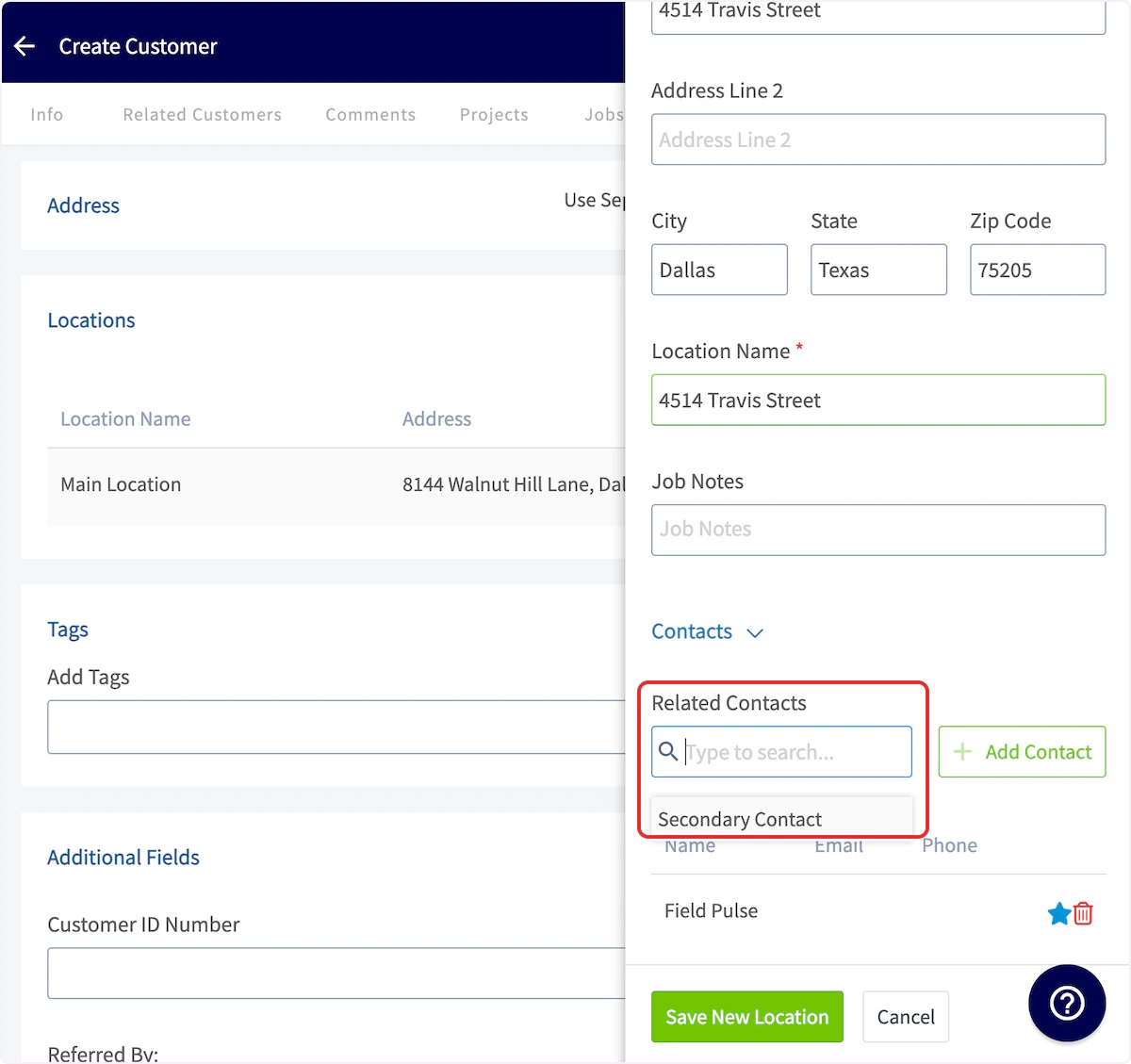
Designate Each Customer’s Primary Location
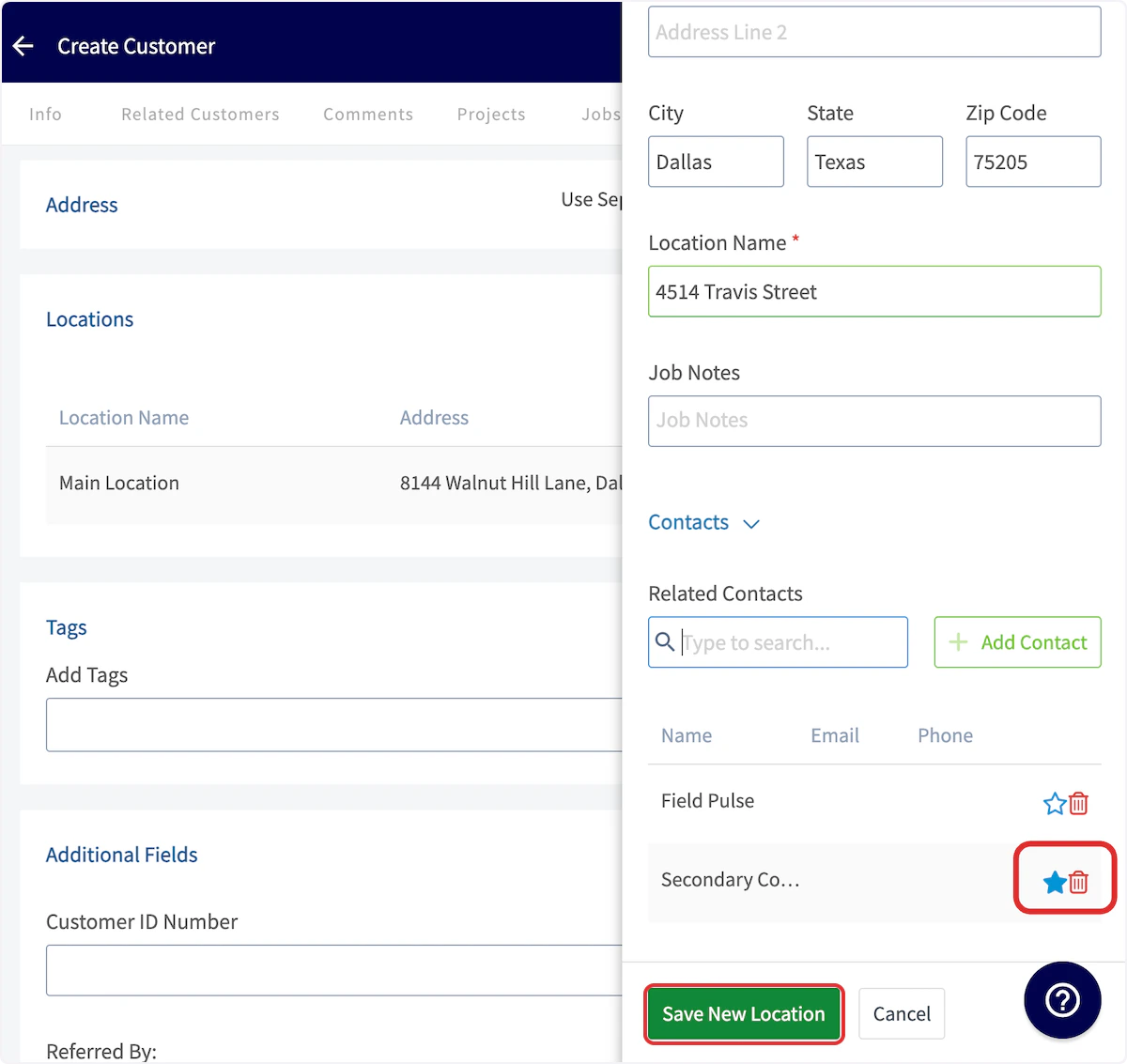
In the web app, simply star the location you wish to set as the customer’s Main Location. This will automatically be populated when creating any Job, Project, Estimate, or Invoice records for that customer.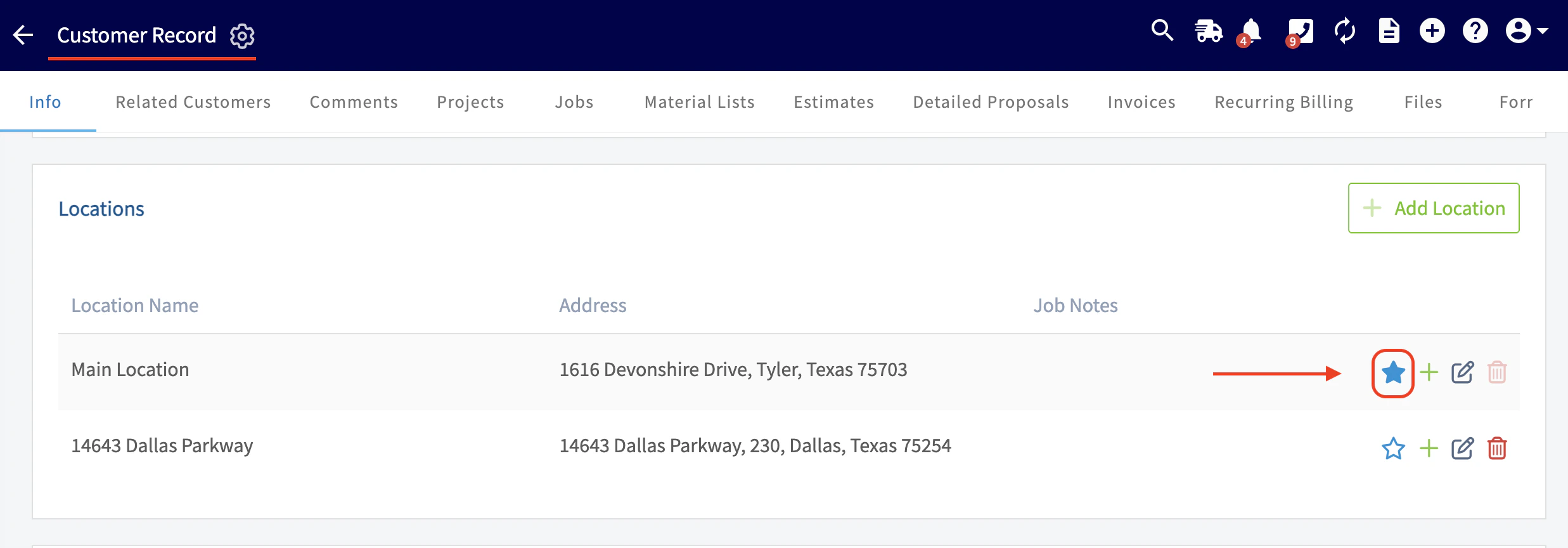
Import Additional Contacts & Locations
To save time, you can use the import feature to upload additional contacts and additional locations to a customer record.Additional Contacts
Click Import Contacts
On a customer record, scroll to find the Additional Contacts section then click the Import Contacts button.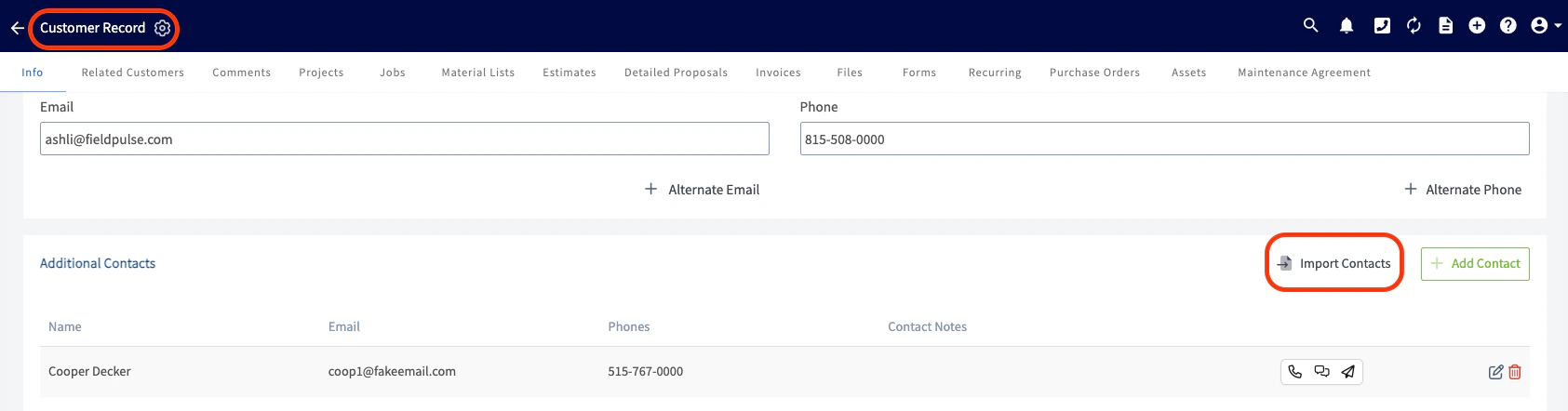
Download the template
A pop-up message will appear in the app, allowing you to download the necessary template for this import.
Fill in the template
You will need to fill in the template, ensuring that you do not alter the structure of the form. (Note: If you do not have Excel to fill the template, you can always utilize Google Sheets. See Self-Importing with Google Sheets to learn how).

Additional Locations
Click Import Locations
On a customer record, scroll to find the Additional Locations section then click the Import Locations button.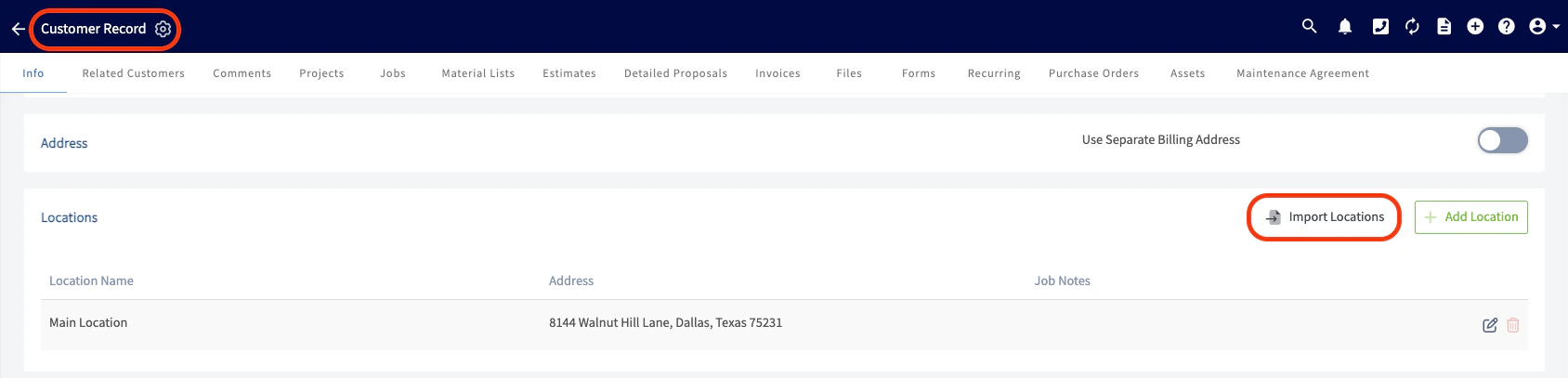
Download the template
A pop-up message will appear in the app, allowing you to download the necessary template for this import.
Fill in the template
You will need to fill in the template, ensuring that you do not alter the structure of the form.

On Job Records
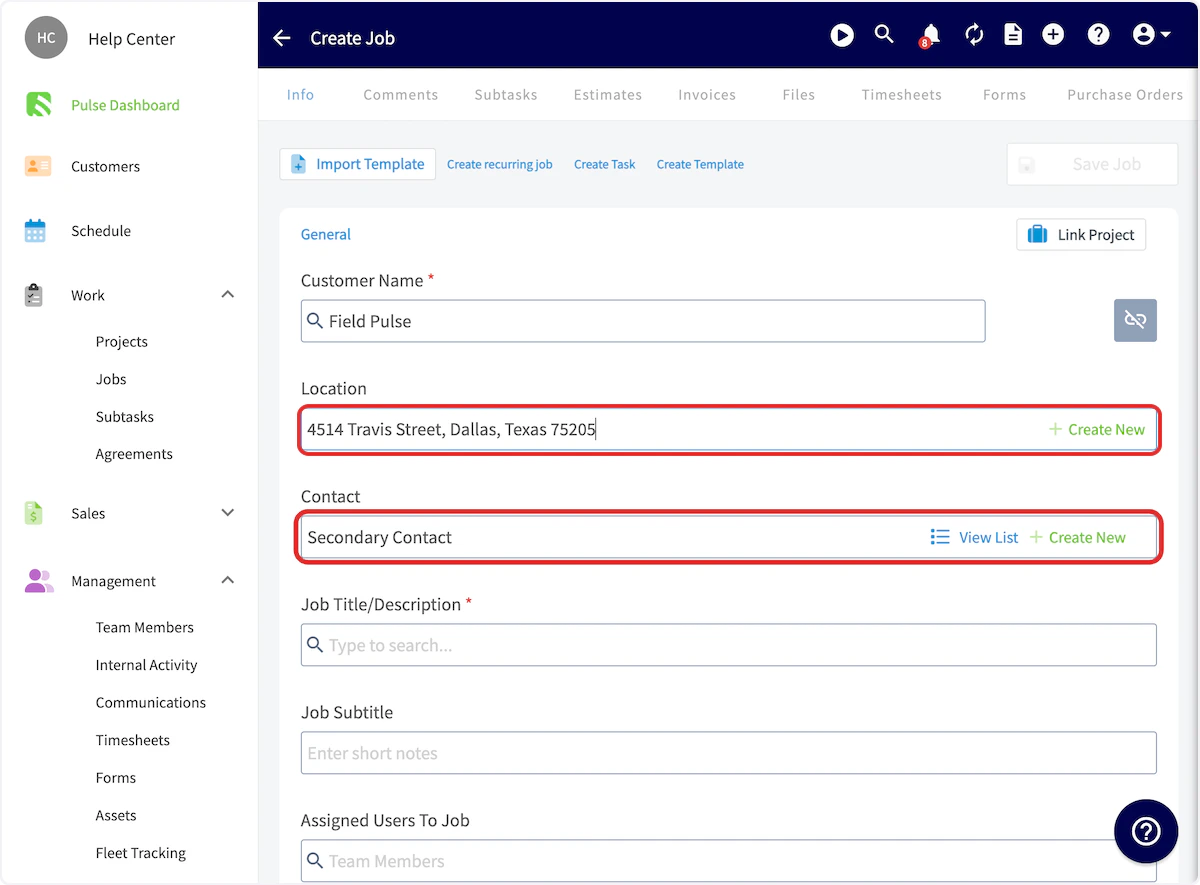
If you want to change the location on a job record, click on the Location field and select the applicable address. If you have a contact connected to this address, the Contact field will automatically change as well.When a job has a specific contact selected, all automatic customer communications will be sent directly to that designated contact.