

Documentation Index
Fetch the complete documentation index at: https://fieldpulse.mintlify.app/llms.txt
Use this file to discover all available pages before exploring further.
What are Material Lists?
Material lists are a way to keep track of what materials you need for a job and what you actually used. Material lists help you stay organized and ensure you are prepared to complete jobs and projects of all sizes. Material lists can vary in detail depending on your needs. They can include items that will be directly incorporated into the estimate or invoice, or you can choose to create a more comprehensive list that details every aspect of the job/project. For example, you might list primary materials such as pipes, fittings, and fixtures, but you can also include tools like wrenches, pipe cutters, and plungers. Additionally, consider adding consumables such as Teflon tape, sealants, and joint compounds, as well as any specialized equipment needed for the installation, like pipe inspection cameras or drain snakes. The level of detail is entirely up to you!Here’s how they work:
- When you visit a job site, you can make a list of all the materials you’ll need to get the work done. This helps you know exactly what to buy. Or an alternative to this is your company creating an estimate first. The technician can then fill out the material list based on the materials needed to complete the work or for what they actually used during the job.
- After you create the list, a colleague can check it. This list can then be used to create an estimate (a rough cost of the job) or an invoice (the final bill).
- You can choose to include some or all of the materials from your list in the estimate or invoice so the customer knows exactly what they’re paying for.
How to Enable Material Lists
Start by clicking on Company Settings from the menu on the left hand side of your screen and selecting Features & Plugins. Navigate to Material Lists and select Enable.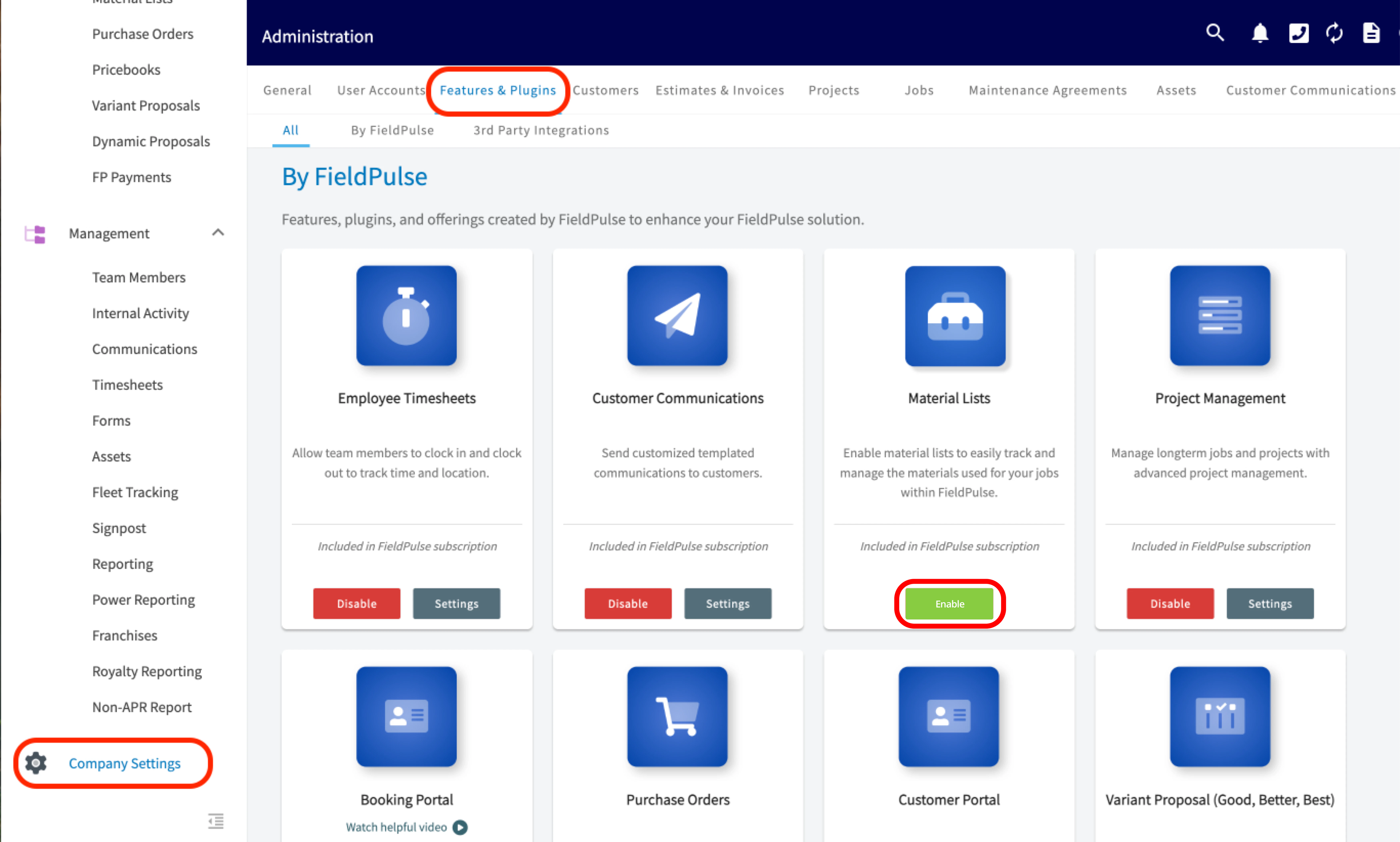
Material List Templates
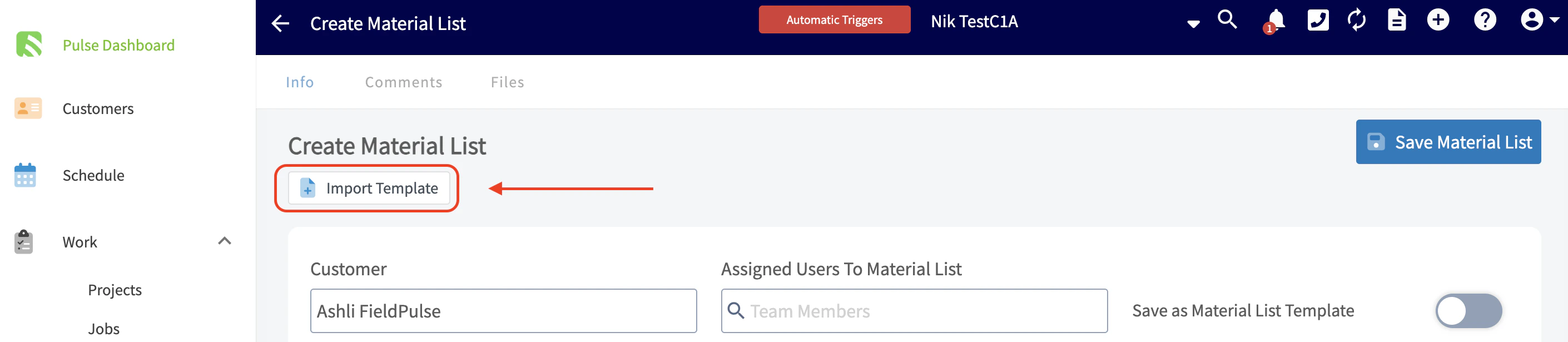
When creating a material list, you can always save it as a template by toggling on the button that says Save as Material List Template. By doing this, it will save you time and allow you to insert these templates on to any job, project, purchase order, estimate, or invoice record.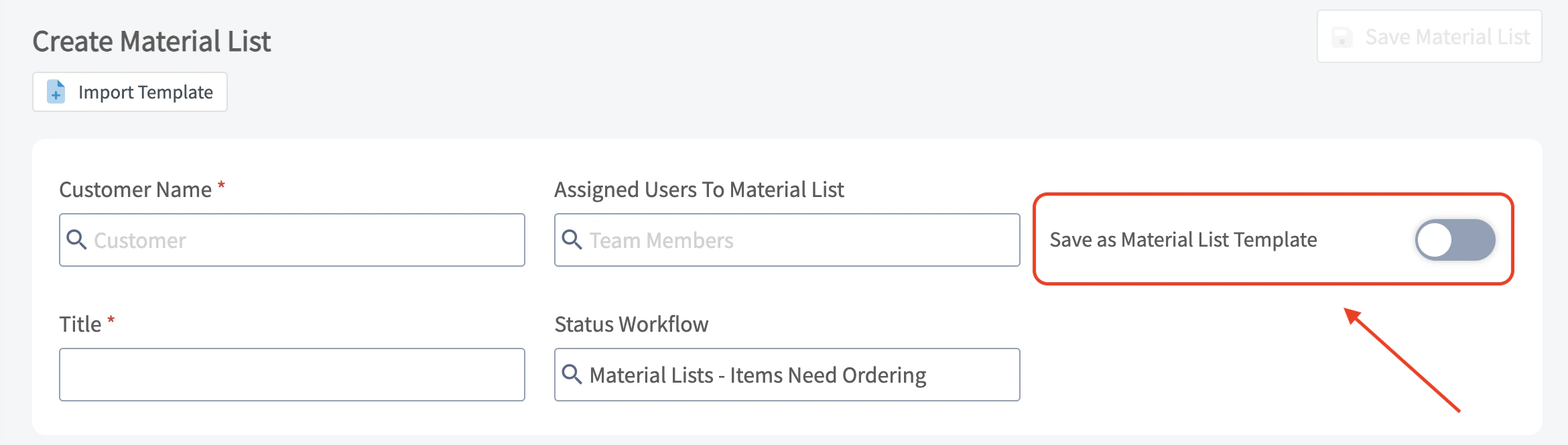
Creating a Material List
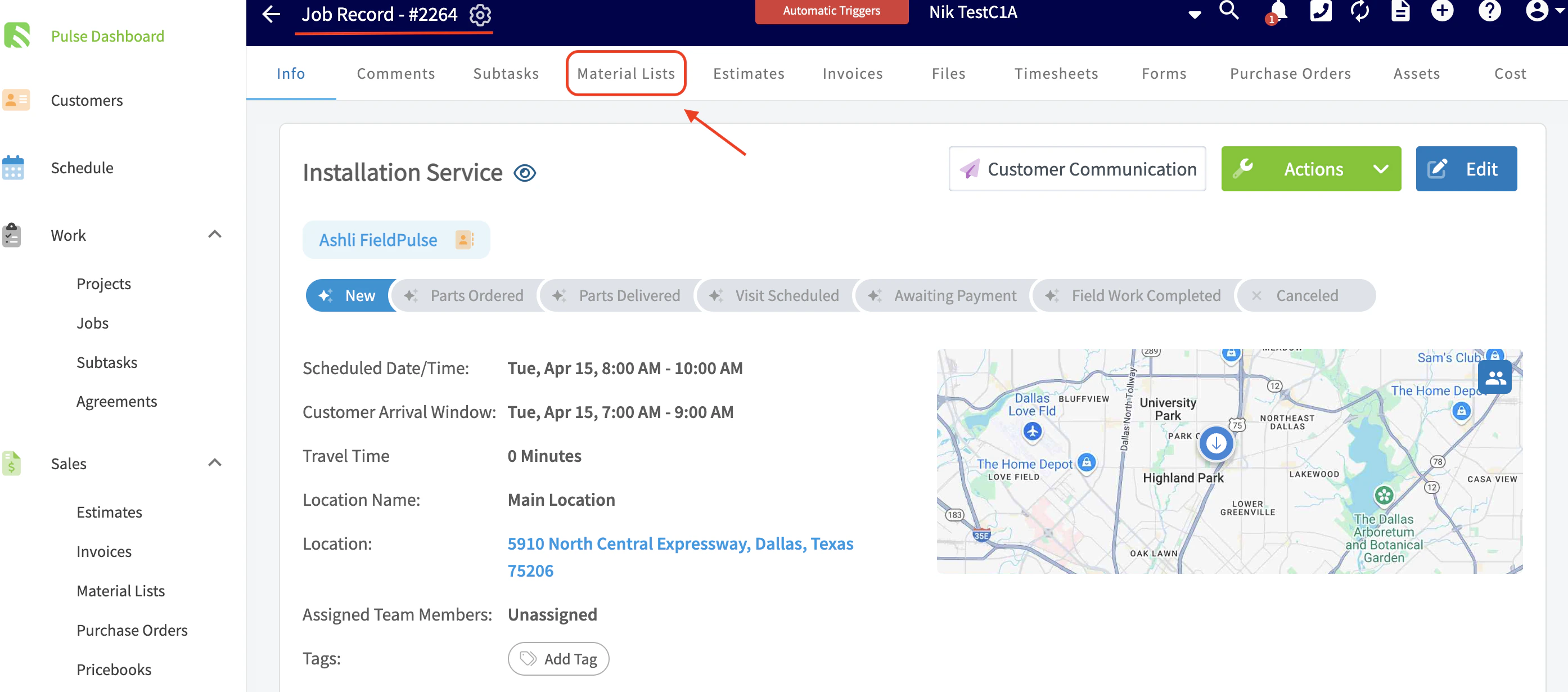
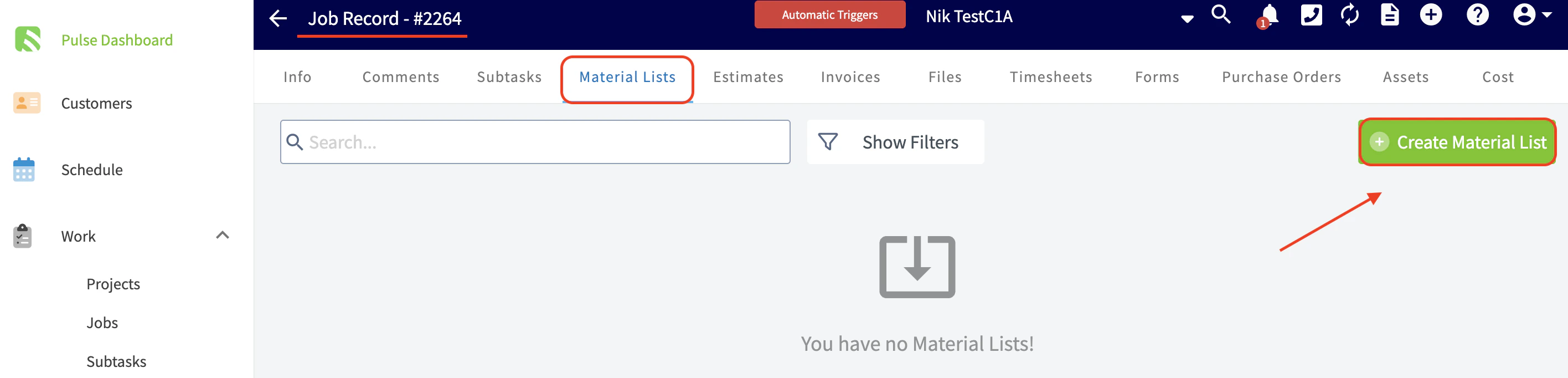
To get started, click on the Material Lists tab in the left side menu. Once on the Material Lists page, click the green Create Material List button.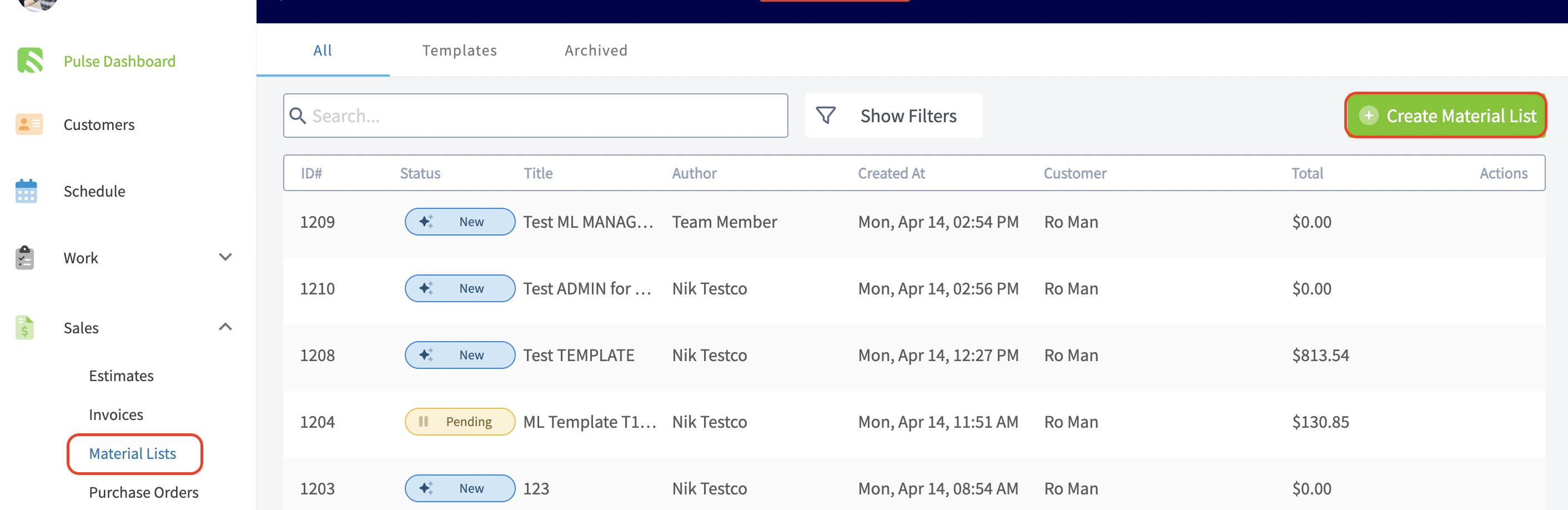
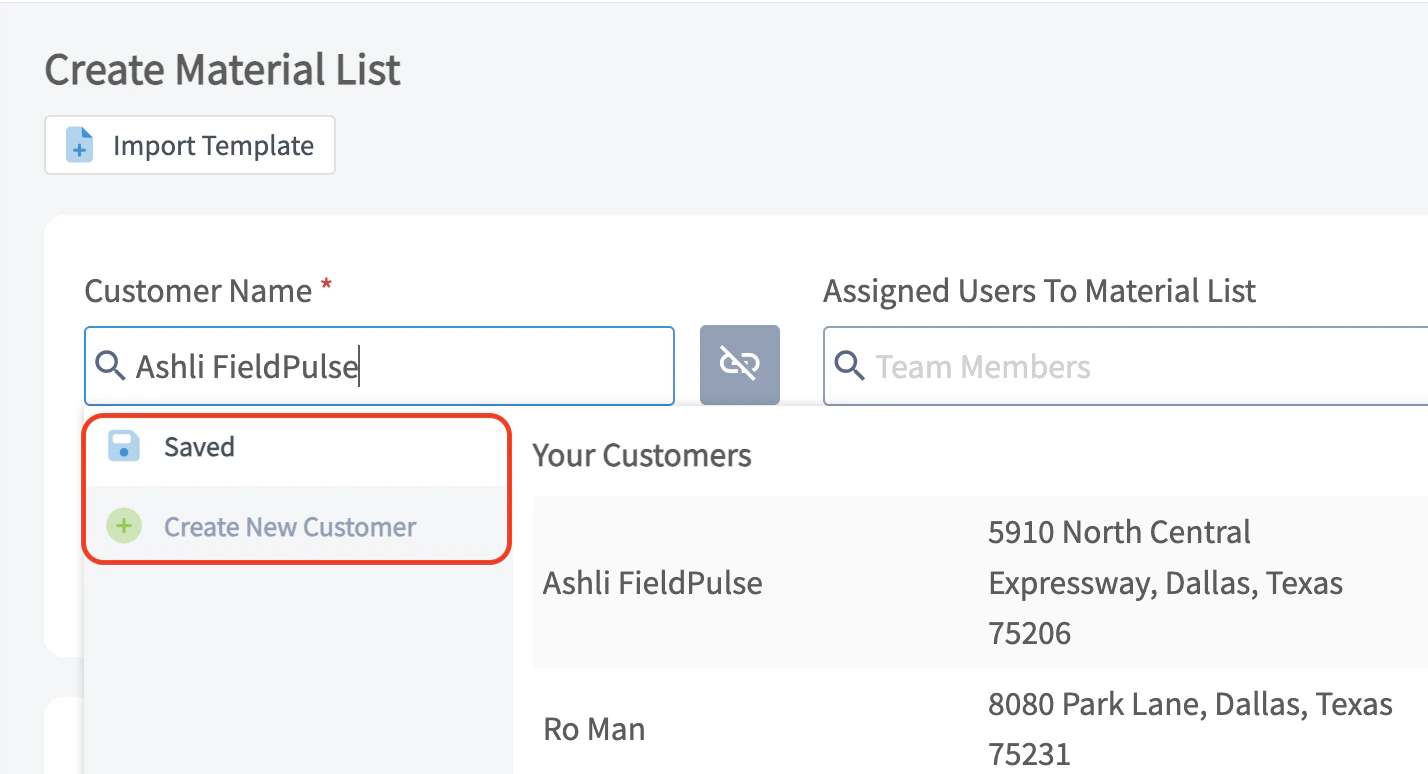
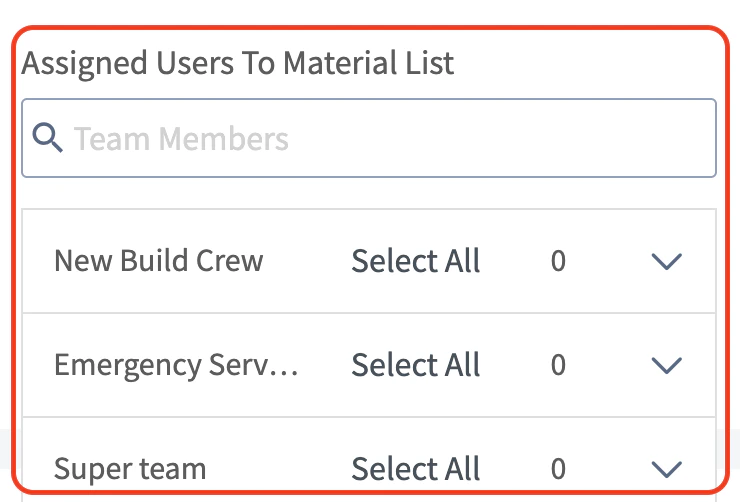
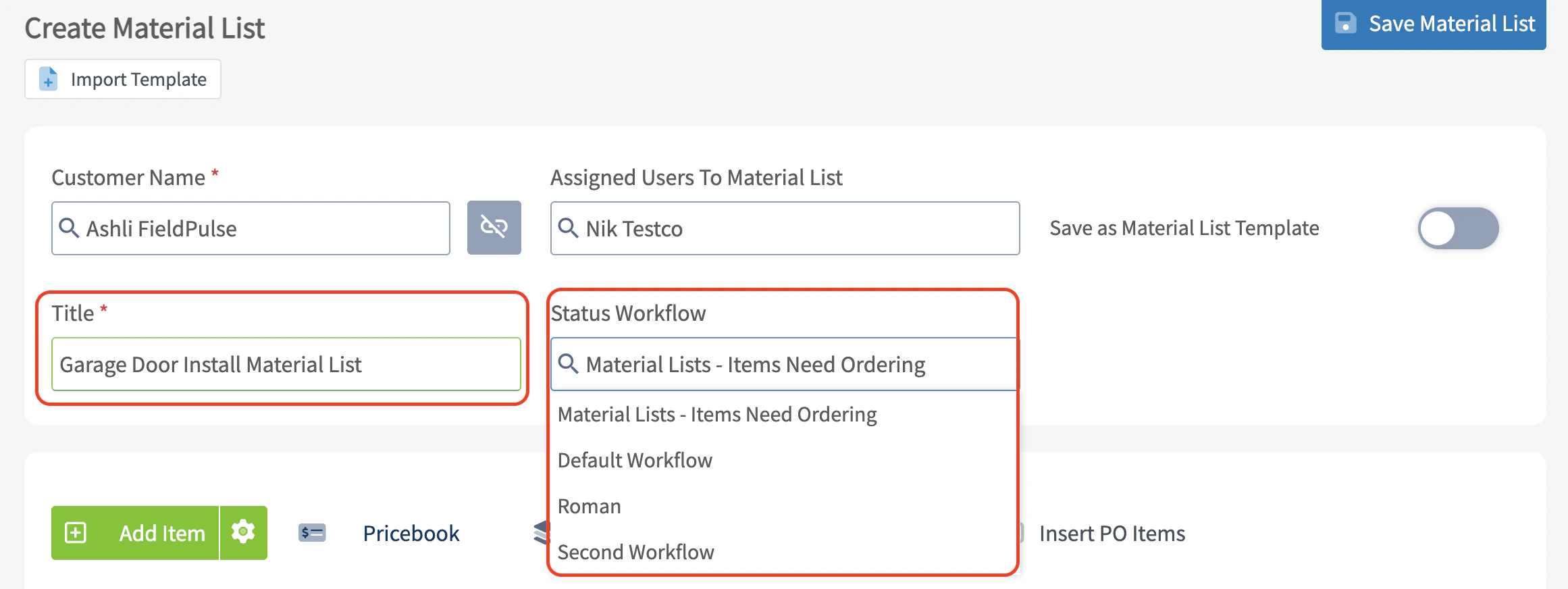
Adding Existing Line Items:
The magic begins when you add your line items! Here you will add all of the items that will make up your material list. Our material lists do support groupings. You can also select the green Add Item button and an additional tab will automatically open towards the right hand side of your screen.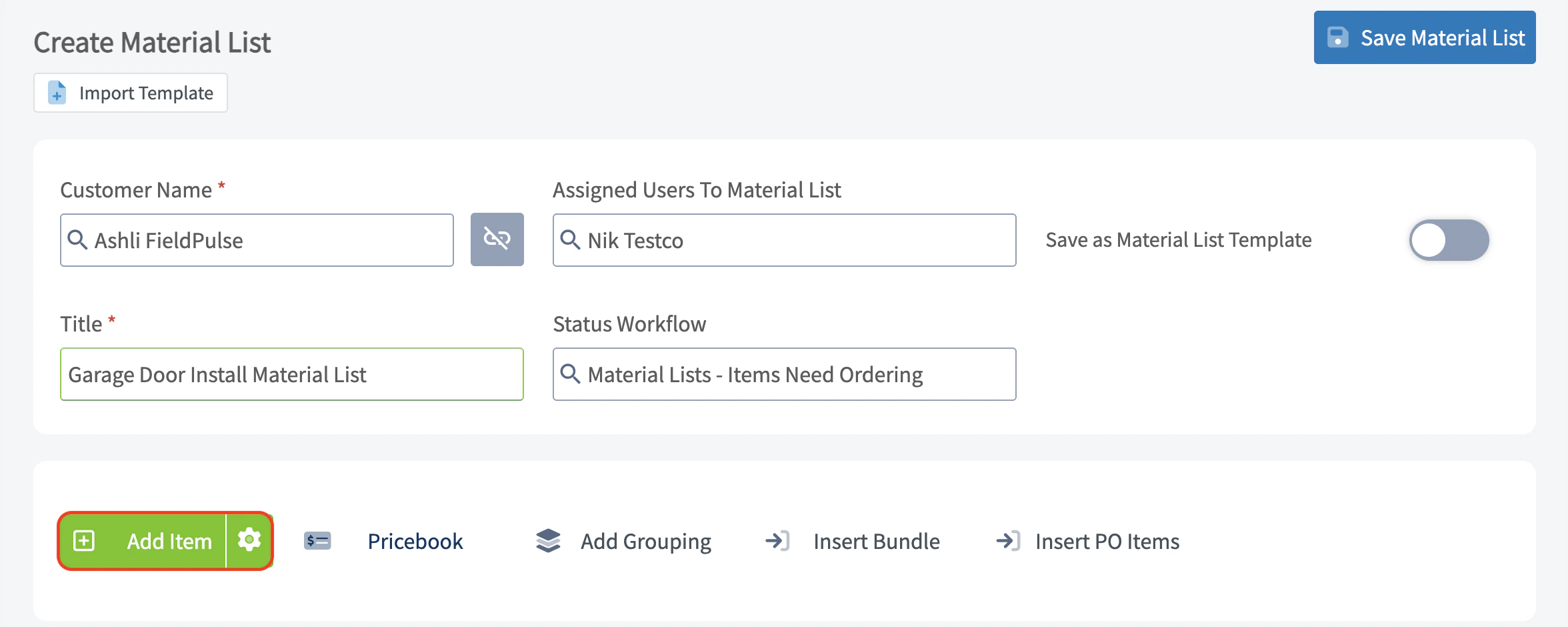
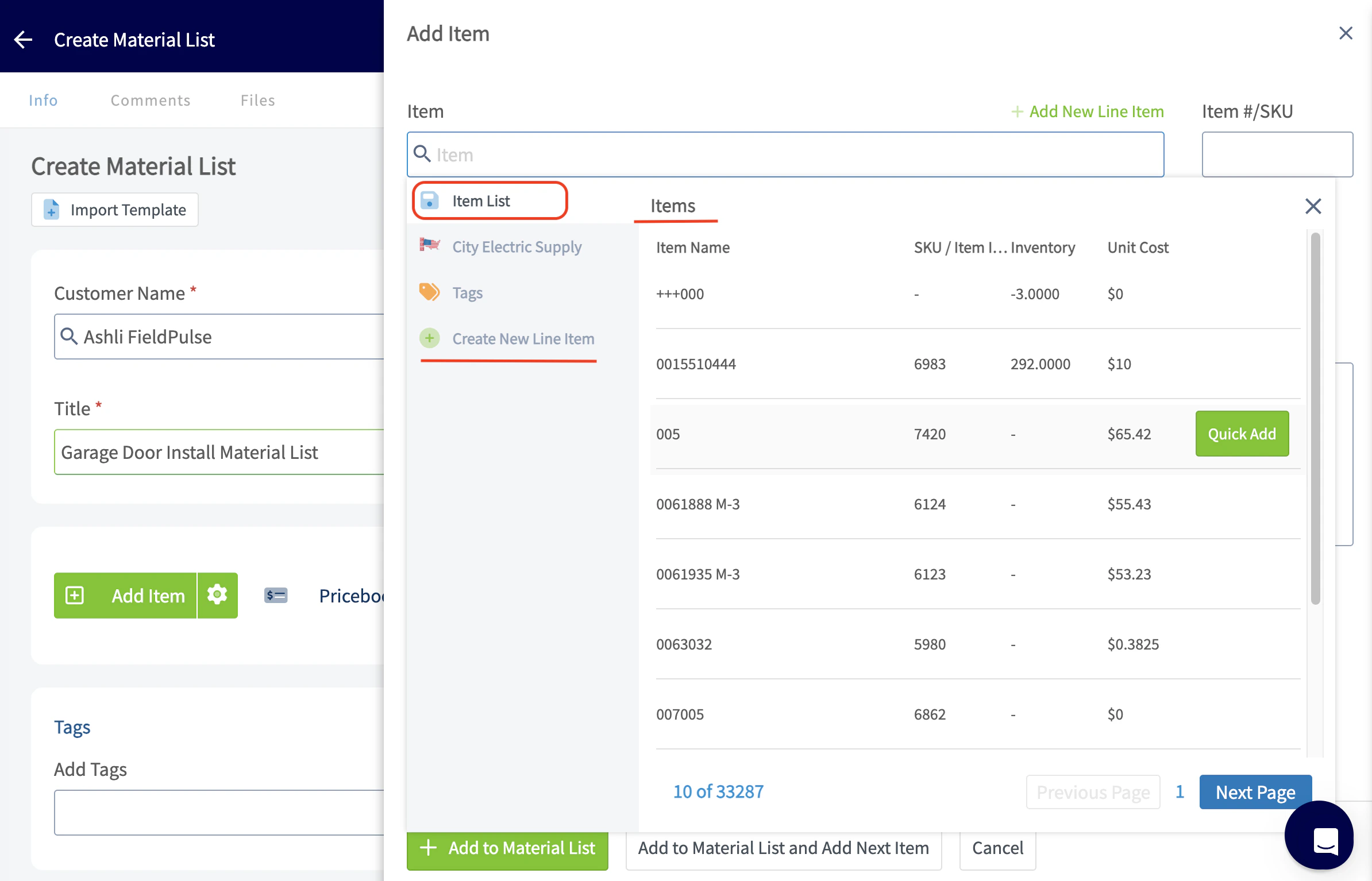

Creating/Adding a New Line Item:
To learn how to create or add a new line item, click here.Adding Tags:
Now, you can add tags if needed. Tags can be used to filter or run a specific report by the tag you have created.You can use this field to search for existing tags or create a new one, just be sure to press Enter after typing a new tag.
Adding Notes:
Enter any notes relevant to the material list in the Internal Notes or Transfer Notes field. Any notes entered in the Transfer Notes field will carry over to any other related records that this material list is attached/linked to. You can also attach any important files as well. Be sure to press the blue Save Material List button when you are finished.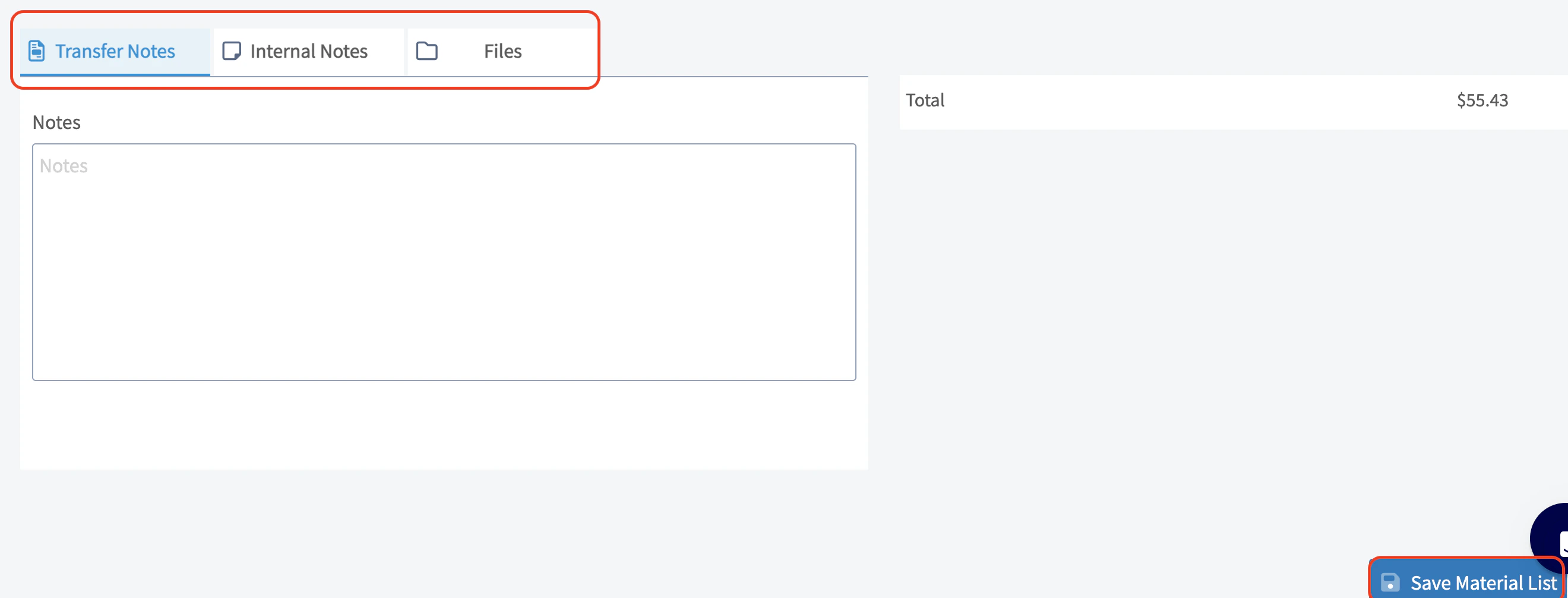
Viewing a Material List
Adding Material List Items to a New Record:
When on the material list, you have the option to quickly add items from your material list to a new record. You can choose from one of the one of the following records for these materials to be added to: Estimate, Invoice, Purchase Order, Material List, Job.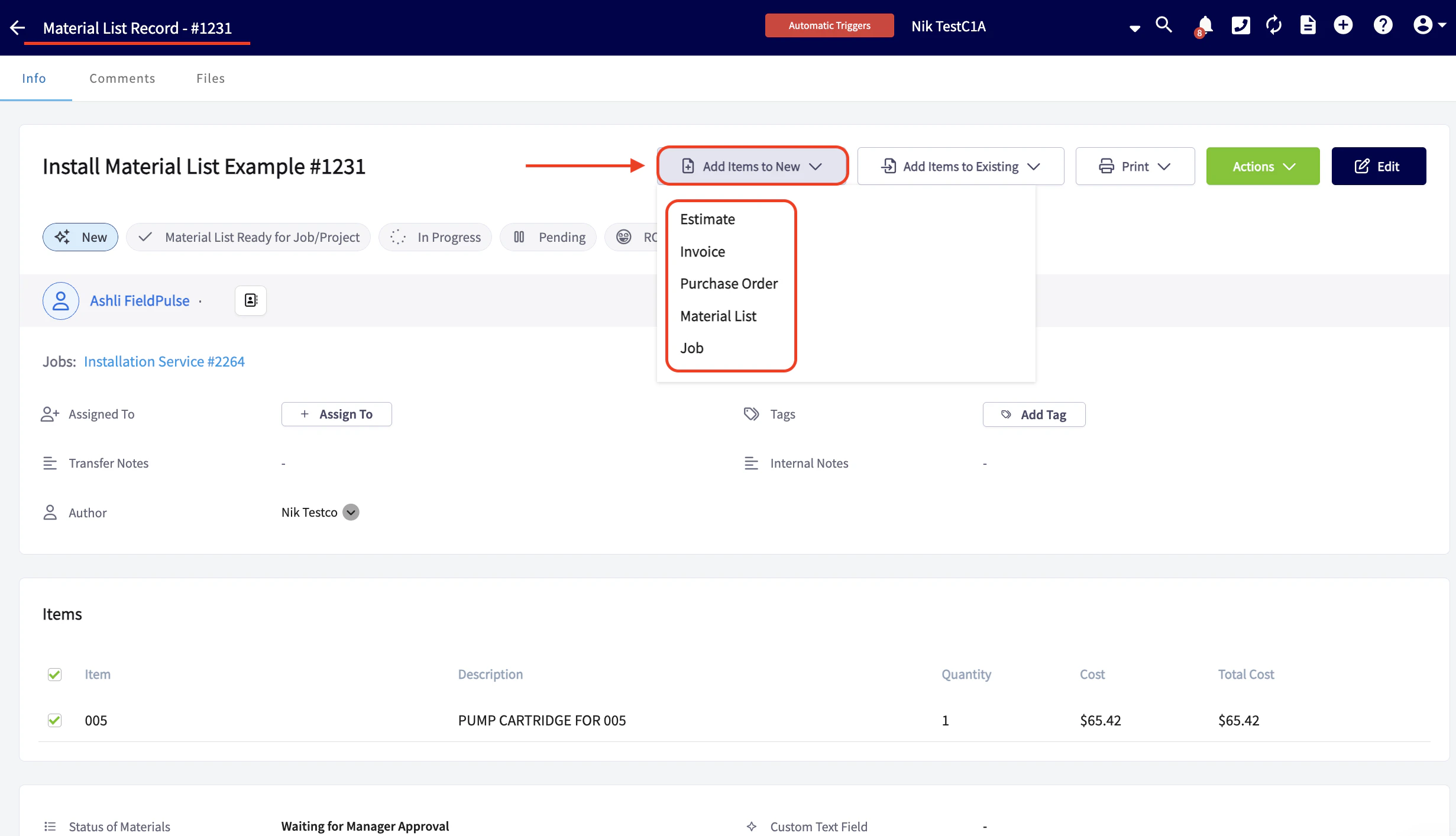
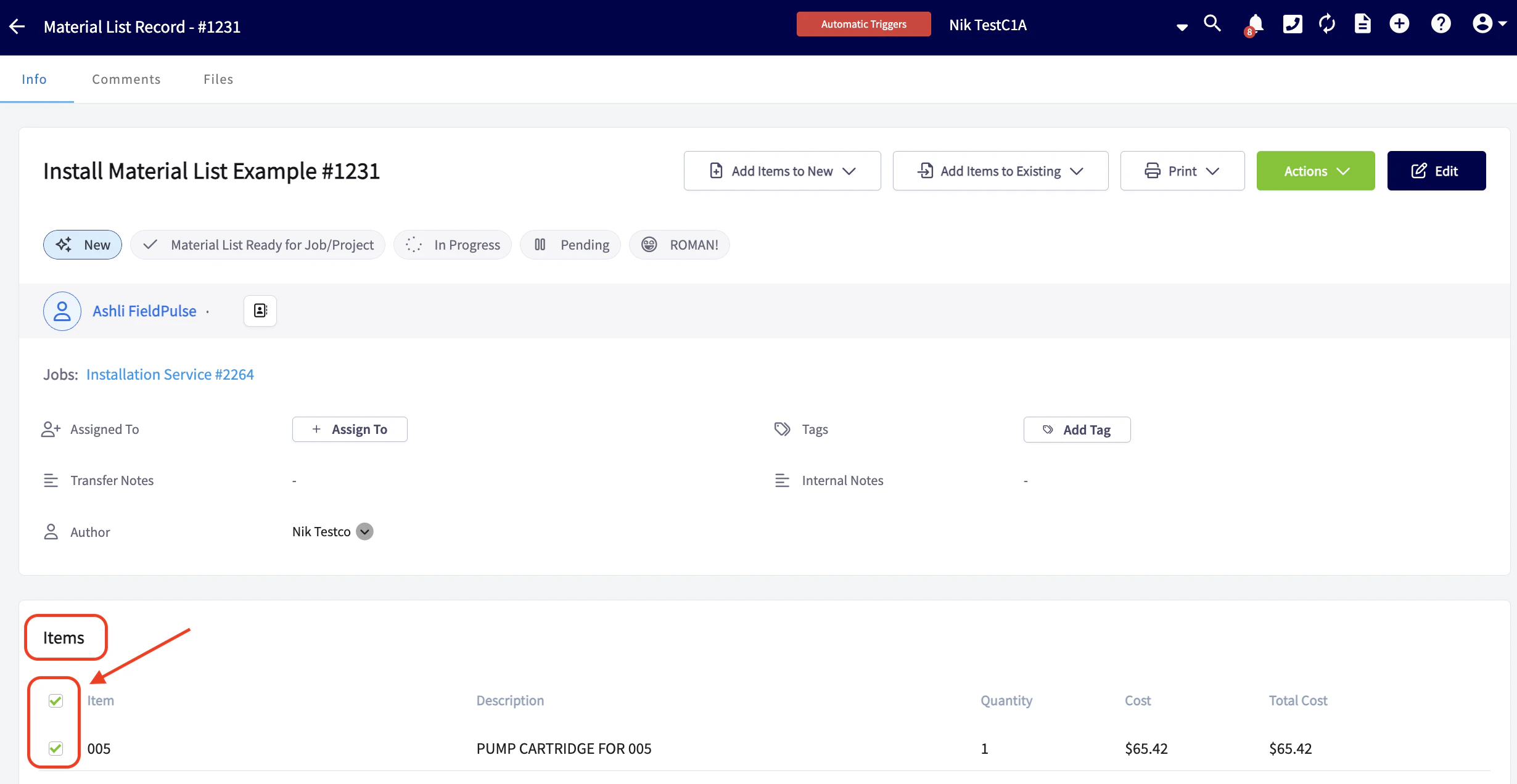
Adding Material List Items to an Existing Record:
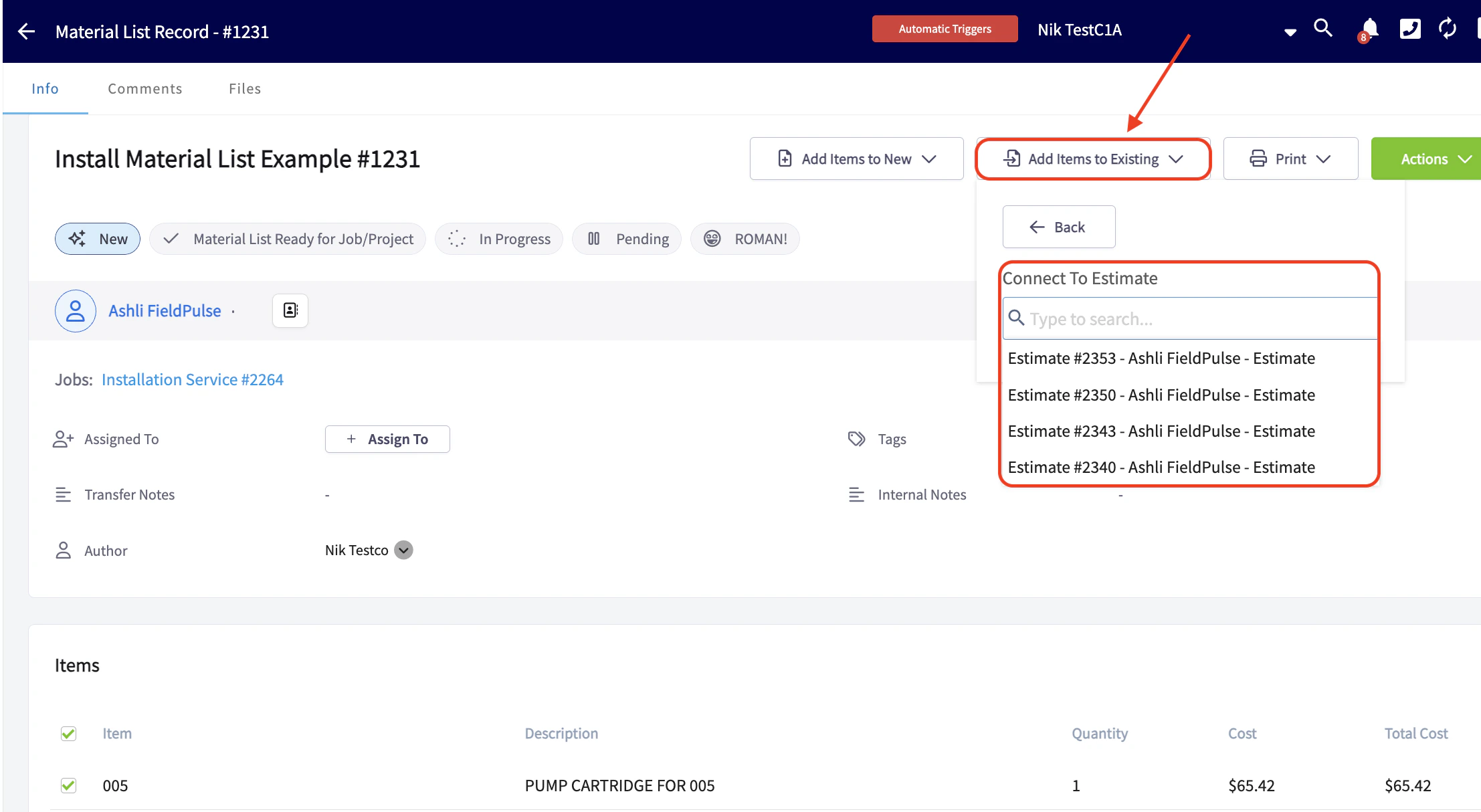
When on the material list, you also have the option to quickly add items from your material list to an existing record. You can choose from one of the one of the following records for these materials to be added to: Estimate, Invoice, Purchase Order, Job.
Links to Associated Records:
Any records associated with this material list will be displayed here, and you can click on the blue hyperlinks to view the detailed information for each record.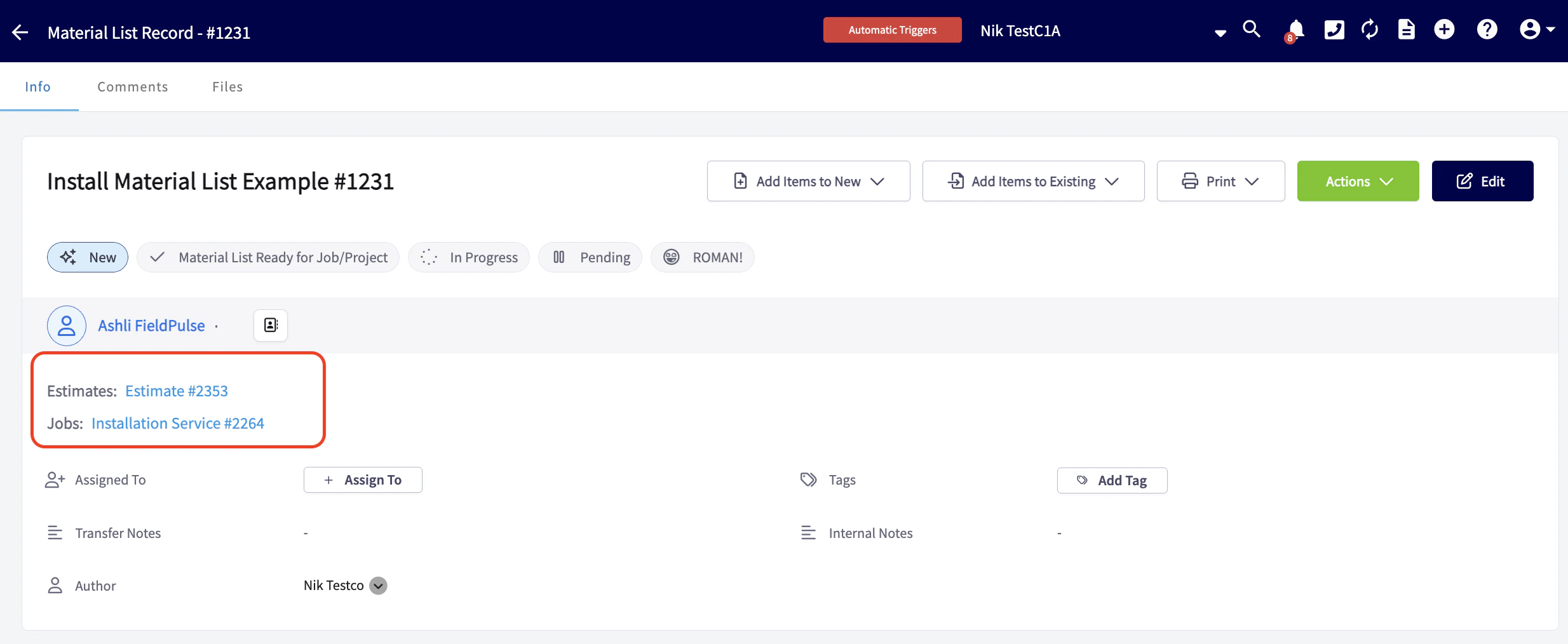
Printing Material Lists:
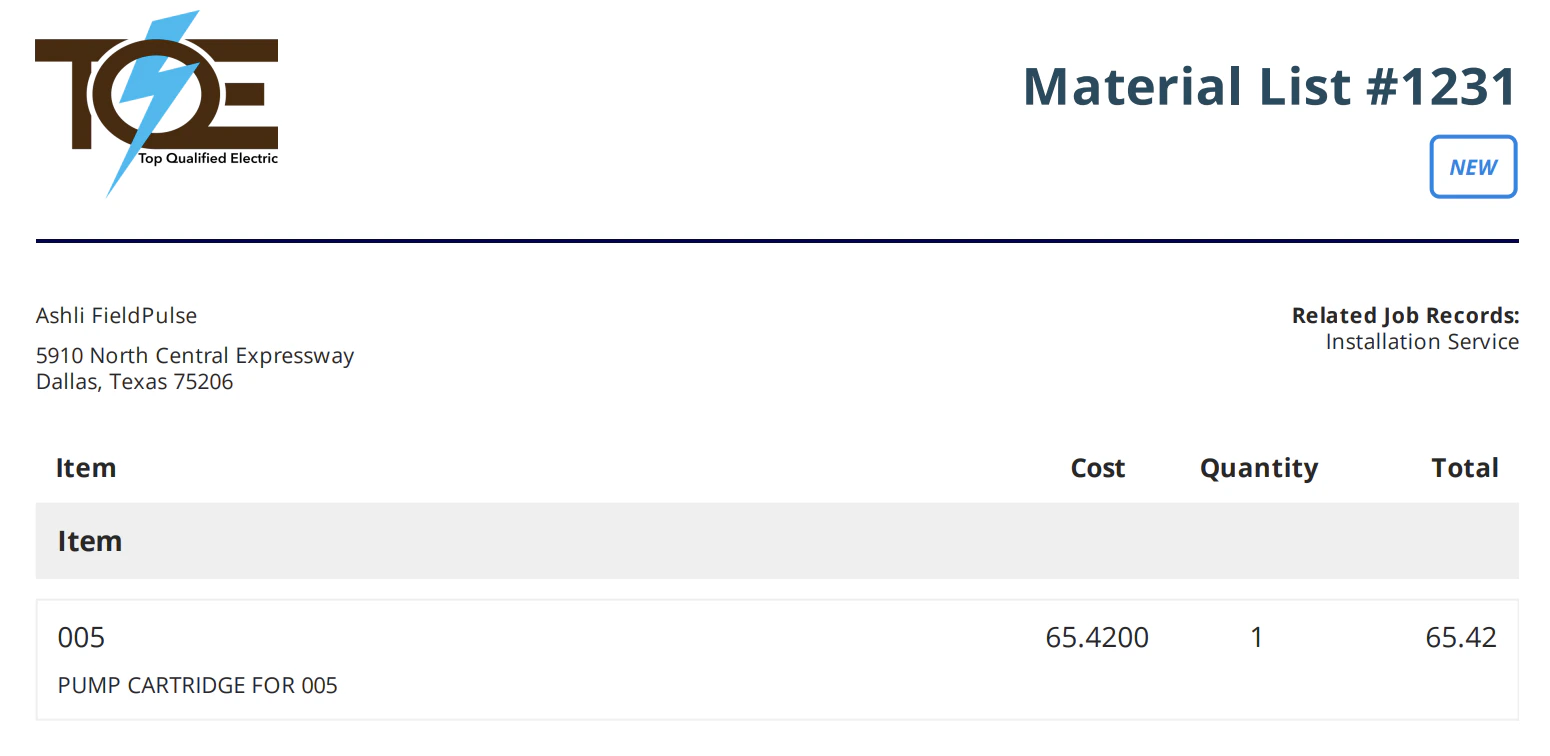
Do you prefer to print your material lists before loading up your vehicles for a successful day on the job? You can absolutely do that! Our printing options allow you to generate clean, neat, and organized material lists, ensuring you have everything you need at a glance. You can choose to print your lists with or without cost details, making it easy to stay prepared and efficient for the day ahead.Print view with costs:
Print view without costs:

Permissions
You can turn material lists on or off per user. To do so, navigate to Company Settings from the menu on the left hand side of your screen and select User Accounts. Navigate to the Users tab and select the first user you’d like to turn material lists on for. After adjusting your permissions ensure you press the Save button.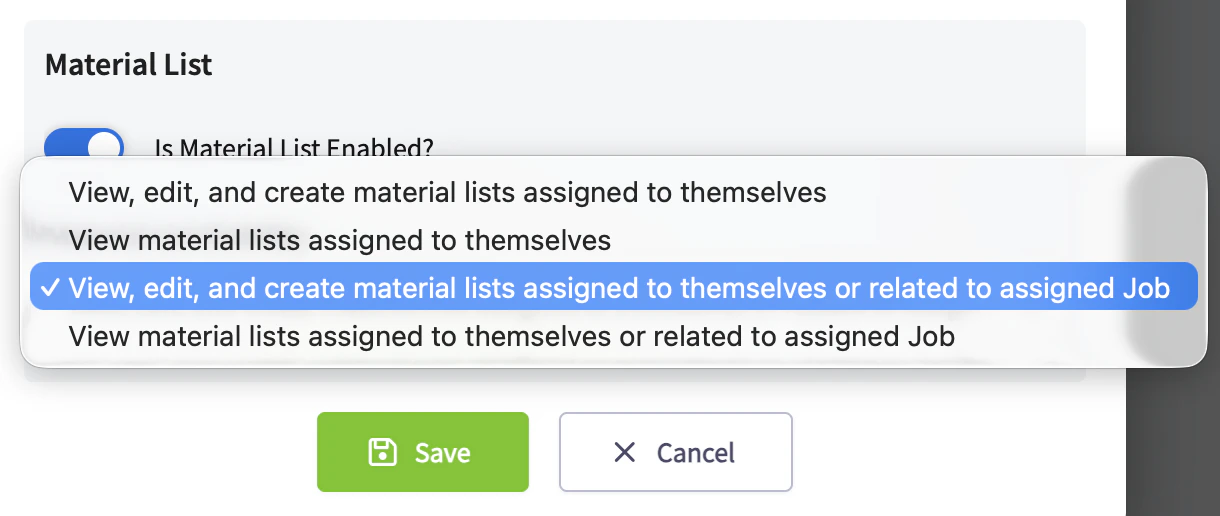
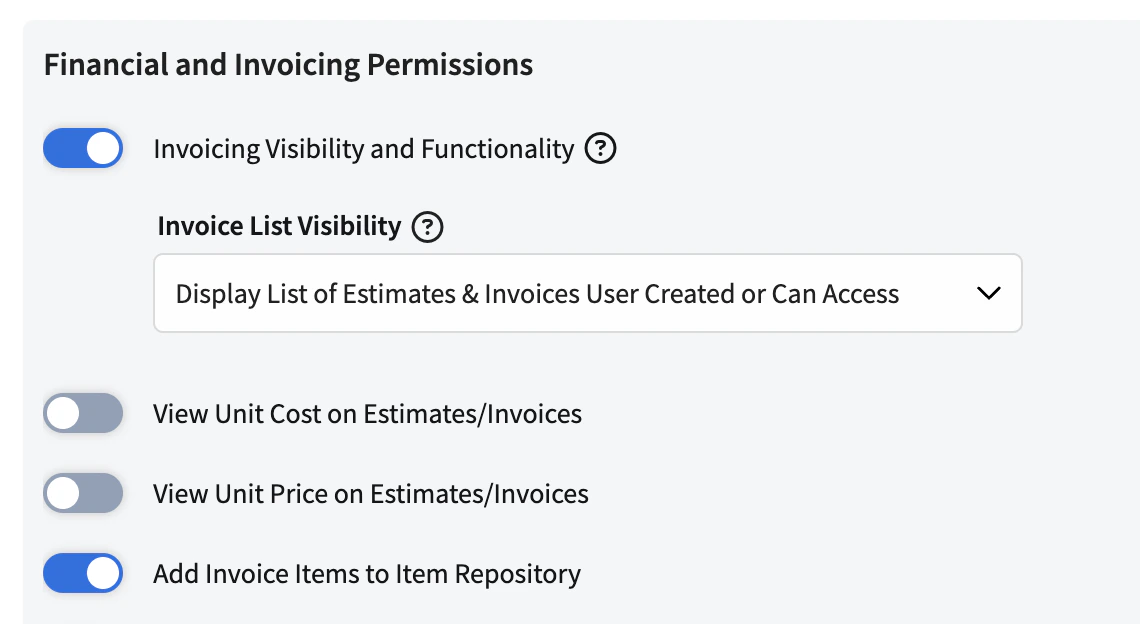
Note: This process will need to be repeated for every user within your FieldPulse account.
To view/learn about material lists on the mobile app, click here.
Have additional questions? Contact us at support@fieldpulse.com or use the chat feature in the bottom right corner of your screen.