

Documentation Index
Fetch the complete documentation index at: https://fieldpulse.mintlify.app/llms.txt
Use this file to discover all available pages before exploring further.
Overview
Estimates pull together line items, materials, and labor into a single document you can send for review or present in person. Build them on the web from the office or create one from your phone in the field, and once your customer accepts, convert the estimate into an invoice in just one click.On Web: Admin Experience
Where to Create an Estimate From
If your estimate is not linked to an existing job, you can also create an estimate by entering a customer record then selecting the Create Estimate button or selecting the green Actions button then Create Estimate.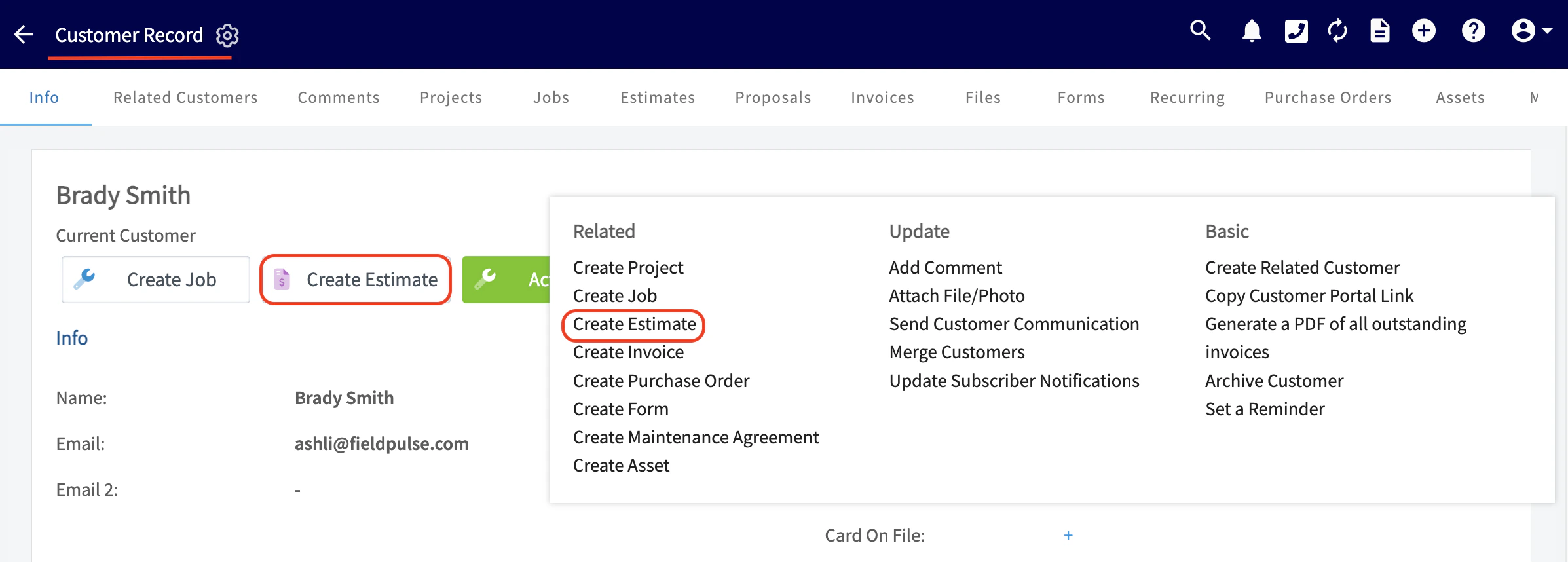
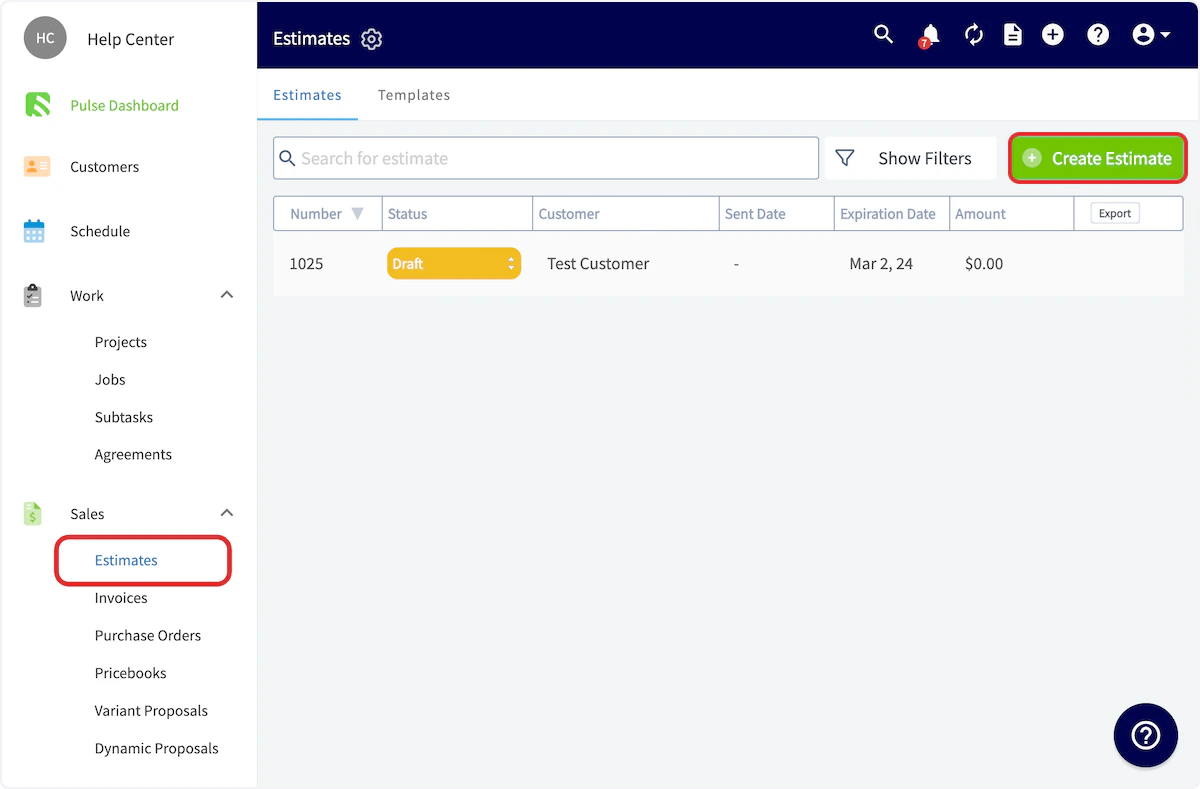
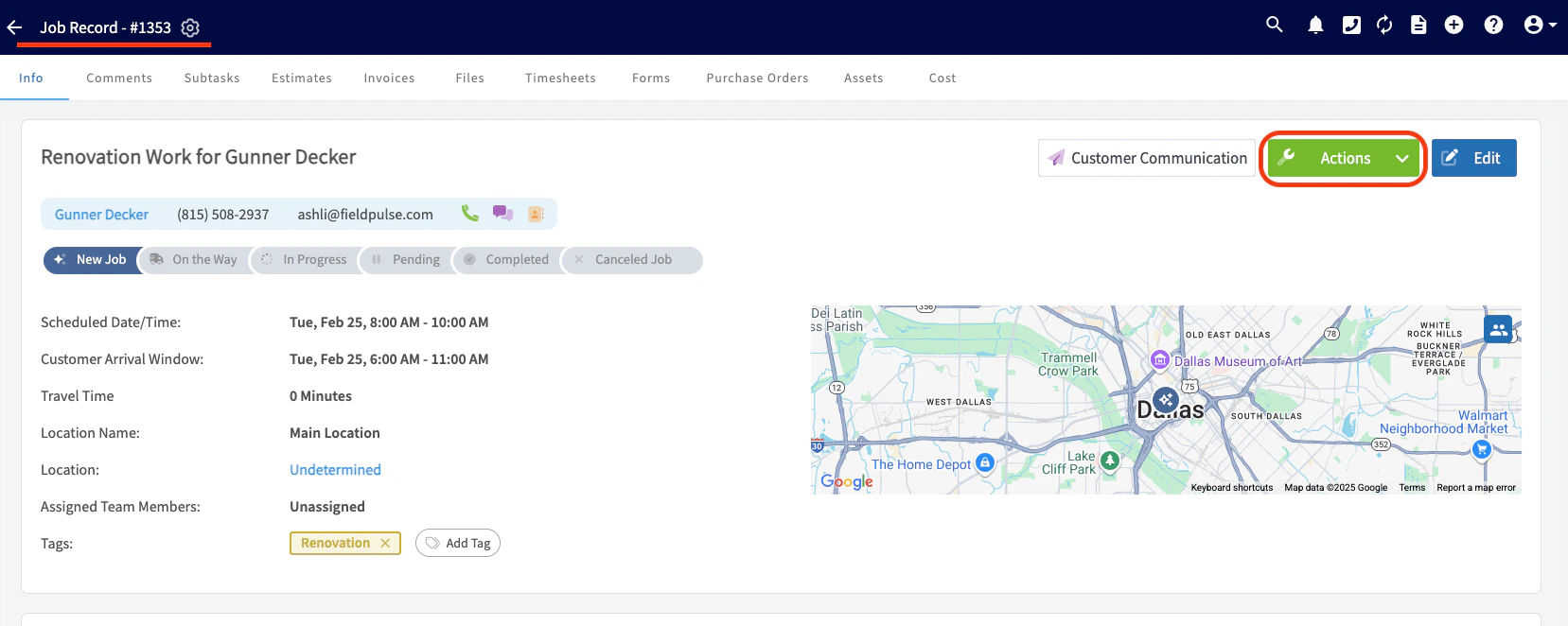
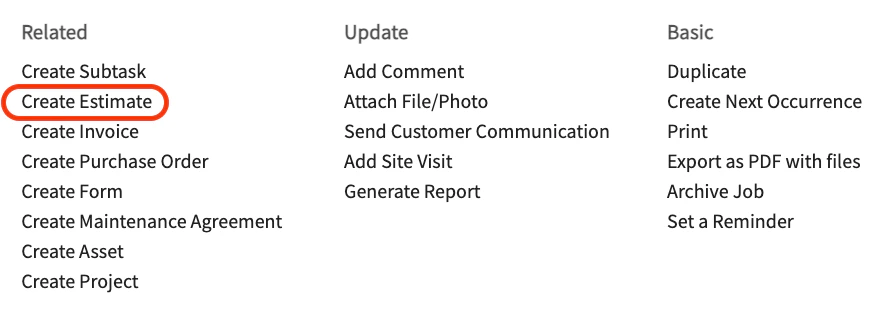
Essential Information:
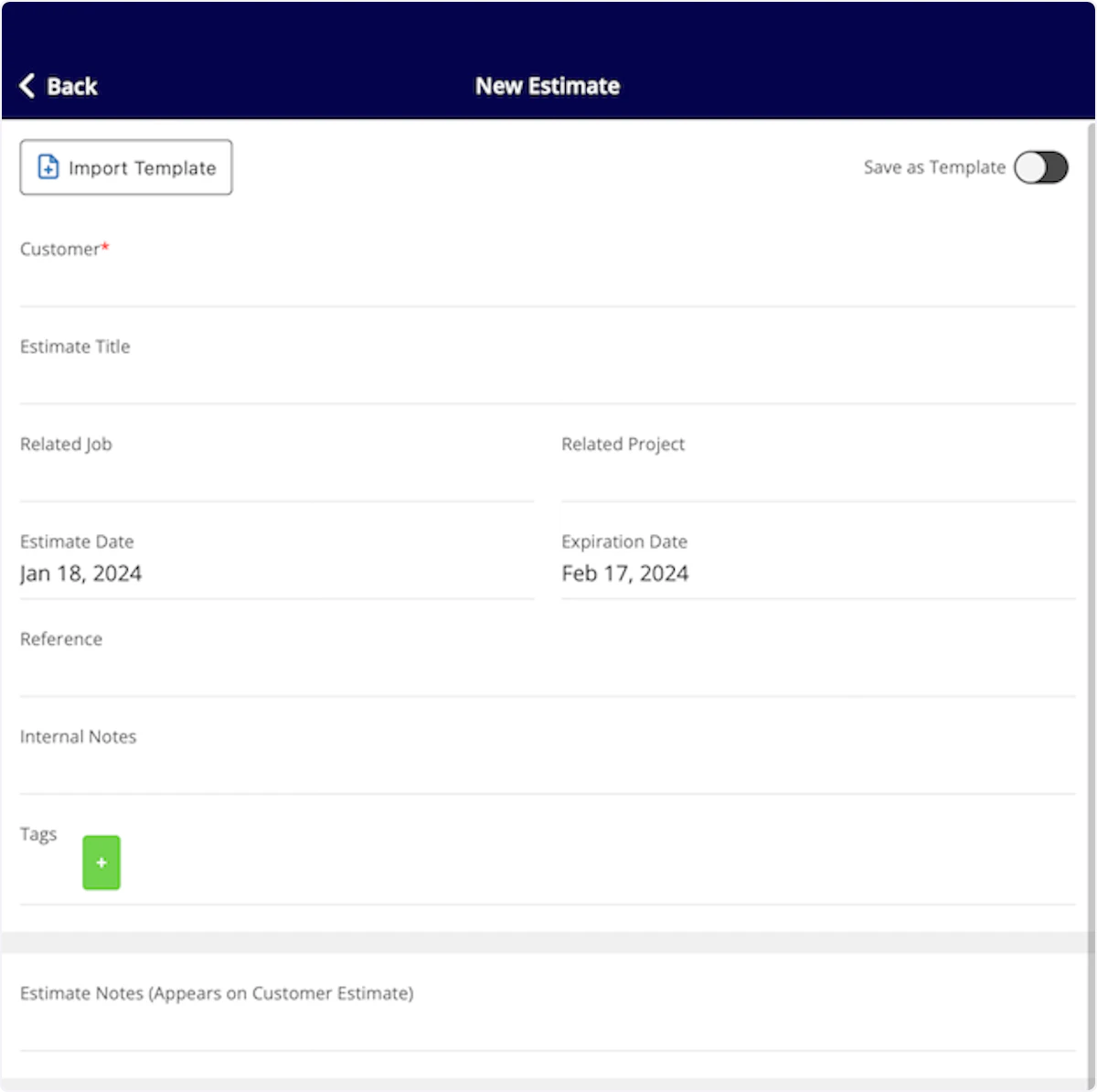
If created via a job record, the customer and linked job will be auto-populated. If created from a customer record or the Estimates tab, you may need to link the related customer and/or job. Here you also have the option to import an estimate template. Click here to learn more about creating estimate templates.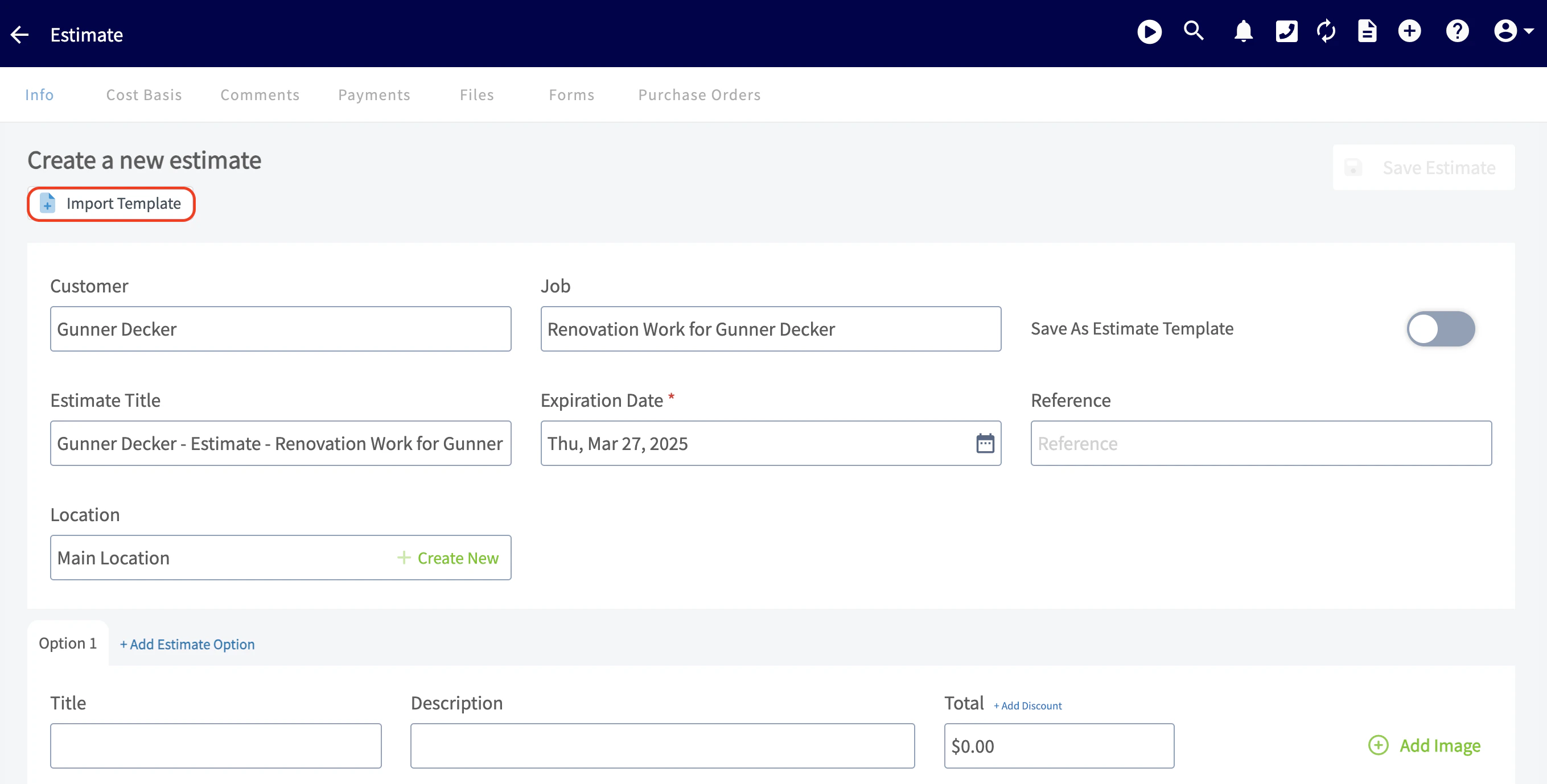
Line Items:
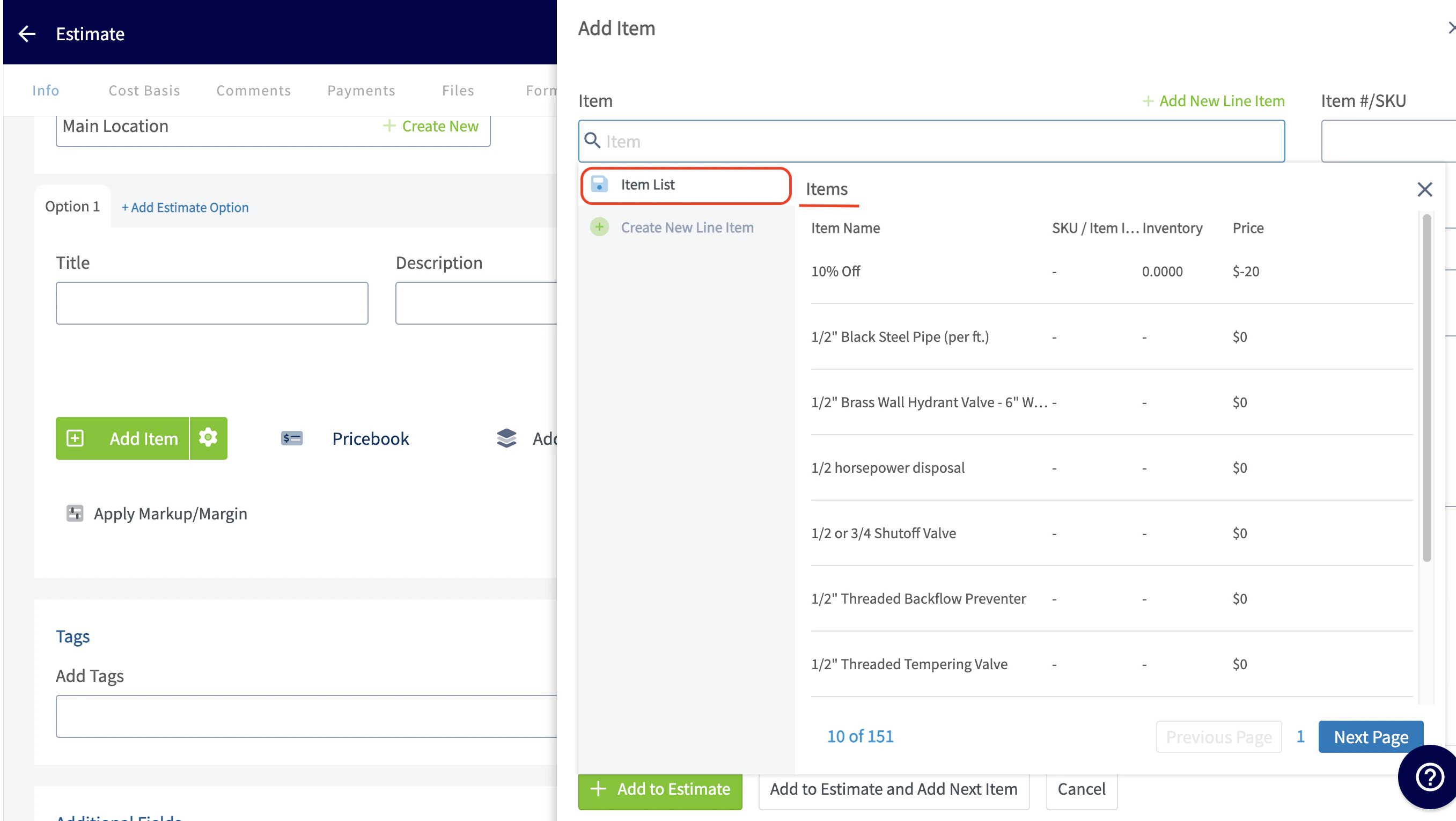
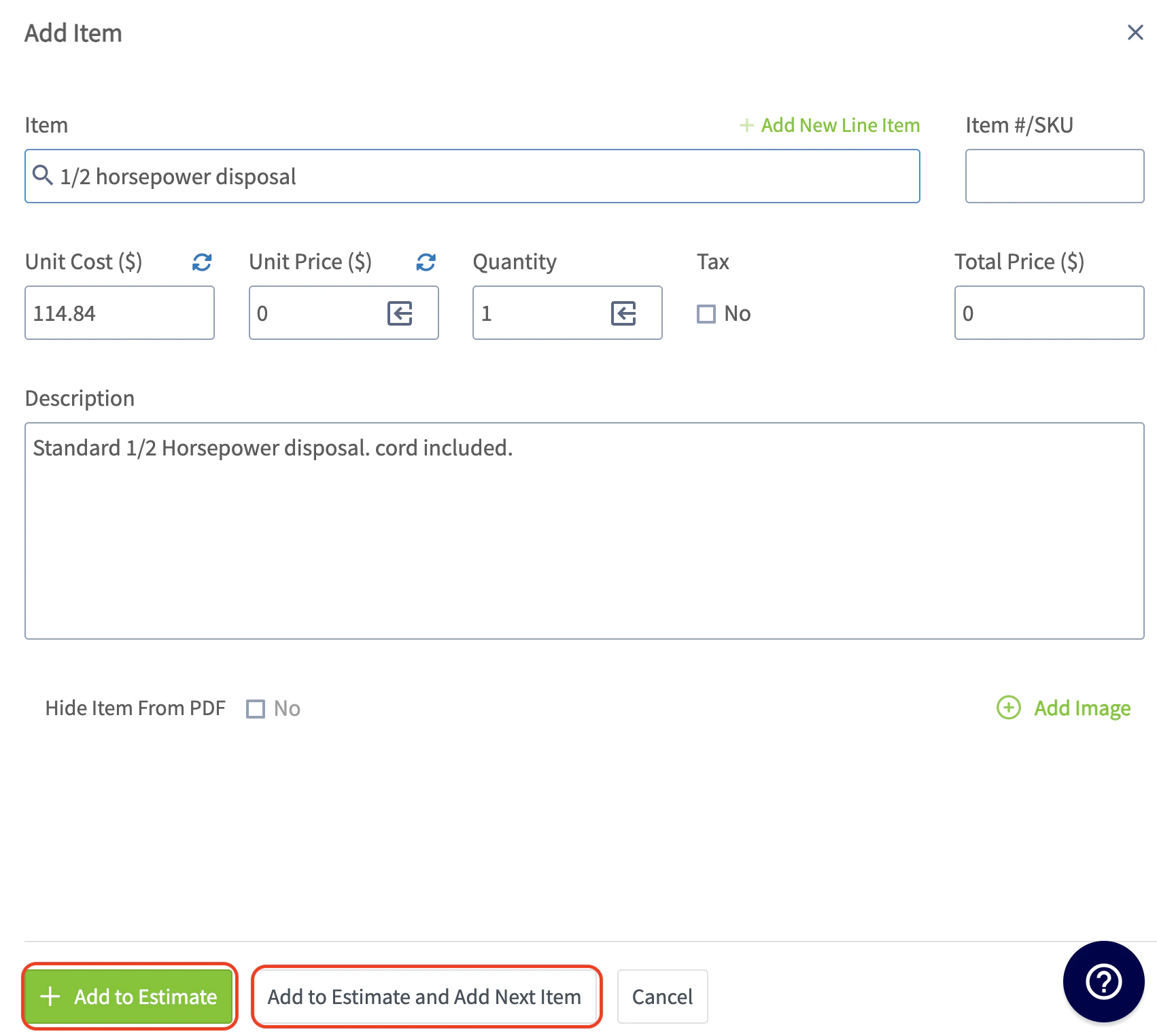
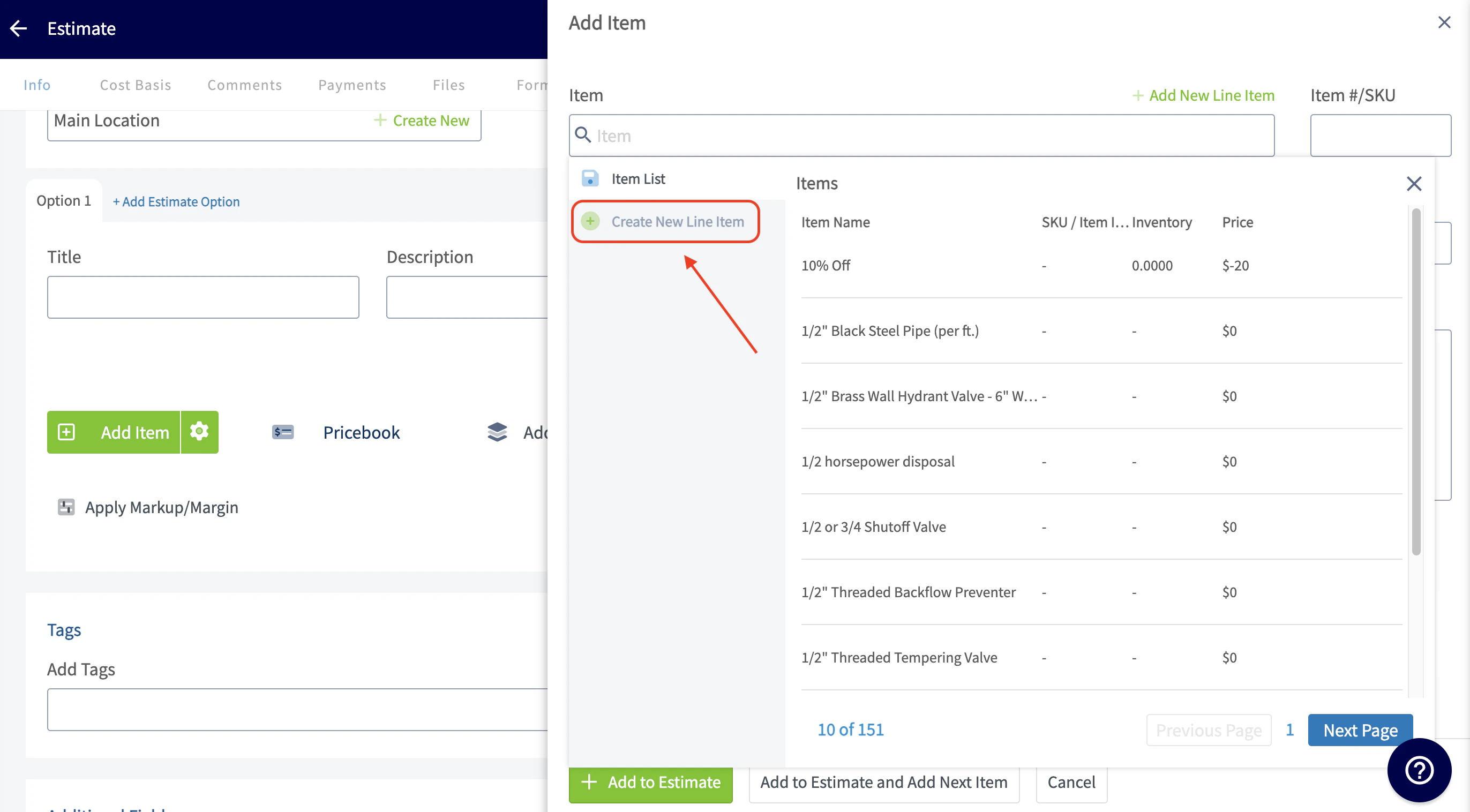
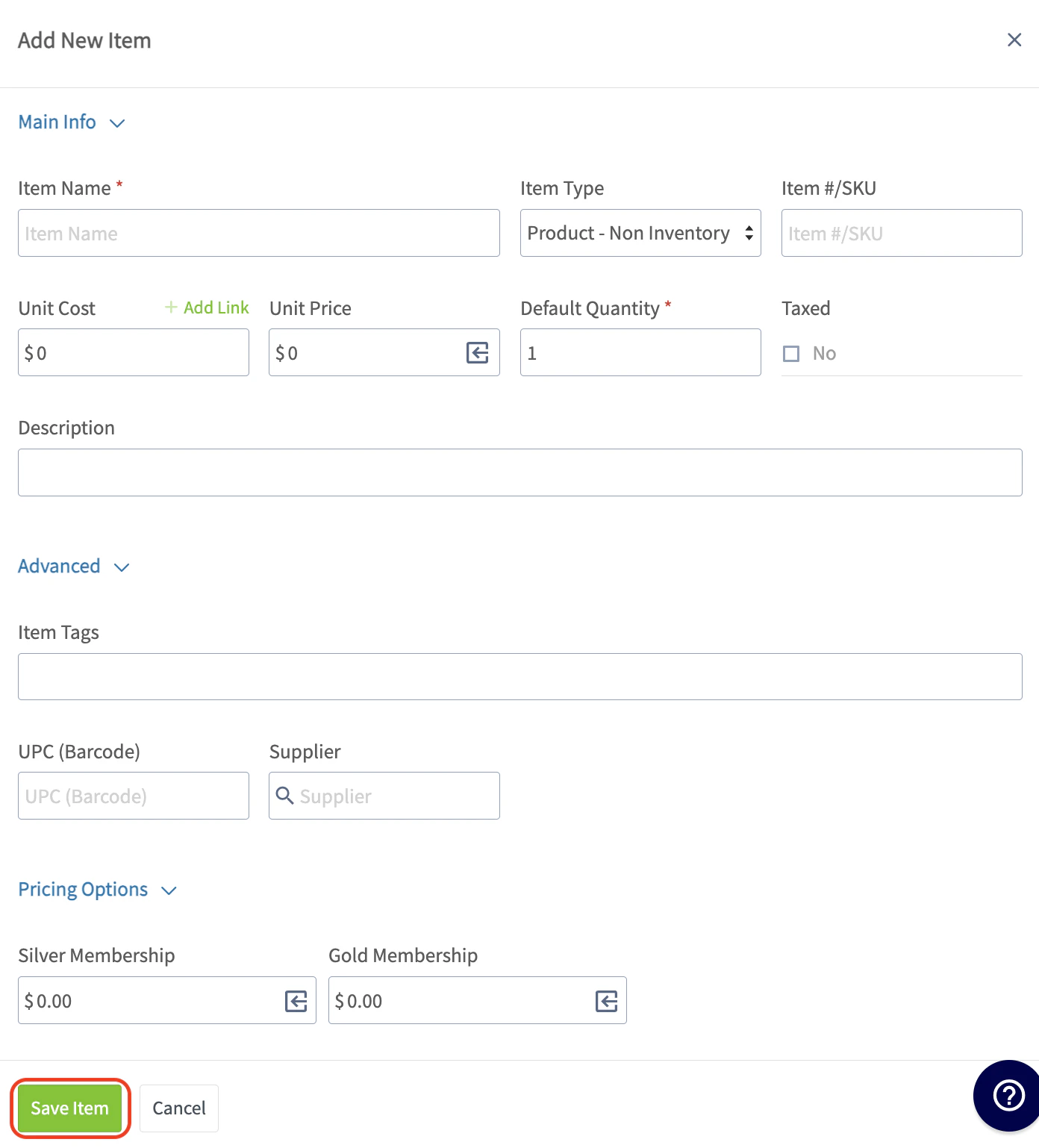
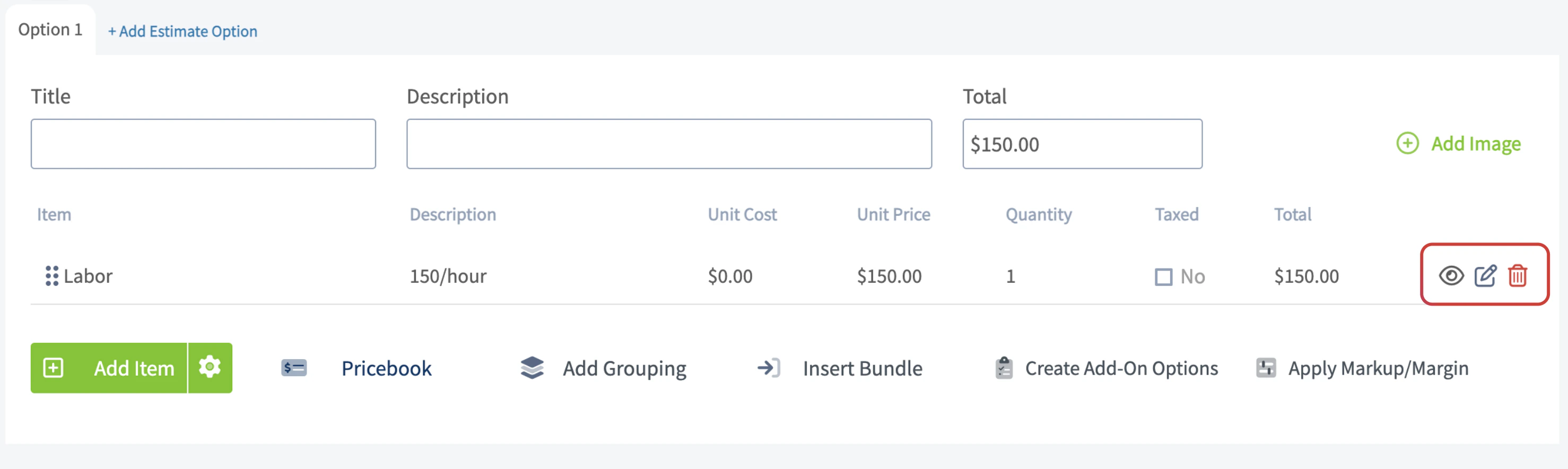
The magic begins when you add your line items! Here you will add materials and labor to make up the total of what you will be charging your customer. Select the green Add Item button and an additional tab will automatically open towards the right hand side of your screen.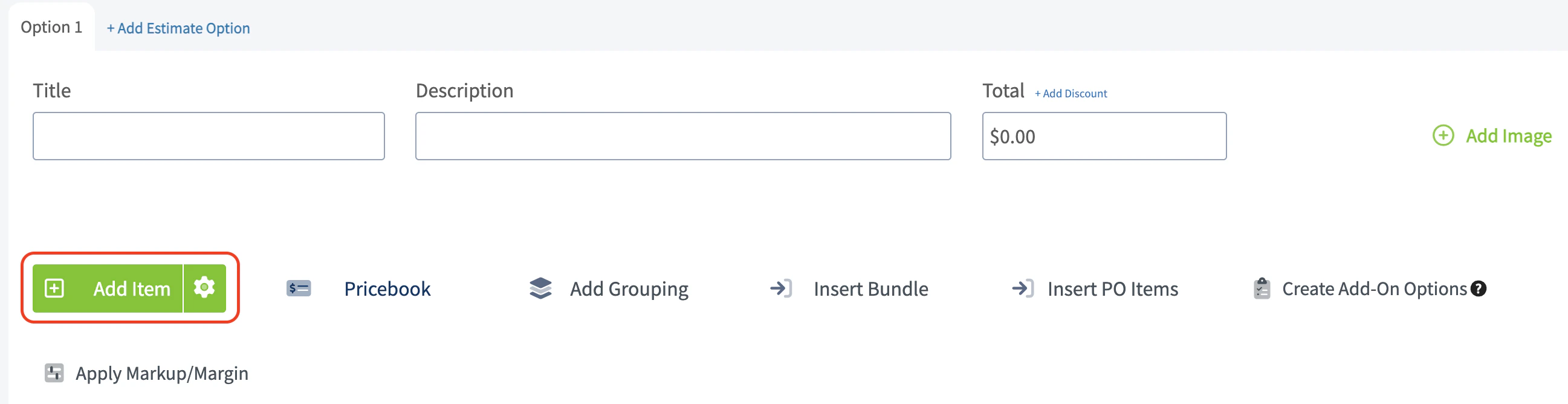
Final Details
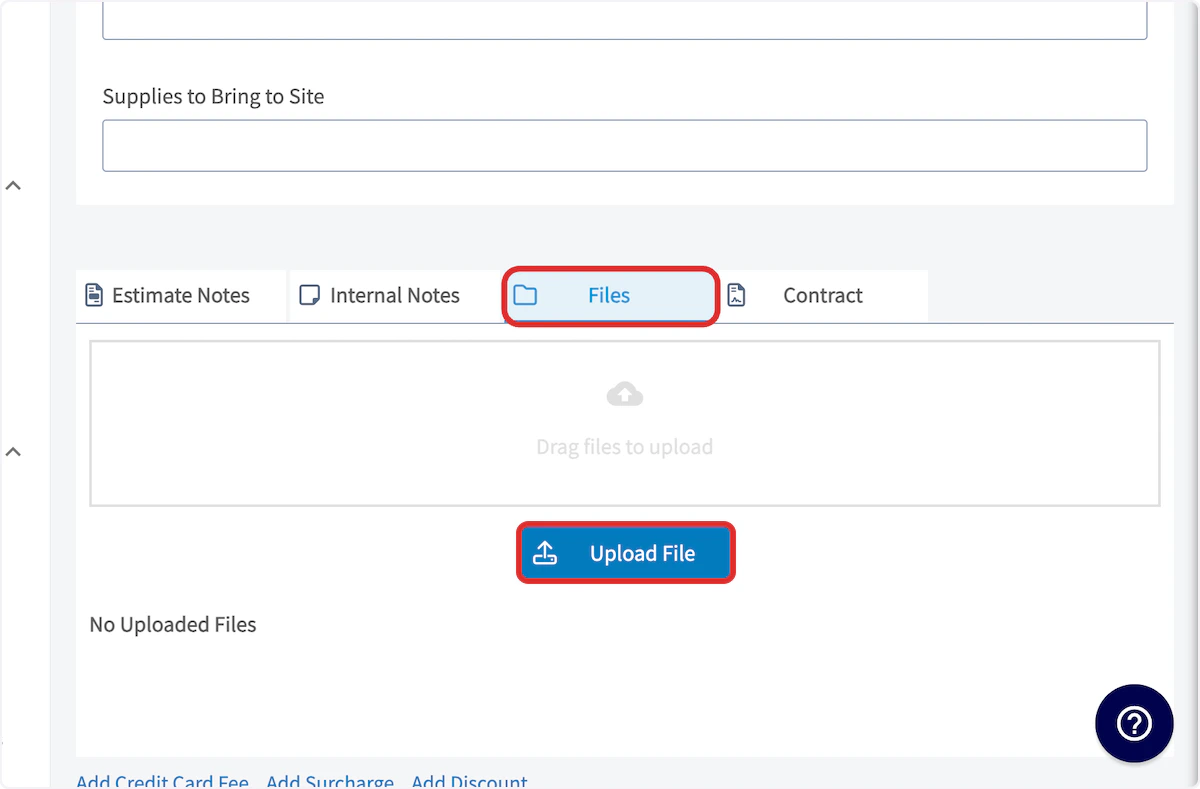
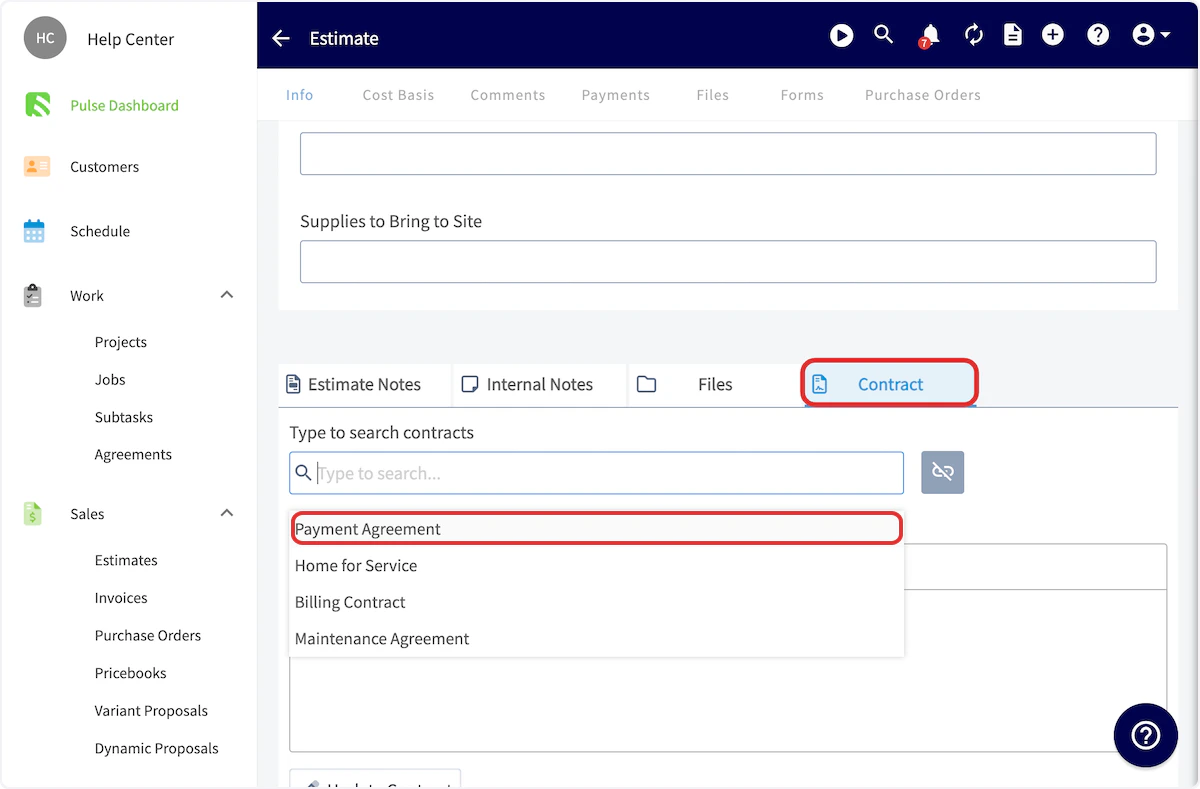
Once you’re finished adding line items, you can add notes, attach files, and/or add a contract. To add Estimate Notes, simply start typing in the box, it will automatically save when you save the estimate. These notes will be shown near the top of the estimate PDF. To include internal notes not visible to your customers, use the Internal Notes tab.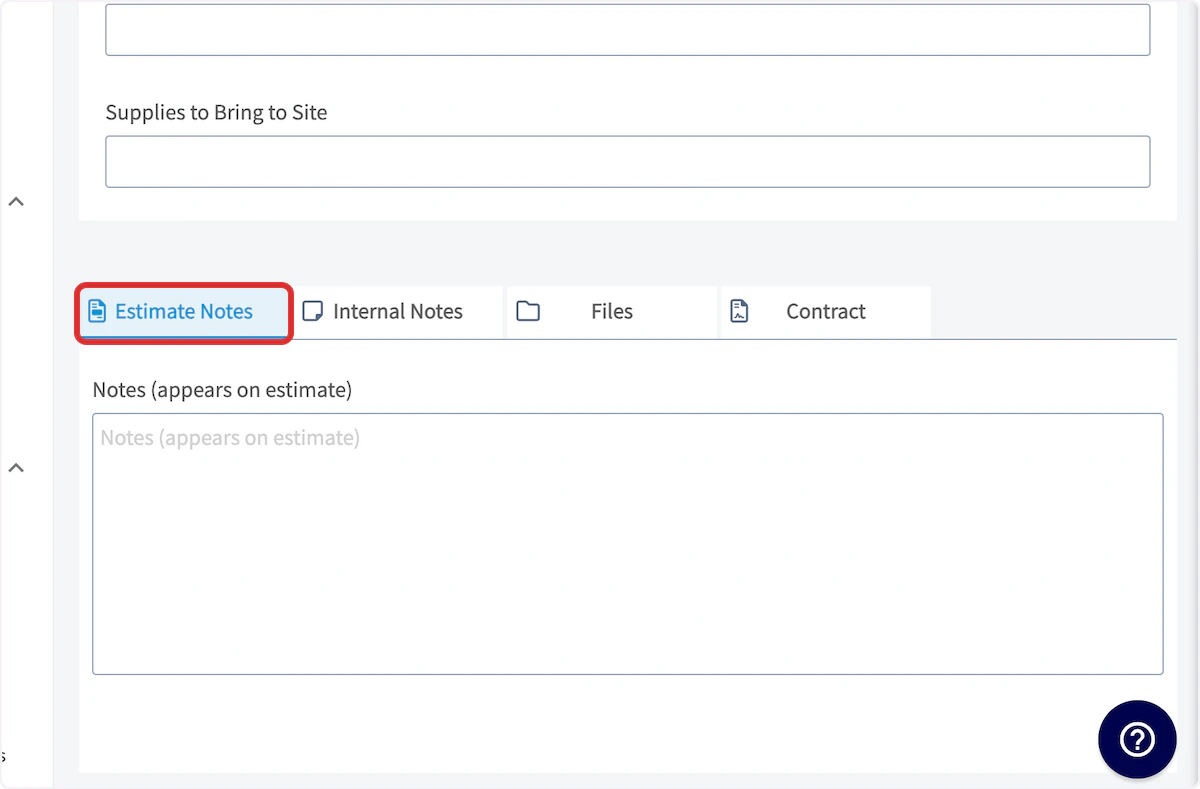
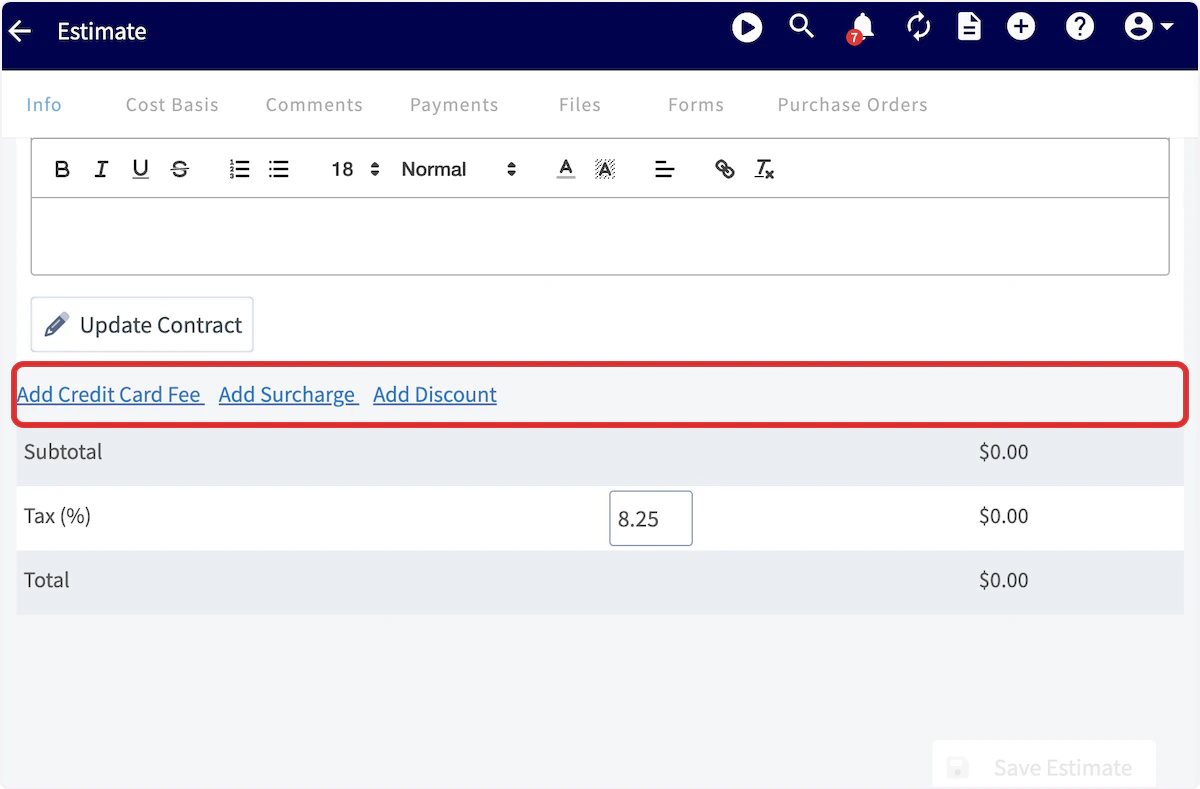
- Add credit card fee: This can be a percentage or dollar amount that you can charge your customers for paying with a card.
- Change the tax rate: The default tax rate from your ‘Company Settings’ section is used by default, but it can be modified on a per-estimate basis. Only line items that are designated to be taxed will have tax applied.
- Add a discount or surcharge: This will add or subtract a percentage or fixed amount from the estimate total.
On Mobile: Field Experience
Creating an Estimate
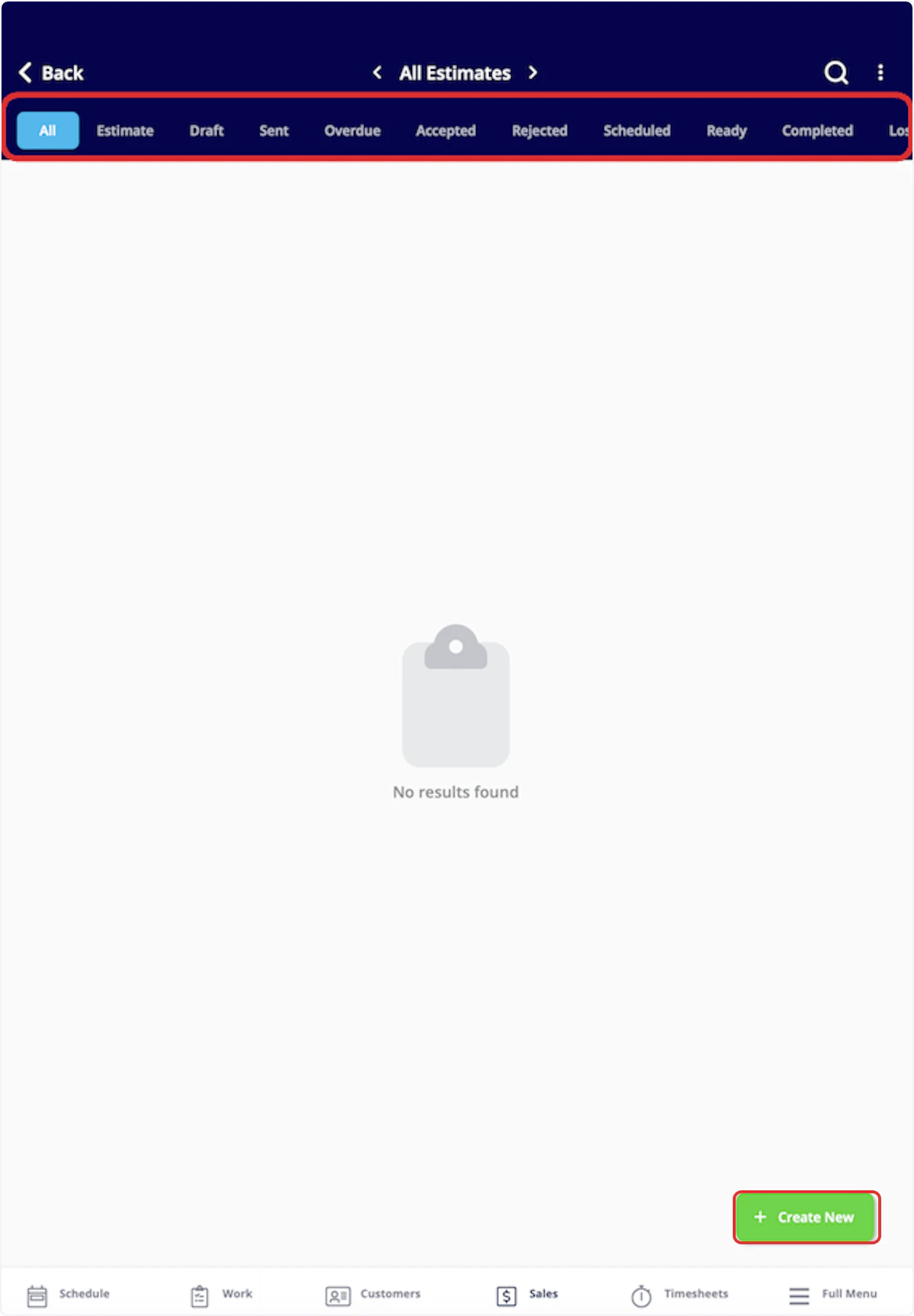
To create a new estimate, navigate to the Sales tab in the bottom menu, then select Estimates. (Note: There are many ways to create a new estimate including from a job record, customer record, or the Actions button.)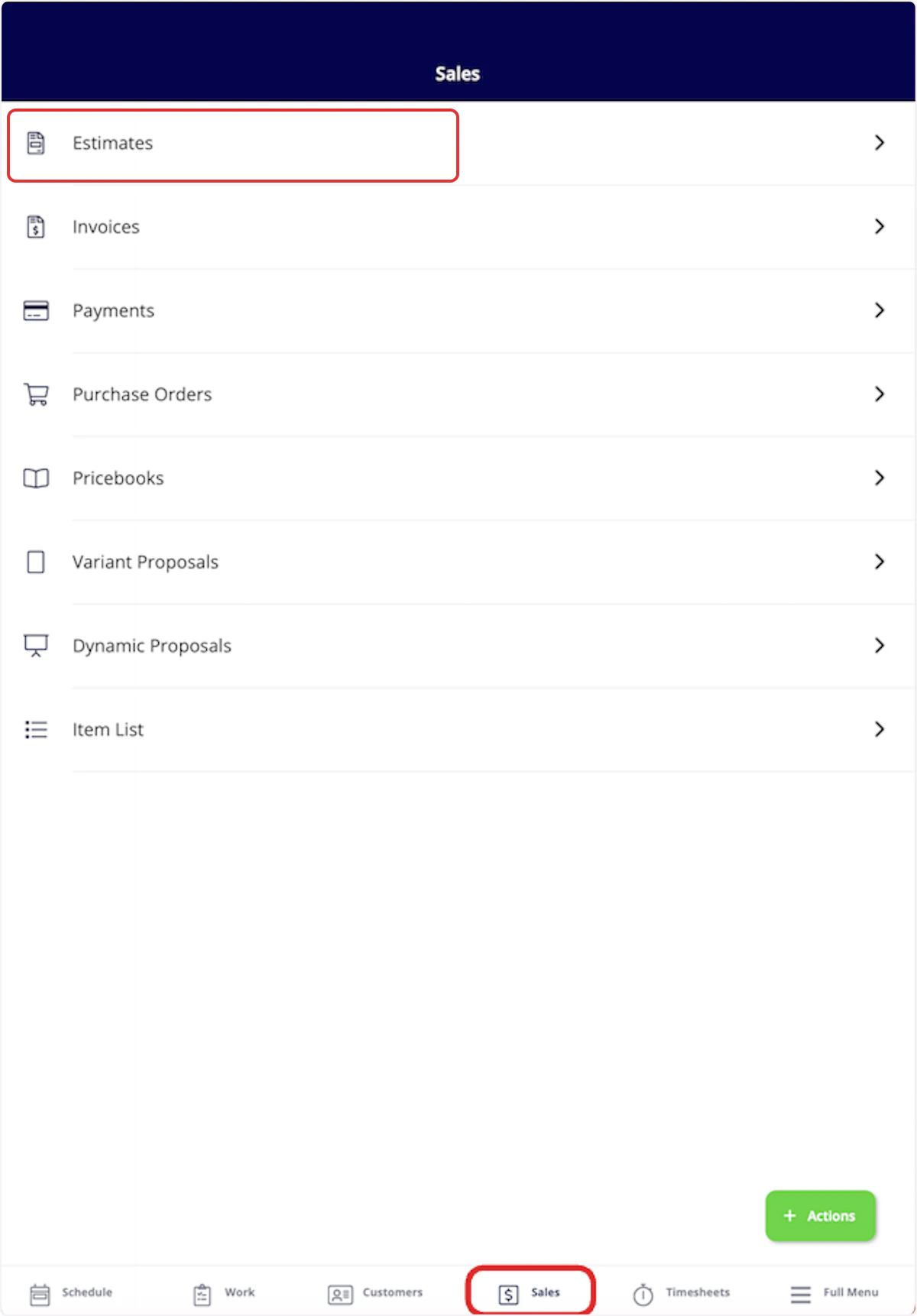
- Add Line Item: Selecting Add Line Item will allow you to search your item list in order to add items to the estimate.
- Insert Bundle: Bundles are for services and parts that are often grouped together. To learn more about bundles and how to create them, click here.
- Pricebook: Selecting Pricebook will allow you to select and add flat-rate jobs from your Pricebook.
Additional Options
Add Estimate Option allows you to create multiple estimate options for your customer to choose from. Add Line Item: Selecting Add Line Item will allow you to search your item list in order to add items to the invoice. Add Grouping: allows you to organize your line items on the estimate, as well as control the visibility of the line item names and prices for your customer. Simply create a grouping then drag and drop line items into it to begin organizing your invoice! Insert Bundle: Bundles are for services and parts that are often grouped together. To learn more about bundles and how to create them, click here. Insert PO Items: Populate an invoice with items from a purchase order. To learn more, visit the Purchase Orders article. Pricebook: By selecting Pricebook, you will have the option to add flat-rate jobs straight from the Pricebook you created. The Granite Group: Add purchase orders items from The Granite Group to your estimate. To learn more, visit The Granite Group article. Apply Markup/Margin: allows you to apply a markup or achieve a margin, which will overwrite all the item prices in your estimate. Create Add-On Options: allows you to create add-ons for your customer to select and add on to the standard items listed in the estimate. This may look like an extended warranty, upgraded parts, or an additional service.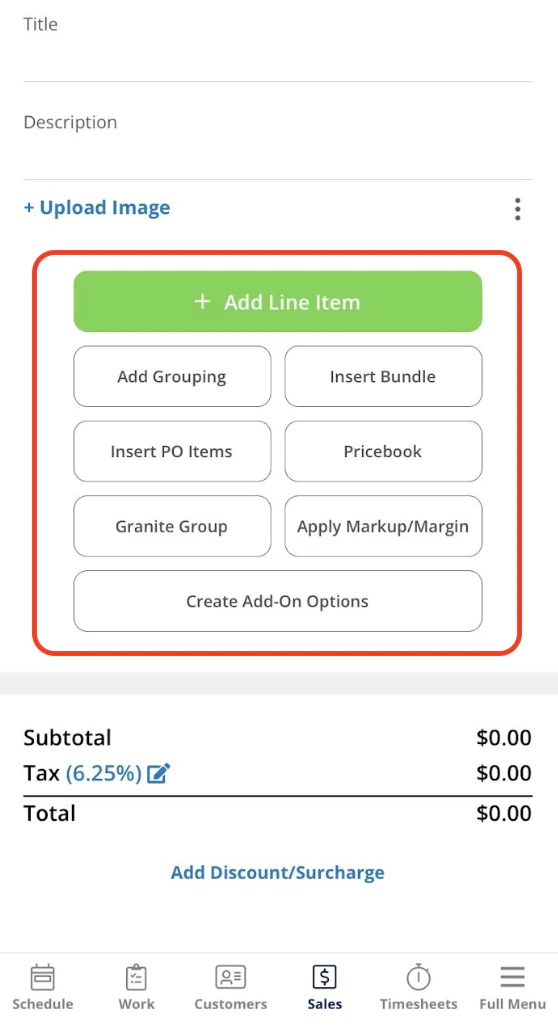
Saving and Sending
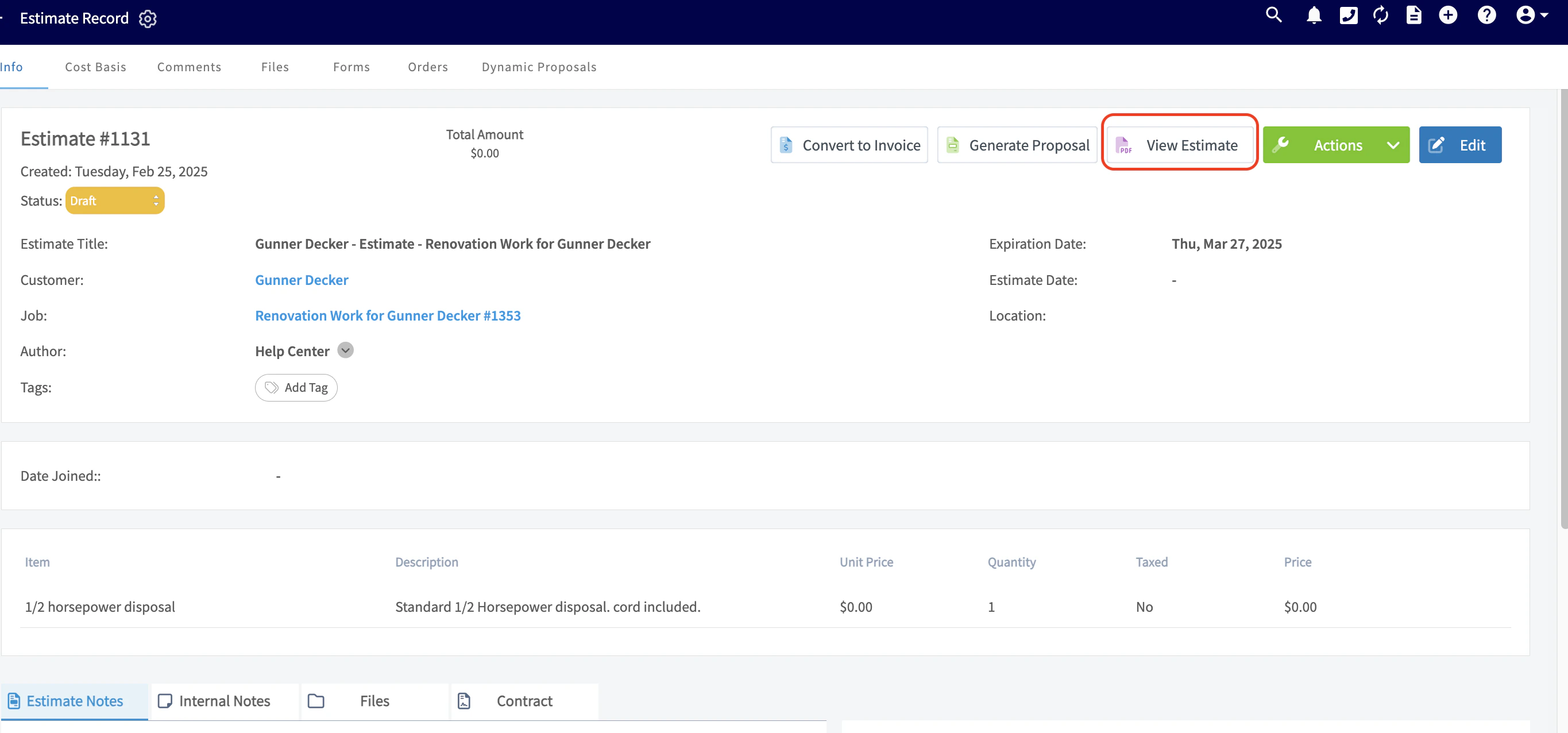
After saving your estimate, you can now view the estimate record. Use the top menu to add related material to the estimate or view recent changes. When you’re ready, select View Estimate to show the estimate in person, or to email it to your customer. If your customer accepts the estimate, select Convert to Invoice to transfer all the details from the estimate into an invoice record to save time.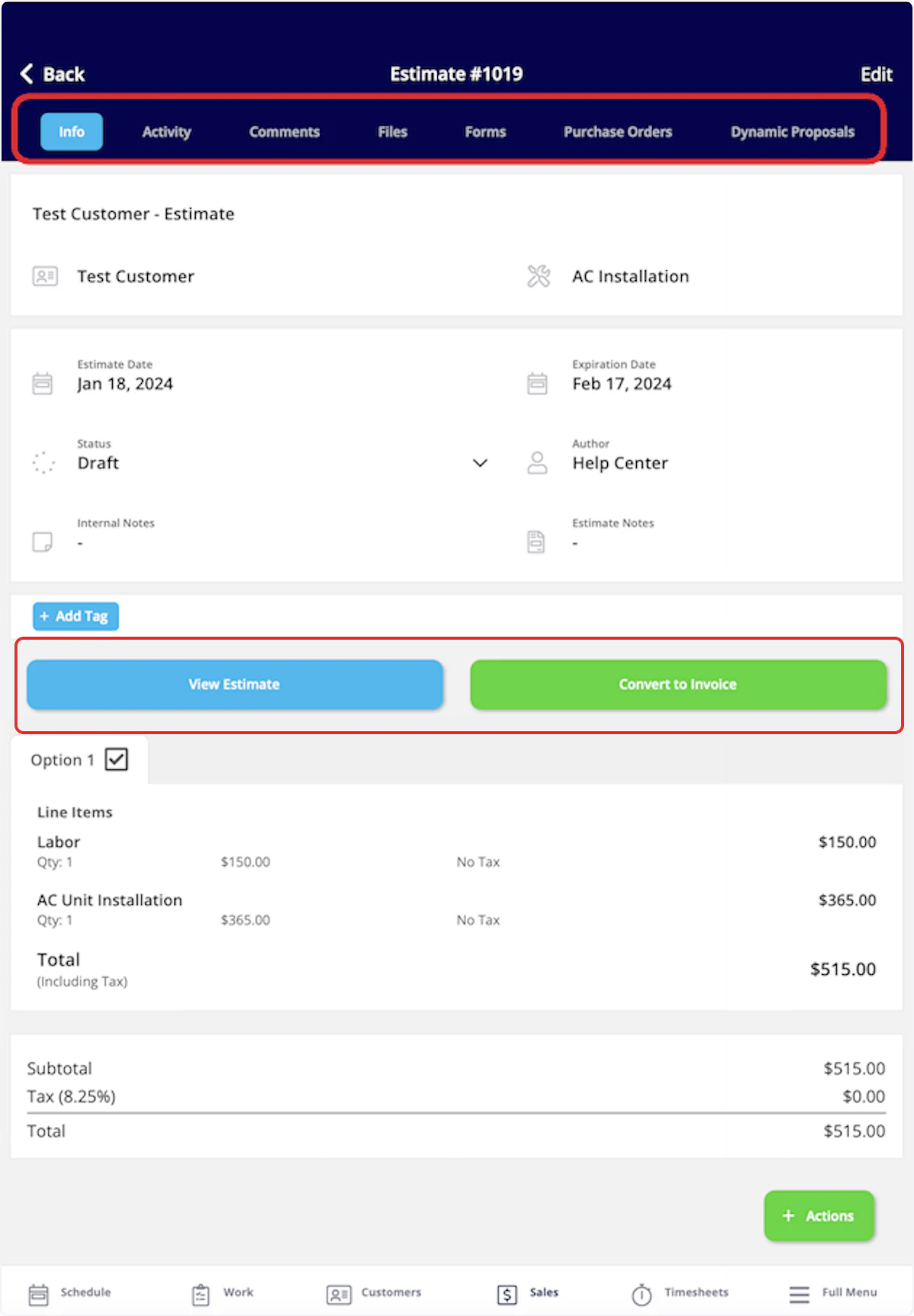
Estimate Statuses
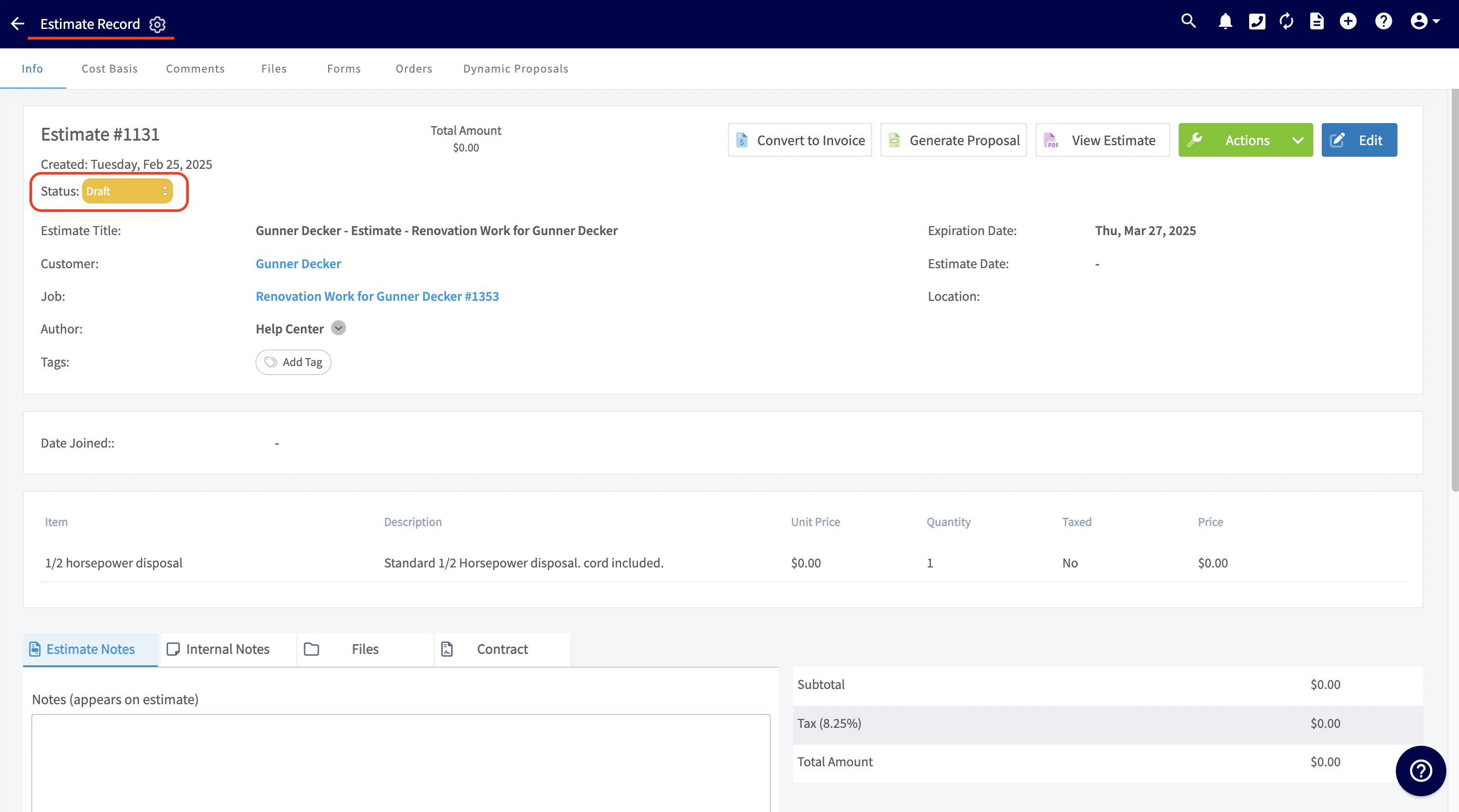
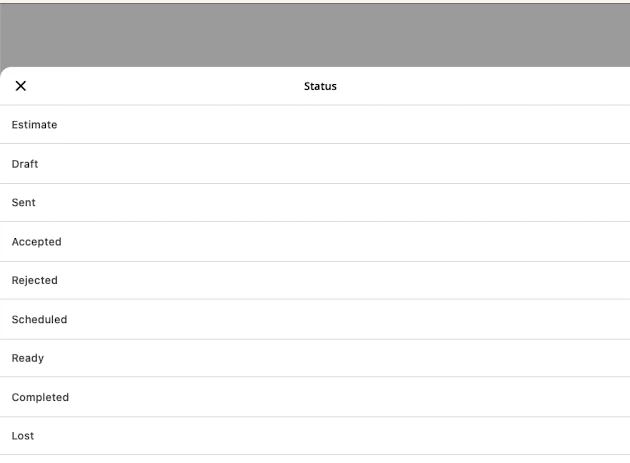
As you create and send estimates, FieldPulse makes keeping track of the statuses easy. On your Estimates page, notice the statuses listed on the right side of each estimate record. The Draft, Sent, and Accepted statuses are automatically updated by FieldPulse, while the remaining statuses can be manually updated to continue keeping track of your estimate long-term. You can also use the menu at the top of the Estimates page to sort your estimates by status.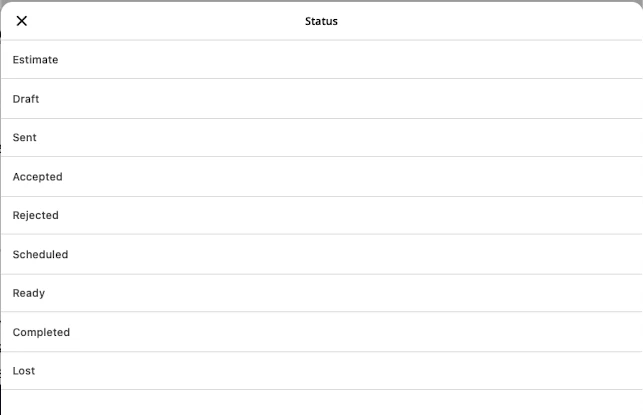
Customer Estimate Experience
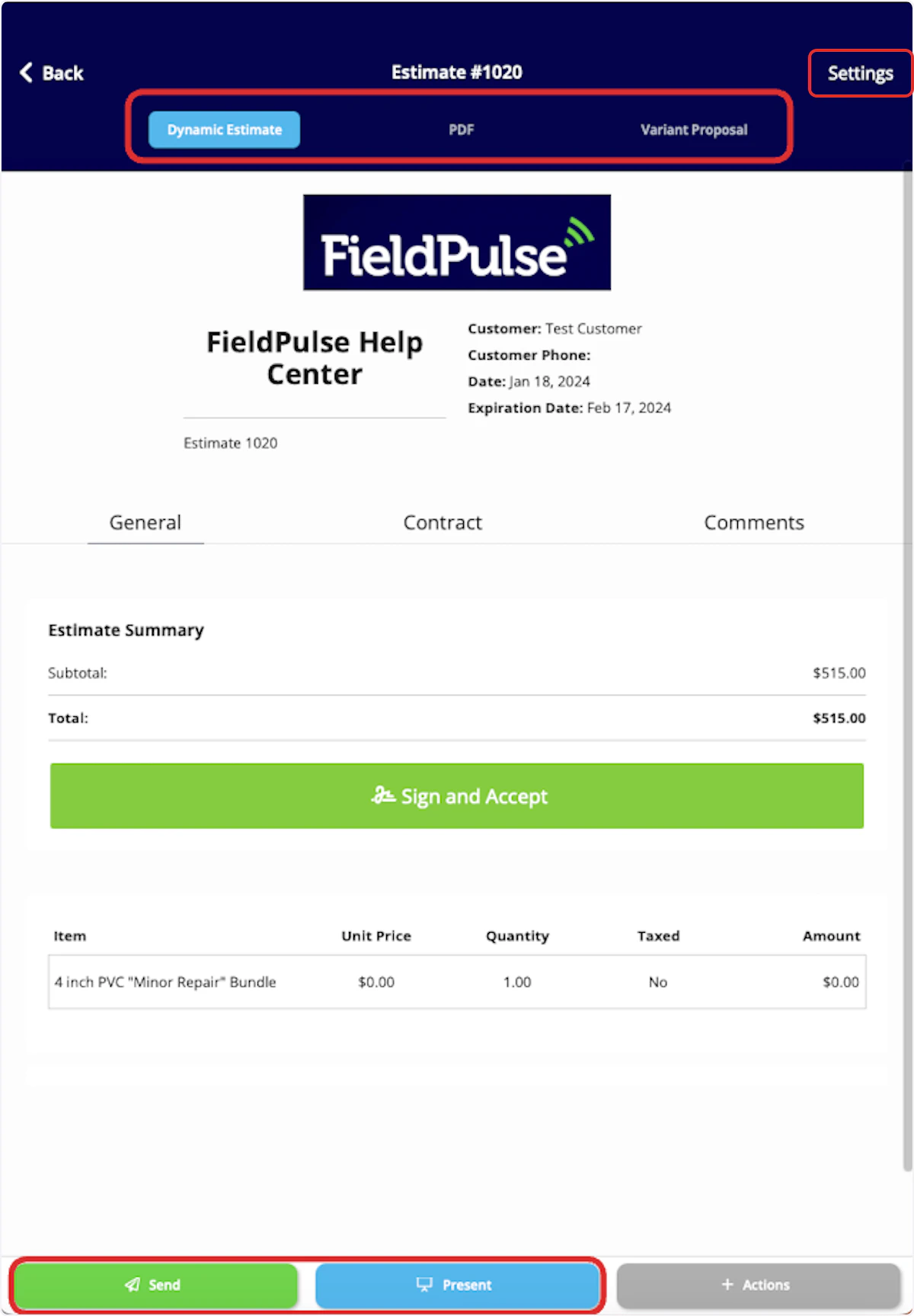
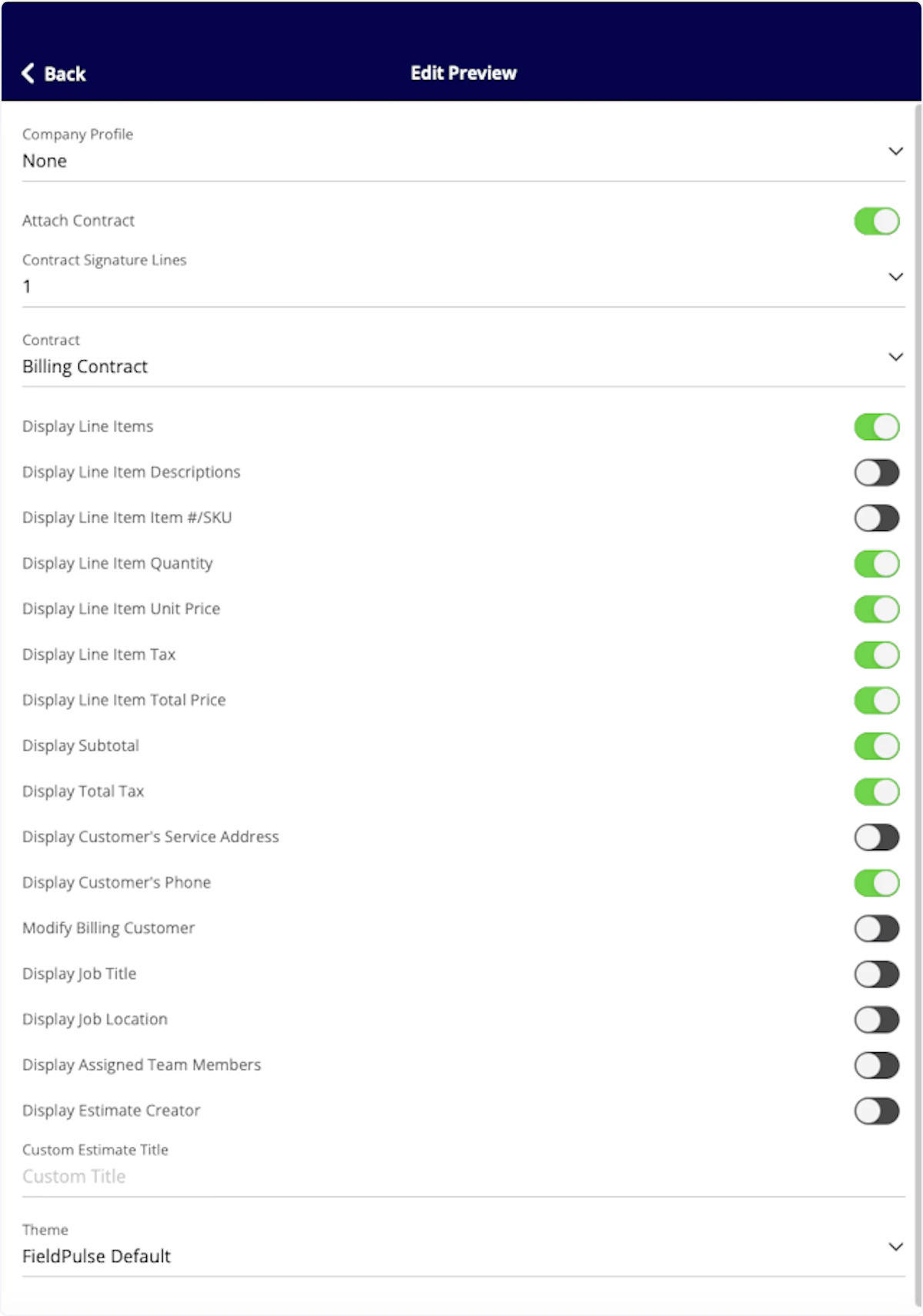
To preview, send, or show an estimate, select View Estimate on the estimate record.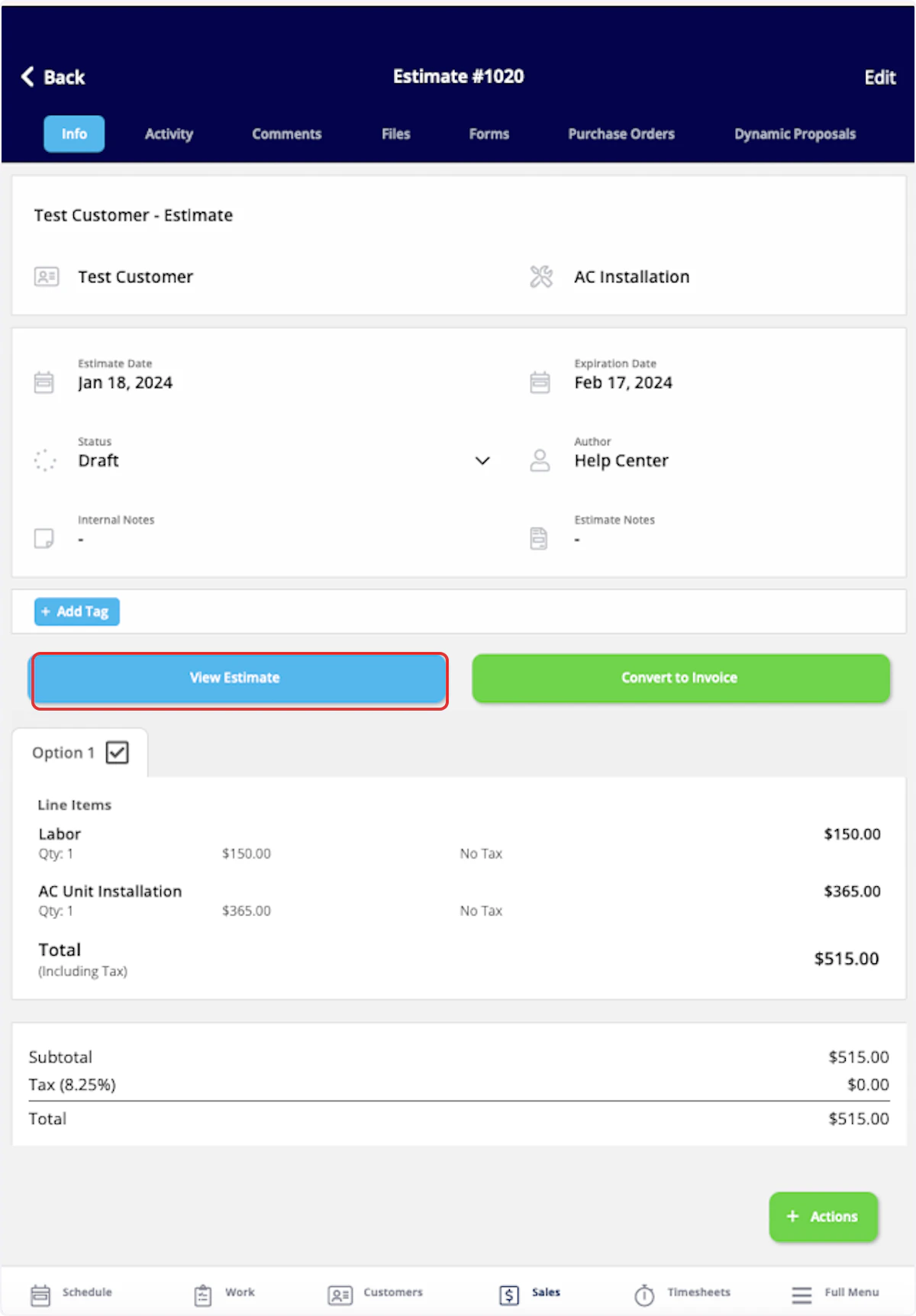
Capturing Line Item Images for Estimates
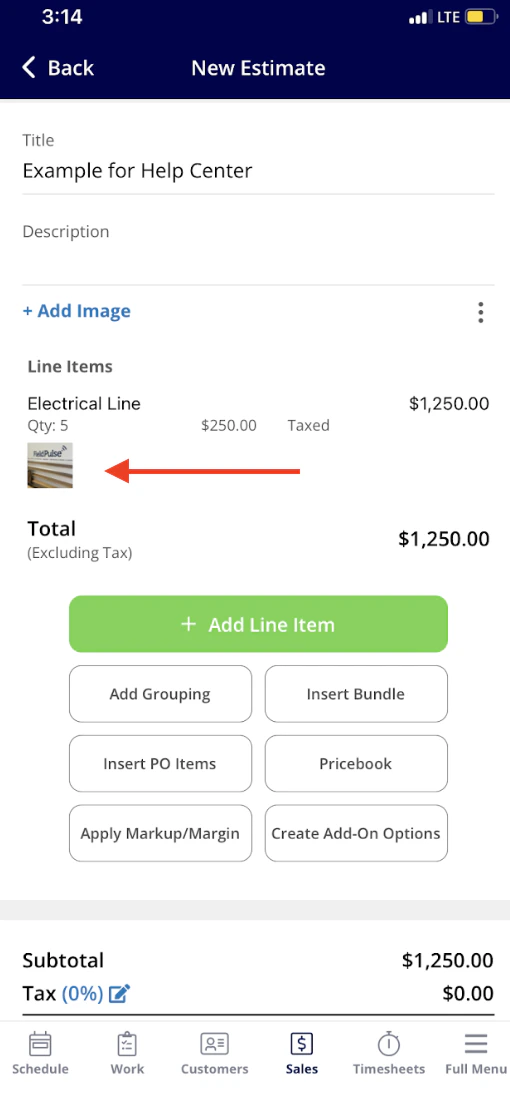
Step 1: Access the Estimate or Invoice Draft: Open the relevant record where you want to add your line items and images. Begin by clicking the green Add Line Item button.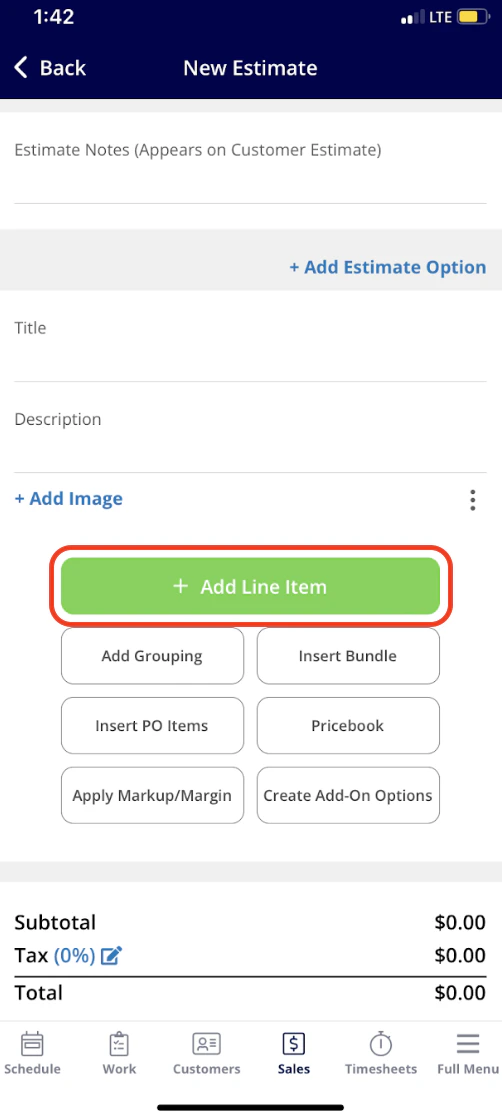
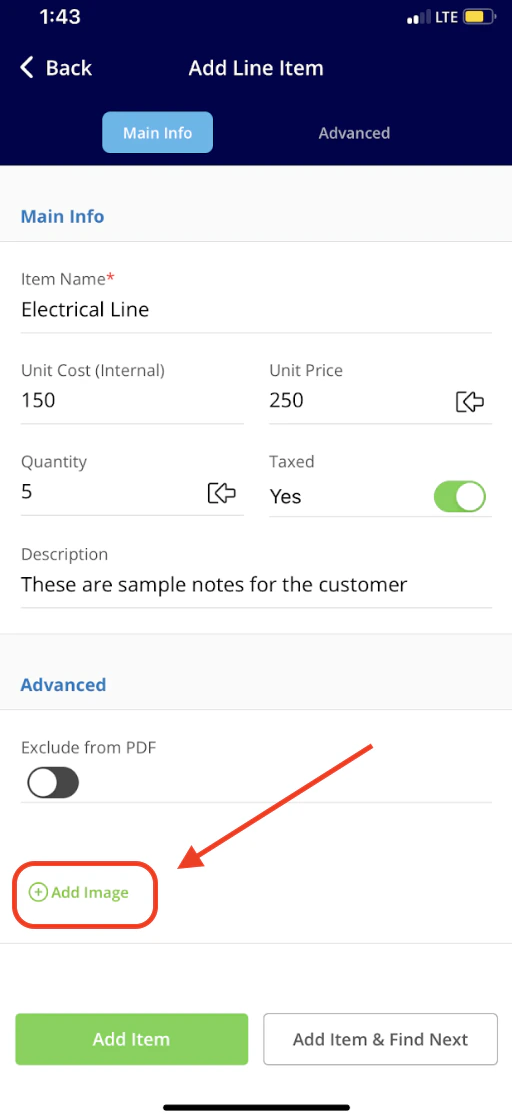
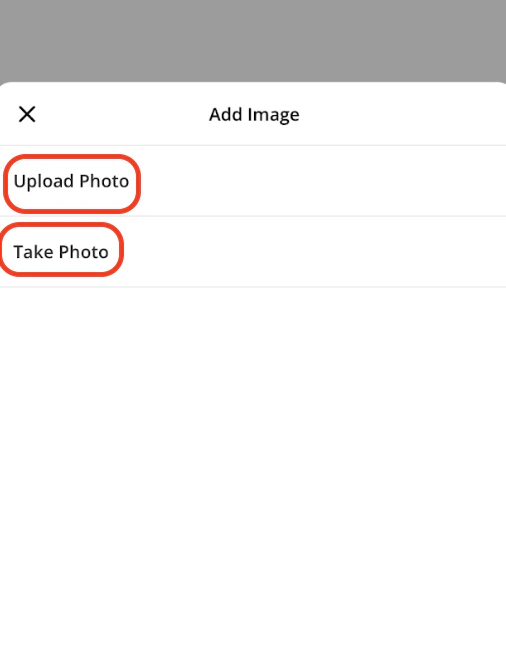
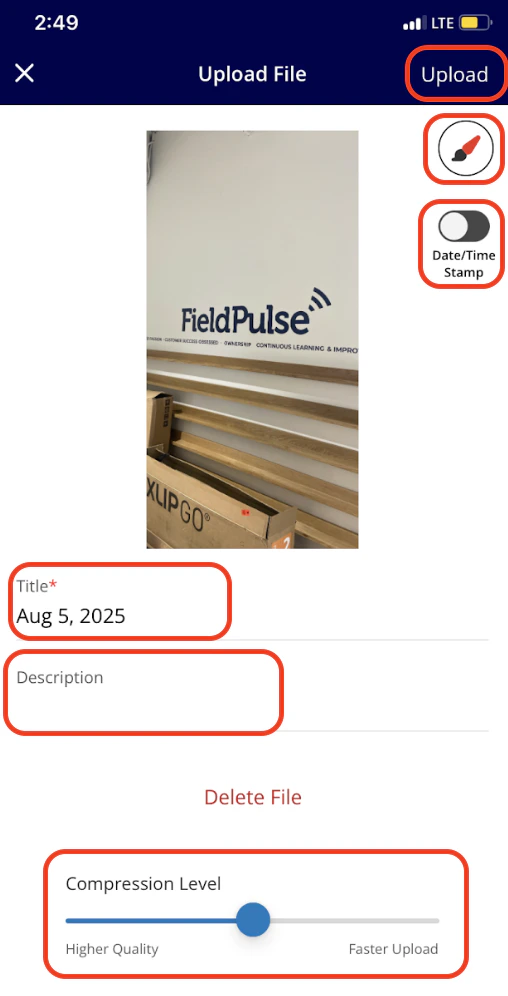
- Upload Photo: Select this option to choose an existing image from your device.
- Take Photo: Choose this option to open your camera and capture a new image directly related to the line item.
Barcode Scanning for Estimates
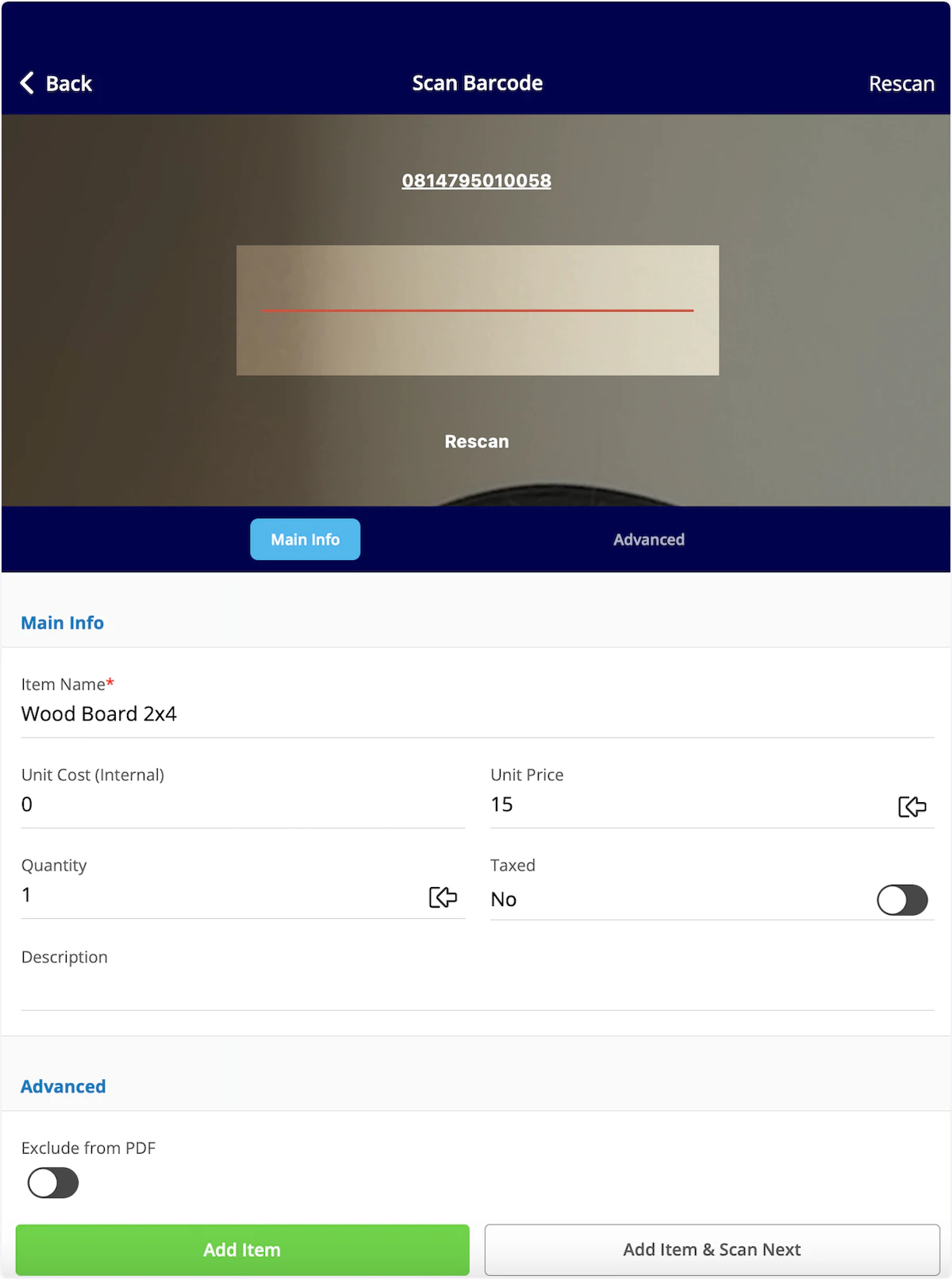
To utilize barcode scanning when adding items to estimates, begin by opening a new estimate or invoice in the mobile app. Scroll down and select Add Line Item.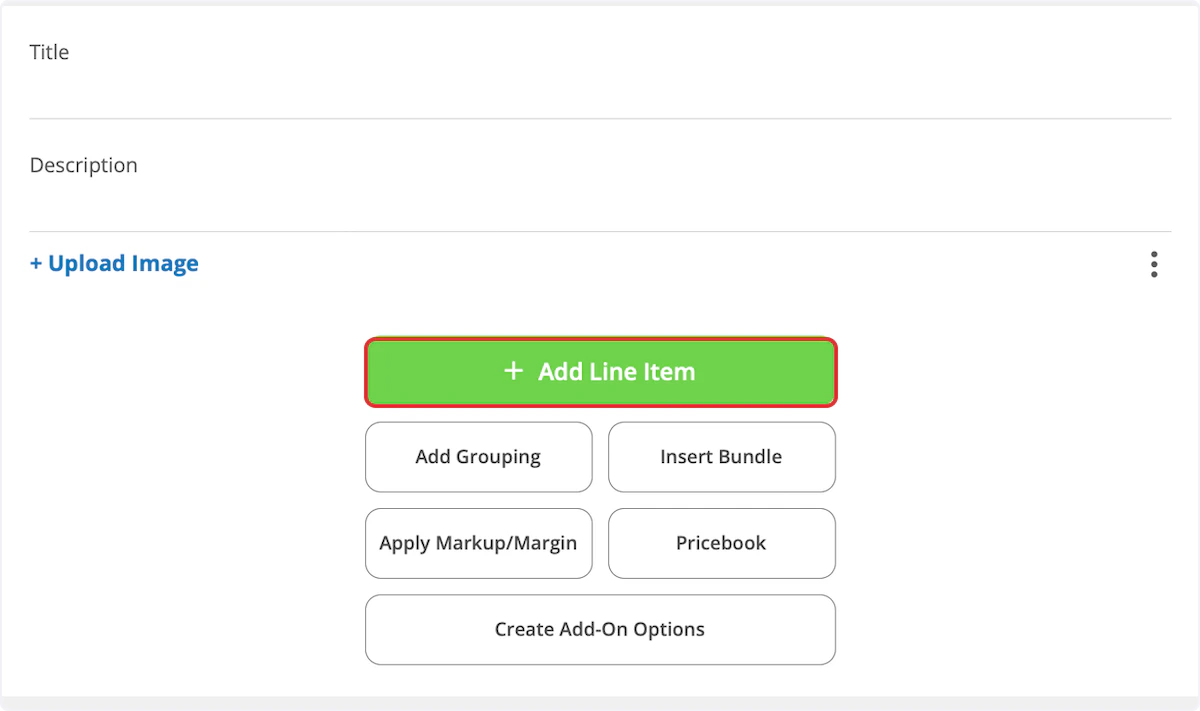
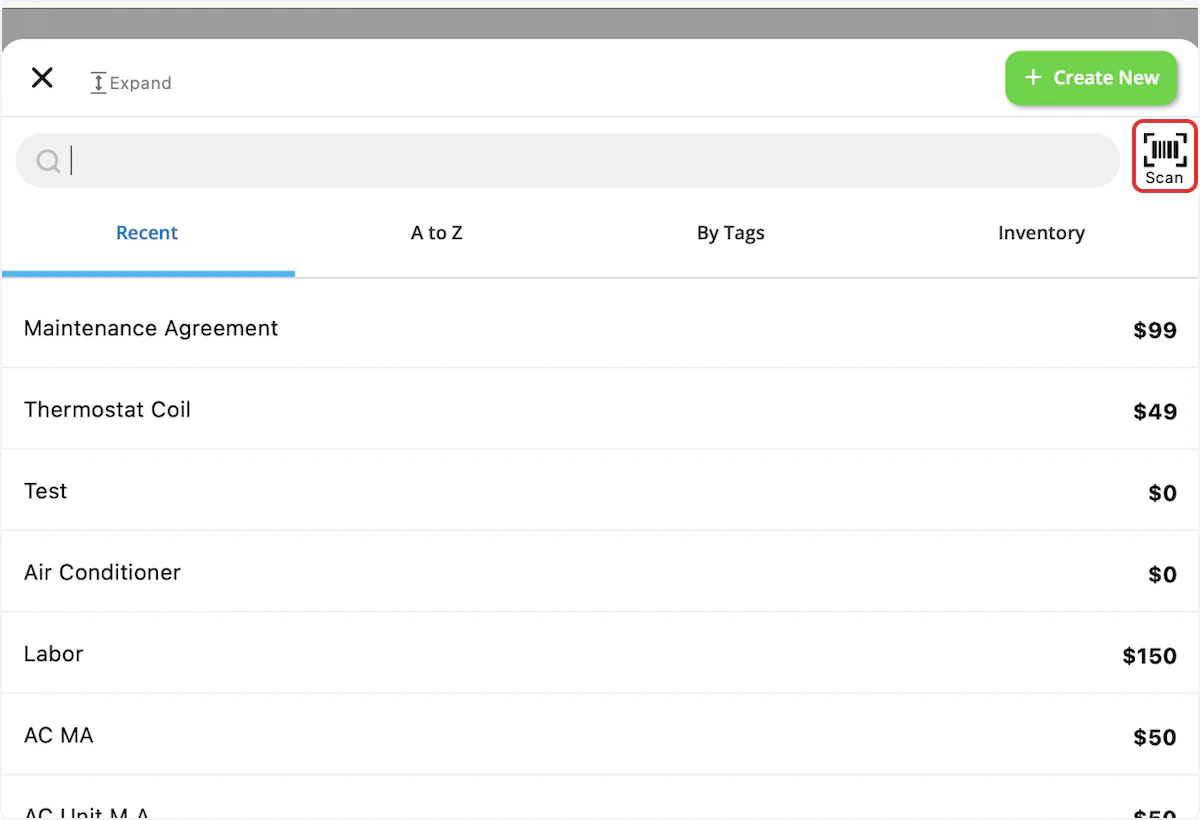
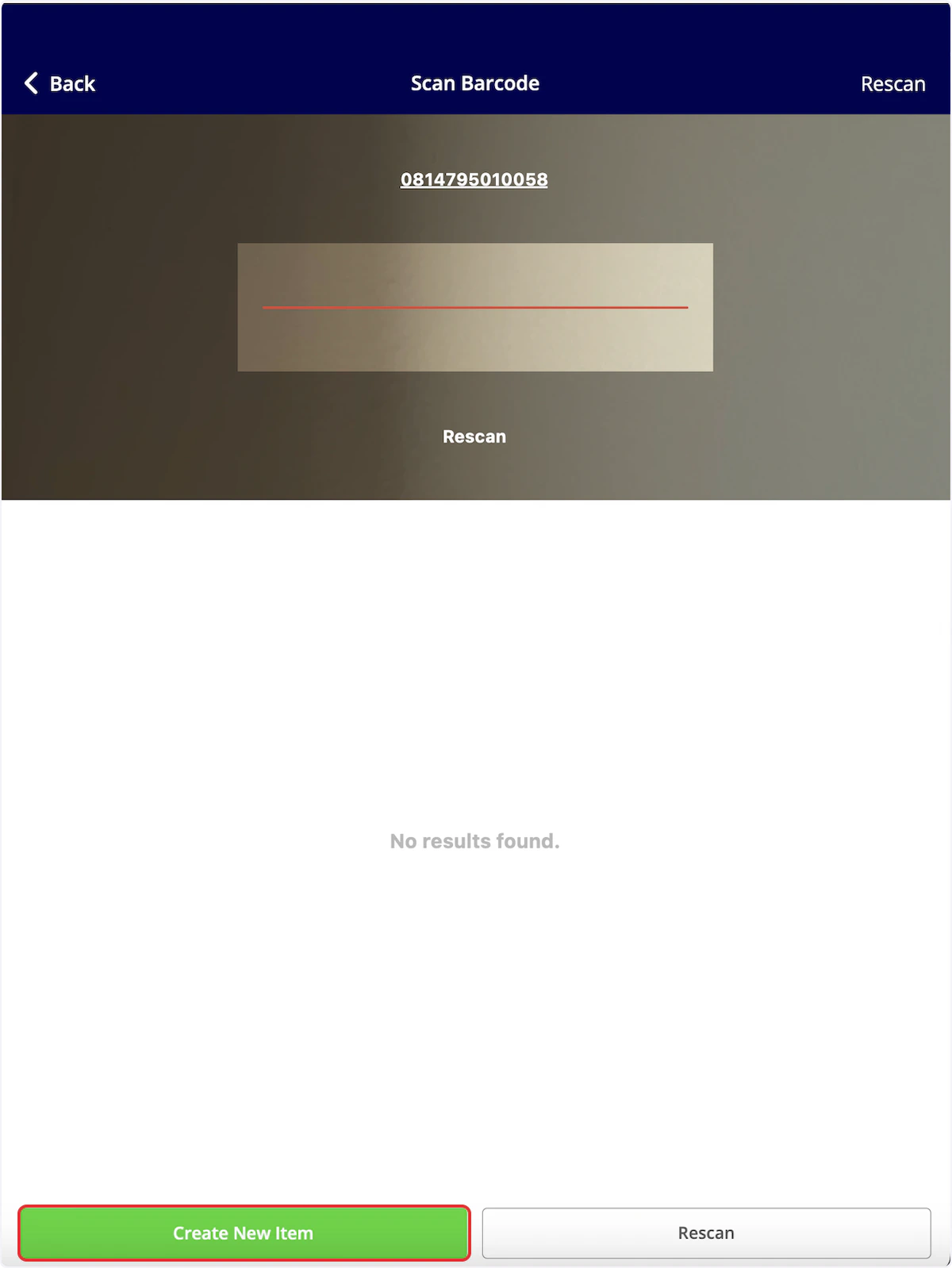
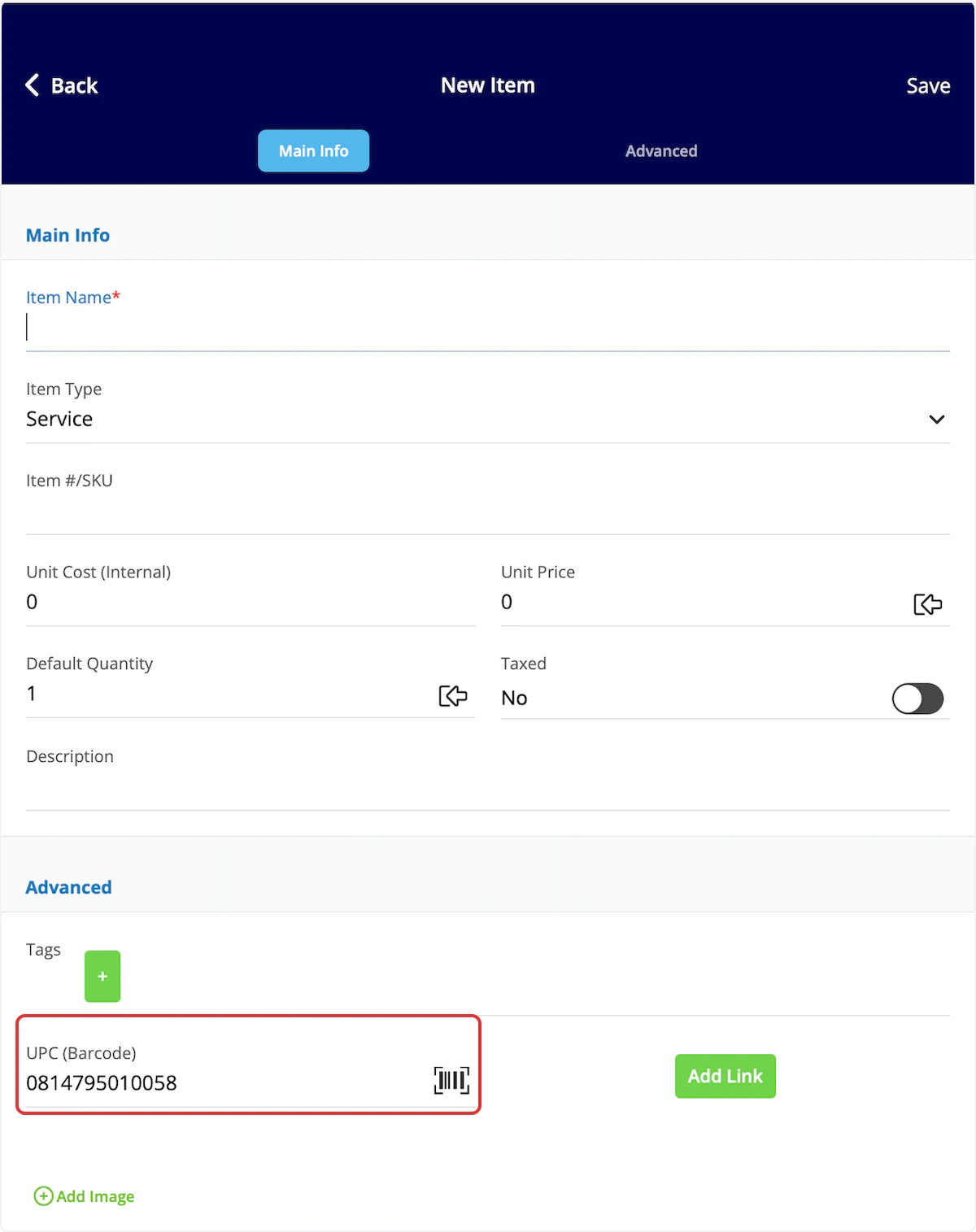
Video Tutorials
Web App
Mobile
Have additional questions? Contact us at support@fieldpulse.com or use the chat feature in the bottom right corner of your screen.