

Custom statuses allow your team and your customer to know the current stage each job, project, or material list is in. You can even track the amount of time spent in each stage. While custom statuses are an internal tool, you can use them to send automated messages to your customers to keep them in the loop. Note: Customers will not view material lists, these are internal only.Documentation Index
Fetch the complete documentation index at: https://fieldpulse.mintlify.app/llms.txt
Use this file to discover all available pages before exploring further.
Creating Custom Statuses for Jobs
FieldPulse has a default job status workflow. You can customize your job status workflow depending on the job/service you are doing. To do so, begin by clicking Company Settings, then Jobs, and Custom Status. Here, you can view the default workflow or create a new one by selecting Create Custom Status Workflow.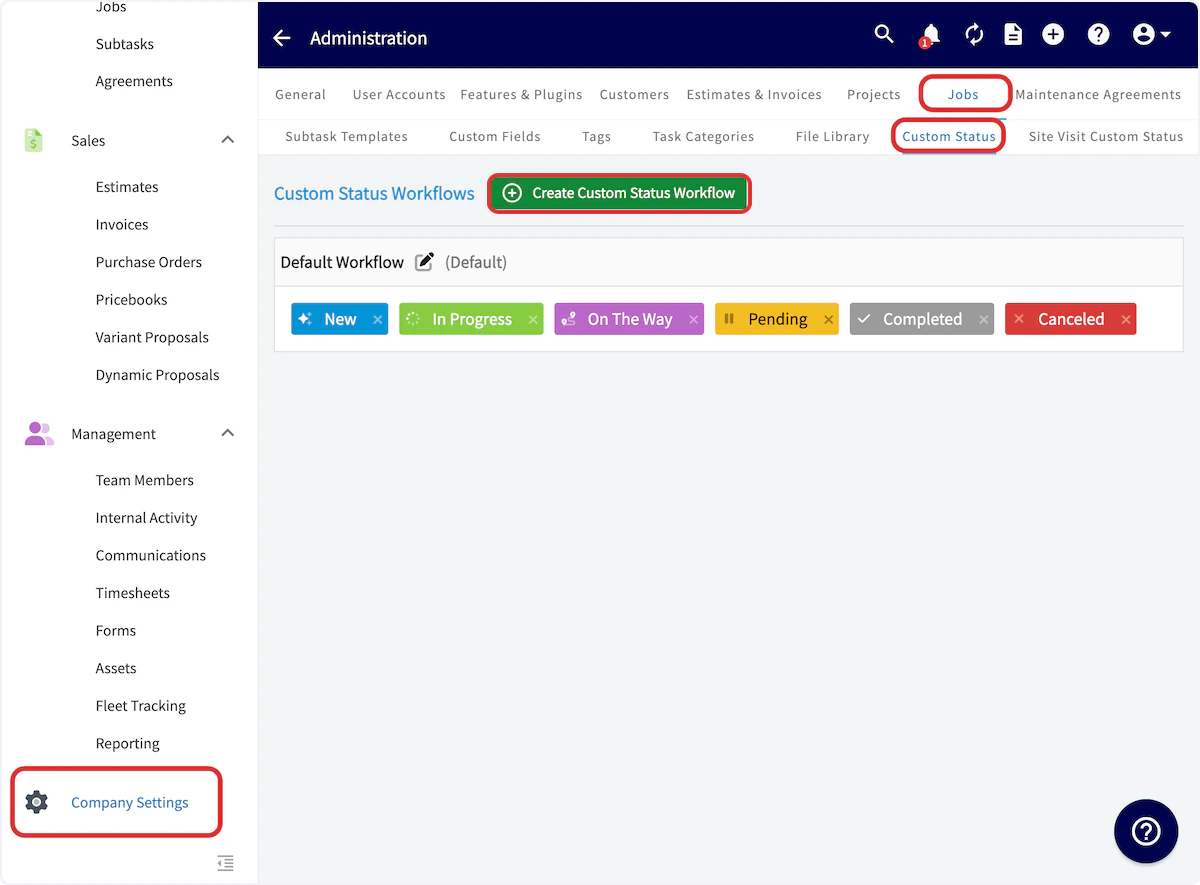
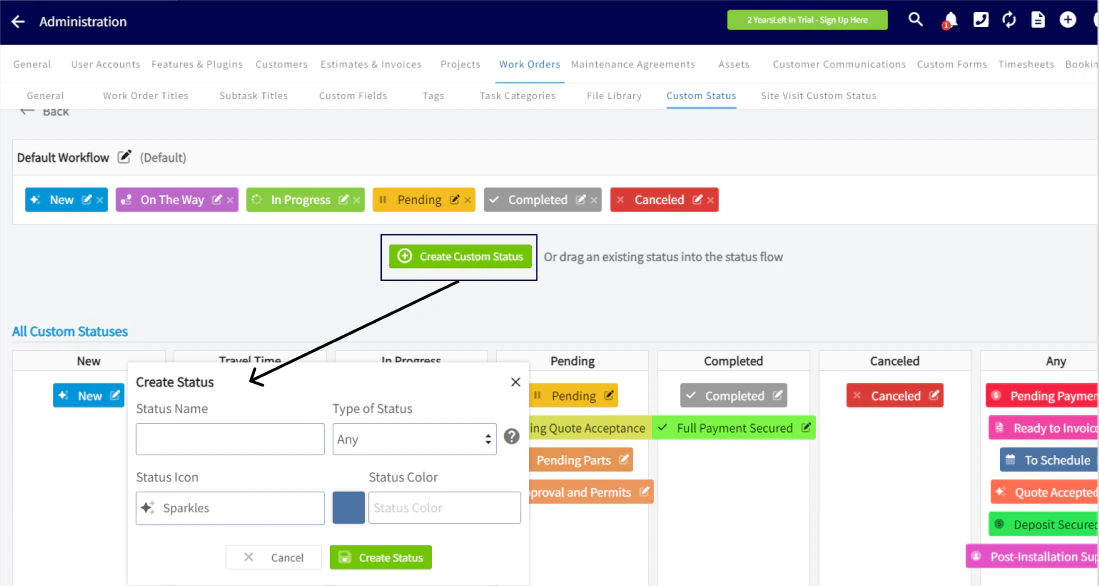
Creating Custom Statuses for Projects
You can customize your project status workflow depending on the project/service you are doing. To do so, begin by clicking Company Settings, then Projects, and Custom Status.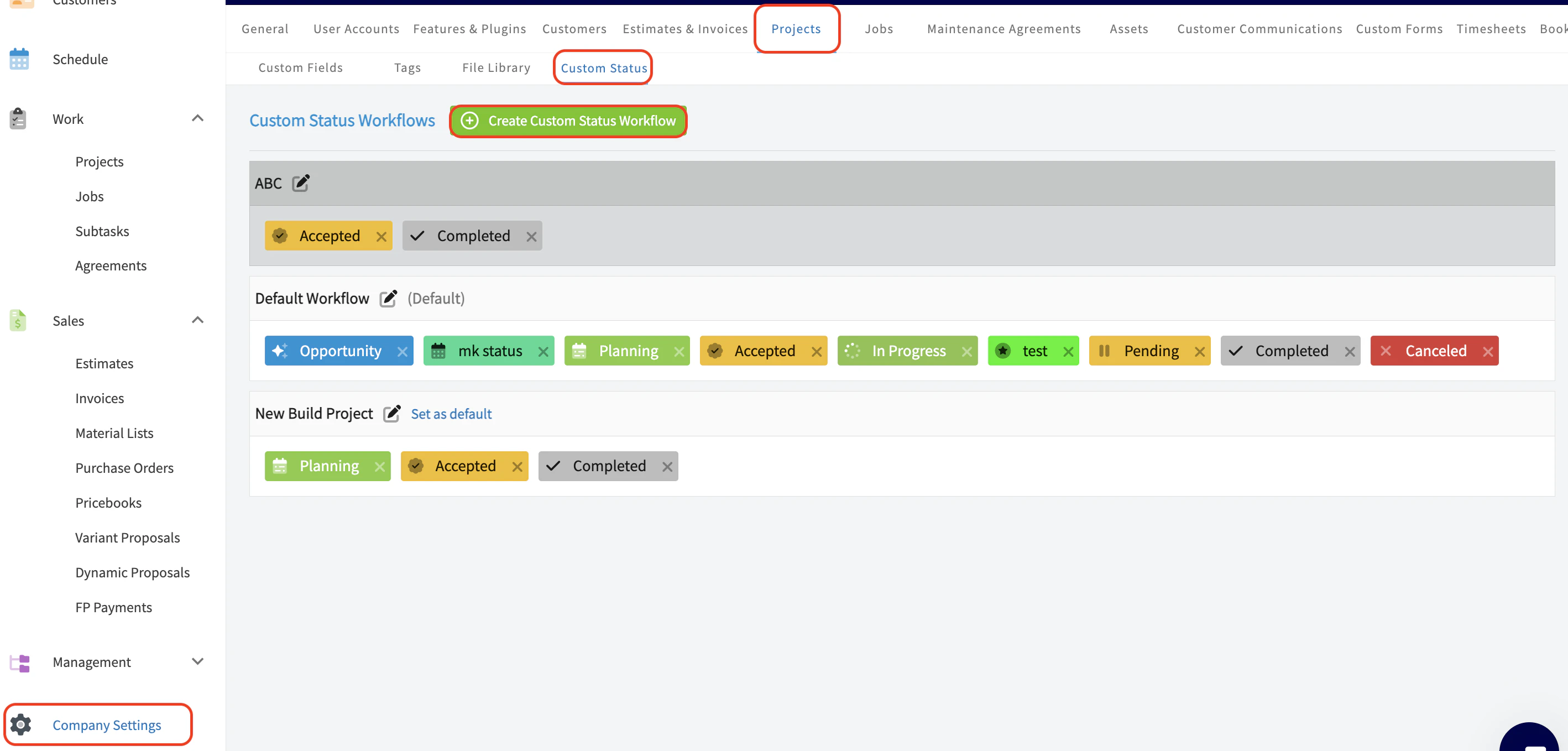
Creating Custom Statuses for Material Lists
You can configure your custom material list workflow. To do this, start by clicking on Company Settings, then go to Material List, and select Custom Status.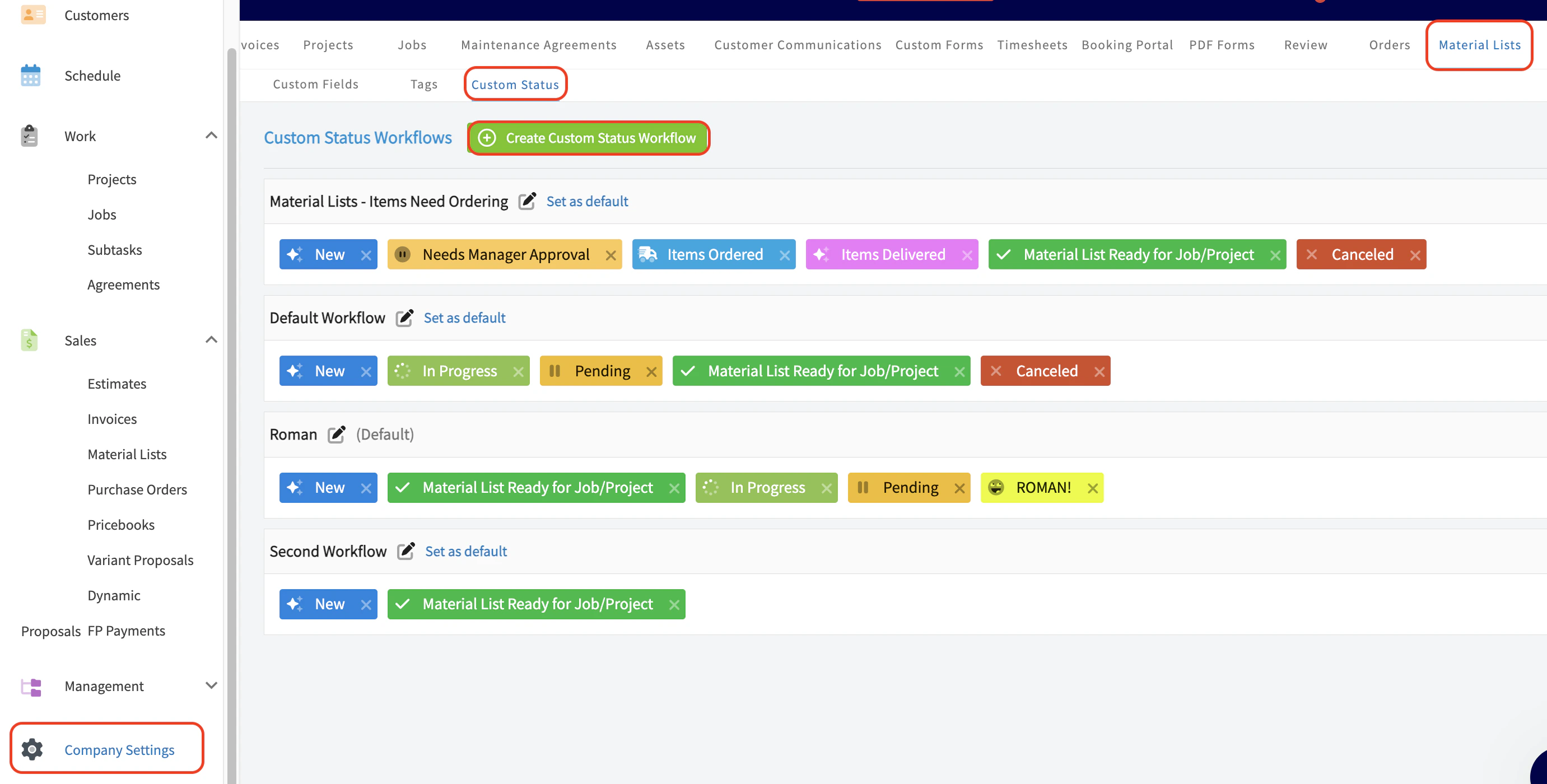
Using Custom Statuses
The default workflow includes the following statuses:- New: the job has not been started, and no one is on their way.
- On the Way: a service agent is on their way to the job.
- In Progress: a service agent is at the job and has begun work.
- Pending: the job is paused but not yet completed.
- Completed: the job has been completed.
- Canceled: the job has been canceled.
Time Tracking
Selecting any status under the Travel Time type will begin tracking the time spent in this status. Once the status is changed, a new field will appear on the job record documenting the time your team member spent en-route to the job.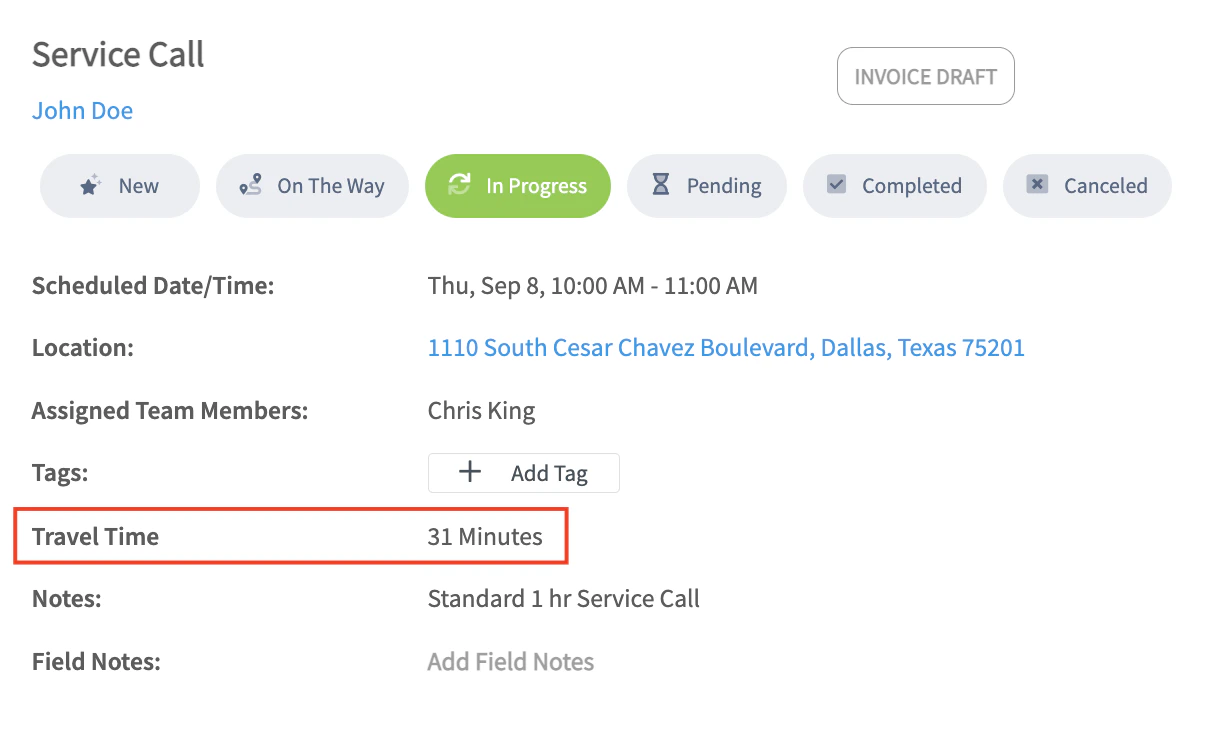
Automatic Customer Communications
Many businesses utilize automatic triggers with customer communications to send messages to customers. Examples include:- On the Way triggering a text message to notify the customer a service agent is on the way.
- Completed triggering an email or text message asking for feedback or a review.
Video Tutorial
Have additional questions? Contact us at support@fieldpulse.com or use the chat feature in the bottom right corner of your screen.