

Documentation Index
Fetch the complete documentation index at: https://fieldpulse.mintlify.app/llms.txt
Use this file to discover all available pages before exploring further.
Overview
Although jobs can span multiple days, if you have longer-term projects with complex work assignments and specialized invoicing needs, you may want to consider using the Project record. Projects enable more effective management of long-term initiatives that involve multiple tasks assigned beneath them.Prerequisites
Before you can use Project Management, make sure the following is in place:- Project Management is enabled in your account
On Web: Admin Experience
Managing Your Projects
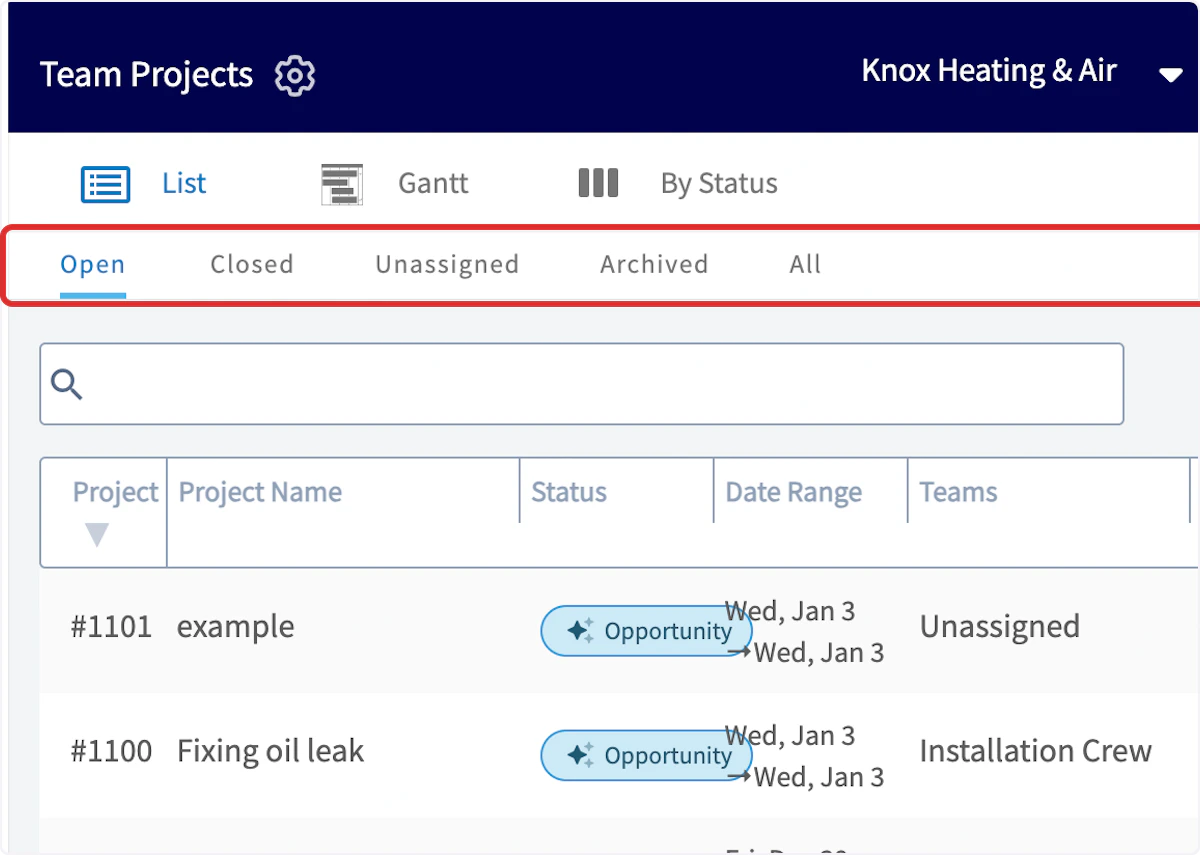
After enabling Projects, find them on the left-side of your screen under Work. Once on the Projects page, you will be taken to the List view by default. Here you can view a list of all of your projects. In this view, you can see the Project names, status, date range, assigned teams, completion percentage, and associated customer.
Gantt Tab
You can also use the Gantt tab to organize your projects by date, and see what you have going on for the month. Hover over any of the projects listed in the Gantt view to show the details.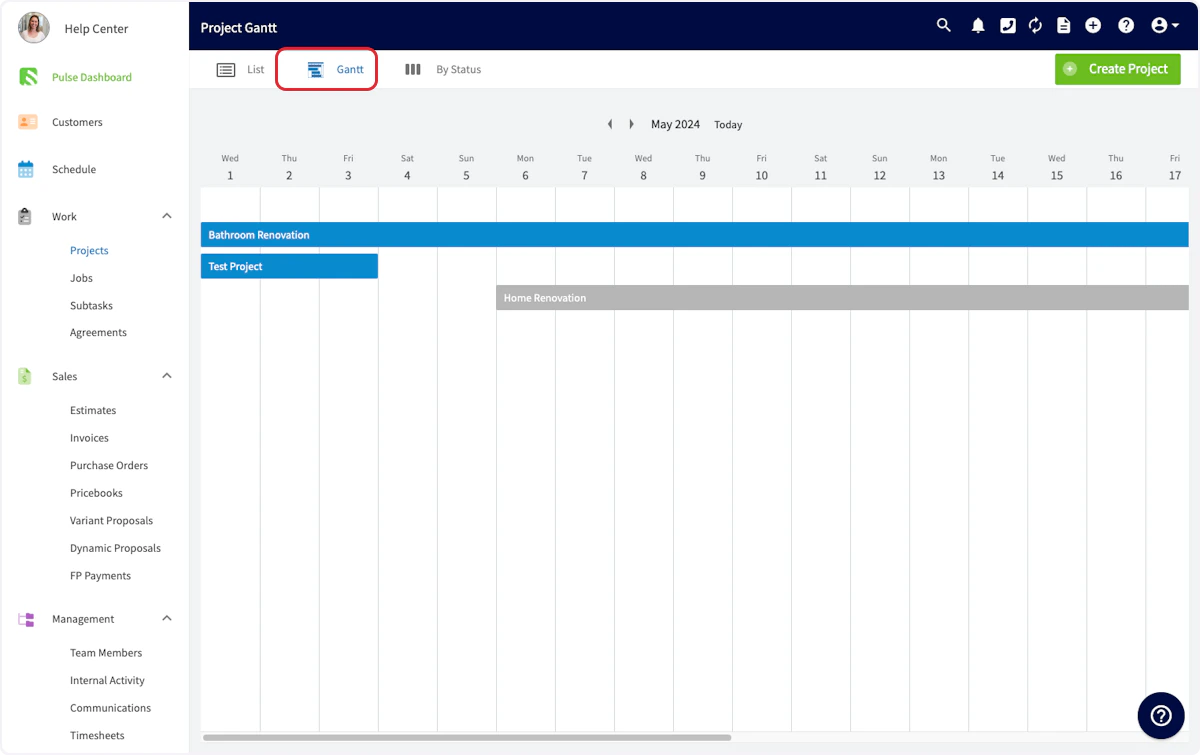
By Status Tab
Click on the By Status tab to see your projects organized by their completion status.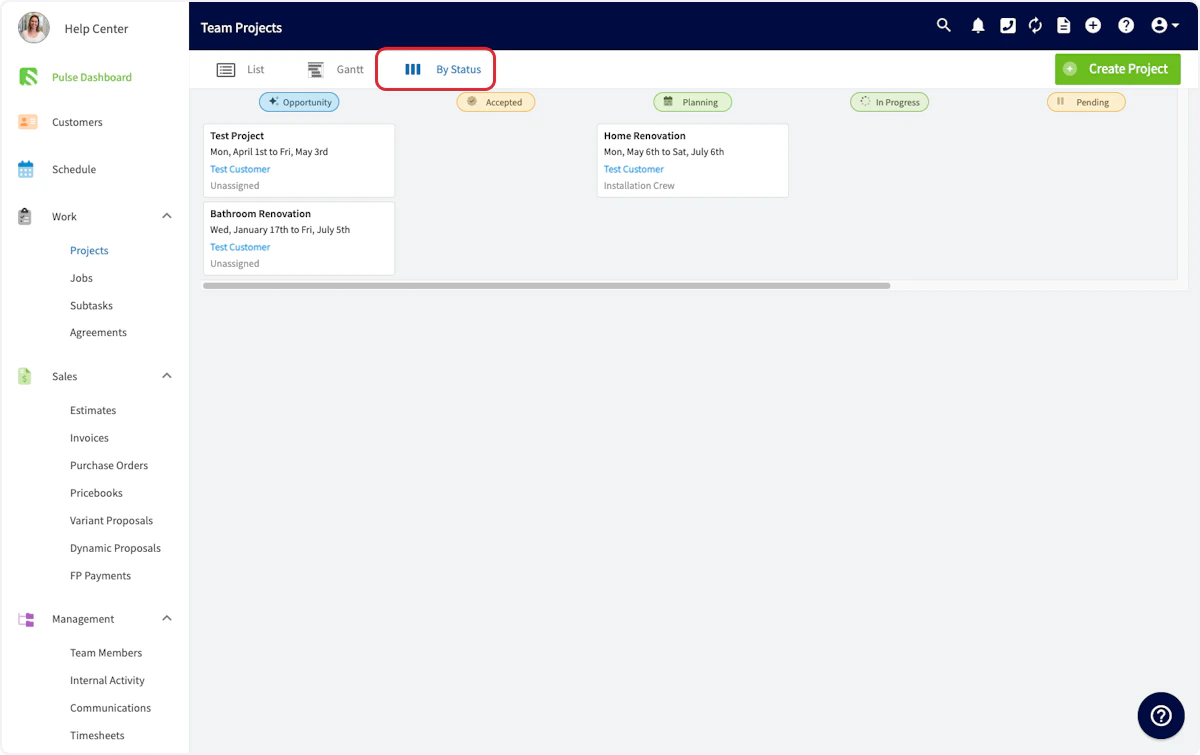
Creating a Project
Create a Project from Scratch
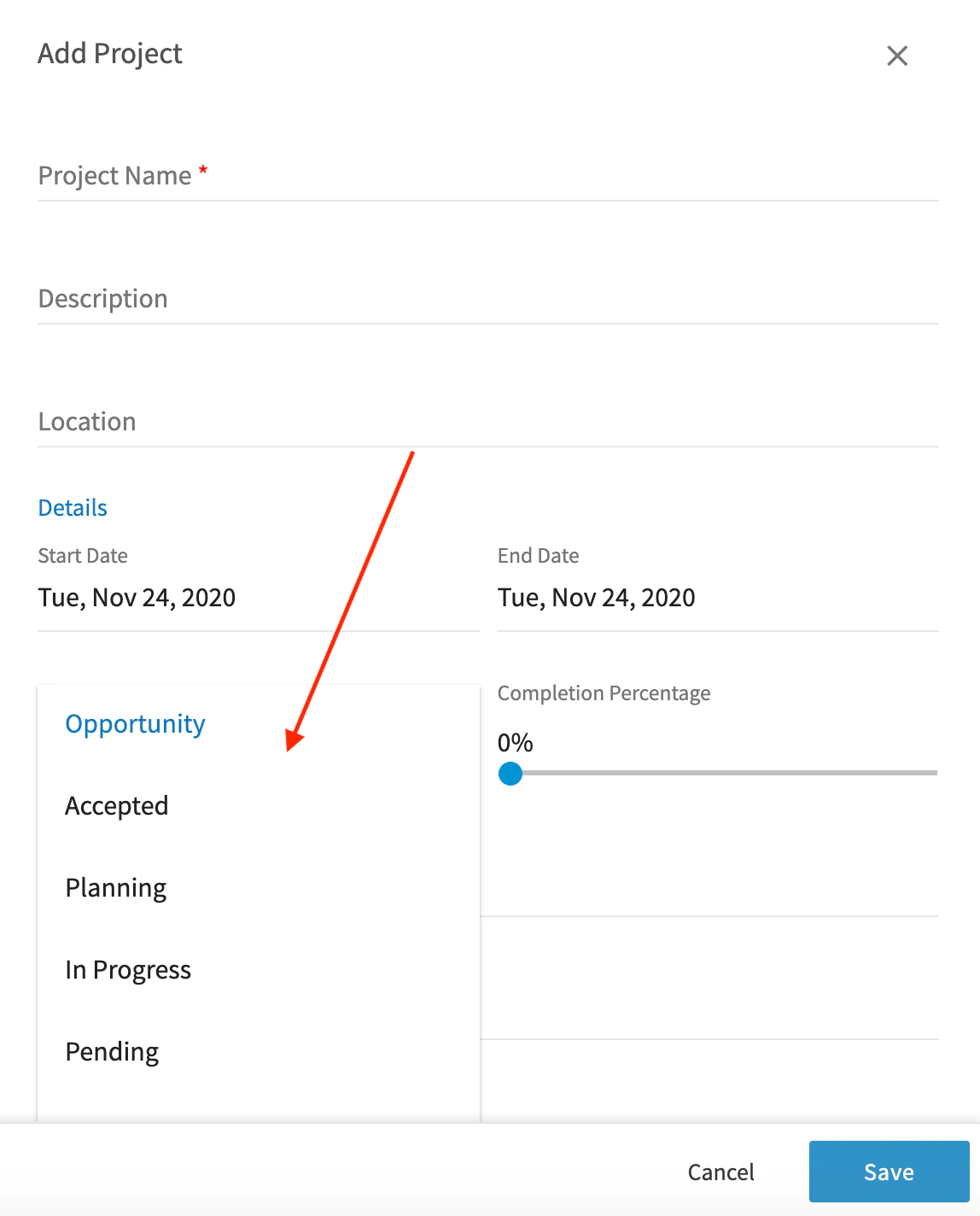
Click the Create Project button to create a new project. In the pop-up window, select the customer, name your project, add a description, and choose the start and end date. The location will automatically be pulled from your customer’s information. Alternatively, You can also enter location coordinates in either Decimal Degrees (e.g.,34.0522, -118.2437) or Degrees, Minutes, Seconds (e.g., 34°03'08"N, 118°14'37"W) formats.



Create a Project from a Job
Start a project from an existing job record to keep everything connected. This is perfect for when a small job, evaluation, or estimate visit turns into a larger project! Select Actions > Create Project on a job record to get started, then follow the steps listed above to complete your project.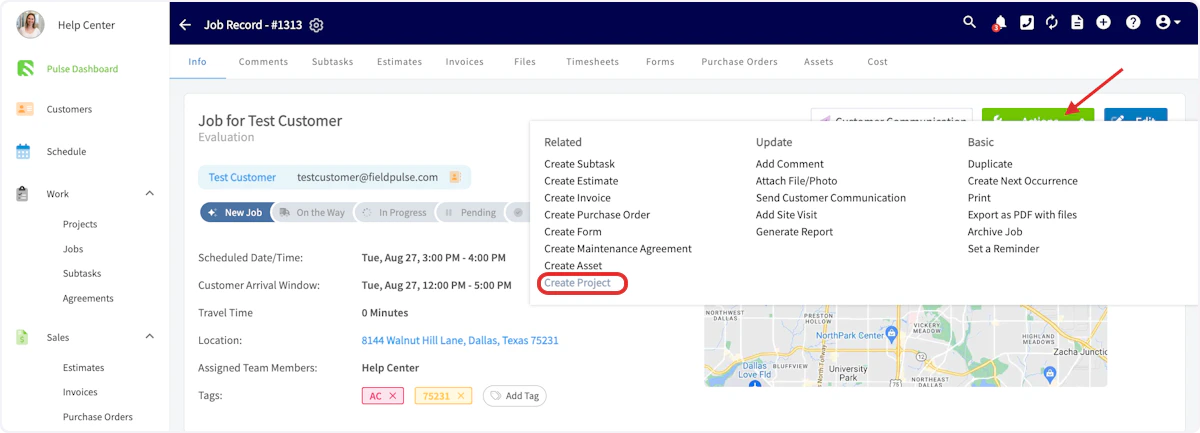
Create a Project from a Template
Create project templates in the web app to save time and ensure consistency! Build new sub-records or attach previously created templates for records such as subtasks, estimates, and invoices. To create a project template, toggle on Save as Project Template when filling out your project details. To build a project from an existing template, select Import Template, then select your desired template.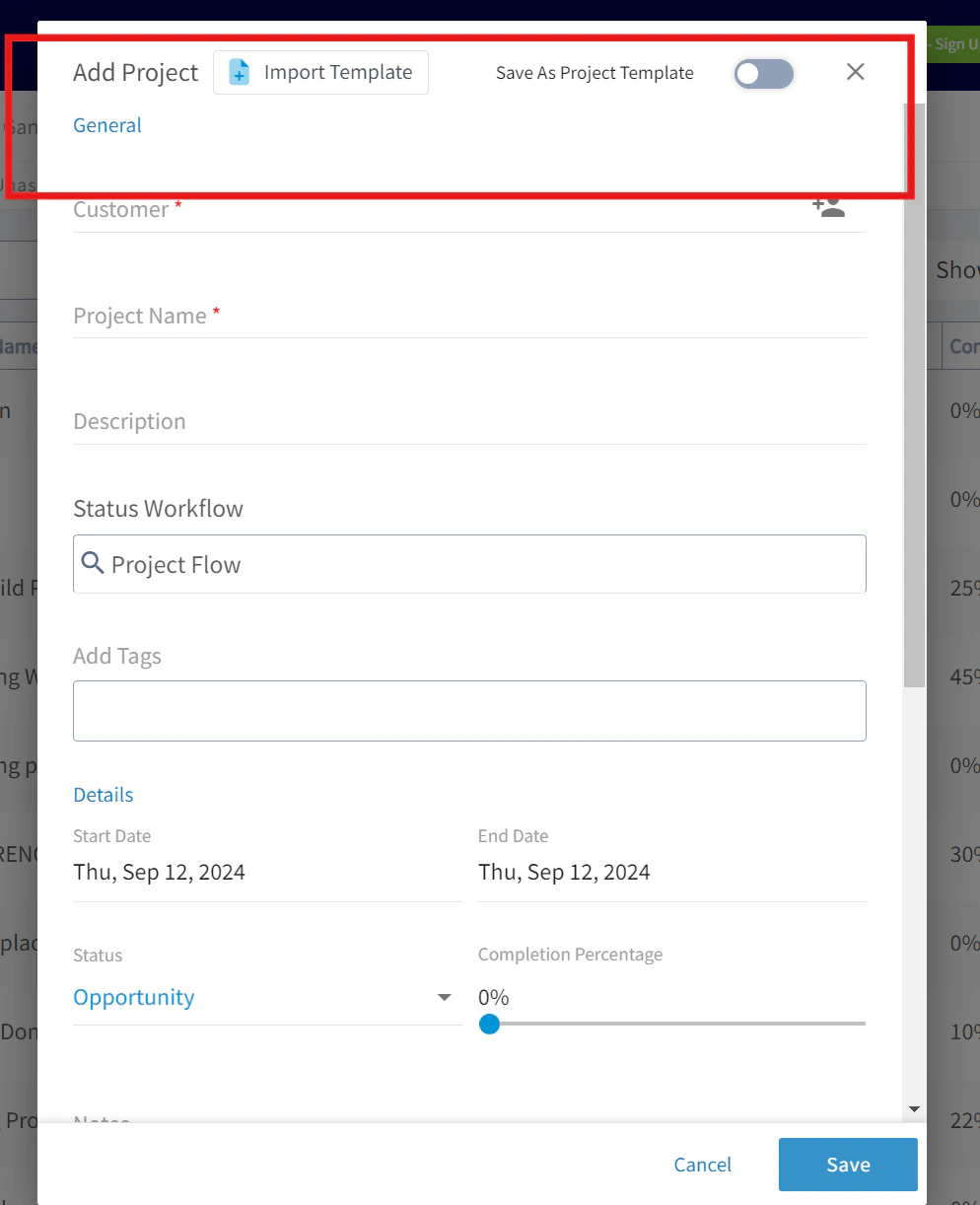
Navigating a Project Record
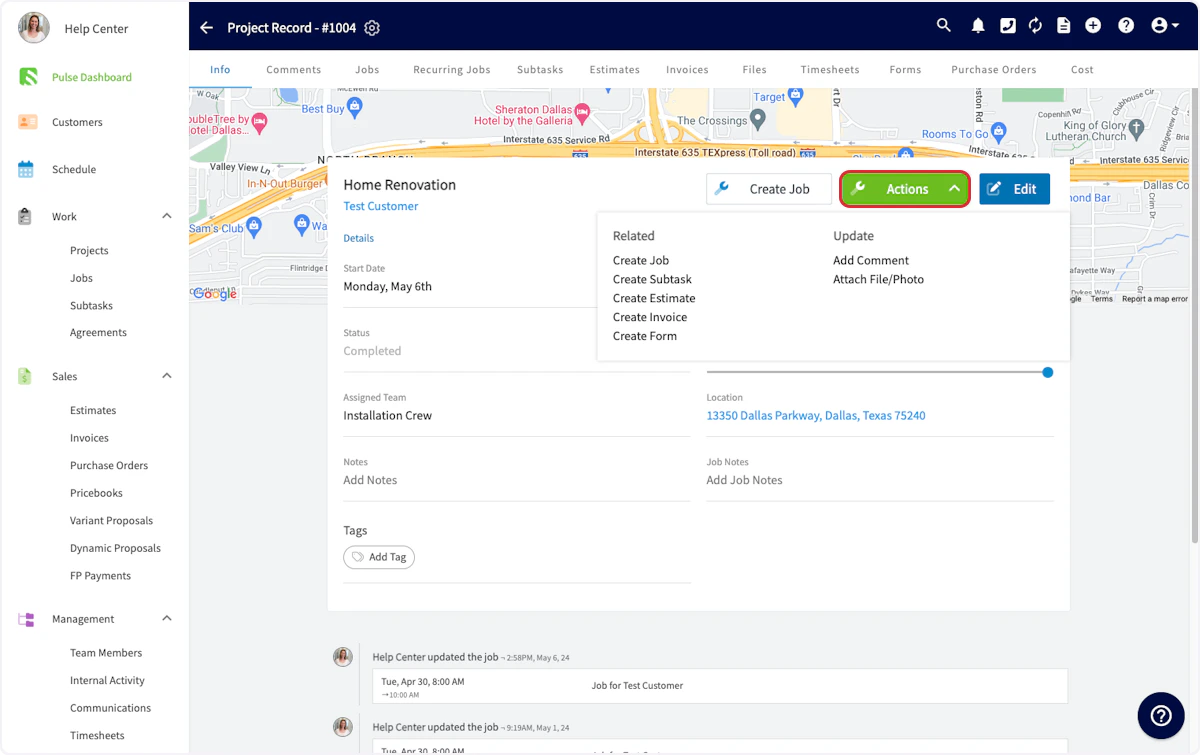
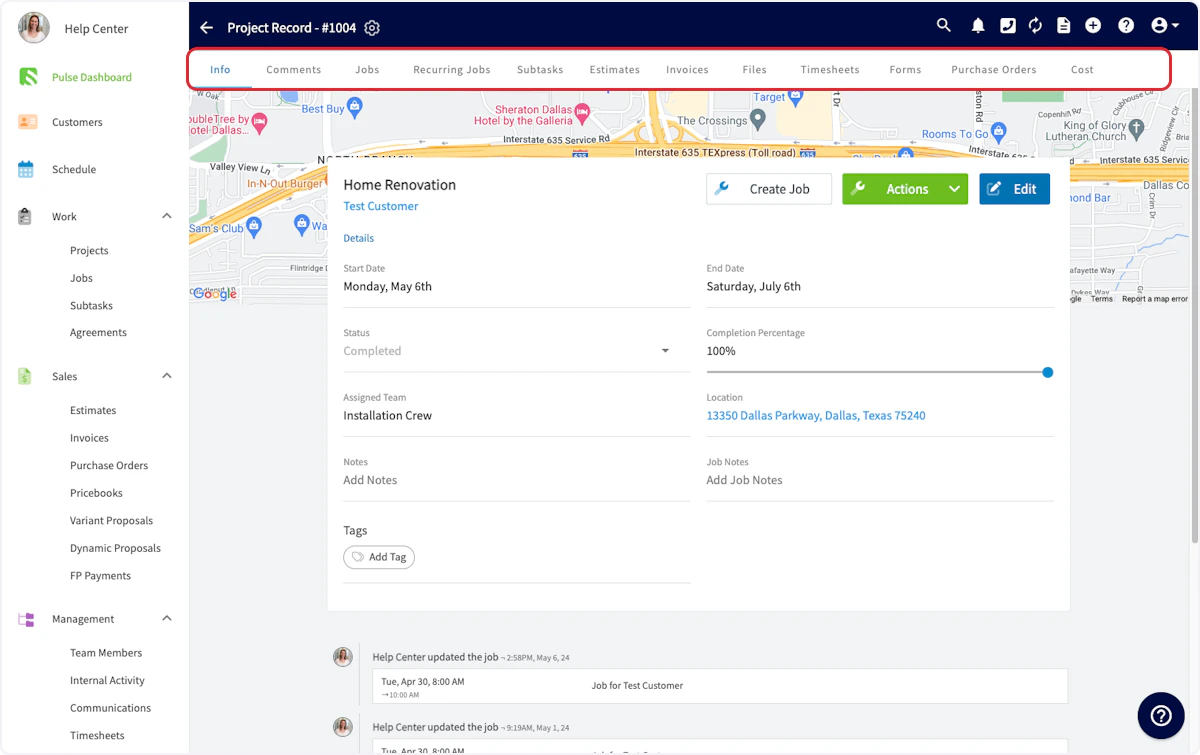
After creating your project, you will be taken to the project record, where you can:- View and edit all the details you just entered
- Add comments
- Add jobs or subtasks
- Create estimates and invoices
- Attach files
- Track employee timesheets
- And more!
Adding to a Project
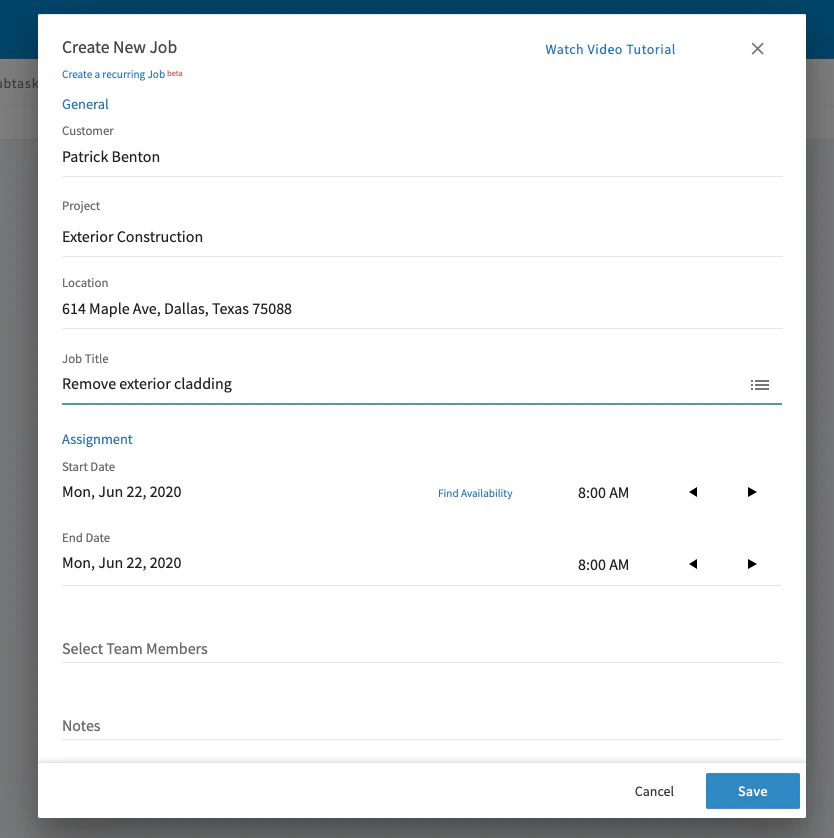
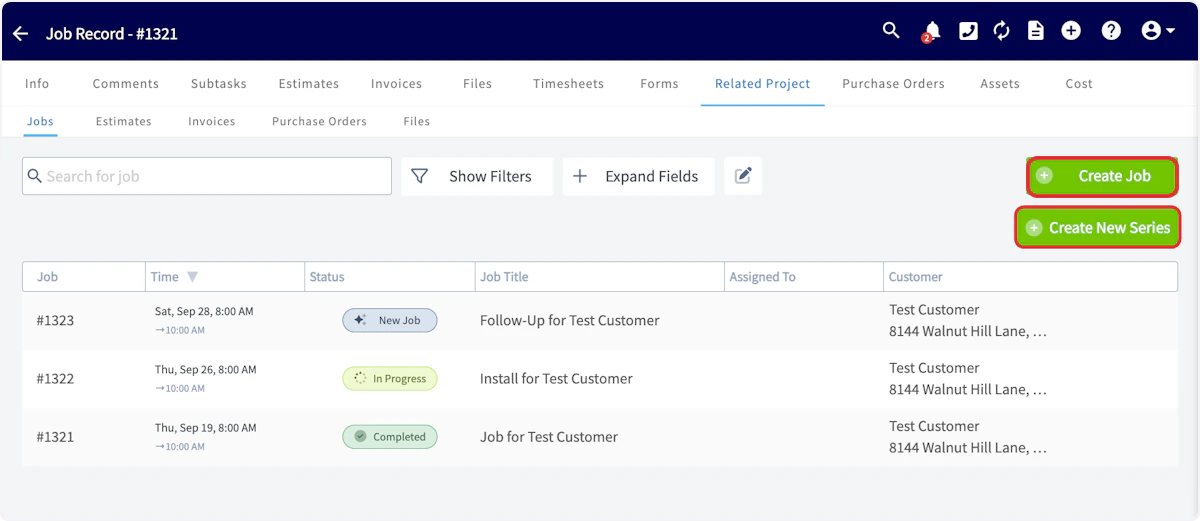
Now, you’ll want to add jobs to this project. This can be done from the tabs at the top of the Project Record or from the Project Actions button. Click Create New to set up the first job for this project.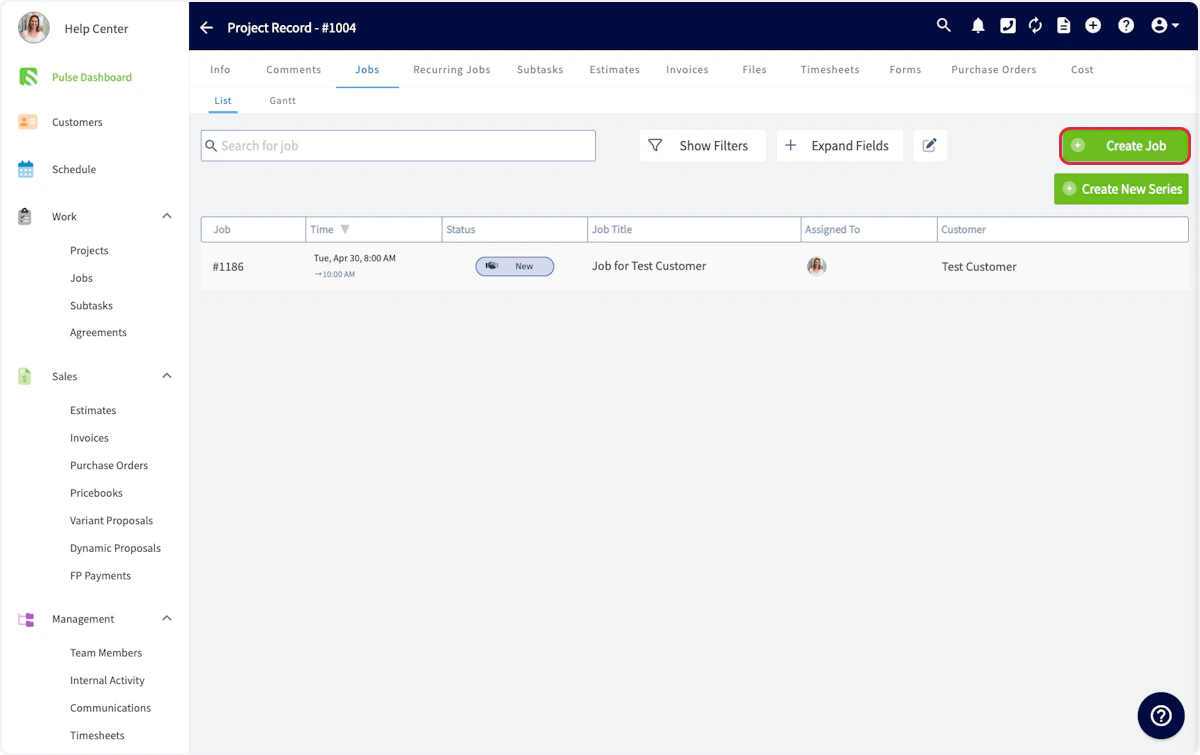

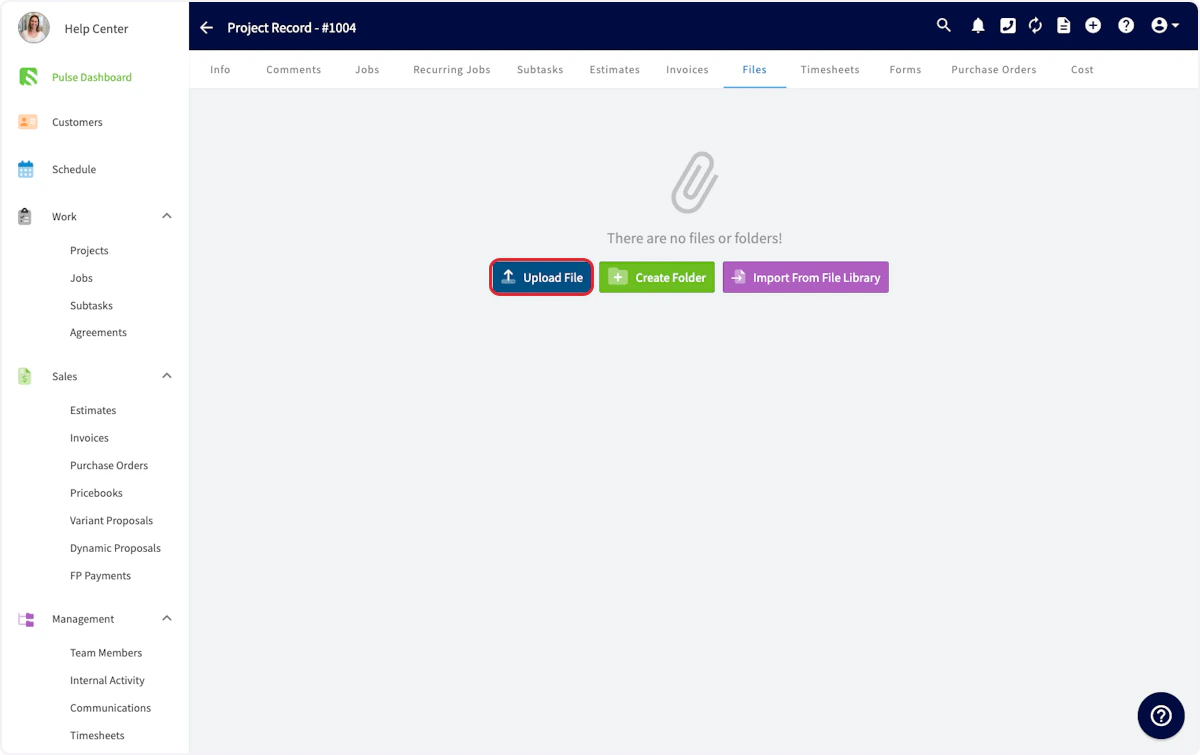
- Photos you want to share with your team
- PDF documents like a service manual for a particular piece of equipment.
Related Project Tab
When viewing a record linked to a project, you’ll notice the Related Project tab at the top of your screen. This tab allows you to view all records linked to the project from an easy-to-access location. Many users use this feature to reference files from a previous job while working on the project’s next job. Click here to quickly open other jobs, estimates, invoices, purchase orders, and files linked to the same project.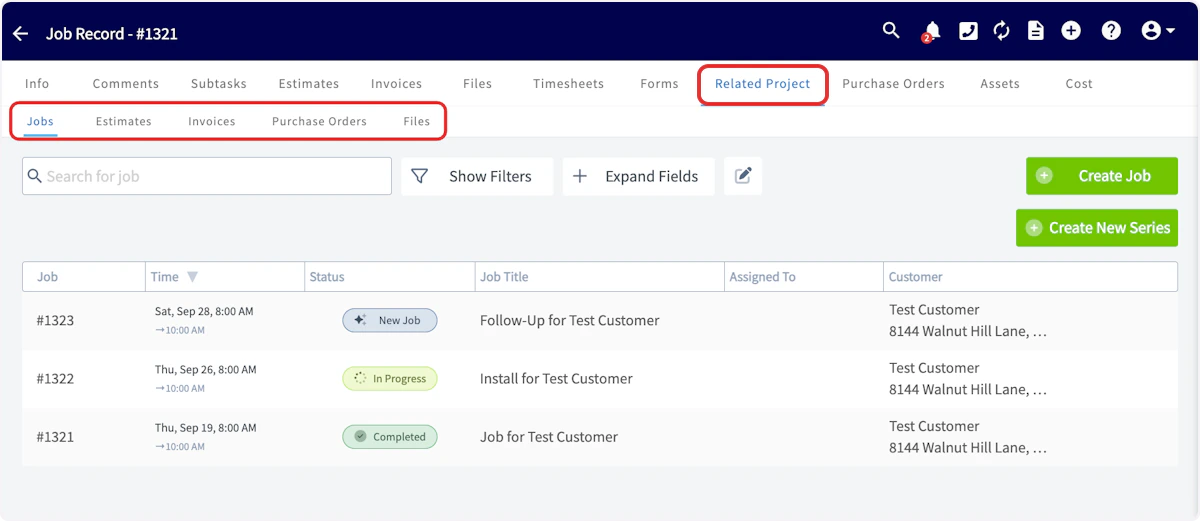
Completing a Project
When your project is complete, navigate to the Info tab in your Project Record and change the status to Complete. You’ll also want to set the completion percentage to 100%.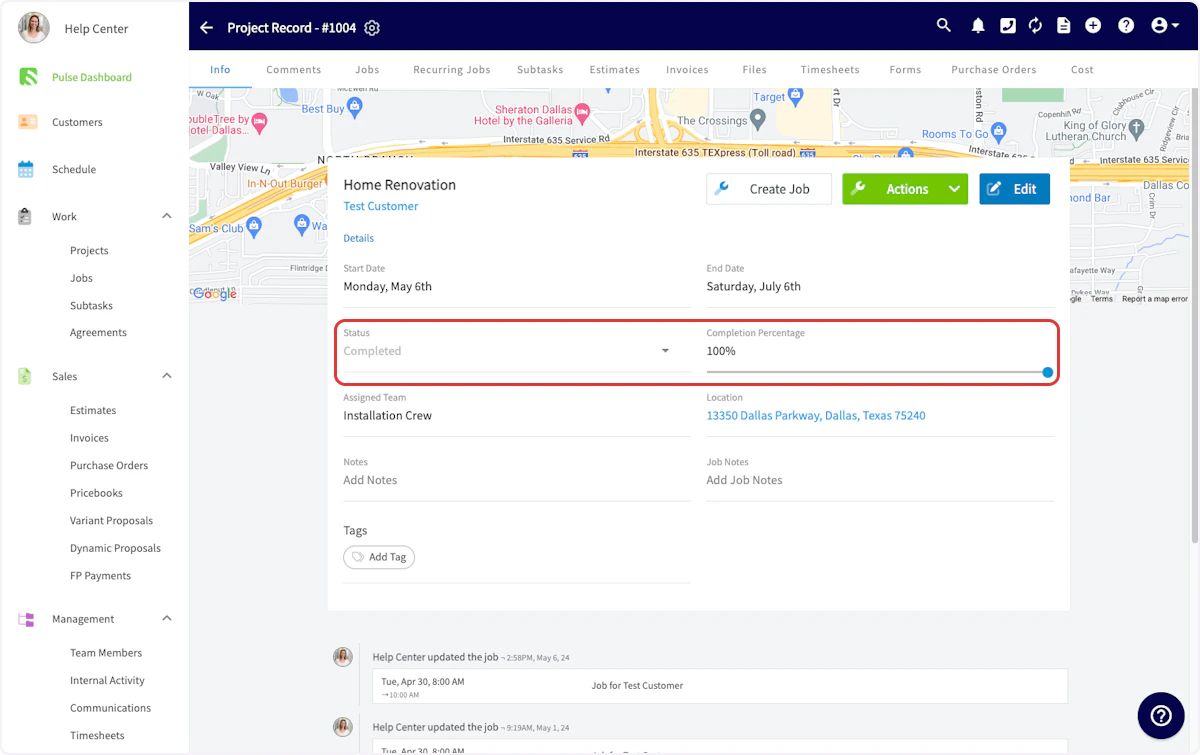
On Mobile: Field Experience
Creating a Project
To create a project, begin by selecting the Work tab from the bottom menu. Then select Projects.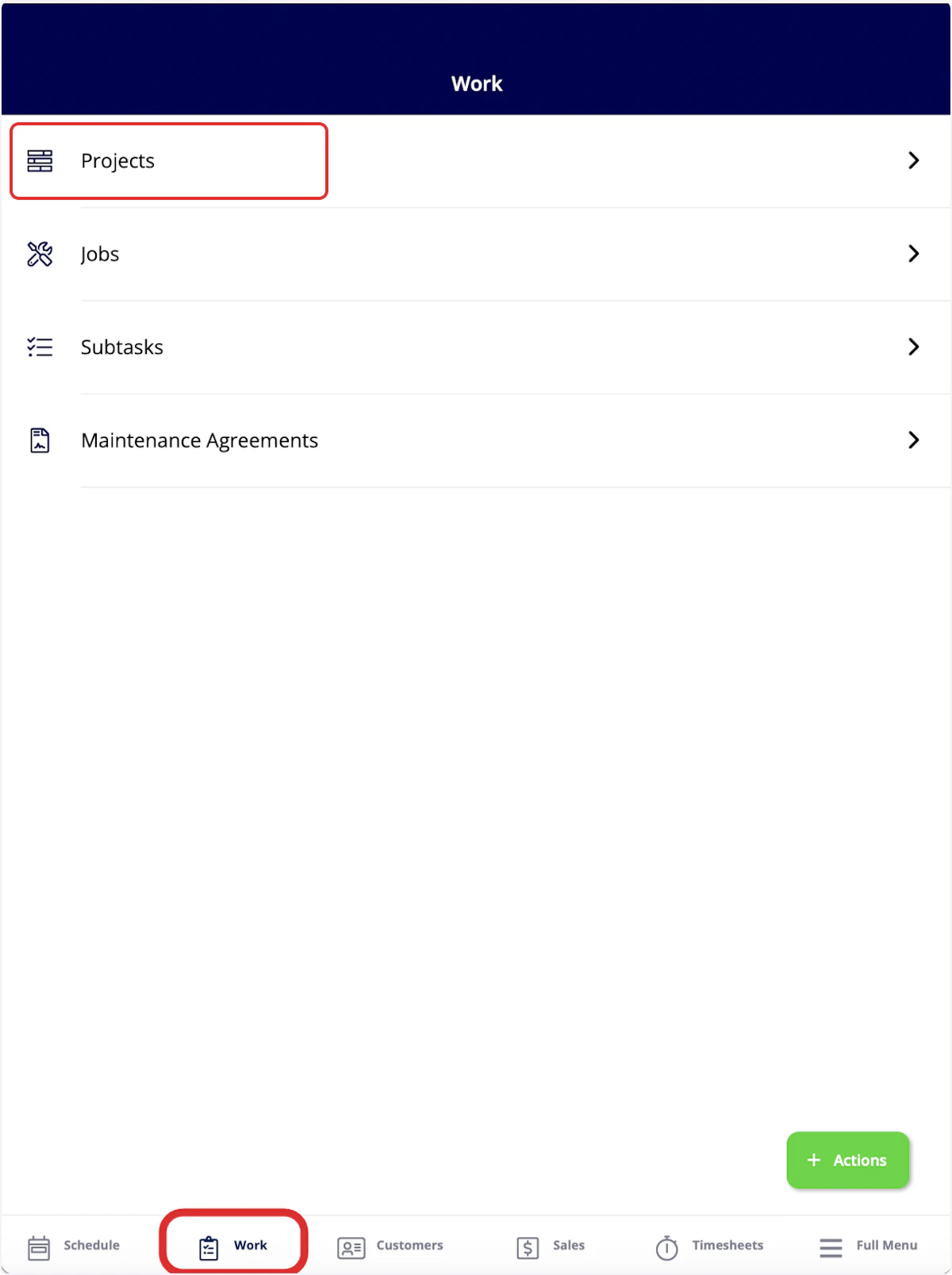
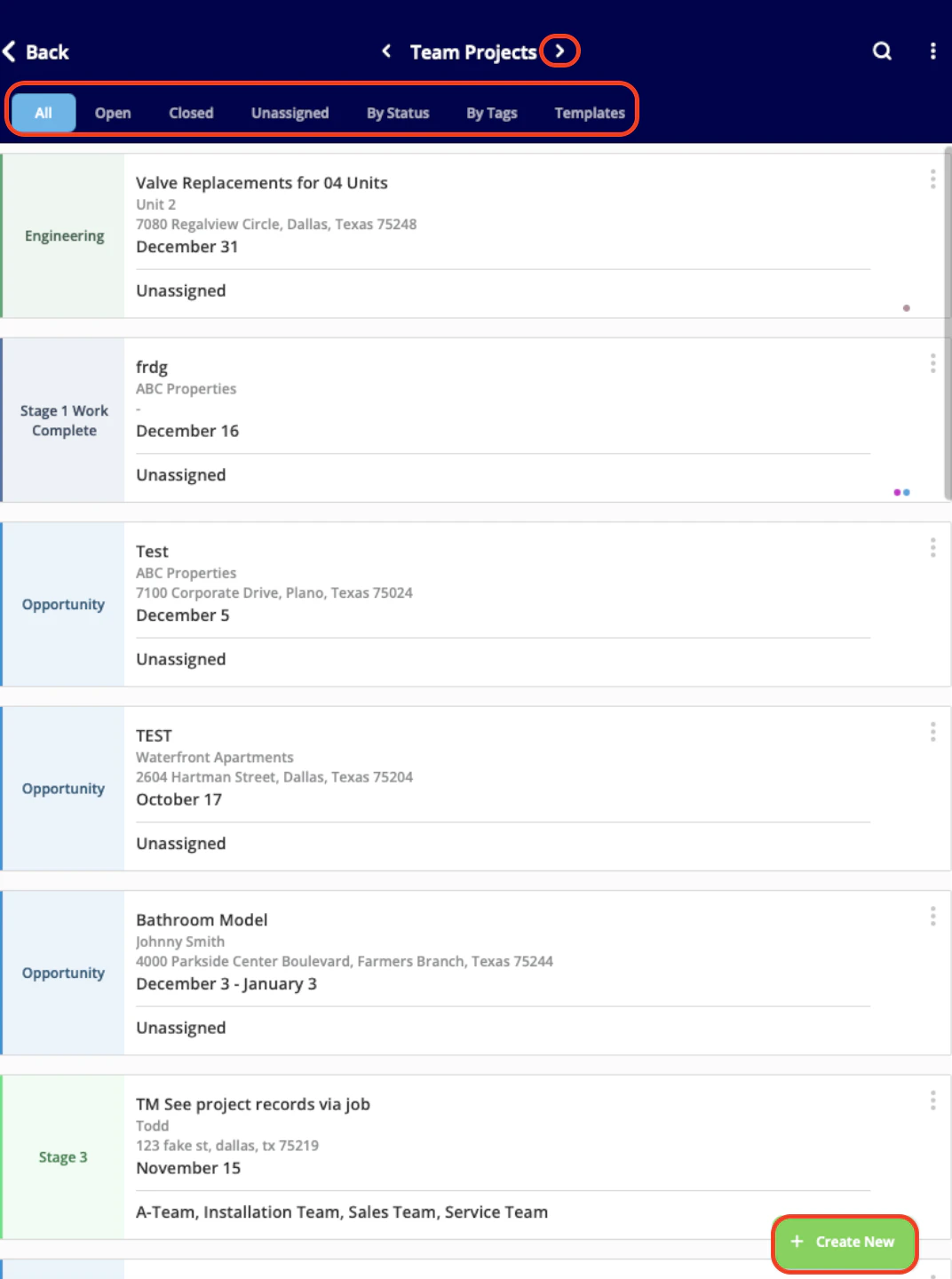
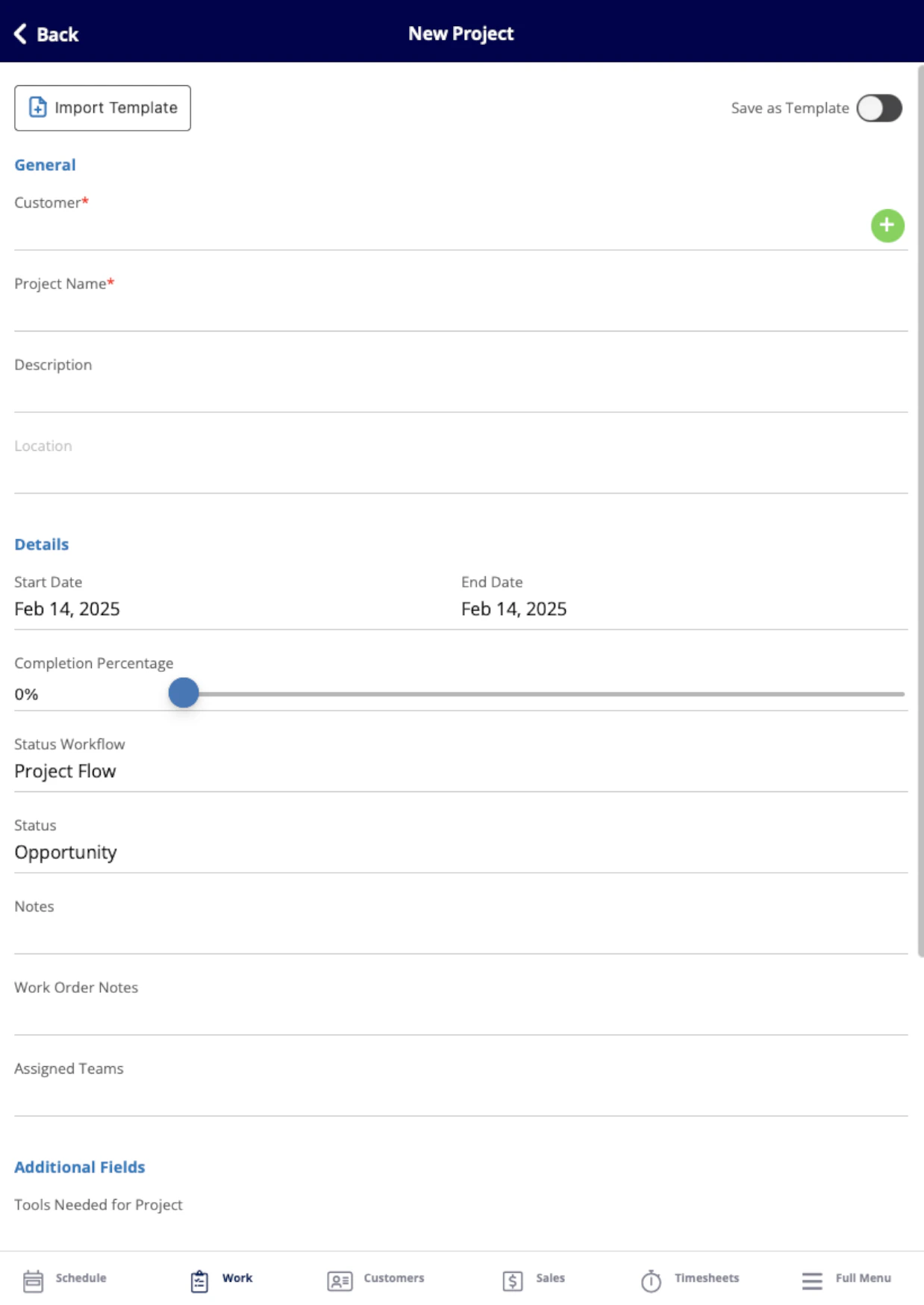
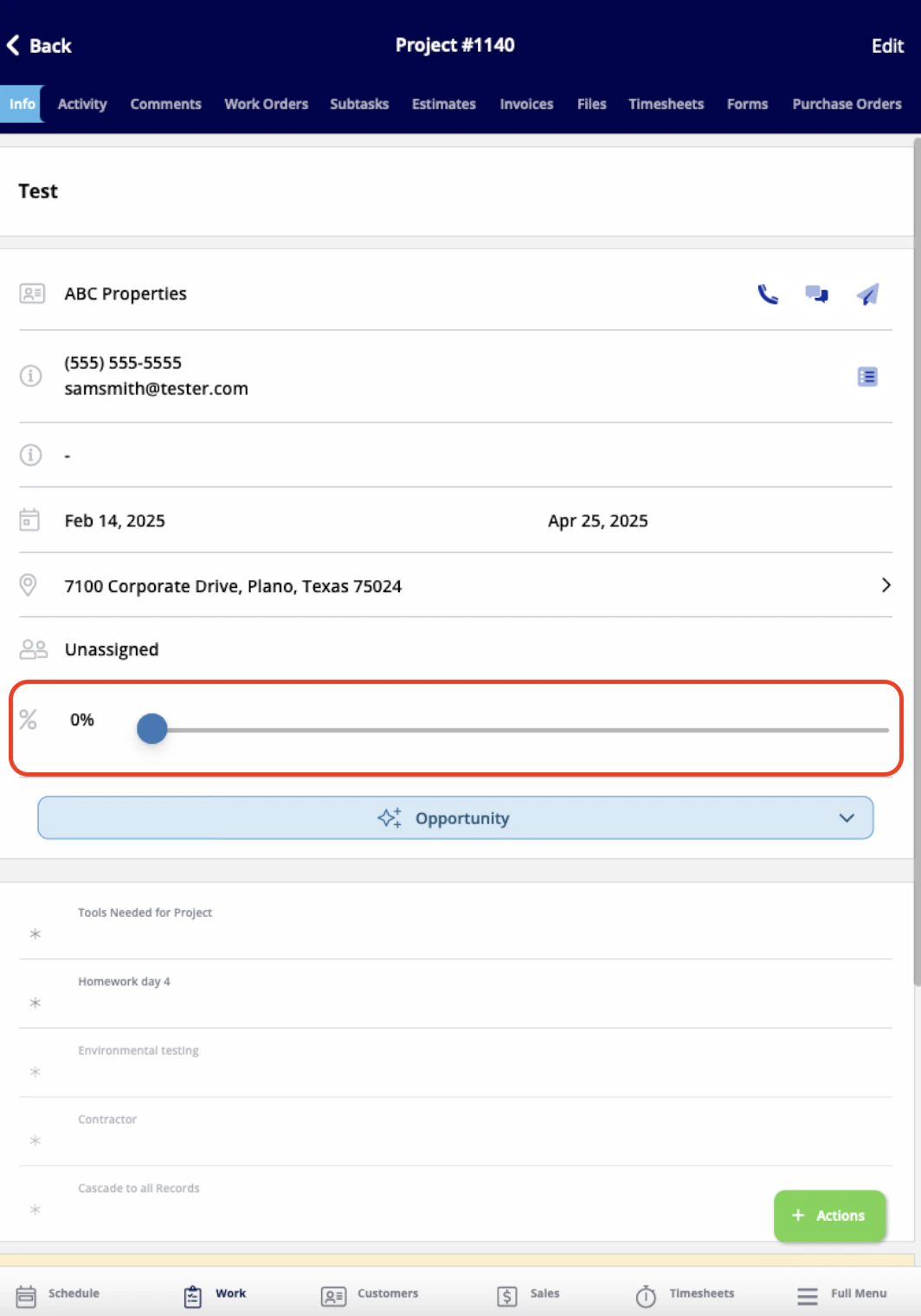
- View and edit all the details you just entered
- Add comments
- Add jobs or subtasks
- Create estimates and invoices
- Attach files
- Track employee timesheets
- And more!
FAQs
If you delete a project, will it also delete/archive the jobs under that project? No! No need to worry - those jobs will still be accessible within FieldPulse.Video Tutorials
Web App
Mobile
Have additional questions? Contact us at support@fieldpulse.com or use the chat feature in the bottom right corner of your screen.