

Documentation Index
Fetch the complete documentation index at: https://fieldpulse.mintlify.app/llms.txt
Use this file to discover all available pages before exploring further.
Overview
Got a new job to schedule? You can create one in FieldPulse from anywhere, whether you’re at your desk on the web app or out in the field on mobile. Link it to a customer, assign your team, set a date, and hit save. Your team gets notified and the job appears on their schedule.On Web: Admin Experience
Users can create job records for customers and assign them to team members. Job records can be created in different ways, but we’ll walk you through creating a job record from the Jobs tab in the left-side menu. Begin by selecting Jobs under Work in the left-side menu, then click Create Job.
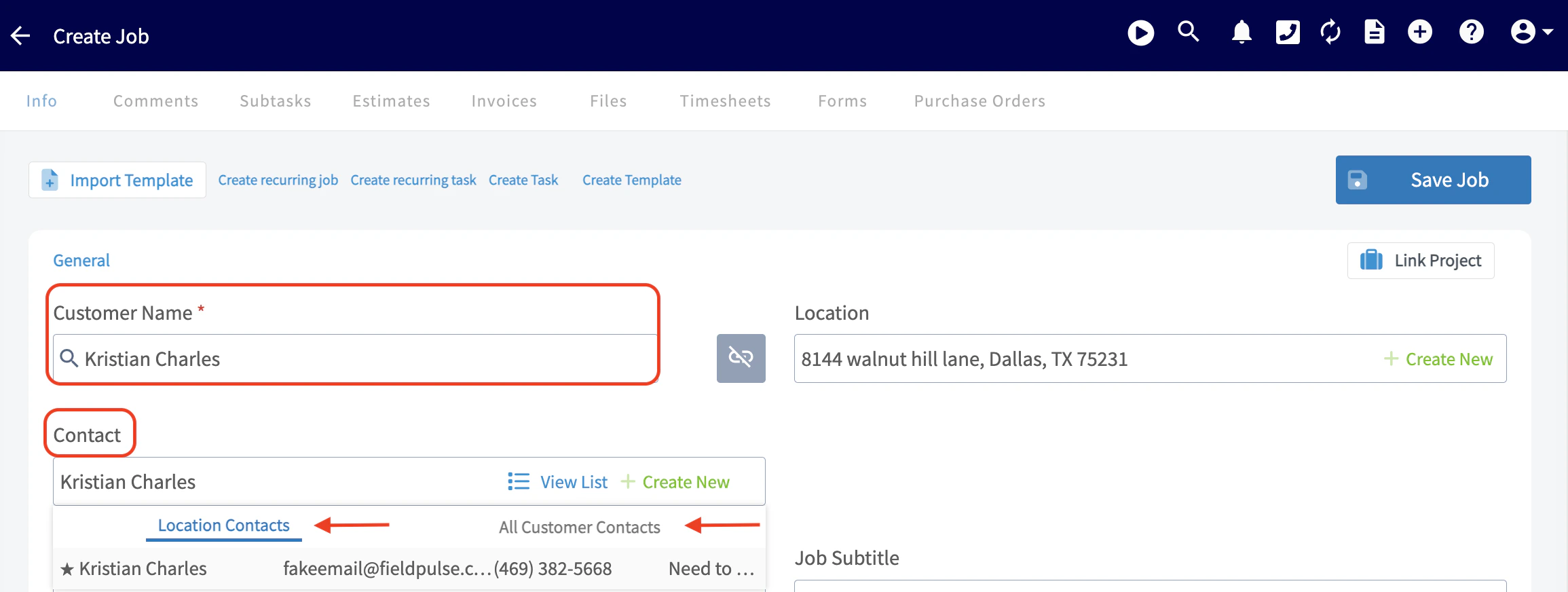
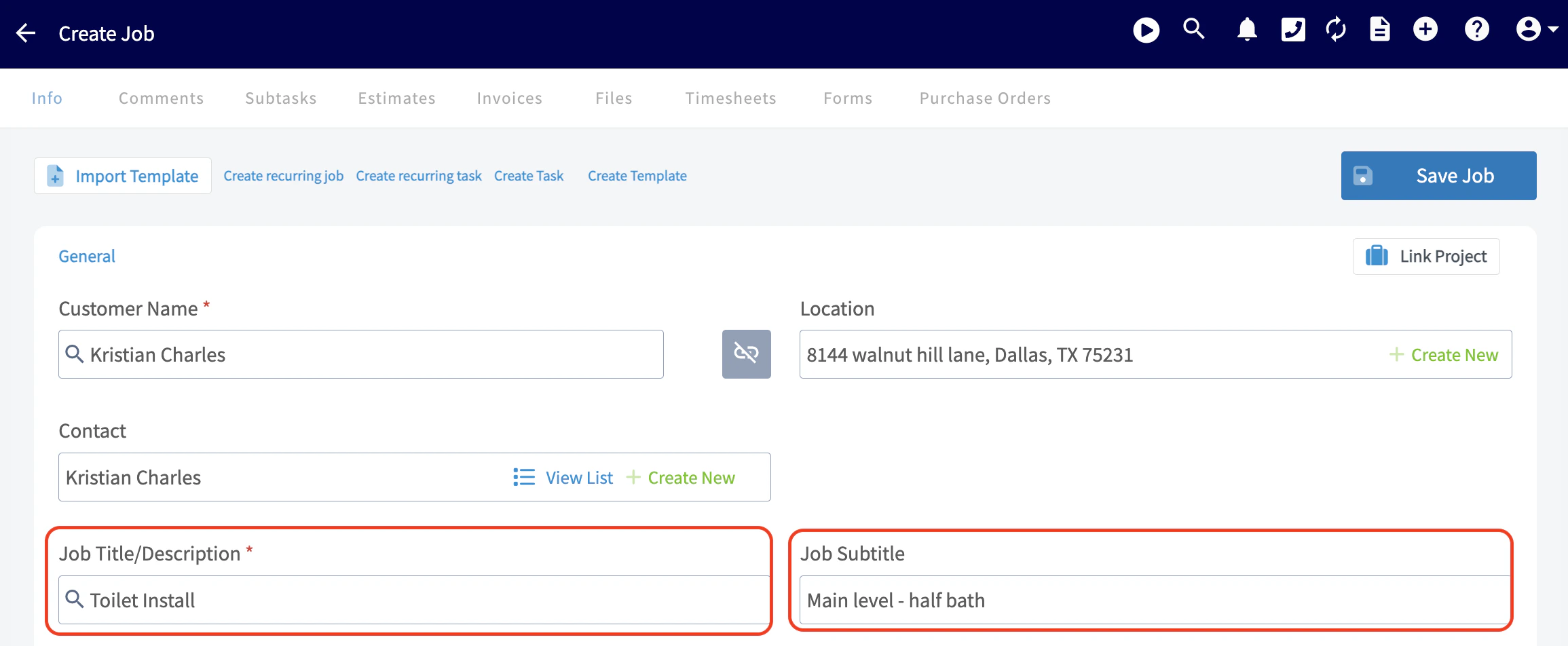
Assigning Users to a Job/Service:
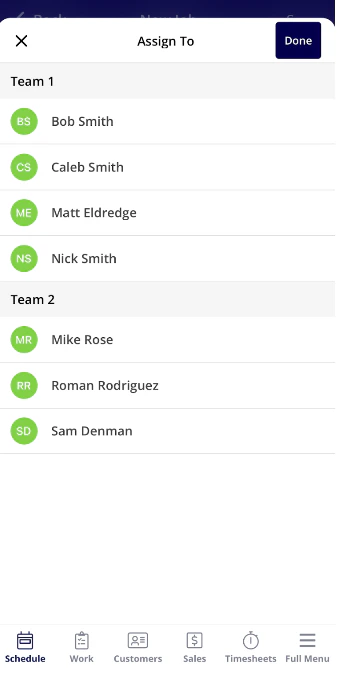
Use the Assigned Users to Job field to select team members for the job. You can select individual team members, multiple team members, or entire teams. Once you’ve selected team member(s), click Save to add them to the job. You can utilize the Find Availability button and FieldPulse will automatically suggest time slots based on your scheduling requirements and let you know which employee is available.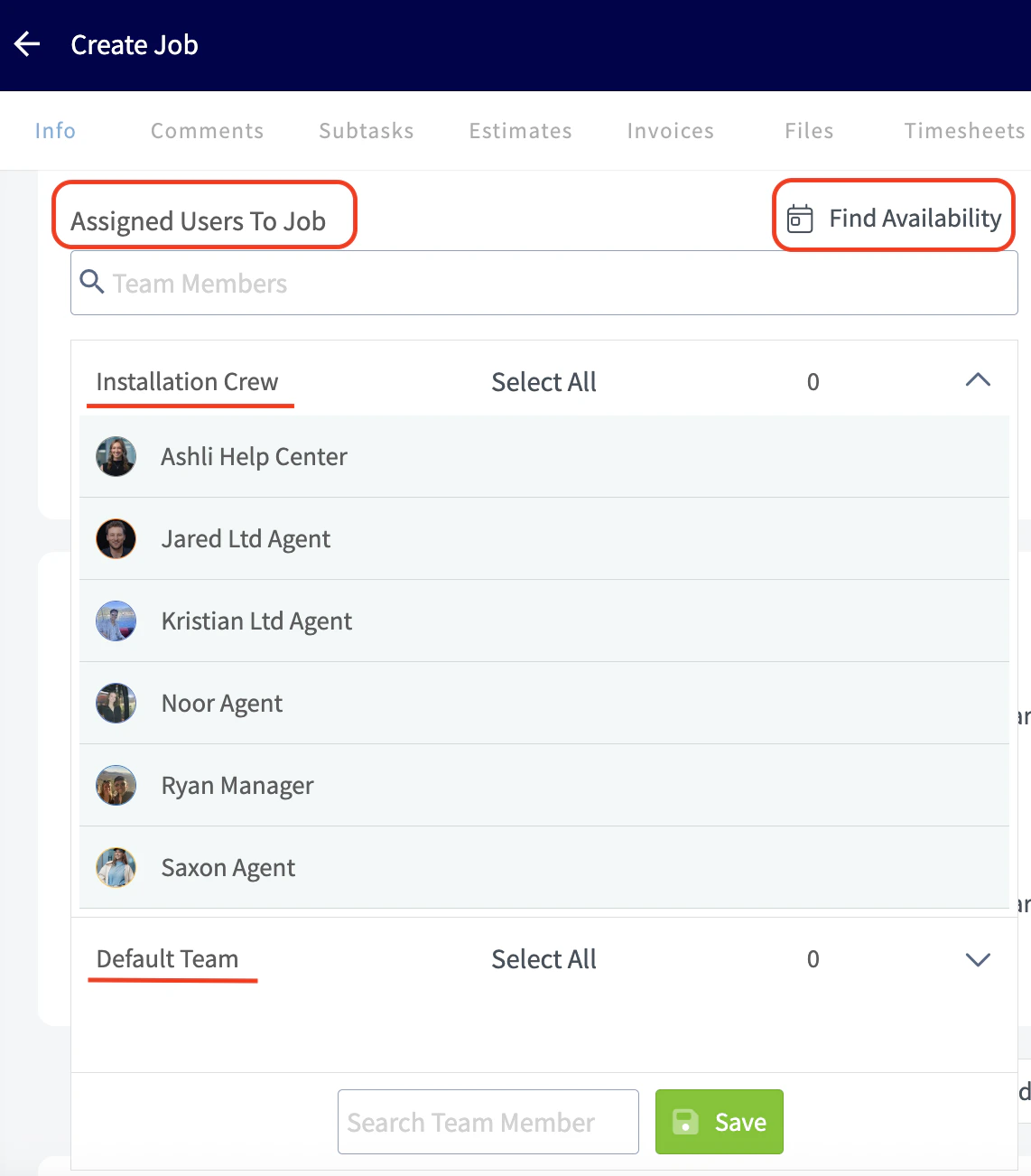
Job Tags:
Now, you can add job tags if needed. You can use job tags to organize your jobs and color code them to make the schedule easier to read at a glance. You can use this field to search for existing tags or create a new one, just be sure to press Enter after typing a new tag. Learn more about job tags here.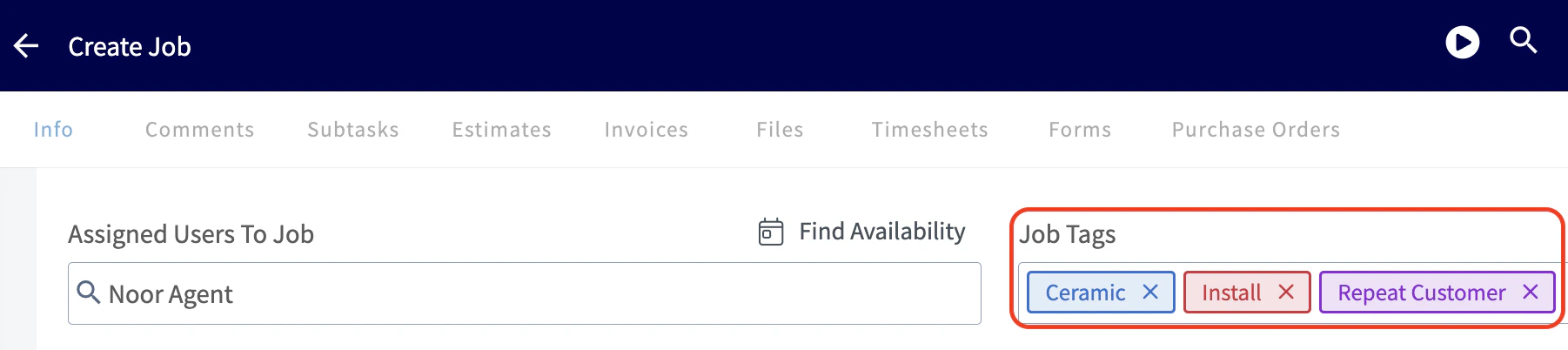
Selecting a Custom Status Workflow Unique to the Service:
Here you can select one of the unique custom status workflows you’ve created within Company Settings. Click here to learn more about Custom Status Workflows.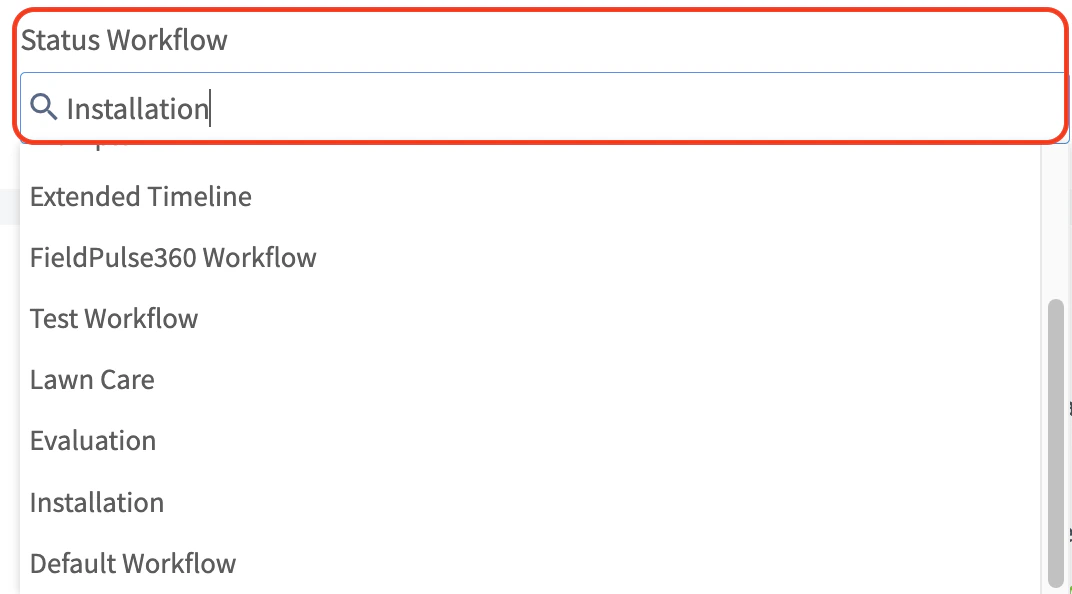
Scheduling the Job/Service:
Use the date and time options to schedule the job. To find open availability in your team members’ schedules, click Find Availability to open a giant chart view of your schedule. FieldPulse will also notify you of scheduling conflicts when you select a date and time for a job. Note: If you’d like to disable scheduling conflict notifications, simply uncheck the scheduling conflicts checkbox. This setting will carry over to future jobs as well.

To learn how to set working hours for multi-day jobs, click here.
Adding a Site Visit:
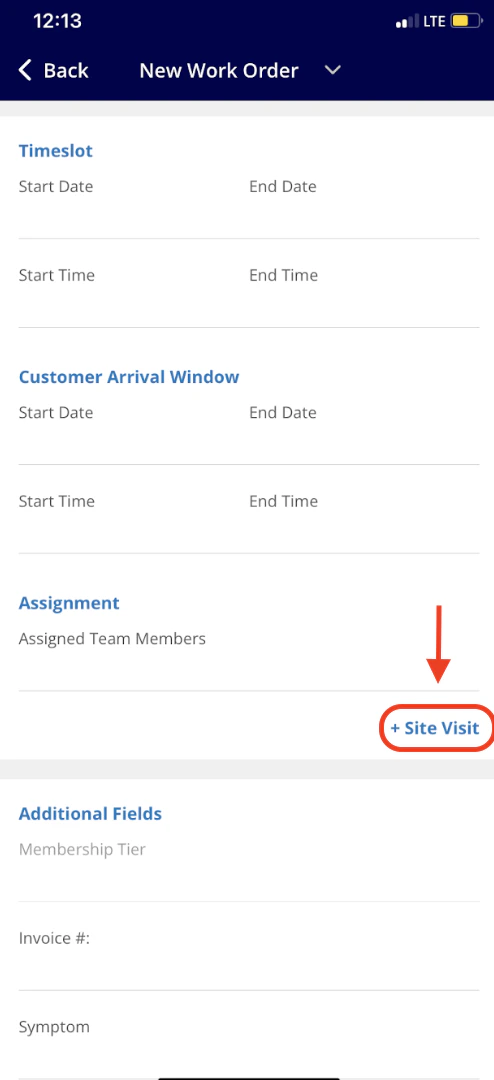
You can also add further site visits by clicking Site Visits. To learn more about site visits, click here.
Job Notes:
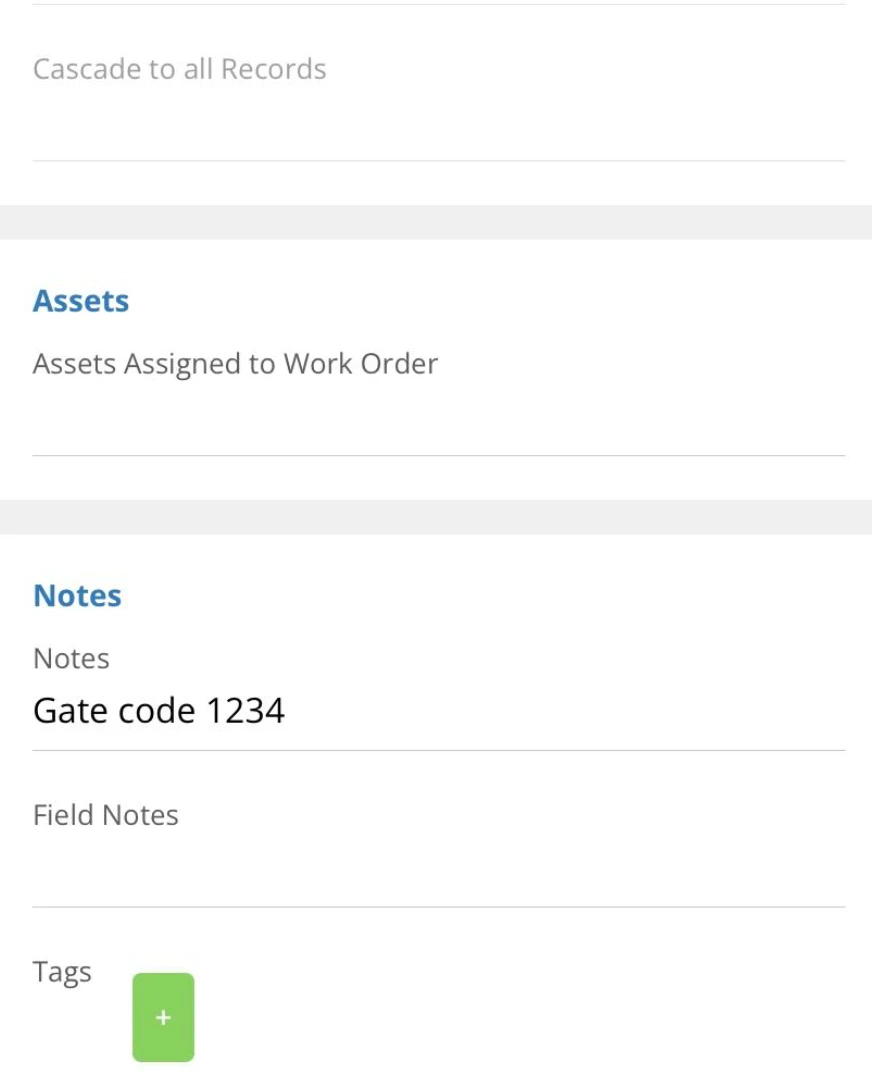
Enter any notes relevant to the job in the Notes field. You can also attach any important files as well. (Note: only administrations and managers can add Notes on a job record.) Field Notes can be added by the service agent while they are working on the job.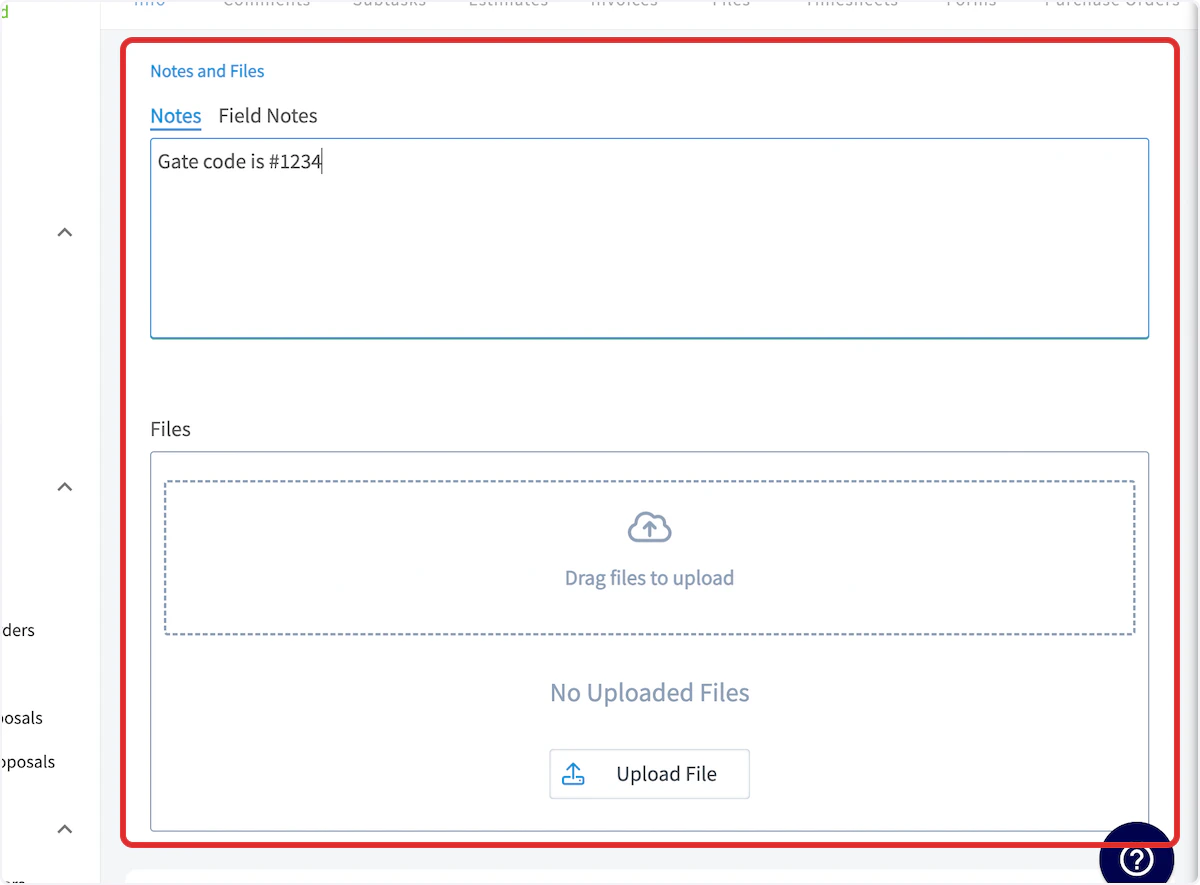
Attaching an Asset
If you’d like to attach an existing asset to the job record or create a new asset, you can do that at the end of the job record. To learn more about assets, click here.
Saving the Job
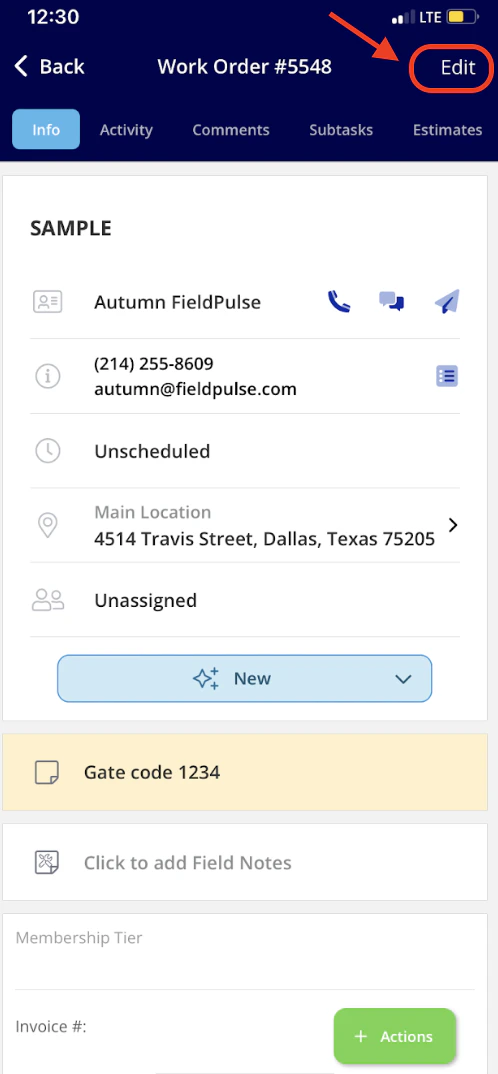
Be sure to press Save Job when you have added all pertinent details. Upon saving the job record, the assigned team members will automatically receive a notification of their newly assigned work and it will appear on their schedules. The newly created job will look like this: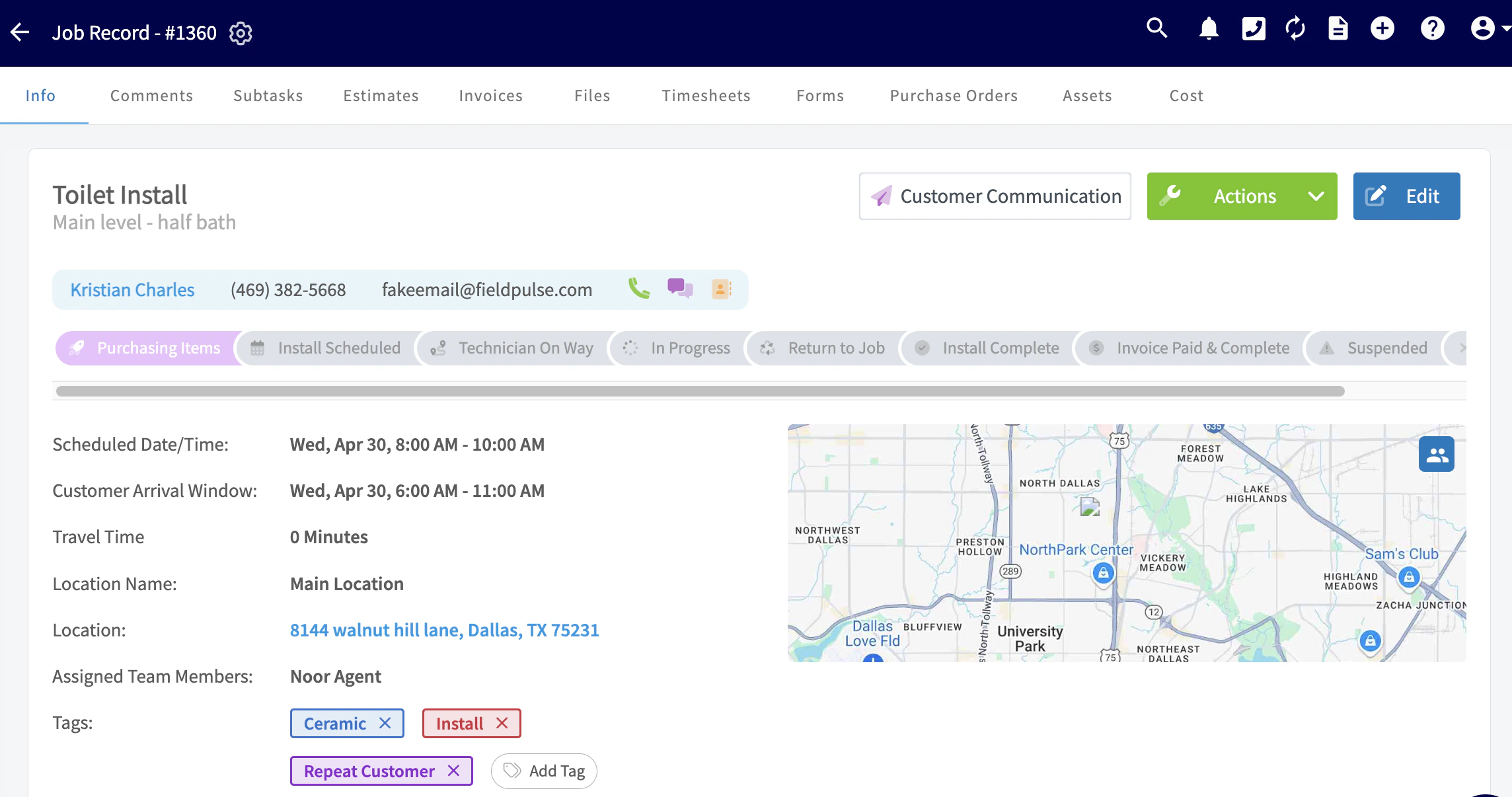
On Mobile: Field Experience
There are several areas where you can create a job in the mobile app:- Pulse Dashboard
- Schedule tab on the bottom menu
- Work tab on the bottom menu
- Customer tab on the bottom menu
Method 1: Pulse Dashboard
From the Pulse Dashboard, you can select Create Job towards the top of the screen or select Create New under Today’s Jobs. Both will allow you to create and save a new job record.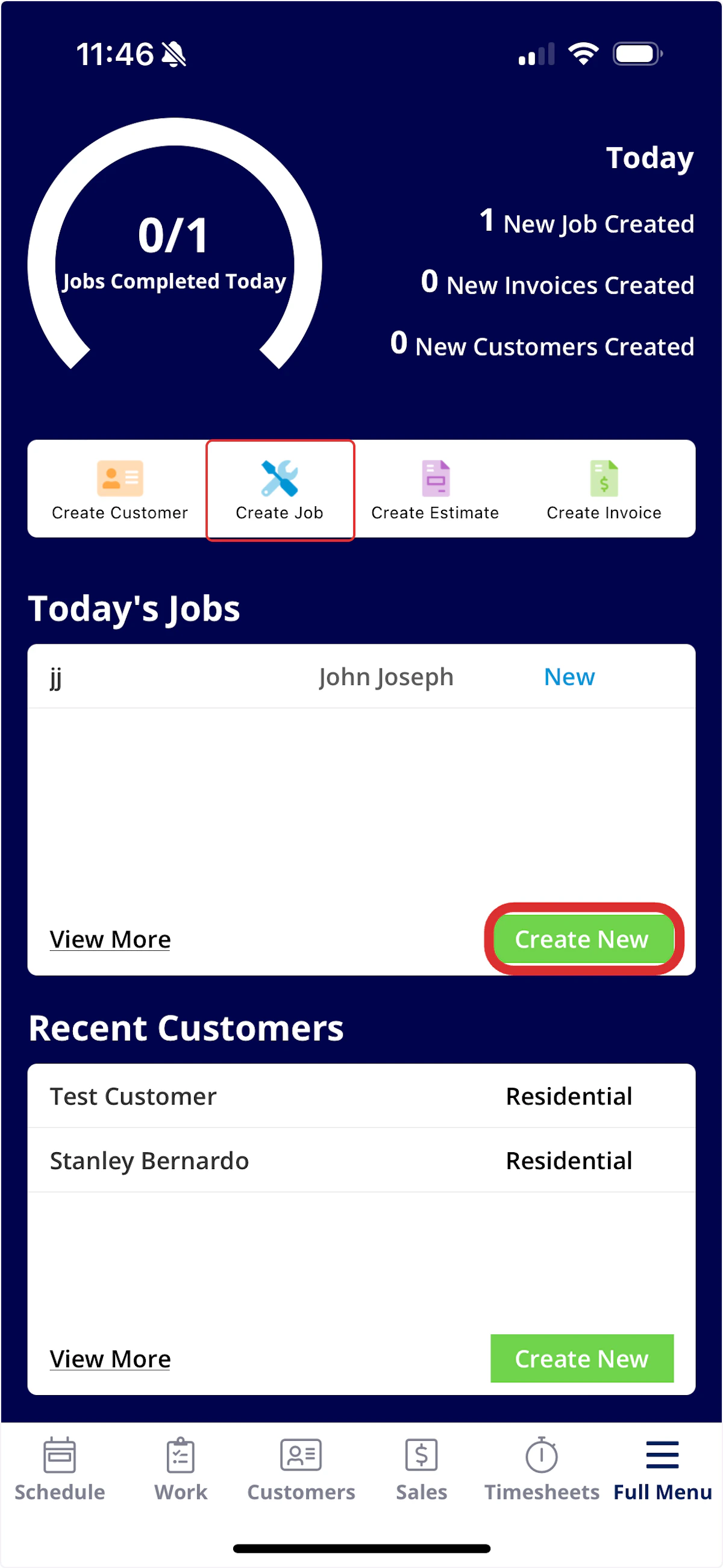
Method 2: Schedule Tab
From the Schedule tab in the bottom menu, you can select Create New. This will allow you to create and save a new job record.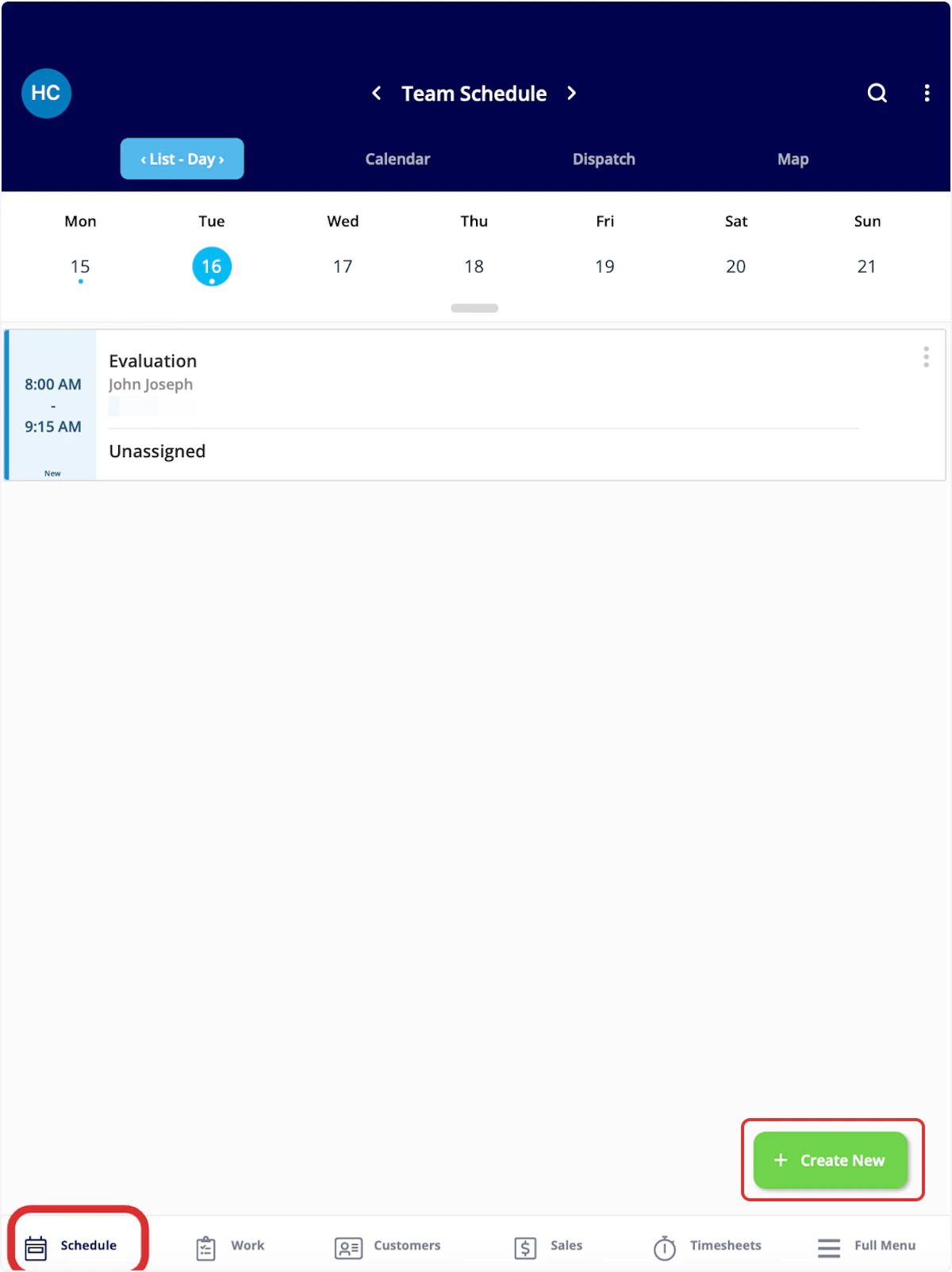
Method 3: Work Tab
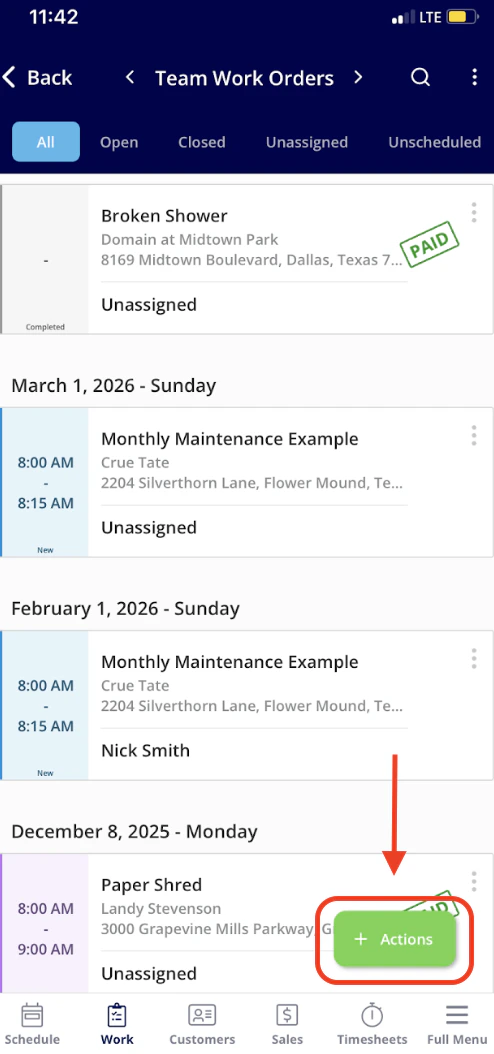
From the Work tab in the bottom menu, you can select Work Orders or Actions. Actions will present you with a menu of work-related actions, including creating a job. Alternatively, Jobs will show you all of your jobs, as well as allow you to create a new job.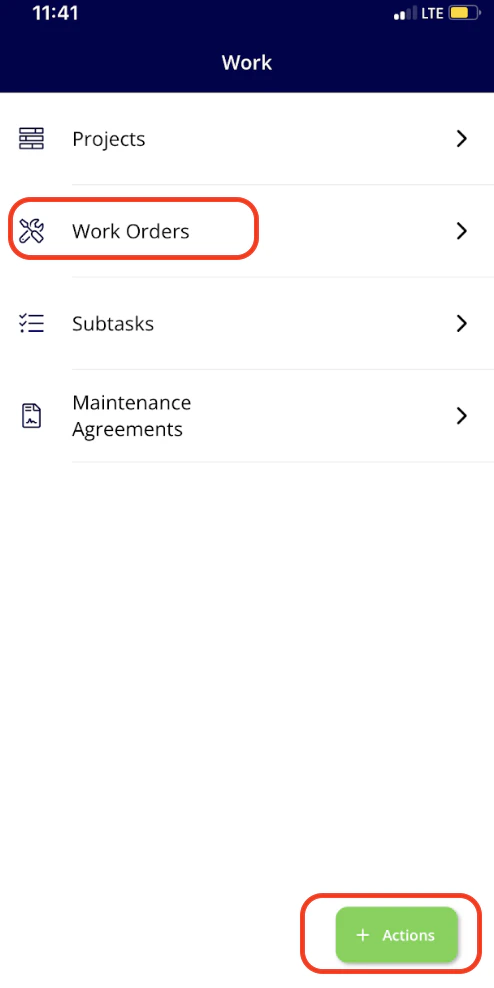
Method 4: Customers Tab
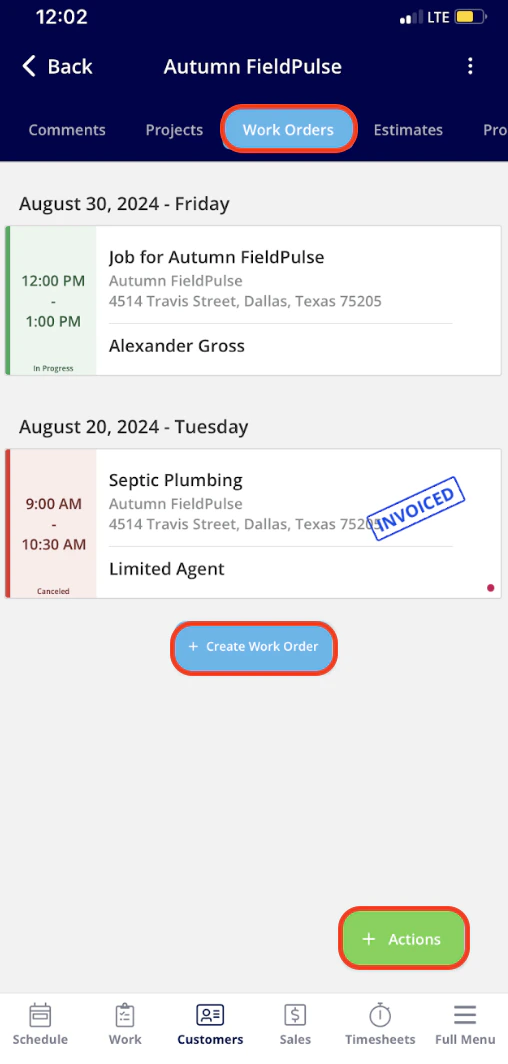
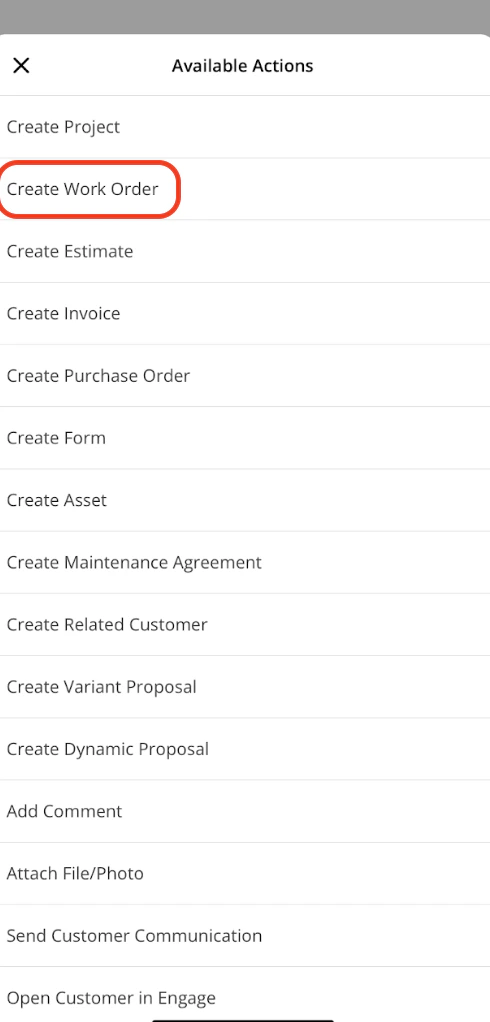
From the Customers tab in the bottom menu, click on a customer to open their customer record.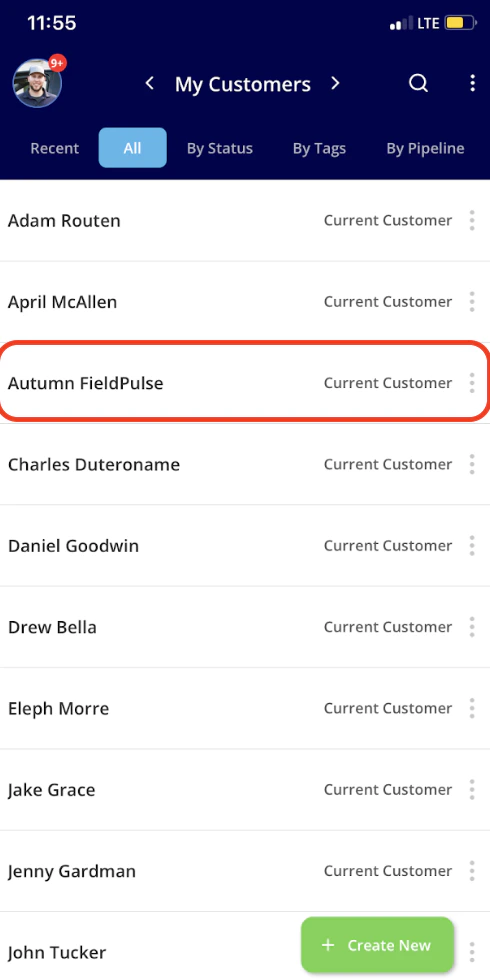
Adding Job Details
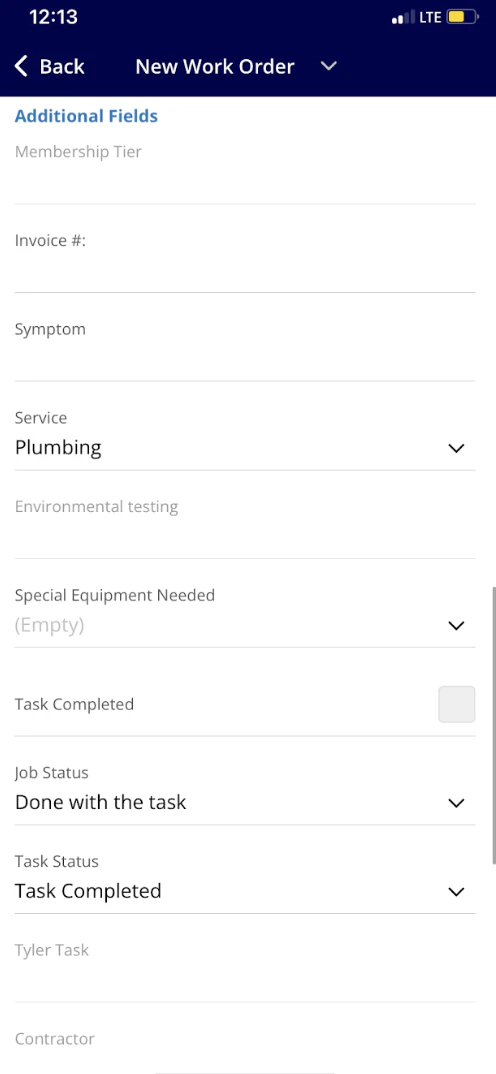
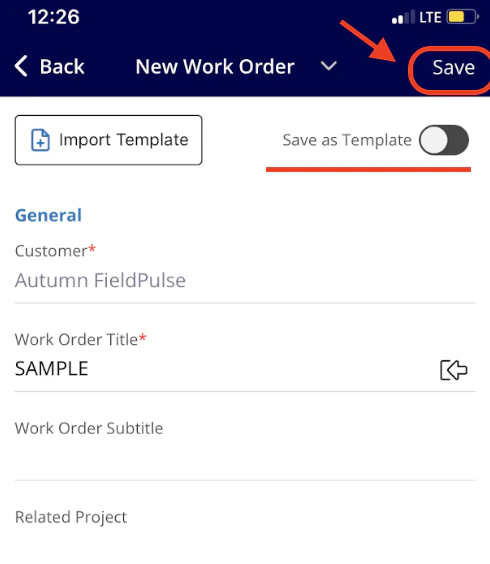
From here, you can begin filling in the job details. You will need to attach a customer. You can use a current customer or create a new customer. You also have the ability to customize the job title.
FAQs
Can I manually change the “next number” of my Job Records? Yes, you can manually change the “next number” of your Job Records by navigating to Company Settings > Jobs > General and locating the field titled Next Job #. After saving, the next created job will use this number and numbering will auto-increment from there.Video Tutorial
Web App
Mobile App
Have additional questions? Contact us at support@fieldpulse.com or use the chat feature in the bottom right corner of your screen.