
Who uses this: An Admin sets up the templates and triggers in Company Settings; an Admin or a Team Manager with customer communications access sends one by hand. Availability: All regions · Customer Communications must be enabled on your account.A job confirmation is the email or SMS message a customer receives before your team shows up. It confirms the appointment and sets the tone for the whole job. FieldPulse sends job confirmations through Customer Communications: email and SMS templates you write once, which FieldPulse fills in with each customer’s own job details. This page shows what a job confirmation looks like on the customer’s end and which parts of it you control.
Overview
A job confirmation is a customer communication. FieldPulse builds it from one of your templates and sends it when a job reaches a moment you choose. A customer can receive a confirmation when the job is newly created, when the job’s status changes to a status you pick (the status you use for scheduled jobs, or any custom status you build), or at a set time before or after the job’s start date and time. Your team can also send the same template by hand from a job or customer record when a customer needs the details again. Two pieces have to exist before a customer gets anything: a template that holds the message, and an automatic trigger that points at the moment it should send. An Admin builds both in Company Settings > Customer Communications; after that, the confirmations go out on their own.How it works
A job confirmation reaches your customer as an ordinary email or SMS message, with no login, no app, and no portal. FieldPulse builds the message from your template and fills in that customer’s job details.Email example
Here is a job confirmation email as it lands in the customer’s inbox, with Field Values filled in from the job record: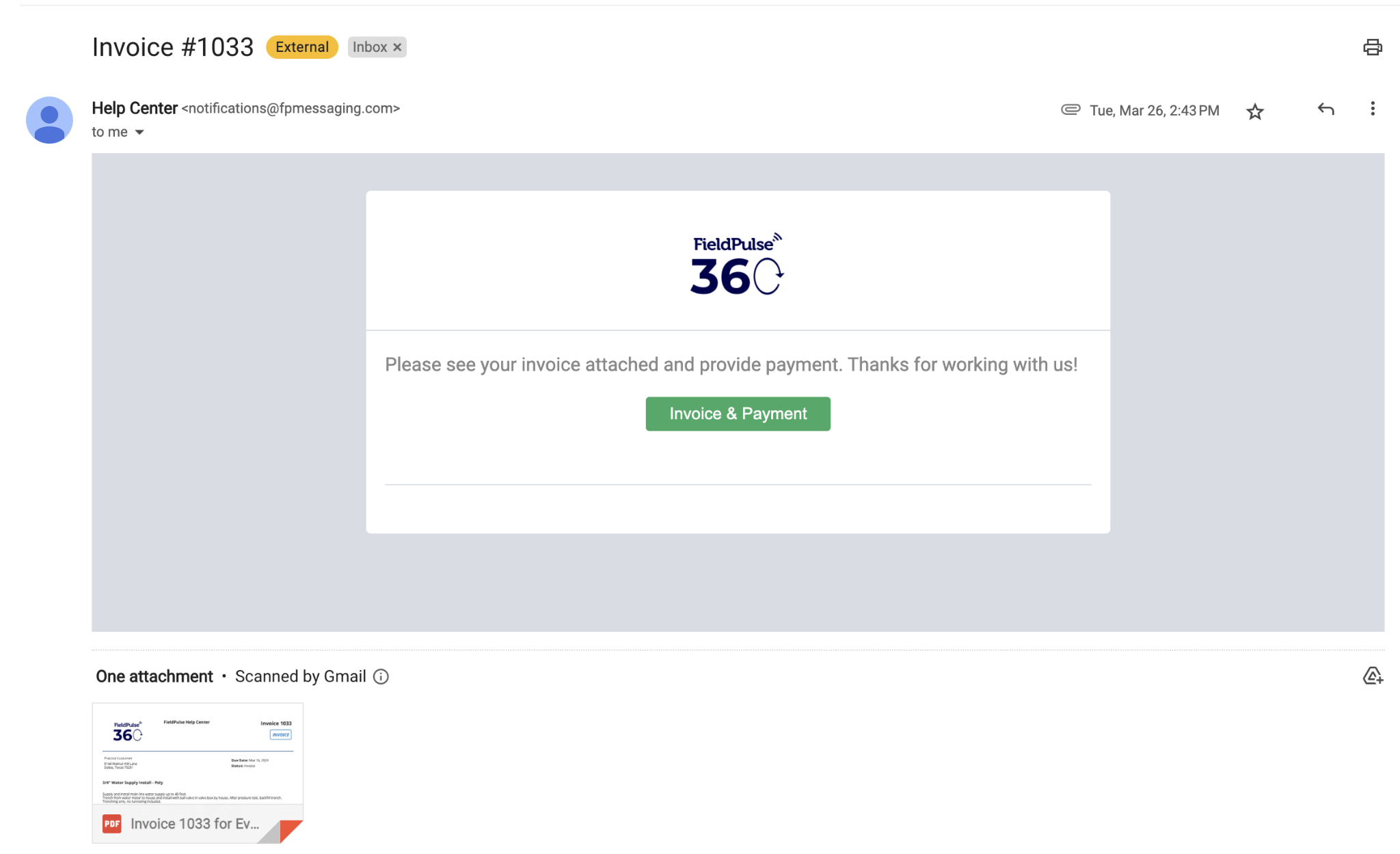
SMS example
The SMS version arrives on the customer’s phone: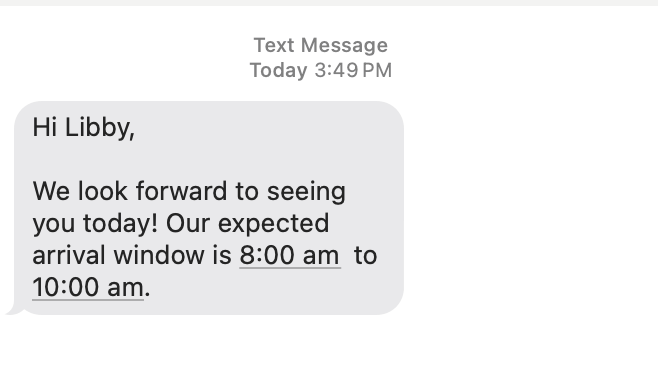
What you can customize
You write the confirmation itself, so almost everything the customer reads is yours to set:- Email and SMS template content: you write the subject line and the message body.
- Field Values included: choose which job and customer details fill in, such as customer name, job start date, and job location.
- Trigger timing: for example, a set number of hours before the job’s start time.
- Sender name and email address: set a designated “From” name and address for every customer email in Email Settings, or let each email send under the name and address of the user who created it.
- Your logo in the email header: turn the logo on or off in Email Settings.
To set up the templates, triggers, and email settings behind these confirmations, see the Customer Communications Overview.
Availability
Job confirmations are part of Customer Communications, which is available in all regions and has to be enabled on your account. Two things about SMS delivery are worth knowing before you rely on it:- Without the Engage add-on, confirmations send from a no-reply toll-free FieldPulse number. With Engage connected, they send from your own business phone line instead.
- Texting U.S. numbers through Engage requires 10DLC registration with The Campaign Registry before carriers will deliver your messages. See Setting Up 10DLC Compliance Registration.
Notes & limitations
- A confirmation needs both a template and a trigger. A customer receives nothing until an email or SMS template holds the message and an automatic trigger points at the moment it should send. See Setting Up Email & SMS Templates and Setting Up Automatic Communication Triggers.
- A customer who has opted out of SMS will not receive SMS confirmations. Replying STOP to any SMS from your business unsubscribes that customer from every SMS your company sends, and re-checking the box in Notification Settings cannot override it. The customer has to text START from their own number to resubscribe. Email confirmations still reach them. See Customer Notification Preferences and SMS Opt-Out Details.
- Confirmations follow contact routing. A job-related communication goes to the main customer contact or to the additional contact you designate as the job’s contact; it does not go to every contact on the record.