
Who uses this: Anyone sending a message by hand from a job record or a customer record, on the web app or in the FieldPulse mobile app. Availability: All regions · Customer communications must be enabled on your account.Not every message needs an automatic trigger. When you want to send one customer communication to one customer — a quick update, a photo of the finished work, an invoice link — you send it by hand from that customer’s job record or customer record, on the web app or in the FieldPulse mobile app.
Overview
You send a customer communication from the Actions menu on a job record or a customer record. Select an email or SMS template, check that the Field Values filled in with that customer’s and job’s details, then send the message. You can attach a file or photo before the message goes out. A technician in the field sends the same way from the FieldPulse mobile app, and can also send a trip tracking SMS that shares a live location link and an ETA on the way to the job. Automatic triggers cover the messages you would rather not send by hand, and which number or address a triggered message comes from depends on whether your account uses the Engage add-on — see Setting Up Automatic Communication Triggers.Before you begin
- Confirm customer communications are enabled on your FieldPulse account.
- Build the email or SMS template you want to send. The send screen lists your saved templates — see Setting Up Email & SMS Templates.
- For trip tracking, turn on location services for FieldPulse on the technician’s device. FieldPulse needs background location access to build the trip tracking link.
On web
Send an email or SMS
- Open the job record or customer record you want to message about.
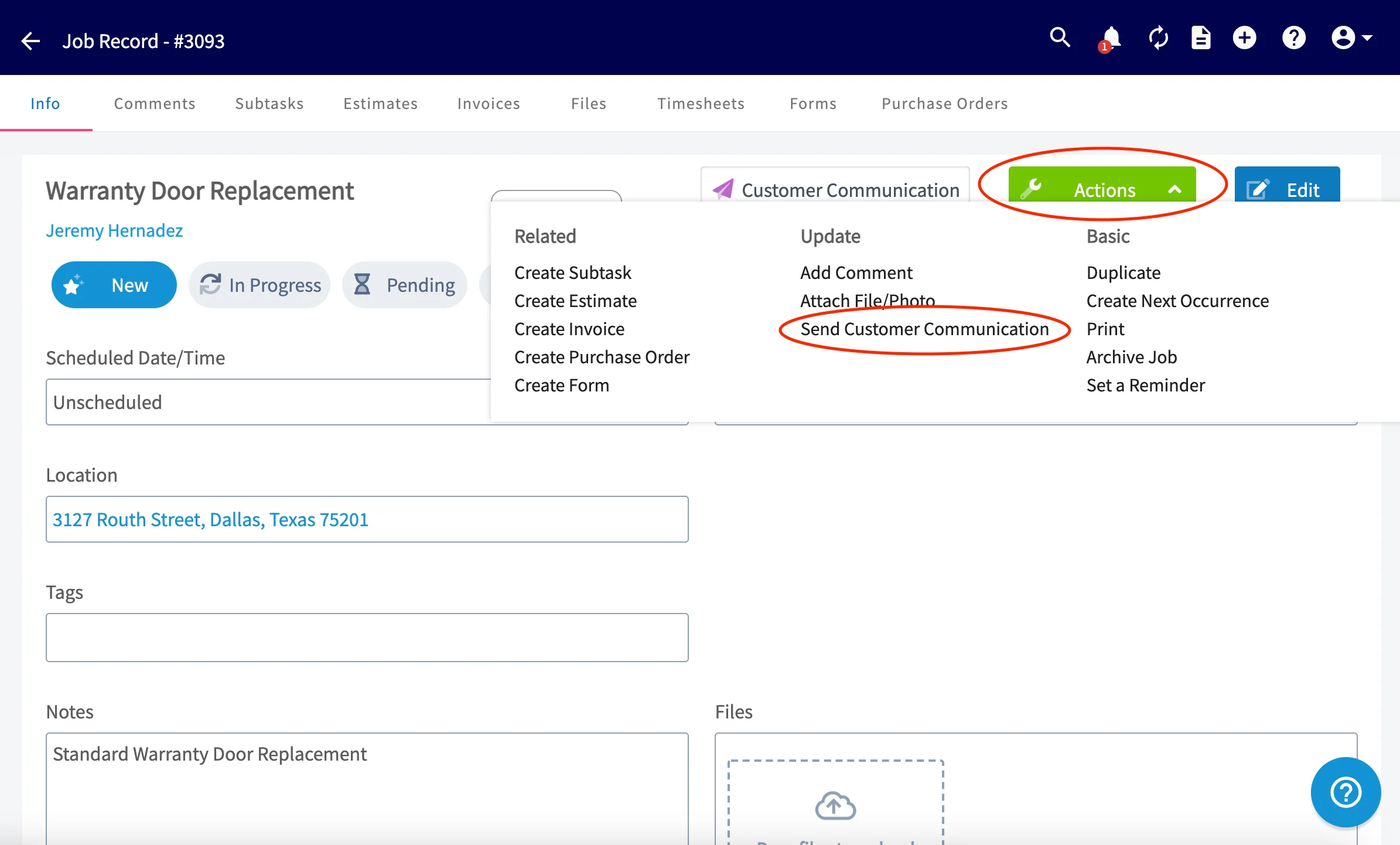
- Select Actions at the top right.
-
Select Send Customer Communication.
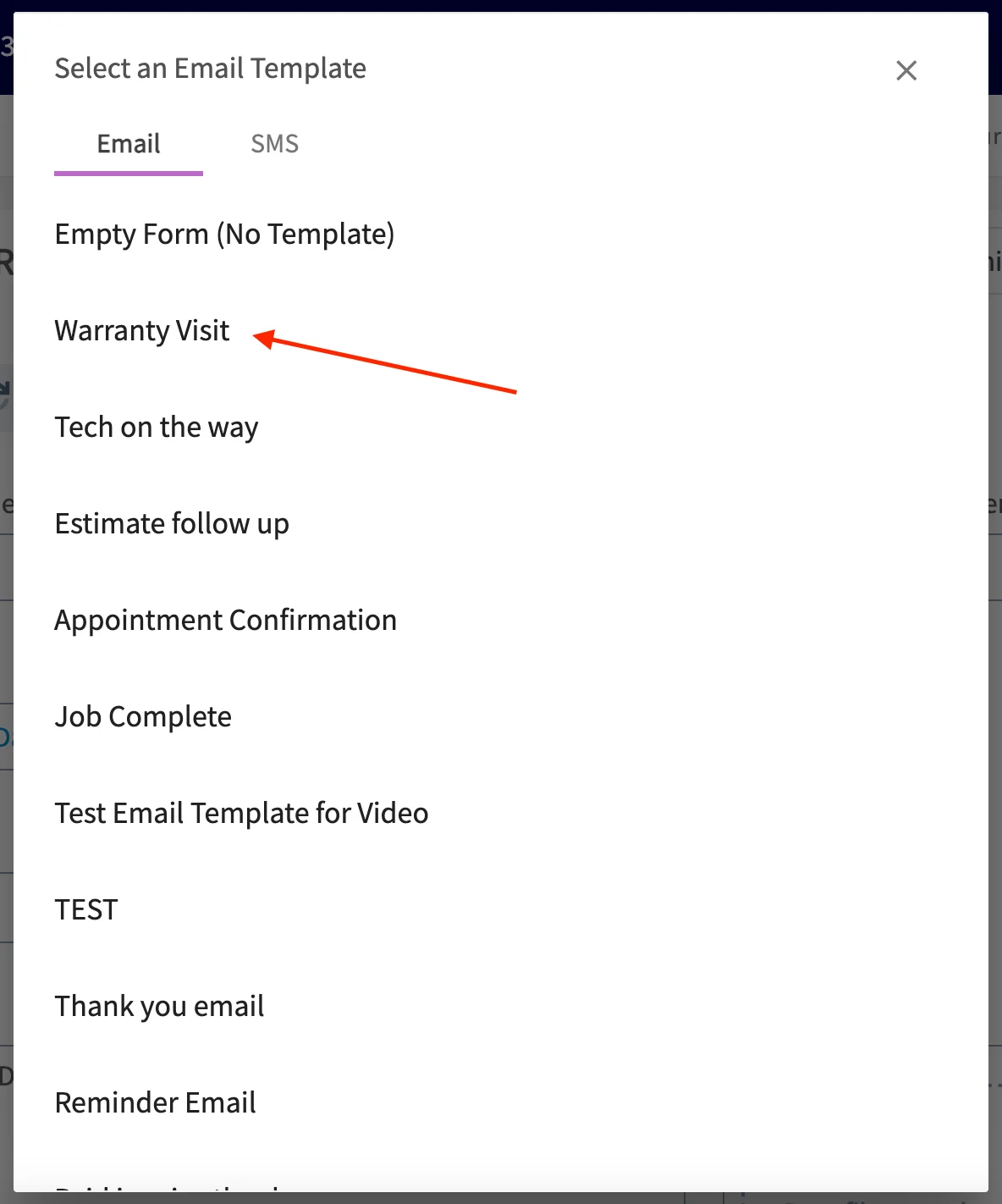
- Select the Email or SMS tab.
-
Select the template you want to send.
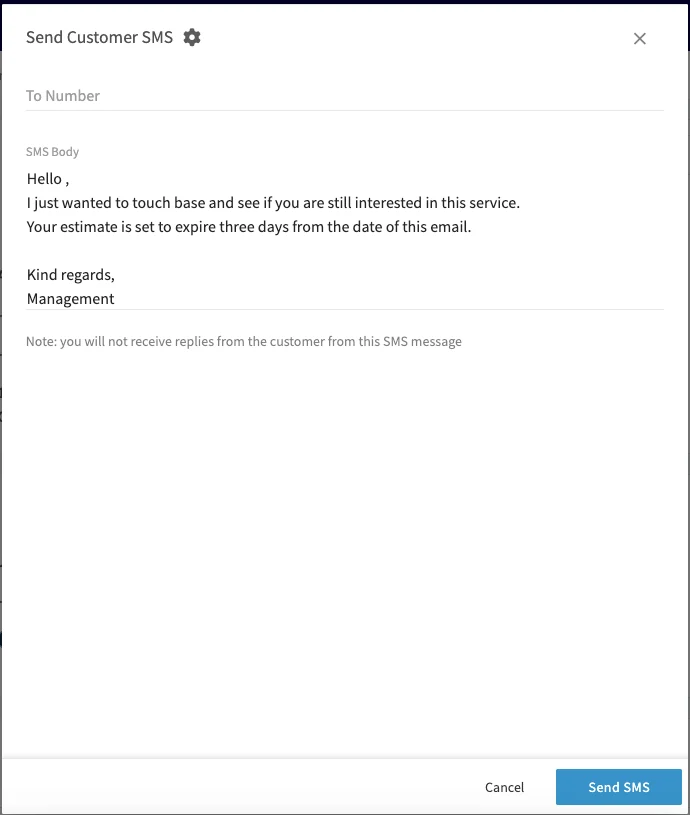
- Check the message. The Field Values are already filled in with this customer’s and job’s details.
-
Select Send Email or Send SMS.
Video walkthrough: Customer Communications in the web app
On mobile
Send an email or SMS
-
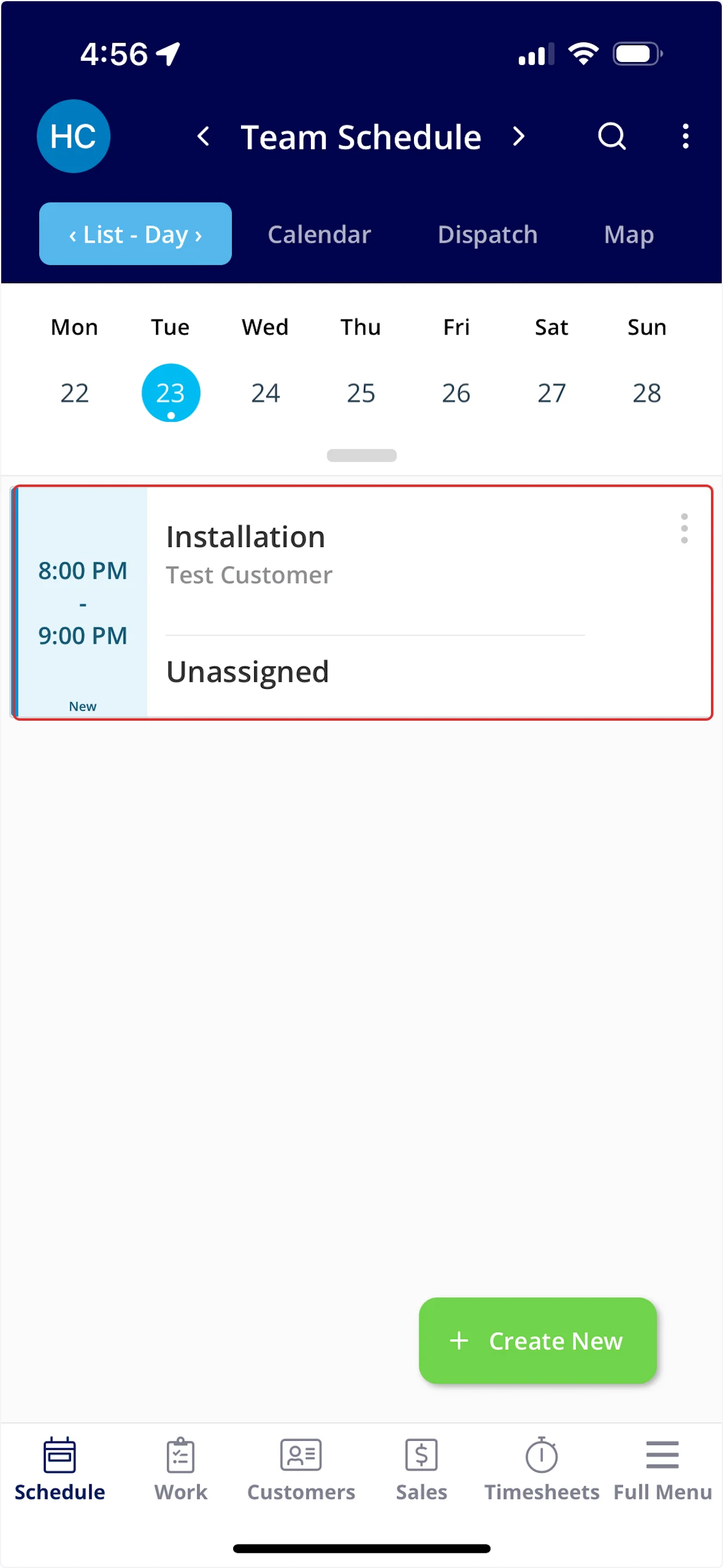
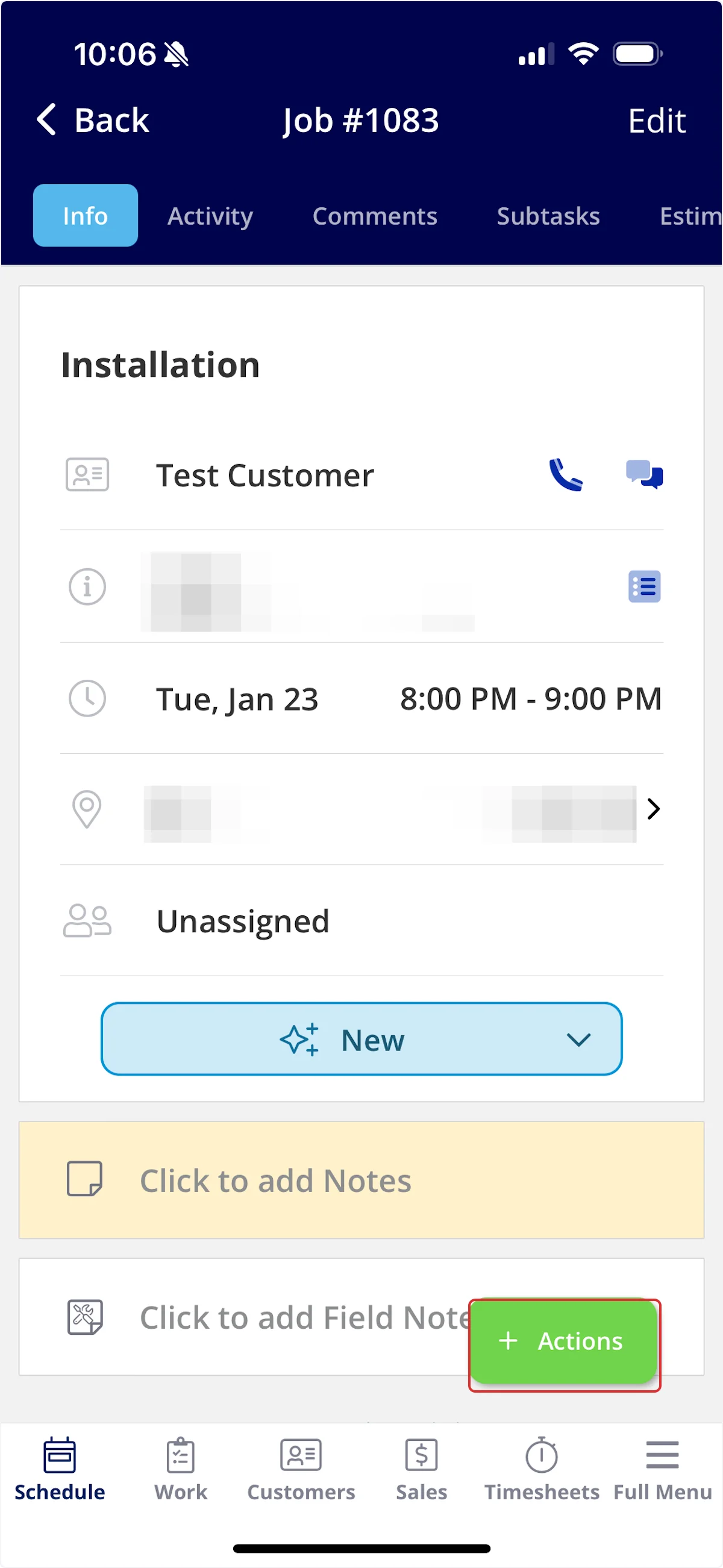
Open the job record or customer record you want to message about — on the schedule, tap the job you are working.
-
Select the green Actions button.
-
Select Send Customer Communication.
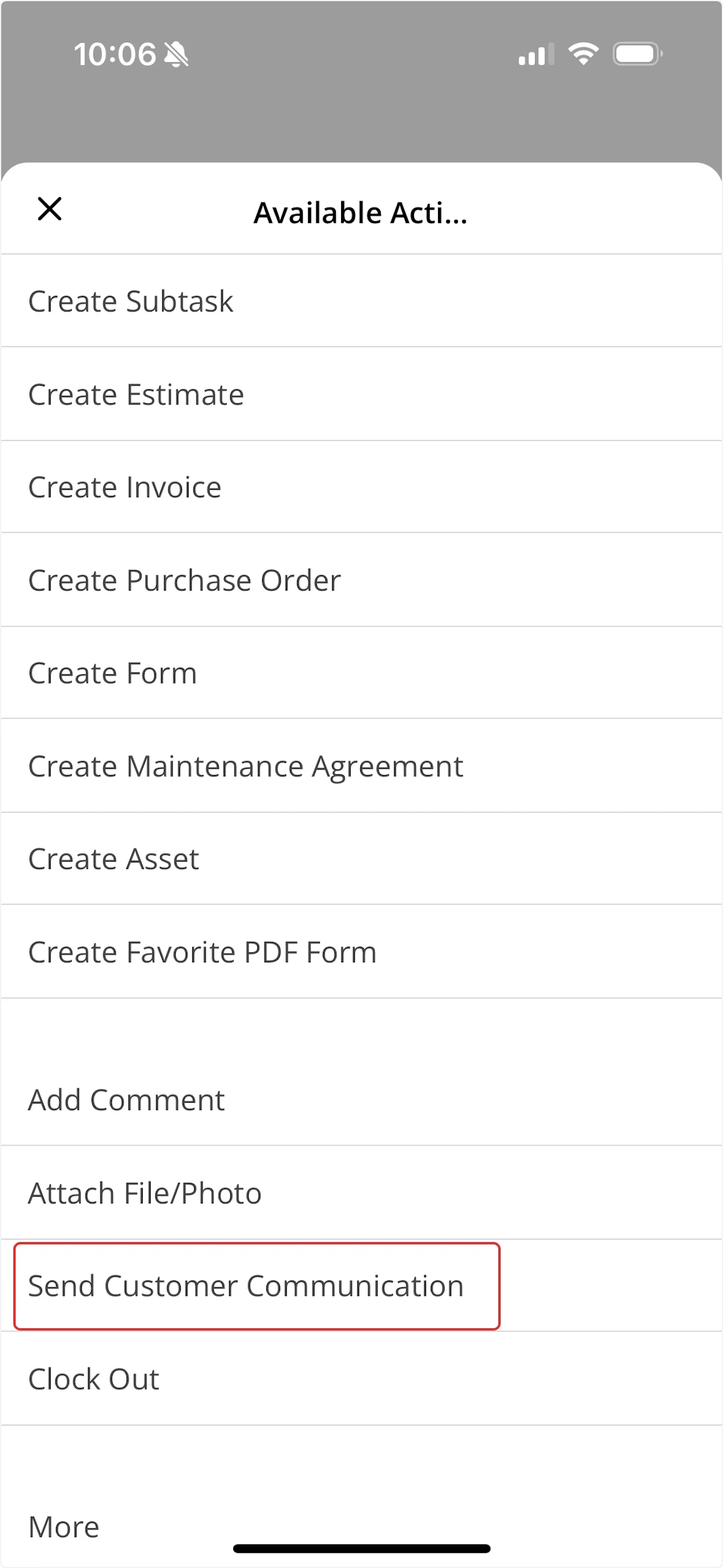
- Select the Email or SMS tab.
- Select the template you want to send.
- Check the message, then select Send.
Attach a photo or file
-
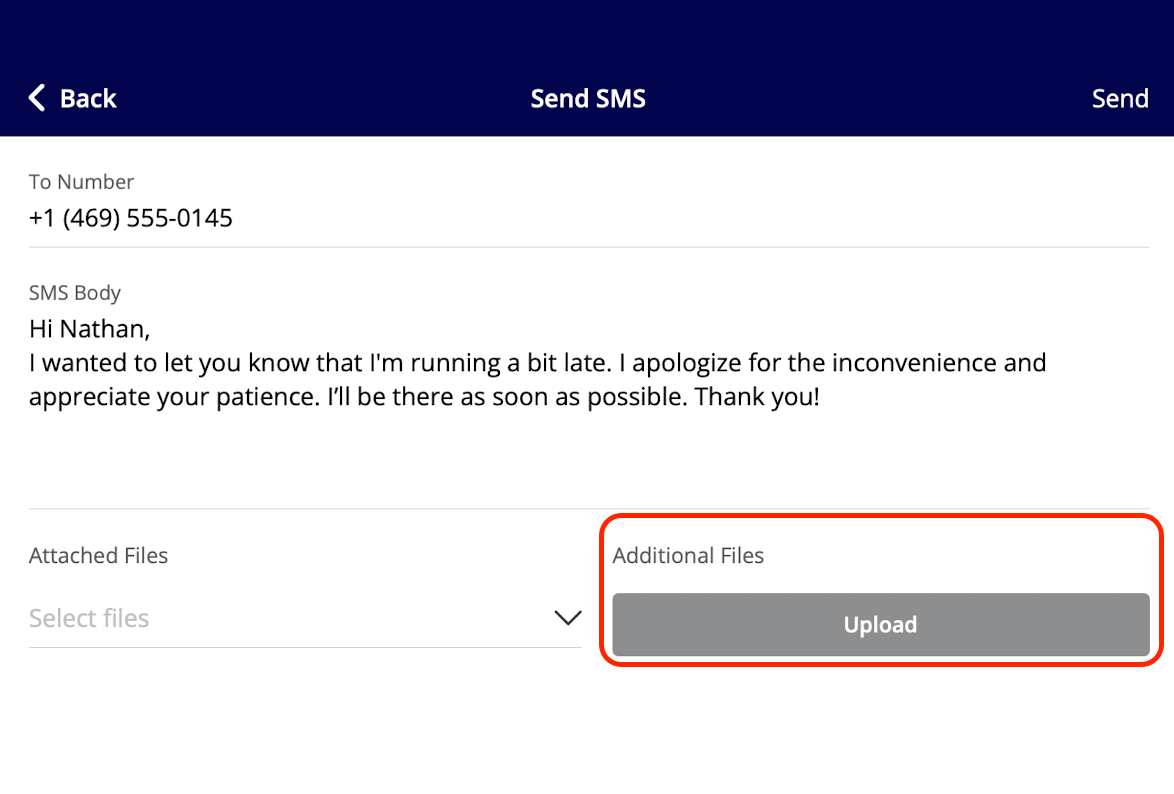
Before you send, select Upload under Additional Files.
-
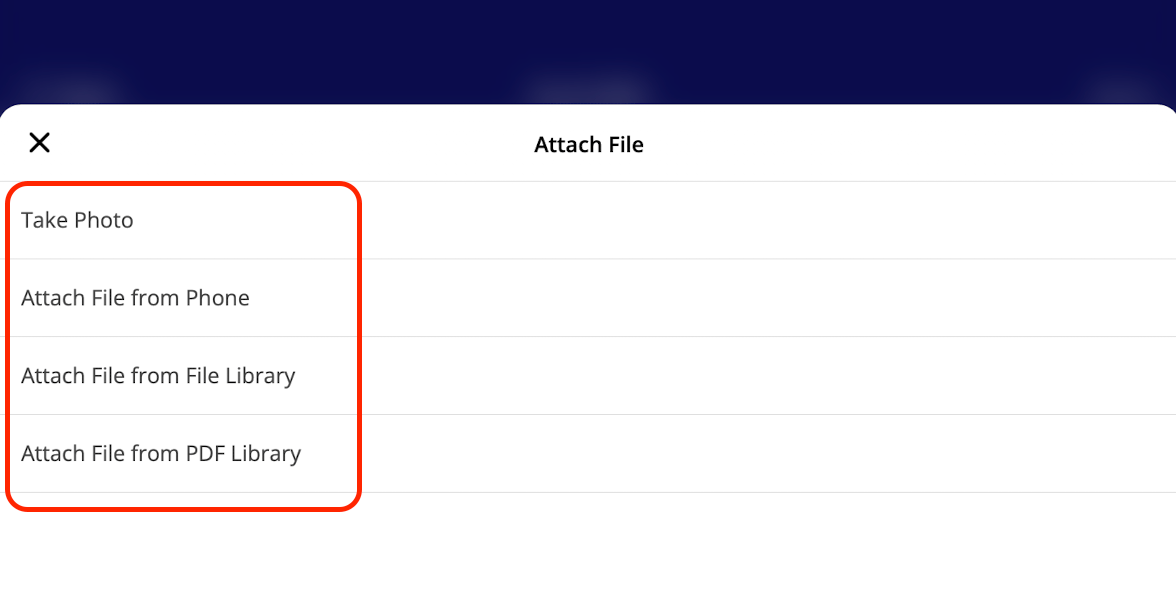
Choose where the file comes from — Take Photo, Attach File from Phone, Attach File from File Library, or Attach File from PDF Library.
- Repeat for each file you want to send.
- Select Send when the message is ready.
Send a trip tracking SMS
A technician on the way to a job can text the customer a live vehicle location and an ETA from the FieldPulse mobile app.- On the job you are heading to, select Actions > Send Customer Communication.
- Open the SMS tab.
-
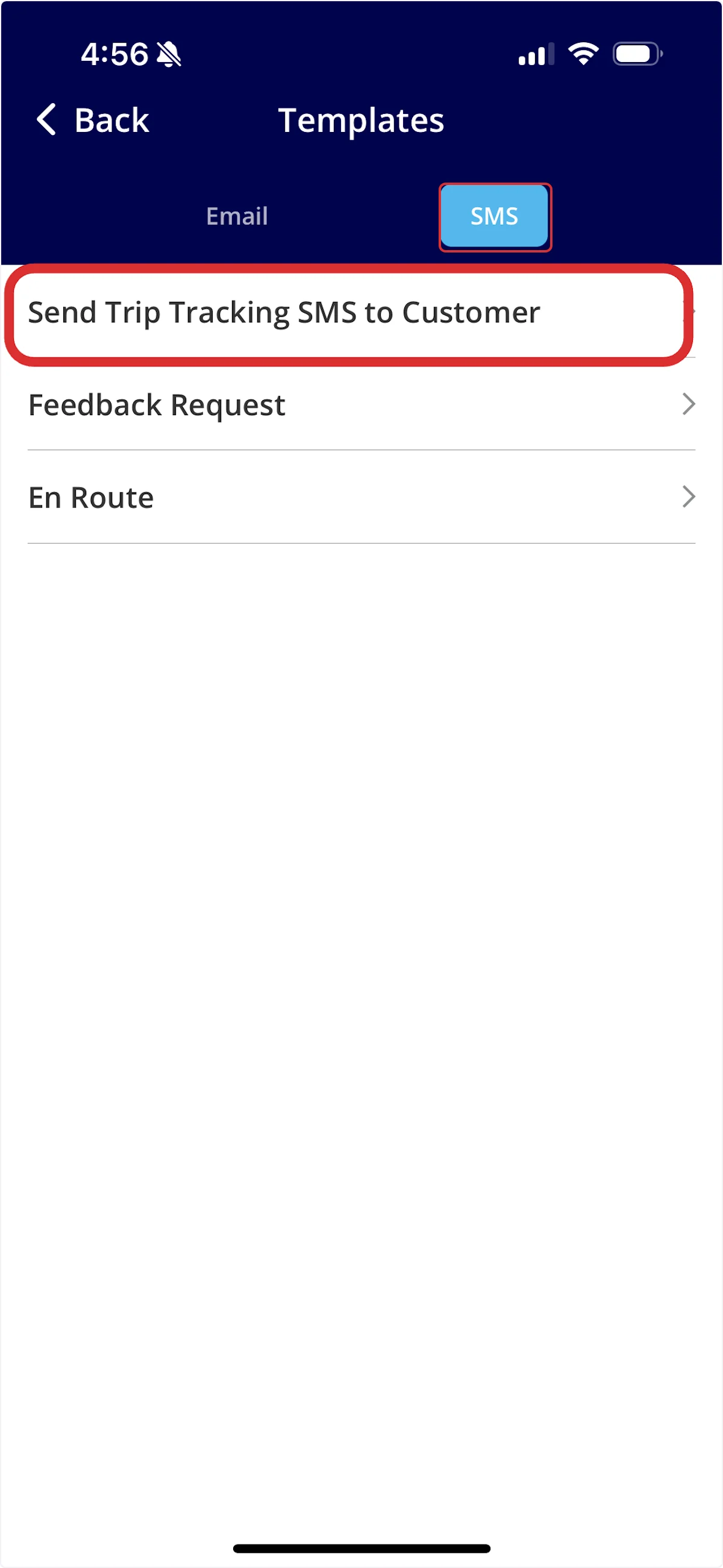
Select Send Trip Tracking SMS to Customer.
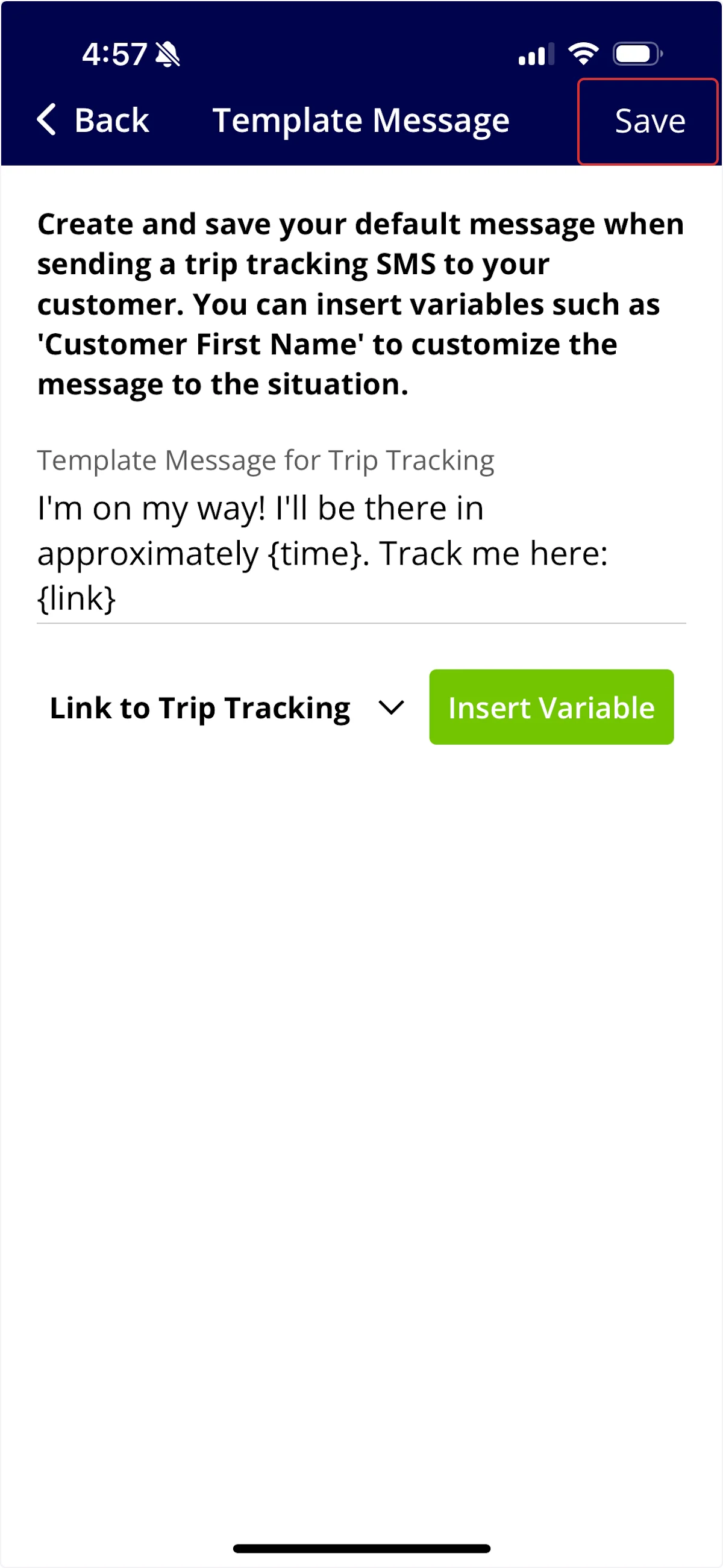
- The first time you send one, write your default trip tracking message. Use Insert Variable to drop in details such as the customer’s first name and the trip tracking link.
-
Select Save.
-
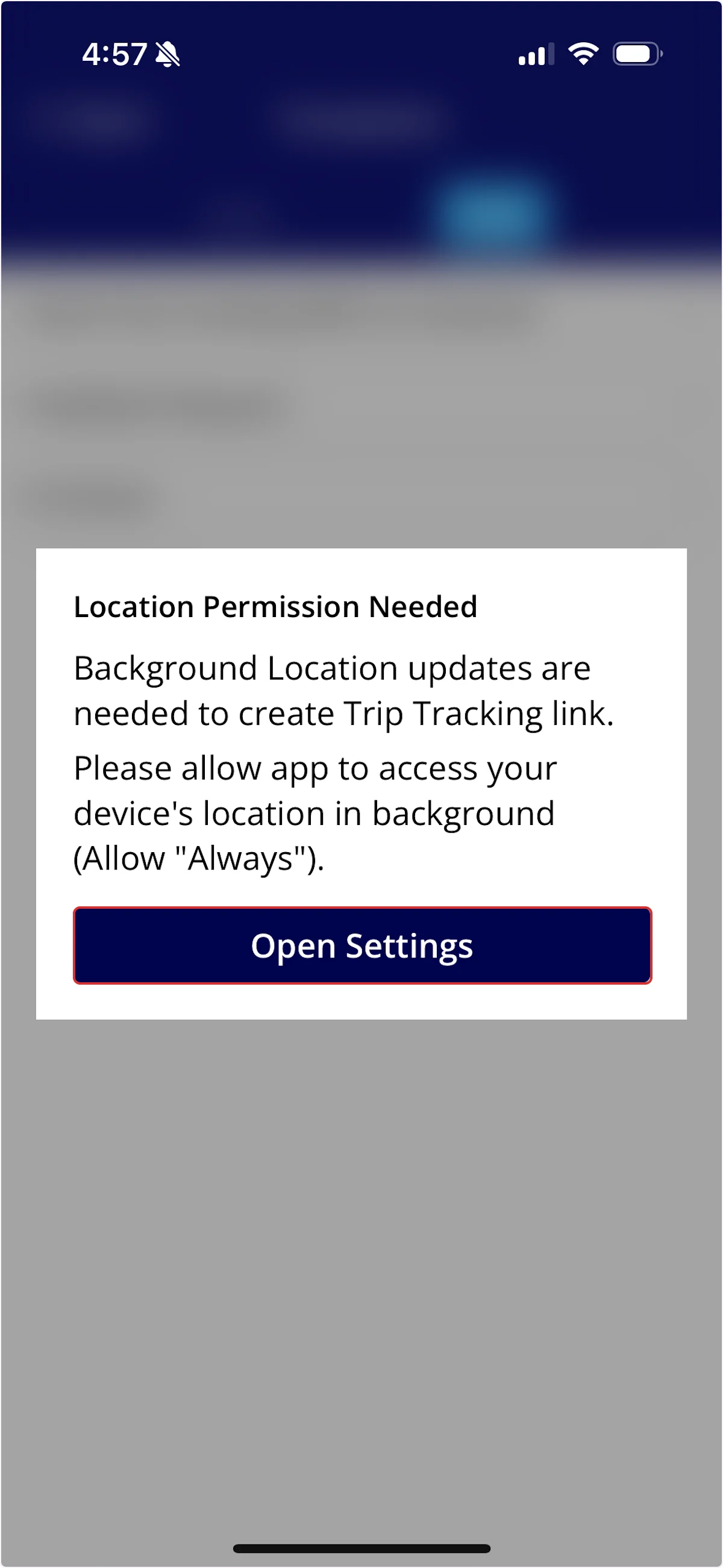
If FieldPulse asks for location permission, select Open Settings and allow the app to use your location in the background. Without that access, FieldPulse cannot build the trip tracking link.
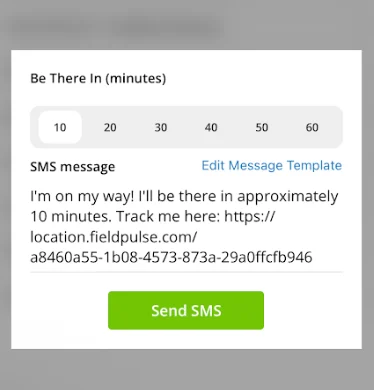
- Set Be There In to the number of minutes you need.
-
Check the message once more, then select Send SMS.
- Select Include Profile Photo to send a photo of the team member with the text.
-
Select Send from FieldPulse App or Send from Phone. Sent from your phone, the text goes out from your own phone number.
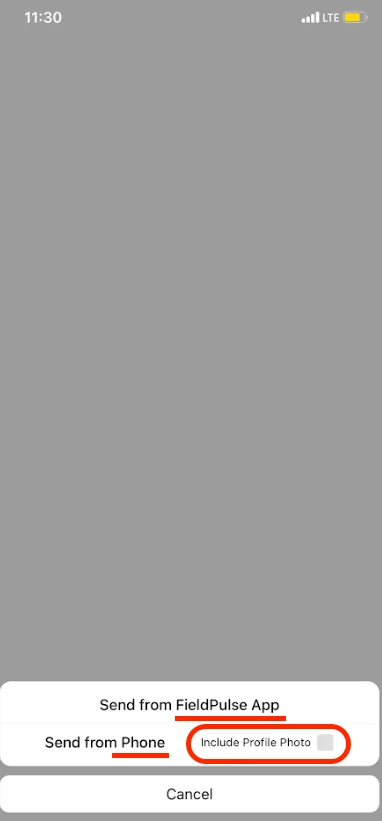
The live trip tracking link stays active for one hour after it is sent, so a technician’s location is shared only while they are on the move. Trip tracking messages cannot be tied to an automatic trigger — a technician sends each one by hand.
Video walkthrough: Customer Communications in the FieldPulse mobile app
What you can attach
You can attach files and photos to email and SMS customer communications sent from the web app or the FieldPulse mobile app, on both one-off and templated messages. One message can carry several attachments, but you select and upload the files one at a time.- Email attachments are capped at 10 MB per file.
- SMS attachments have no size limit, because FieldPulse texts your customer a link to a file viewer instead of the files themselves.
“Please click the link below to view all files.” is default FieldPulse text on the SMS that carries your attachments, and it cannot be removed or edited.
Who receives the message
- Job-related communications go to the main customer contact, or to any additional contact on the customer record that you set as the job’s designated contact.
- All other communications go only to the main customer contact — they do not go to additional contacts.