
Sync Settings
All options can be changed at any time on individual invoices and items or by navigating to Company Settings > Estimate & Invoices tab > QuickBooks subtab.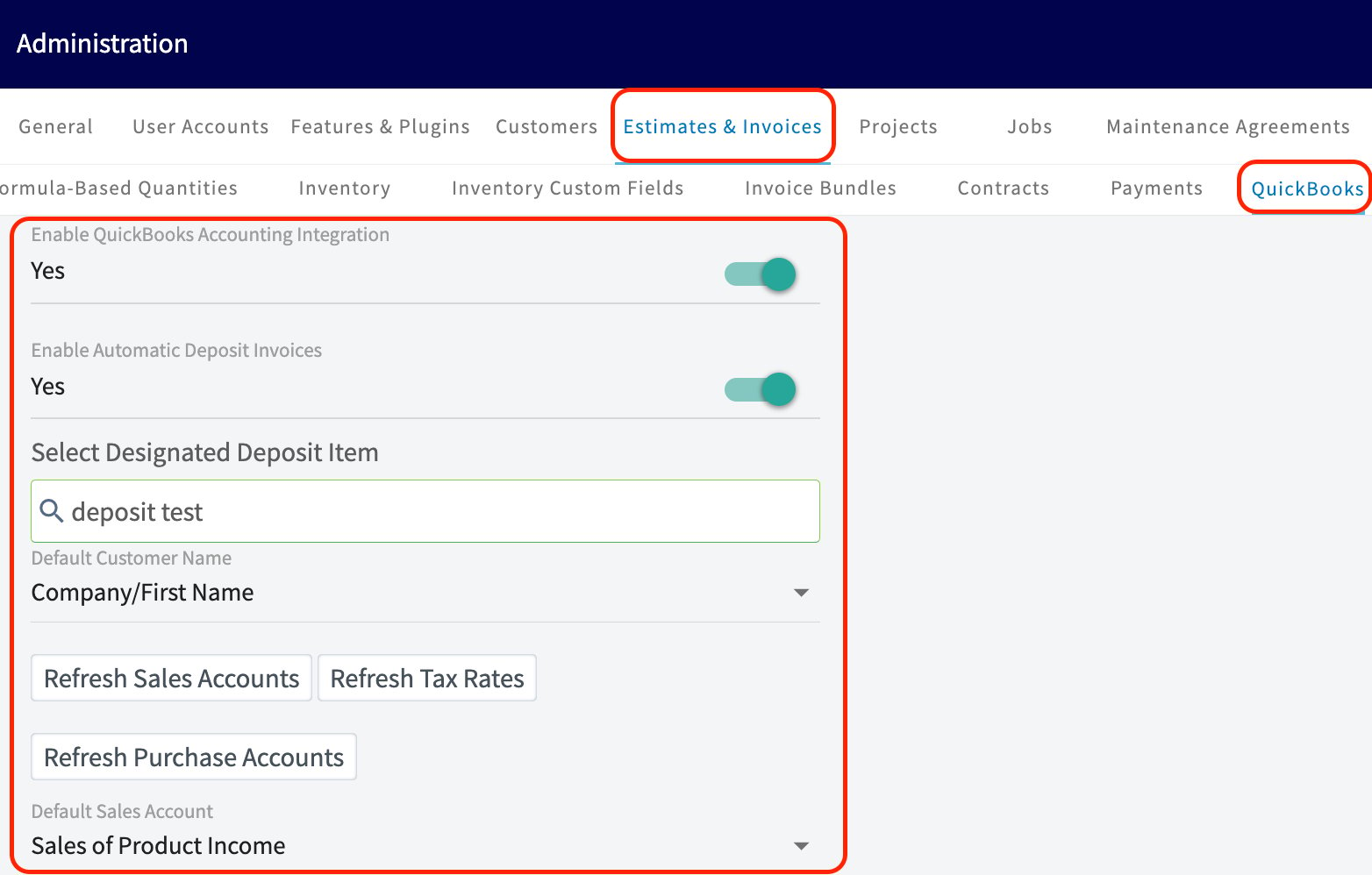
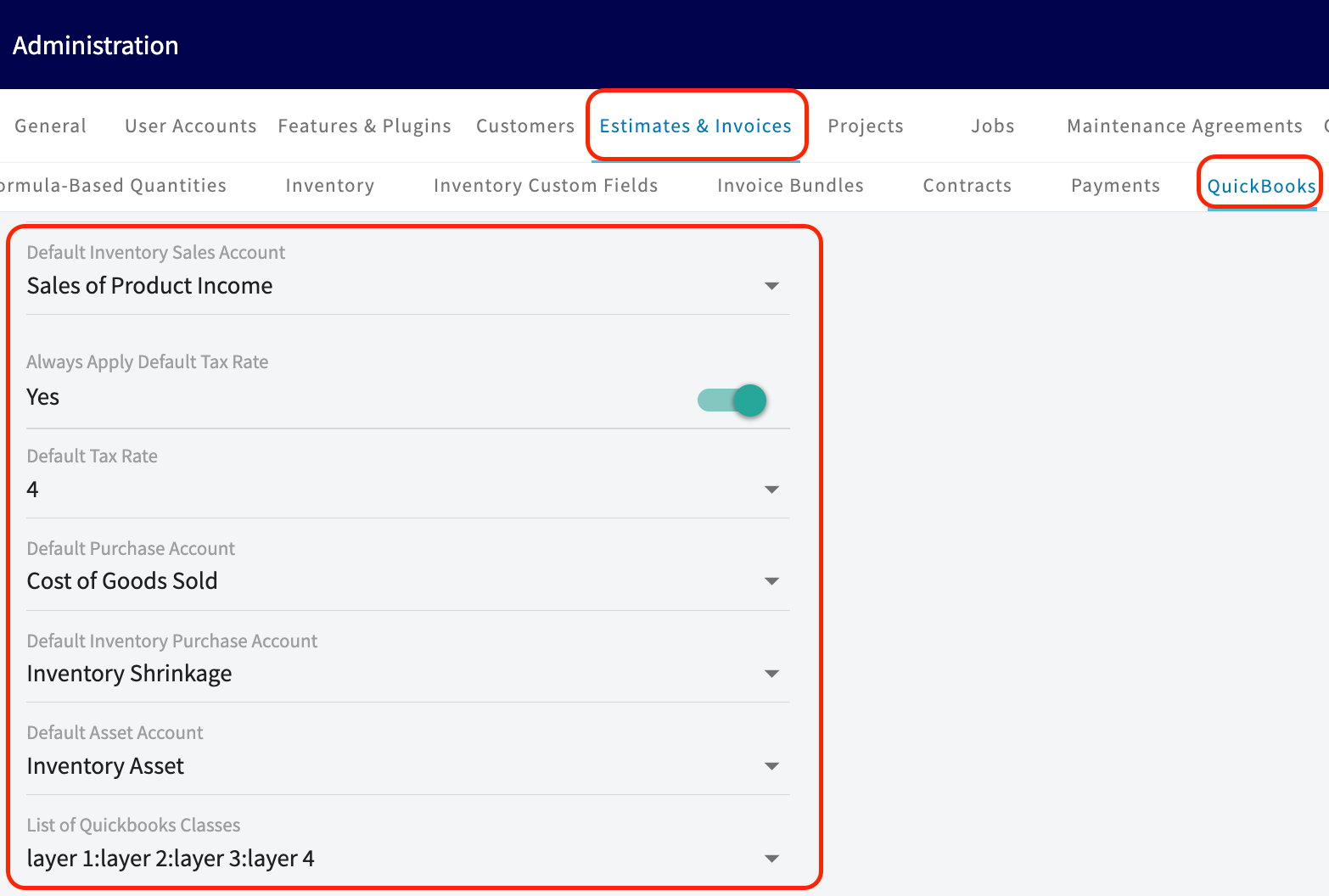
The order in which you sync your items on this page matters!
You must sync your items in this order: Customers, Invoices, Line Items, Sync Classes.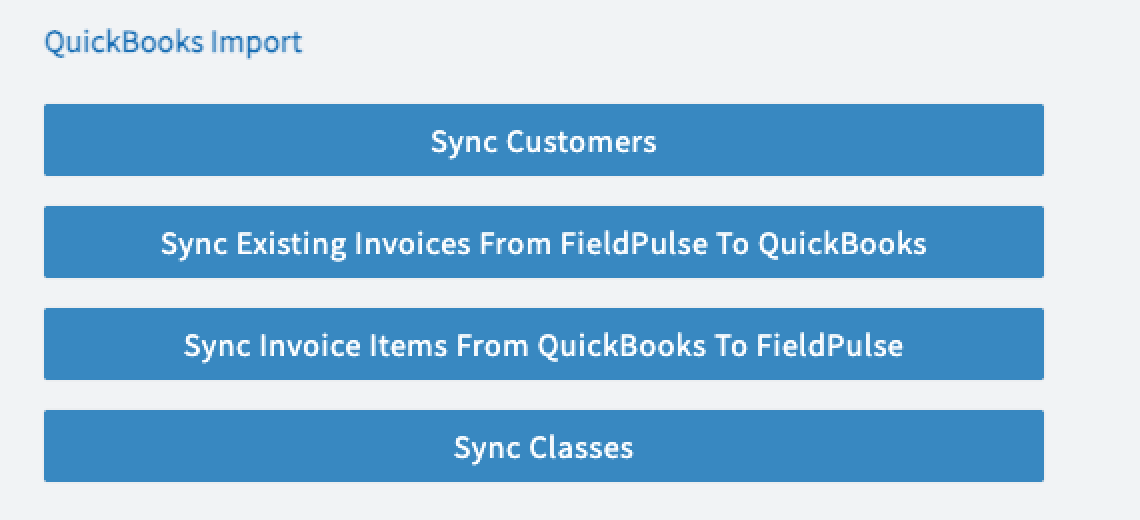
Default Tax Rate Setting
There is a toggle that now enhances your control over tax rates when creating Estimates and Invoices.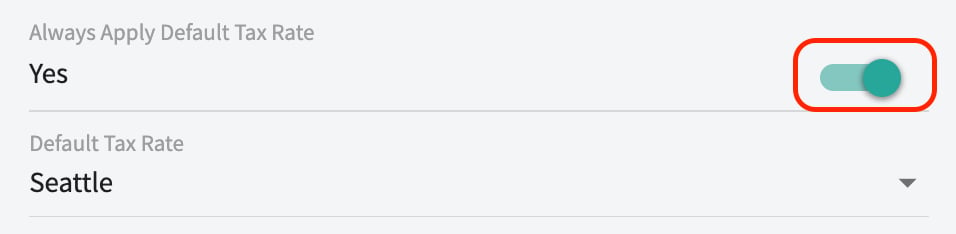
QuickBooks Online Tax Handling Logic
The behavior of your tax rates will vary depending on the configuration of your FieldPulse AutoTax, QuickBooks Online AutoTax, and the Always Apply Default Tax Rate setting. Here’s how it works when creating a new Estimate/Invoice:Customers
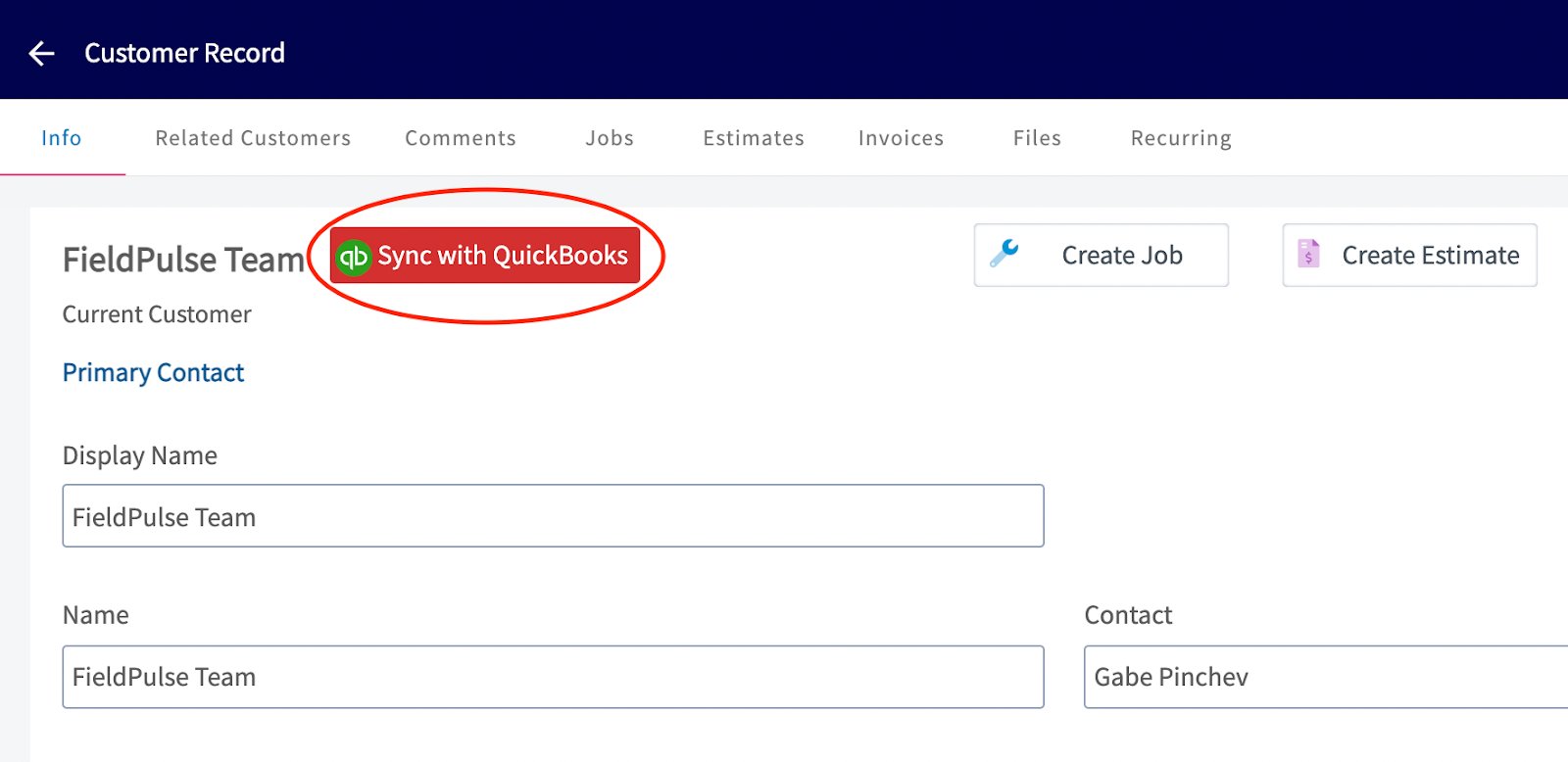
A synced customer will display the QuickBooks logo on the customer record.
Invoices
An invoice that has been synced will display Open in QuickBooks, which will take you directly to that invoice in QuickBooks when clicked.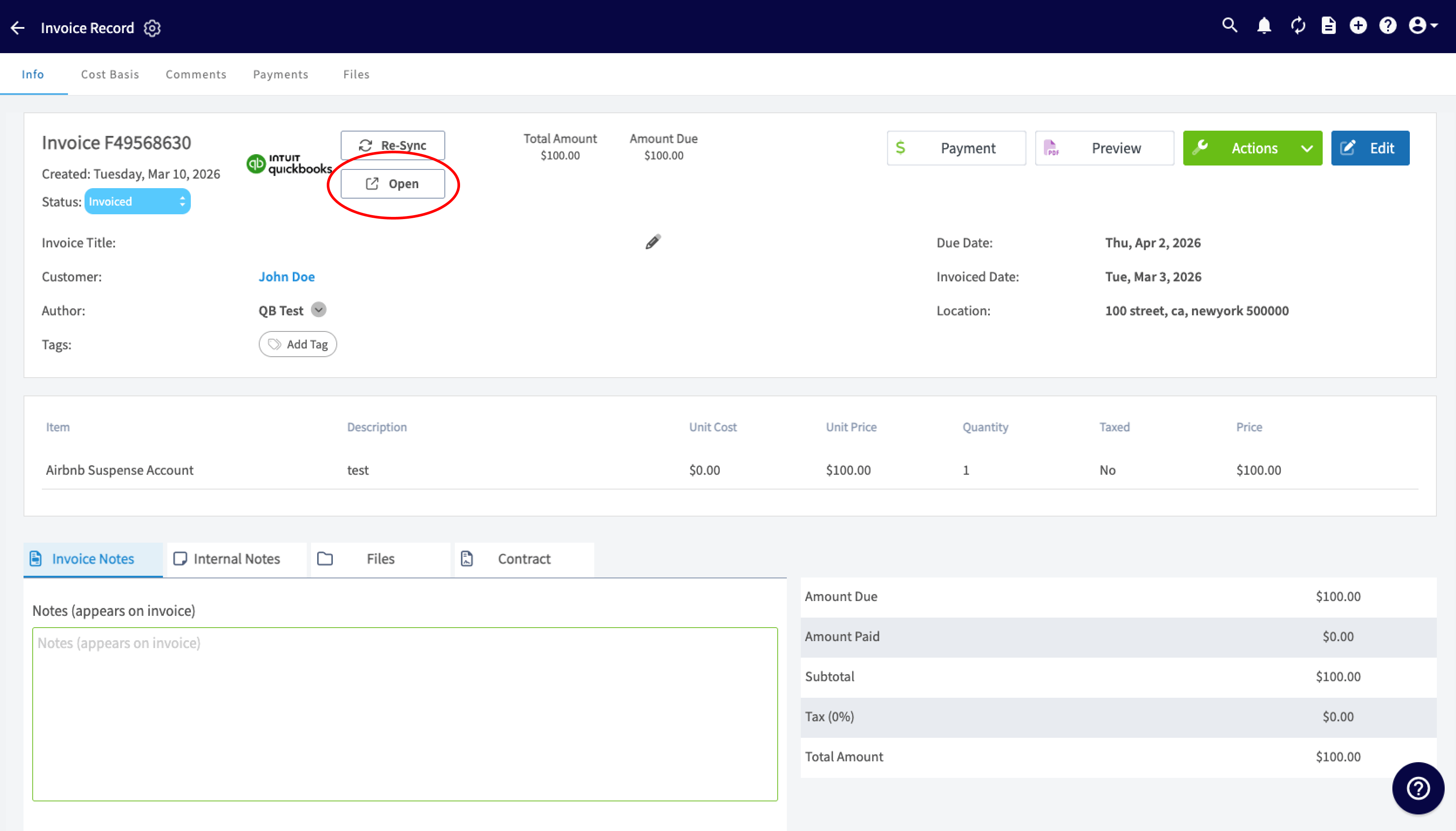
Sales & Purchase Accounts
When creating a line item in FieldPulse, you can select which sales and purchase accounts under which to house the line item in QuickBooks. If you opt not to select a sales or purchase account, it will default to the sales and purchase accounts selected during the initial sync.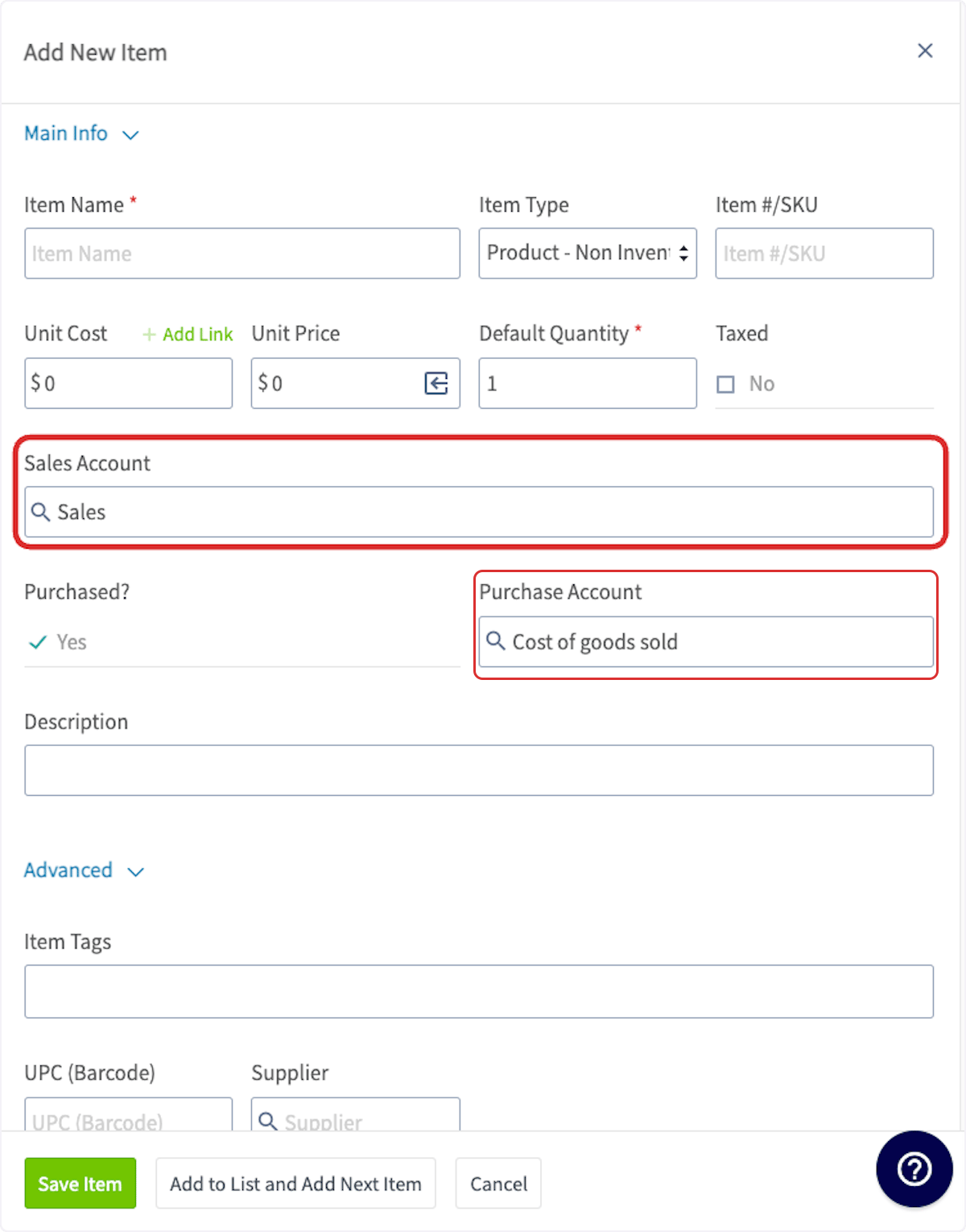
Business Classes
Business classes are a way to categorize invoices. New business classes must be created in QuickBooks and can be adjusted there as well. When creating an invoice in FieldPulse, you can select which business class to assign.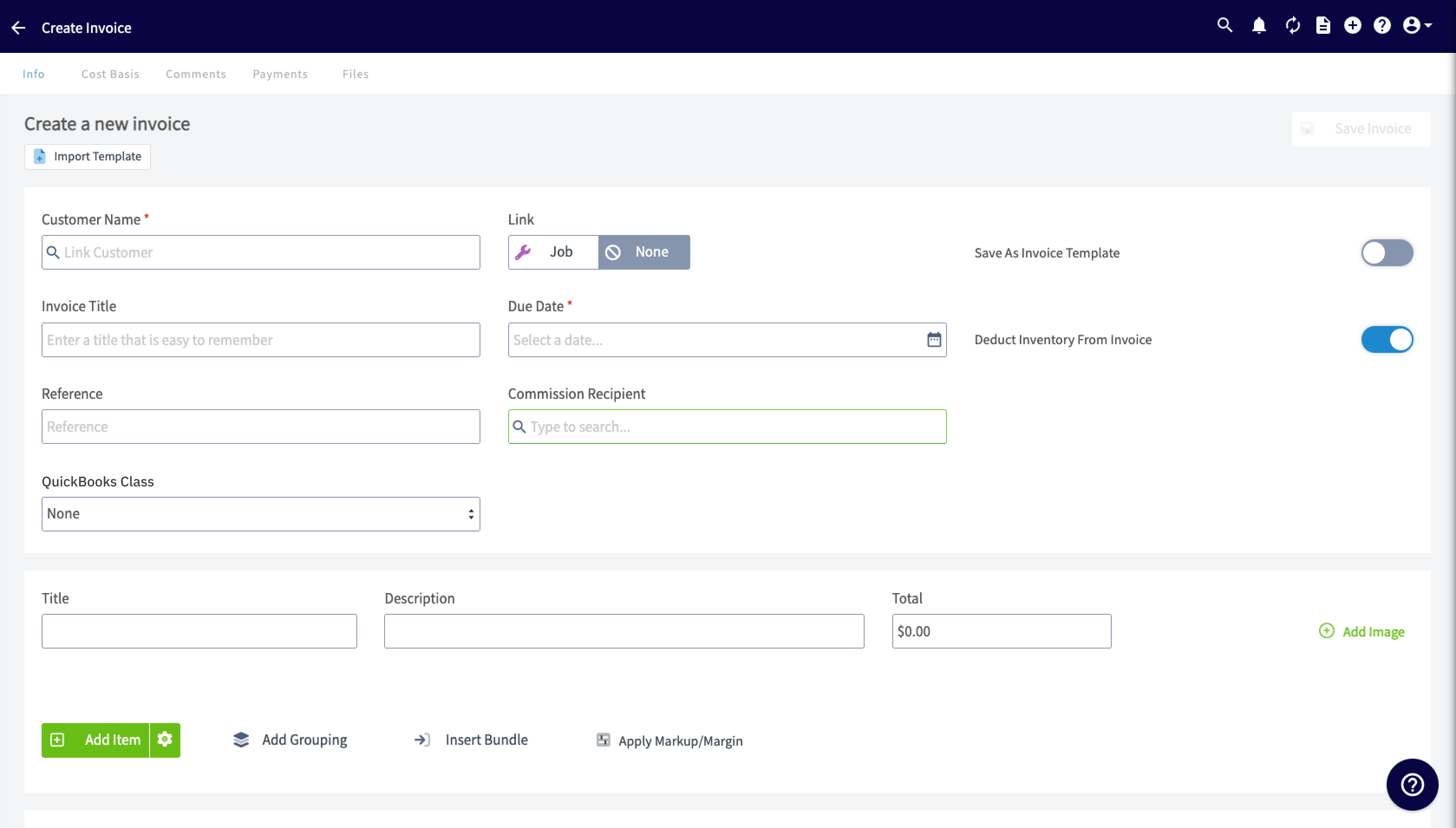
Projects
QuickBooks Online projects sync to FieldPulse as related customers. If you joined FieldPulse before 7/16/2024 and would like to disable the sync of QuickBooks Online projects to FieldPulse, reach out to us via support@fieldpulse.com or use the chat in the bottom right corner. (Note: If the project sync is disabled, the estimates or invoices within that project will also not sync.) If you joined FieldPulse after 7/16/24, the QuickBooks Online project sync is disabled in your account. Reach out to us via support@fieldpulse.com or use the chat in the bottom right corner if you want to enable this sync.Sync Management
To understand which records have not synced, select QuickBooks Online Statistic.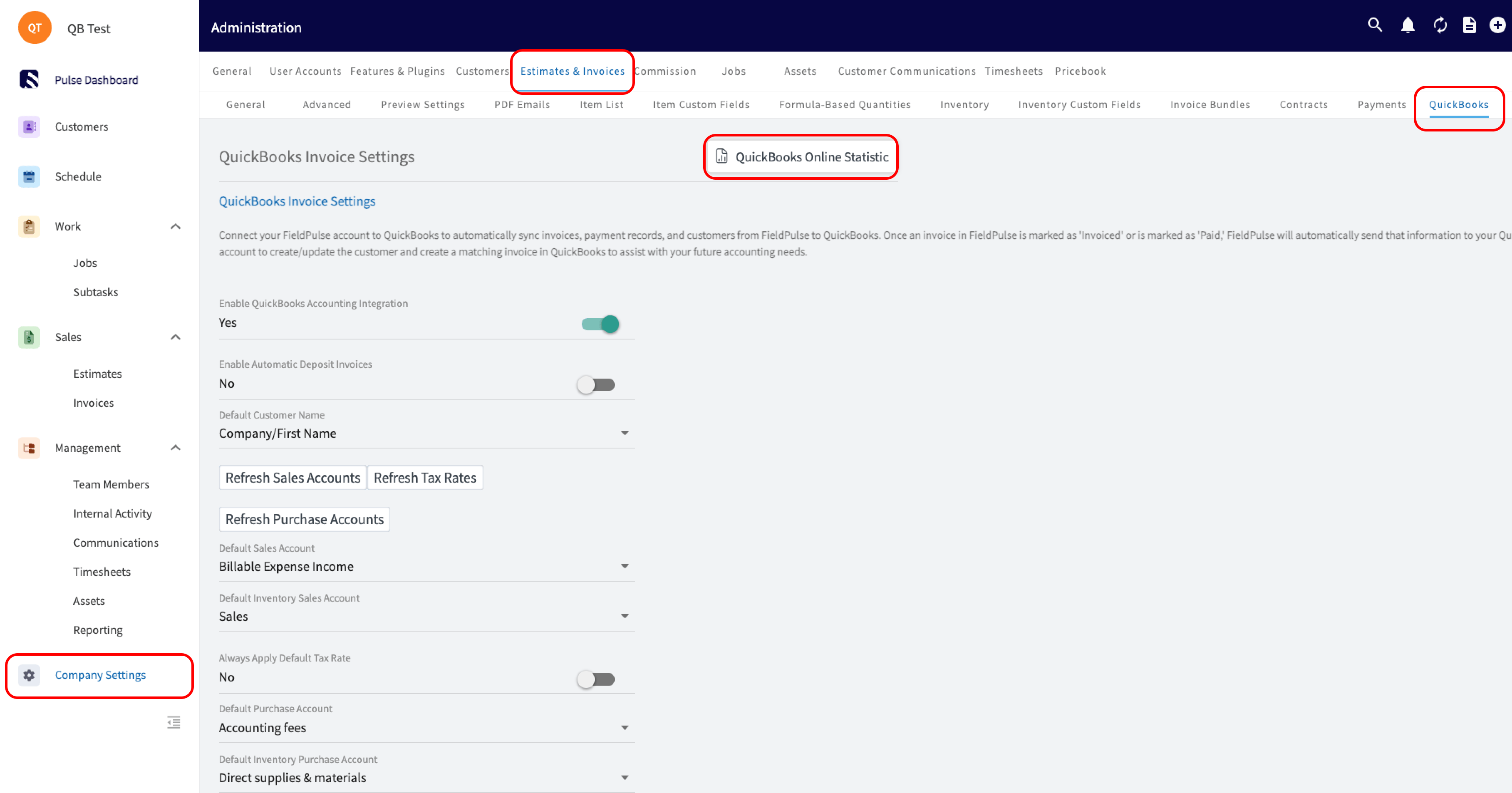
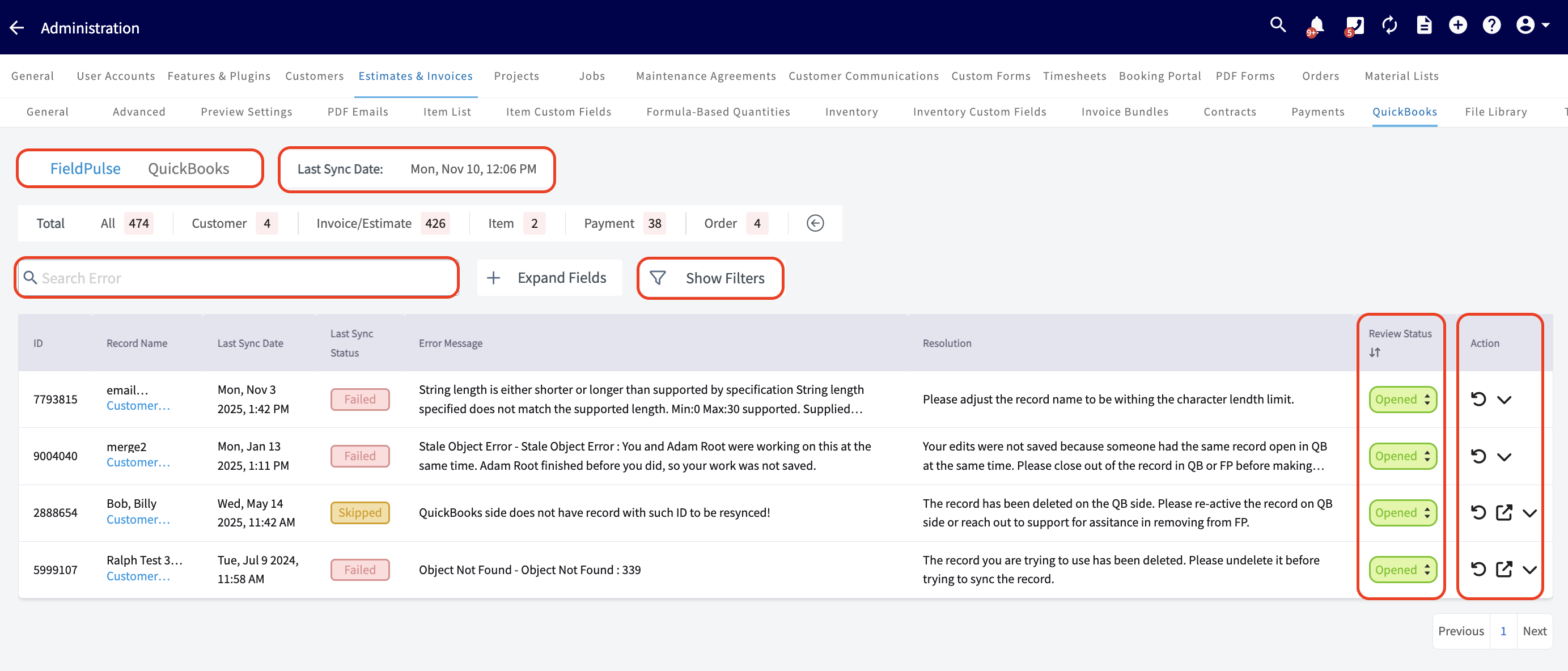
Here, you can view the following
- Date and Time: See when your most recent sync occurred.
- Unsuccessful Records: Identify exactly which records haven’t synced and the reasons why.
- Search Functionality: Search among your records.
- Review Status Column: Close and filter out resolved errors.
Error Messages
Use this table to better understand the Statistic page error messages, QuickBooks Online error messages, and the necessary actions to resolve the error and sync the affected records.Troubleshooting
Sometimes, records do not sync between FieldPulse and QuickBooks Online. Review the issues and potential causes below to troubleshoot and resolve your sync.A customer may not sync because
- Email address is missing or formatted incorrectly.
- The customer name is a duplicate of another customer.
- The email address or phone number exceeds 31 characters, or the notes exceed 4000 characters.
- Your customer is archived in QuickBooks Online.
- Your customer name uses “:”.
- Your customer is the child of a parent customer that is not synced.
A line item may not sync because
- Fields are incorrect or missing (item name, item price, SKU, etc.).
- The item name exceeds 100 characters or your SKU exceeds 30 characters.
- The item name is a duplicate of another line item.
- The item is not marked as a product or service in QuickBooks Online.
- The related sales and/or purchase account is not active in QuickBooks Online.
- Your line item is categorized as “Product - Inventory,” but your QuickBooks Online subscription doesn’t support inventory tracking.
An invoice may not sync because
- The Customer is not synced.
- A line item is not synced.
- Your notes exceed 4000 characters.
- Estimate/invoice is in a closed accounting period in QuickBooks Online.
A payment may not sync because
- There is an archived payment on the invoice already synced to QuickBooks Online.
- The related invoice is not synced.
FAQs
Does archiving an invoice in FieldPulse affect my financials in QuickBooks? If you are using a 2-way sync, archiving an invoice in FieldPulse will sync the archived status over to QuickBooks. However, this does not impact your financial data or reporting in QuickBooks. Archiving an invoice is a non-financial action that only affects the record’s visibility and status. It does not alter totals, payments, or any accounting entries that have already been recorded in QuickBooks. What should I do if a customer pays an invoice I’ve already written off as bad debt in QuickBooks? Don’t apply the payment directly to the closed invoice, this breaks the sync. Instead:- Reverse the bad debt in QuickBooks: Find the Credit Memo or journal entry used to write off the invoice, then unlink or delete it. This restores the invoice to Open/Unpaid status. Give it a few minutes to sync so FieldPulse shows it as Unpaid or Sent again.
- Record the payment in FieldPulse: Open the restored invoice, click Payment, then Mark Payment, and enter the amount paid. This syncs to QuickBooks automatically, marking the invoice Paid in both systems.
Have additional questions? Contact us at support@fieldpulse.com or use the chat feature in the bottom right corner of your screen.