Who uses this: Admins manage sync settings; the sync then runs for the account. Availability: Requires your own QuickBooks Online subscription (Essentials, Plus, or Advanced) and is available in the United States, Canada, and Australia.After syncing with QuickBooks Online, you set your sync defaults, choose how tax is applied, and use the QuickBooks Online Statistic page to catch any records that didn’t come over. This page covers everything you do once the connection is live.
Overview
Once FieldPulse and QuickBooks Online are connected, most records sync automatically as you create and edit them. You can change every sync option at any time on individual invoices and items, or on the Company Settings > Estimates & Invoices > QuickBooks subtab.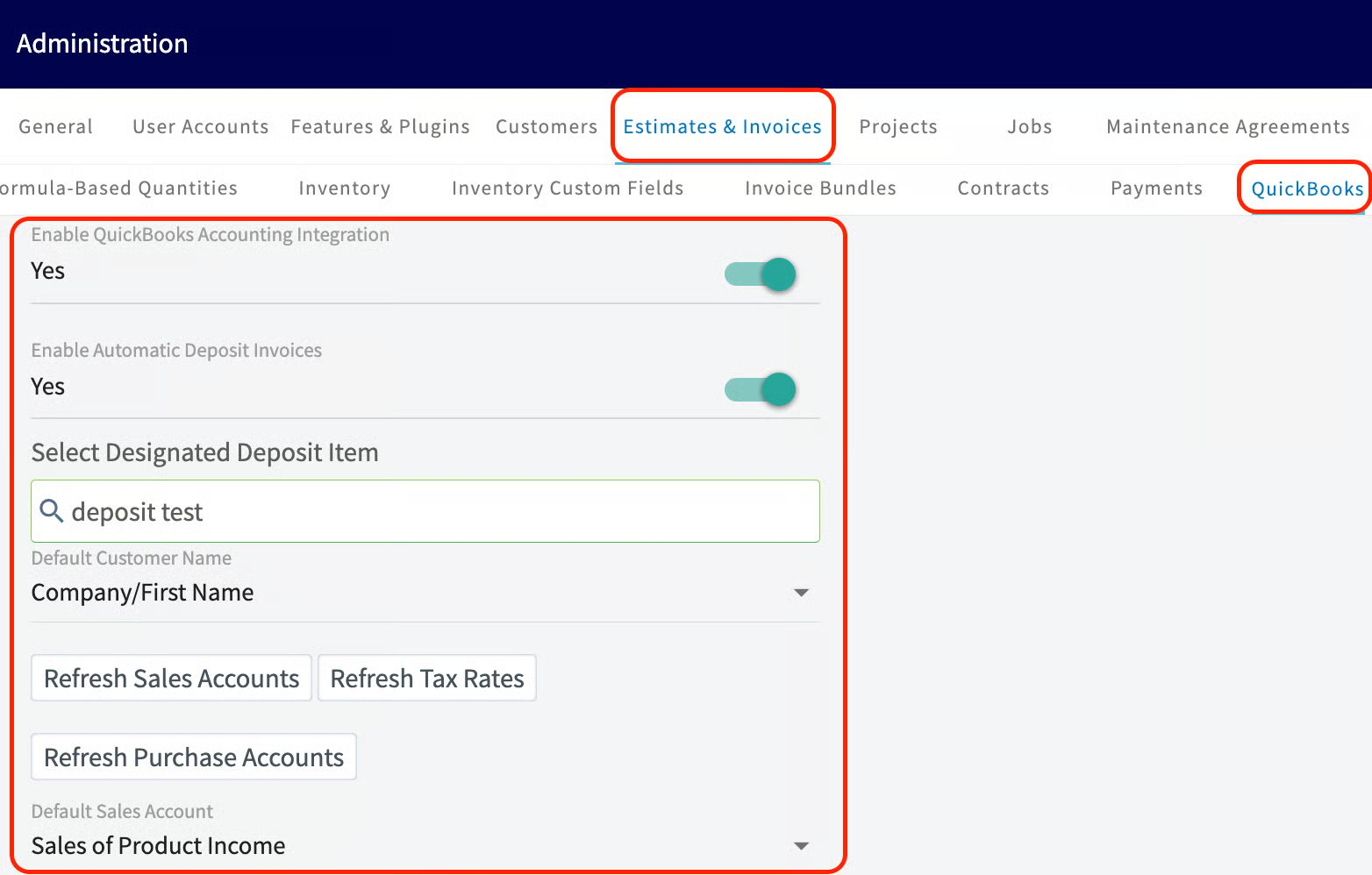
Before you begin
- Finish connecting the two systems in How to Sync With QuickBooks Online.
- Have your QuickBooks Online chart of accounts and business classes set up, since FieldPulse pulls sales/purchase accounts and classes from QuickBooks Online.
Set your sync order
The order in which you sync records on the QuickBooks subtab matters. Sync in this order: Syncing out of order can leave related records unable to sync — for example, an invoice can’t sync until its customer and line items have synced.Set the default tax rate
The Always Apply Default Tax Rate toggle controls how tax is applied to new estimates and invoices. When it is on, every newly created estimate and invoice applies the selected default tax rate. This setting only affects records created after you enable it. How tax behaves depends on the Always Apply Default Tax Rate toggle, your FieldPulse AutoTax setting, and your QuickBooks Online AutoTax setting, when you create a new estimate or invoice:How synced records appear
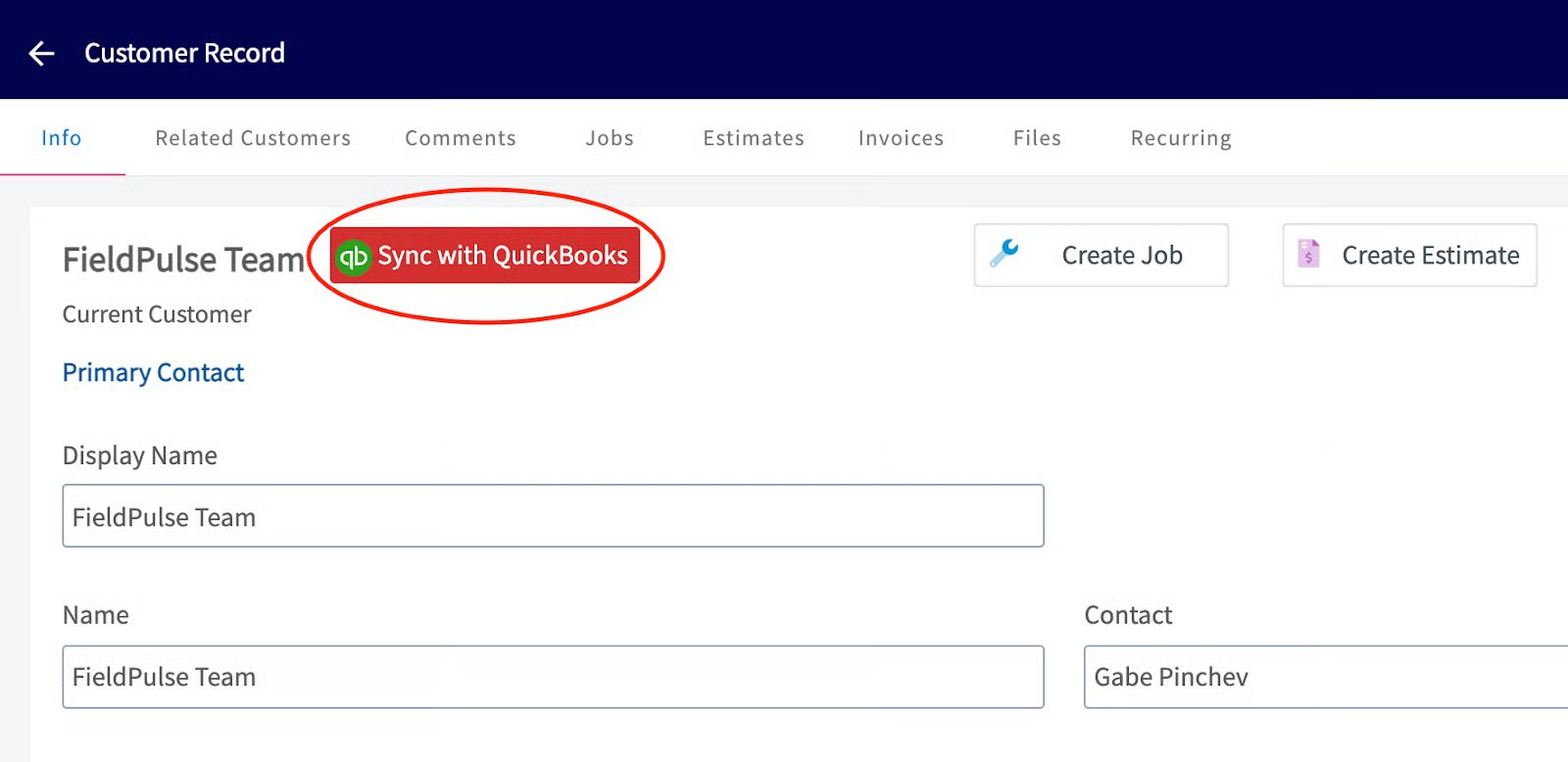
- Customers — a synced customer shows the QuickBooks logo on the customer record. To sync one manually, select Sync with QuickBooks on the customer record.
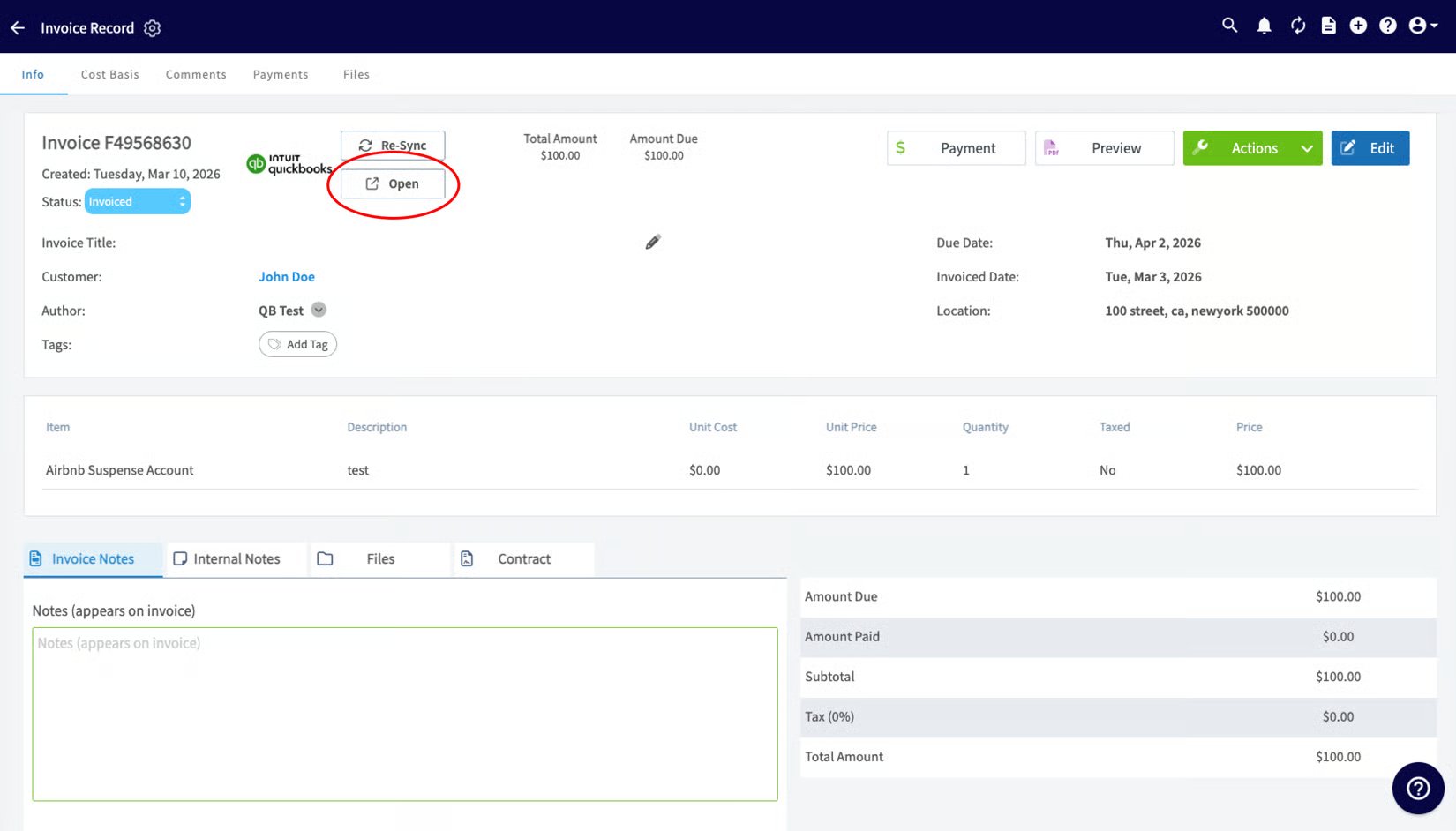
- Invoices — a synced invoice shows Open in QuickBooks, which opens that invoice in QuickBooks when clicked. Invoices begin syncing once they reach Invoiced status (awaiting payment); the attached customer, invoice items, and tax rate are also synced.
- Deletes and archives — records deleted or archived in FieldPulse are also deleted in QuickBooks.
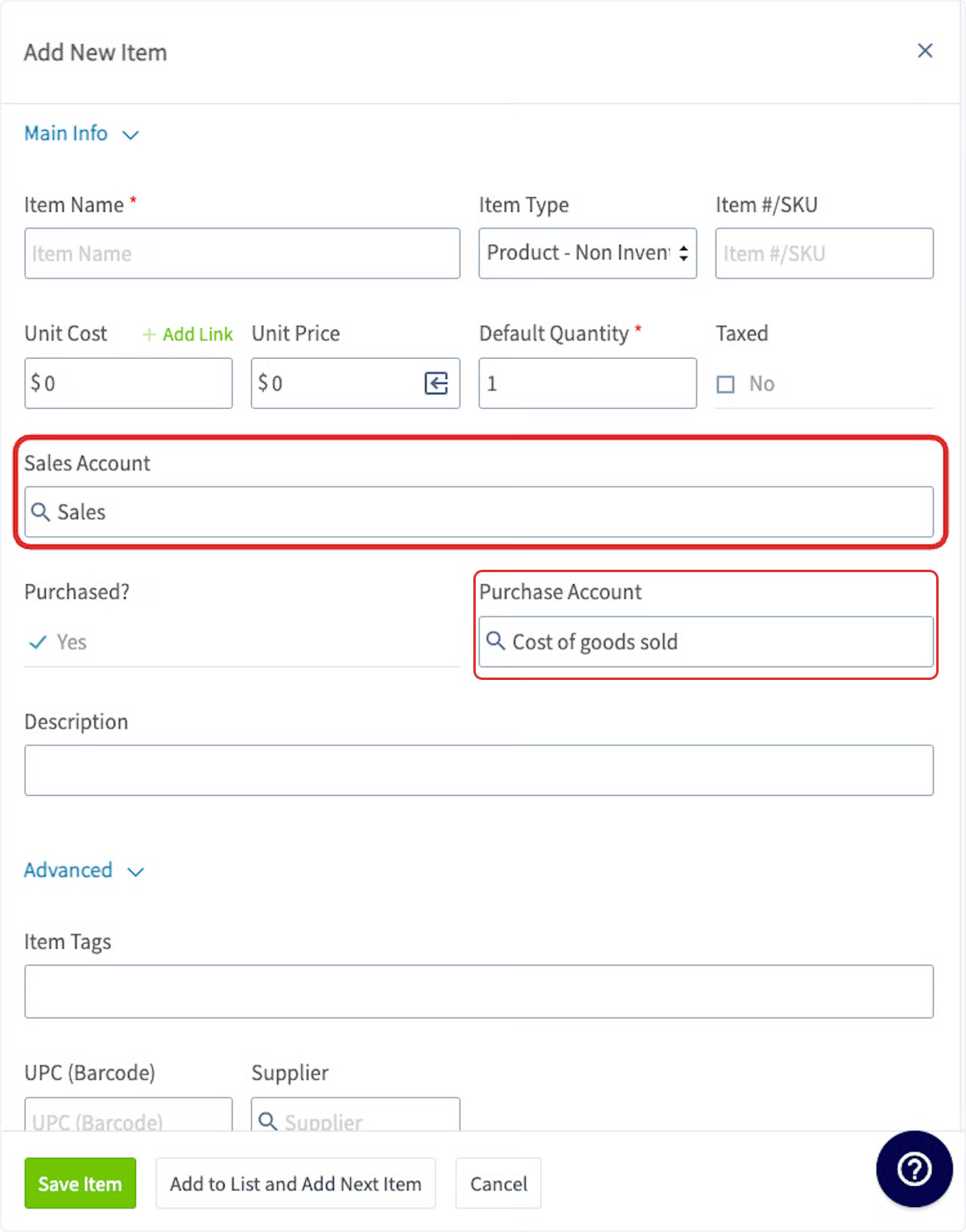
- Sales & purchase accounts — when you create a line item, you can choose which sales and purchase accounts it’s filed under in QuickBooks. If you don’t choose one, it defaults to the accounts selected during the initial sync.
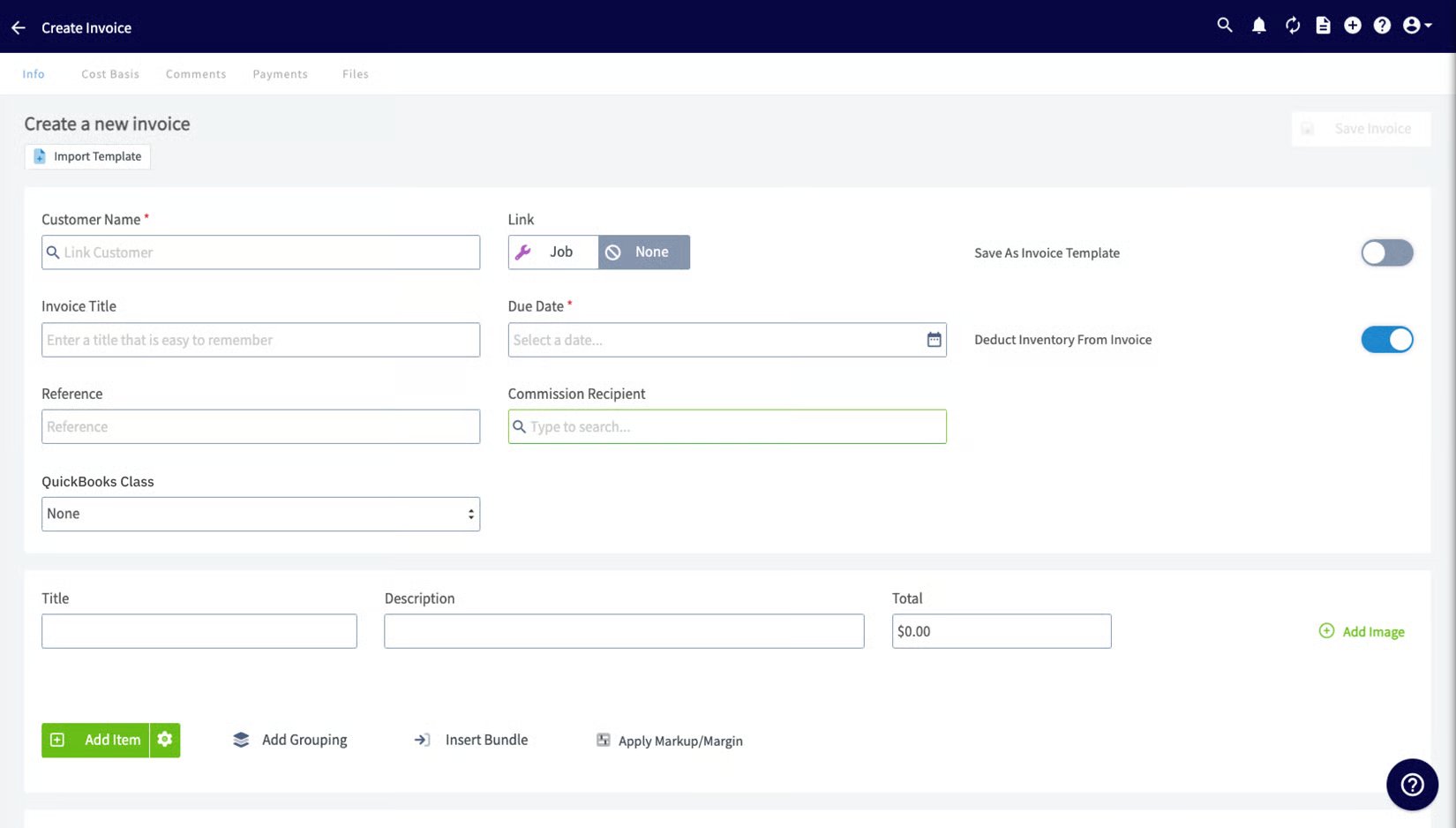
- Business classes — classes categorize invoices. Create new classes in QuickBooks Online, then assign a class when you create an invoice in FieldPulse.
- Projects — QuickBooks Online projects sync to FieldPulse as related customers. See Setting Up QuickBooks Online Before Syncing for how to enable or disable the project sync.
Find records that didn’t sync
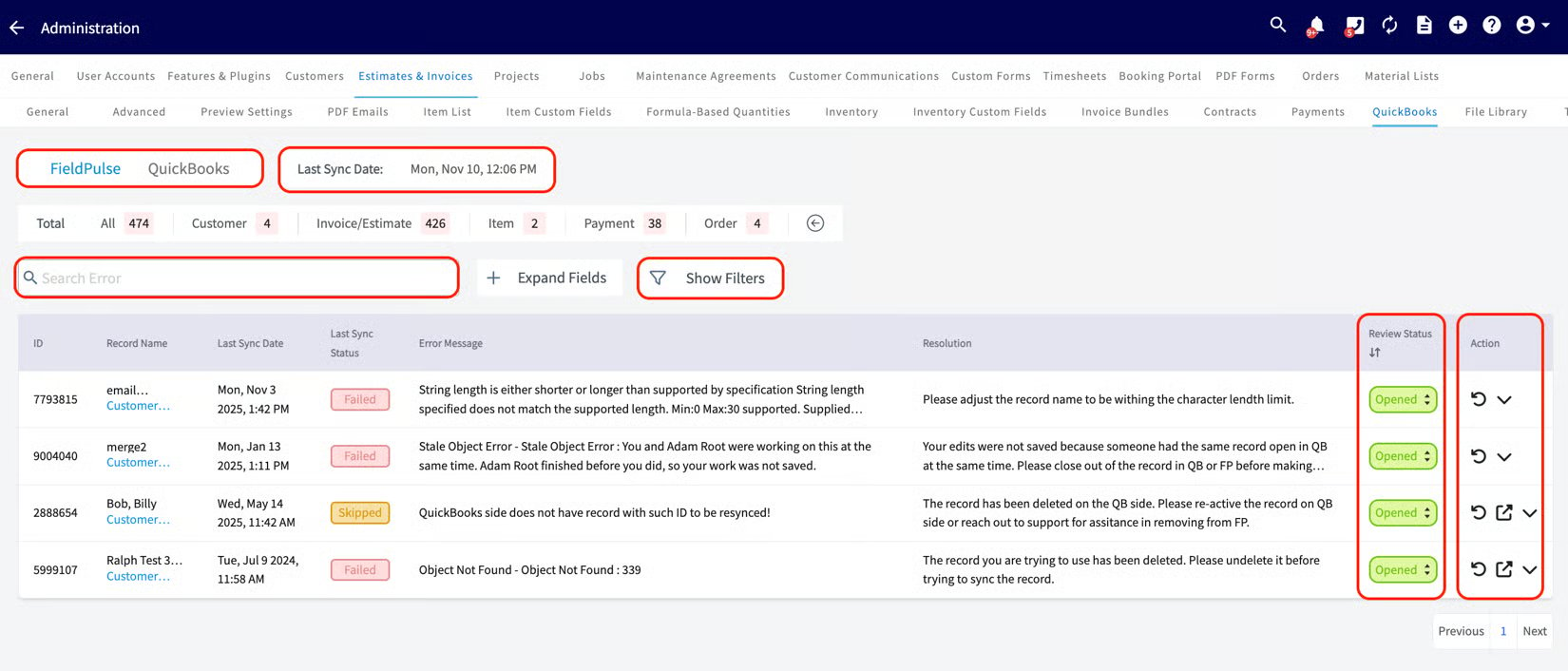
To see which records haven’t synced, open the QuickBooks Online Statistic page.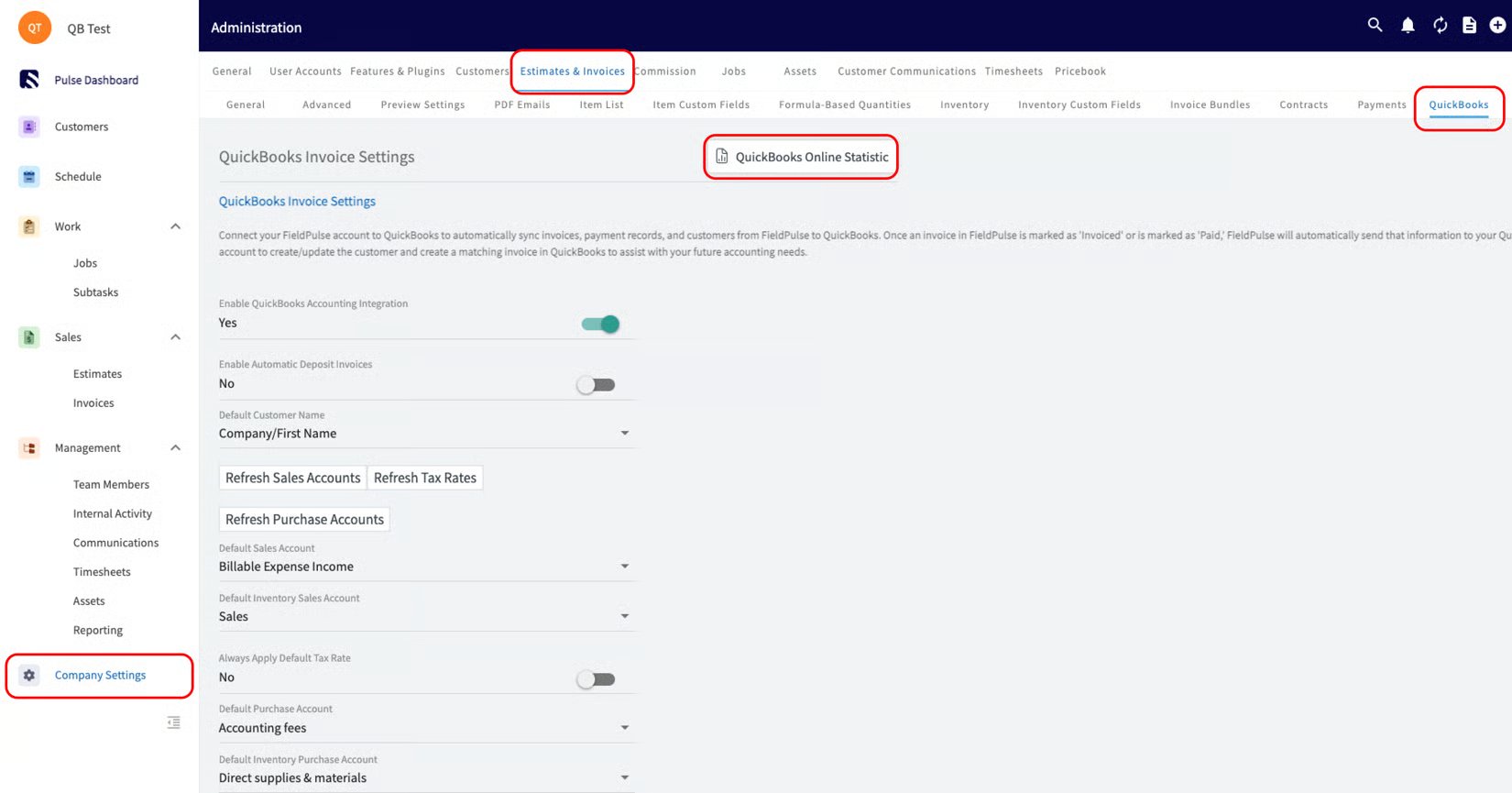
- See the date and time of your most recent sync.
- Identify unsuccessful records and the reason each failed.
- Search among your records.
- Use the Review Status column to close and filter out resolved errors.