
Who uses this: Admins request and configure the purchase order sync. Availability: Requires your own QuickBooks Online subscription and an active QuickBooks Online integration — available in the United States, Canada, and Australia.The purchase order sync sends your FieldPulse purchase orders to QuickBooks Online, either one-way or two-way. Once it’s on, the sync is triggered by every newly created and updated purchase order — the PO’s status does not trigger it.
Overview
The purchase order sync is a separate, opt-in part of the QuickBooks Online integration that you request from the FieldPulse team. It can run one-way (FieldPulse → QuickBooks Online) or two-way, and it fires whenever a purchase order is created or updated. This page covers turning it on and how each purchase order field maps into QuickBooks Online. Only the purchase order syncs to QuickBooks Online. FieldPulse does not sync Bills, so your Accounts Payable (AP) team enters each Bill manually in QuickBooks Online and links it to the synced purchase order.Before you begin
- Have the main QuickBooks Online integration connected first. See How to Sync With QuickBooks Online.
Turn on the purchase order sync
- Request the sync. Contact the FieldPulse team through in-app chat or at support@fieldpulse.com to initiate your purchase order sync.
- Confirm the direction. Let the team know whether you want a one-way (FieldPulse → QuickBooks Online) or two-way sync.
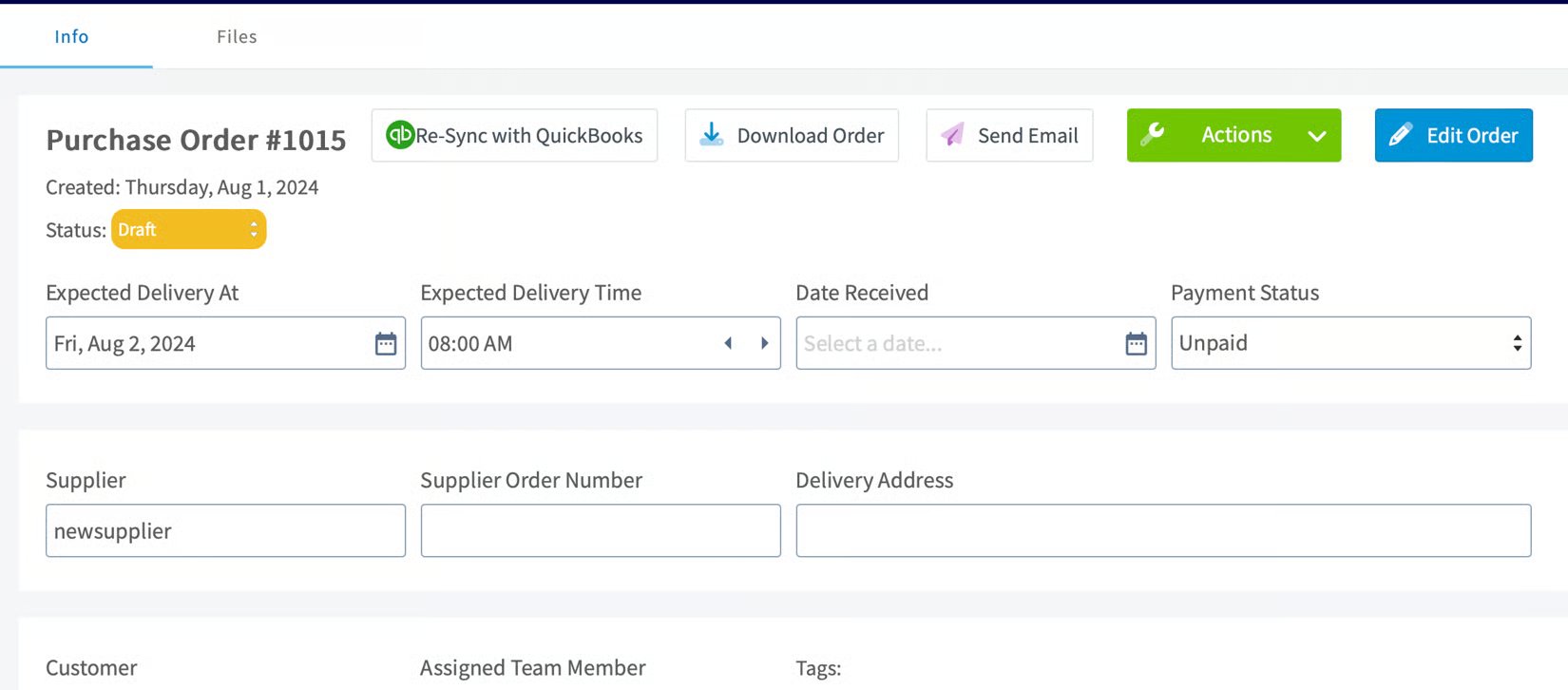
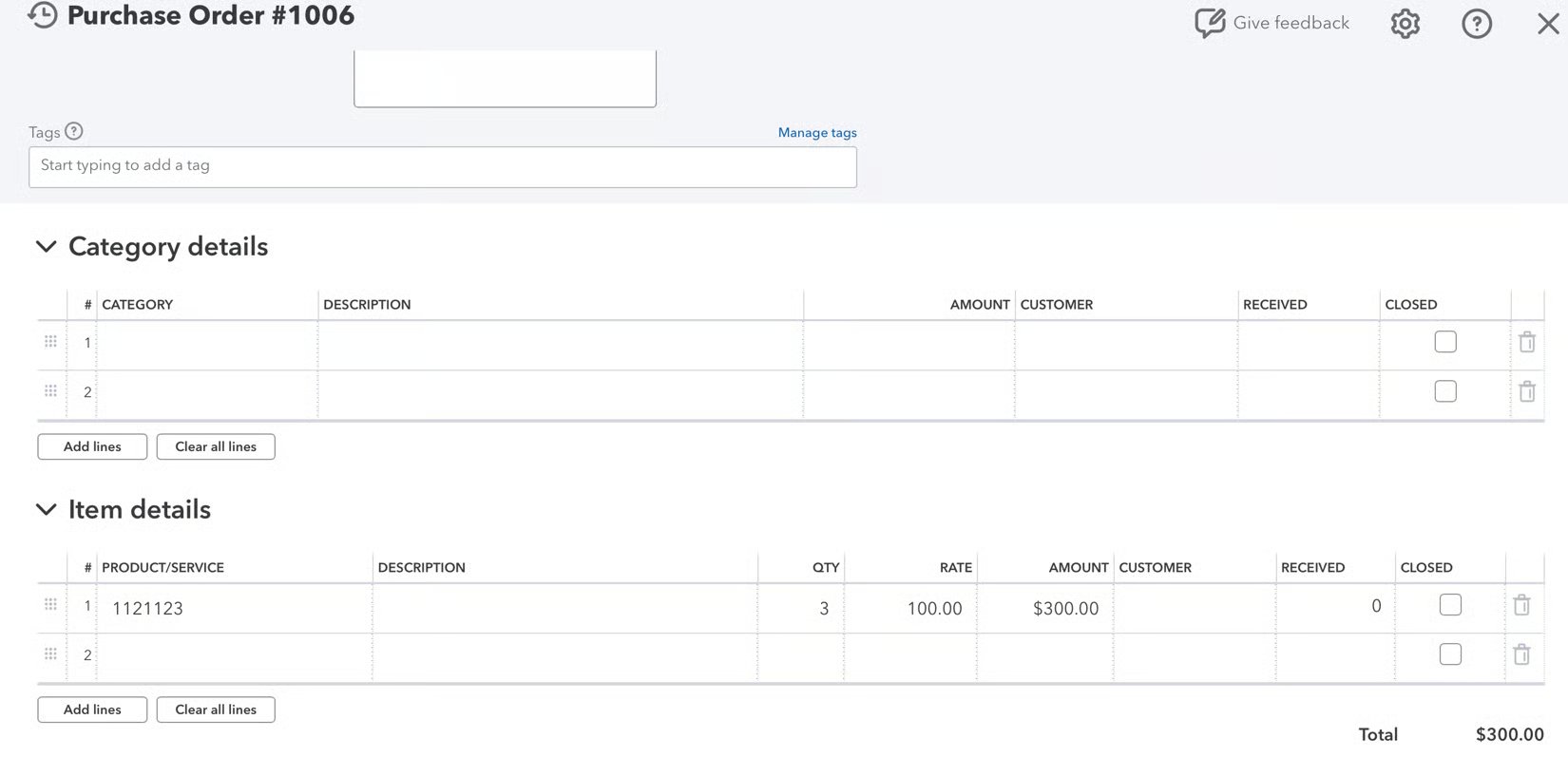
Purchase order field mapping
The table below shows which FieldPulse purchase order fields sync and where they appear in QuickBooks Online. A field that is not listed does not sync.How FieldPulse PO statuses map
Every FieldPulse purchase order status maps to either Open or Closed in QuickBooks Online.
Your purchase order sync is working when a purchase order you create or update in FieldPulse appears in QuickBooks Online with its number, vendor, and line items mapped as shown above.