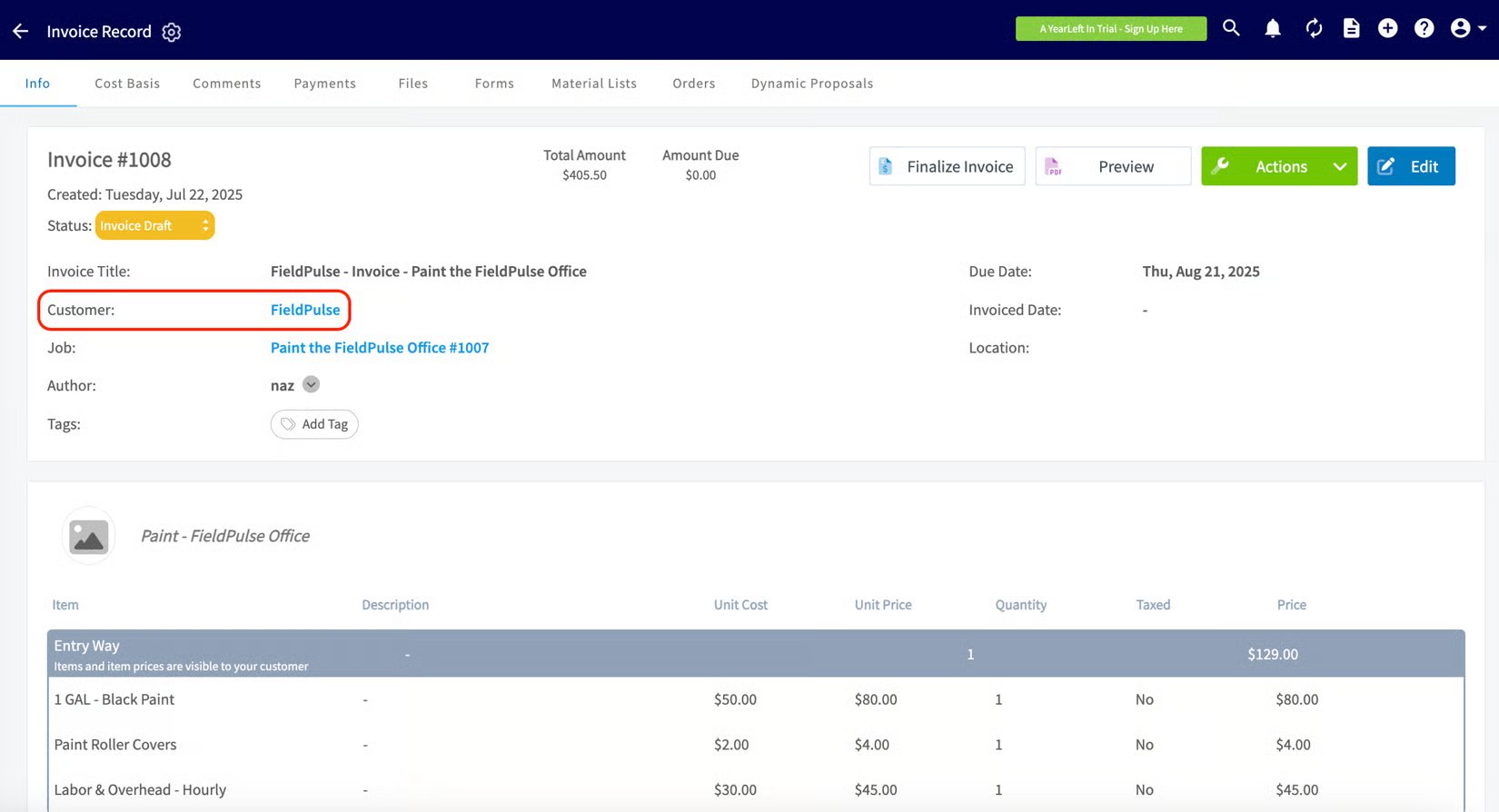
Who uses this: Admins set the preference; it applies to the account’s records. Availability: For users who integrate with QuickBooks Online or QuickBooks Desktop.The default customer name preference lets you choose which name field shows as the primary name on your customer, estimate, and invoice records (either Company/First Name or Display Name) without editing your whole QuickBooks customer database. It solves the mismatch that happens when your QuickBooks customer records and display names use different naming.
Overview
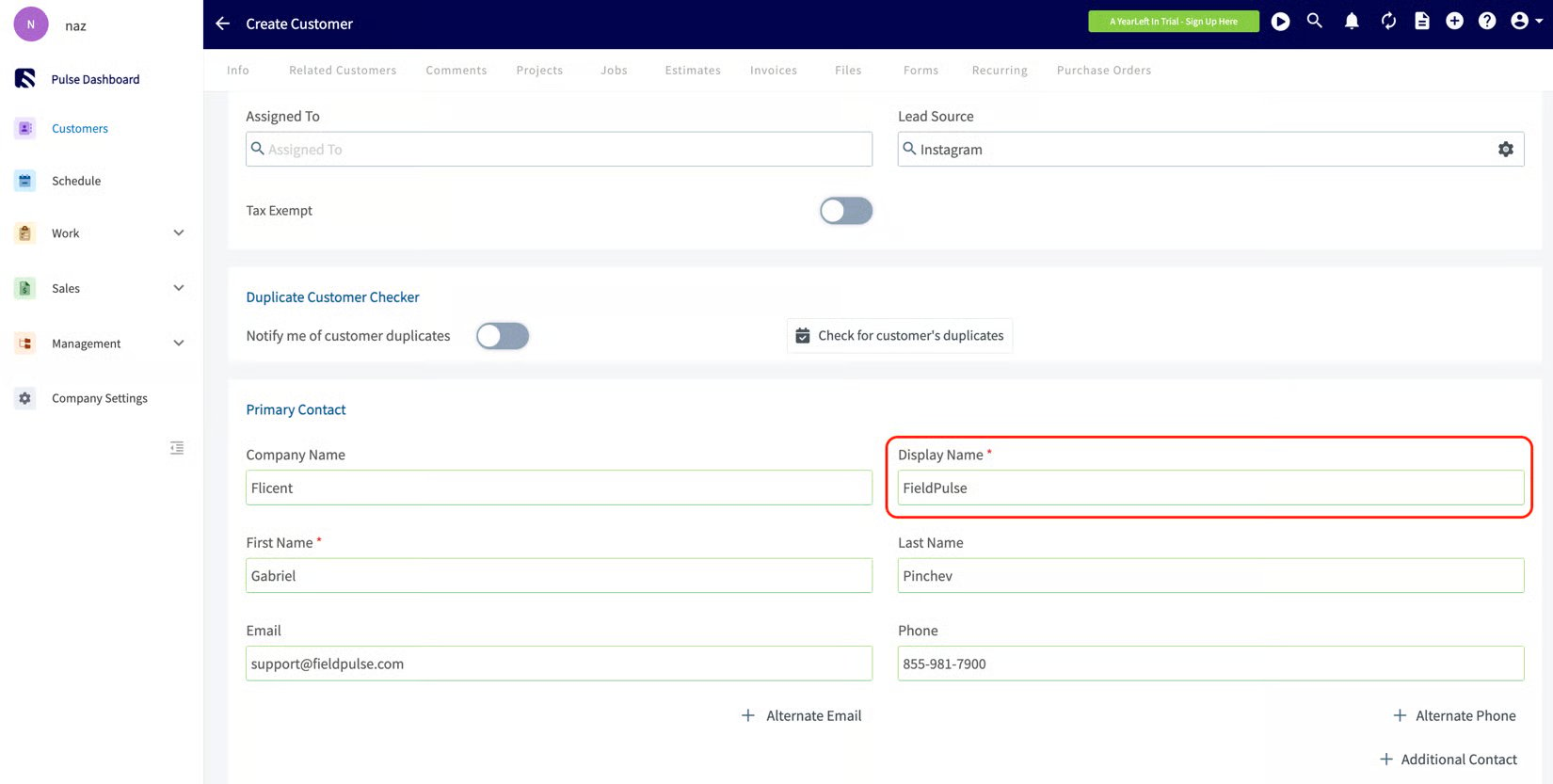
Many companies store one value in a customer’s name field and a different value in the display name field. The default customer name preference lets you pick which of those shows as the primary name across FieldPulse records, so customers appear the way you want them to without rewriting every record. This preference works with both QuickBooks Online and QuickBooks Desktop.Before you begin
- Have an active QuickBooks Online or QuickBooks Desktop integration.
- Decide whether you want Company/First Name or Display Name as the primary name shown on records.
Step-by-step setup
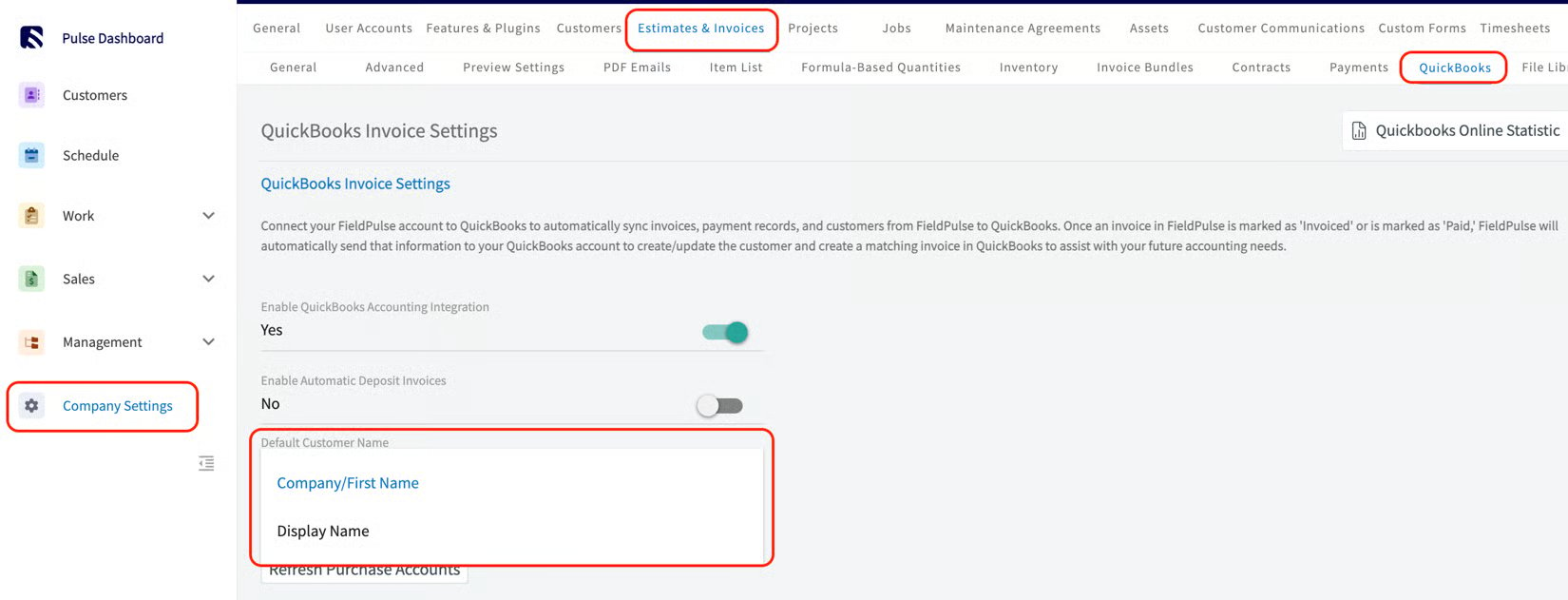
- Go to Company Settings > Estimates & Invoices > QuickBooks.
- Find the field titled Default Customer Name.
- From the dropdown, select either Company/First Name or Display Name.
Settings reference
- Customers
- Estimates
- Invoices
- Jobs and Assets
- Maintenance Agreements
- Custom Forms
- Dynamic Proposals