
Who uses this: Admins enable the feature; it then applies to new estimates for the account. Availability: For users who integrate with QuickBooks Online or QuickBooks Desktop. Works on both web and mobile.An automatic deposit invoice is a separate invoice FieldPulse generates for a collected deposit, so the deposit syncs to QuickBooks as a liability instead of revenue. That keeps the deposit off your income until the job is finished (matching accrual accounting) and keeps your cash-basis Profit & Loss reports accurate.
Overview
Without this feature, a deposit collected on an estimate is applied to the converted invoice, and once that invoice syncs to QuickBooks the deposit shows as money already earned. Many FieldPulse users require a deposit before starting a job, with the balance due on completion. With automatic deposit invoices enabled, FieldPulse routes the deposit to a liability account in QuickBooks (money your business owes the customer) until the final payment is made. In short, deposits don’t hit your revenue until the project is finished and the final payment is received. This feature works with both QuickBooks Online and QuickBooks Desktop.Video walkthrough
Video walkthrough: automatic deposit invoices
Before you begin
- Have an active QuickBooks Online or QuickBooks Desktop integration.
- Create your liability account(s) in QuickBooks first. The deposit line item must be linked to a liability account, and that account has to exist in QuickBooks before you enable this feature.
- Have a Customer Deposit Item ready in your Item List to represent the deposit.
Enable automatic deposit invoices
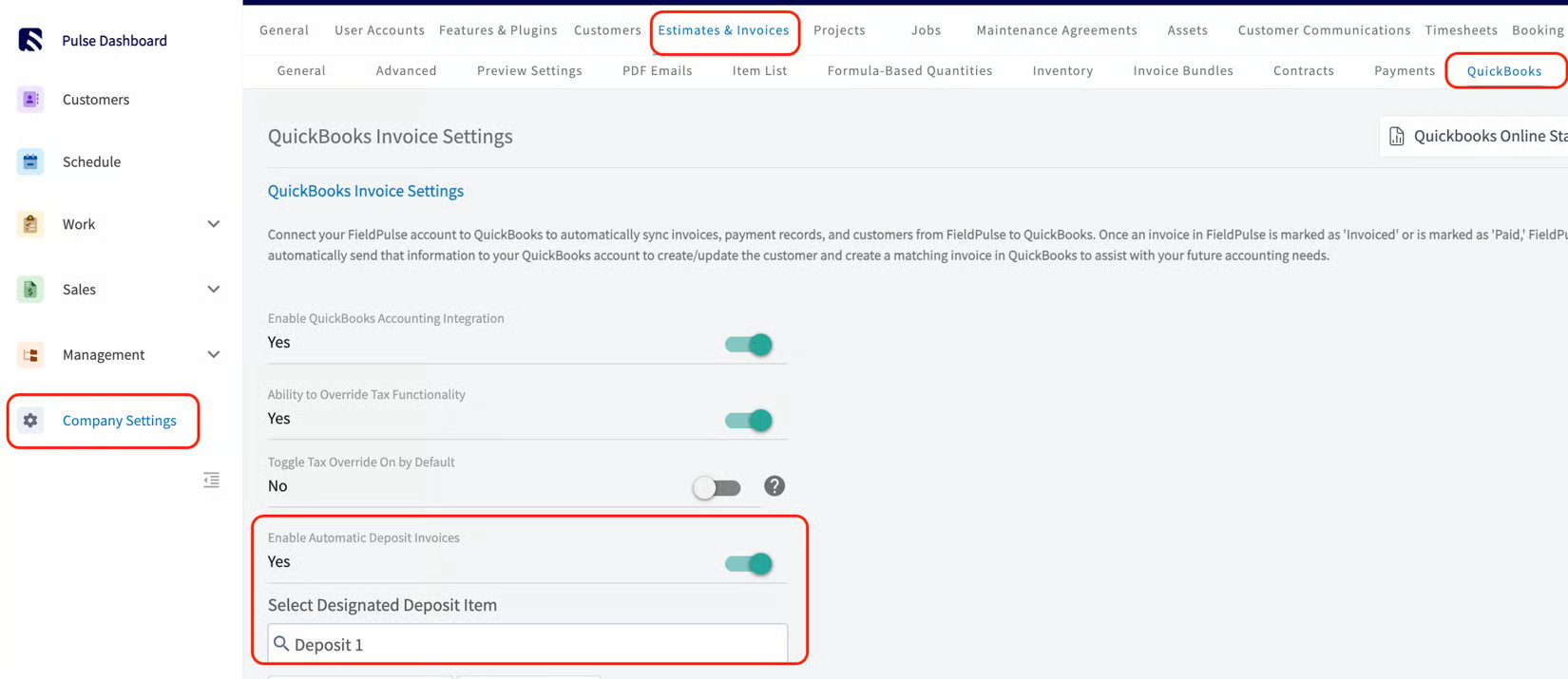
- Go to Company Settings > Estimates & Invoices > QuickBooks.
- Toggle on Enable Automatic Deposit Invoices.
- Select your designated Customer Deposit Item from your Item List (linked to a liability account created in QuickBooks). Only one item can be selected here.
- Select Save in the top-right corner.
How the two invoices work
When you request a deposit on an estimate (in person or by sending a dynamic link) and the deposit is less than 100% of the estimate total, FieldPulse automatically generates two invoices:Marking a deposit
Once the feature is enabled, every new estimate shows a Deposit button. Select it, mark a payment for less than the estimate total, and save. This triggers the automatic creation of the Deposit Invoice and Final Invoice. You can trigger this flow from the Deposit button only once per estimate.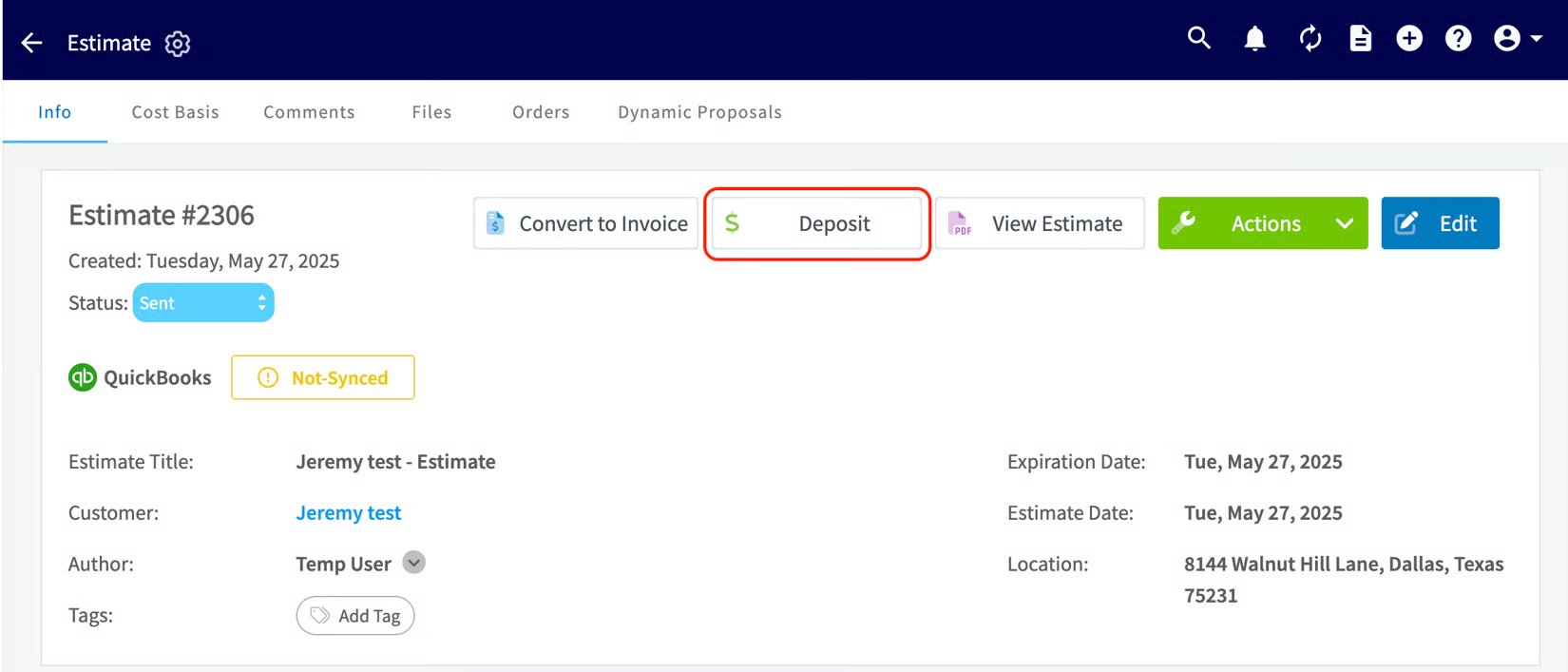
Notes and limitations
- The deposit percentage is always based on the estimate subtotal.
- The designated deposit item should always be non-taxed.
- The deposit line item must be linked to a liability account, created in QuickBooks before enabling the feature.
- The Activity Log on the estimate records who marked a deposit and the amount.
- If the estimate is linked to a job, both the Deposit and Final invoices link to that same job. Build the estimate from the job/service record so this happens automatically.