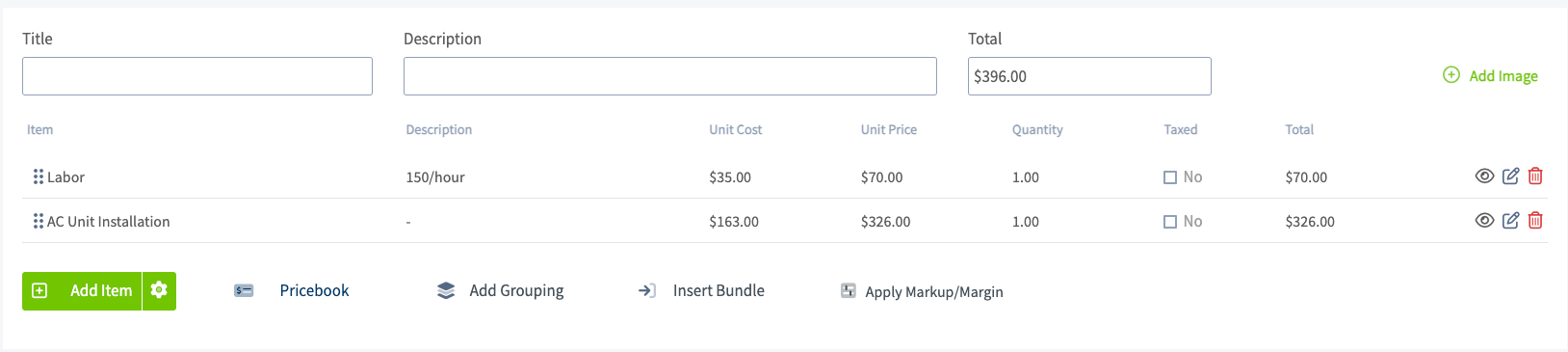
Who uses this: An Admin sets item markups and the company-wide default markup in Company Settings; the person building an estimate or invoice applies a markup or margin on that record. Availability: All regions.A markup is a percentage FieldPulse adds to an item’s unit cost to work out the unit price the customer sees. Enter the cost of a product or service along with a markup (or a target margin) and FieldPulse determines the price on the estimate or invoice for you. That gives you a consistent margin on your jobs and tells you how profitable a project will be.
Overview
FieldPulse prices a line item from its unit cost in three ways, and you can use them together:- Automatic markup on a single item: set a markup percentage on one item in your Item List so its unit price is generated from its unit cost.
- Company-wide default markup: set one default markup percentage that is pre-filled whenever you put an item on automatic markup.
- Markup or margin on a record: apply a markup, or hit a target margin, across every line item on one estimate or invoice.
If you have not entered unit costs on your line items, FieldPulse cannot generate a markup or a margin for them.
Video walkthrough
This video walks through markups and margins in FieldPulse.Watch the markups & margins walkthrough
Before you begin
- Enter a unit cost on every line item you want to mark up. Without a unit cost, FieldPulse cannot calculate a markup or a margin.
- Decide whether you want a markup on individual items, one company-wide default markup, or both.
Set an automatic markup on a single item
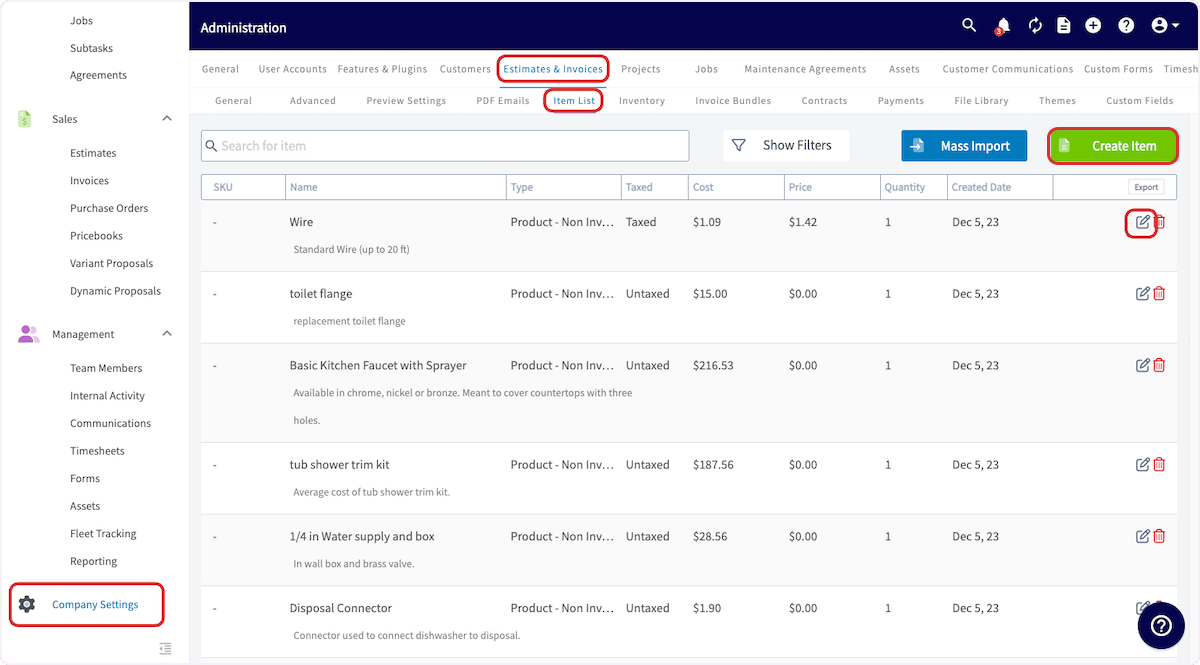
An automatic markup generates that item’s unit price from its unit cost, and keeps the price in step with the cost as the cost changes.- Go to Company Settings > Estimates & Invoices > Item List.
-
Select Create Item to add a new item, or select the edit icon on an existing item.
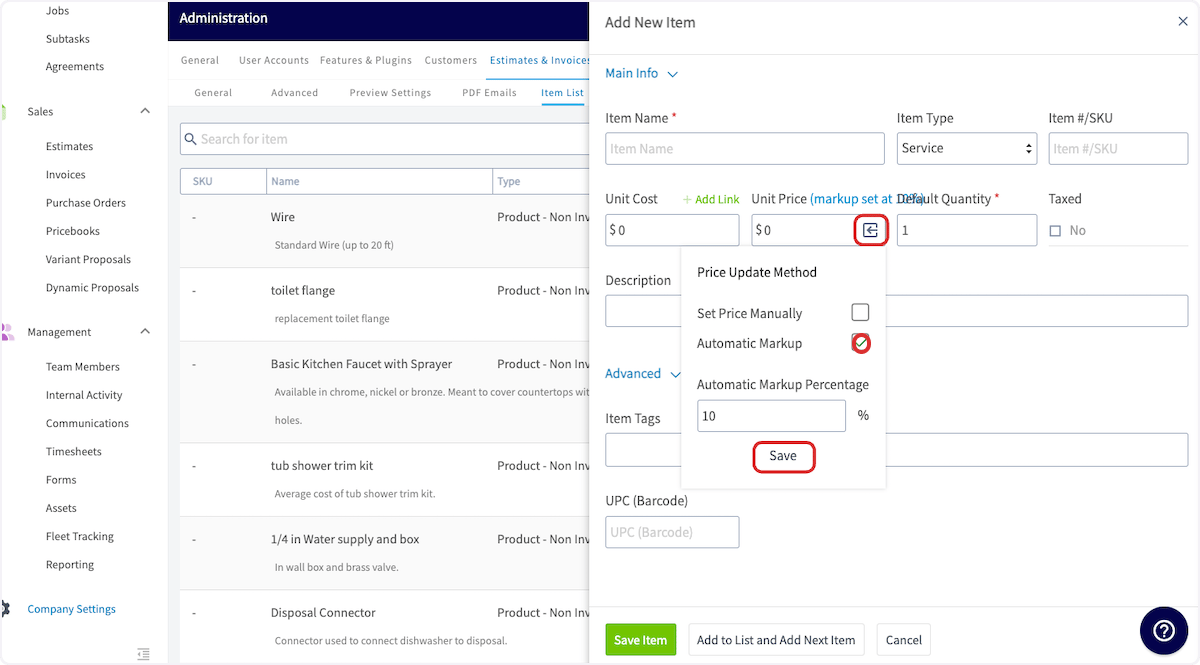
- In the Unit Price field, select the square-with-an-arrow icon to open Price Update Method.
- Select Automatic Markup and enter the Automatic Markup Percentage.
-
Select Save on the Price Update Method pop-up.
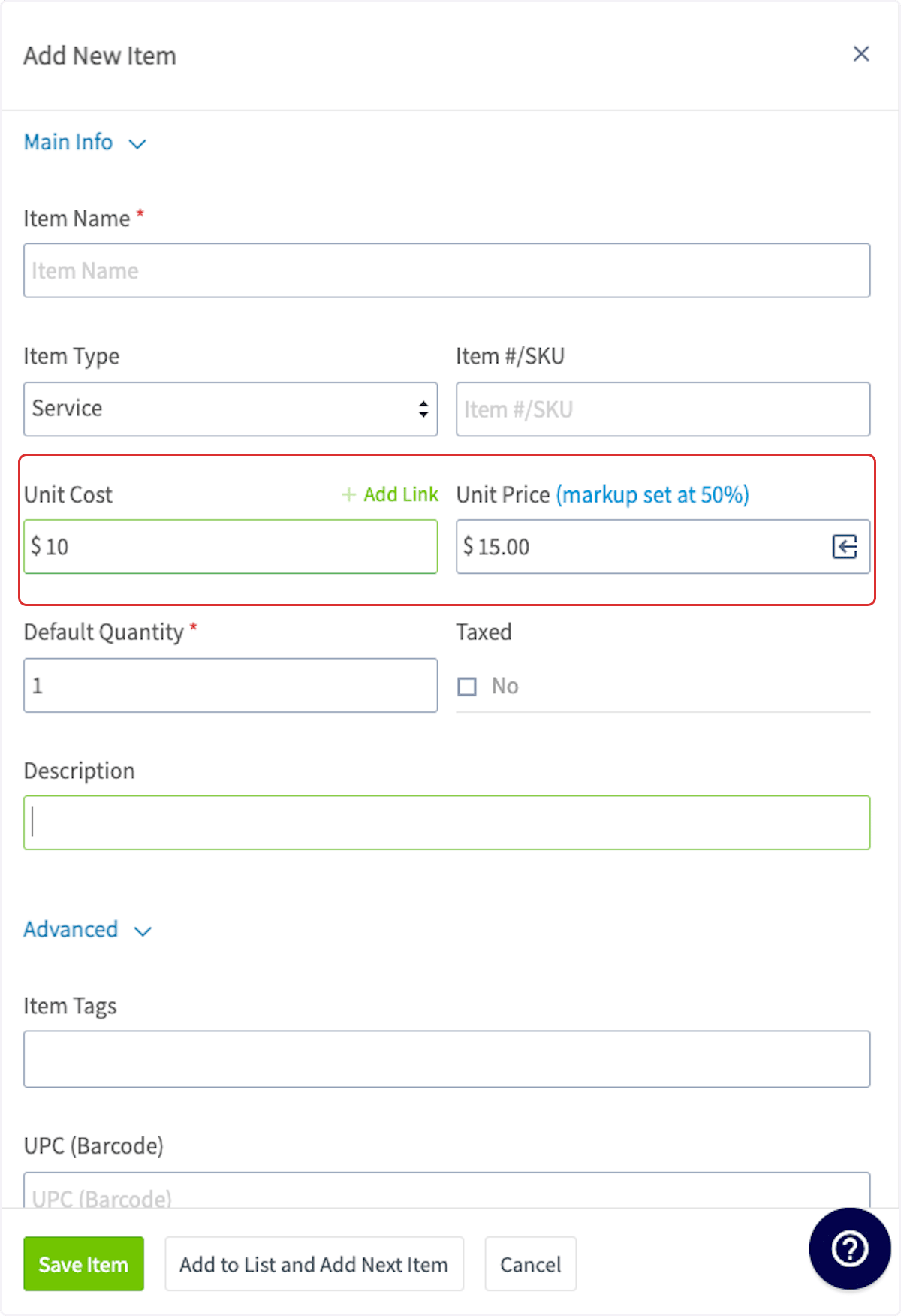
- Enter the rest of the item details and select Save Item.
Set a company-wide default markup
A company-wide default markup is one markup percentage that is pre-filled every time you put a line item on automatic markup, so you don’t retype the same number on each item.-
Go to Company Settings > Estimates & Invoices > Advanced.
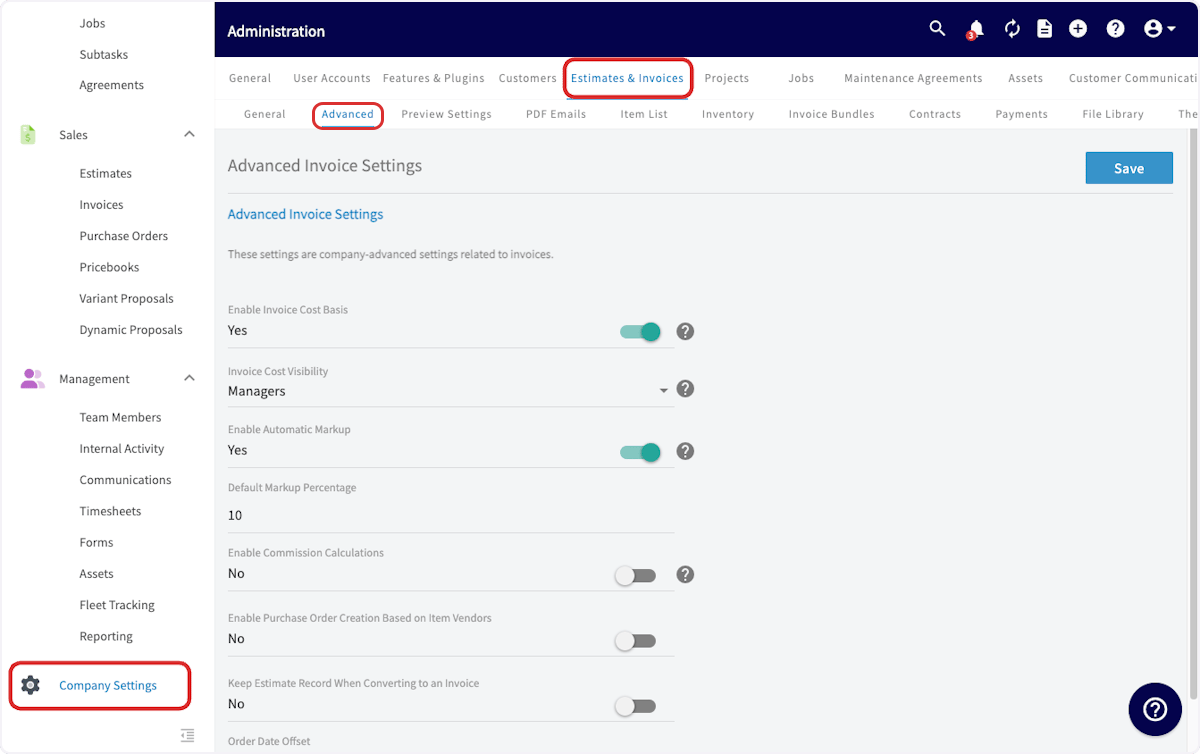
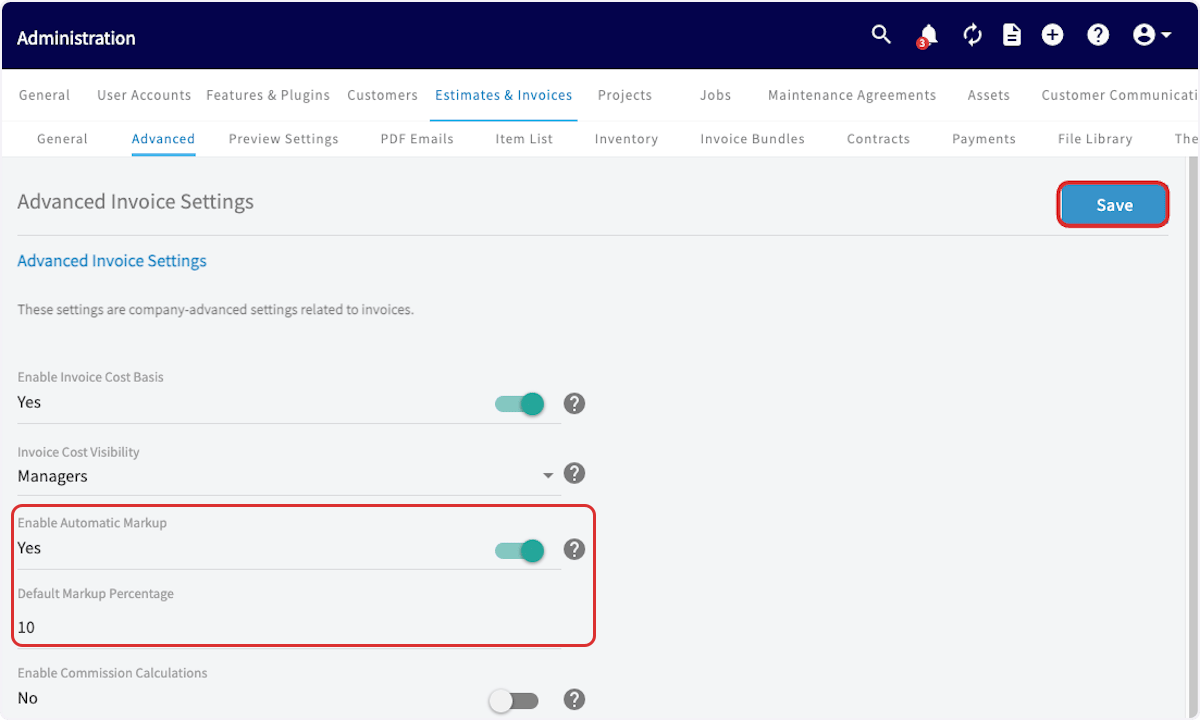
- Turn Enable Automatic Markup on.
- Enter the Default Markup Percentage you want applied automatically.
- Select Save.
Apply a markup or margin to an estimate or invoice
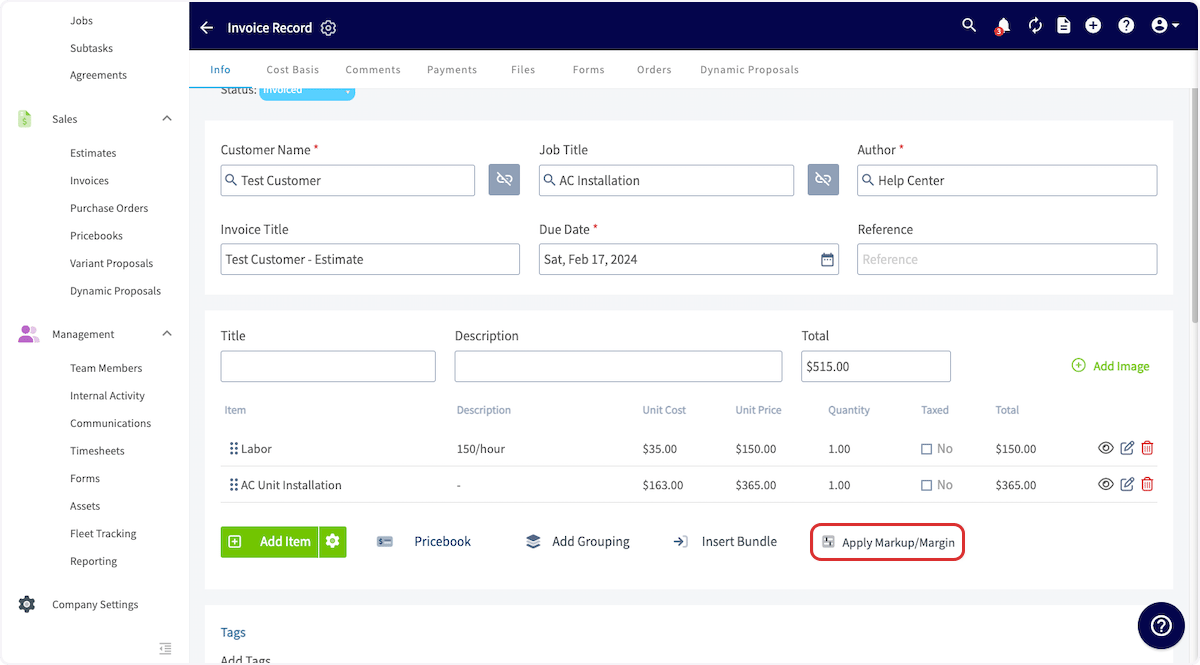
Applying a markup or margin on an estimate or invoice reprices every line item on that record at once, instead of item by item.- Add your line items to the estimate or invoice.
-
Select Apply Markup/Margin.
-
Select Apply a markup of and enter the markup percentage, or select Achieve a margin of and enter the margin percentage. The new estimate or invoice total appears in the bottom-left of the pop-up.
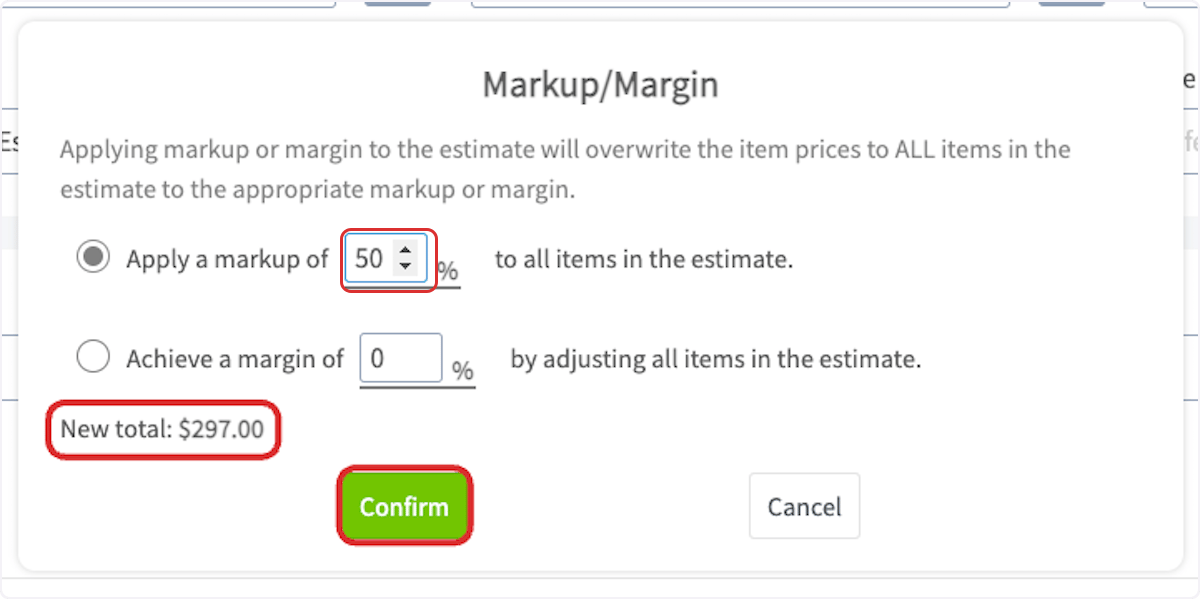
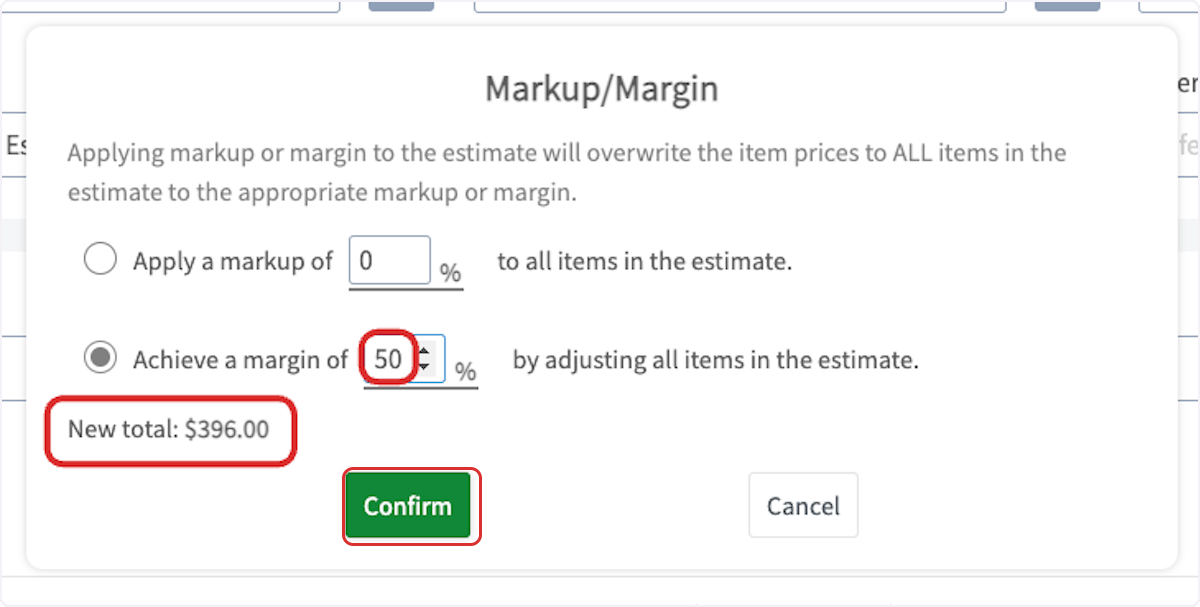
- Select Confirm.
Any selection you make here overwrites the item prices on all items in the estimate or invoice.