
Who uses this: An Admin sets the commission amount on a flat-rate job in the Pricebook; the commission recipient on the estimate or invoice earns the payout. Availability: All regions · Requires the Pricebook (Sales Suite add-on), which must be enabled on your account.A flat-rate job commission is a fixed dollar amount attached to a flat-rate job in your Pricebook, paid to the commission recipient whenever that job is added to an estimate or invoice. It is how you run a spiff in FieldPulse (a one-off bonus for selling a particular service or item, such as $50 for a shower upgrade or $30 for a water filter add-on) with a set dollar amount instead of a percentage.
Overview
You build the commission into a flat-rate job in your Pricebook once, and it applies on its own from then on. A flat-rate job can contain a single item or several items. Whenever your team adds that job to an estimate or invoice, its commission amount is assigned automatically to the record’s commission recipient and appears on the Cost Basis tab. Each flat-rate job on the record contributes its own commission amount. Setting up a flat-rate job commission takes three stages, in order:- Set the commission on the flat-rate job in your Pricebook.
- Add the flat-rate job to an estimate or invoice for a customer.
- Check the commission on the record’s Cost Basis tab.
How it works
Only one commission method applies per invoice, and FieldPulse decides which one from what was added first: the first commission wins rule. The first commission type added to the invoice becomes the commission method for the entire invoice.- Add a flat-rate job with a commission first, and no company or user-level commission is generated on any items added after it.
- Start the invoice with items or flat-rate jobs without a commission, and your company or user-level rules apply instead. Adding a flat-rate job that has its own commission later does not add that job’s commission value. It only contributes to the invoice total used for the percentage-based calculation.
Before you begin
- Build the flat-rate jobs you want to attach commissions to in your Pricebook first. The Pricebook must be enabled on your account. If it isn’t, contact the FieldPulse team. See Setting Up Your Pricebook.
- Decide the commission amount for each flat-rate job.
- Review the first commission wins rule above, so you know which commission method an estimate or invoice will end up using.
Step-by-step setup
1. Set the commission on the flat-rate job
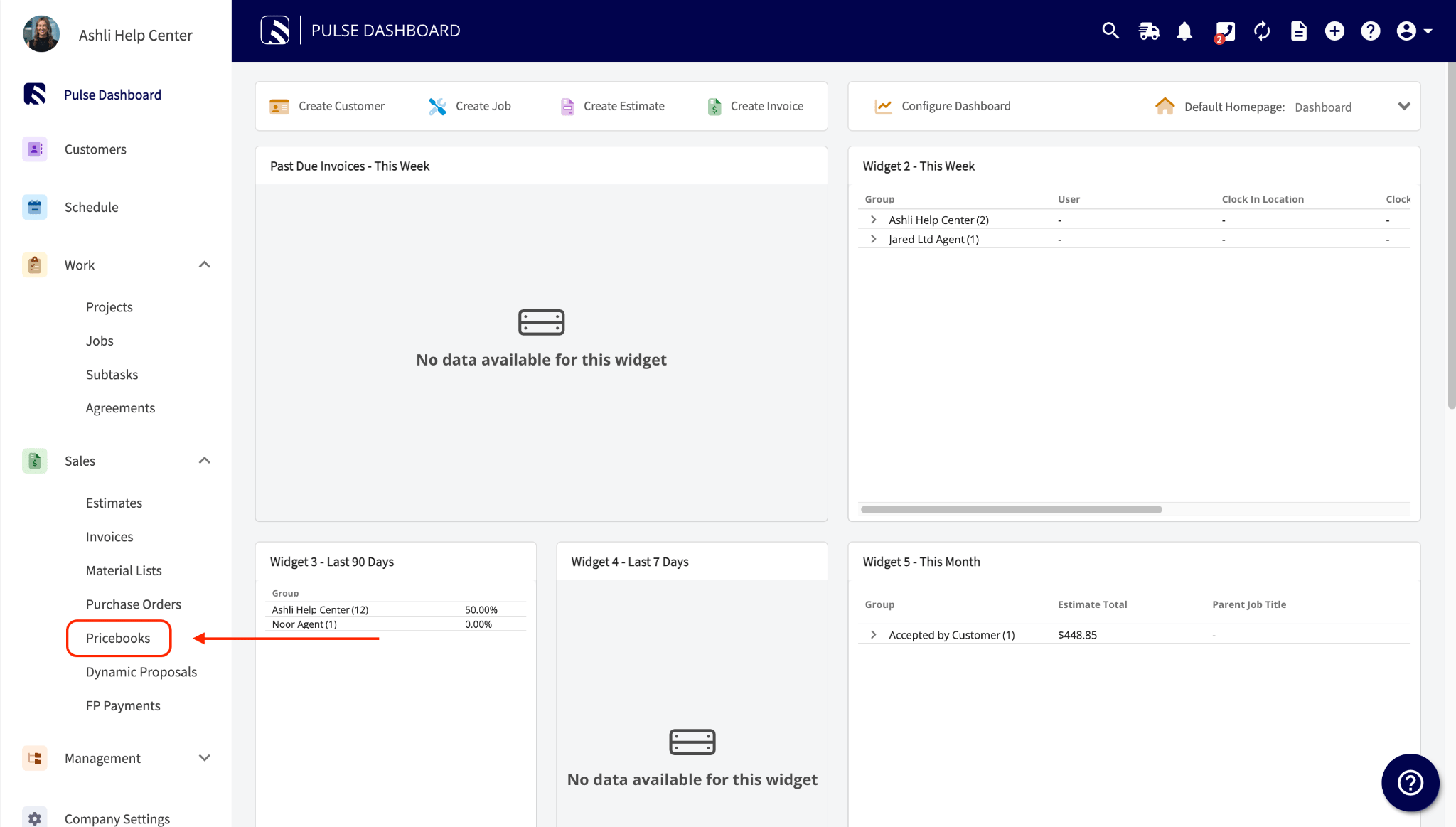
- Go to Sales > Pricebooks.
-
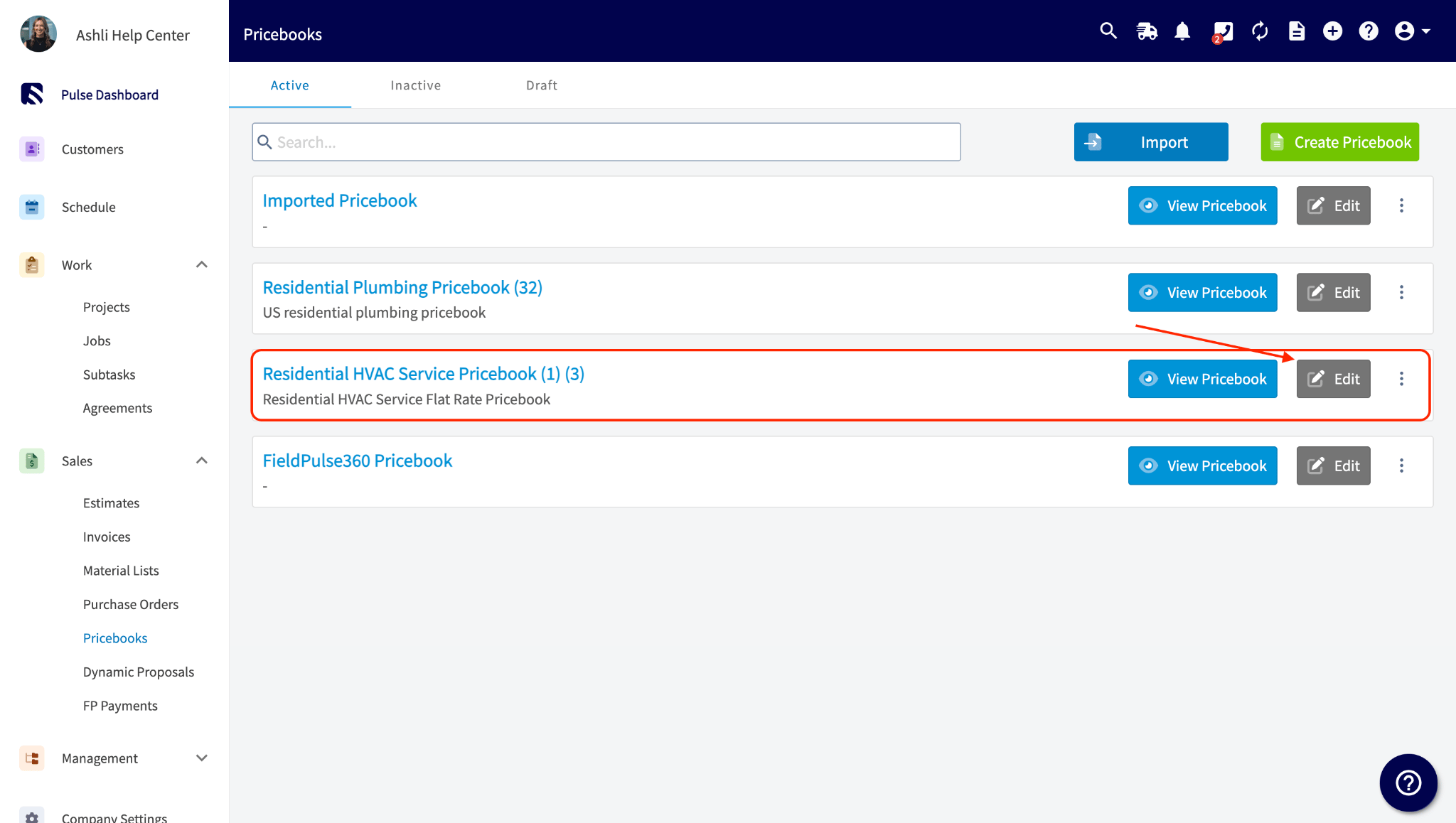
Select Edit on the pricebook that holds the flat-rate job.
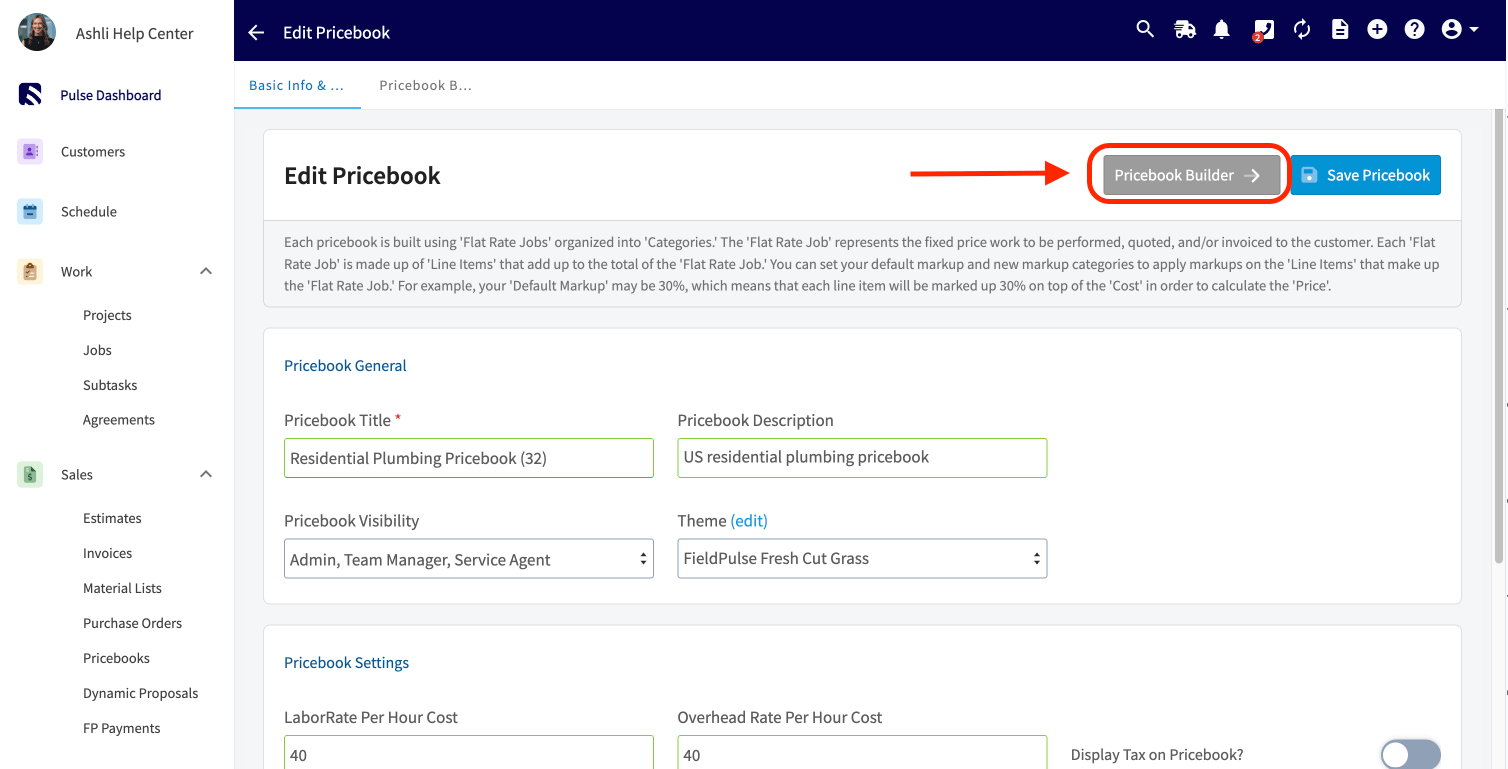
- Select Pricebook Builder.
-
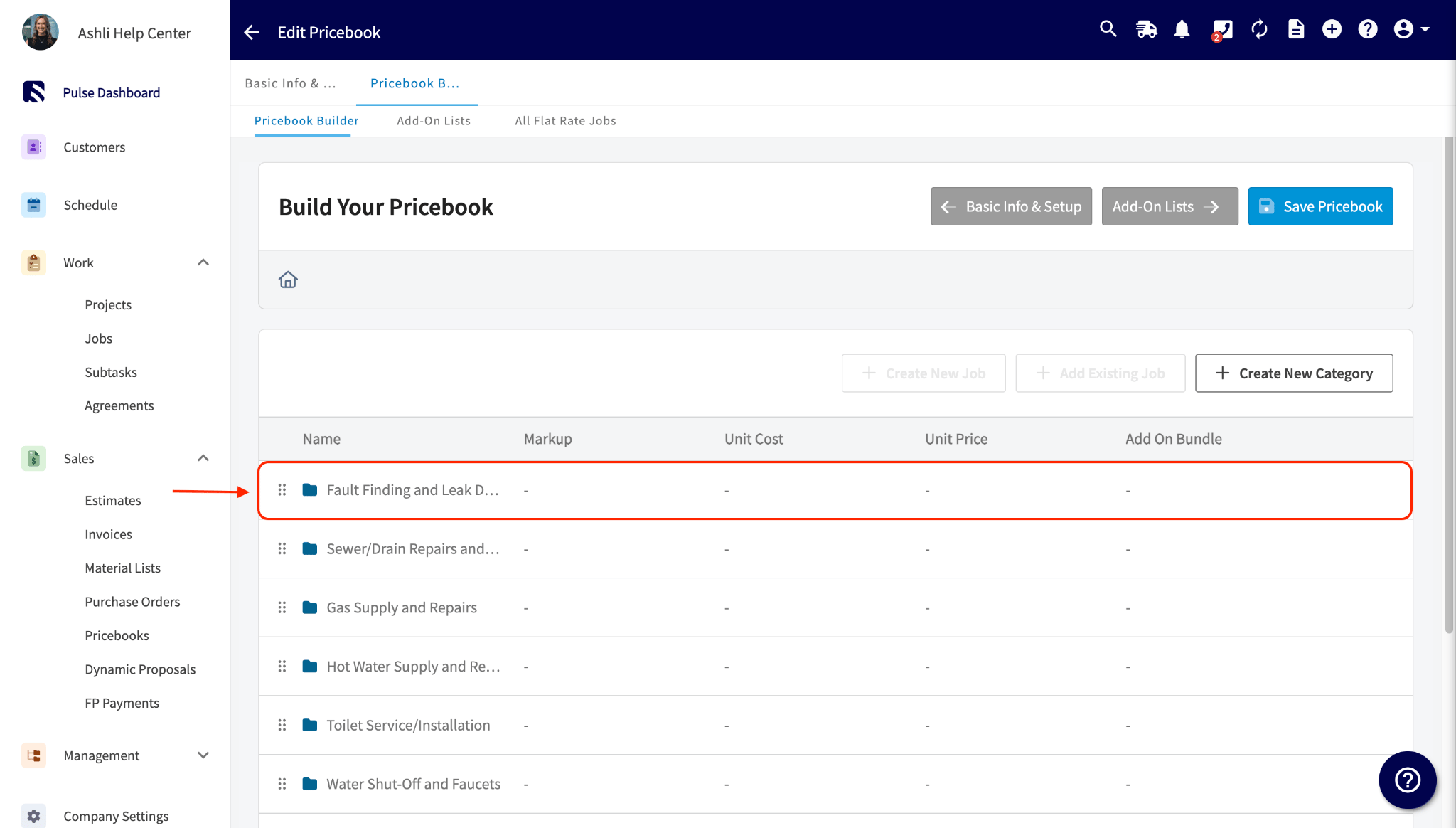
Open the category that holds the flat-rate job.
-
Select the edit icon on the flat-rate job you want to attach the commission to.
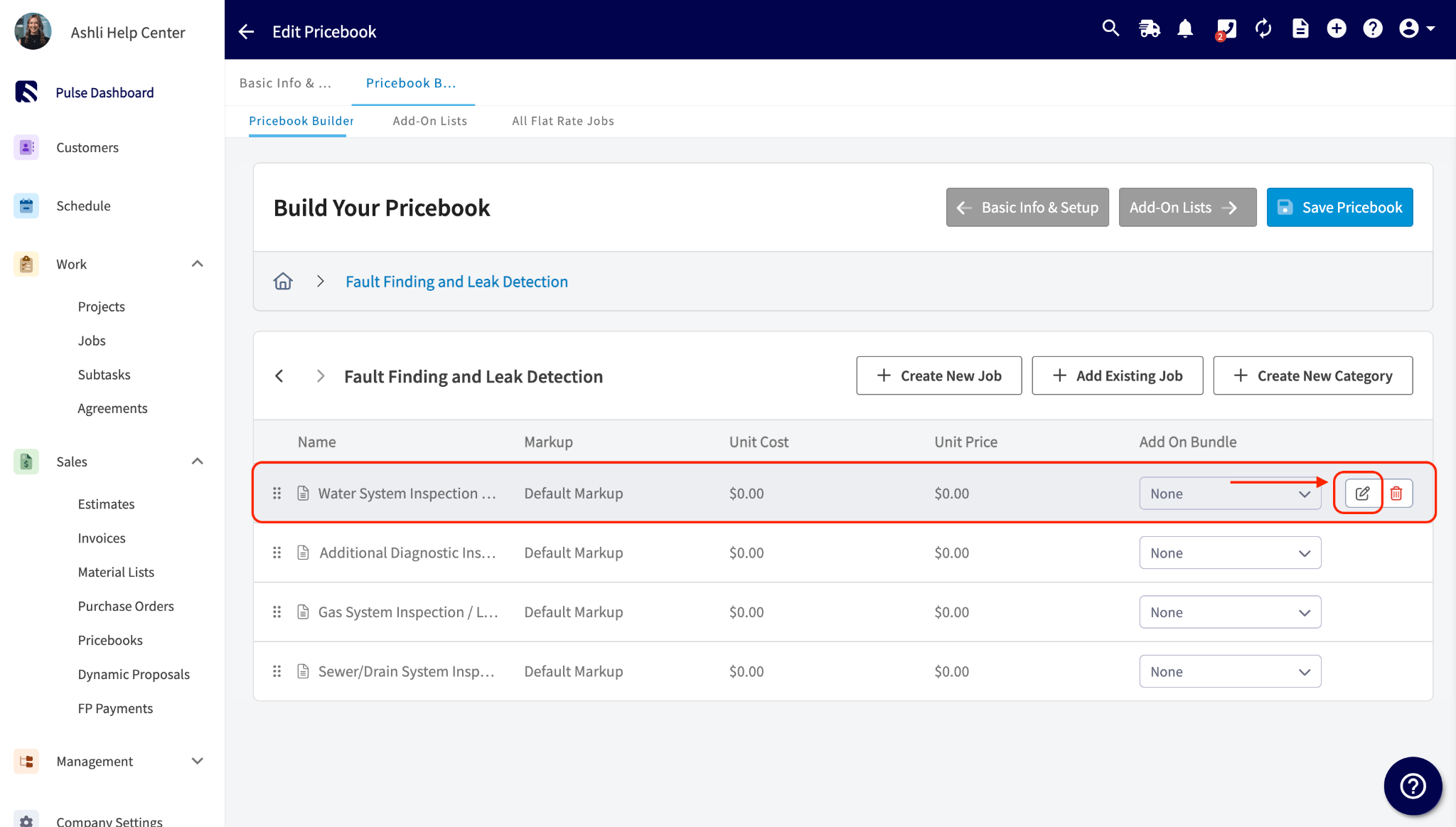
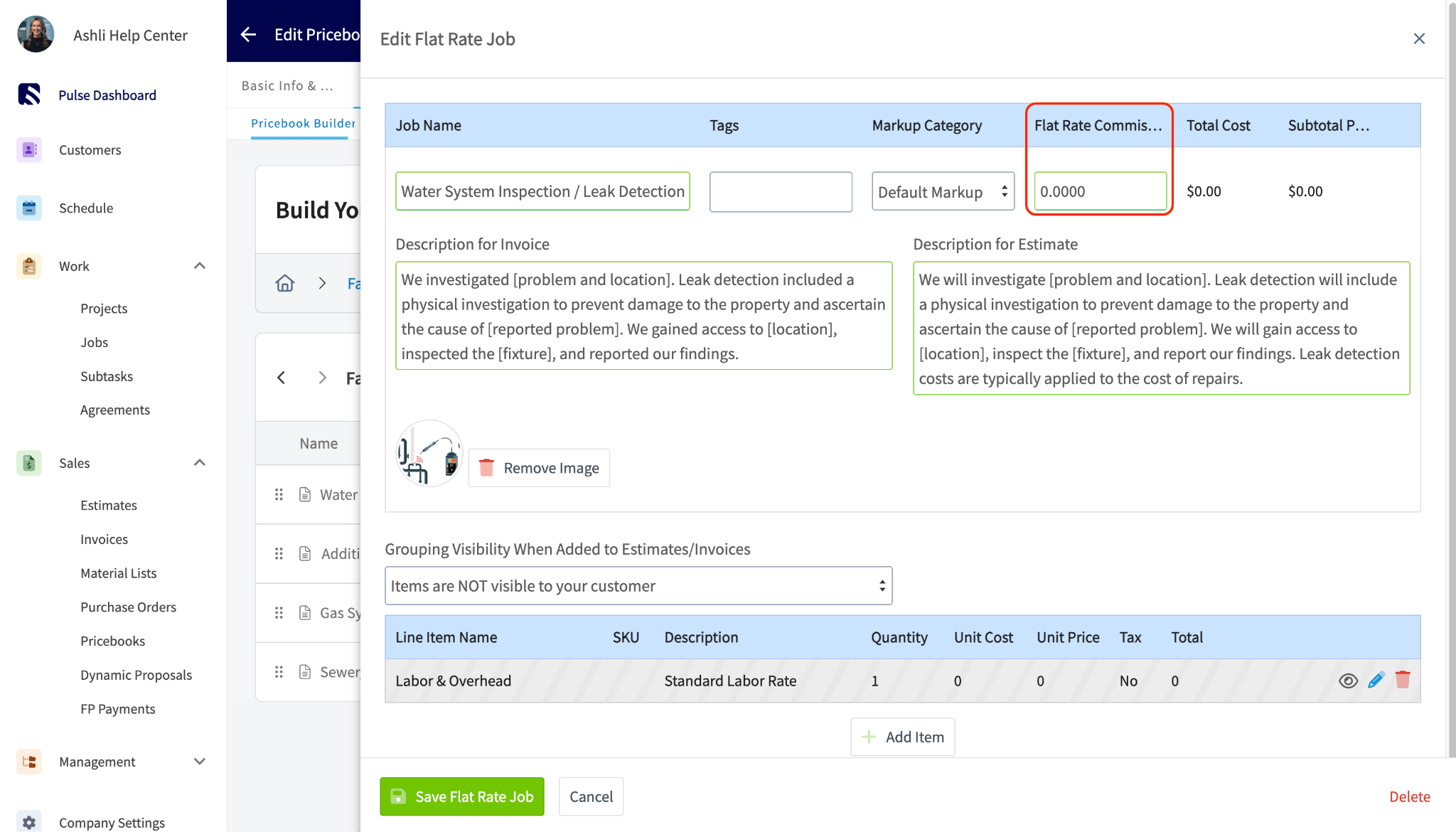
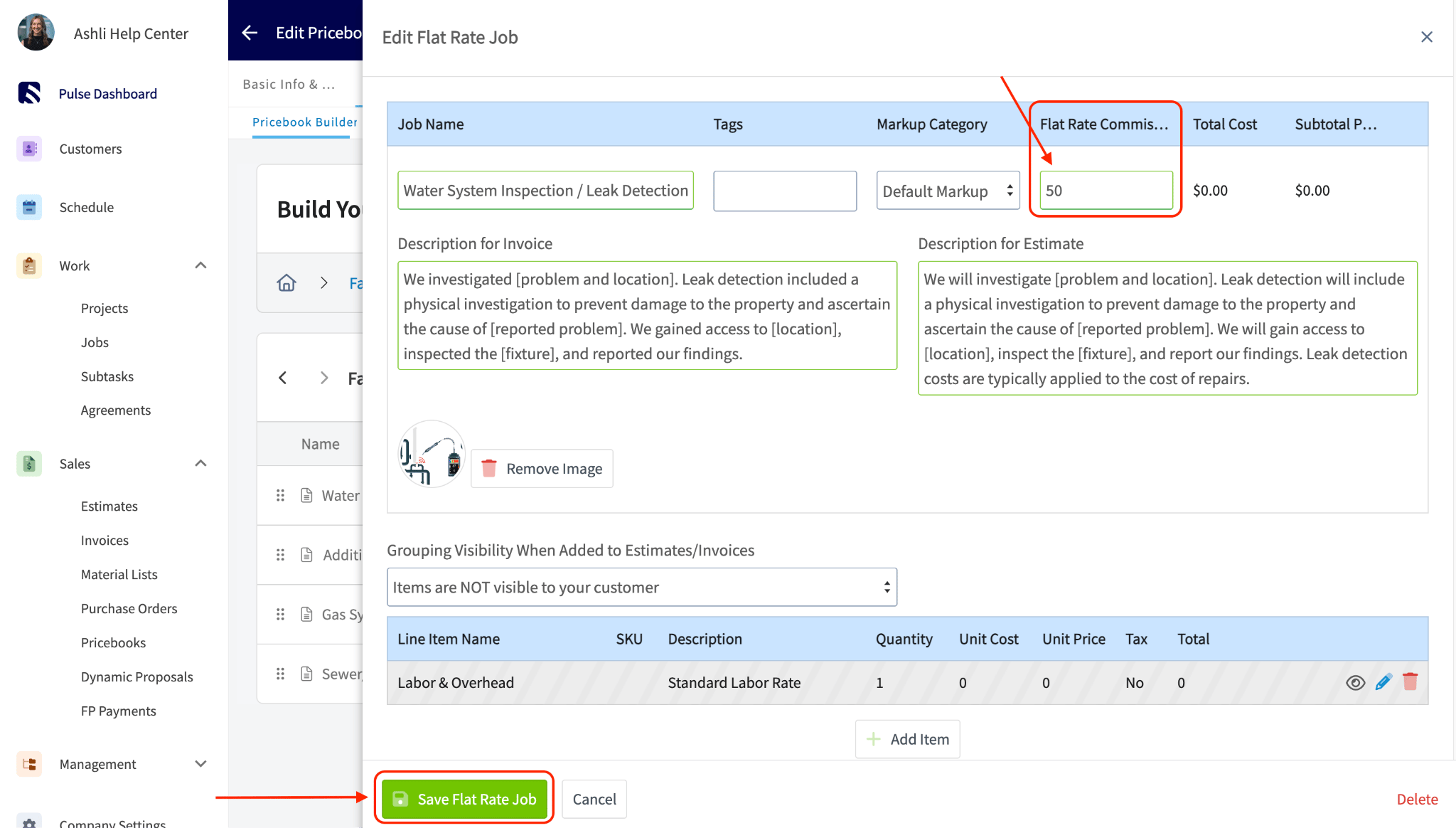
- In the Edit Flat Rate Job panel, enter the commission amount in the Flat Rate Commission field.
-
Select Save Flat Rate Job.
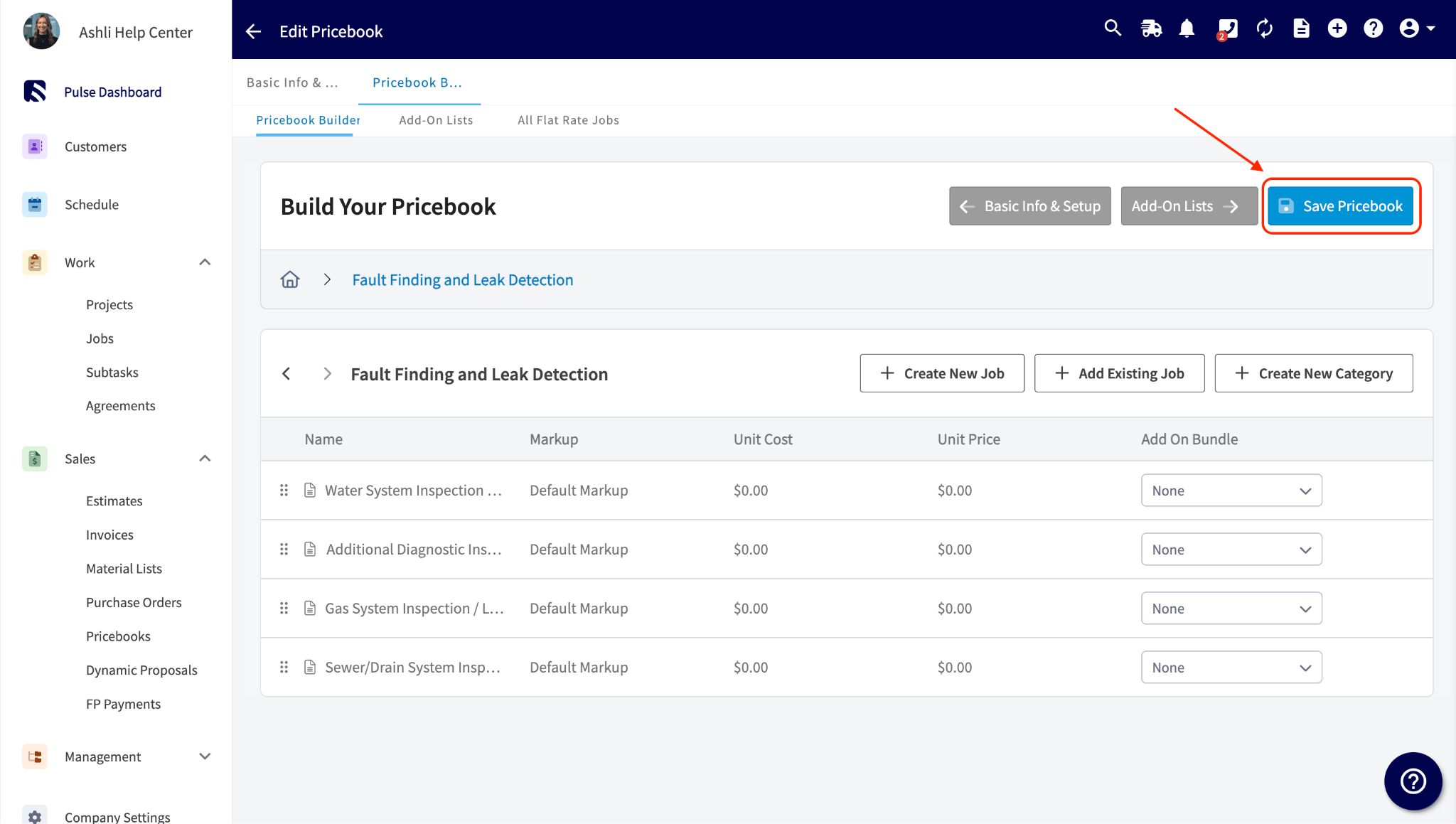
- Select Save Pricebook.
2. Add the flat-rate job to an estimate or invoice
You can start from the Pricebook, as below, or add the flat-rate job to an estimate or invoice you have already started by selecting Pricebook below the line items (see Creating an estimate). Either way, the first commission wins rule above decides whether the job’s commission applies to that record.-
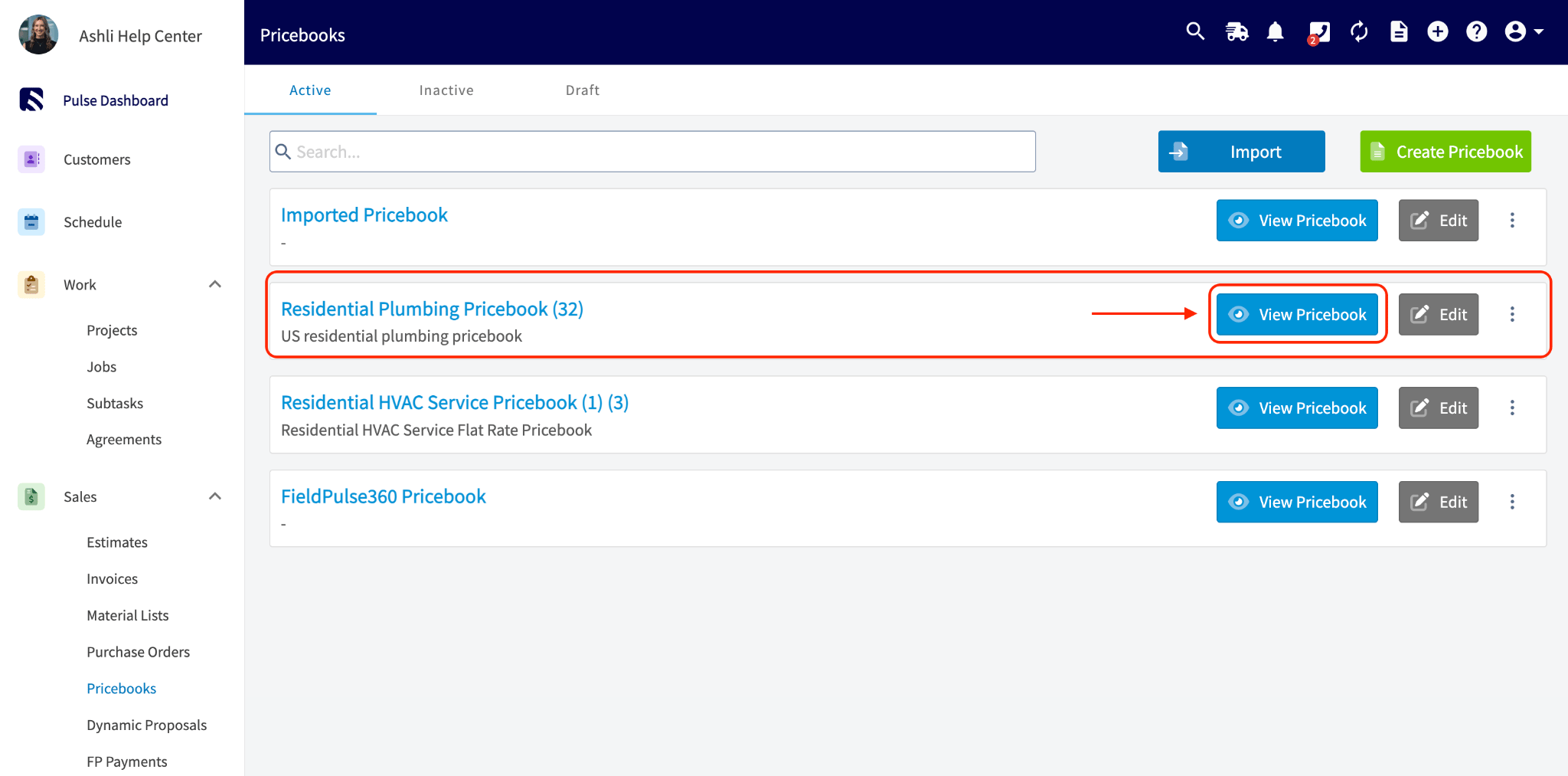
Go to Sales > Pricebooks and select View Pricebook on the pricebook that holds the job.
-
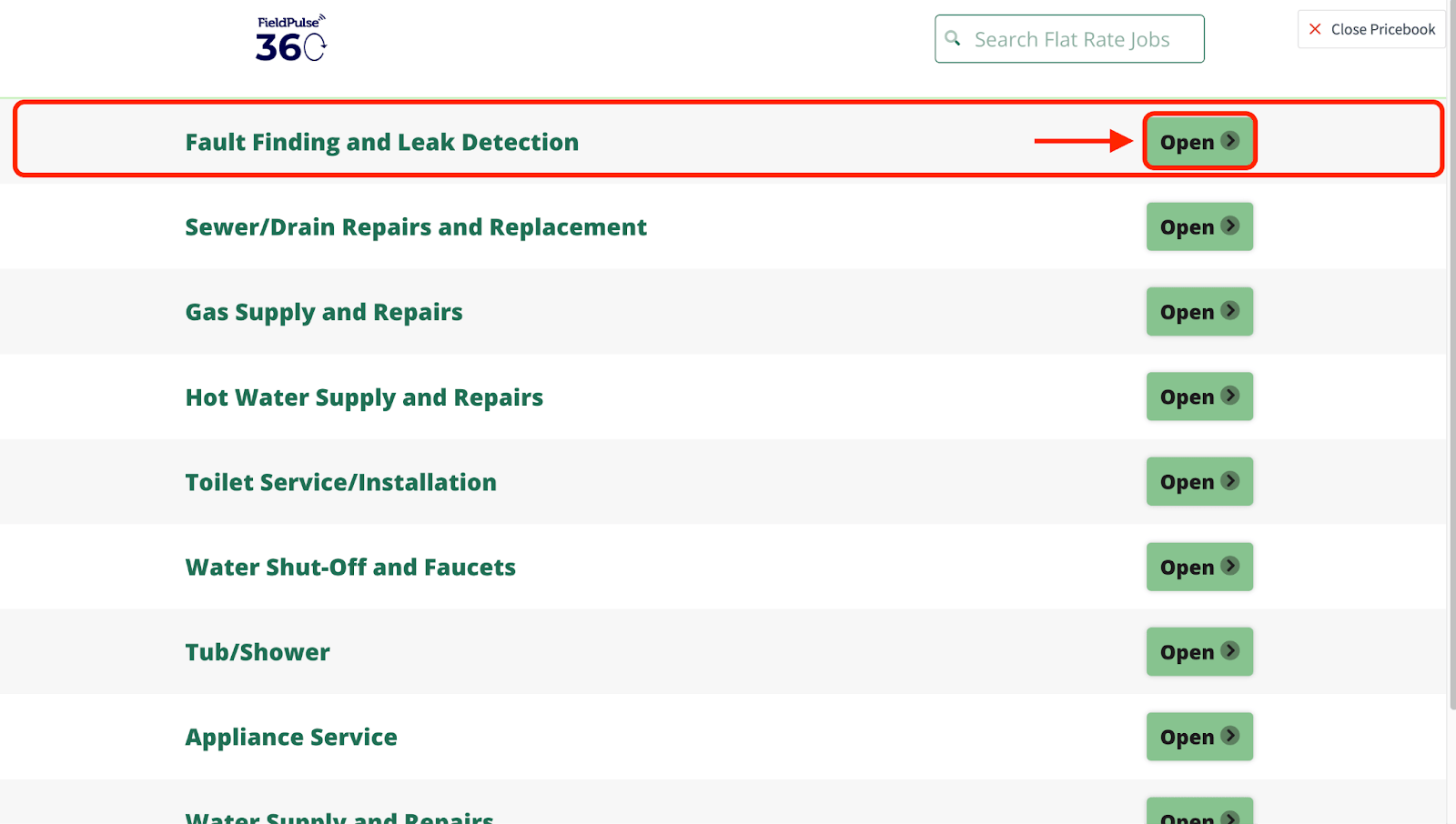
Select Open on the category that holds the flat-rate job.
-
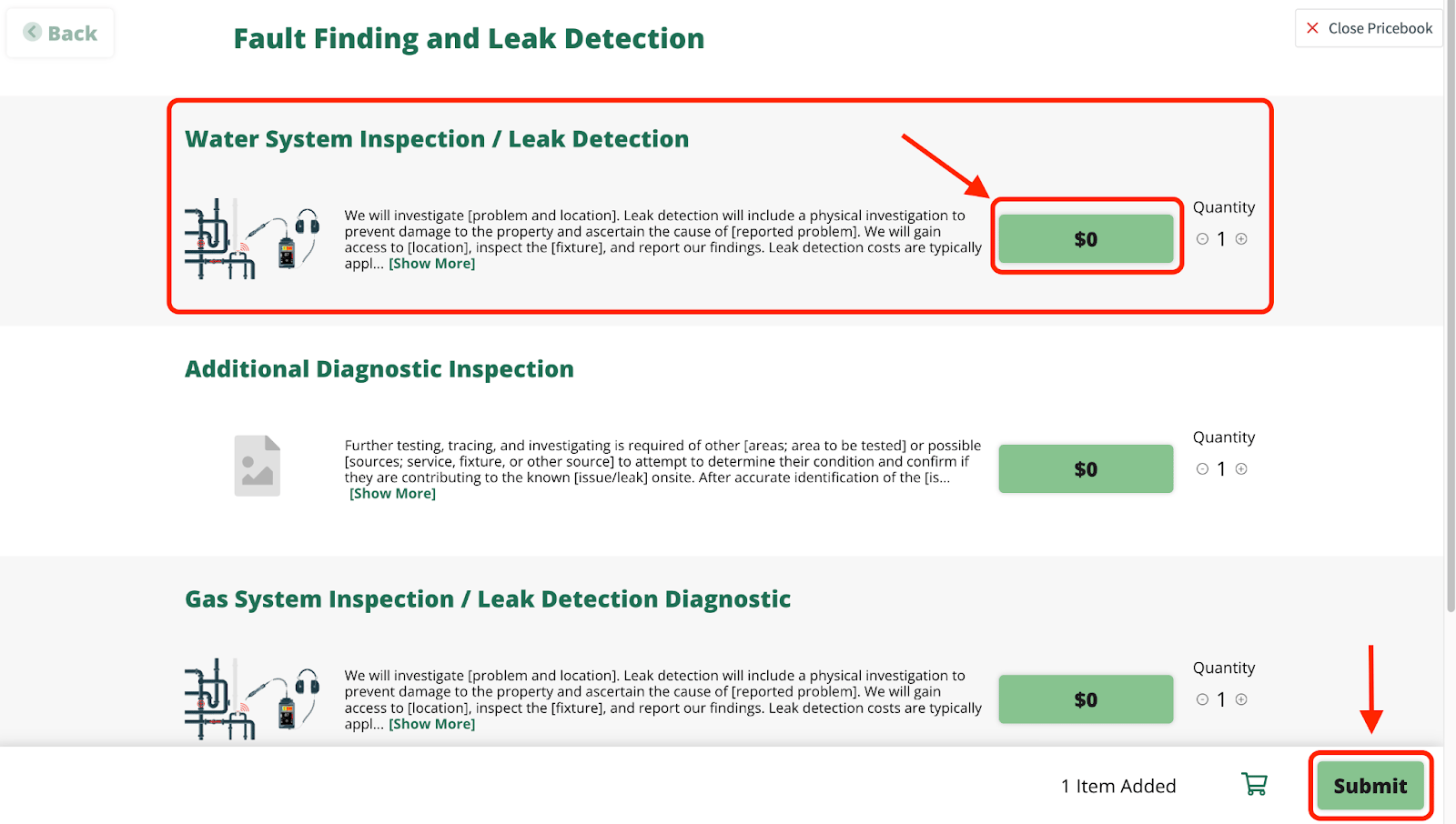
Select the flat-rate job’s price button to add it, set the Quantity, then select Submit.
-
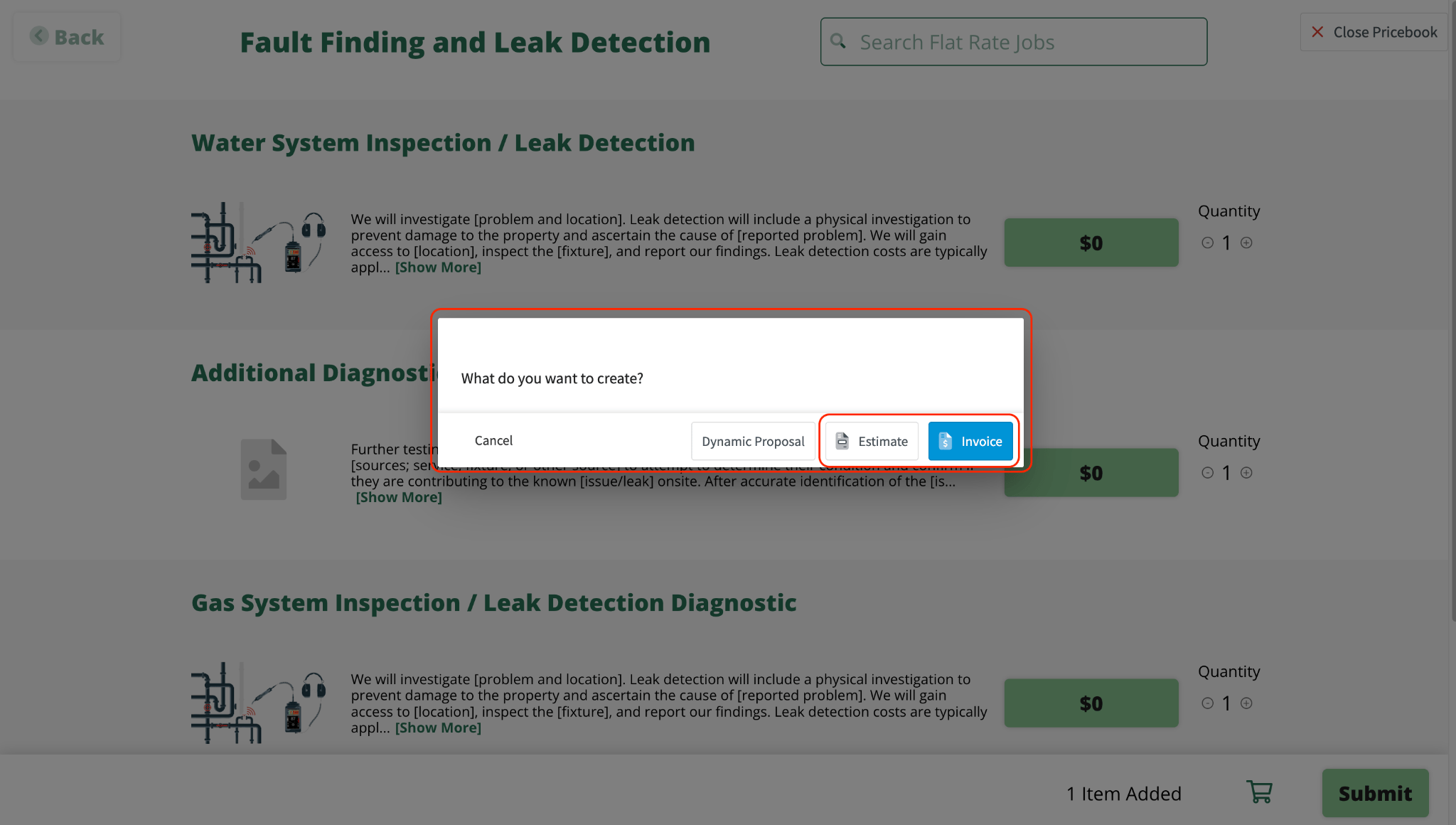
Select Estimate or Invoice.
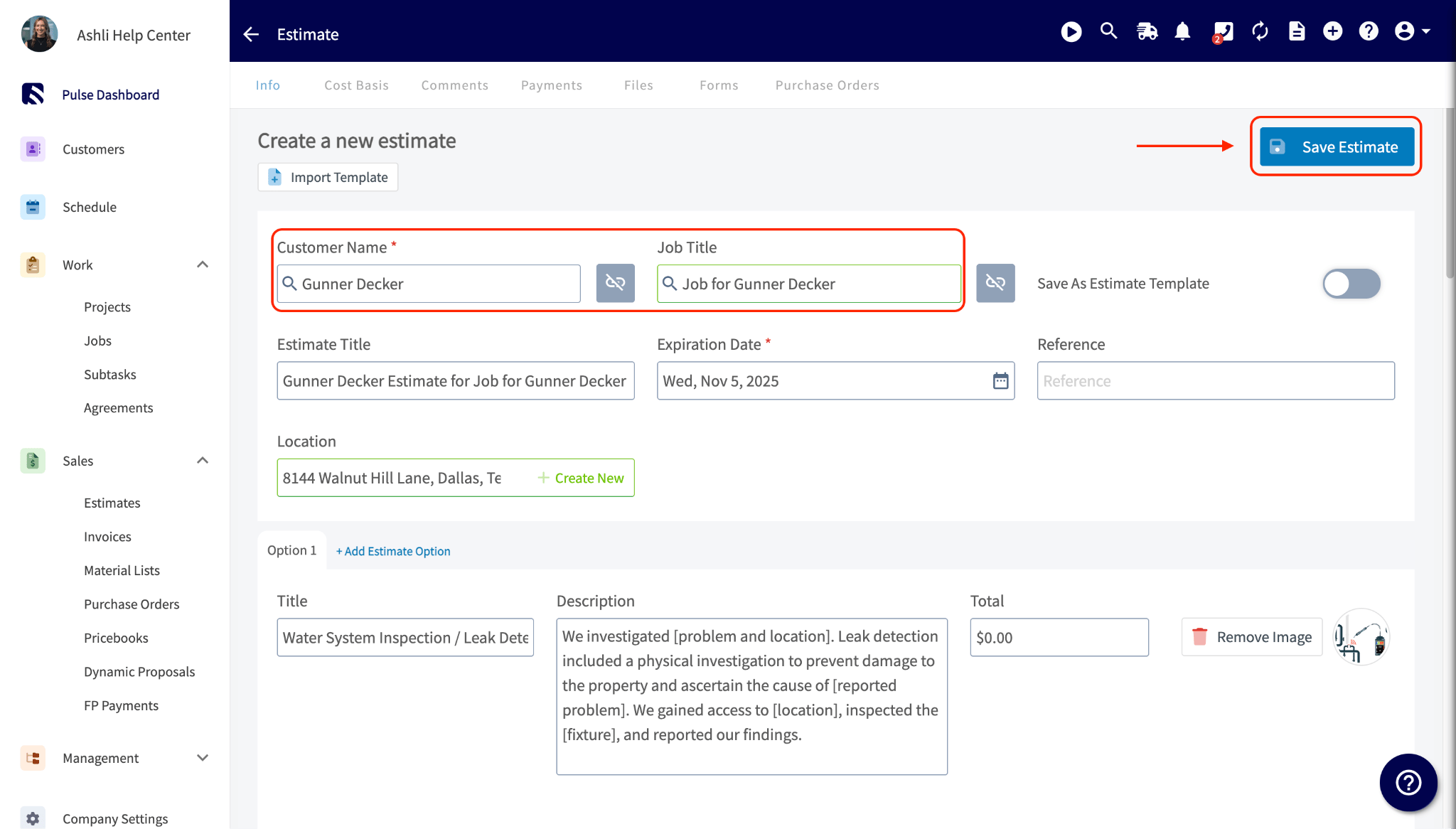
- Enter the Customer Name. A customer is required on the record. You can also add a Job Title to relate the record to a job, but that is optional.
- Select Save Estimate or Save Invoice.
3. Check the commission on the record
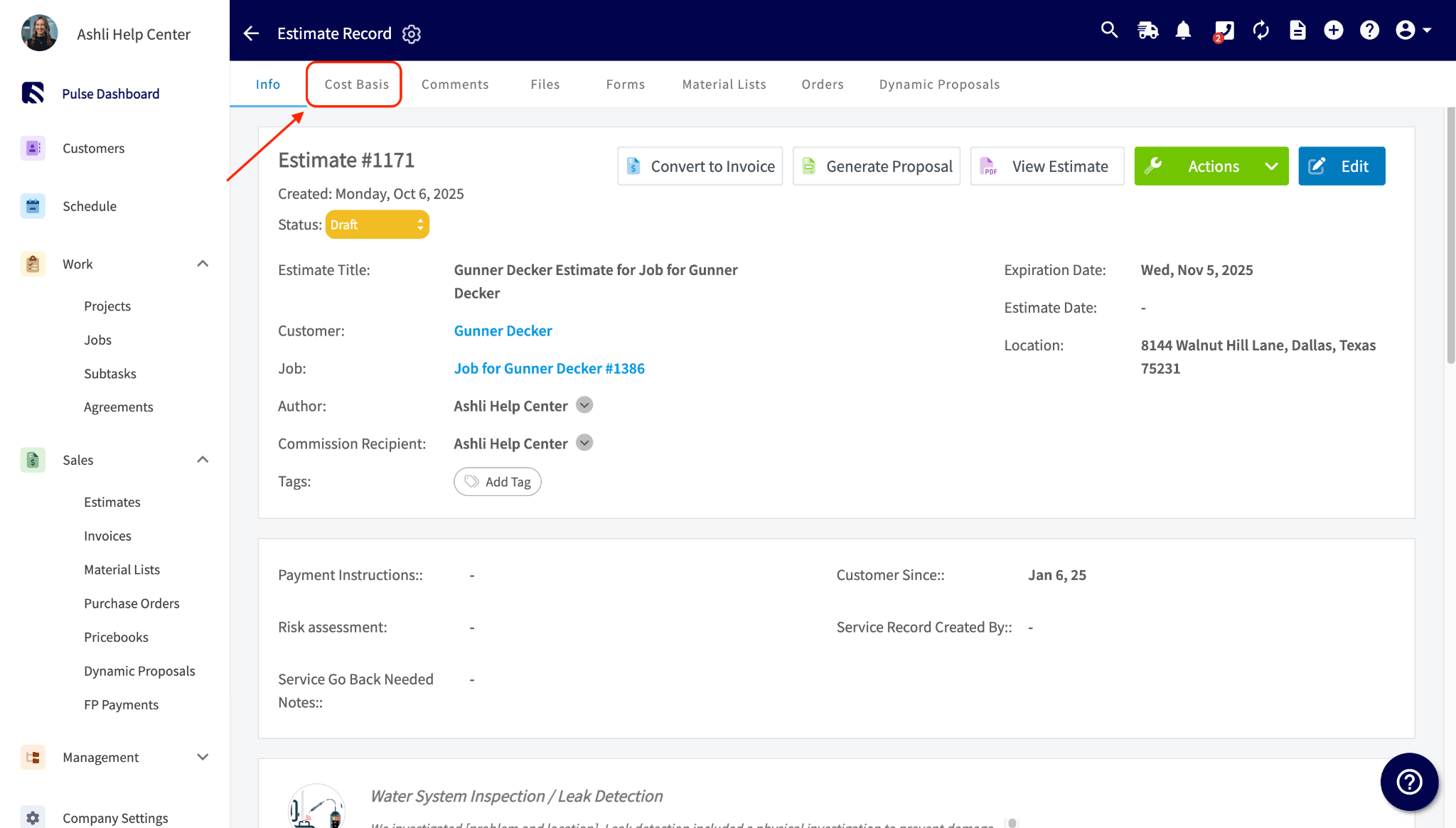
- Open the saved estimate or invoice.
- Select the Cost Basis tab.
- Review the commission amounts, which are assigned automatically to the commission recipient shown on the record.
If your Default Commission Recipient(s) setting is Related Work Order Assignees and more than one person is assigned to the job, the flat-rate commission from the Pricebook splits evenly among them automatically, the same as any other commission type.