Who uses this: Franchisors — the Franchises tab and the franchisee controls described here live in the franchisor account, and franchisor admins receive the territory notifications. Availability: Franchisor accounts in a FieldPulse franchise structure.The FieldPulse franchise structure connects one franchisor account to many franchisee accounts, so the franchisor sees every franchisee location in one list and manages each account from that list. From the Franchises tab, the franchisor can edit any franchisee, log into a franchisee’s account, and set the fees, territories, and the disclaimer that appears on that franchisee’s estimates and invoices. A franchise structure is not the same as the other two multi-account setups in FieldPulse. Customer account structures organize your customer records through parent/child relationships and multi-location customers. A master account links separate FieldPulse accounts you own so one person can switch between their own businesses. A franchise structure is a franchisor overseeing separate franchisee accounts.
Overview
A franchise structure solves a common oversight problem: managing franchisee accounts that don’t share a login. Without it, a franchisor logs in and out of separate franchisee accounts to check on a location, chase paperwork, or change a fee. The franchise structure puts every franchisee in one list and gives the franchisor the controls to manage them from there. As the franchisor, you open the Franchises tab from the menu on the left-hand side of the screen to see all of your franchisees at a glance. In the example below, there is a franchisee in each of five locations: Nashville, Salt Lake, Santa Fe, Philadelphia, and Dallas. The list shows each franchisee’s internal name, brand, region, state, franchise ID, company name, email, and phone.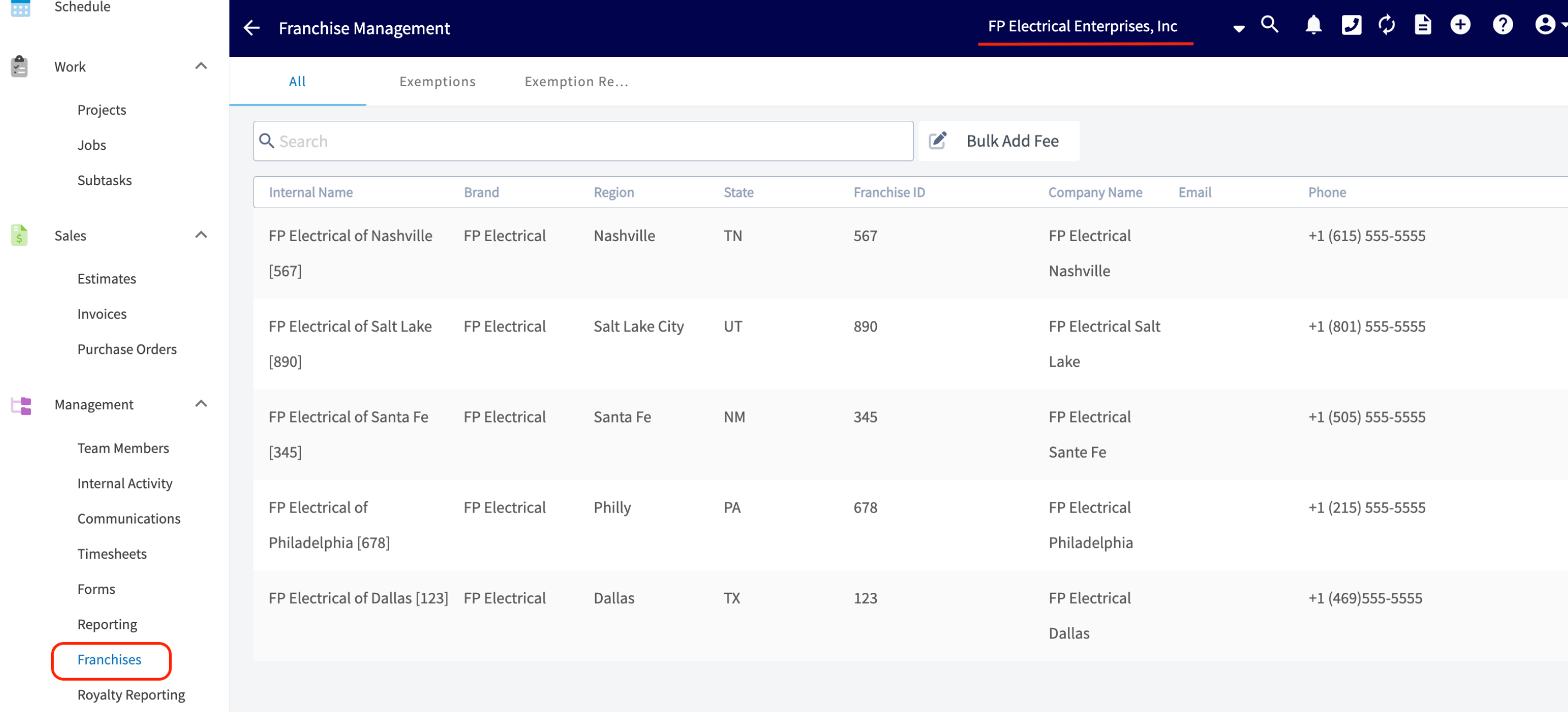
How it works
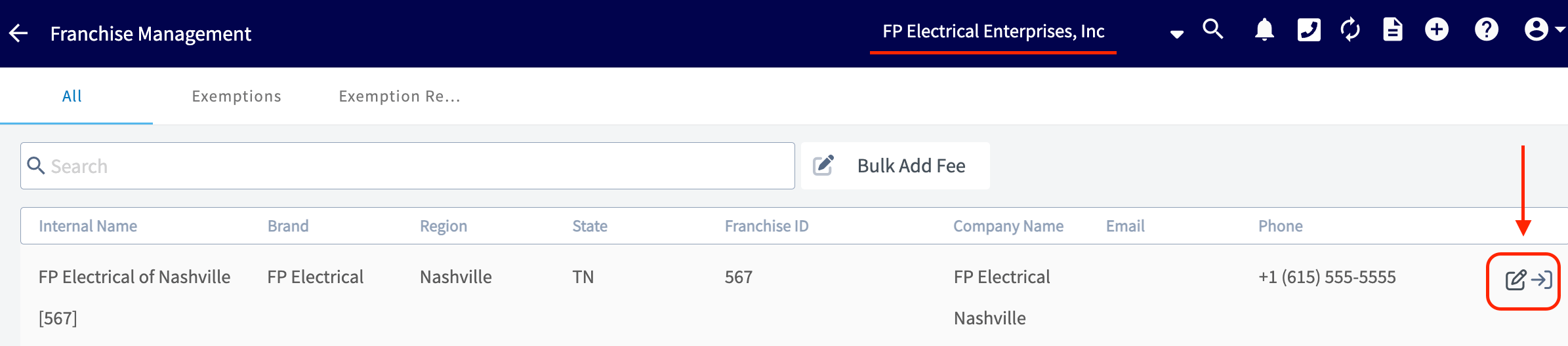
The franchisor can edit or log into any franchisee account at any time, using the two icons at the end of the franchisee’s row in the Franchises tab:- Edit a franchisee — select the paper/pencil icon on the franchisee’s row.
- Log into the franchisee’s account — select the arrow/door icon on the franchisee’s row.
Franchisee information
Main Info sits at the top of the Edit Company panel and holds the franchisee’s identifying details — Internal Name, Brand, Region, State, and Franchise ID. Every field except State is marked required.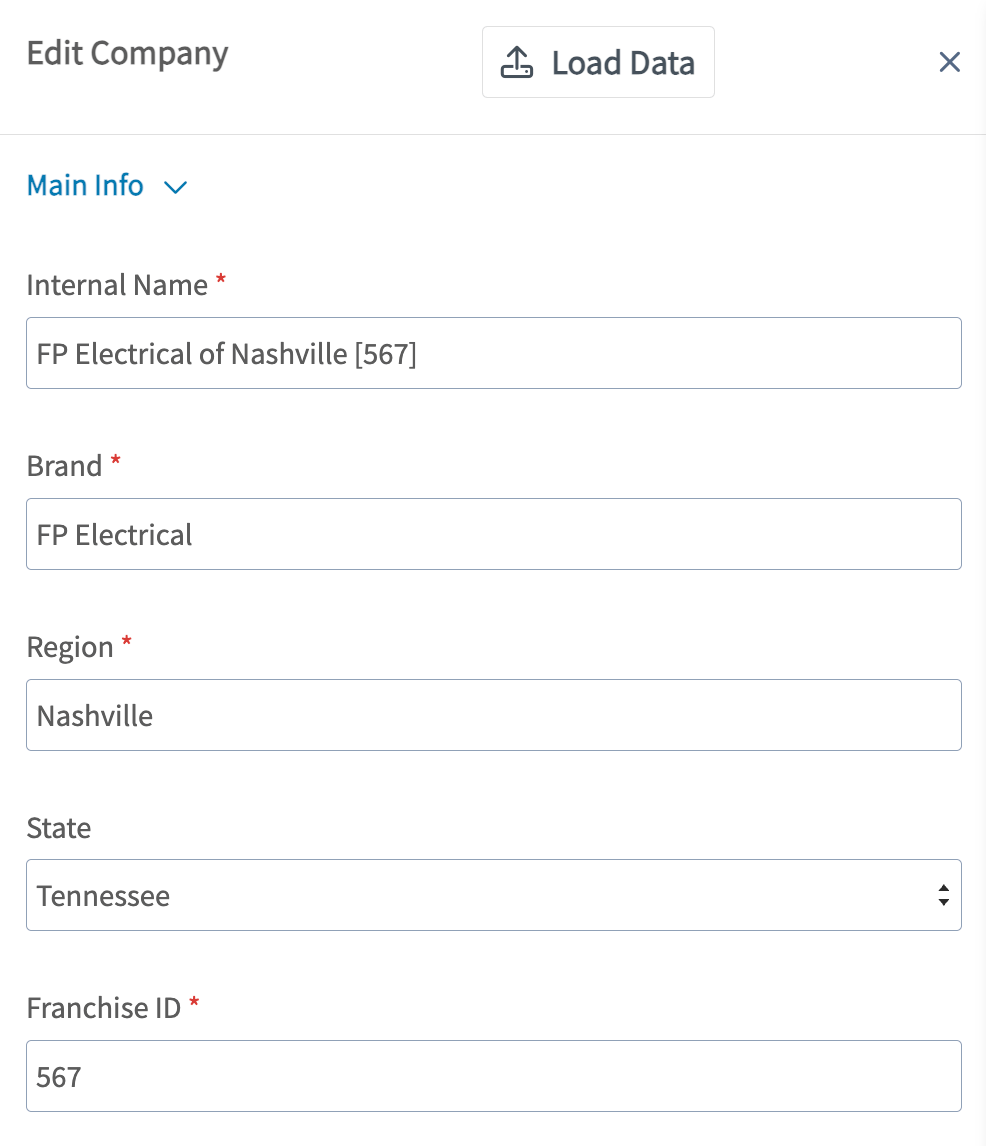
Setting up and adjusting fees
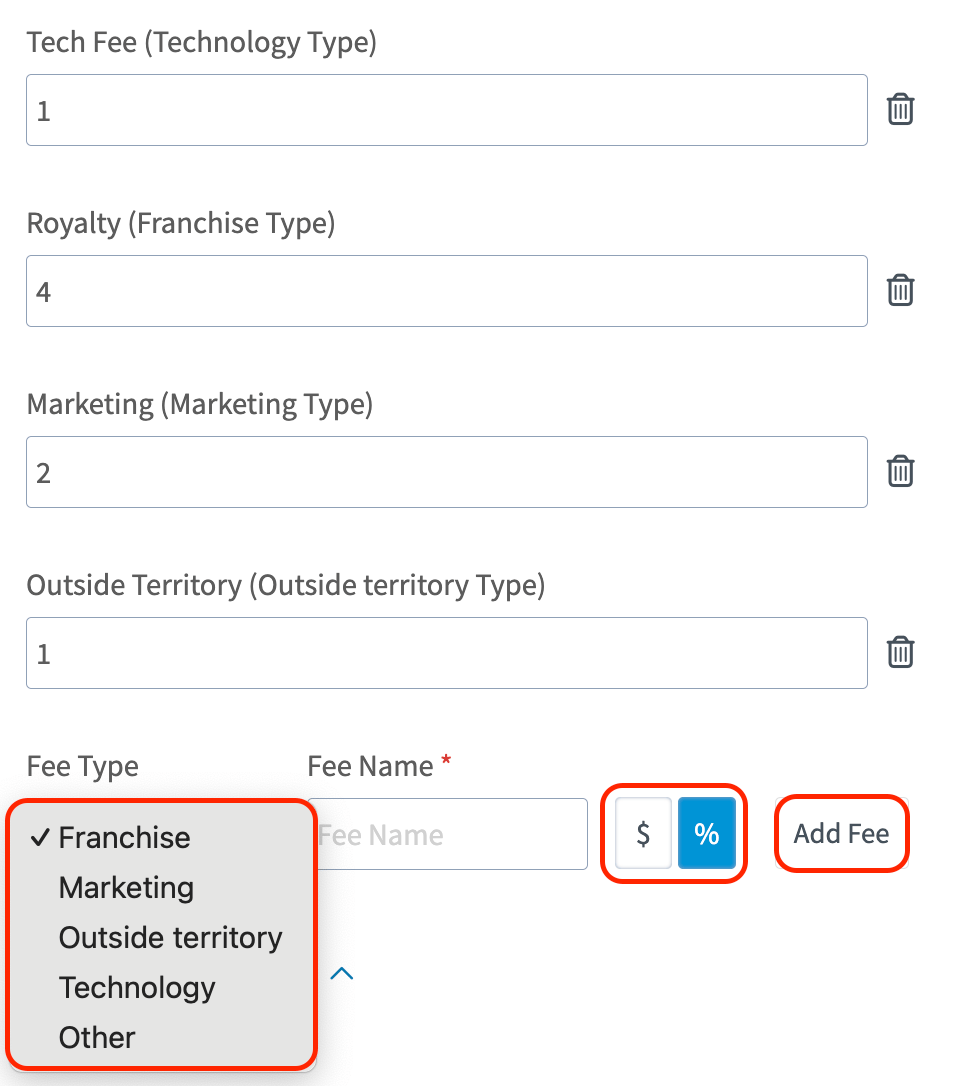
Scroll past the franchisee’s information fields to reach the fee controls, where the franchisor creates and edits the fees charged to that franchisee. To add a fee:- Select the fee Type — Franchise, Marketing, Outside territory, Technology, or Other.
- Enter a Fee Name.
- Set the amount as a flat dollar amount ($) or a percentage (%).
- Select Add Fee to apply the fee to this franchisee.
Territory management
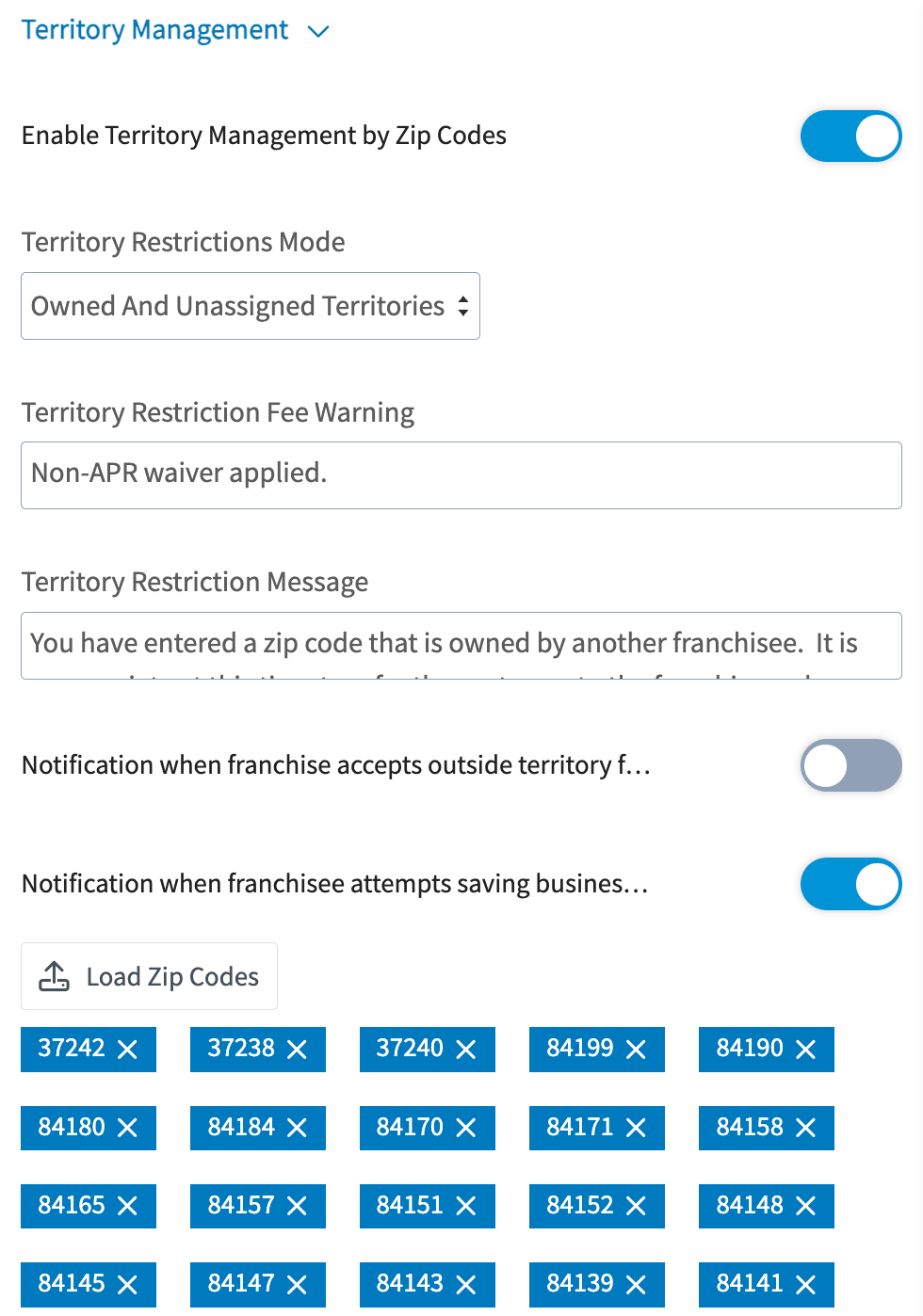
FieldPulse tracks each franchisee’s territory by zip code, which keeps market coverage clear and reduces competition between franchisees. The franchisor turns this on for a franchisee with the Enable Territory Management by Zip Codes toggle, and can load, add, or delete zip codes at any time. The file you load through Load Zip Codes is a single column holding the zip codes you want to assign. The franchisor can customize two prompts for each franchisee: the Territory Restriction Fee Warning and the Territory Restriction Message. The section also holds a Territory Restrictions Mode dropdown. Notifications can be sent in two cases:- When the franchisee accepts outside-of-territory fees.
- When the franchisee attempts to save business outside of their territory.
Adding a disclaimer
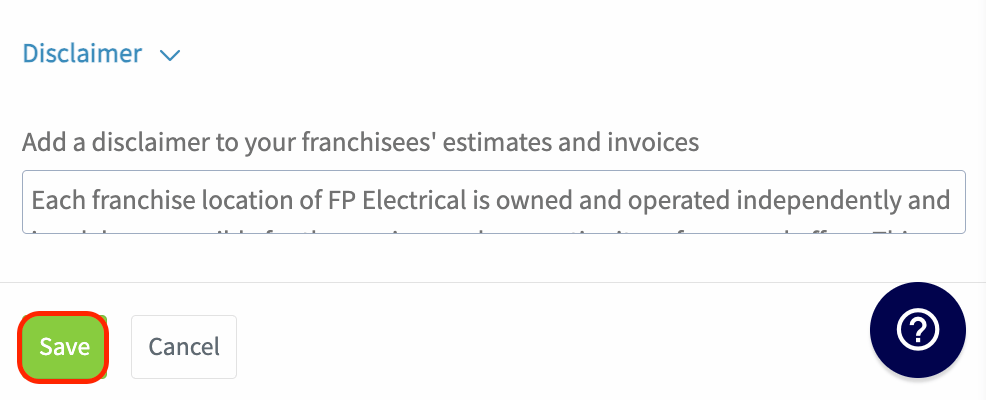
The disclaimer message is the last field the franchisor can edit for a franchisee. The disclaimer added here displays on all of the estimates and invoices created by that franchisee’s account.