Who uses this: The franchisor, from the franchisor account, across every franchisee location. Availability: FieldPulse accounts set up with the franchise structure.Roll-up reporting gives the franchisor consolidated data from every franchisee location in one report. You pick the record type you want to report on, set a date range, and the report returns the matching records from across the franchise, with a Company column showing which franchisee each row came from. From there the report behaves like the rest of FieldPulse reporting: filter it, save it, or export it.
Overview
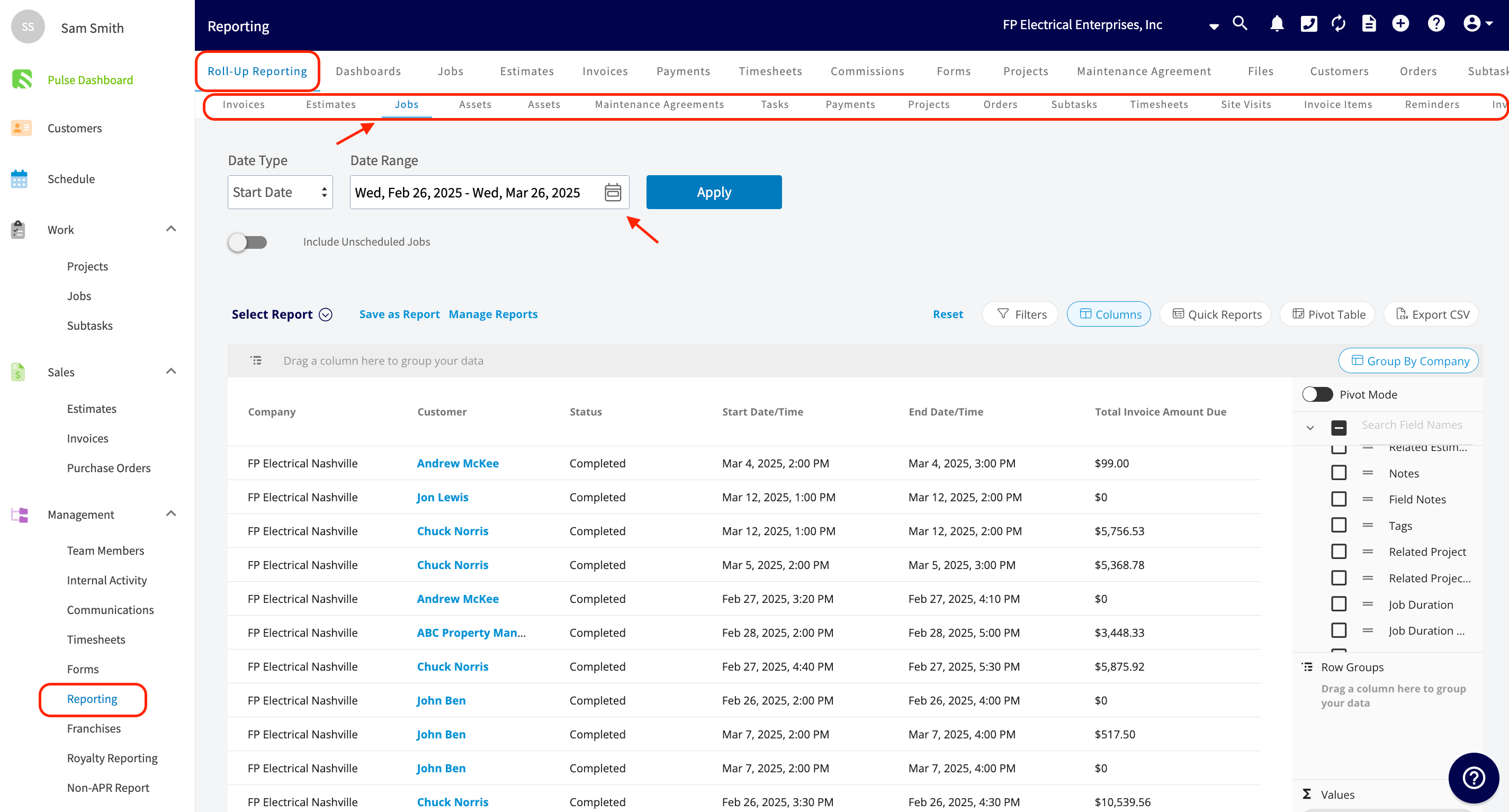
Roll-up reporting answers franchise-wide questions without opening each franchisee account one at a time. With access to accurate and up-to-date data across every location, the franchisor can make informed, data-driven decisions: identifying trends, understanding market dynamics, and determining the effectiveness of marketing strategies or operational changes. Roll-up reporting sits under the Reporting tab, and each record type has its own tab across the top of it: Invoices, Estimates, Jobs, Assets, Maintenance Agreements, Tasks, Payments, Projects, Orders, Subtasks, Timesheets, Site Visits, Invoice Items, and Reminders among them. Like other reporting done within FieldPulse, you can use filters and columns to customize any roll-up report further.Before you begin
- Roll-up reporting is run by the franchisor, from the franchisor account. Franchise Overview covers the franchisee list the report draws on.
- Decide which record type you want to report on (for example, all jobs created by each franchisee) and the date range you want the report to cover.
Run a roll-up report
- In the left-side menu, under Management, select Reporting.
- Select Roll-Up Reporting in the top menu.
- Select the tab for the record type you want to report on (Jobs, for example).
- Set the Date Type and the Date Range.
- Select the blue Apply button.
Save and export the report
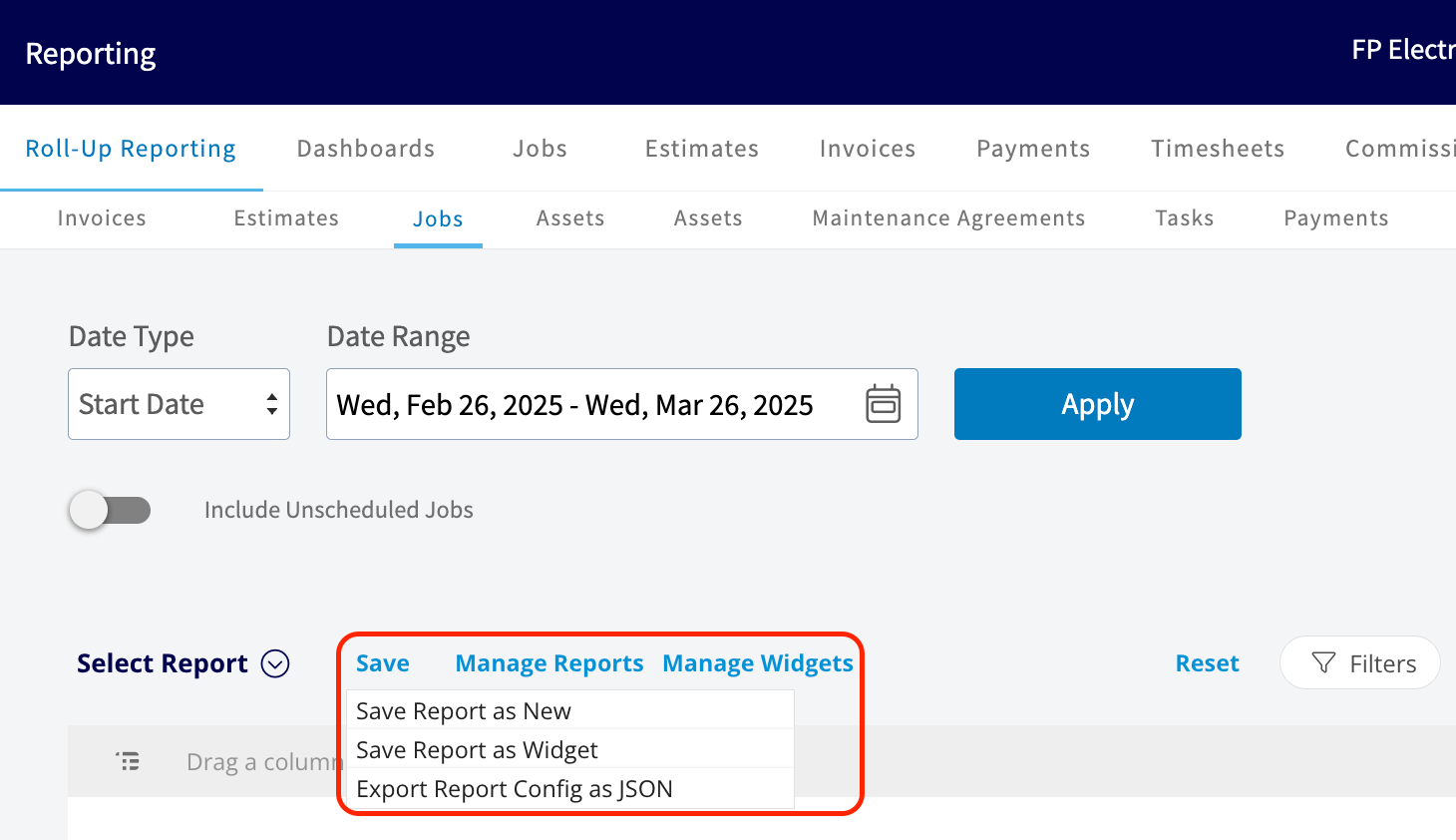
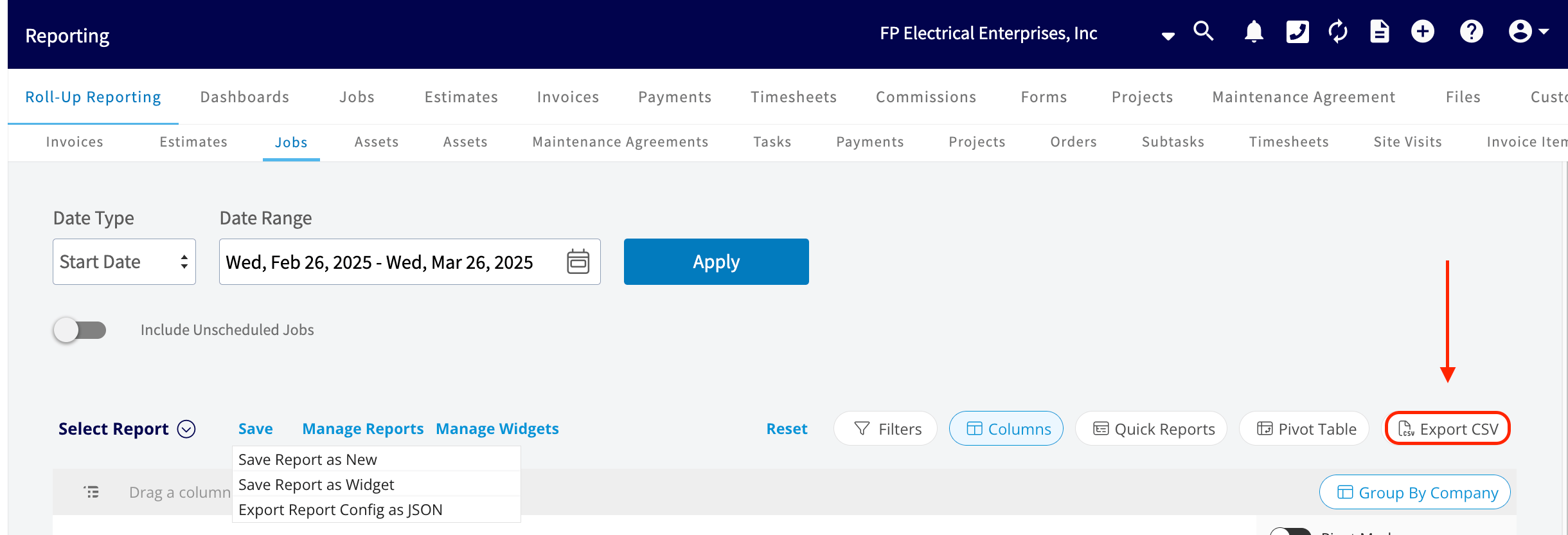
Once the report is generated, save it for reuse or export the data. Select Save next to Select Report, then choose a saving option:- Save Report as New: saves the report under Select Report for easy access in the future. Title the report and save it.
- Save Report as Widget: saves the report as a widget you can later add to your customized Pulse Dashboard. Title the widget and save it.