
Who uses this: Admins: item imports run from Company Settings. Availability: All regions. Self-import is included with your subscription at no extra cost.Importing your item list bulk-loads your products and services into FieldPulse so they’re ready to add to estimates and invoices, no need to enter each item by hand. Fill in the Mass Item Import template, verify it, and upload it.
Overview
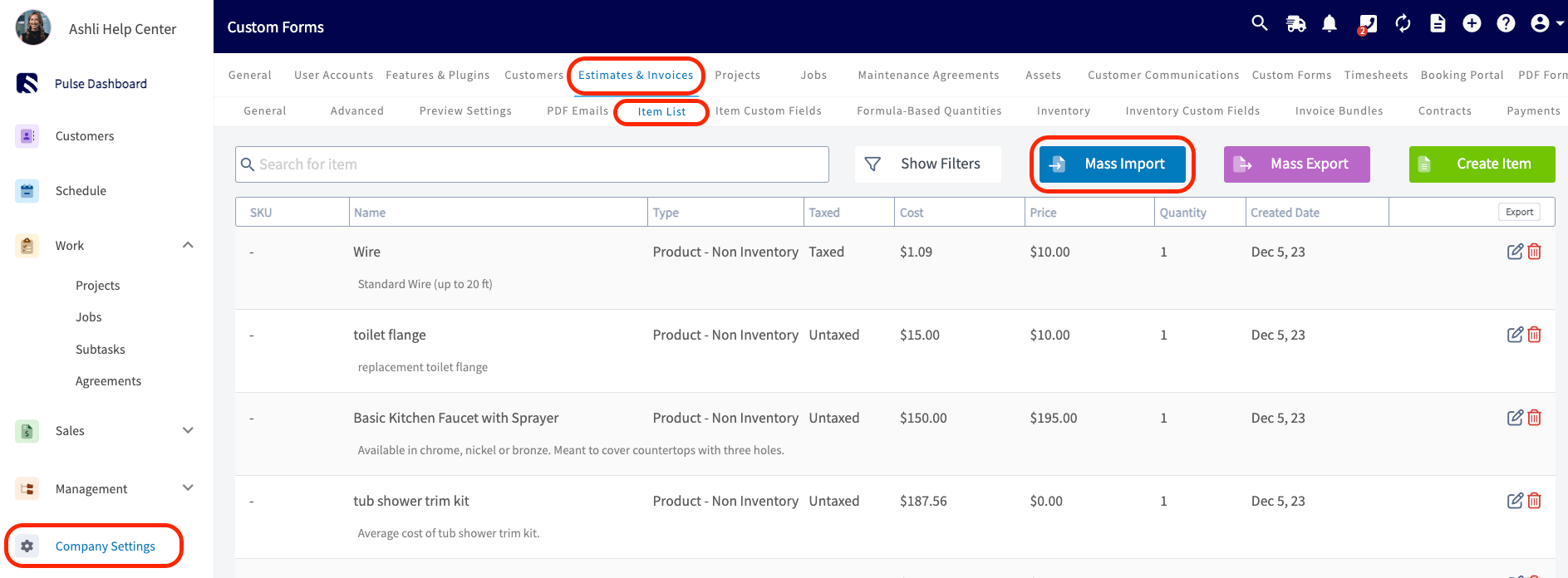
You import your item list from Company Settings > Estimates & Invoices > Item List. FieldPulse gives you the Mass Item Import template to fill in, checks your data for errors before anything is saved, and imports the clean items into your item list.Before you begin
Have your product and service data ready in a spreadsheet so you can copy it into the template. If you don’t have Excel, use Google Sheets instead (see How to Self-Import Data With Google Sheets). Follow these field rules so your items pass verification the first time:- Item names must be unique.
- SKUs must be unique and can be alphanumeric.
- Do not use equations in the Unit Cost or Unit Price fields: enter plain numbers.
- Do not put spaces after the commas in the Tags field.
- Set each item as either a Product or a Service.
- Default Quantity is the quantity added to an estimate or invoice line when you select the item.
- Track Inventory is the last column in the template. Enter Yes or No. A blank cell is treated as No.
The Mass Item Import template covers item details only. To load hub quantities and auto replenishment settings, use the Inventory Import. See Setting Up Item List & Inventory.
Import your item list
- Go to Company Settings, then select Estimates & Invoices.
-
Select Item List in the sub-header, then select Mass Import.
-
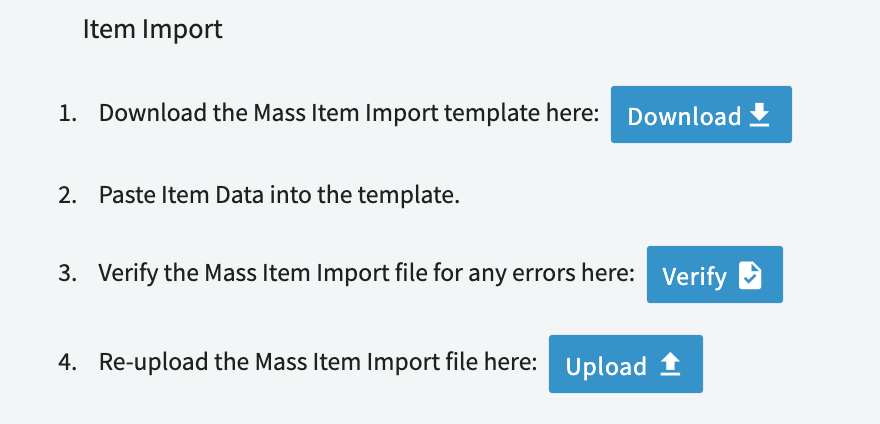
Follow the on-screen prompts to download the Mass Item Import template.
- Fill in the template, following the field rules above. Do not alter the template’s structure: keep the column headers and layout exactly as they are.
- Upload the completed file back into FieldPulse.
-
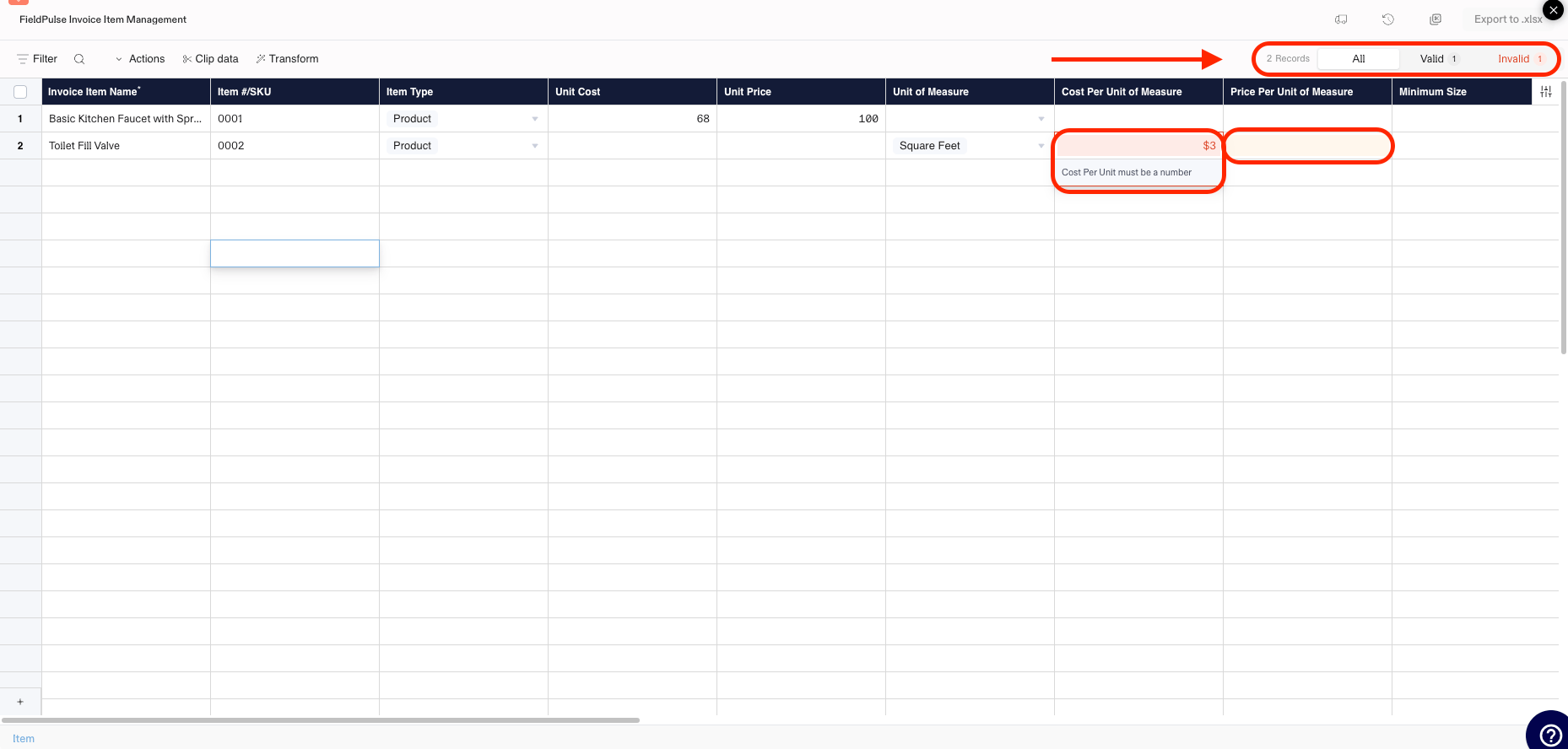
Select Verify. FieldPulse checks every record, flags any errors or missing required fields in red, and shows a running count of valid vs. invalid records in the top-right corner.
-
Fix the flagged fields until every record shows as Valid, then select Export to .xlsx.

- Re-upload the verified file with the Upload button to finish the import.