
Who uses this: Franchisors open, review, and approve every franchisee’s royalty report; each franchisee opens and submits their own. Availability: Franchisor and franchisee accounts on a FieldPulse franchise structure.Franchise royalty reporting generates a royalty report for every franchisee at the end of each month, and each franchisee has access to their report as soon as it is generated. The franchisor works from one screen — the Royalty Reporting tab — to open any franchisee’s report by date range, read the summary, and check the invoices and payments the royalty total was built from.
Overview
The workflow breakdown royalty reporting solves is month-end reconciliation between a franchisor and a franchisee. Without it, royalty figures get assembled in a spreadsheet that both sides have to take on trust. FieldPulse instead builds each royalty report from the invoices and payments already recorded in the franchisee’s account, so the franchisor and the franchisee read the same numbers. Each royalty report moves through a short cycle: FieldPulse generates it at month-end, the franchisee submits it, and the franchisor reviews it and approves or rejects it. Like other reporting in FieldPulse, you select a date range to pull up the reports you want to look at.How it works
Both sides reach royalty reports the same way — the Royalty Reporting tab in the left menu, filtered by a date range — but they see different sets. The franchisor sees the reports from every franchisee location in the range; a franchisee sees only the reports generated for their own location.Royalty report statuses
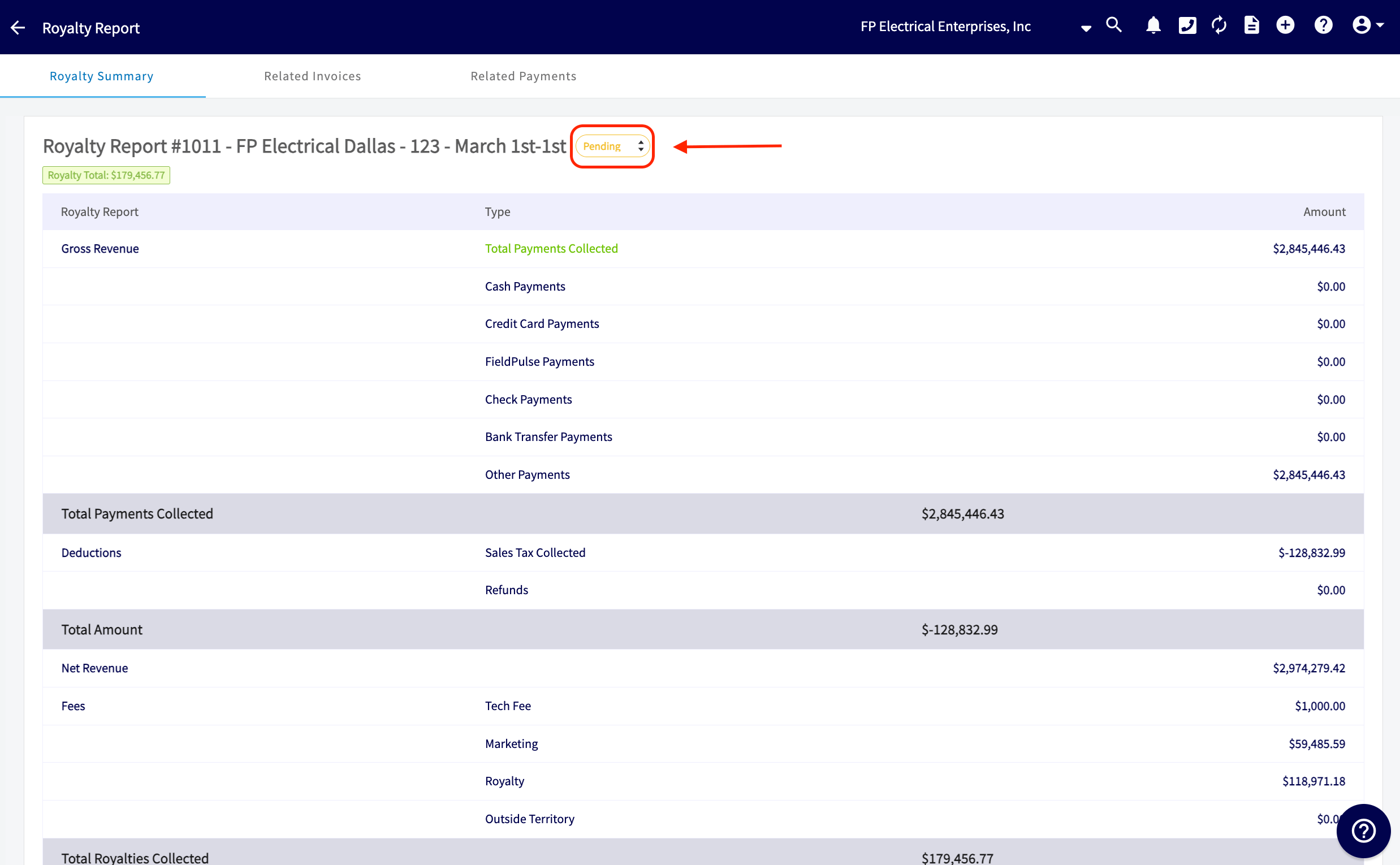
Every royalty report carries a status, shown beside the report title at the top of the Royalty Summary tab.
Franchisees have 5 days from the end of the month to submit their royalty report. A report that has not been submitted after 5 days moves from Pending to Past Due.
Reviewing a royalty report as the franchisor
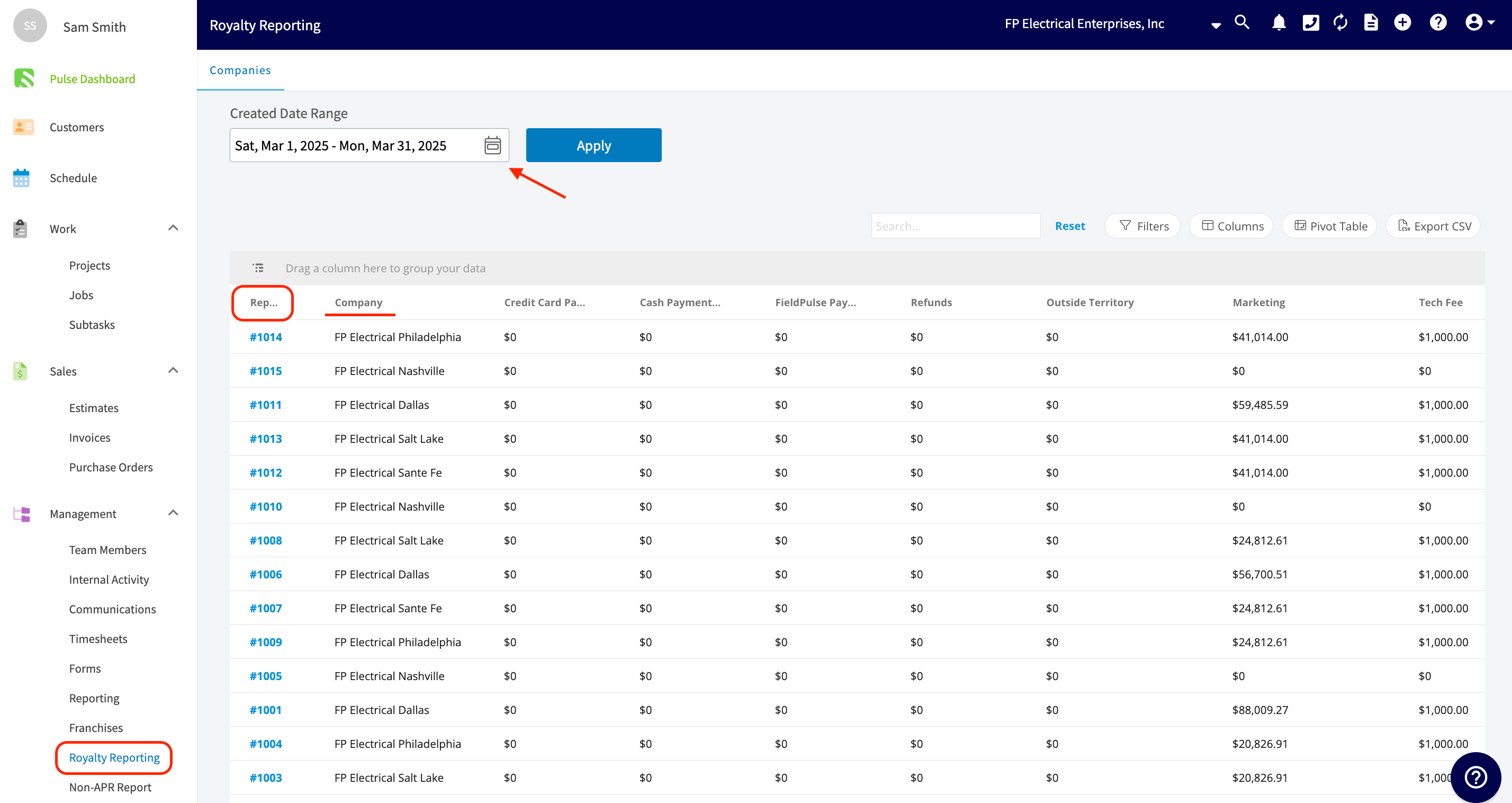
The franchisor opens royalty reports from the Royalty Reporting tab and reads them one at a time.- Select Royalty Reporting in the left-side menu.
-
Set the Created Date Range, then select Apply. The list returns the royalty reports from every franchisee location created in that range.
-
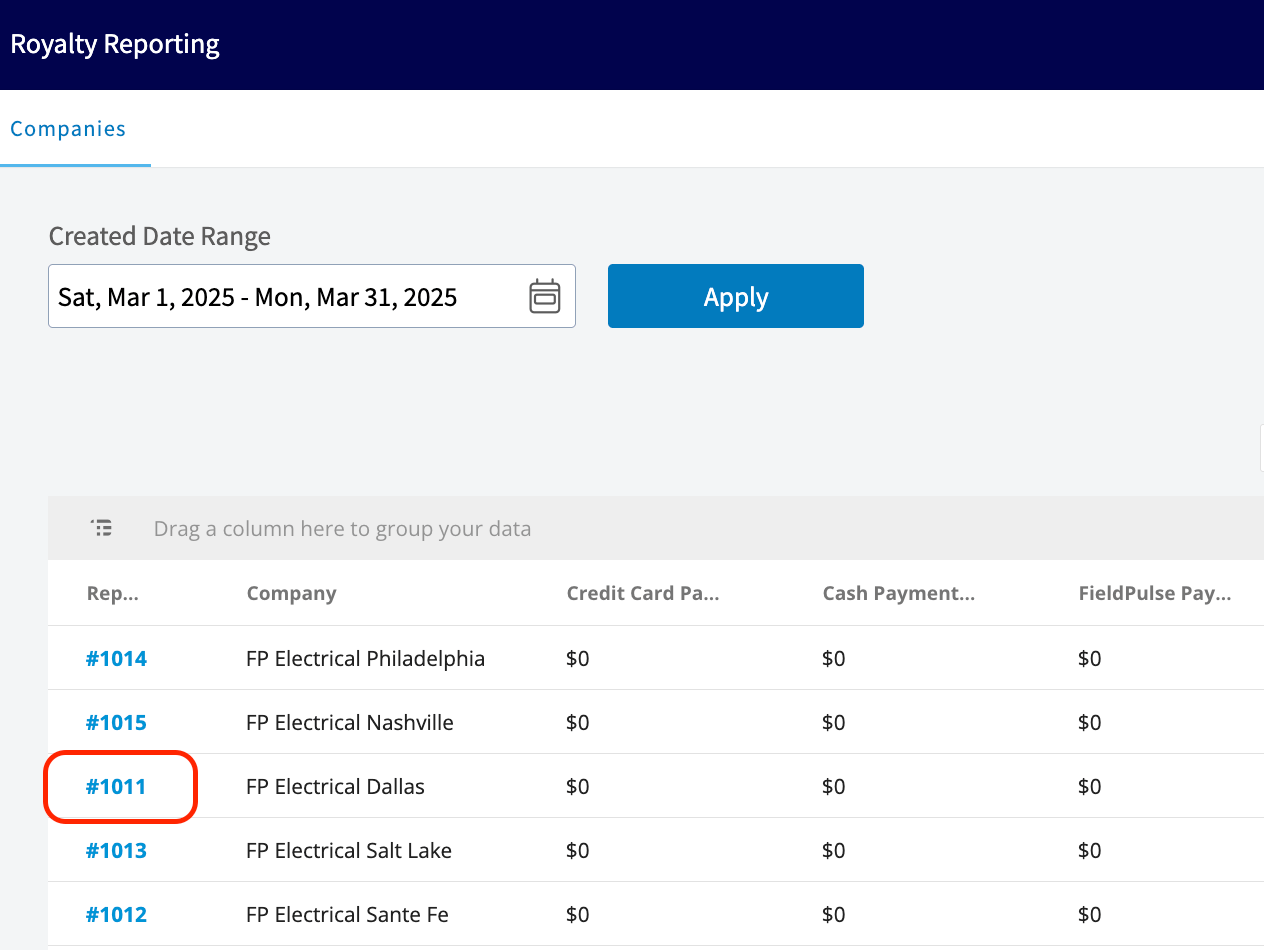
Select a hyperlinked report number — #1011 in the example below. The royalty report opens in a new tab.
-
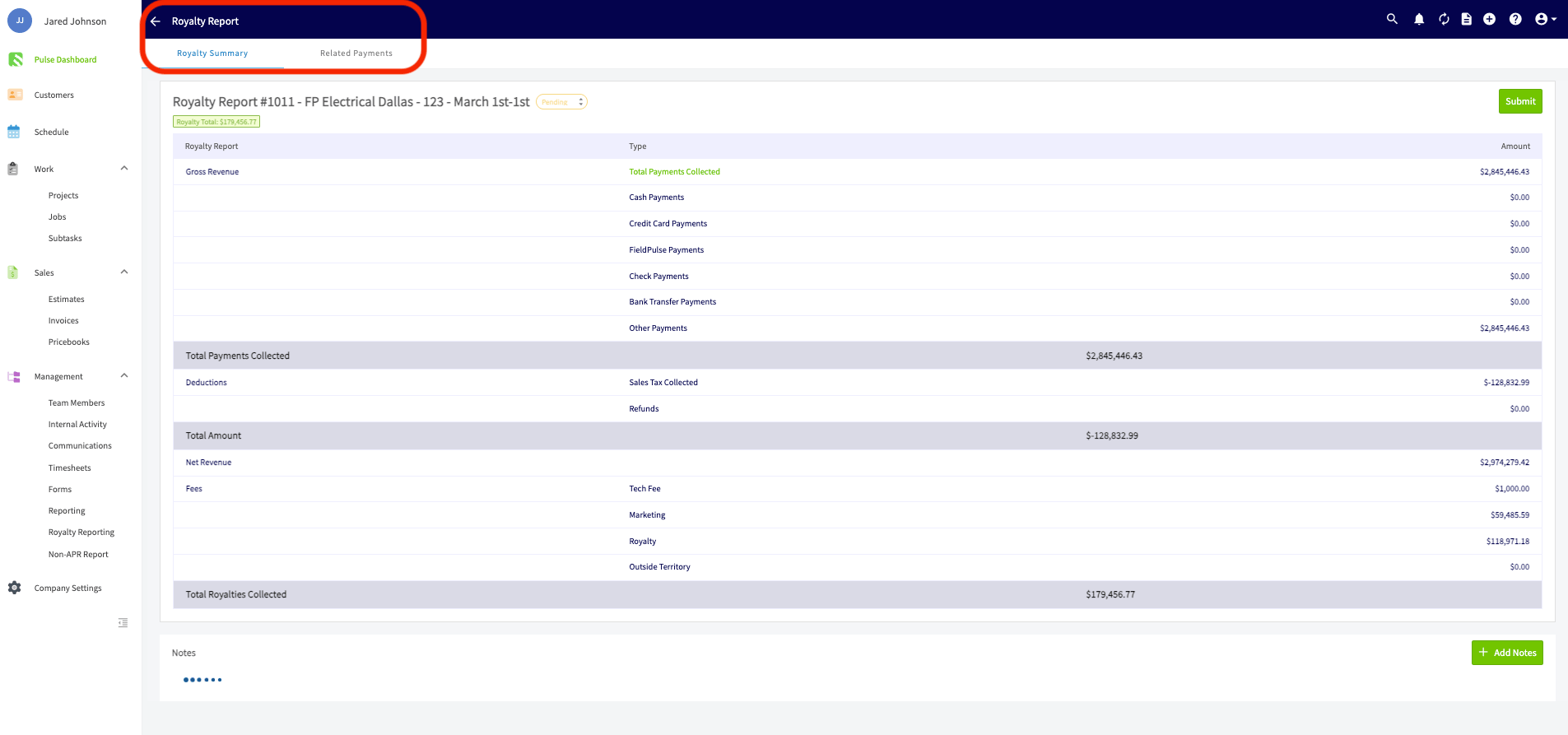
Read the Royalty Summary tab. The heading carries the report number, the franchisee, and the period the report covers, with the report’s status beside it and the royalty total on the line below. The summary lists gross revenue broken out by payment type, total payments collected, deductions for sales tax collected and refunds, net revenue, the fees applied to that franchisee — Tech Fee, Marketing, Royalty, and Outside Territory — and total royalties collected.
-
Use the Notes section at the bottom of the report to leave a comment, and tag a team member with an @ mention. Notes are visible to both the franchisor and the franchisee.

Related Invoices tab
The Related Invoices tab lists every invoice that factored into the royalty report. Select Related Invoices at the top of the report to open it. The list carries each invoice’s title, invoice total, amount paid, amount due, whether it is paid in full, and its tags — use Columns and Filters to display the information you want.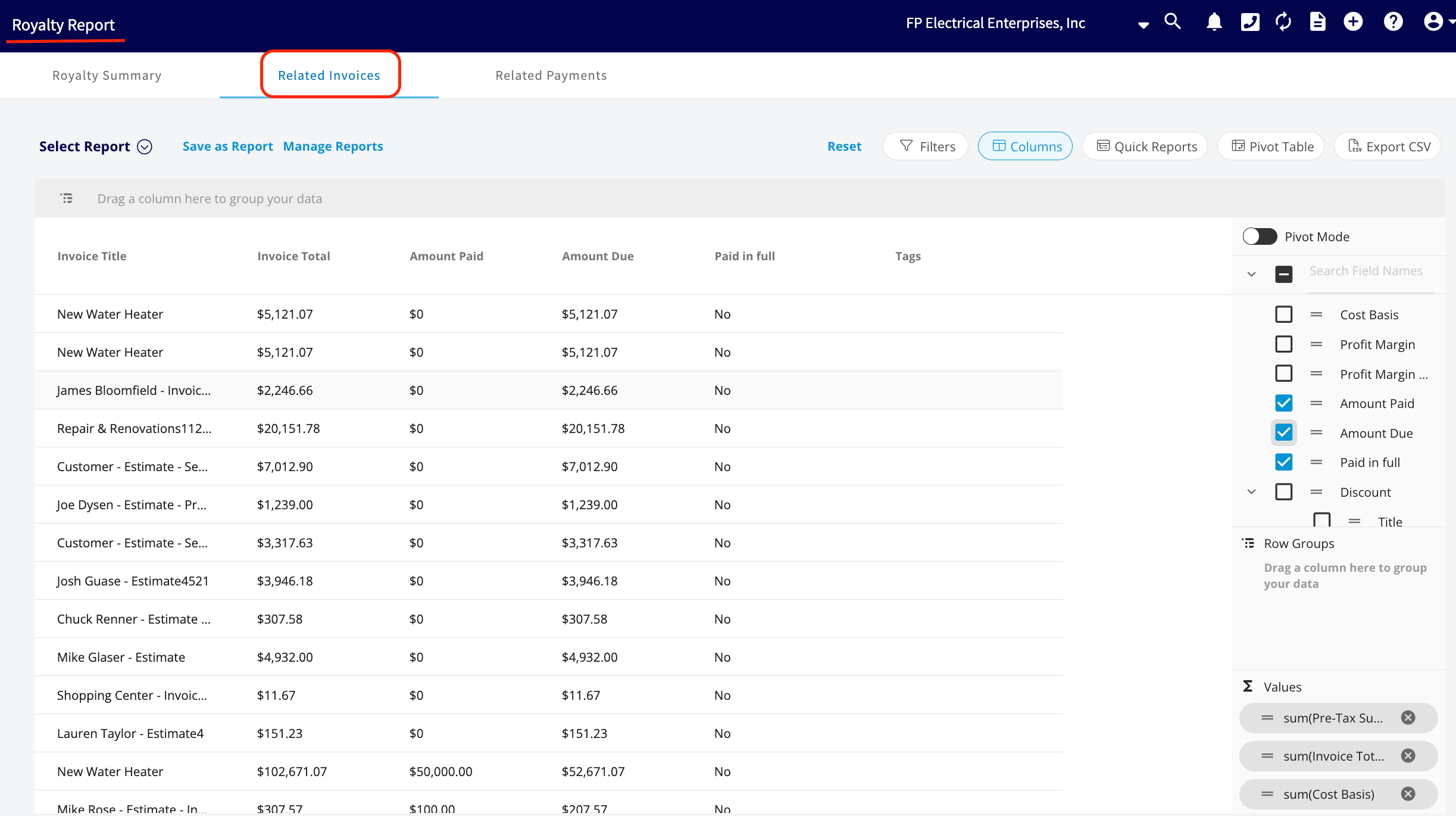
Related Payments tab
The Related Payments tab shows the revenue collected on those related invoices — not the invoices themselves, but what came in and contributed to the royalties. Select Related Payments at the top of the report to open it. The list carries each payment’s ID, amount, method, customer, payment recorded date, who created it, and its payment status; use Columns and Filters to customize the data shown. This report is automatic and pulls information directly from FieldPulse rather than being assembled by hand, which keeps a high level of transparency between the compliance team, the franchisor, and the franchisee.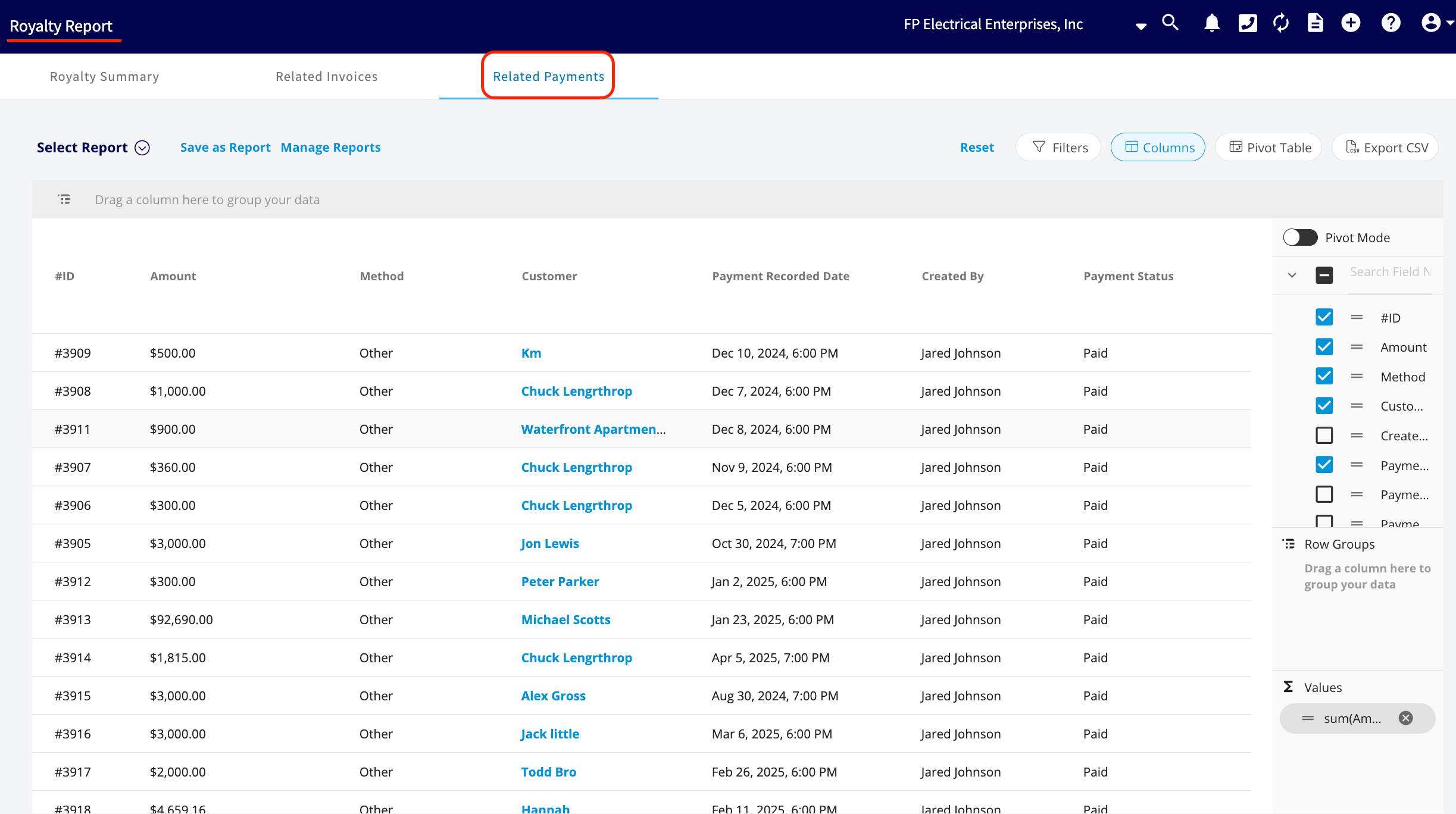
Submitting a royalty report as the franchisee
A franchisee opens and submits their own royalty report from the same Royalty Reporting tab.- Select Royalty Reporting in the left-side menu.
-
Set the date range, then select Apply. The list returns only the royalty reports generated for that franchisee.
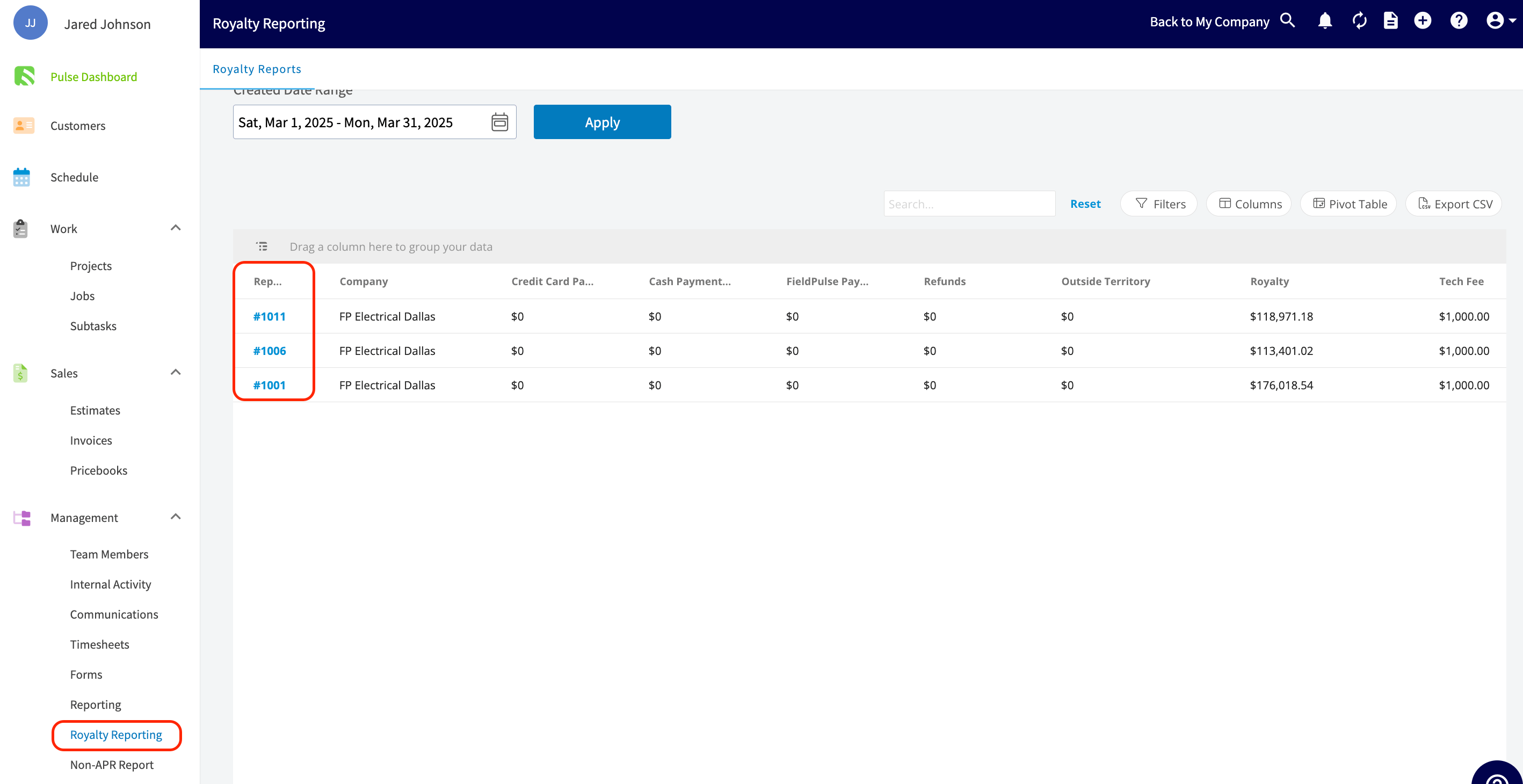
- Select a report number — #1011 in the example below. The franchisee’s royalty report has two of the franchisor’s tabs, Royalty Summary and Related Payments.
-
Select the green Submit button in the top-right corner. Submit appears while the report’s status is Pending, and submitting moves the status to Submitted.
Availability
Royalty reporting is part of the FieldPulse franchise structure — the Royalty Reporting tab appears in the left-side menu of the franchisor account and of each franchisee account. FieldPulse generates and tracks the royalty reports; FieldPulse does not handle the actual collection of the royalties.Related articles
- Franchise Overview
- How to Use Franchise Roll-Up Reporting
- Master Account Overview
- Customer Account Structures Overview