

Documentation Index
Fetch the complete documentation index at: https://fieldpulse.mintlify.app/llms.txt
Use this file to discover all available pages before exploring further.
Overview
Wrapping up a job in the field is more than hitting “done.” From the FieldPulse mobile app, you can update job status, log field notes, attach photos and files, and leave team comments as you move through the work.On Mobile: Field Experience
Getting Started
To begin, navigate to your desired job and click on it to see the job record. There are many ways to find your jobs, but for this example we selected the Schedule tab in the bottom menu.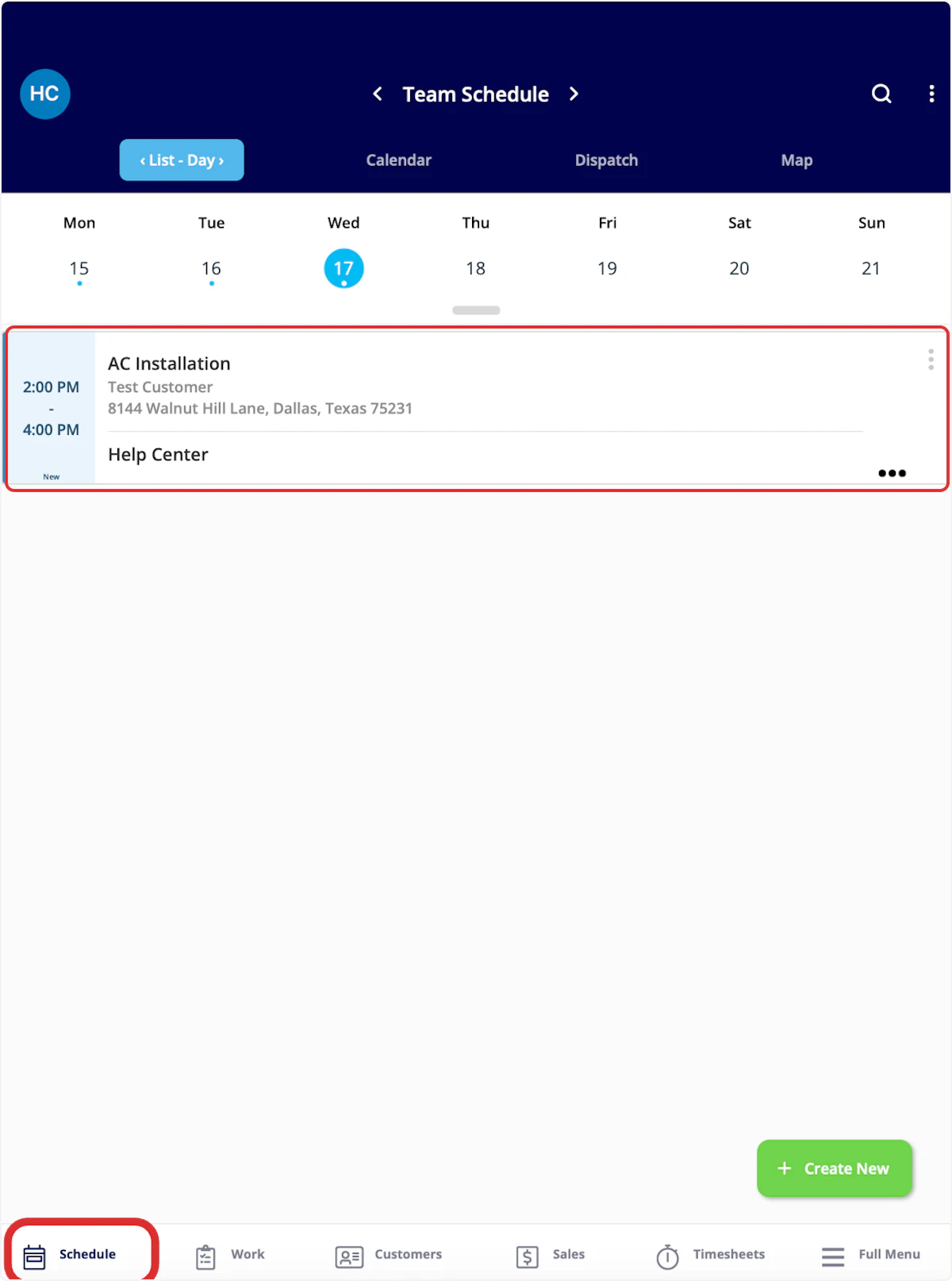
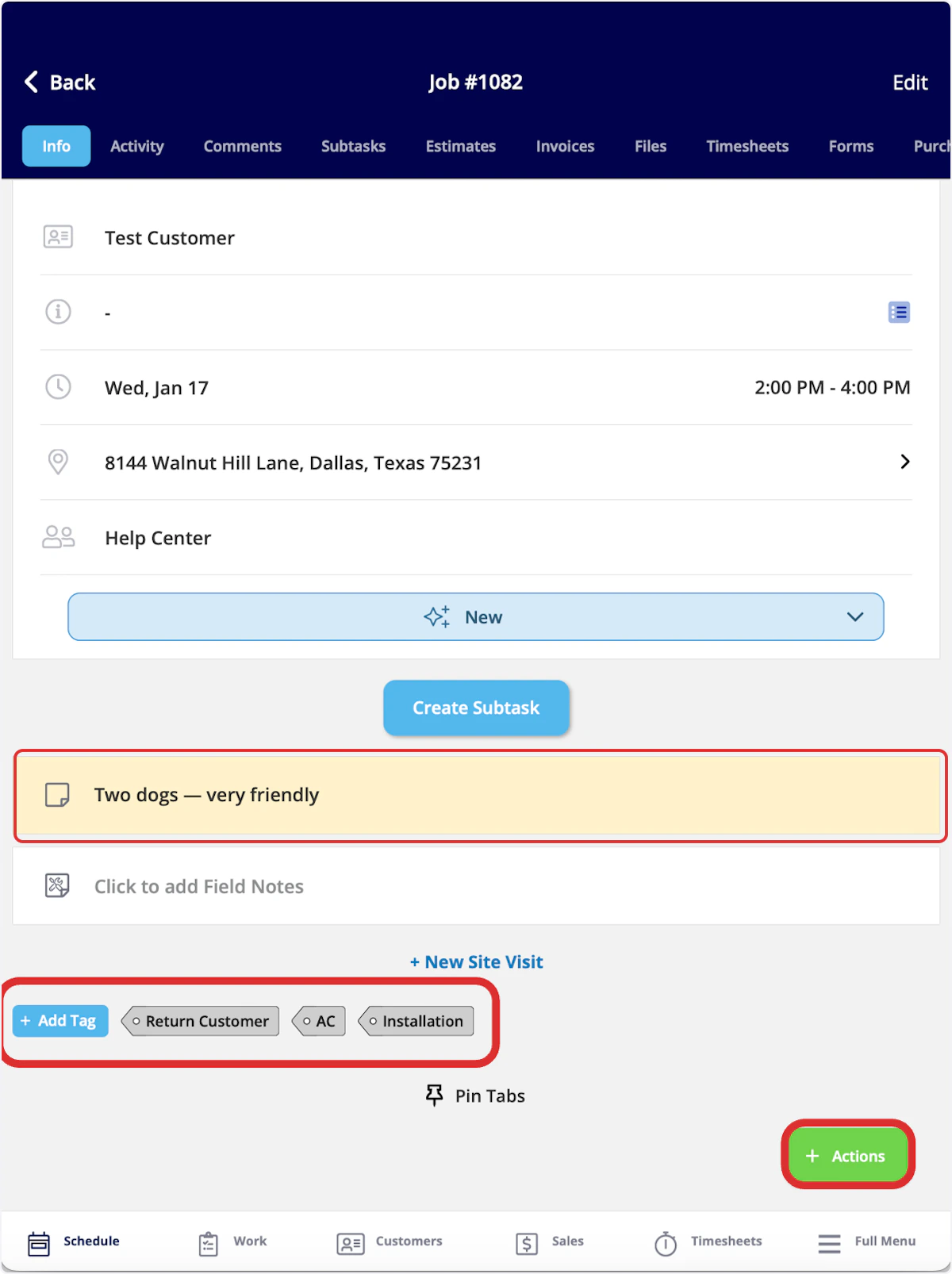
- Customer Details: Customer name and address
- Notes: internal notes highlighted in yellow
- Tags: view existing job tags or add more

Changing Job Status
You can always change the status of your job from the Info page of the job record. Click on the current status (New) to select a new status. FieldPulse will track and record the duration of time spent in each status.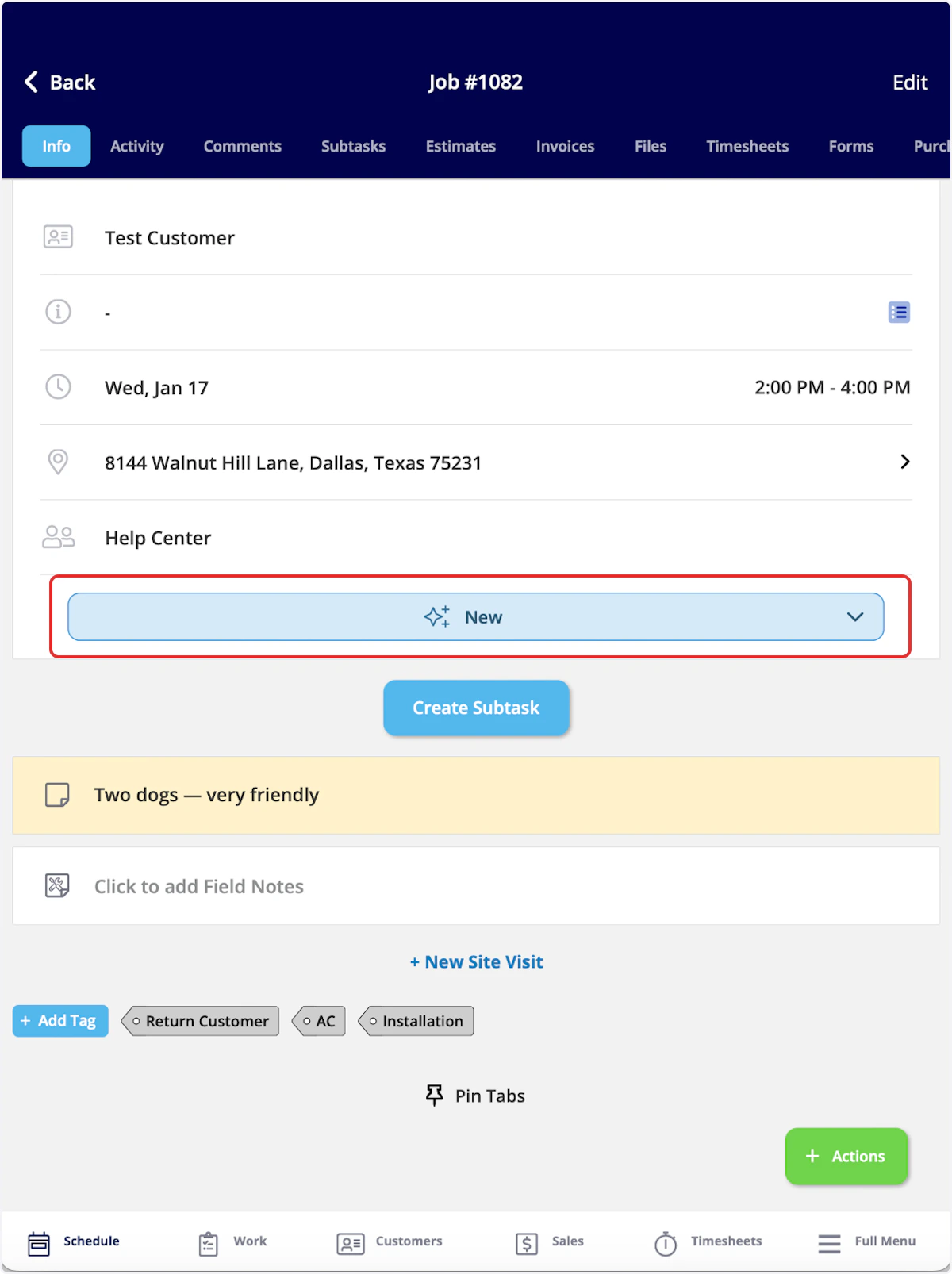
Navigating to Customer Location
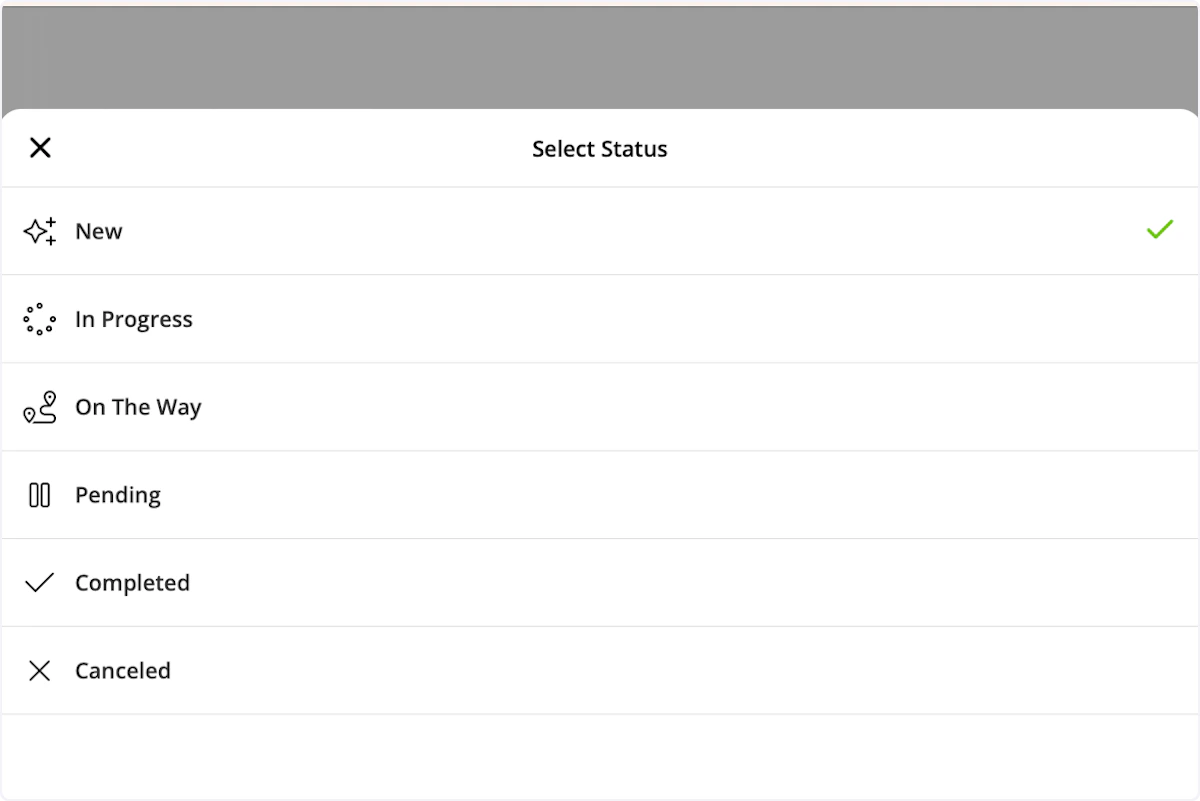
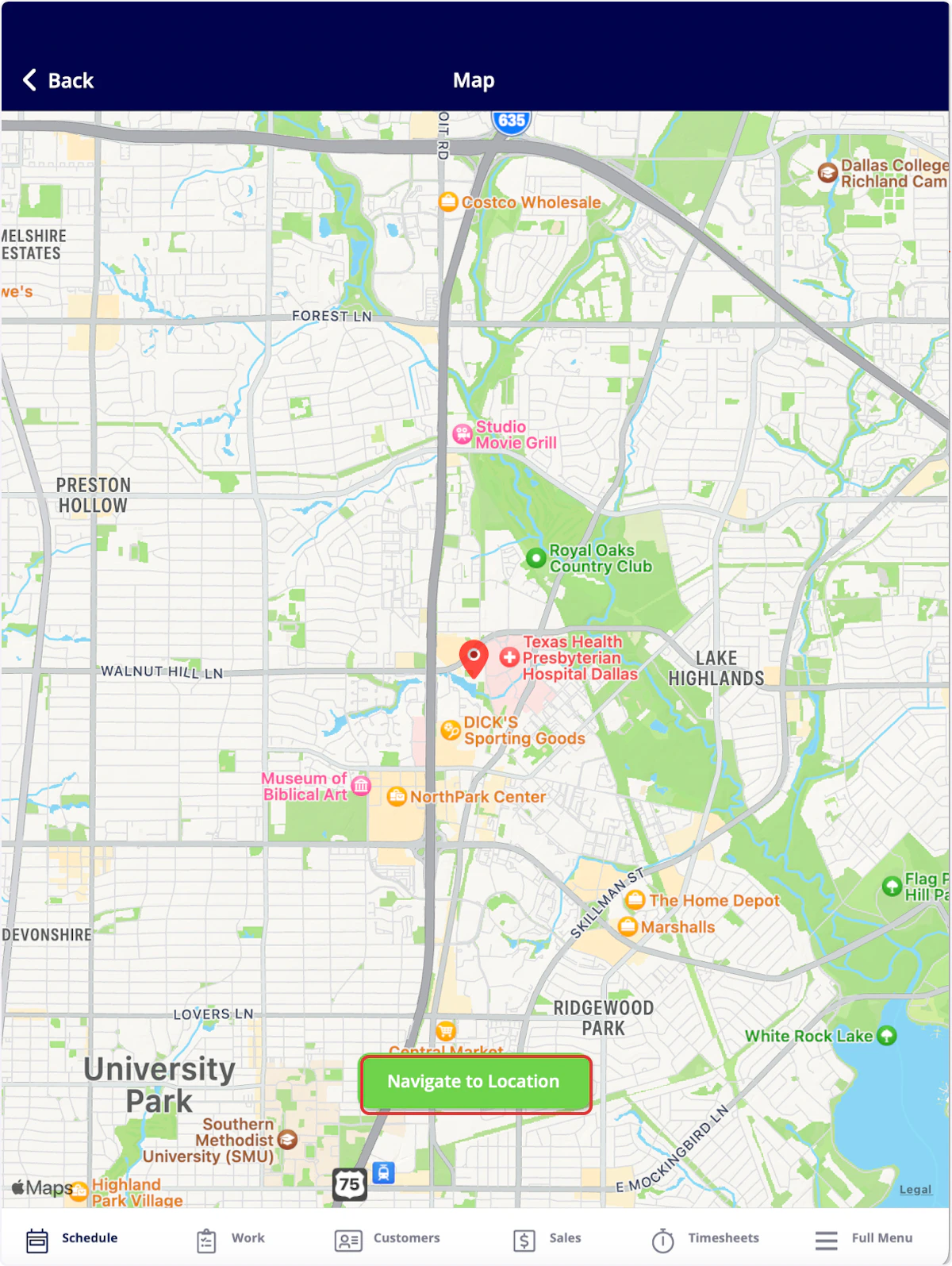
To navigate to your customer’s address, begin by clicking on their address.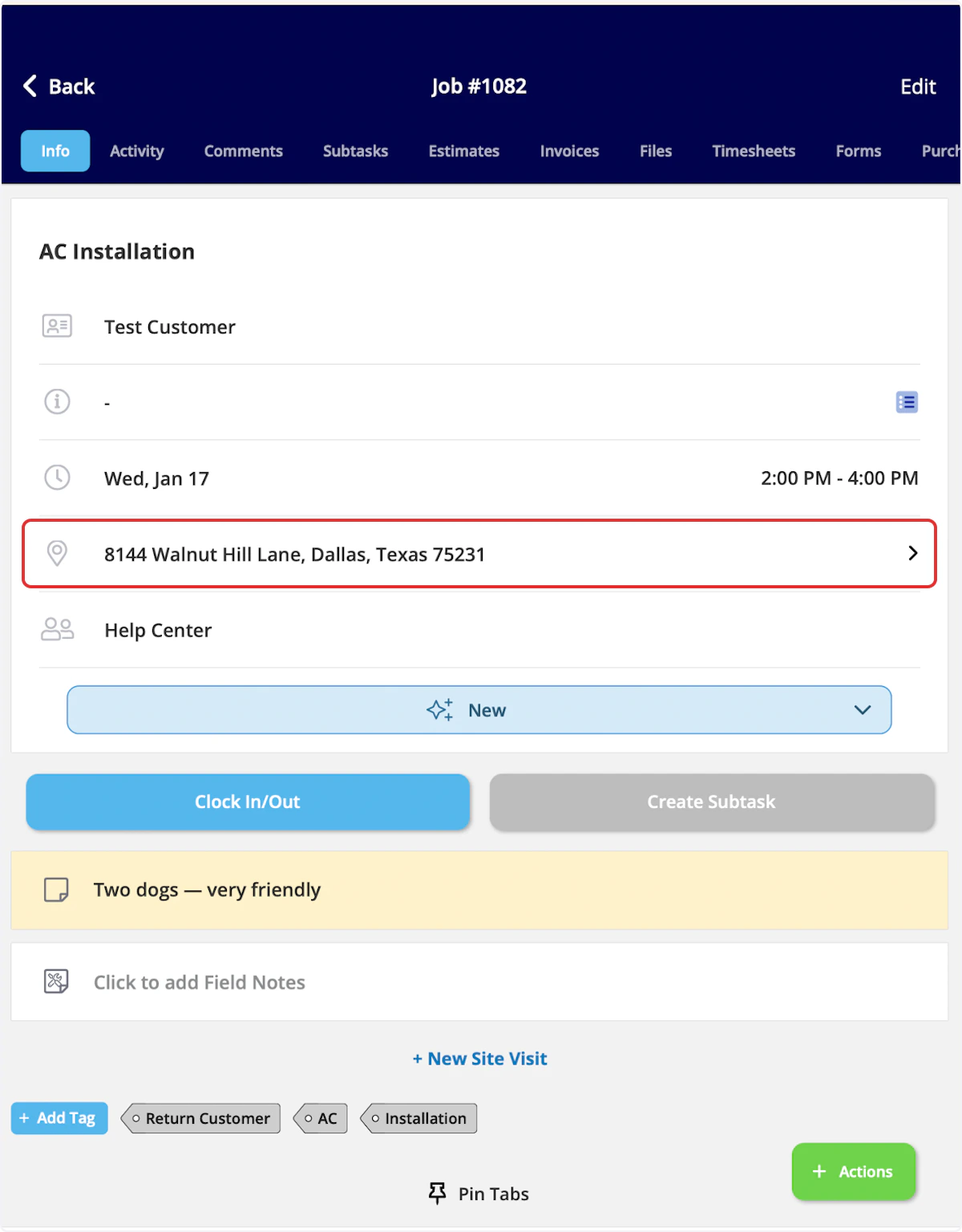
Adding Details On-Site
Once on the job, you may need to add additional information to the job record.Field Notes
If you’d like to include field notes, select Click to add Field Notes on the Info page and enter your information.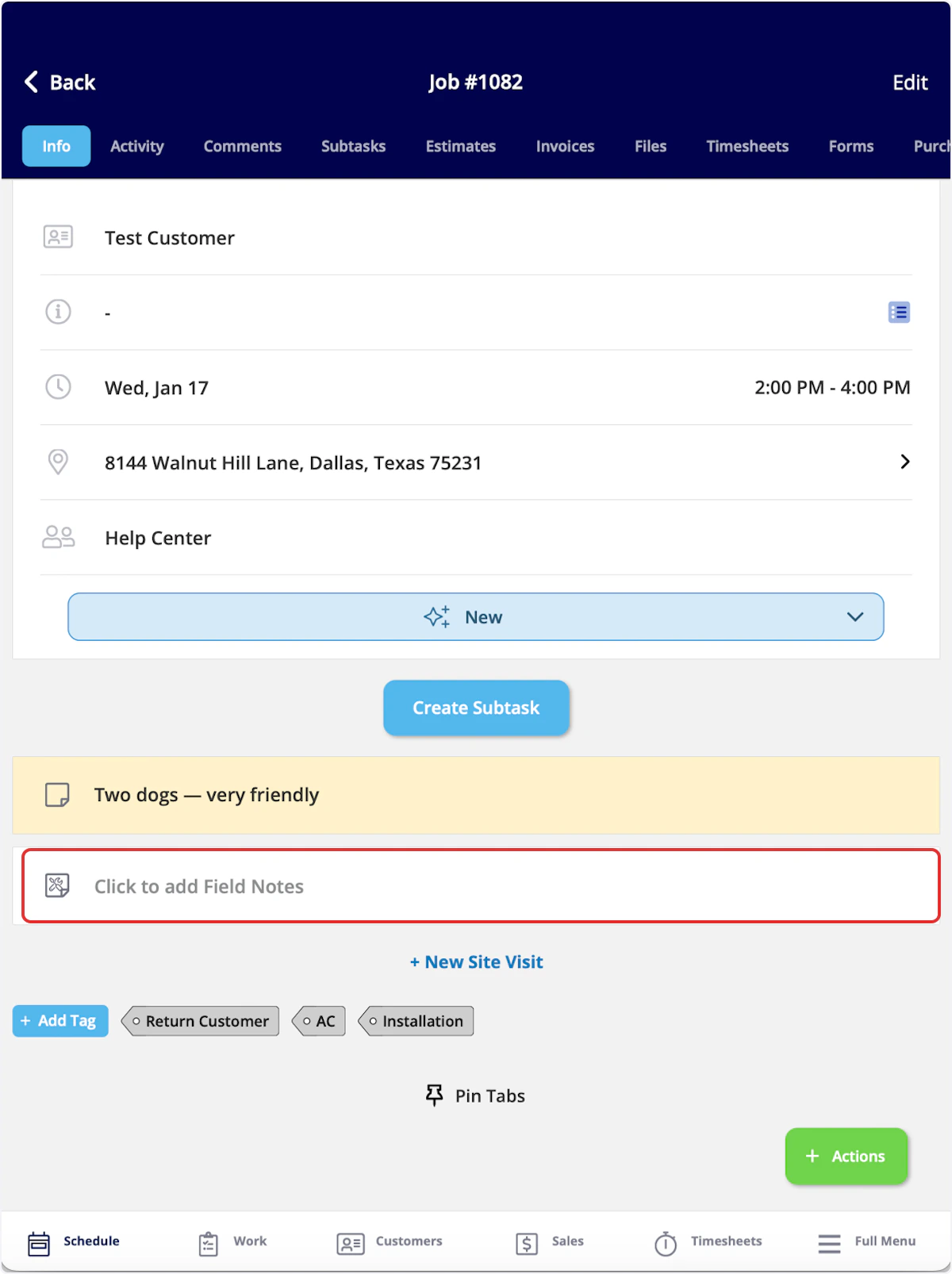
Files & Images
To add files or images, navigate to the Files tab in the top menu. You can select Attach File, Upload Photo, or Take Photo. Selecting Take Photo will open a camera in FieldPulse, allowing you to take and immediately add photos to the job record.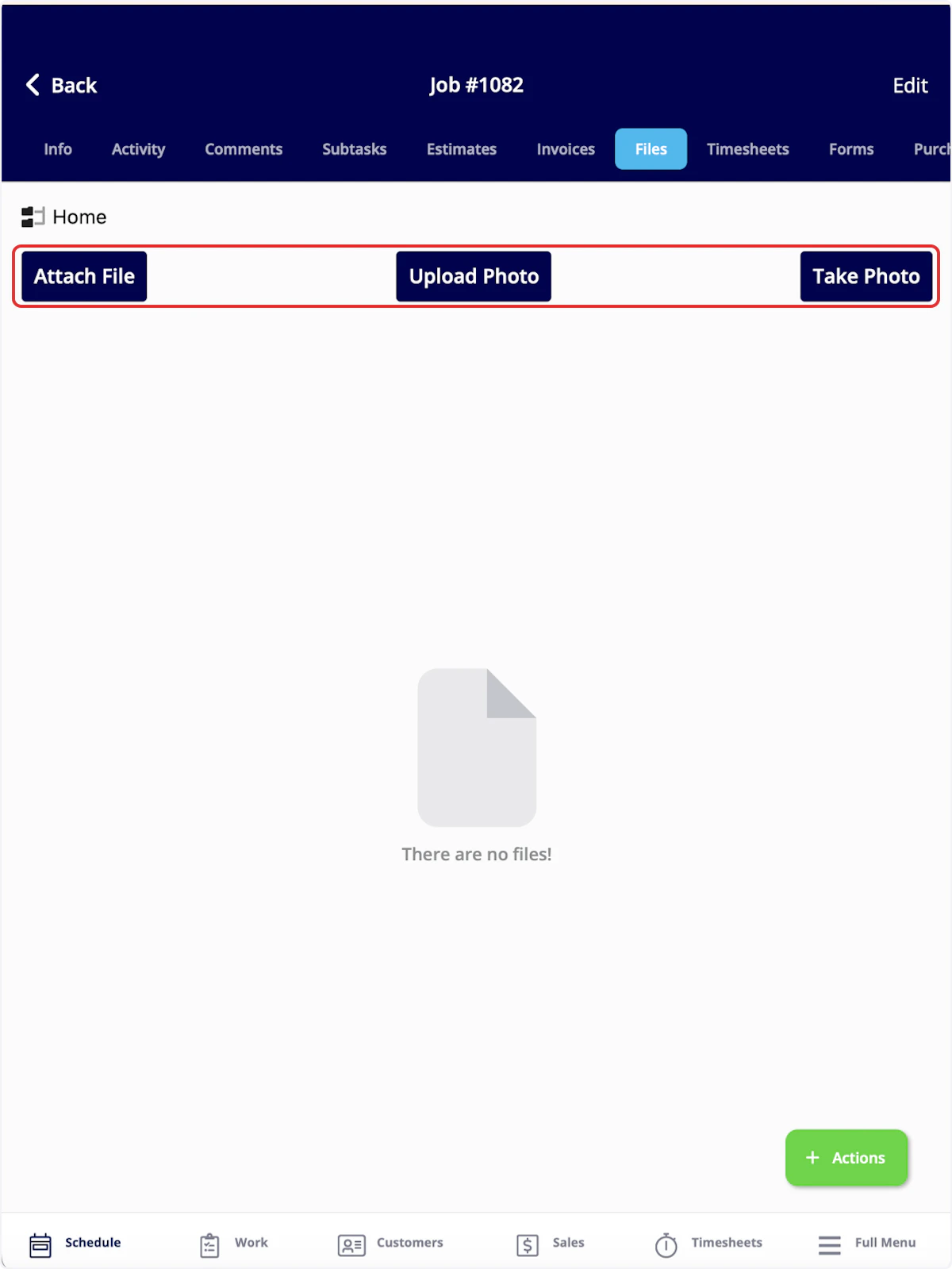
Comments
You can also leave comments on the job record by navigating to Comments in the top menu. Toggle on/off the notification settings at the bottom of the screen before commenting as needed.
Completing a Job
Once a job is finished, you will need to mark the job status as Completed, as well as clock-out of the job. To change the job status to completed, click on the status bar on the Info page, then select Completed. The job duration will be recorded. To clock out of the job, select Actions then Clock Out.
FAQs
How do I turn off the “Mark Payment” pop-up that appears when I complete a job? By default, when you mark a job with a related invoice as Completed, FieldPulse displays a pop-up asking “Do you want to mark payment on your invoice?”. However, you can turn this off. To disable: Navigate to Company Settings > Jobs > General tab and toggle off “Enable pop-up for marking payment on Related Invoice upon Job completion.”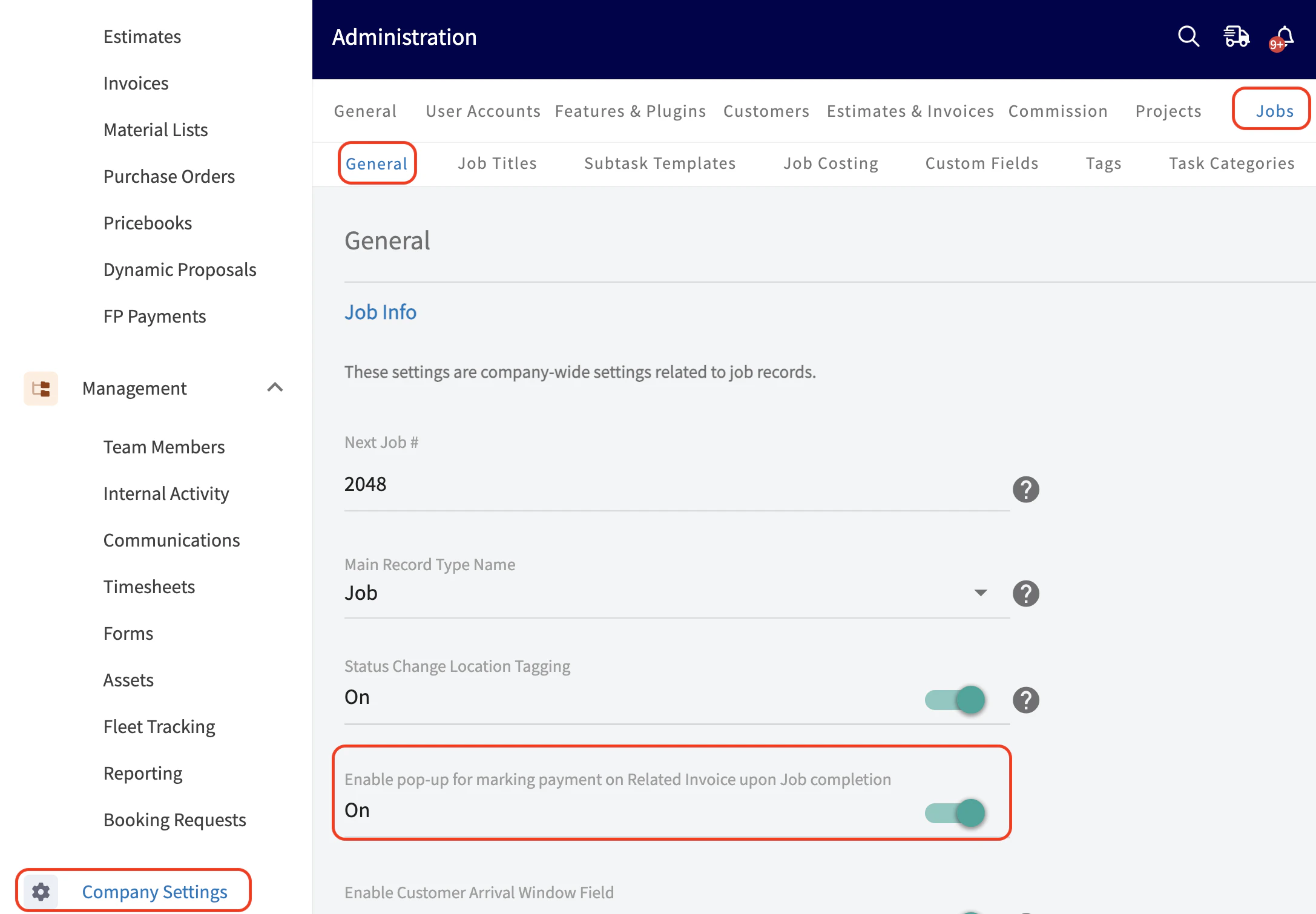
Video Tutorial
Have additional questions? Contact us at support@fieldpulse.com or use the chat feature in the bottom right corner of your screen.