

Documentation Index
Fetch the complete documentation index at: https://fieldpulse.mintlify.app/llms.txt
Use this file to discover all available pages before exploring further.
Why We’ve Released This Feature
This feature will significantly benefit QuickBooks Online and QuickBooks Desktop users. Many companies often use different names for customer records and display name fields. With this new feature, you can customize which naming fields appear as the primary name on Customer, Estimate, and Invoice records. This allows you to choose how your customers are displayed without the need to modify your entire customer database.How to Enable
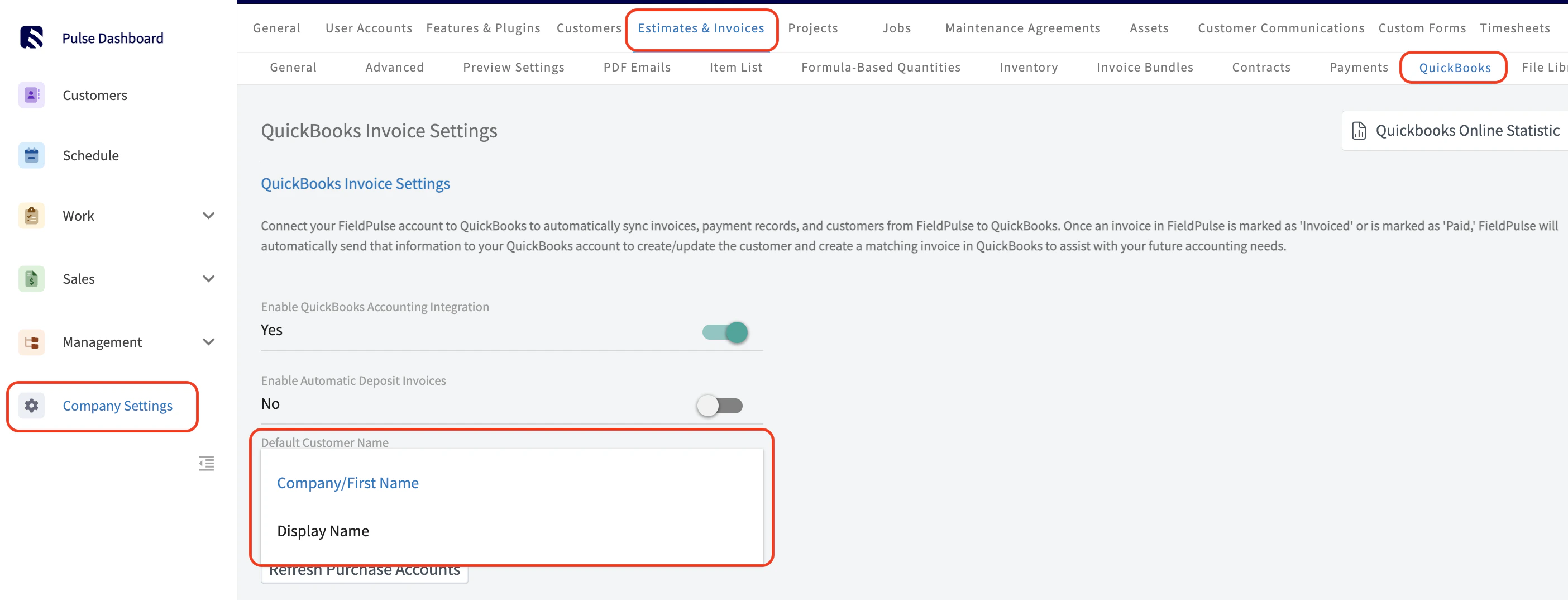
- Navigate to Company Settings > Estimates & Invoices > QuickBooks.
- From this page, find the field titled Default Customer Name and from the drop down menu select either Company/First Name or Display Name.
See it in Action
If you selected Display Name from the Default Customer Name dropdown menu, the Display Name field will now appear as a required field on your Customer records.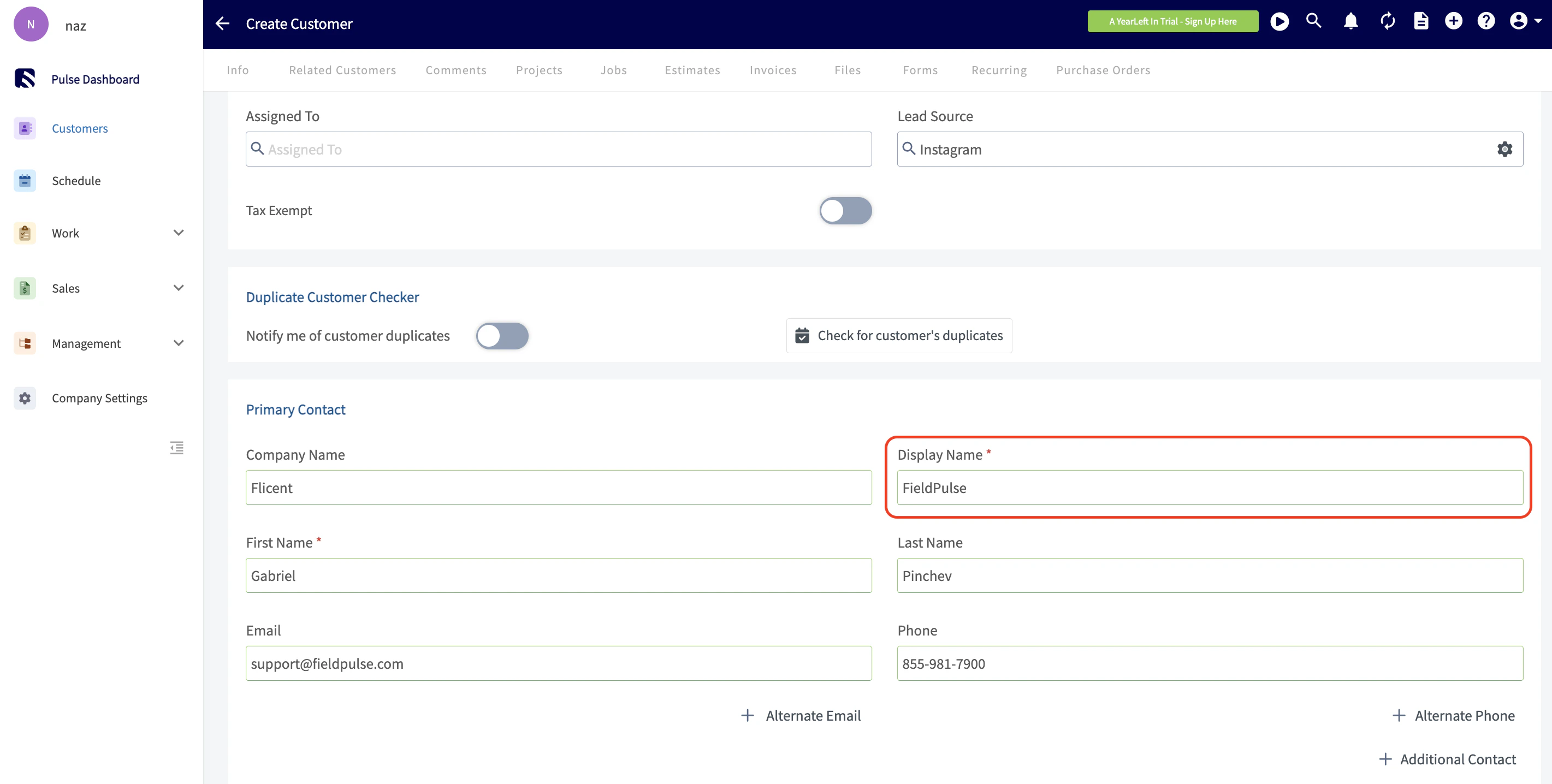
- Customers
- Estimates
- Invoices
- Jobs, Assets
- Maintenance Agreements
- Custom Forms
- Dynamic Proposals
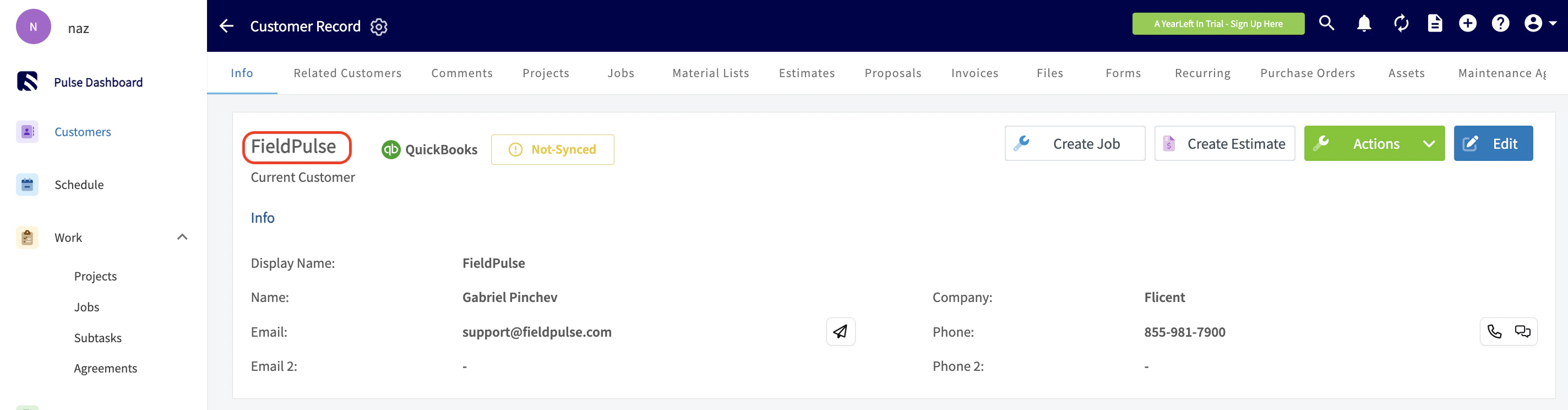
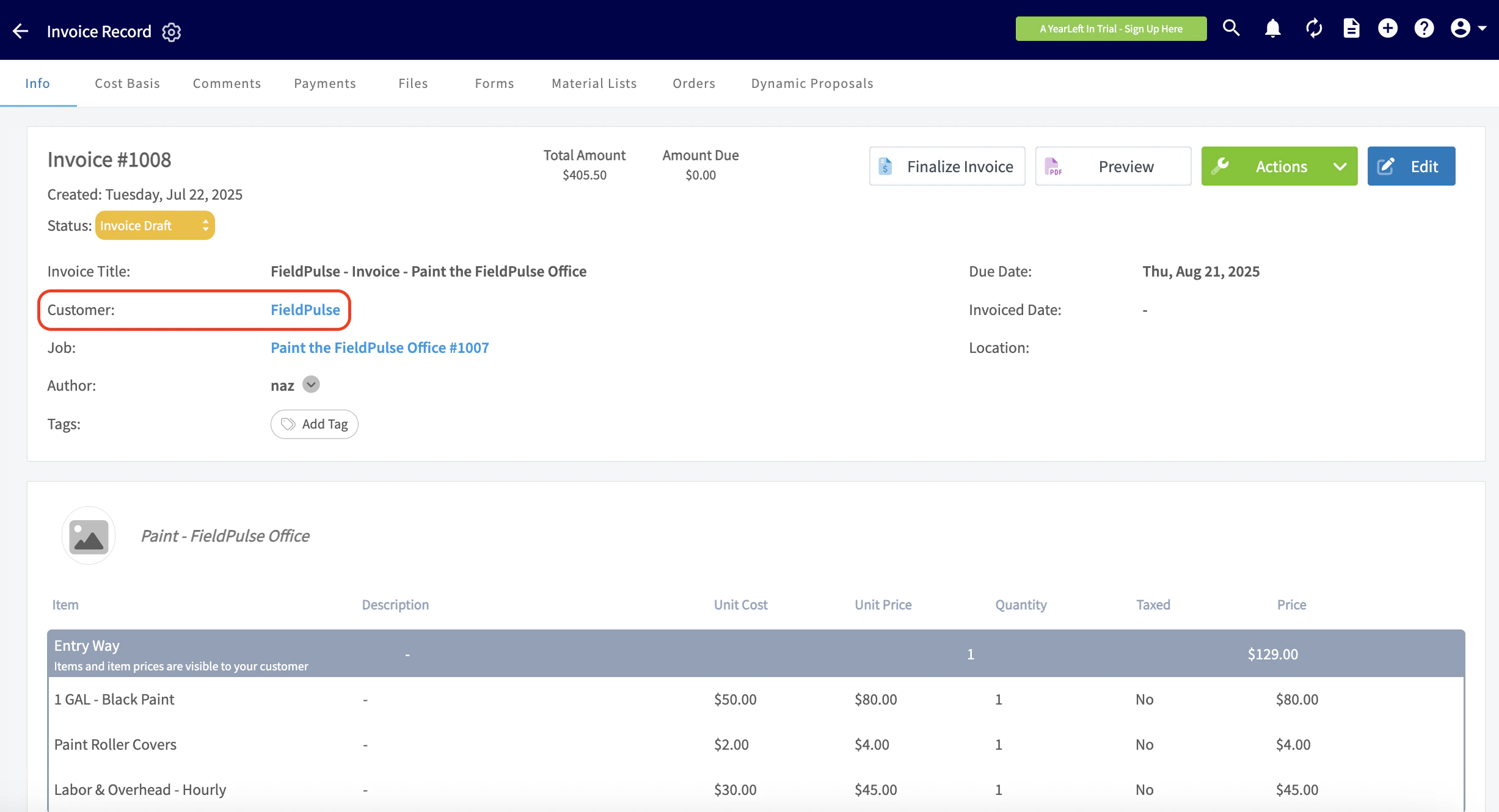
Have additional questions? Contact us at support@fieldpulse.com or use the chat feature in the bottom right corner of your screen.