

Documentation Index
Fetch the complete documentation index at: https://fieldpulse.mintlify.app/llms.txt
Use this file to discover all available pages before exploring further.
1. Request access to sync with QuickBooks.
To connect to QuickBooks Online, you will first need to request access by contacting us at support@fieldpulse.com or using the chat feature in the bottom right corner of your screen.2. Turn on the integration in Company Settings.
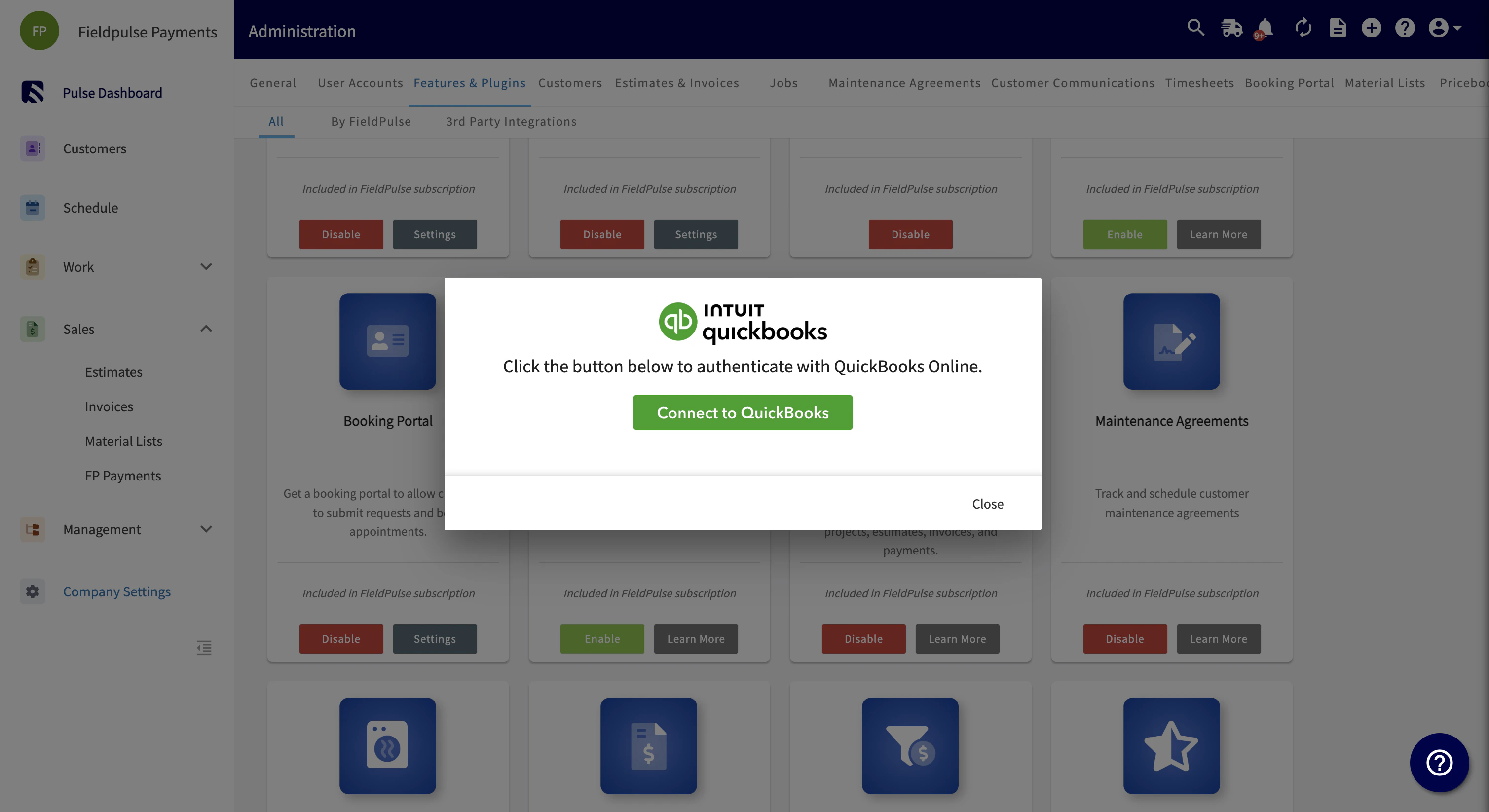
Once FieldPulse has enabled you to connect to QuickBooks, go to Company Settings. Find the Features & Plugins tab and navigate until you find the QuickBooks Online tile. Click Connect to QuickBooks.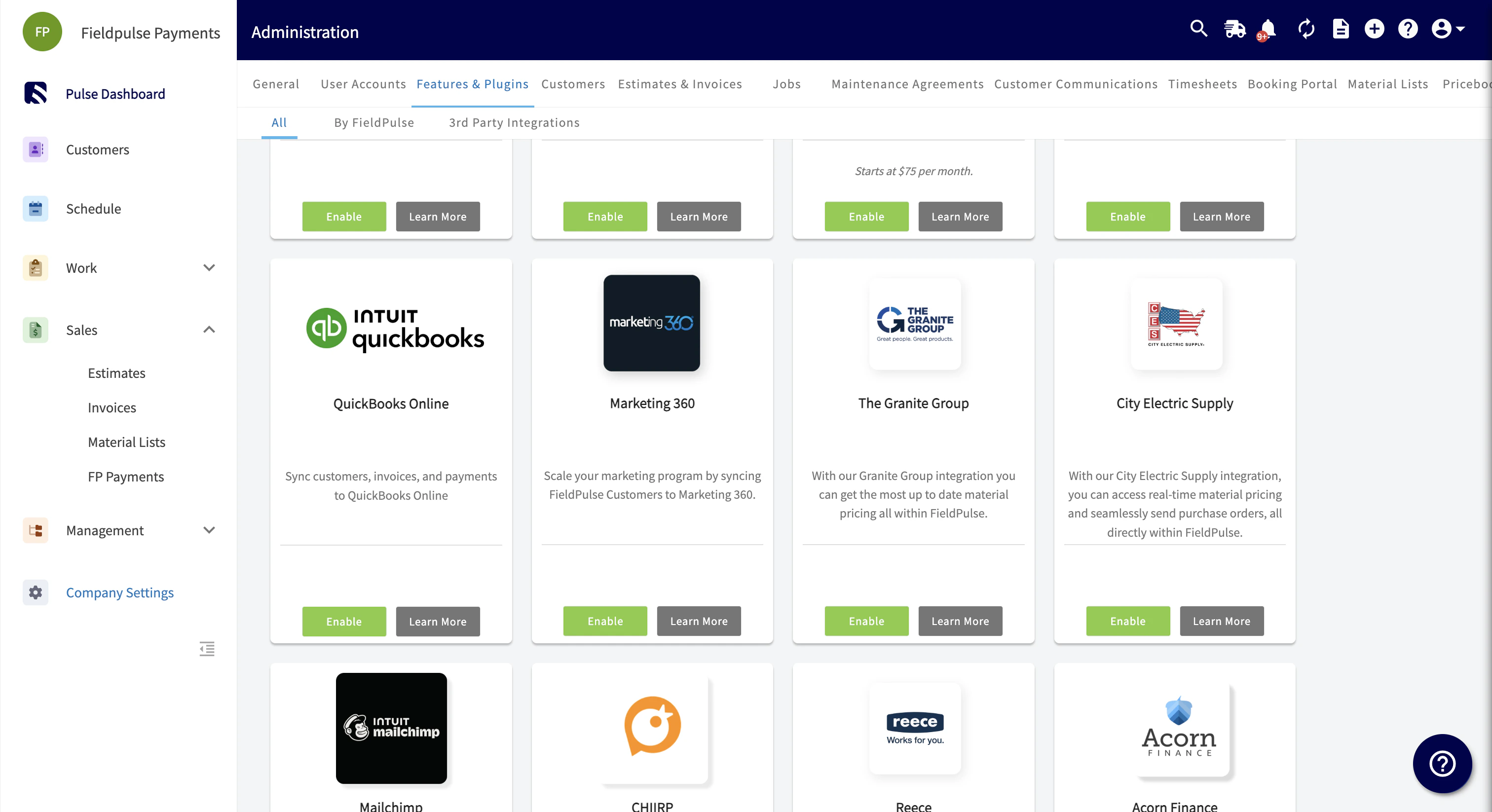
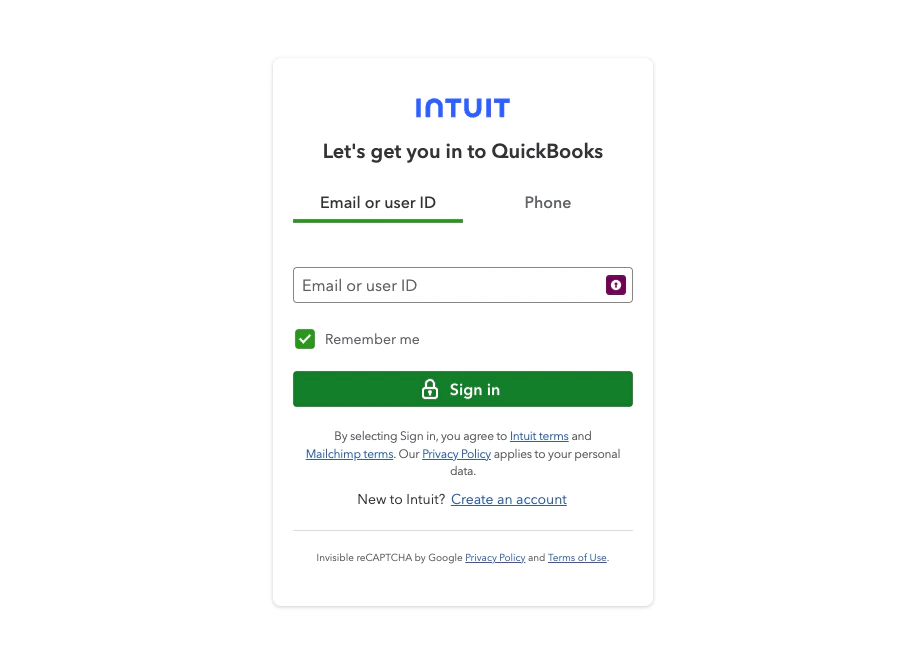
3. Enter your login information for your QuickBooks Online account and follow any on-screen instructions.
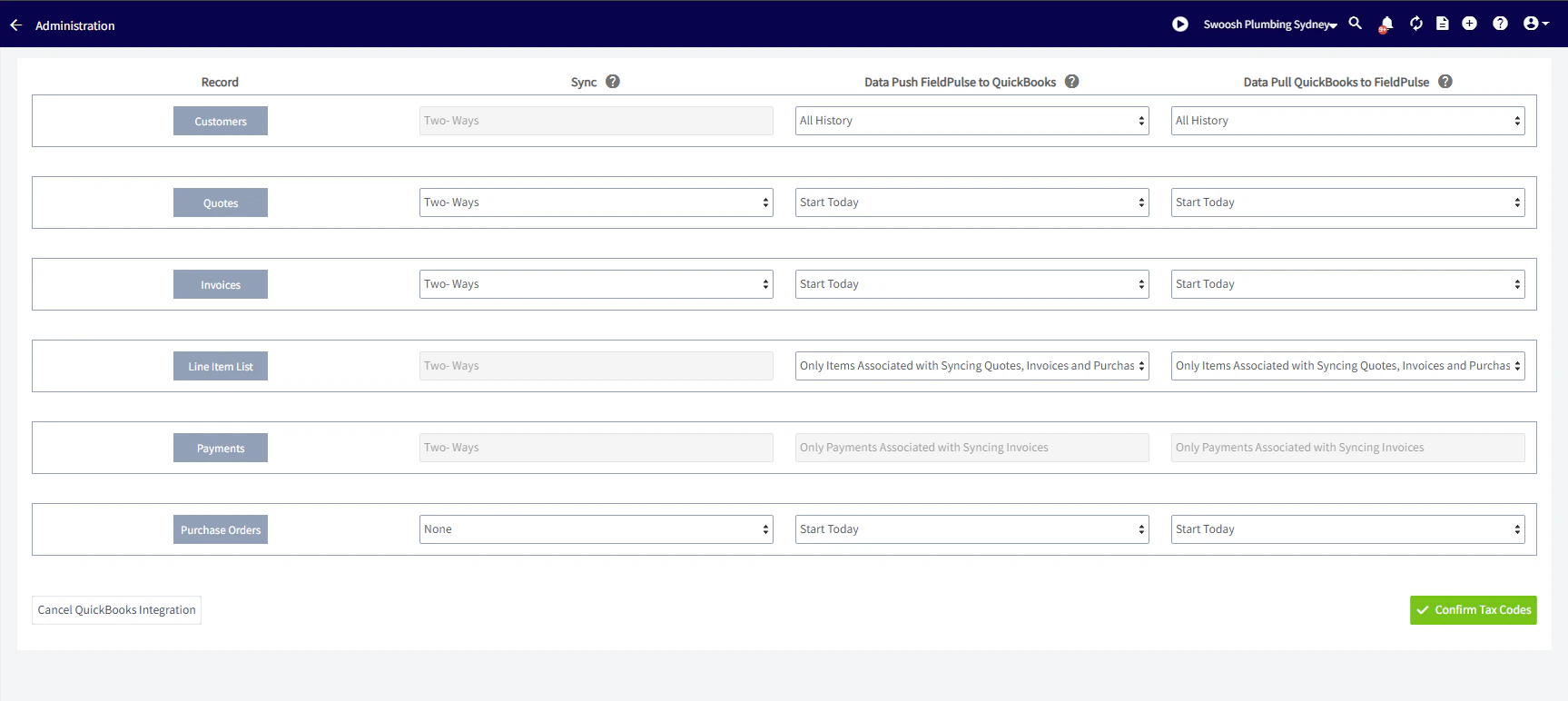
4. Select the time period and all the entities you would like to sync between FieldPulse and QuickBooks.
5. Next you will be prompted to select your default tax rate from a list of tax rates FieldPulse gets from QuickBooks.
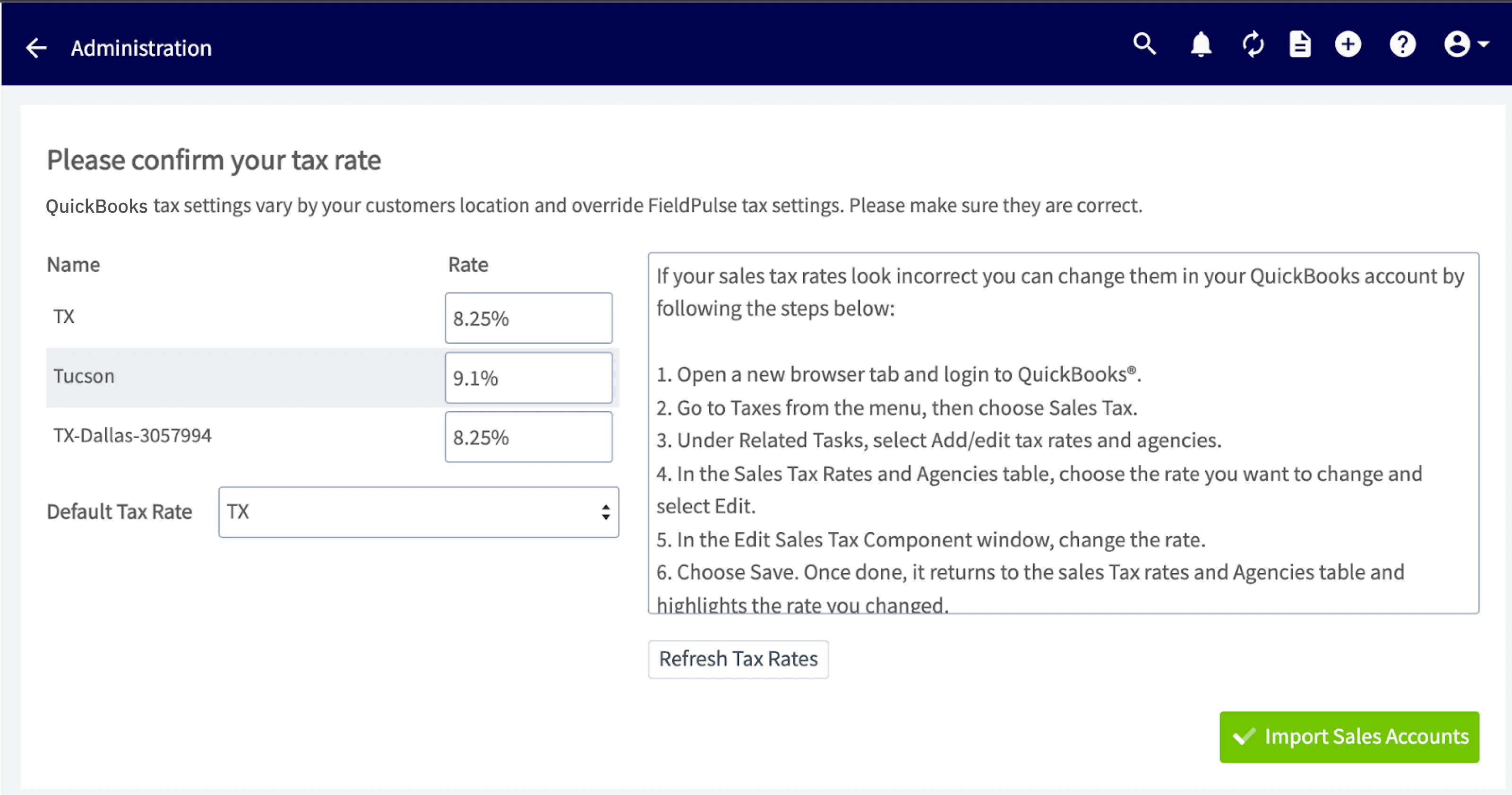
6. Next you will select your default sales account (this refers to items you sell).
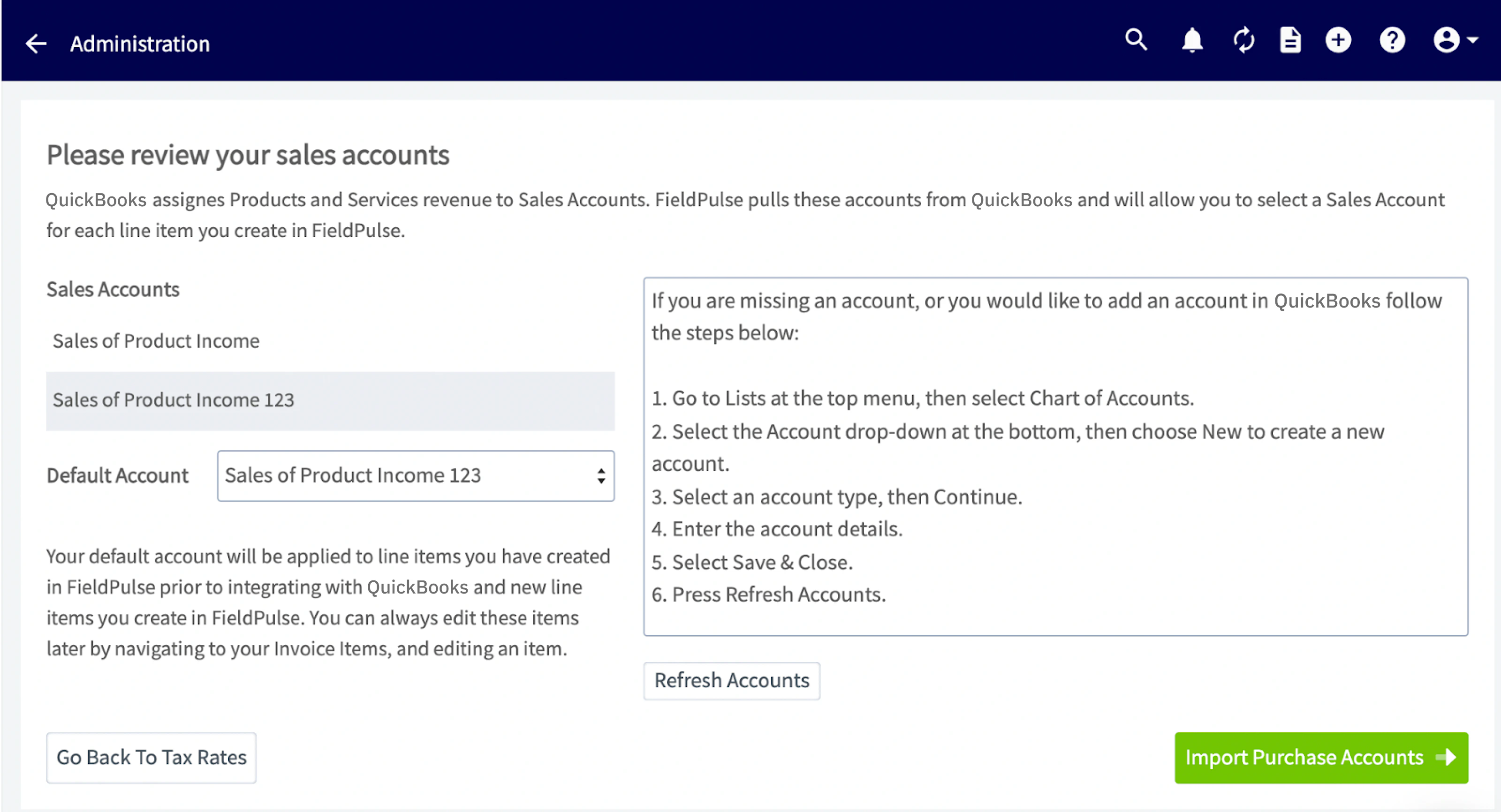
7. Next you will select your default purchase account (this refers to items you purchase).
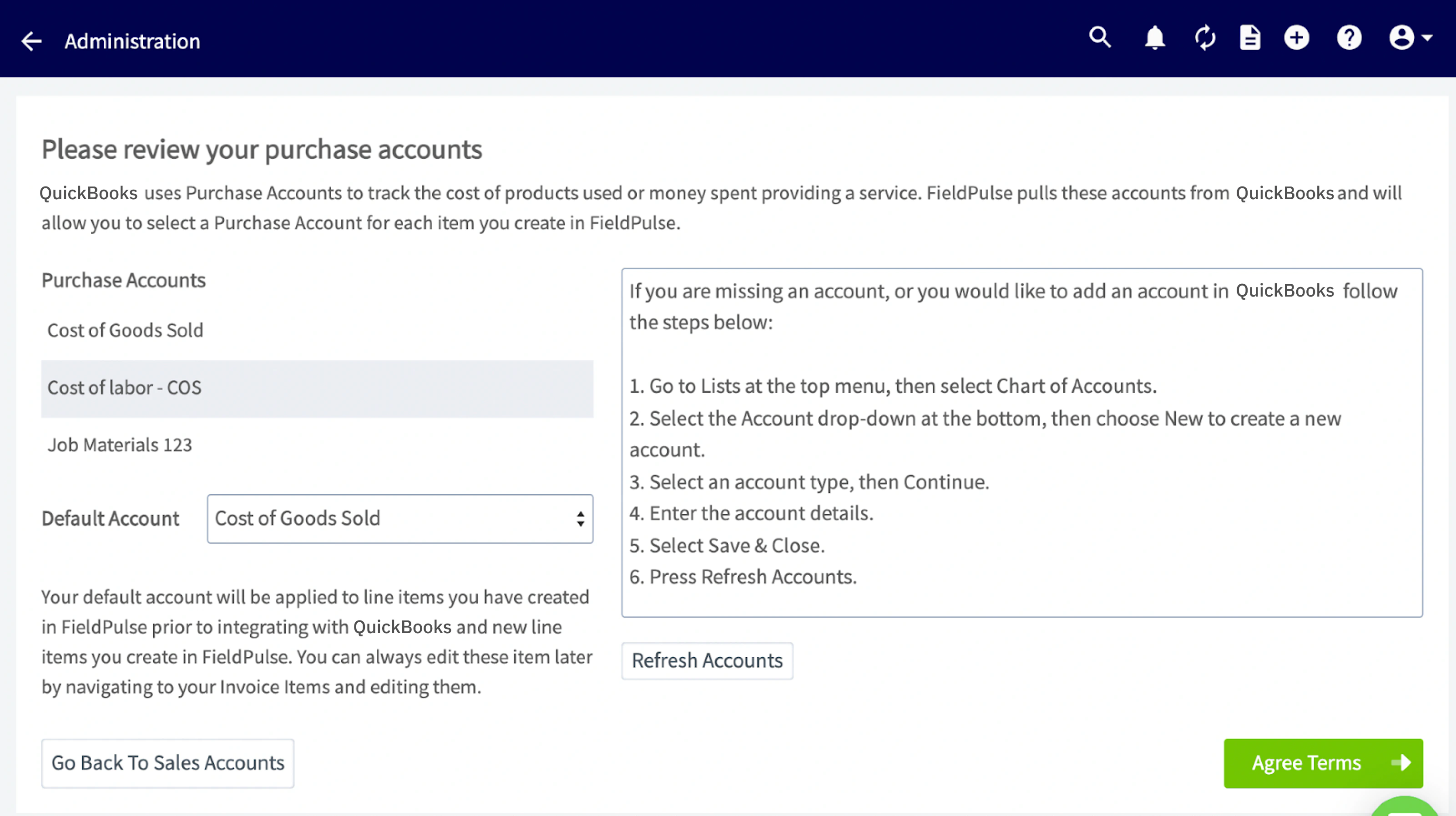
8. Agree to the QuickBooks Integration Terms & Conditions.
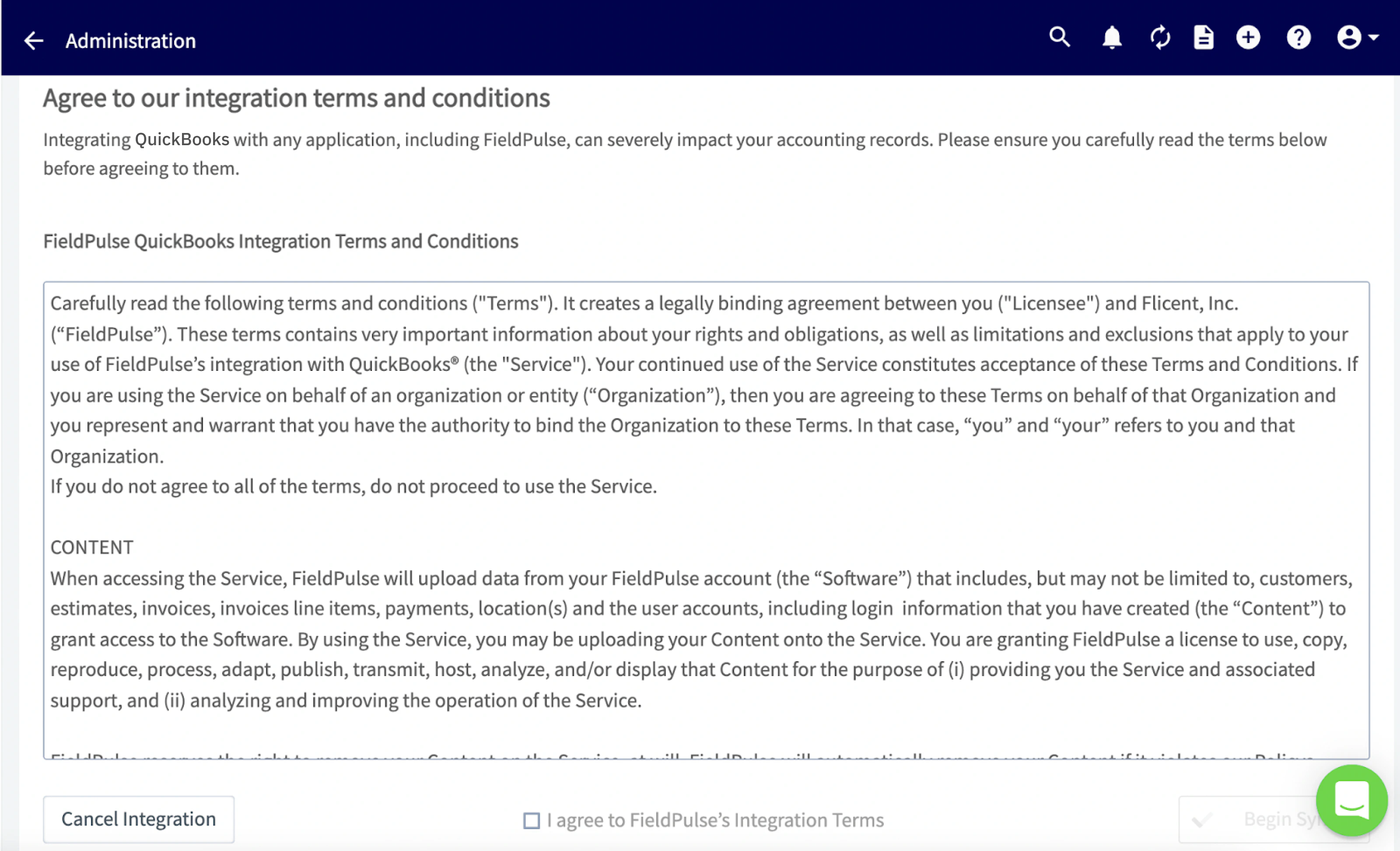
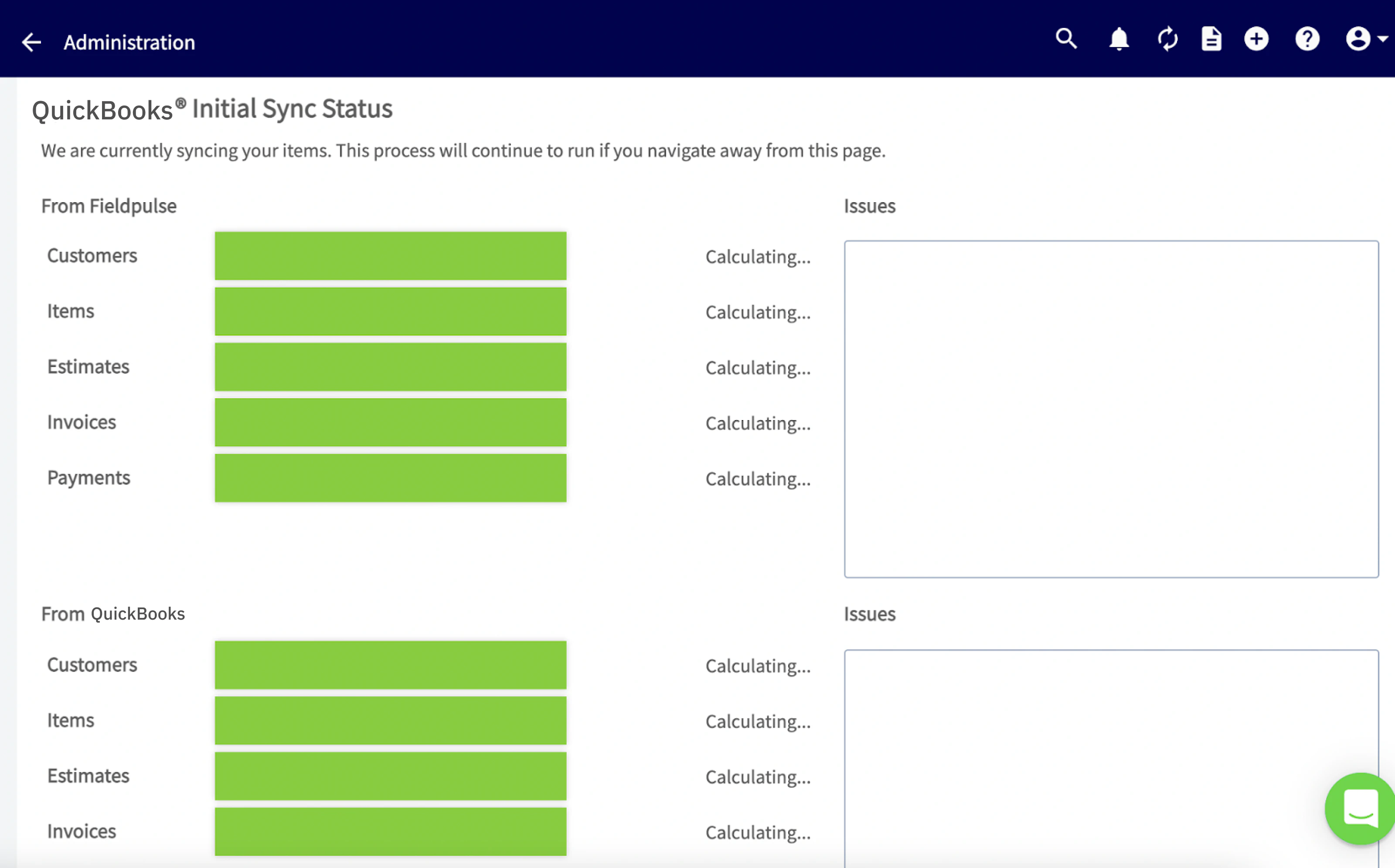
9. Finally you will reach this page, which shows that the syncing process has started. You should begin see these items populate in your FieldPulse account.
Have additional questions? Contact us at support@fieldpulse.com or use the chat feature in the bottom right corner of your screen.