

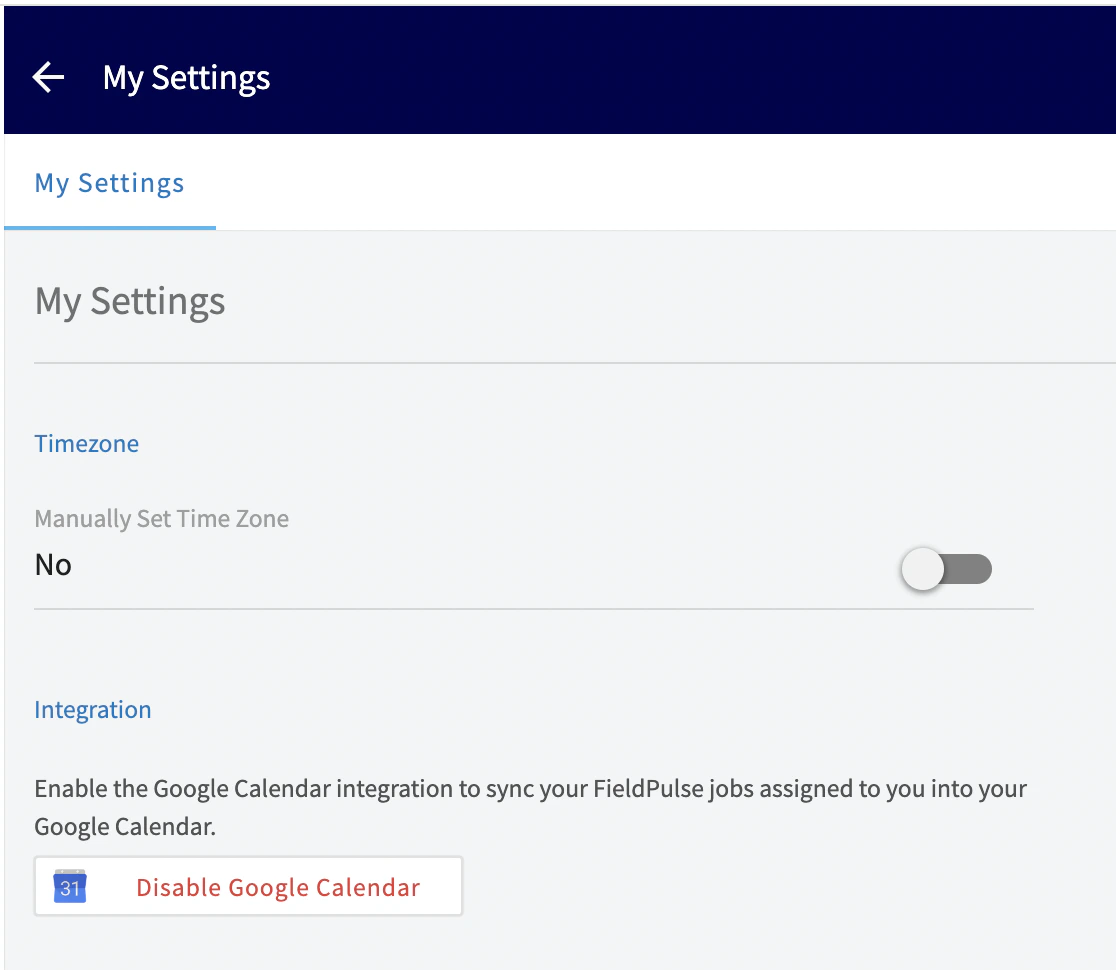
Follow the steps below to allow your FieldPulse jobs to automatically sync to your Google Calendar. Please note, only jobs created after you have connected will be added to your Google Calendar. It is a one-way sync; jobs created in FieldPulse will be added to your Google Calendar. Events created in your Google Calendar will not be added to FieldPulse.Documentation Index
Fetch the complete documentation index at: https://fieldpulse.mintlify.app/llms.txt
Use this file to discover all available pages before exploring further.
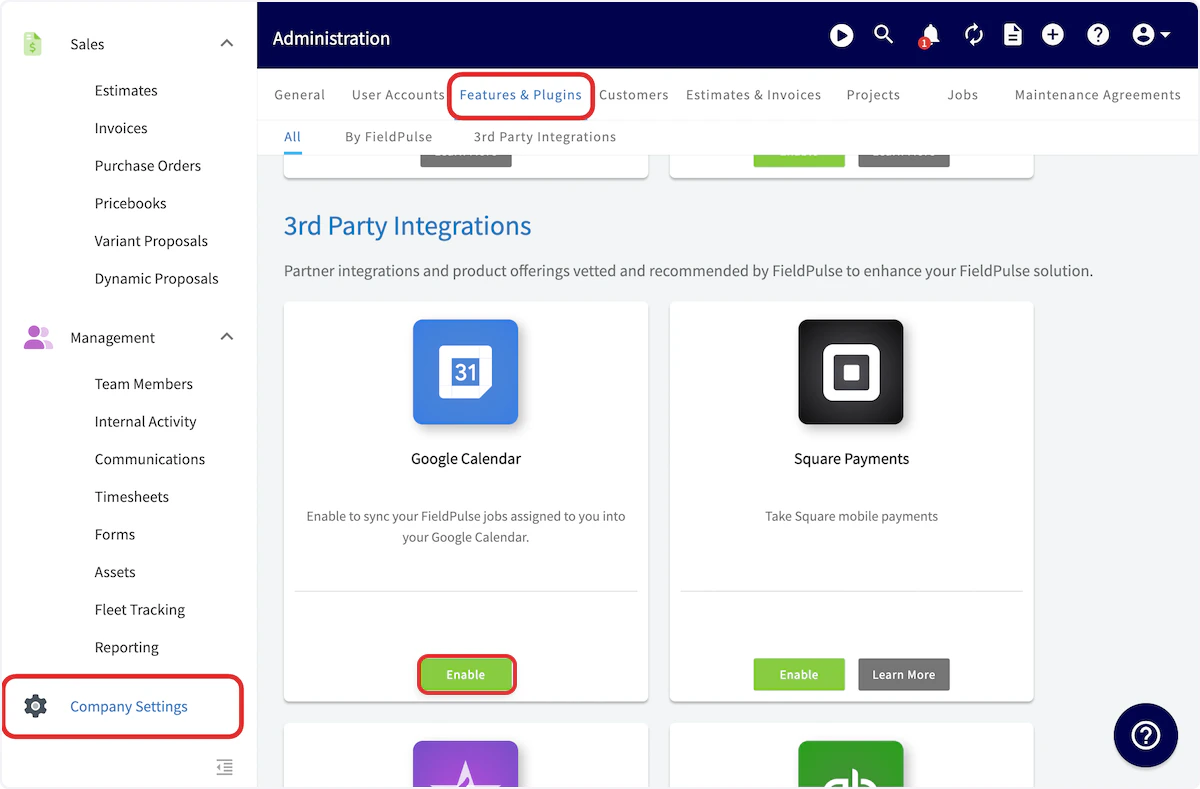
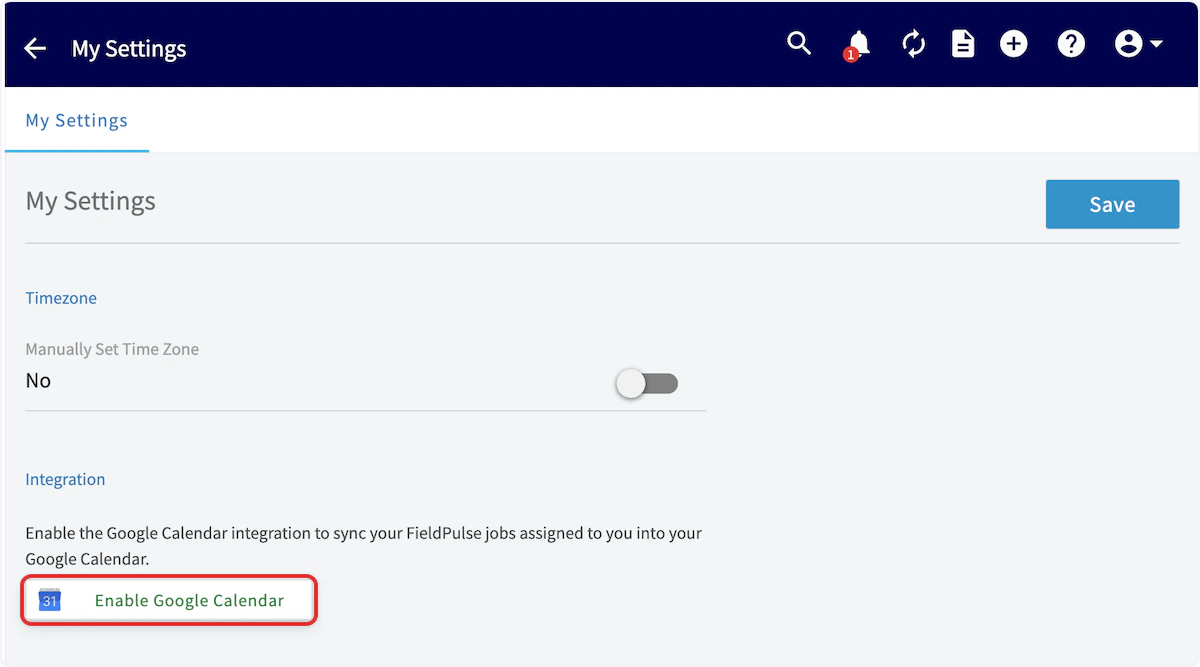
To integrate with Google Calendar, you’ll need to enable the sync. Start by clicking on Company Settings and selecting Features & Plugins. Navigate to Google Calendar and select Enable.


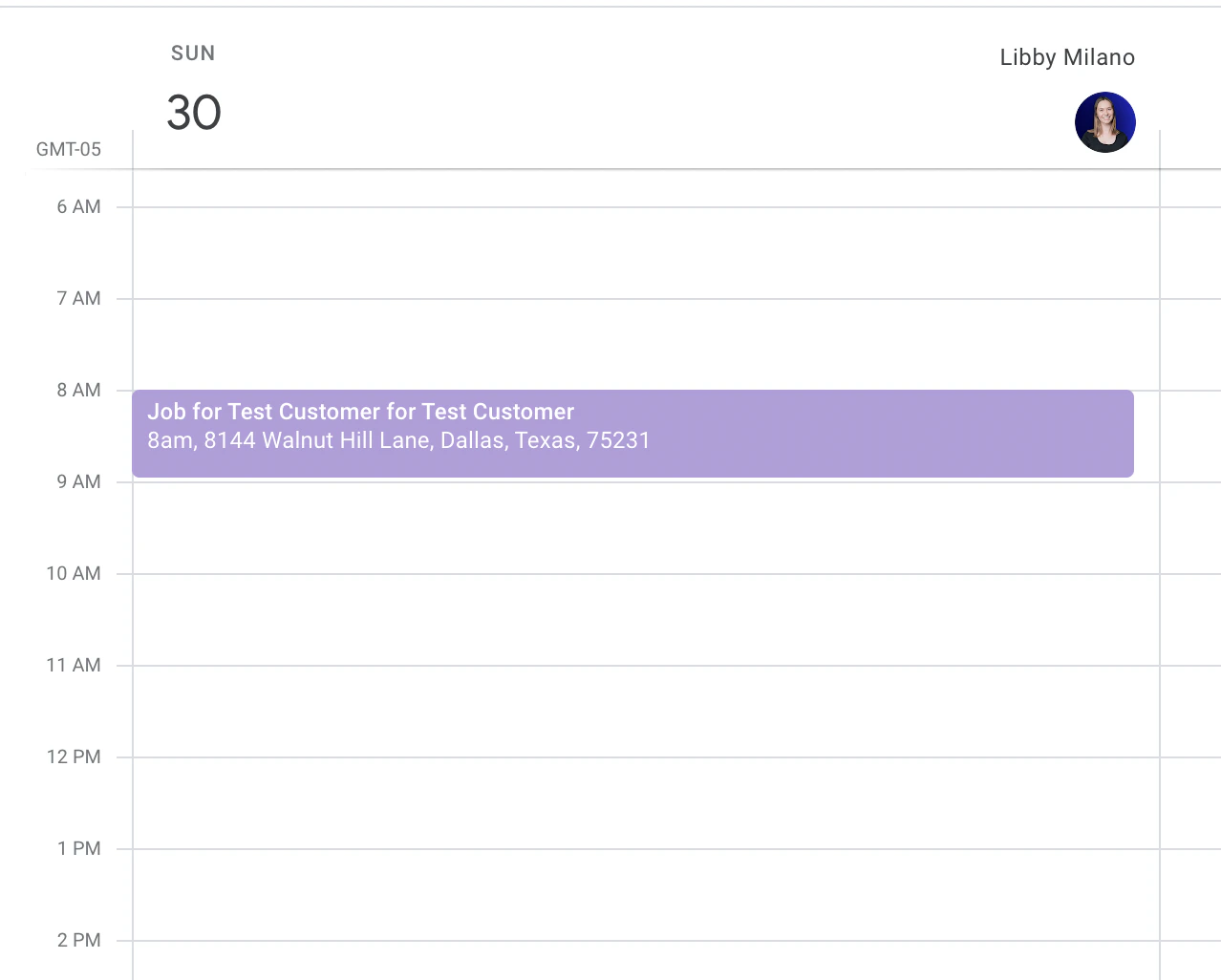
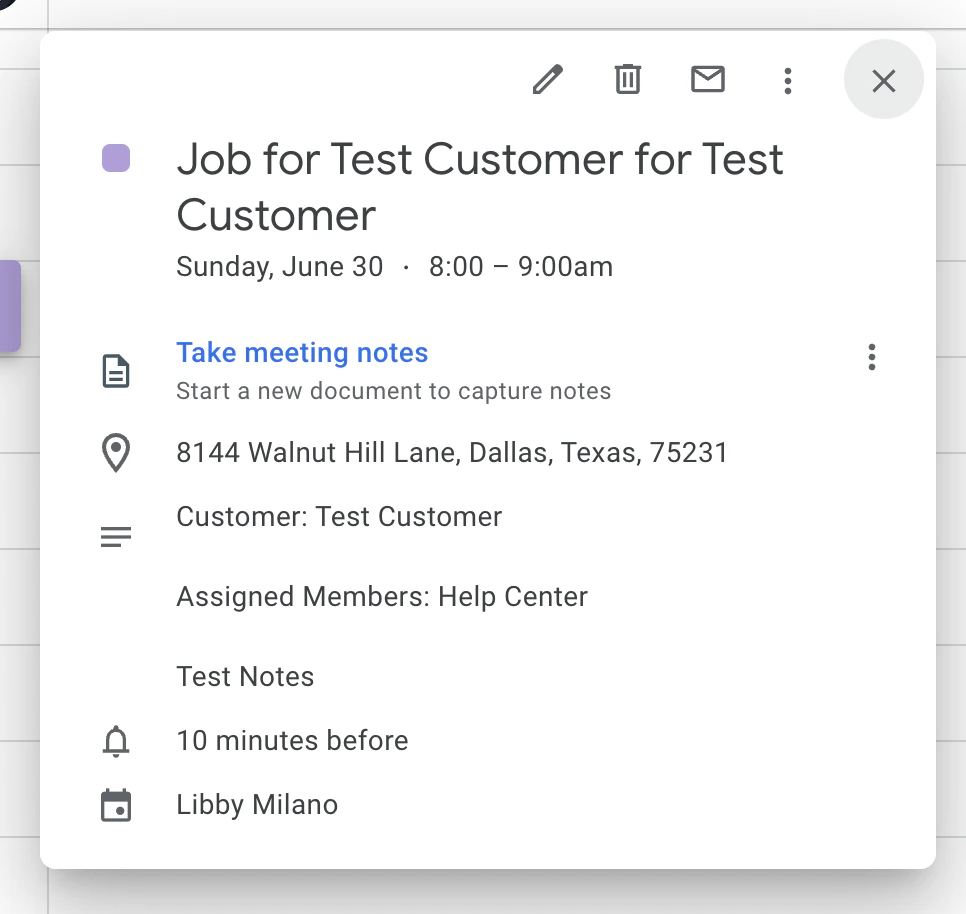
- Job Title
- Date/Time
- Customer Name
- Location
- Assigned Team Members
- Notes
FAQs
How does the Google Calendar sync work? It is a one-way sync; jobs and site visits created in FieldPulse will be added to your Google Calendar. Events created in your Google Calendar will not be added to FieldPulse. What records sync to Google Calendar? Jobs and site visits will sync from FieldPulse to Google Calendar. What details sync to Google Calendar? The job record details that appear on the Google Calendar event include:- Job Title
- Date/Time
- Customer Name
- Location
- Assigned Team Members
- Notes
Have additional questions? Contact us at support@fieldpulse.com or use the chat feature in the bottom right corner of your screen.