

When managing multi-day jobs, clarity in scheduling is essential to ensure both your team and customers have a clear understanding of your service timelines. Utilizing the working hours for multi-day jobs feature in your Company Settings allows you to define specific start and stop times for jobs / services that may span several days. This prevents confusion, such as displaying a job as running for 72 hours straight, and instead provides a clear outline of when services will be performed. To manage working hours for multi-day jobs effectively, navigate to Company Settings > Jobs > General tab and toggle on the option to Enable Working Hours for Multi-Day Jobs. By checking the boxes corresponding to the days your business operates—Monday through Sunday—you can specify the active service days for your customers. This setting directly influences your job records, ensuring clarity and consistency in scheduling.Documentation Index
Fetch the complete documentation index at: https://fieldpulse.mintlify.app/llms.txt
Use this file to discover all available pages before exploring further.

Example Job Record:

Example of How the Job Appears on the Schedule (Monday - Friday Working Hours):
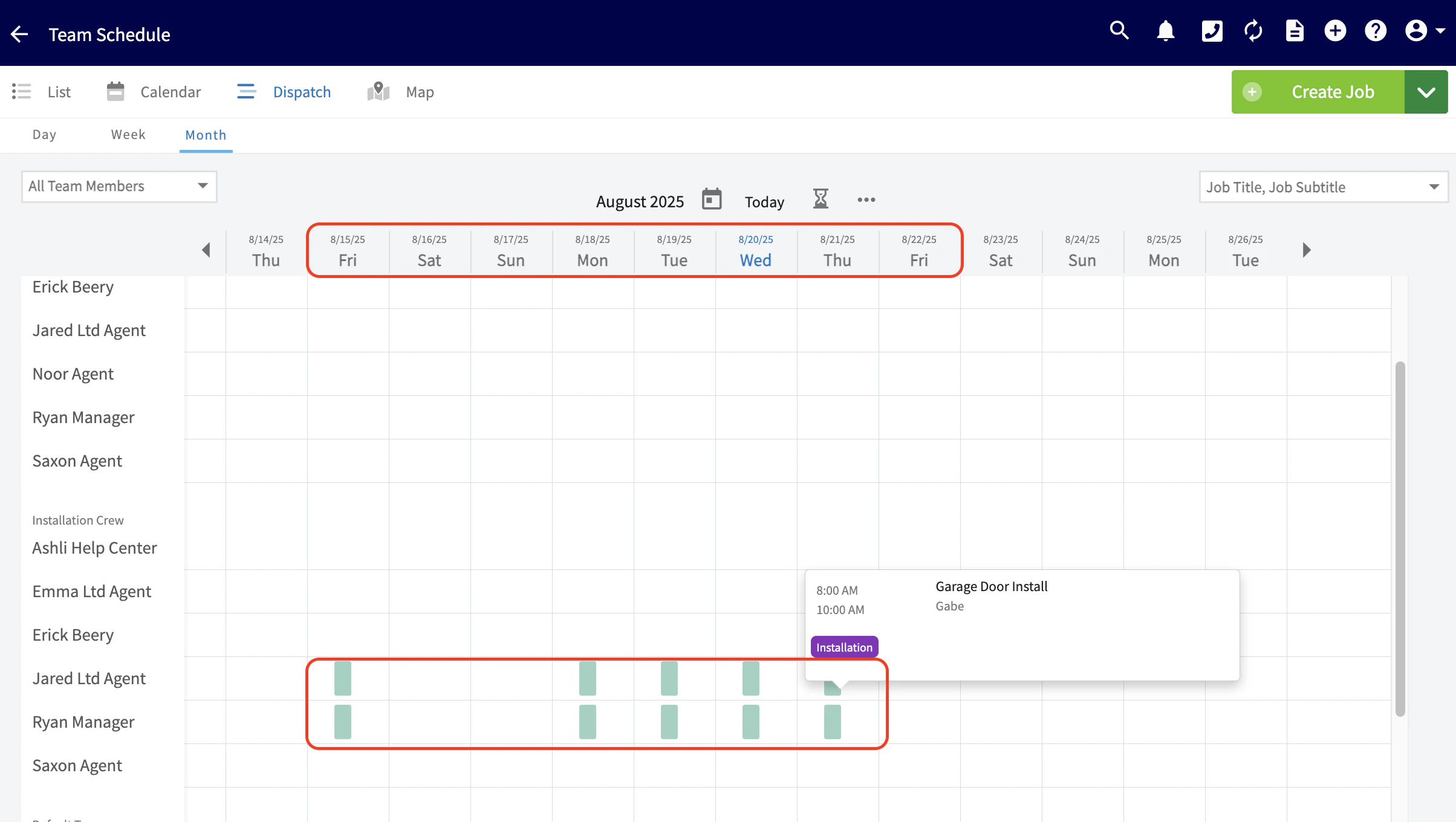
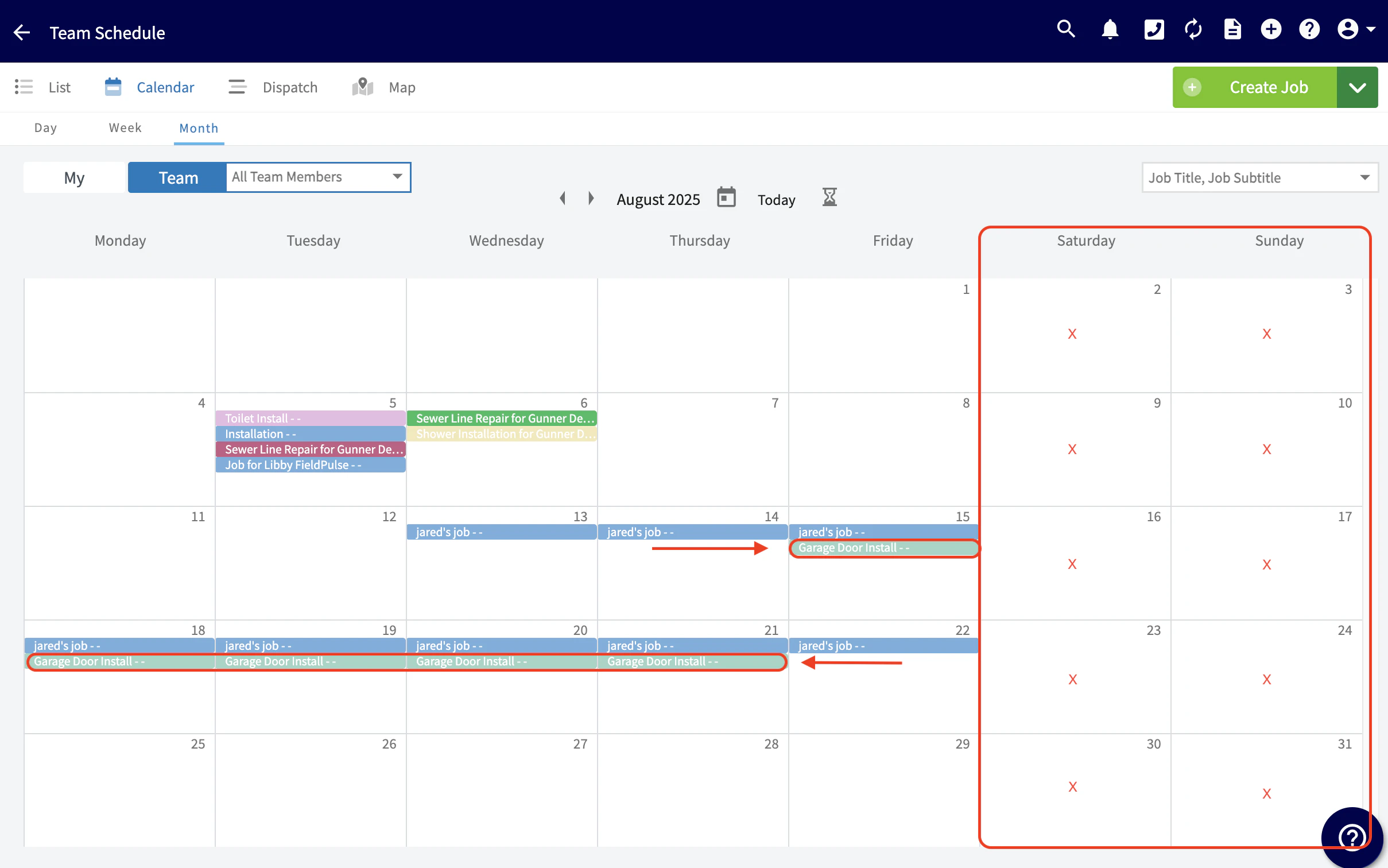
These changes will apply only to new jobs or services added to your schedule and will not update any existing jobs.
Have additional questions? Contact us at support@fieldpulse.com or use the chat feature in the bottom right corner of your screen.