Who uses this: Administrators create customers, jobs, and schedules; a Team Manager creates jobs, works their own team’s schedule, and can create customers when an Administrator enables that permission. Availability: All regions.This quick start covers the first three things a new FieldPulse account does: add your customers, create a job for the work, and put that job on the schedule. Each step below links to the full article when you want the complete detail.
Overview
Customers, jobs, and scheduling are the backbone of day-to-day work in FieldPulse. A customer record stores that customer’s contact details and notes along with their related records — jobs, estimates, invoices, files, assets, and maintenance agreements — so everything tied to the customer lives in one place. Once the customer record exists, you create a job for the work, then schedule that job so a tech knows where to be and when.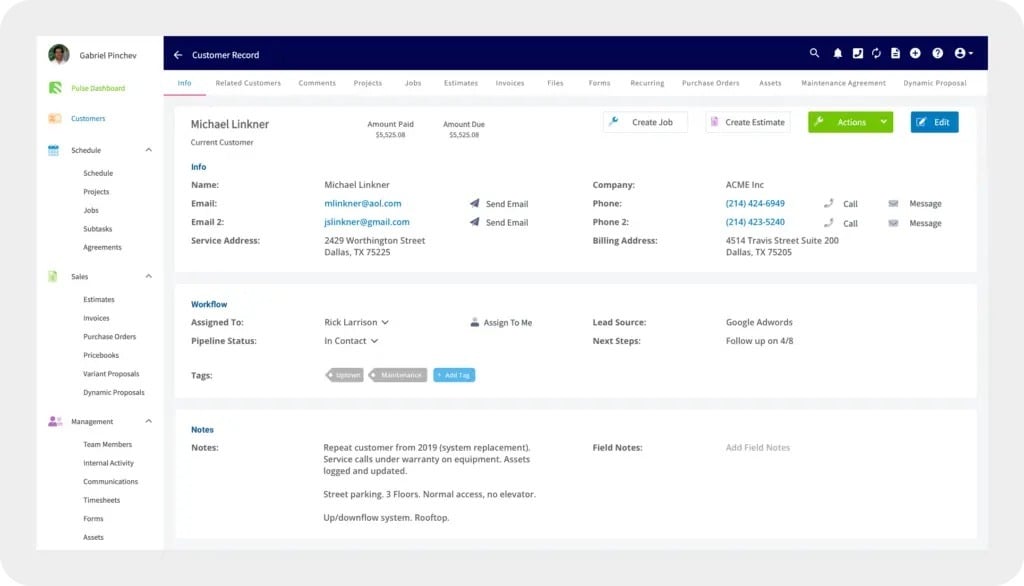
Video walkthrough
Watch the video walkthrough for this quick start, then follow the written steps below.Video walkthrough: Customers & Scheduling Quick Start
Before you begin
- Finish your company settings. Add your company information and logo and set your defaults before you start adding customers — see Setting Up Your Account.
- Turn on the features and plugins your business uses. Do this before you start adding customers — see Features & Plugins Overview.
Add your customers
FieldPulse gives you three ways to add customers to your account. Pick the one that matches where your customer data lives now.- Add a customer manually. Enter one customer at a time — use this for new customers as they come in. See How to Create a Customer.
- Import a customer list. Move an existing customer base in at once with the mass import tool in Company Settings, using an Excel, Google Sheets, or CSV file. See How to Import Customers.
- Import from a QuickBooks sync. If you keep your books in QuickBooks, connecting the sync brings your existing QuickBooks customers and items into FieldPulse. See QuickBooks Online Overview or QuickBooks Desktop Overview. Accounts in Australia and New Zealand can sync their customers from Xero the same way — see Xero Overview.
Create a job
With customers in FieldPulse, create a job for the work you are doing for one of them. Every job record links to a customer, so the work, notes, and any estimates or invoices stay tied to that customer record. You can create a job from the web app or the mobile app, give it a title, assign team members, and save it. For the full walkthrough on both web and mobile, see How to Create a Job.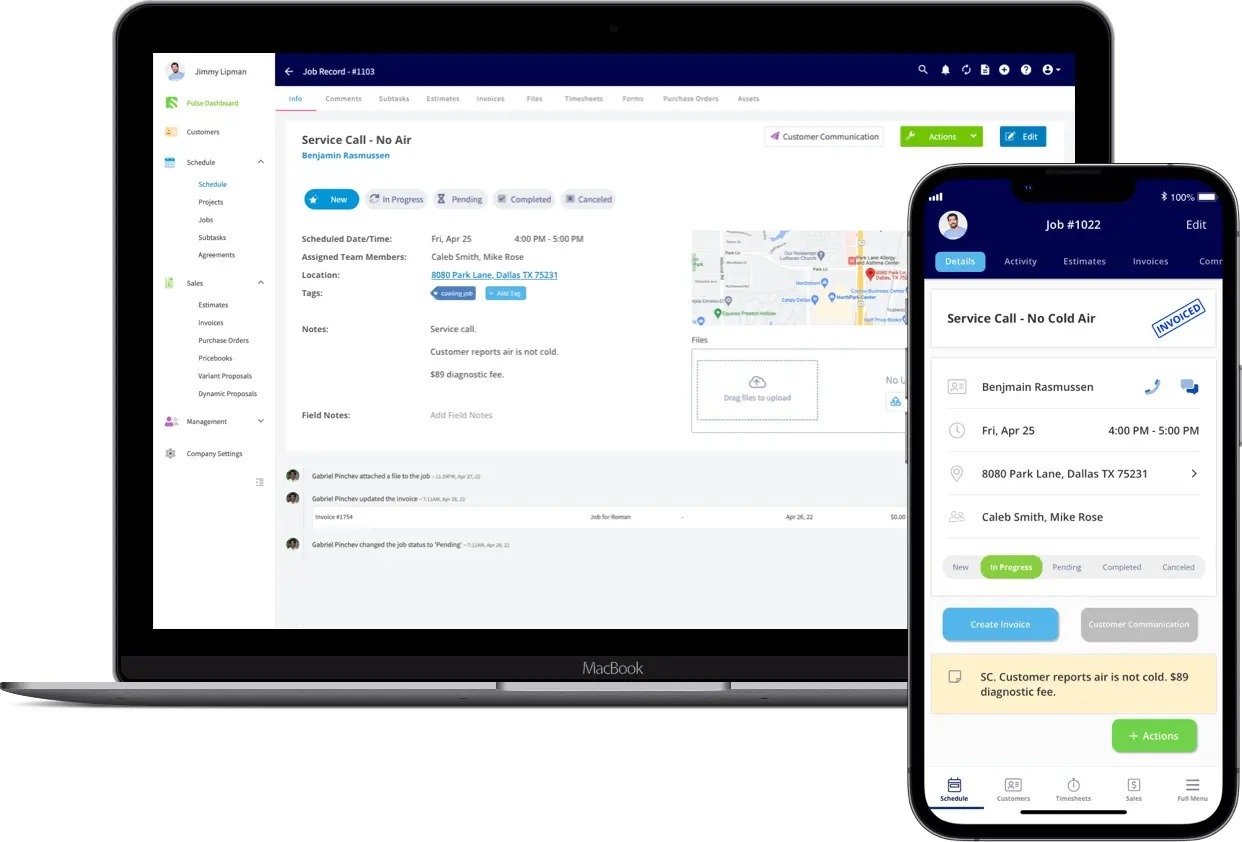
Schedule the job
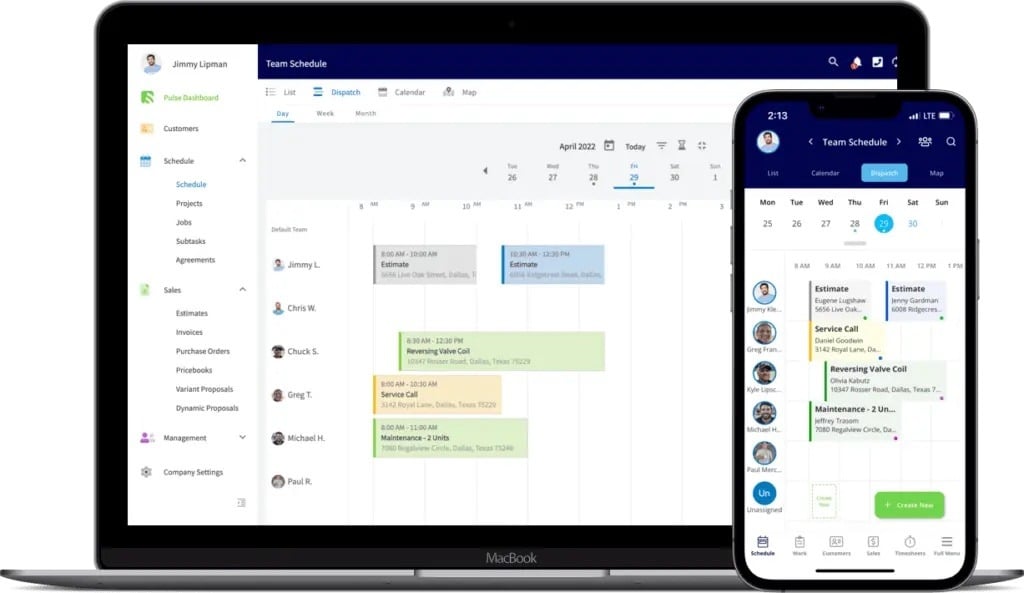
Put the job on the schedule so a tech knows where to be and when. You can schedule a job two ways:- From the job record. Set the date and time on the job itself, or select Find Availability to have FieldPulse suggest open time slots for the team members you need.
- From the schedule. Open Schedule in the left-side menu, switch to Dispatch View, pick the team members and the time slot you want, then select Create Job.