
Who uses this: Task categories are set up in Company Settings, which only the Admin role can view; Admins, Team Managers, Service Agents, and Limited Agents can all be assigned to a task. Availability: All regions.A task blocks off non-billable time on your team’s calendar — PTO, drive time, meetings, and anything else that isn’t customer work. Tasks don’t need a customer attached, and you can color-code them by category so the schedule shows at a glance where the day is going.
Overview
Creating a task works much like How to Create a Job, but instead of linking the work to a customer you assign the task a task category. Set up your task categories first, then create the task from the schedule or the Jobs tab — or from the customer record, if the task is linked to a customer. Common task categories include PTO, drive time, errands, lunch, internal team meetings, admin time, and on-site estimates.Before you begin
Set up your task categories so you have something to assign. FieldPulse includes preset task categories, and you can adjust them to fit your business. Go to Company Settings > Jobs > Task Categories. From there you can:- Add a task category — enter the category name, select a color, then select Add Task Category.
- Edit a task category — select the pencil icon next to the category name.
- Delete a task category — select the trash can icon next to the category name.
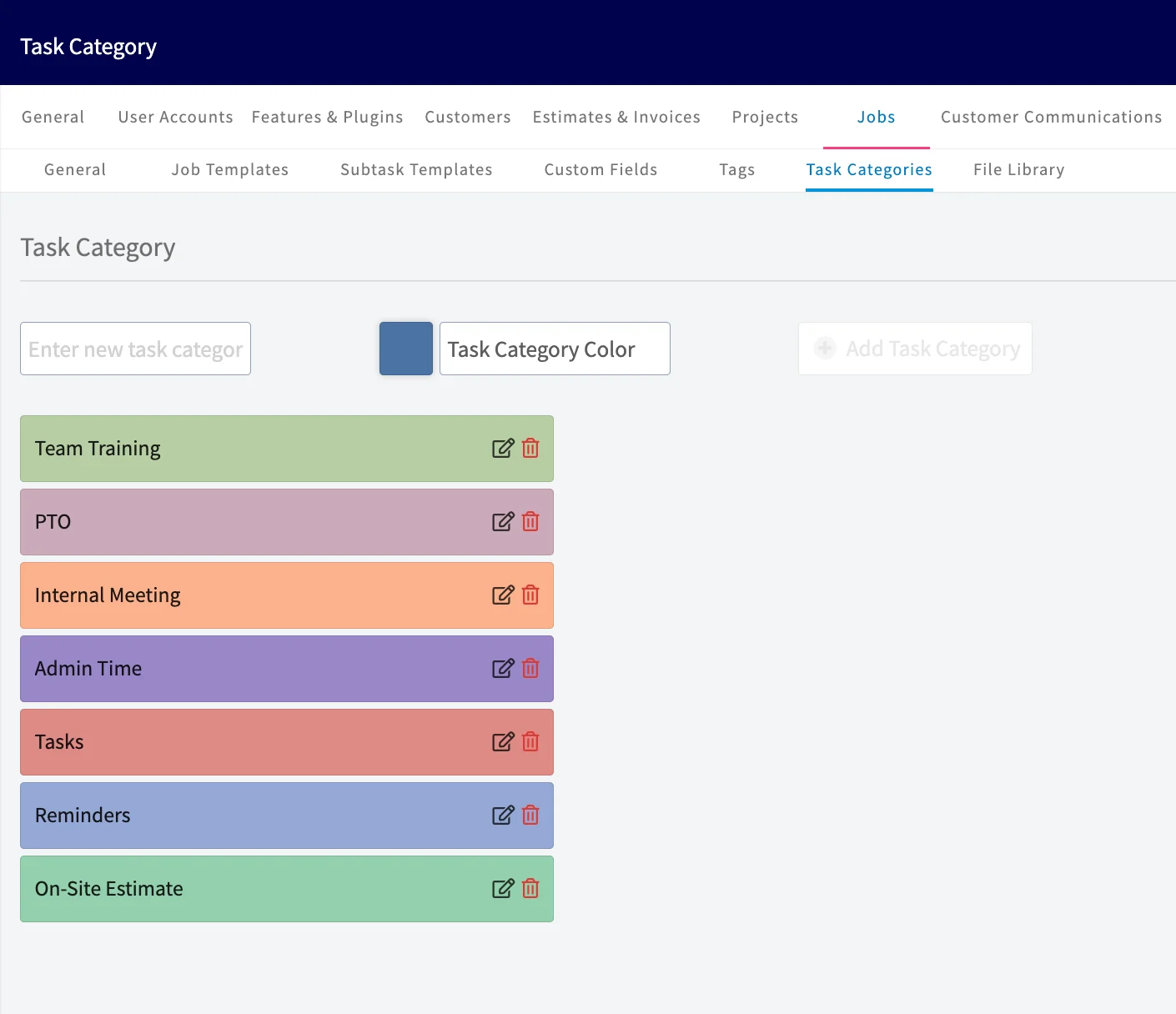
Video walkthrough: setting up task categories
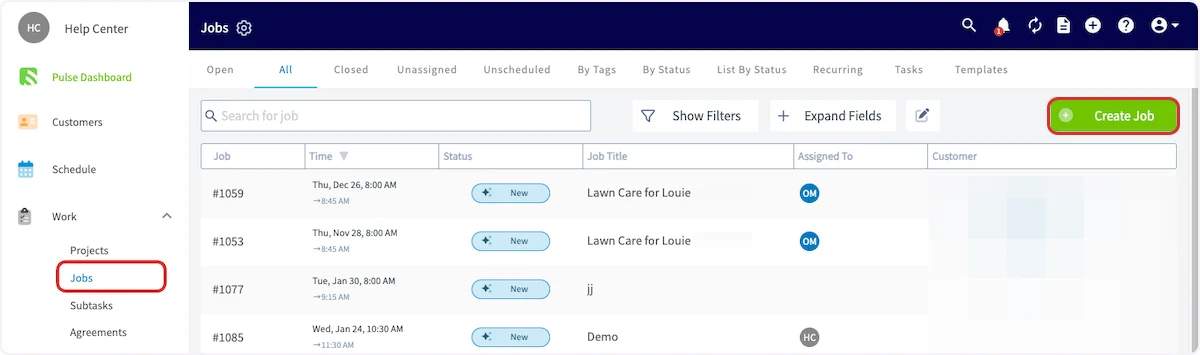
Open the task form
- Select Create Job.
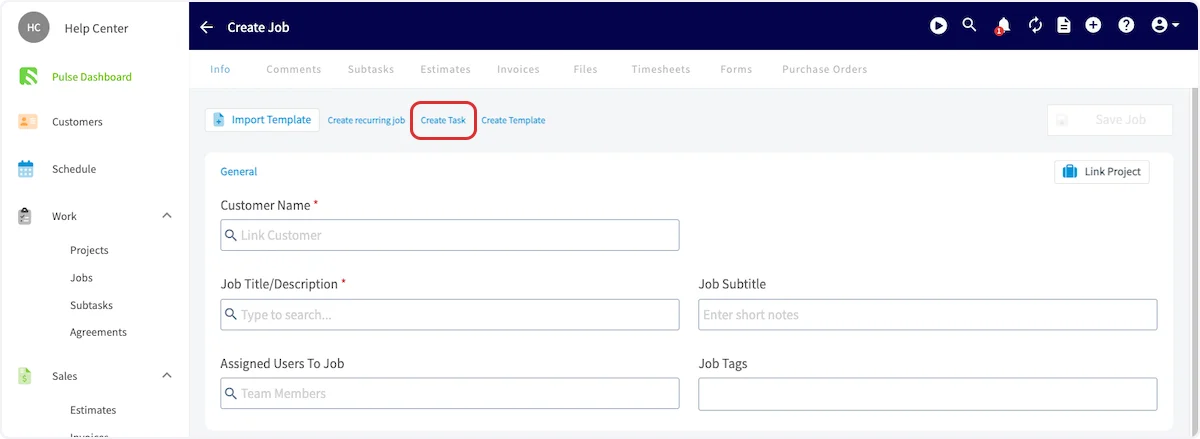
- Select Create Task at the top of the new job record.
Fill in the task details
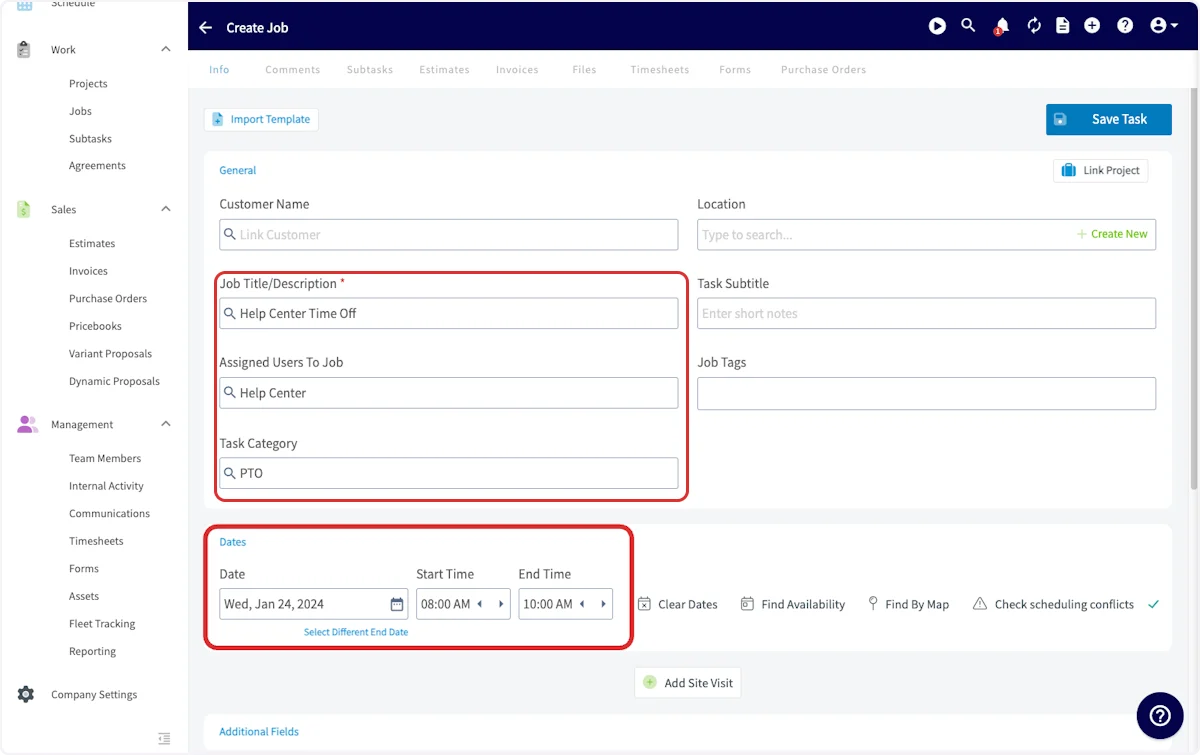
- Link a customer if you want to. A task doesn’t require one.
- Enter a descriptive Job Title/Description.
- Select Assigned Users to Job and choose the team members working the task.
- Select a Task Category, such as PTO, drive time, or meetings.
- Set the dates and times the task takes place.
Save the task
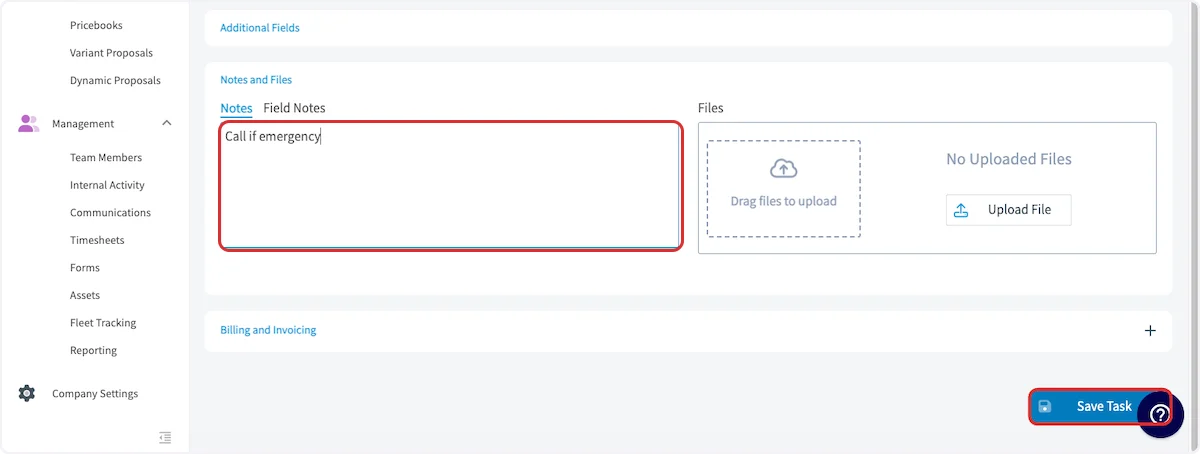
- Add notes if the task needs them.
- Select Save Task.
Video walkthrough: creating a task
Edit, archive, and report on a recurring task
A recurring task repeats on the schedule you set, the same way a recurring job does. Editing and archiving a recurring task use the same pop-ups and options as a recurring job.- Editing. After you select Save, choose whether the changes apply to future tasks only, all tasks, or past tasks only. Changing the frequency only affects future tasks. See Edit a recurring job for the steps and options.
- Archiving. Select Actions, then Archive recurring job, and choose whether to archive future tasks only or every task.
- Reporting. The Recurring Tasks tab under Reporting > Jobs lists each recurring task with its category, frequency, and first and last occurrence.