

Documentation Index
Fetch the complete documentation index at: https://fieldpulse.mintlify.app/llms.txt
Use this file to discover all available pages before exploring further.
Overview
Want to collect and track customer payments directly in FieldPulse? FieldPulse Payments makes the process seamless and saves you from making yet another account! You can accept payments in 3 ways:- Emailing an online payment request via web app or mobile app
- Processing the payment on the mobile app
- Processing the payment on the web app
Prerequisites
To enable FieldPulse Payments, email us at support@fieldpulse.com or use the chat feature in the bottom right corner of your screen.On Web: Admin Experience
Processing a Payment
To process a payment, go to the invoice record that you are looking to collect payment on and click on Payment.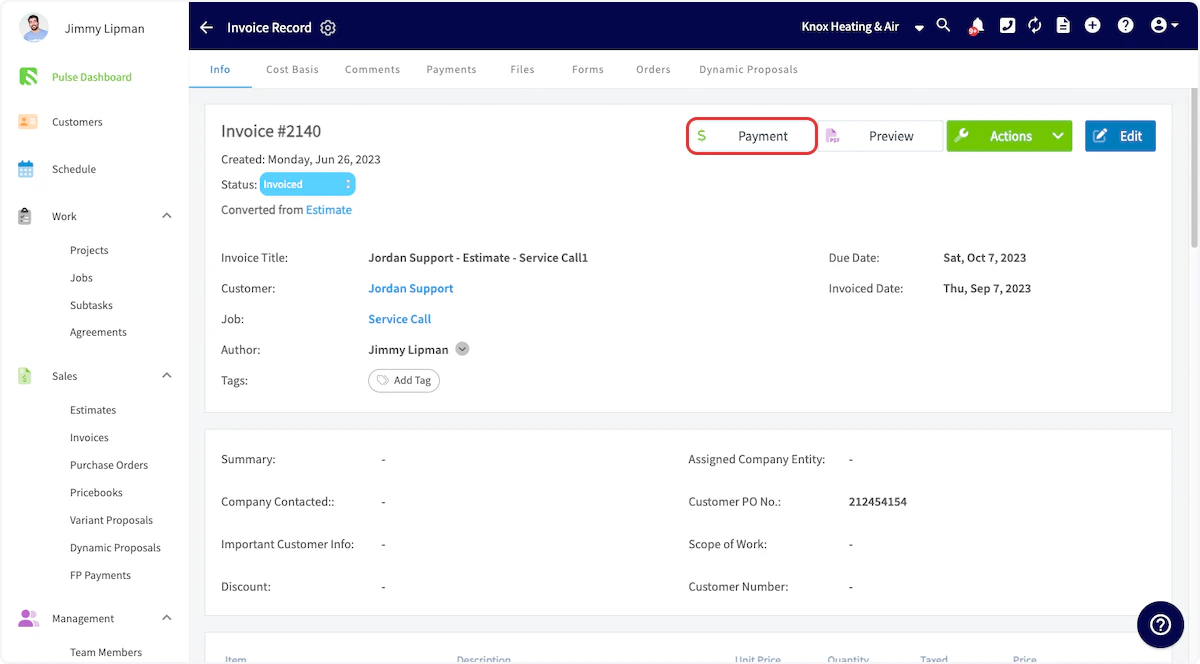
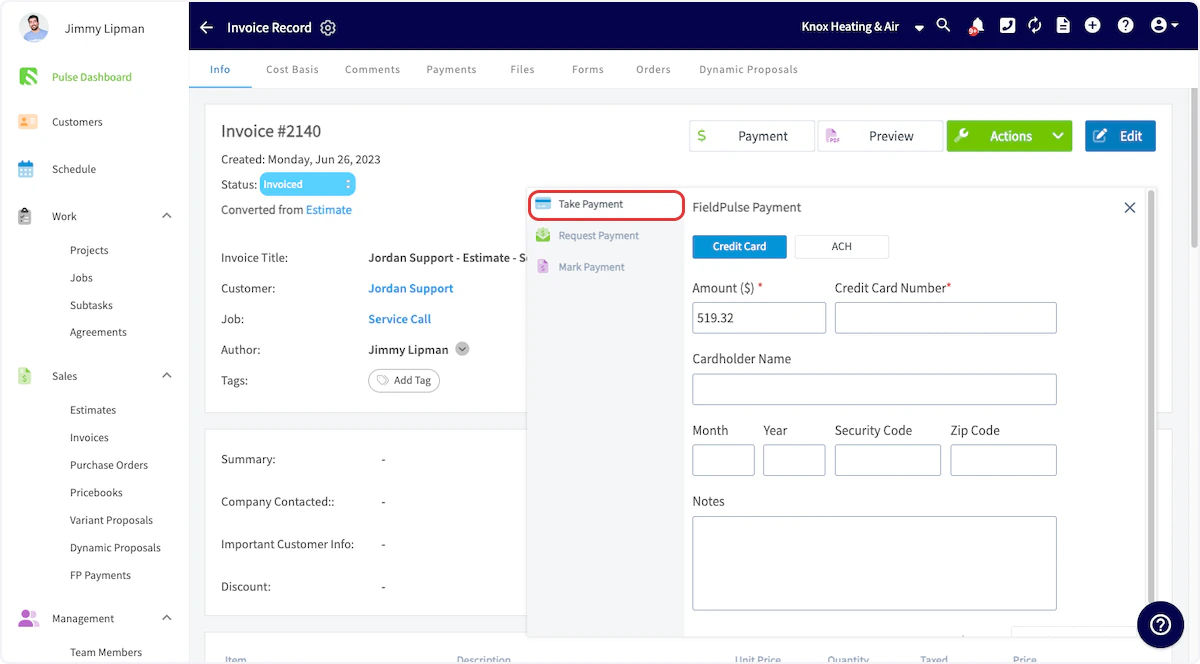
Emailing a Payment Request
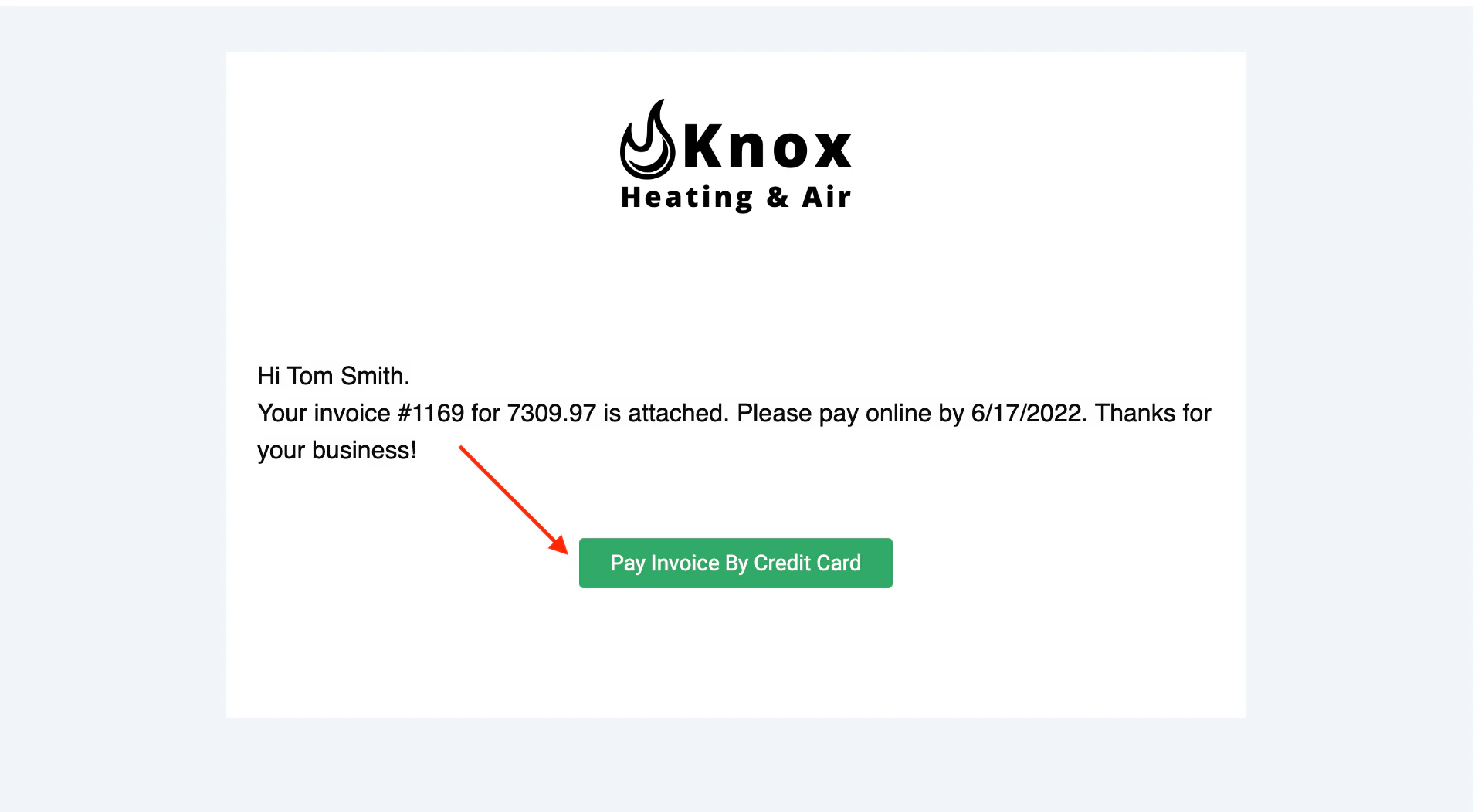
Here’s how to email an online payment request to the customer along with their FieldPulse estimate or invoice. This provides them with the ability to pay online with their debit/credit card or ACH.Method 1
Select or create the estimate/invoice that you would like to take payment on. Select Preview to generate the estimate/invoice for you.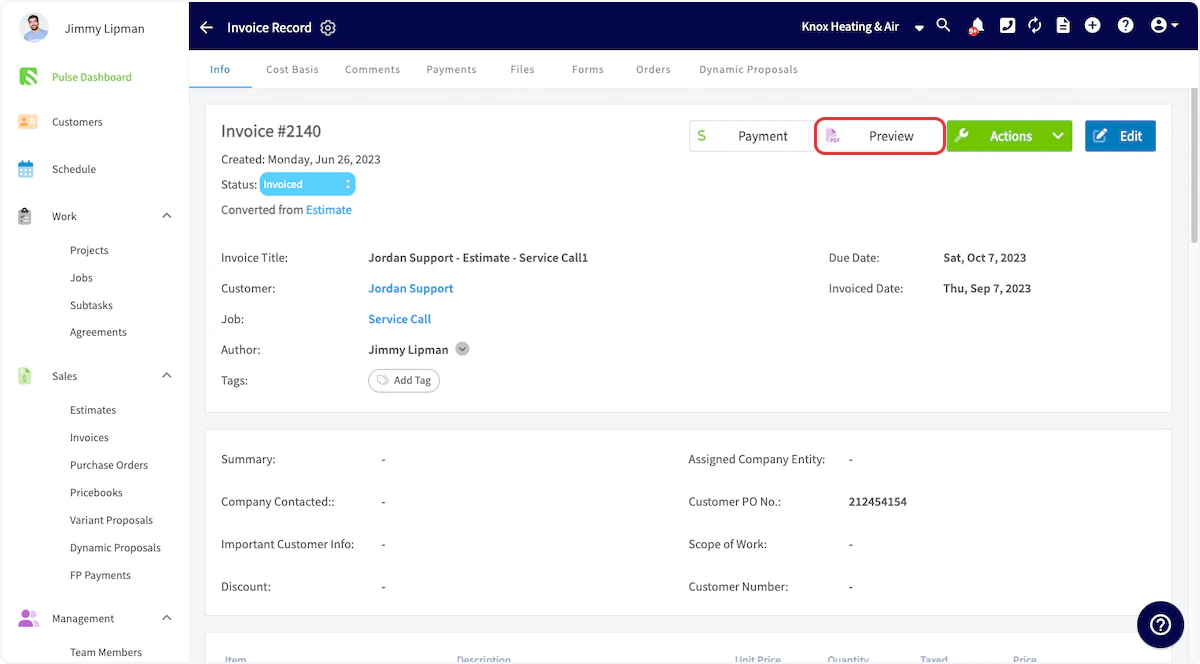
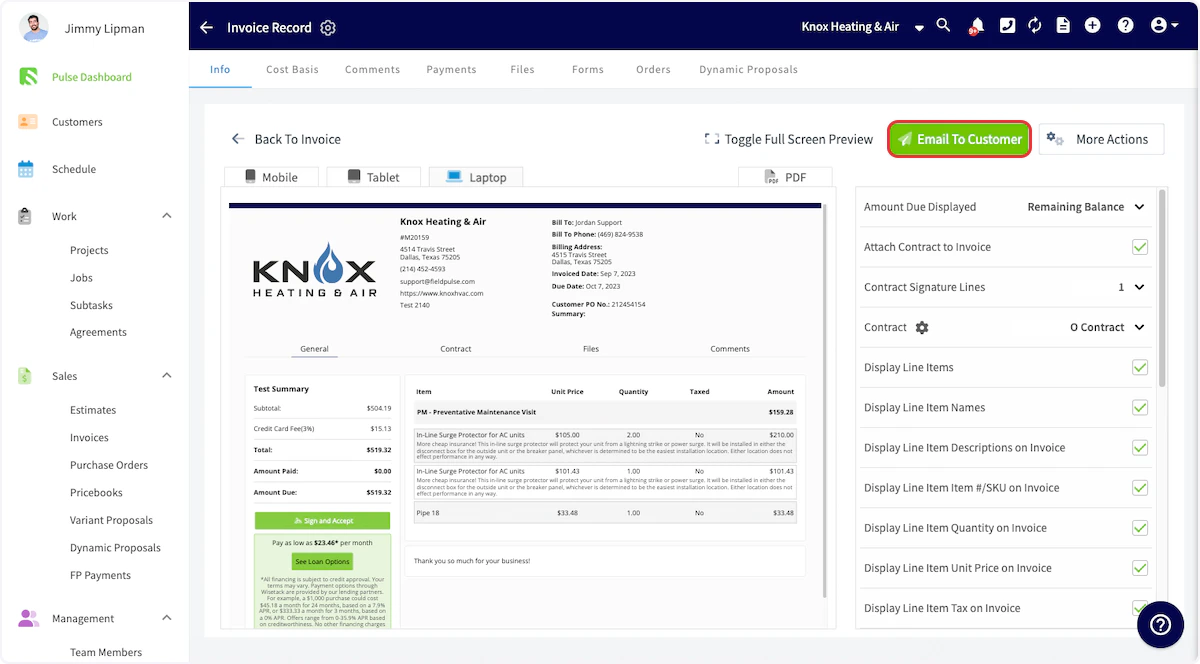
Method 2
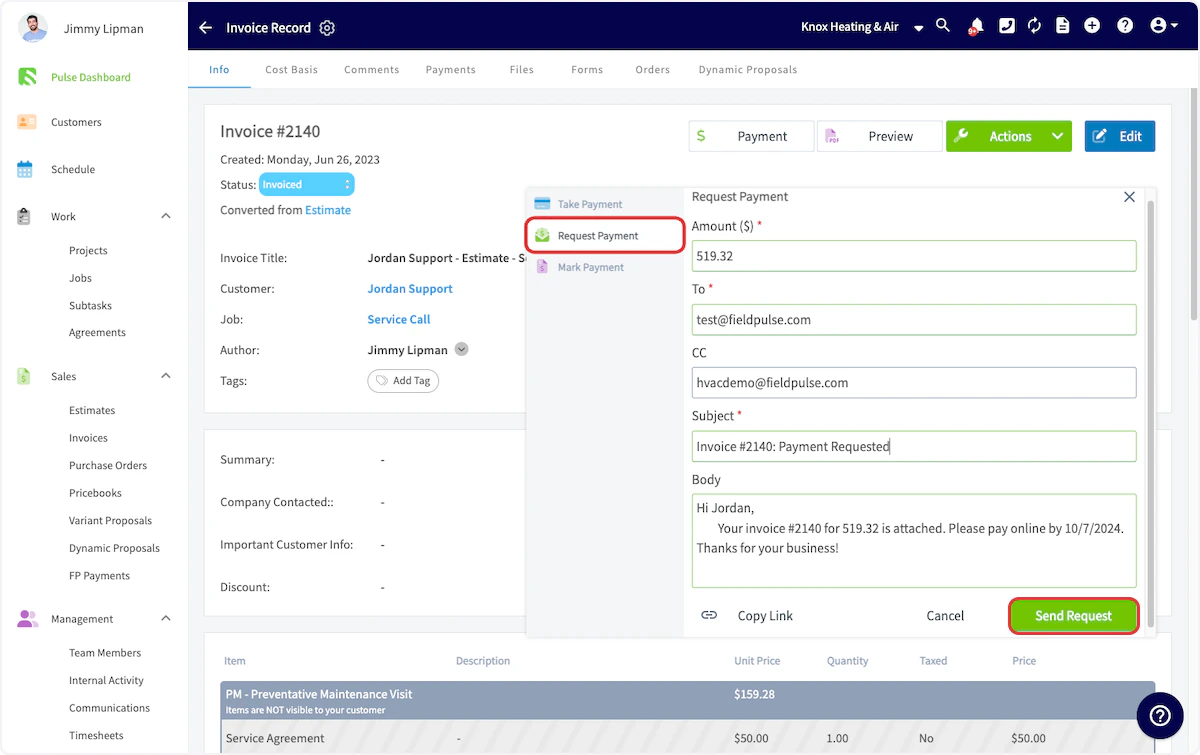
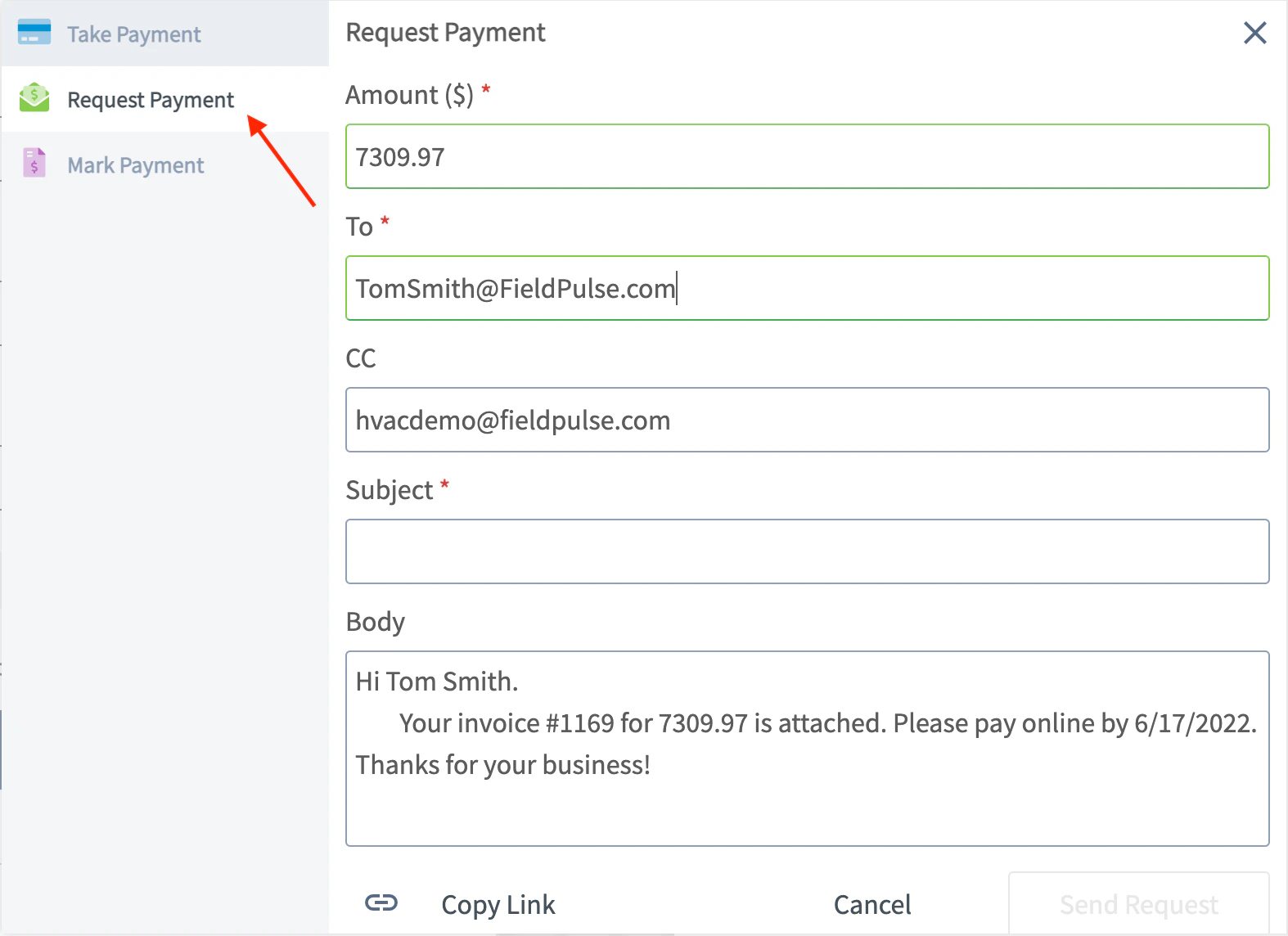
Another way to request payment by email is to return to the invoice record. Select the Payment button and choose Request Payment.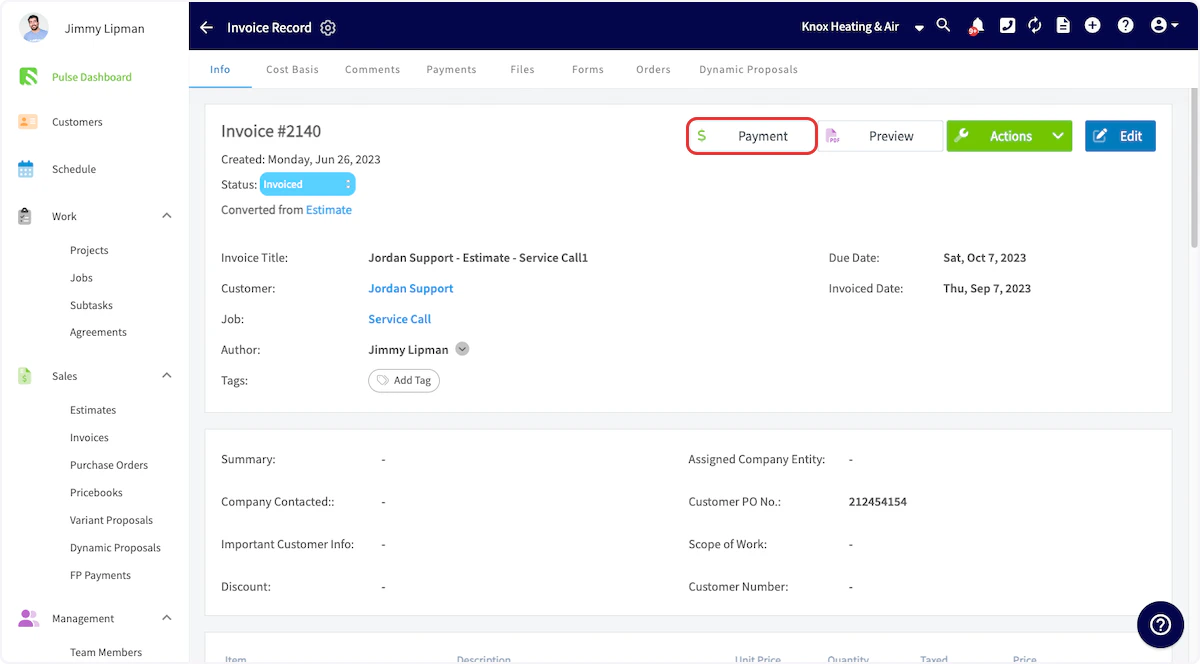

On Mobile: Field Experience
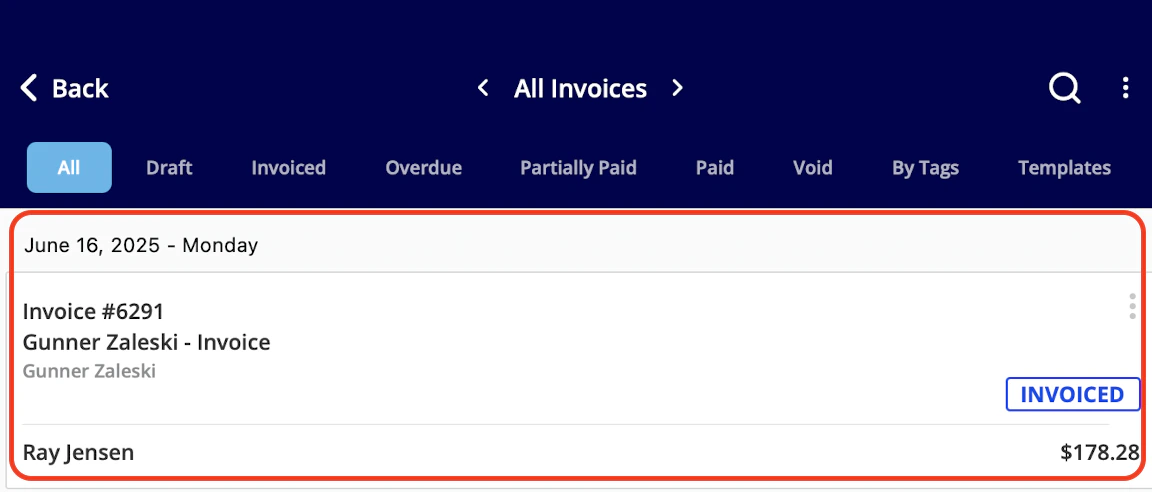
Select an Invoice
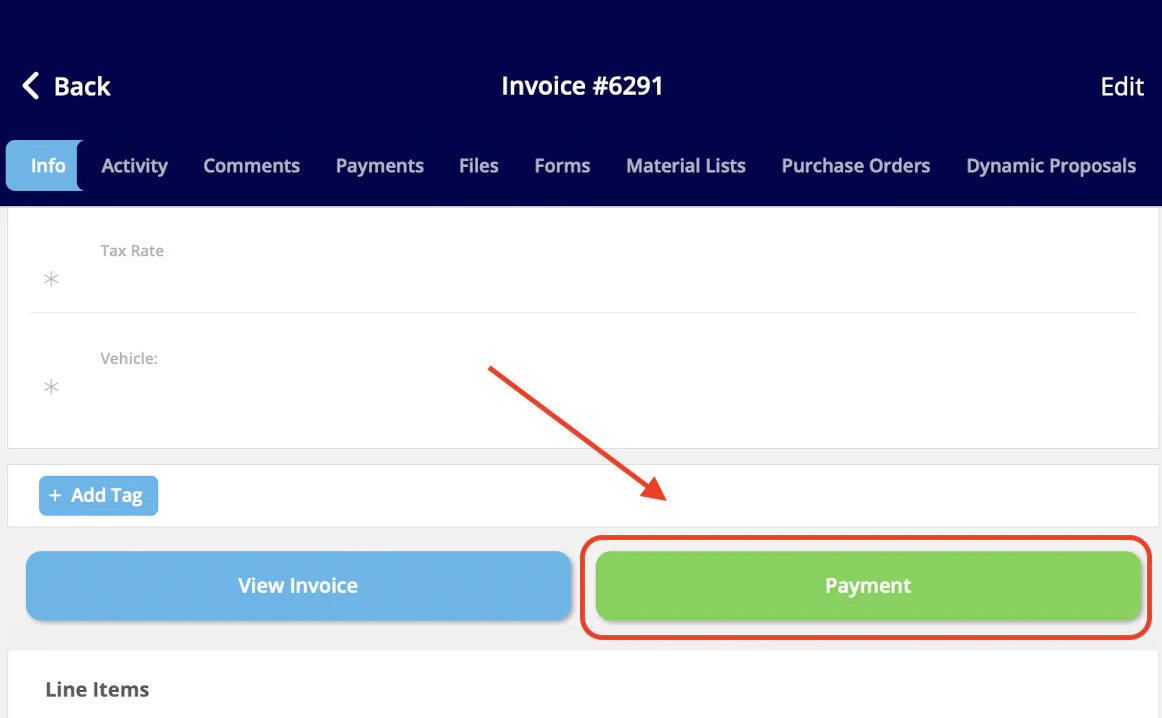
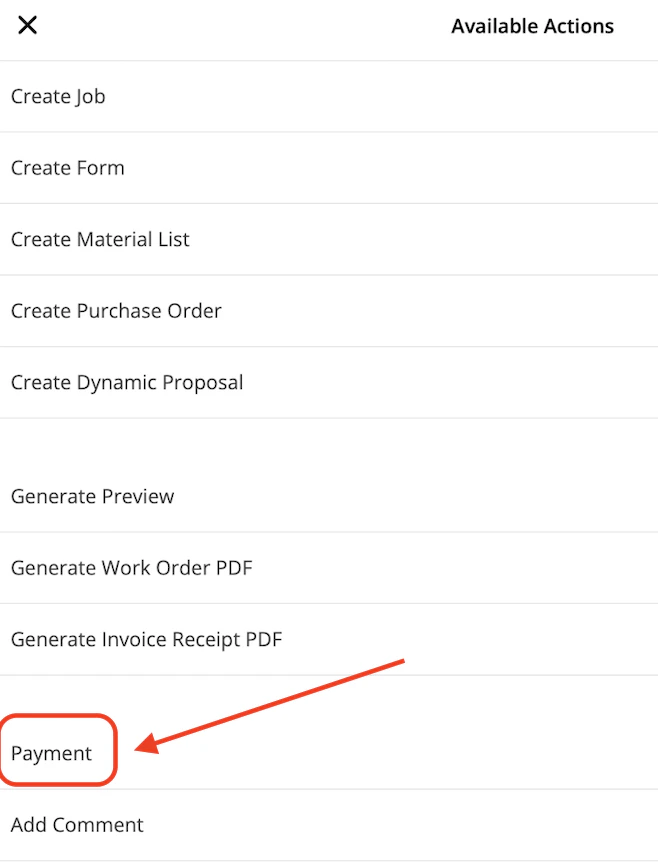
To begin, select the invoice on which you would like to apply payment. Select the Sales tab at the bottom of your screen, then click Invoices.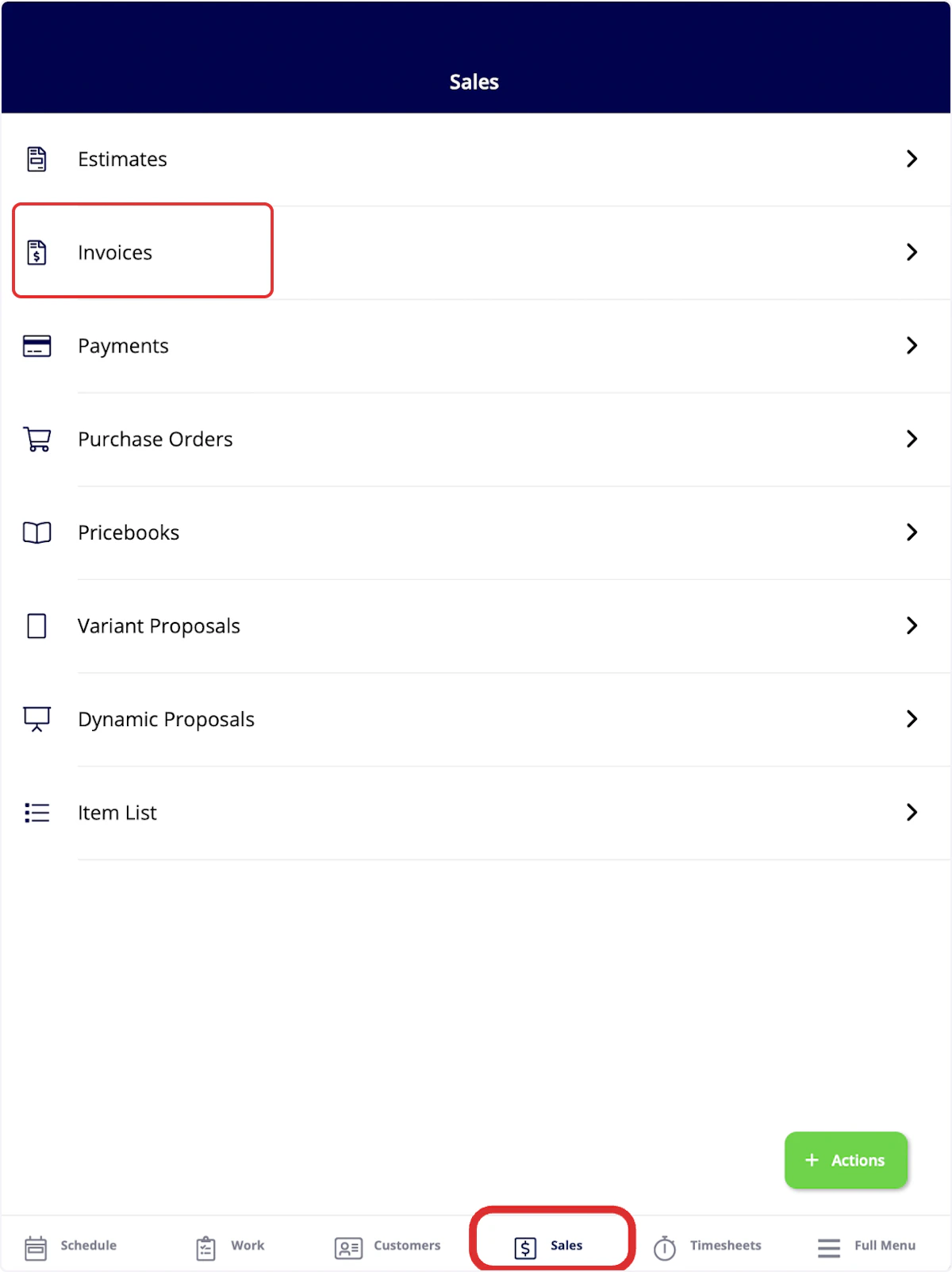

Collect Credit Card Payment
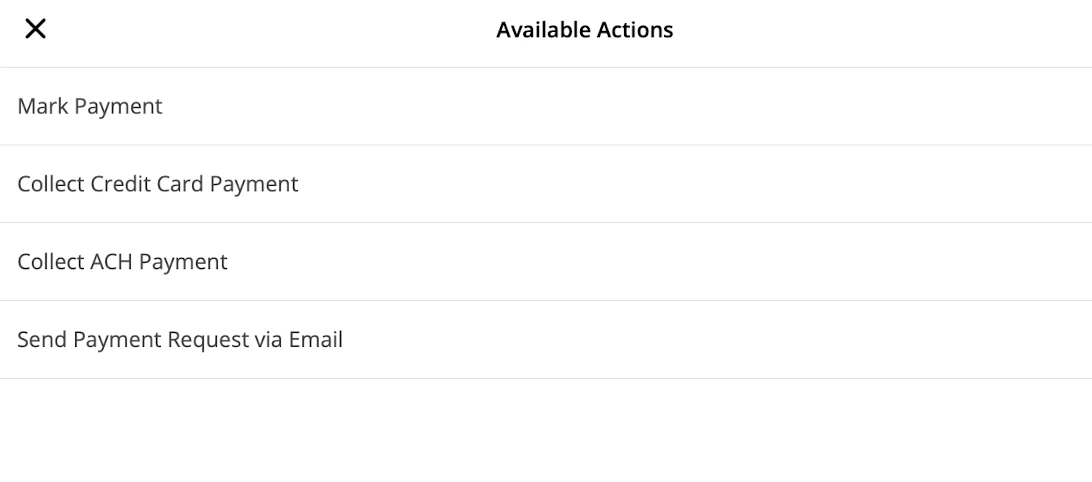
If you select Collect Credit Card Payment, you can adjust the payment amount and add notes. You can type in the card details or select the credit card icon to use your device’s camera to scan and enter the card details. Once you add all necessary details, click Collect Payment to collect the payment in FieldPulse.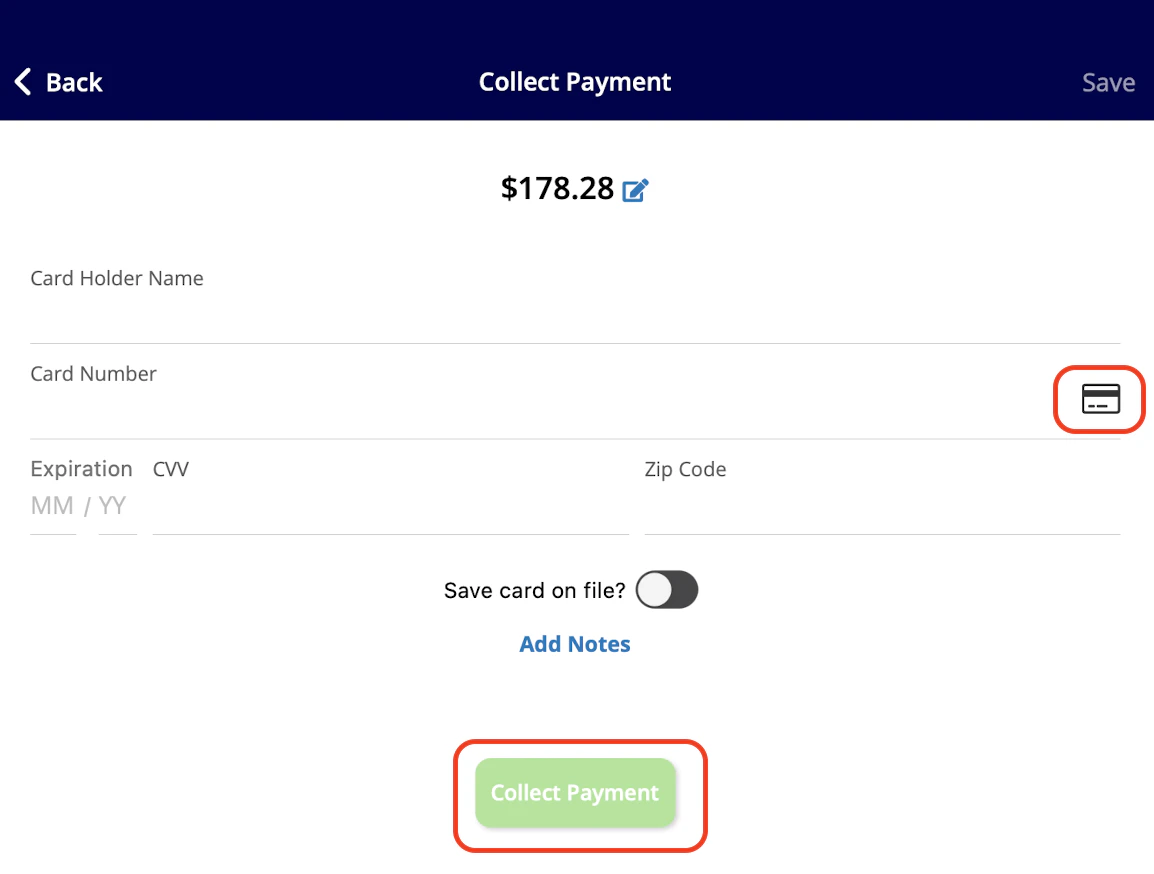
Collect ACH Payment
If you select Collect ACH Payment, you can also process payments from personal checking/savings accounts or business checking/savings on the mobile app.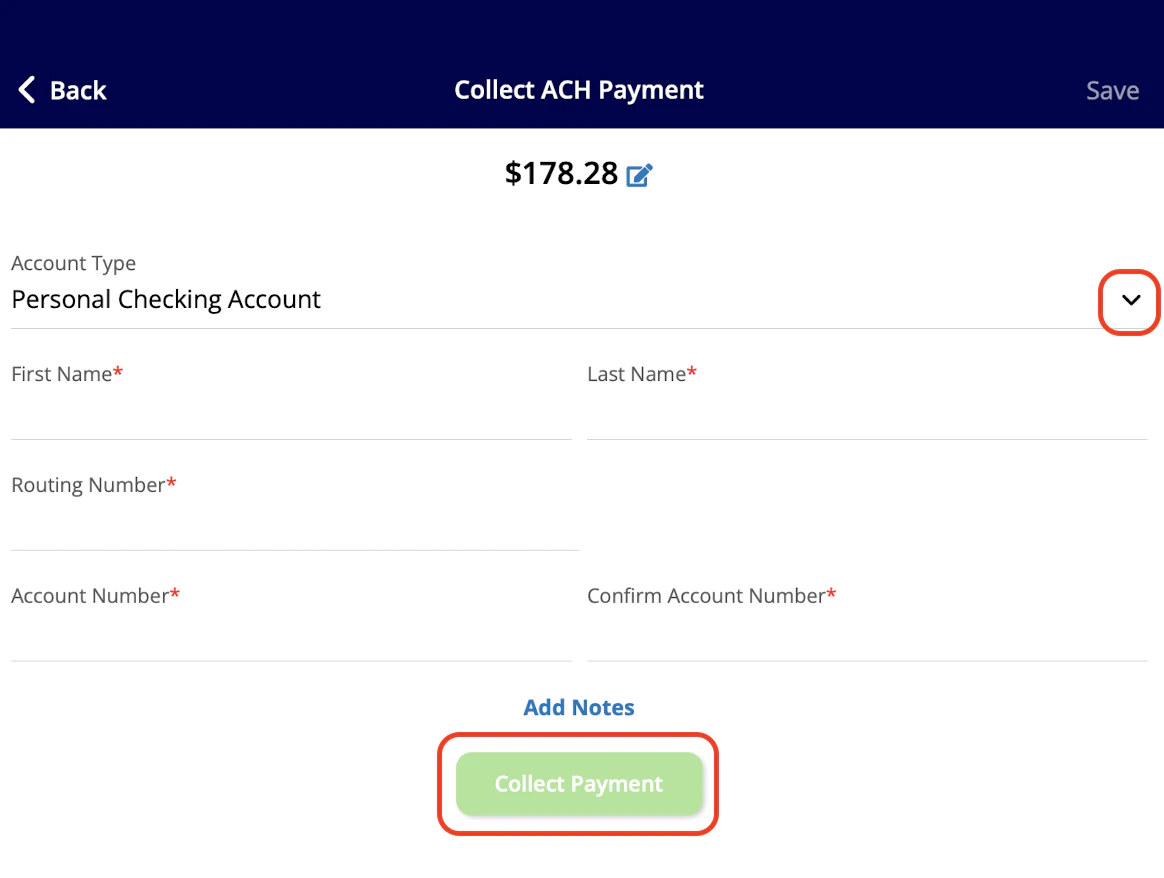
Send Payment Request via Email
If you select Send Payment Request via Email, you can adjust the requested payment amount, as well as copy the payment link or insert it into an email. For this example, we will select Insert Payment Link into Email.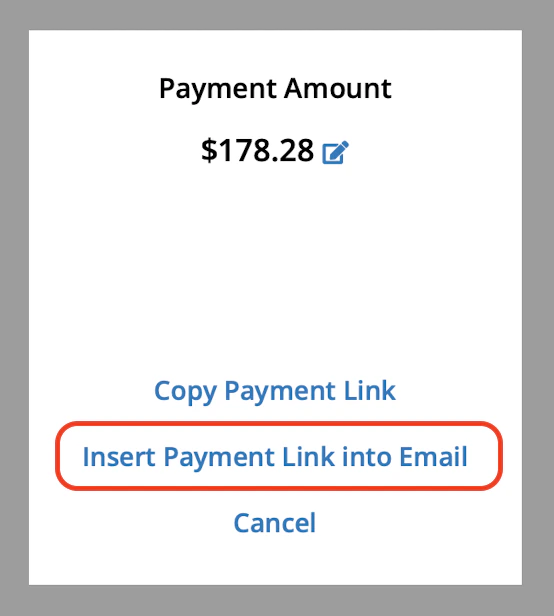
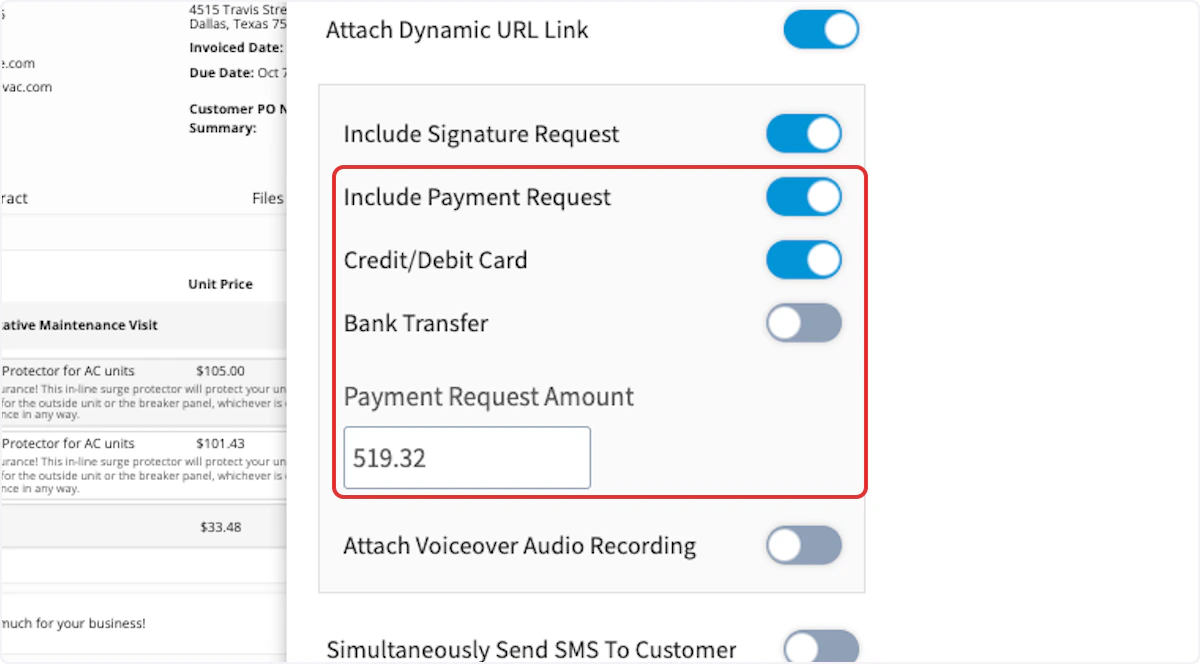
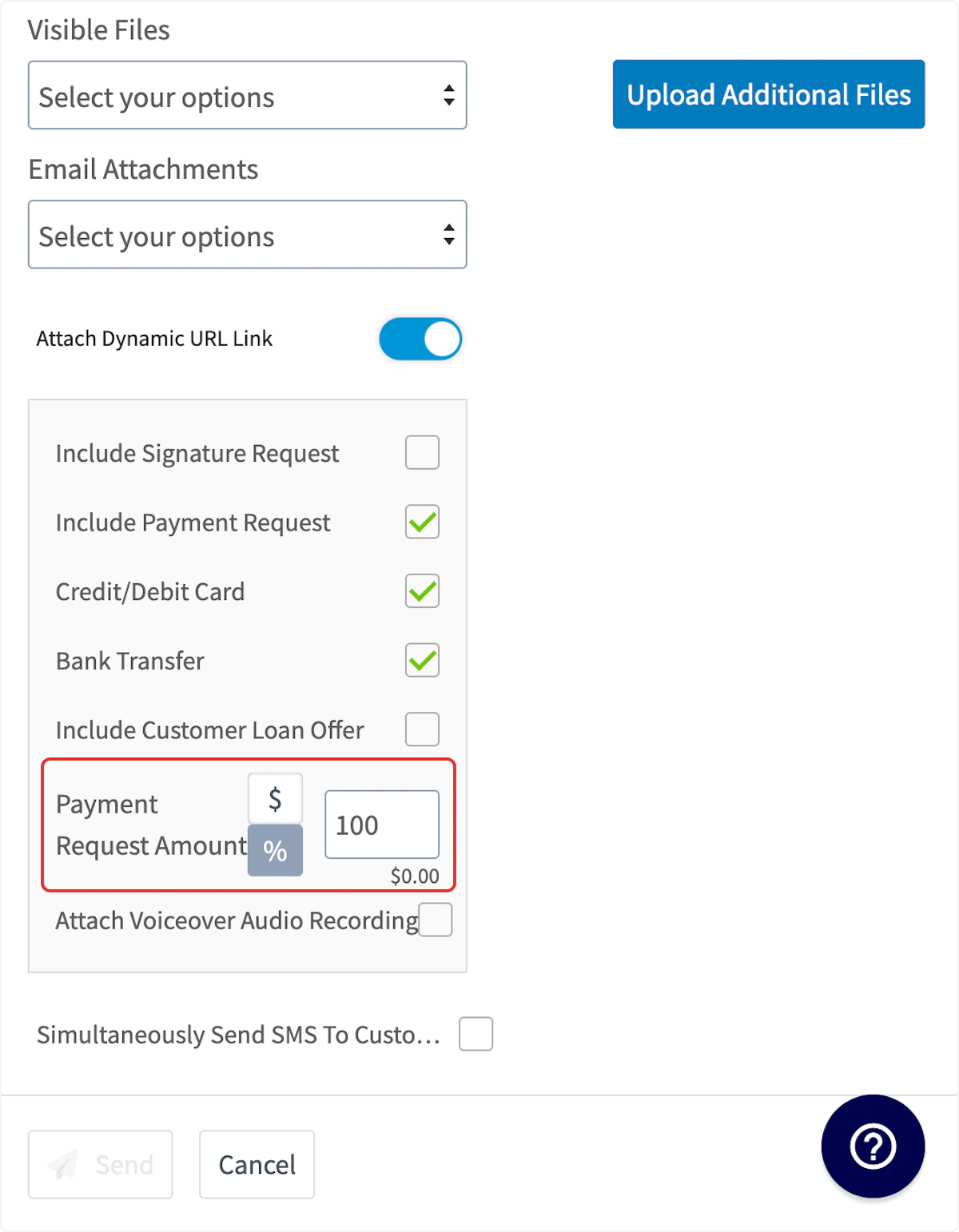
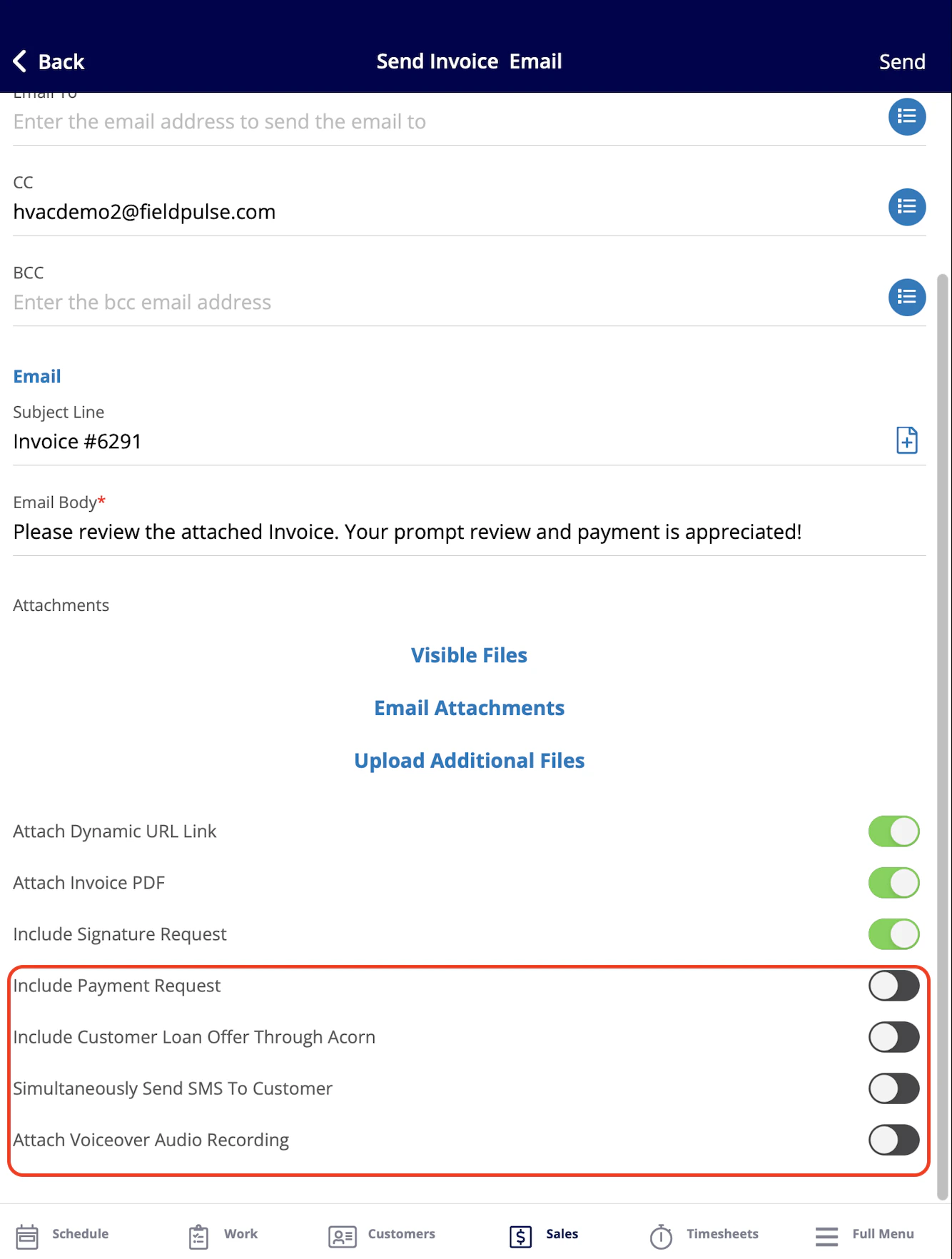
- Include Payment Request: When toggled on, this allows you to decide whether or not you would like to accept credit card/debit card and bank transfers. You also can adjust the payment amount due. You can request a specific dollar amount or percentage.
- Include Customer Loan Offer Through Acorn: When toggled on, this allows your customers access to financing options pending approval of their application. Learn more about Acorn Finance here.
-
Simultaneously Send SMS To Customer: When this option is toggled on, you can send a text message at the same time as the email.
- Customization: You can personalize the text message to convey any message you choose.
- Audio Attachment: There is also an option to attach an audio recording to the text message.
- Attach Voiceover Audio Recording: When toggled on, this option allows you to include a personalized audio message. This feature is particularly useful for walking your customer through the invoice, helping to address any questions they may have in advance.
Invoice Status
After marking payment, collecting payment, or receiving payment from a payment request email, your invoice status will now read Paid. If you only accepted a partial payment on the invoice, the status will instead say Partially Paid.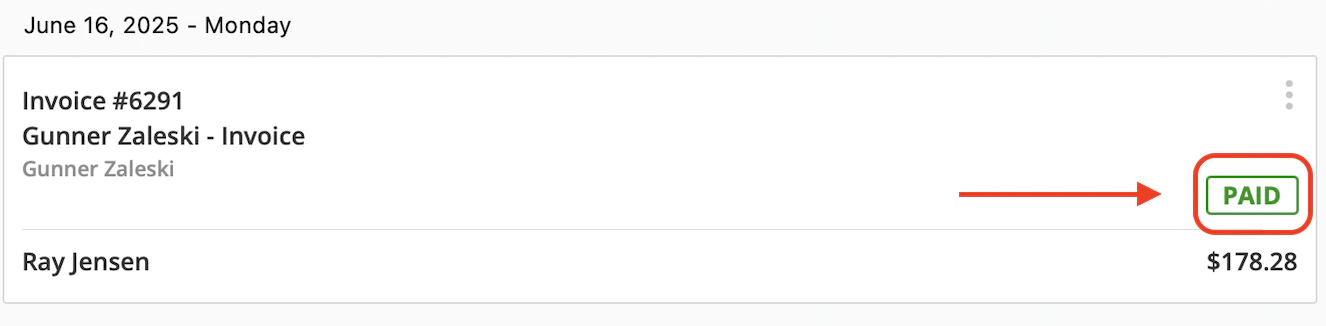
Video Tutorials
Web App
Mobile
Have additional questions? Contact us at support@fieldpulse.com or use the chat feature in the bottom right corner of your screen.