

You can now securely store your customer’s credit card information in FieldPulse! When storing the card, the credit card number will be tokenized to protect your customer’s information. (Note: You must have FieldPulse Payments enabled.)Documentation Index
Fetch the complete documentation index at: https://fieldpulse.mintlify.app/llms.txt
Use this file to discover all available pages before exploring further.
Adding a Card When Accepting Payment
To add a card on file when accepting payment, begin by selecting the Payment button.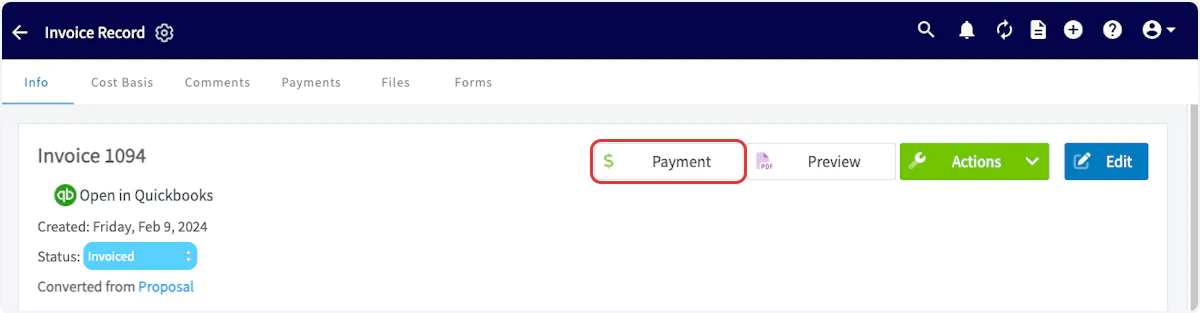
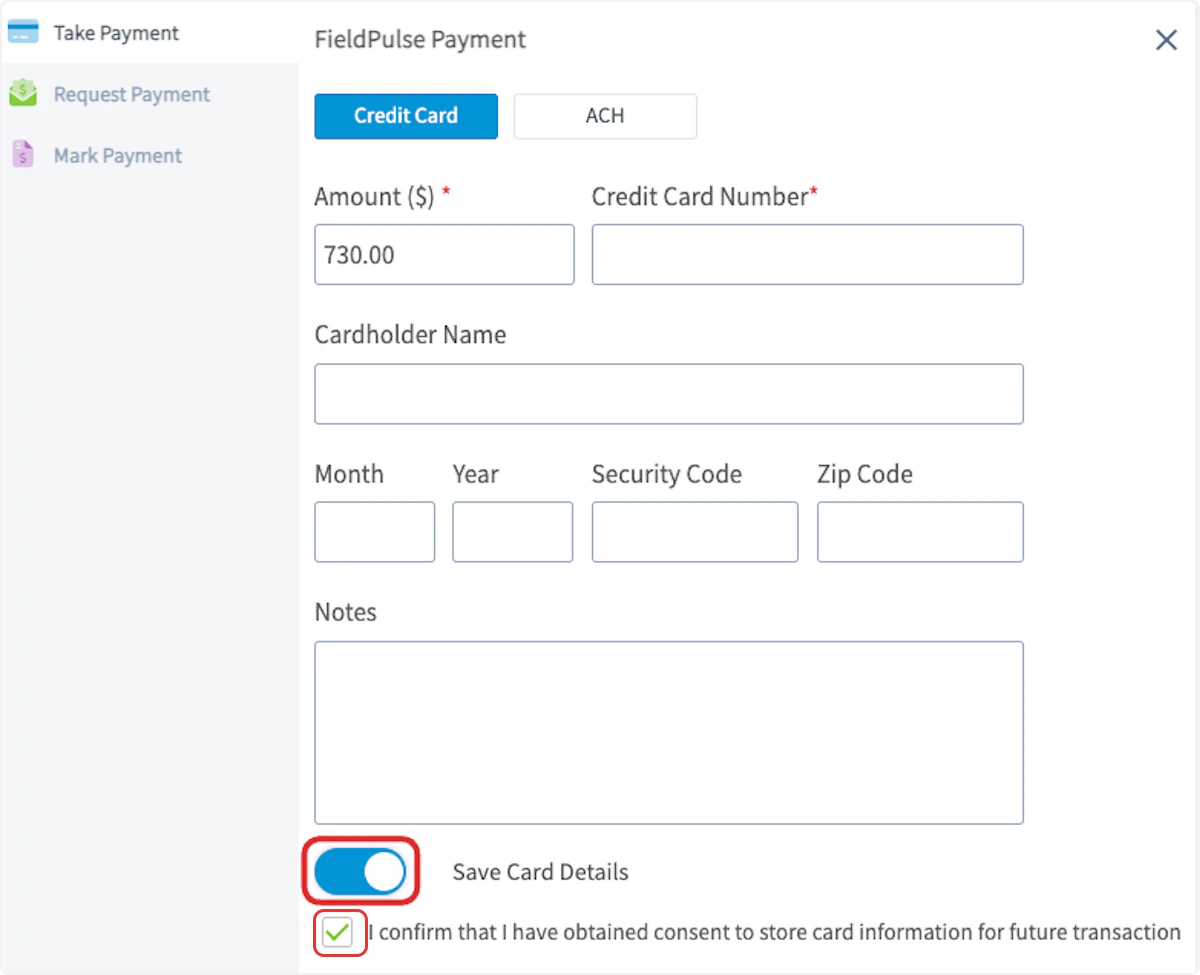
Charging a Card on File
To charge a card on file, select Payment, then Charge Card on File.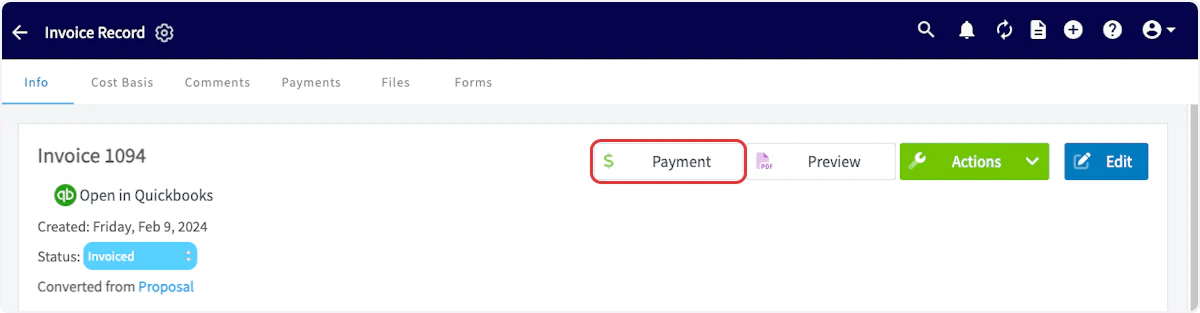
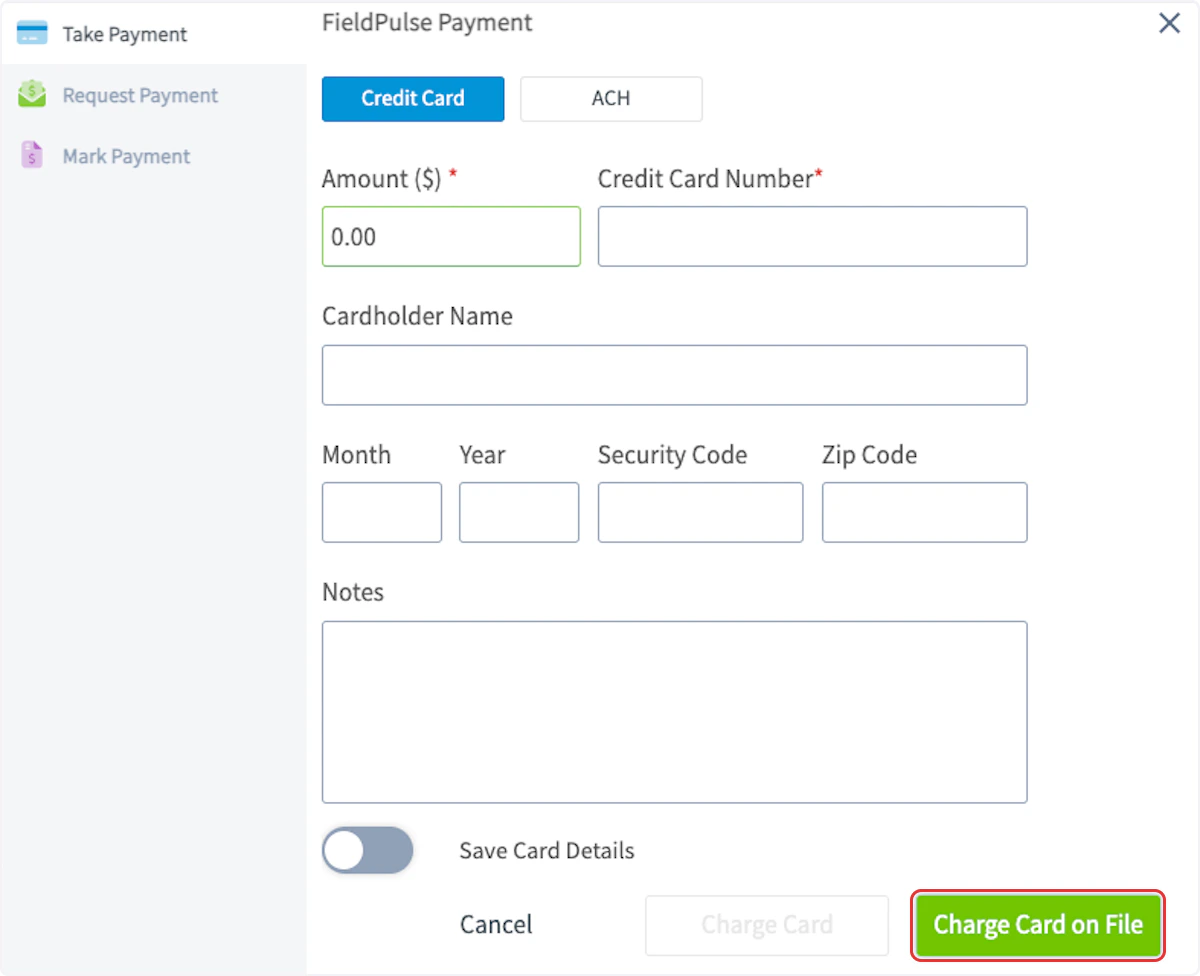
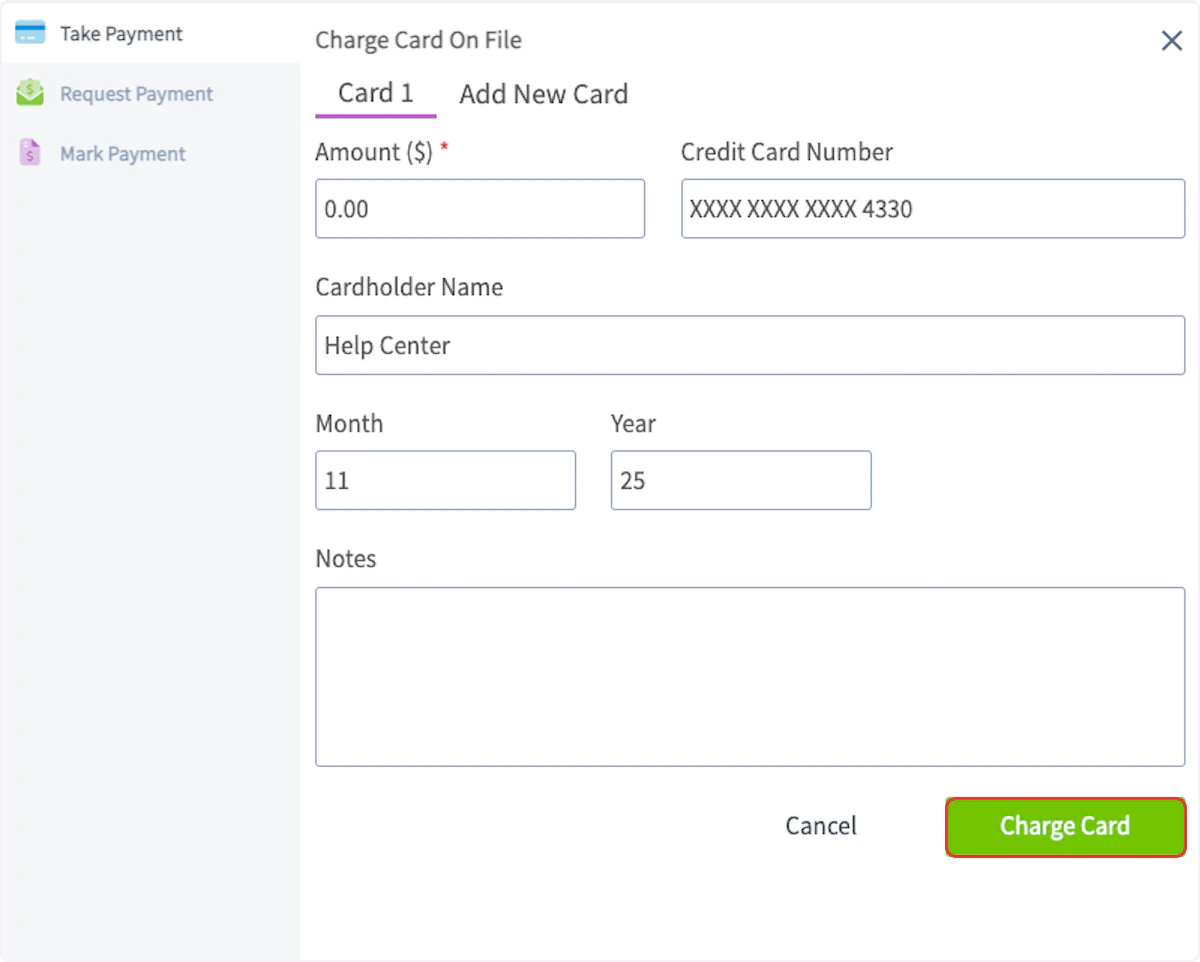
Adding a Card to a Customer Record
To add a credit card on file, navigate to the customer record and select the plus sign next to Card on File. You can then add a credit card to be securely stored for future use.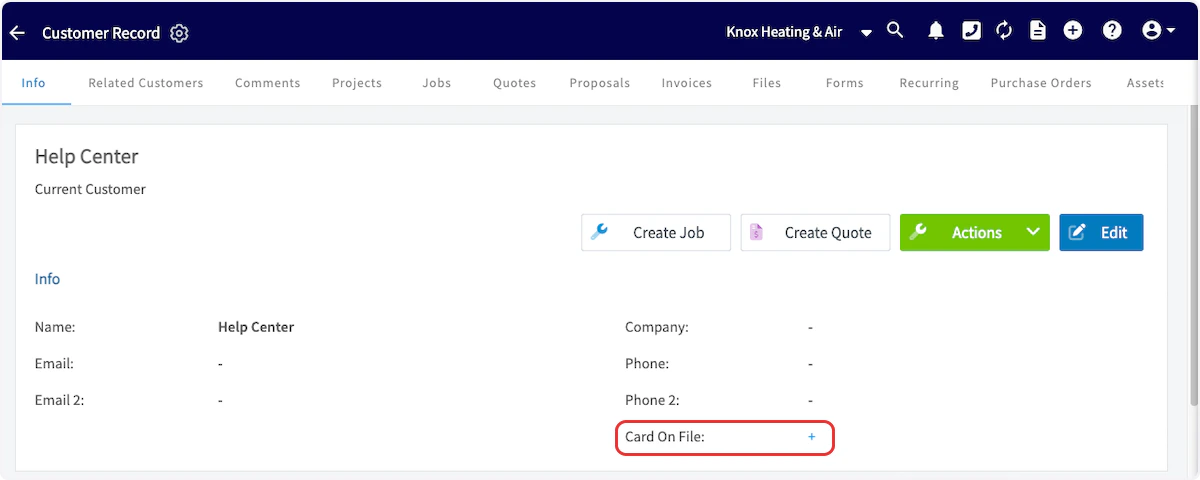
Recurring Jobs & Billing with a Card on File
When a card on file is deleted from a customer record, it is not automatically removed from existing recurring invoices. To stop automatic payments, you must open each recurring invoice and manually remove the card on file associated with that invoice record.Mobile App
Users can now save cards on file in the mobile app, in addition to the web app. Save multiple cards on a customer profile by going directly to the customer’s profile or at the time of collecting payment. If there are multiple cards on file, the FieldPulse user can select which one to charge.

Video Tutorial
FAQs
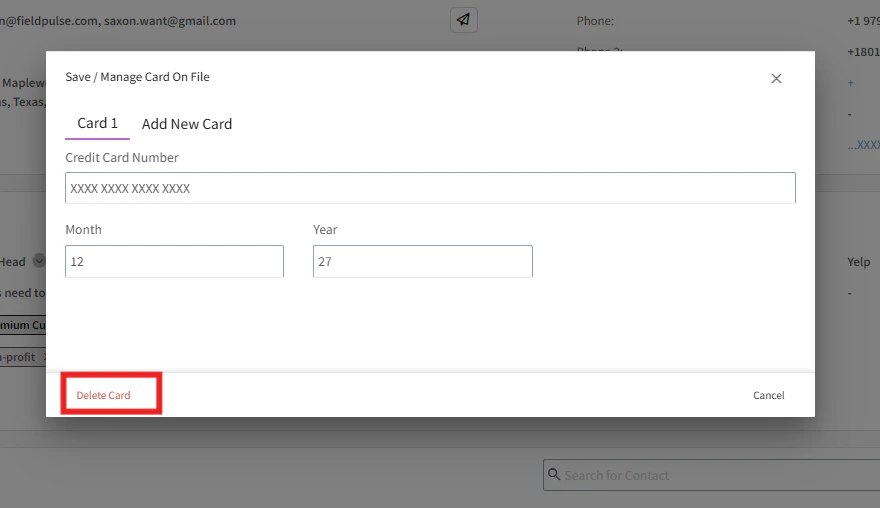
Can cards on file be edited? No, at this time any card you have on file cannot be edited. How do I delete a card on file? To delete a card on file, navigate to the Customer record. Click on the card you have on file and then click delete.
Have additional questions? Contact us at support@fieldpulse.com or use the chat feature in the bottom right corner of your screen.