
Who uses this: Admins can enable it. Availability: Requires an active Angi account.The Angi integration pulls new Angi leads into FieldPulse as both a Customer record and a Job record automatically, so your office stops re-keying leads by hand and no prospect gets lost between the two systems. Connect your Angi account with your Angi Service Provider ID and every new lead lands in FieldPulse tagged, sourced, and ready to work.
Eager to learn more about our partner? Check them out here.
Overview
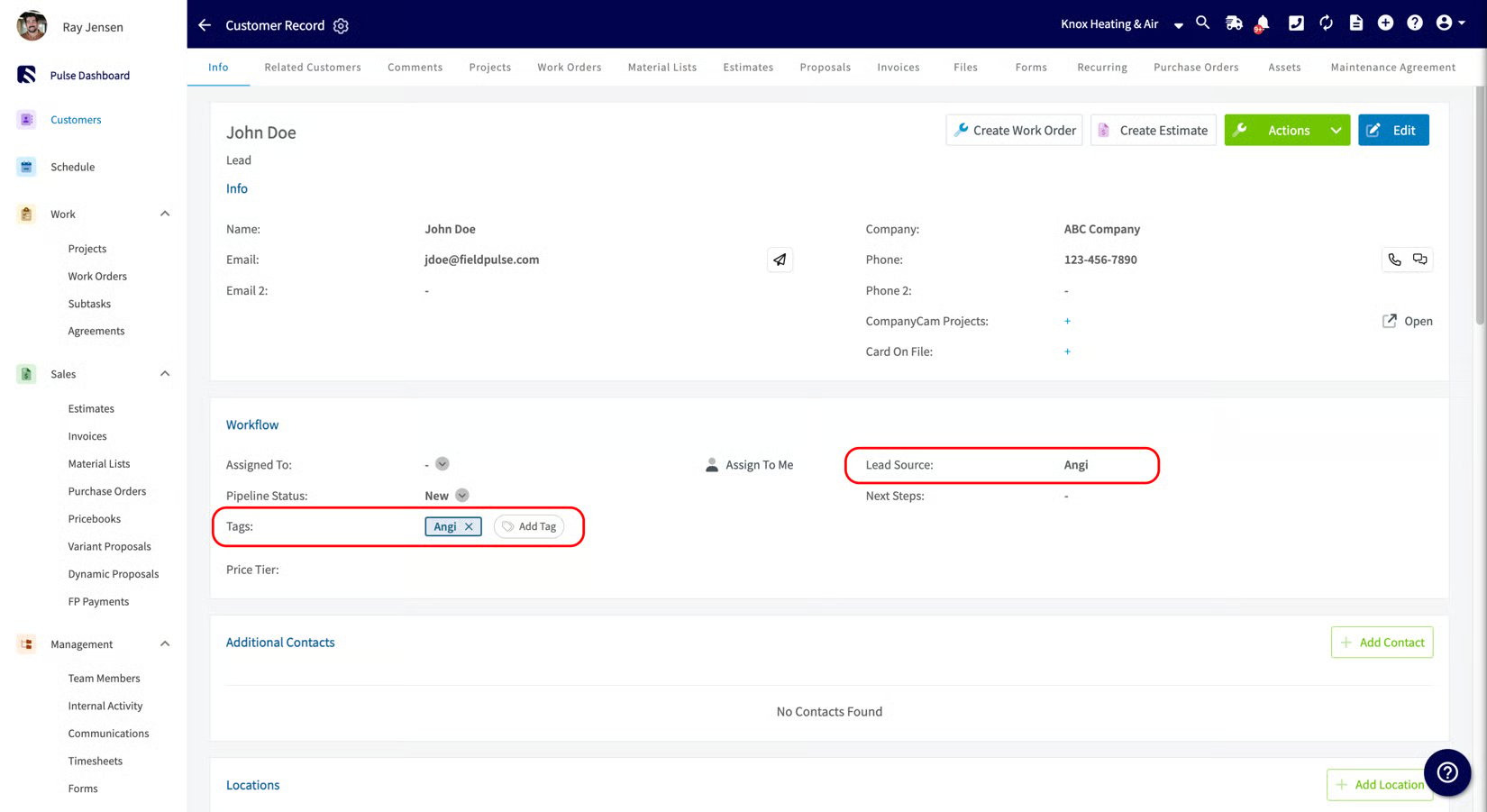
The Angi integration sends leads from your Angi account straight into FieldPulse. Once it is active, every new Angi lead creates a Customer record and a Job record at the same time.- Customer record. FieldPulse checks whether the lead already exists by matching their email address. If no match is found, FieldPulse creates a new Customer record and assigns it to the founding Admin user on the account. The Lead Source field is set to Angi, an Angi tag is added, and all information collected in Angi (appointment details and interview questions and answers) is added to the record’s Notes.
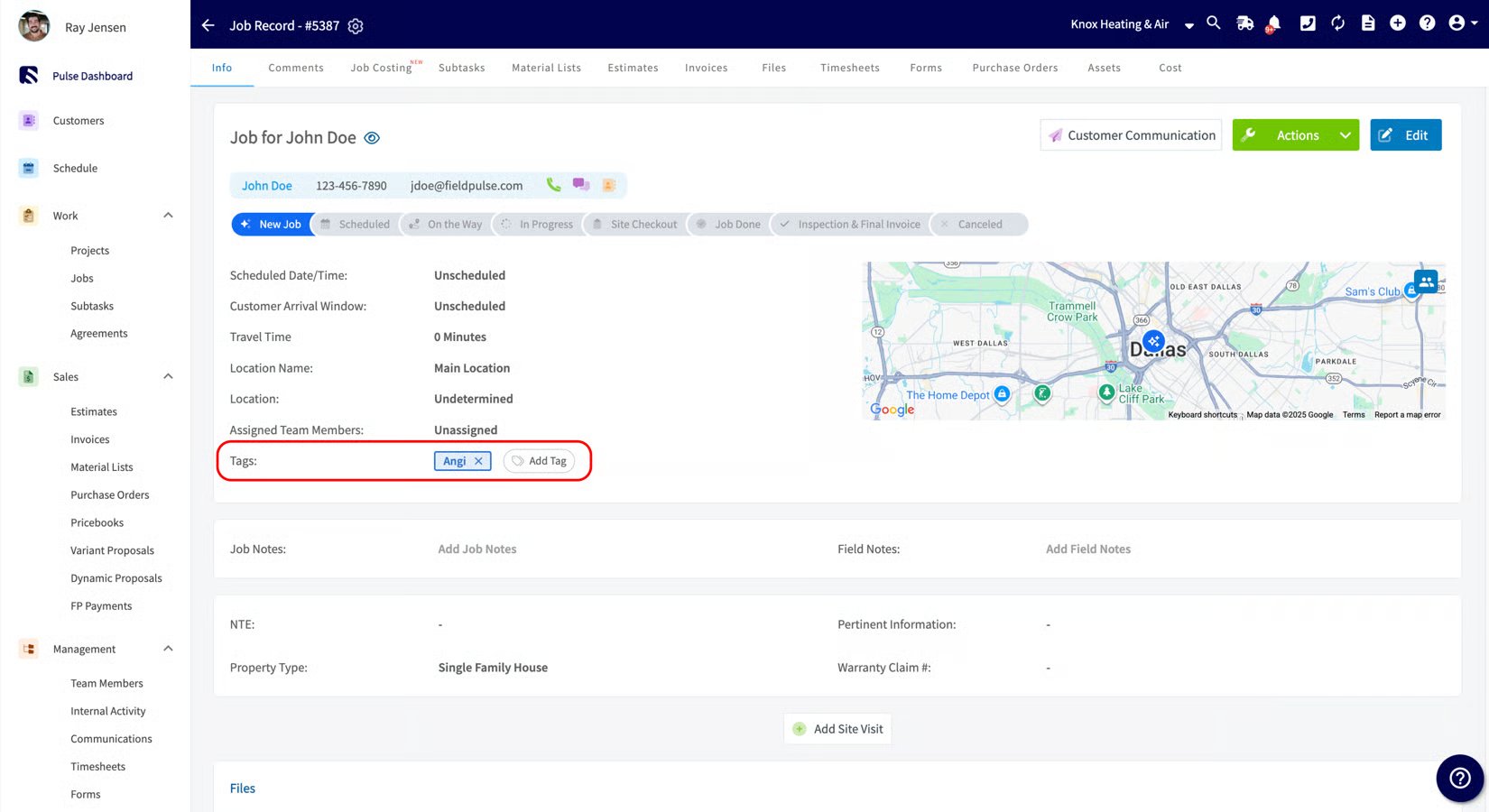
- Job record. If you chose a default Job template during setup, FieldPulse creates the Job from that template. If you did not, FieldPulse creates an unscheduled, unassigned Job. An Angi tag is added, the Job follows the default custom status workflow (or the workflow on your selected template), and the same Angi appointment details and interview answers are added to the Job’s Notes.
Before you begin
- You need an active Angi account. Learn more on the Angi partner page.
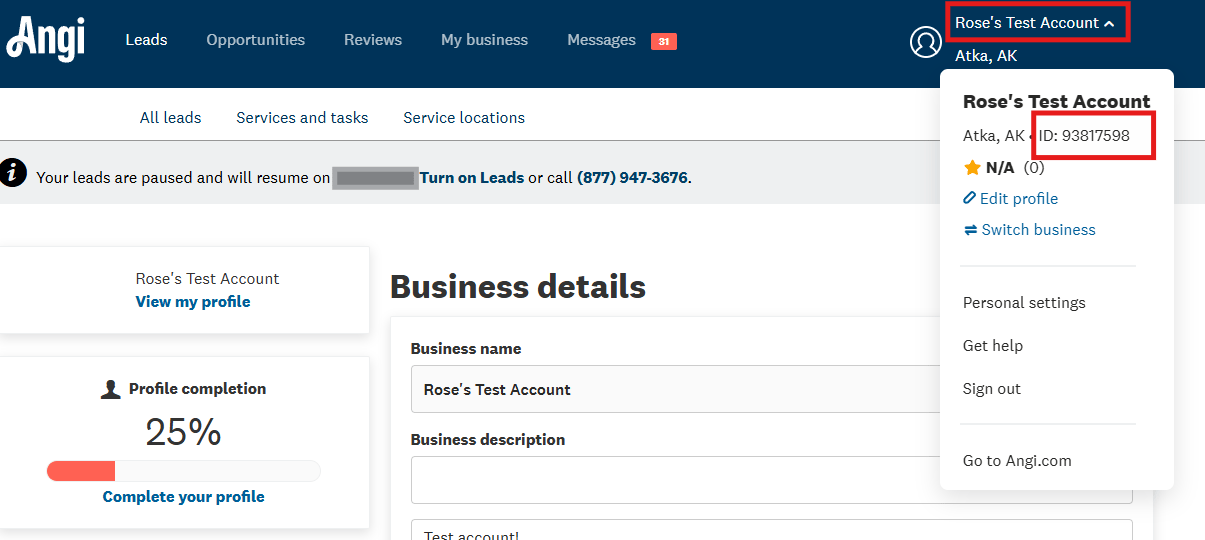
- You need your Angi Service Provider ID (SP ID). To find it, log in to your Angi account and open the account drop-down menu at the top. Your SP ID appears directly after “ID:”.
- Setup takes 2–3 business days to connect after you enable it.
Connect Angi
- In FieldPulse, go to Company Settings > Features & Plugins.
-
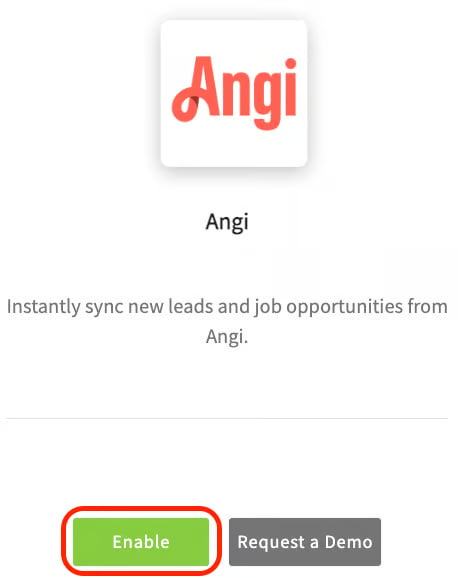
Locate the Angi tile and select Enable.
- In the pop-up window, enter your Angi Service Provider ID (SP ID) in the Angi User ID field.
-
Select a default Job template. FieldPulse uses this template for every Job created from an Angi lead. If you leave it blank, FieldPulse creates an unscheduled Job instead.
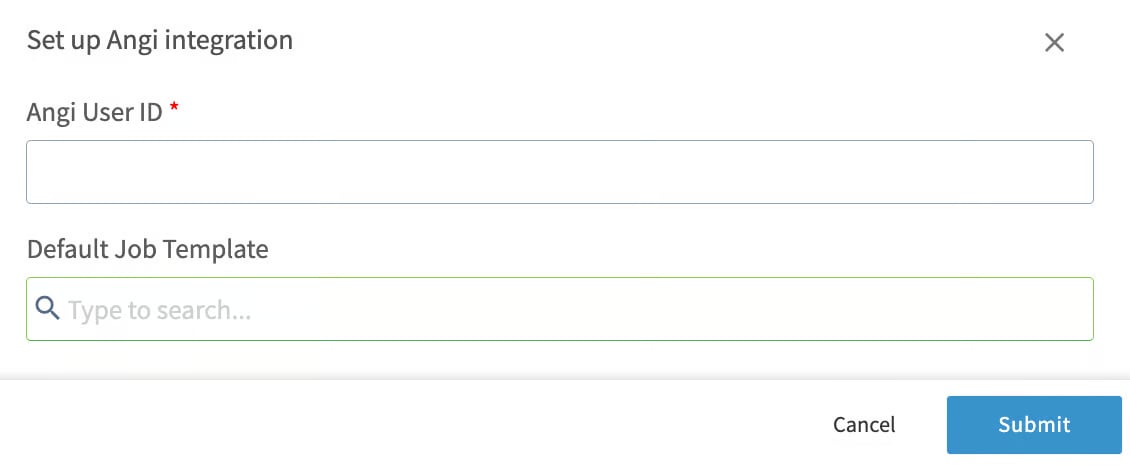
- Select Submit.
What syncs
Your setup is working when a new Angi lead appears in FieldPulse as a Customer record with the Angi lead source and tag, alongside a matching Job record in your Jobs list.