Who uses this: Admins enable and configure the integration; roles with Estimates, Invoices, and Purchase Orders permissions use it day to day. Availability: United States. Requires a Reece account.The Reece (US) integration connects your FieldPulse account to Reece so you can check Reece inventory and pricing in real time, add Reece parts to estimates, invoices, and purchase orders, and send orders to your Reece branch without leaving FieldPulse. This is the United States Reece integration; the Australia and New Zealand version is a separate product (see Reece maX (ANZ) Overview).
Eager to learn more about our partner? Check them out here.
Overview
The Reece (US) integration puts the Reece store inside FieldPulse. Once it is enabled, you search live Reece parts and pricing from any estimate, invoice, or purchase order, add the items you need, and submit purchase orders straight to Reece. When an order is submitted, FieldPulse verifies stock, availability, and price with Reece before the order is placed.
Video walkthrough
Watch the Reece (US) integration walkthrough for a full run-through. The written steps below stand on their own.How it works
The Reece (US) integration closes the gap between pricing a job and ordering the parts for it. Without the integration, someone prices from a paper catalog or a separate Reece login, re-keys the same parts into a purchase order, and finds out about a price change or an out-of-stock item only after the order is placed. The Reece (US) integration closes that gap by keeping catalog, pricing, and ordering in one place:- Catalog and pricing: Search live Reece parts from the Add Item menu on any record. Pricing comes straight from Reece, so what you quote matches what you pay.
- Estimates and invoices: Add Reece items directly to estimates and invoices while you build them.
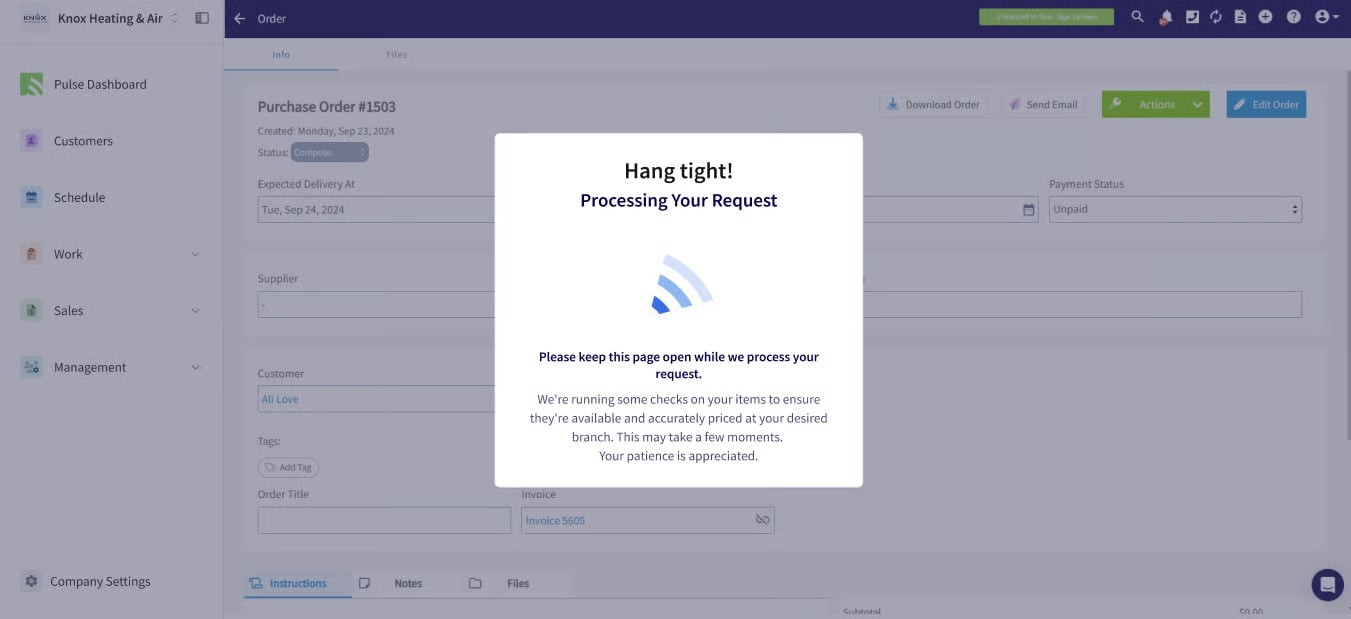
- Purchase orders: Create a Reece purchase order in FieldPulse and submit it to your Reece branch. FieldPulse verifies the order with Reece and flags any items that are out of stock, unavailable, or priced differently before it is placed.
Add Reece items to a record
To add a Reece line item to an estimate, invoice, or purchase order, open the record, select Add Item, and choose the Reece or Recent Reece tab. Start typing in the search bar to pull up matching Reece parts. FieldPulse populates the three top Reece categories for your search, and you can multi-select options within those categories to narrow the list. For the full category list, see Reece (US) Product Categories and Details.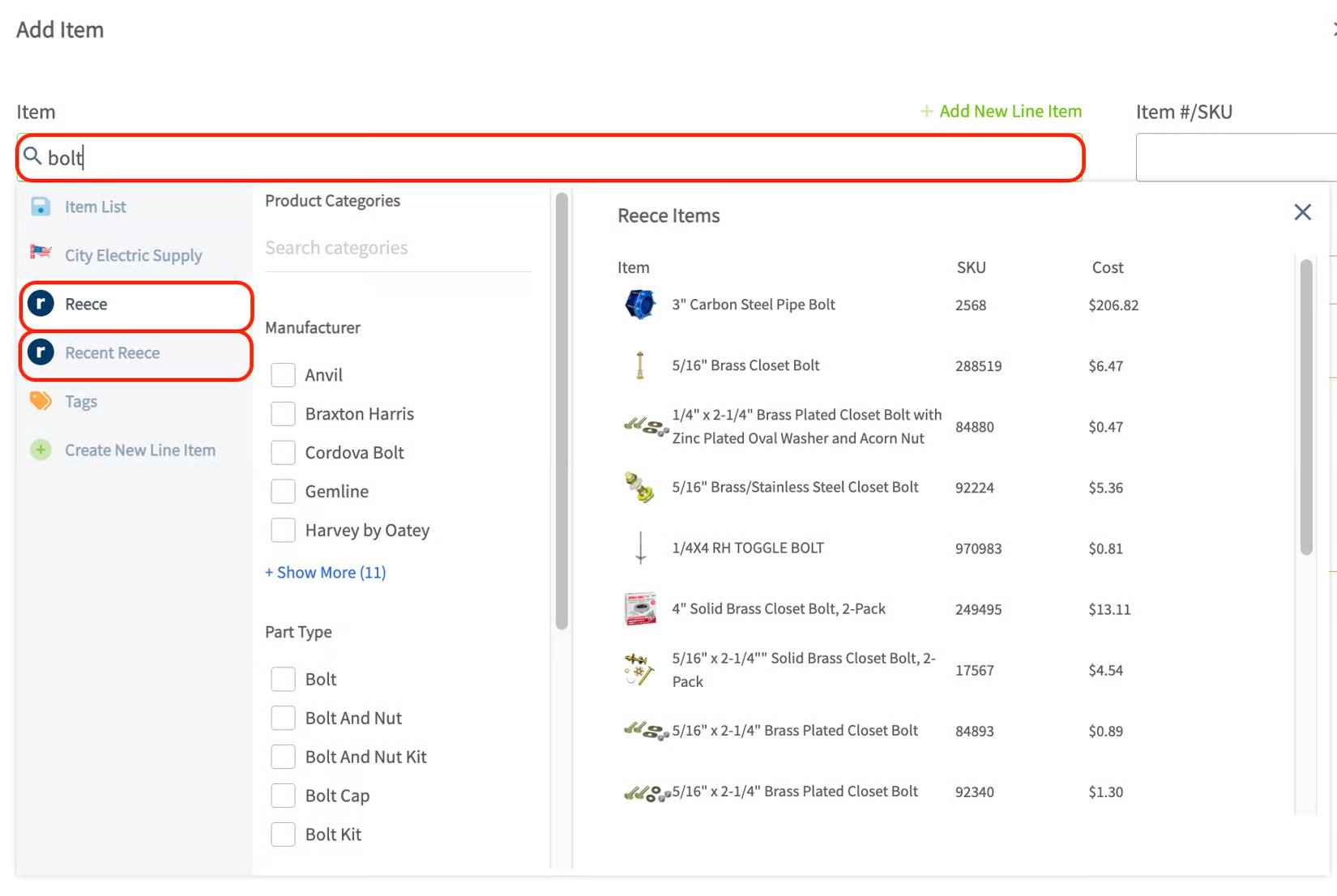
Send a Reece purchase order
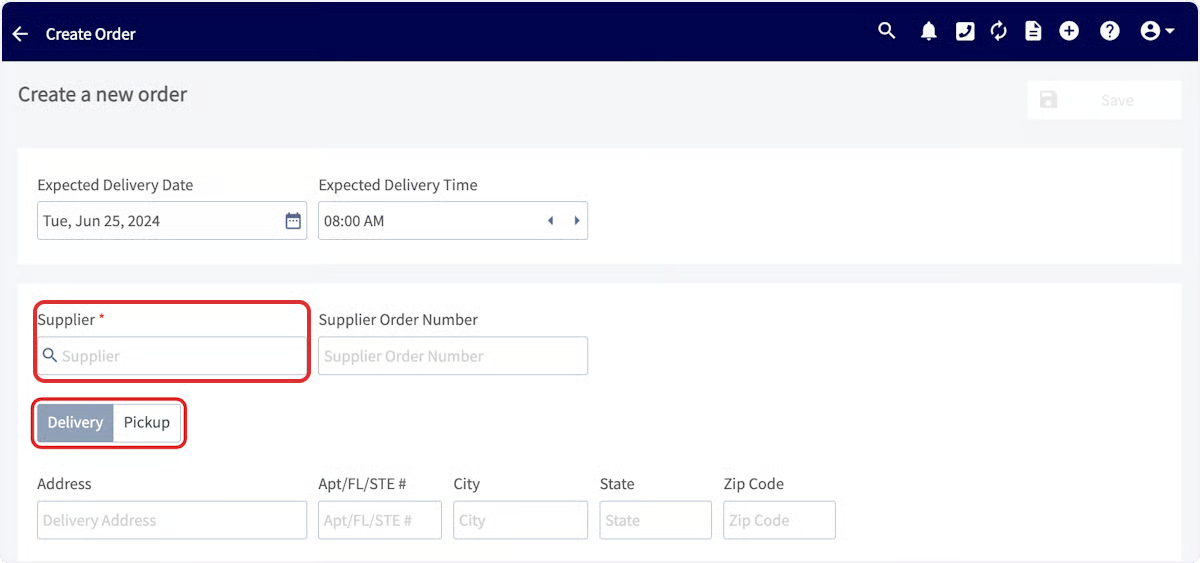
Create a Reece purchase order and submit it without leaving FieldPulse:- Create a new purchase order. In the Supplier search box, look for Reece US in the dropdown.
- Select the Reece US supplier that FieldPulse created, not one you created yourself. You can identify the FieldPulse-created supplier because it cannot be edited.
-
Select Select Supplier, enter the vendor order number, choose Delivery, and enter the delivery address. Pickup is not available with the Reece (US) integration at this time.
-
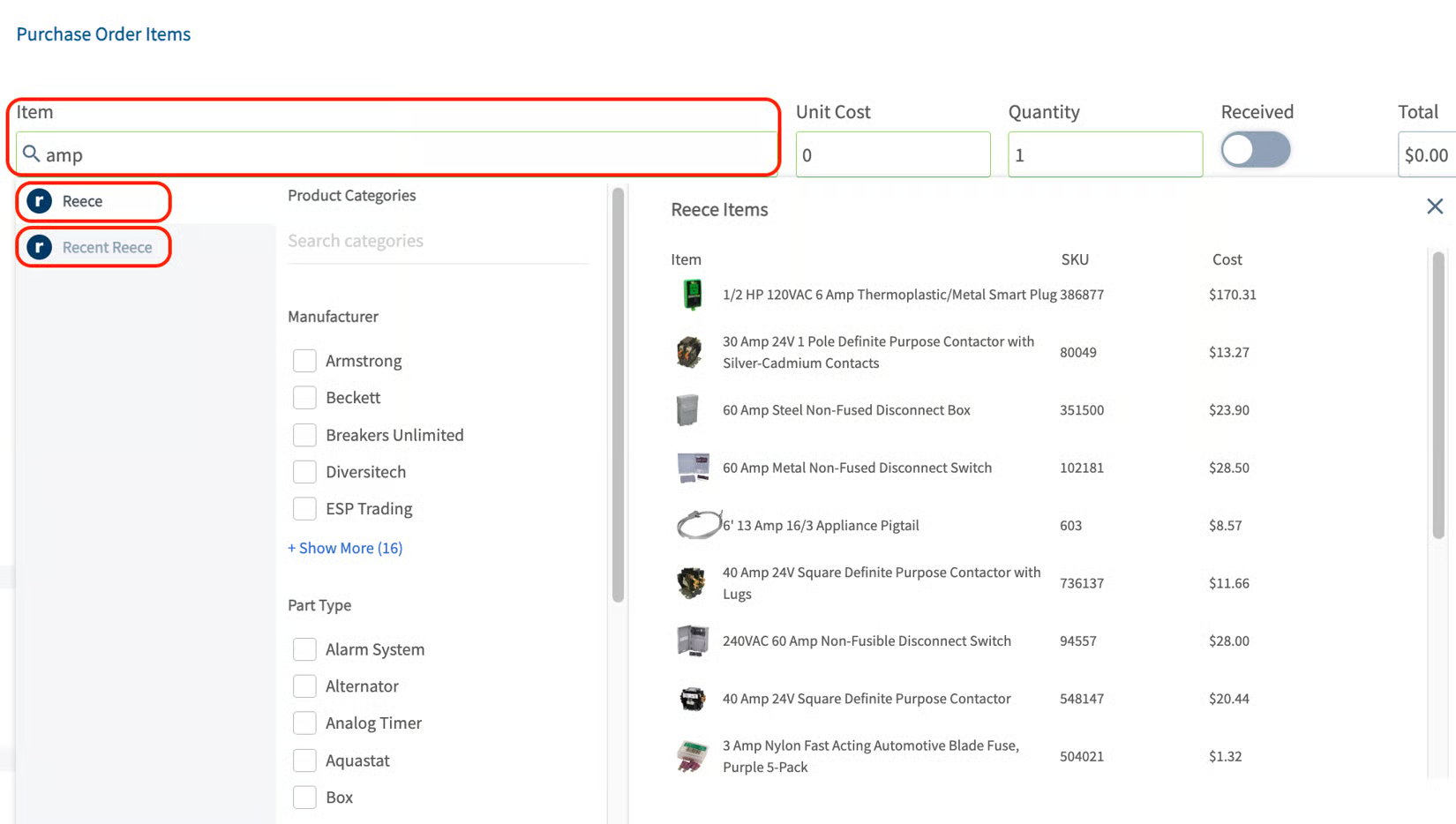
Add items with the item search bar, then set the quantity for each.
- Complete the rest of the purchase order and select Save. When you are ready, submit the order. Once the items are processed, the order appears in your Reece account.
Before you begin
Enable the Reece (US) integration before your team can search Reece parts or send Reece purchase orders.- Go to Company Settings, open the Features & Plugins tab, locate the Reece tile, and select Enable.
-
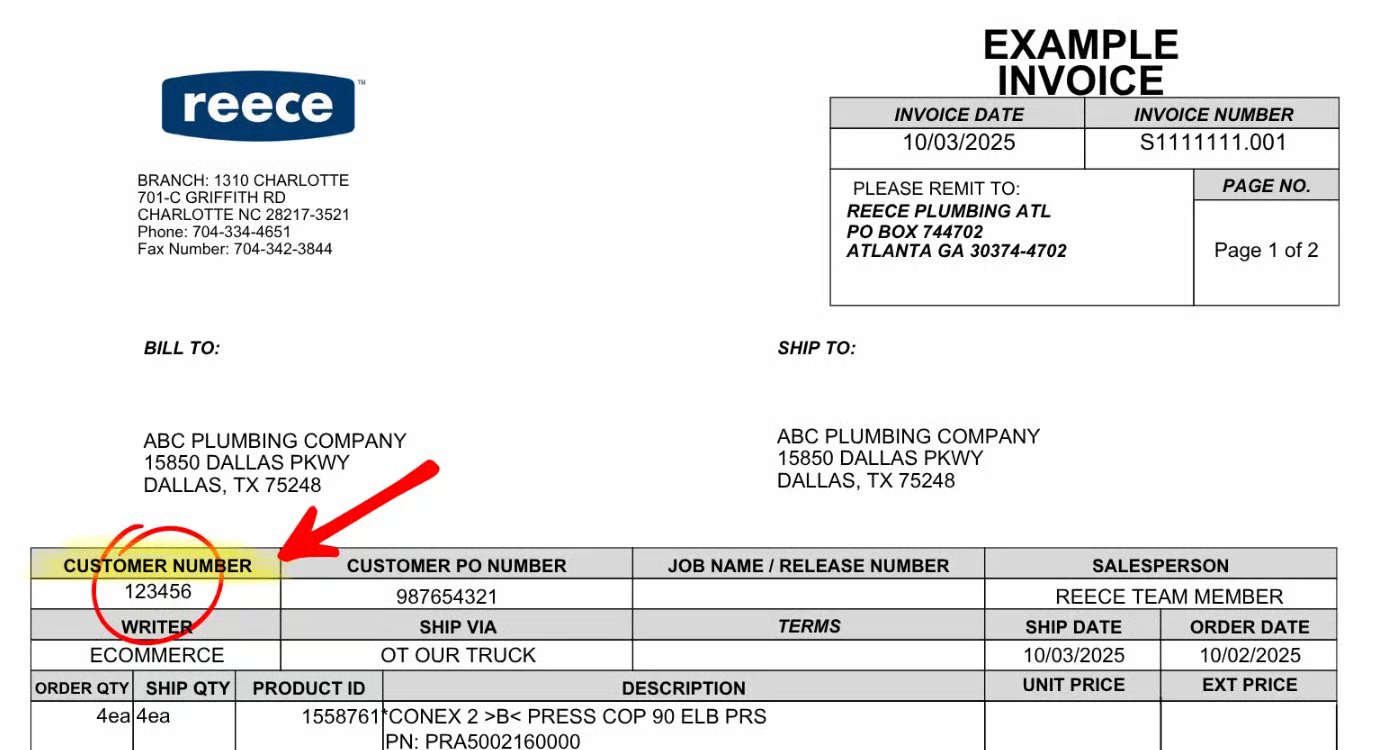
Enter your Reece Customer ID. This is the Customer Number found on any Reece supplier invoice.
- Enter your Zip Code.
Control who sees Reece costs
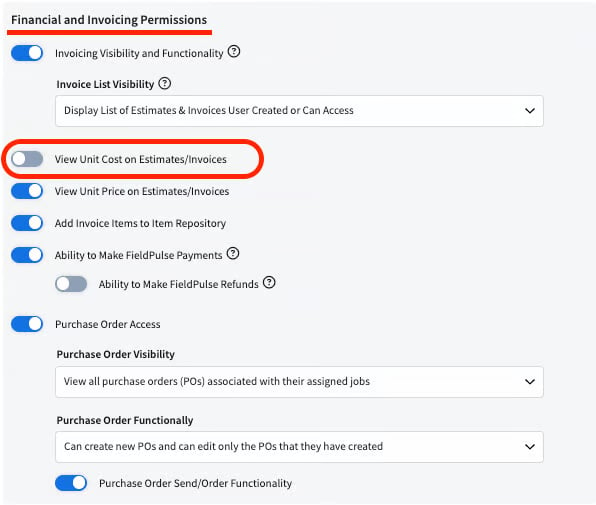
If you do not want your Service Agents to see the cost of Reece items, turn off the View Unit Cost on Estimates/Invoices permission for that role.