
Who uses this: Administrators build the form’s related-record fields in Company Settings; the form’s Visibility / Creating permission controls which users can see and create that form. Availability: All regions · Custom forms must be enabled for your account.A custom form that is attached to a job can pull from that job’s own records. Instead of typing an asset name or an invoice title into the form, the person filling it out selects the record from a dropdown, which keeps the form pointed at the correct information and cuts the manual-entry errors that someone has to chase down later.
Overview
When a custom form is attached to a job, the related-record fields on that form become dropdowns of the records linked to that job. A related-record field is a form field that imports values from a record instead of collecting typed input, and a form can pull from the related customer, job, estimate, invoice, project, maintenance agreement, or asset. If a form includes an Asset field and the job has multiple assets on it, the person filling out the form picks the right one from the list rather than remembering which is which. For every value each record type can supply, see Custom Form Field Types and Formulas Details. Linking a form to a job takes three pieces: the related-record fields on the form, the form attached to the job, and the person filling the form out selecting the job’s records.Video walkthrough
Video walkthrough: selecting a job's related records inside a linked custom form
Before you begin
- Turn on Custom Forms for your account first. See Setting Up Custom Forms.
- Have the form you want to link ready, or build it first. See How to Create a Custom Form.
- Allow the form on job records. The Connect Forms to Records setting sets which record types a form can attach to — select Job there, or the form won’t be available on a job. See Custom Form Settings Details.
Add related-record fields to the form
Related-record fields go onto the form in the form editor, the same way as any other field.- Go to Company Settings > Custom Forms and open the form you want to link, or create a new one.
- Drag a Related Record Fields field from the right-side menu onto the form.
- Choose the record the field pulls from — Field Value from Related Assets, Field Value from Related Invoices, Field Value from Related Estimates, and so on — then choose which value from that record the field carries.
- Save the form.
Attach the form to a job
- Open the job record.
- Select Forms from the top menu, then Create New.
- Select your form from the list of custom forms.
- Complete the form now, or save it to the job to finish later.
Select the job’s records in the form
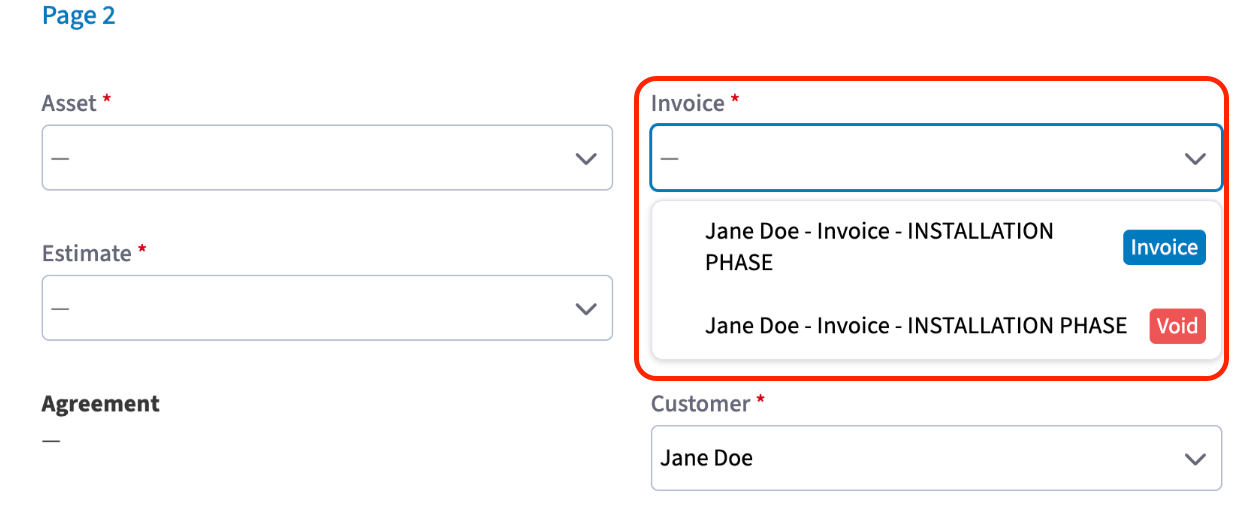
Open the attached form on the job and each related-record field offers a dropdown of that job’s matching records. An Asset field lists the assets on that job; an Invoice field lists every invoice linked to that job. Selecting one fills the field without leaving the form.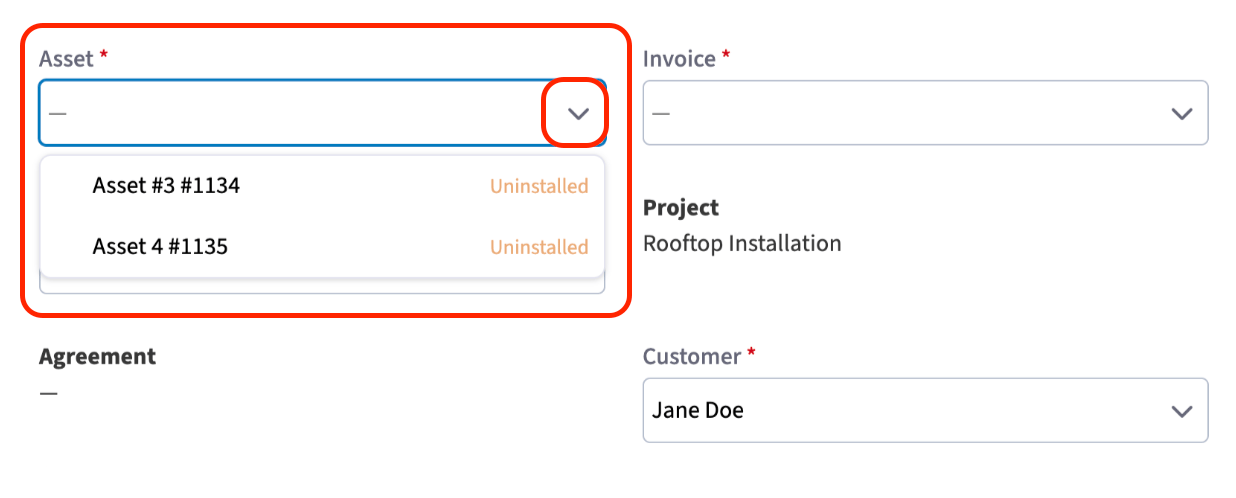
Still need help?
Reach the FieldPulse support team at support@fieldpulse.com or through the chat feature in the bottom-right corner of your screen.Related articles
- Custom Forms Overview
- How to Create a Custom Form
- Custom Form Field Types and Formulas Details
- Custom Form Settings Details
- How to Use the PDF Form Filler
- How to Import and Export Custom Form Templates