
Who uses this: Admins have full reporting access, and Team Managers can be given it. Service Agents and Limited Agents do not have reporting access. Availability: All regions.A commission report is built from the Commissions tab in raw data reporting, and it pulls both flat-rate and user-specific commissions into one table for the date range you choose. That table is how you see what each team member earned before you pay it out.
Overview
A commission report answers one question about your payouts: who earned what, and on which record. Use the commission report to total commission by recipient, see the estimate, invoice, job, and customer each commission is tied to, and save the result as a widget on your Pulse Dashboard. Building a commission report follows the same path as every other raw data report: choose a date type, set a date range, choose the columns, then read the table. Commission reporting is part of FieldPulse’s dashboards and reporting. For the parts of the reporting flow that are the same on every record type (filtering, saving a report, adding it to your dashboard, and exporting to CSV), see How to Use Raw Data Reporting.To learn more about how FieldPulse calculates each kind of commission before you report on it, see Commission Structures Overview.
Video walkthrough
Video walkthrough: Creating a commission report
Before you begin
- Set up the commission structures you want to report on, so FieldPulse has commissions to return. See Commission Structures Overview.
- Check that your role has reporting access. An Admin has full reporting access; a Team Manager needs Full Reporting access turned on.
Set the date type
- Select Reporting under the Management tab in the left-side menu.
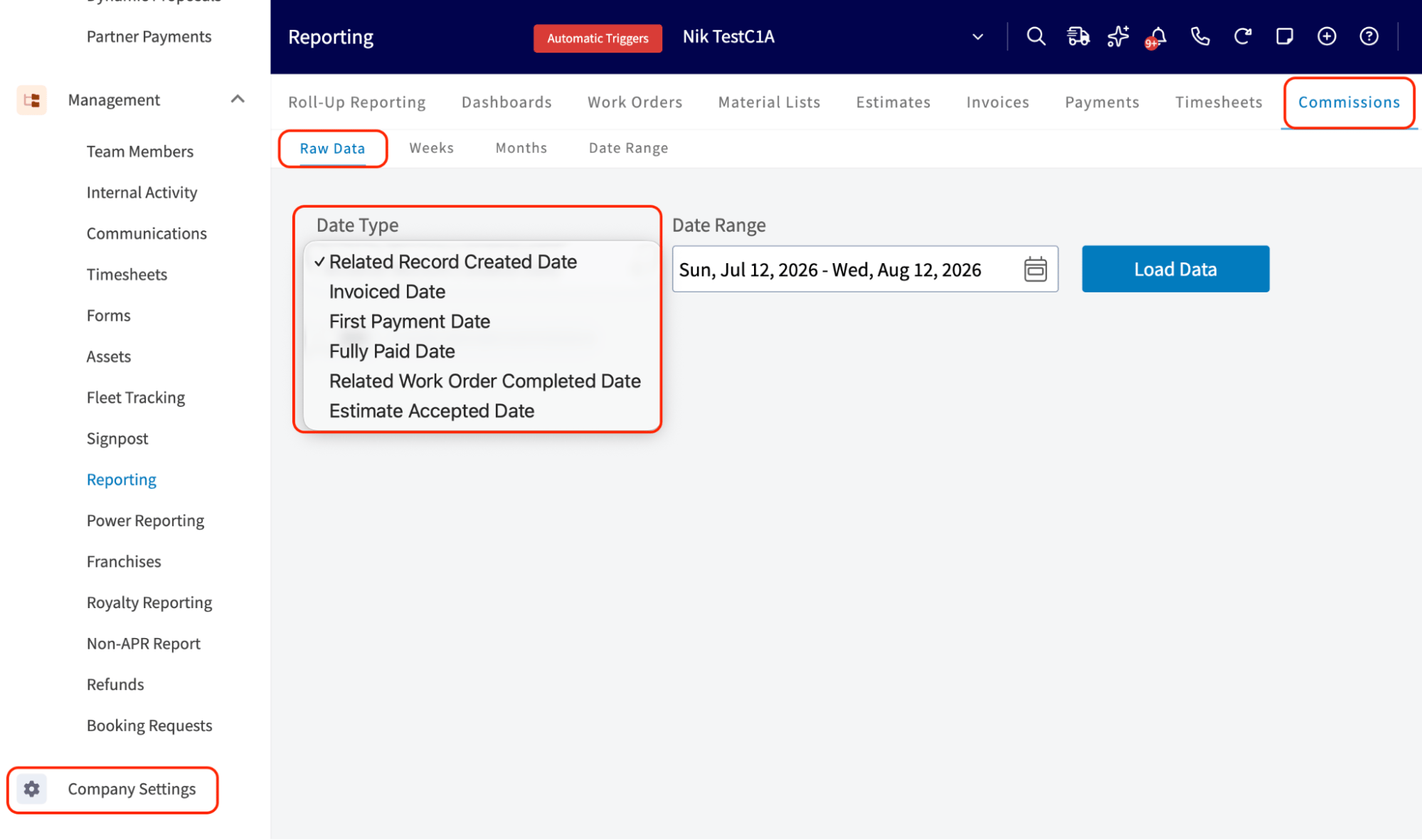
- Select the Commissions tab, then select Raw Data.
- Select a Date Type. The date type sets which date on the related record the report filters on.
Set the date range
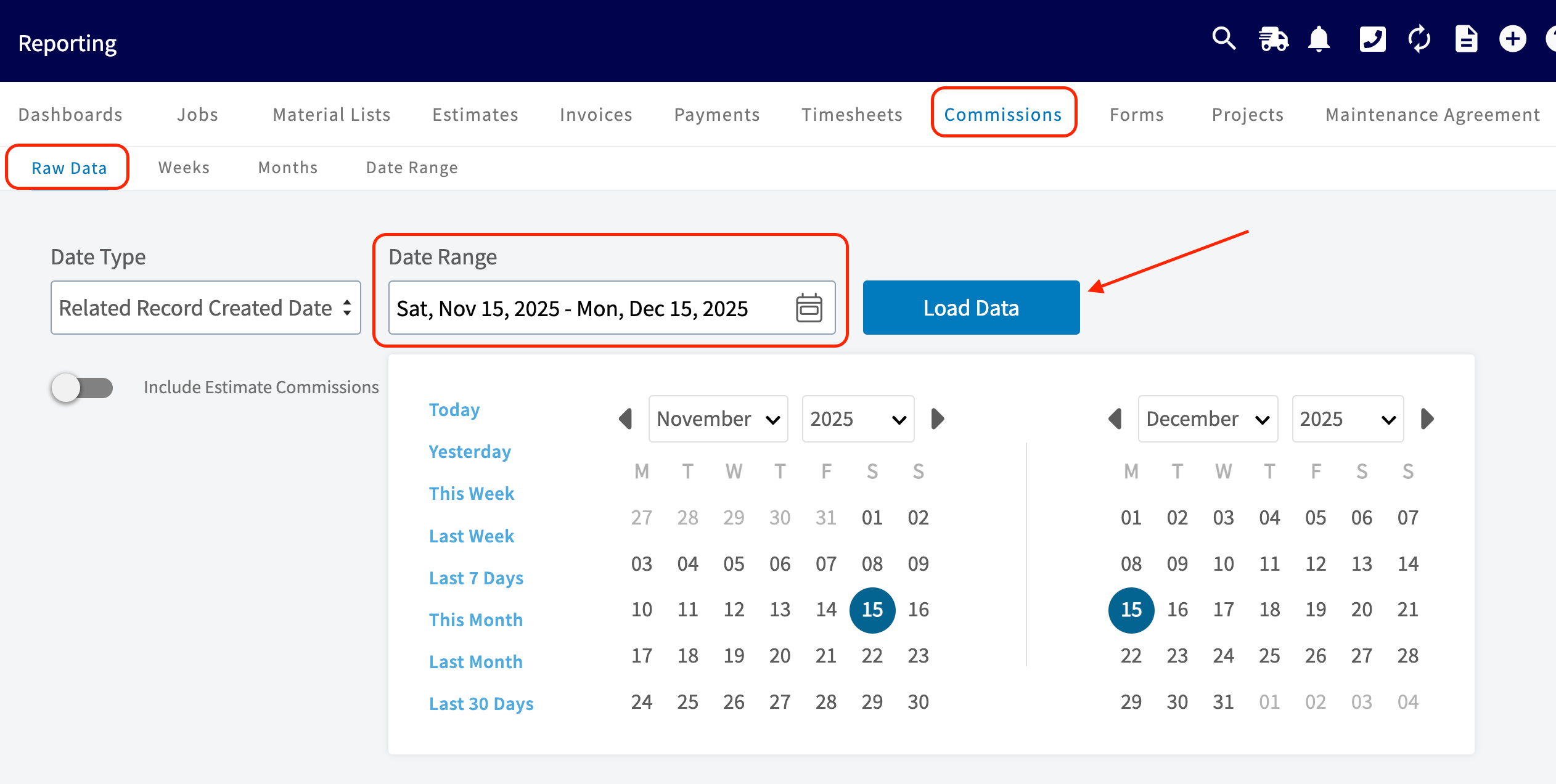
- Select the calendar icon in the Date Range field.
- Choose one of the preset ranges, or use the two month calendars to pick your own start and end dates.
- Select Load Data.
Choose your columns
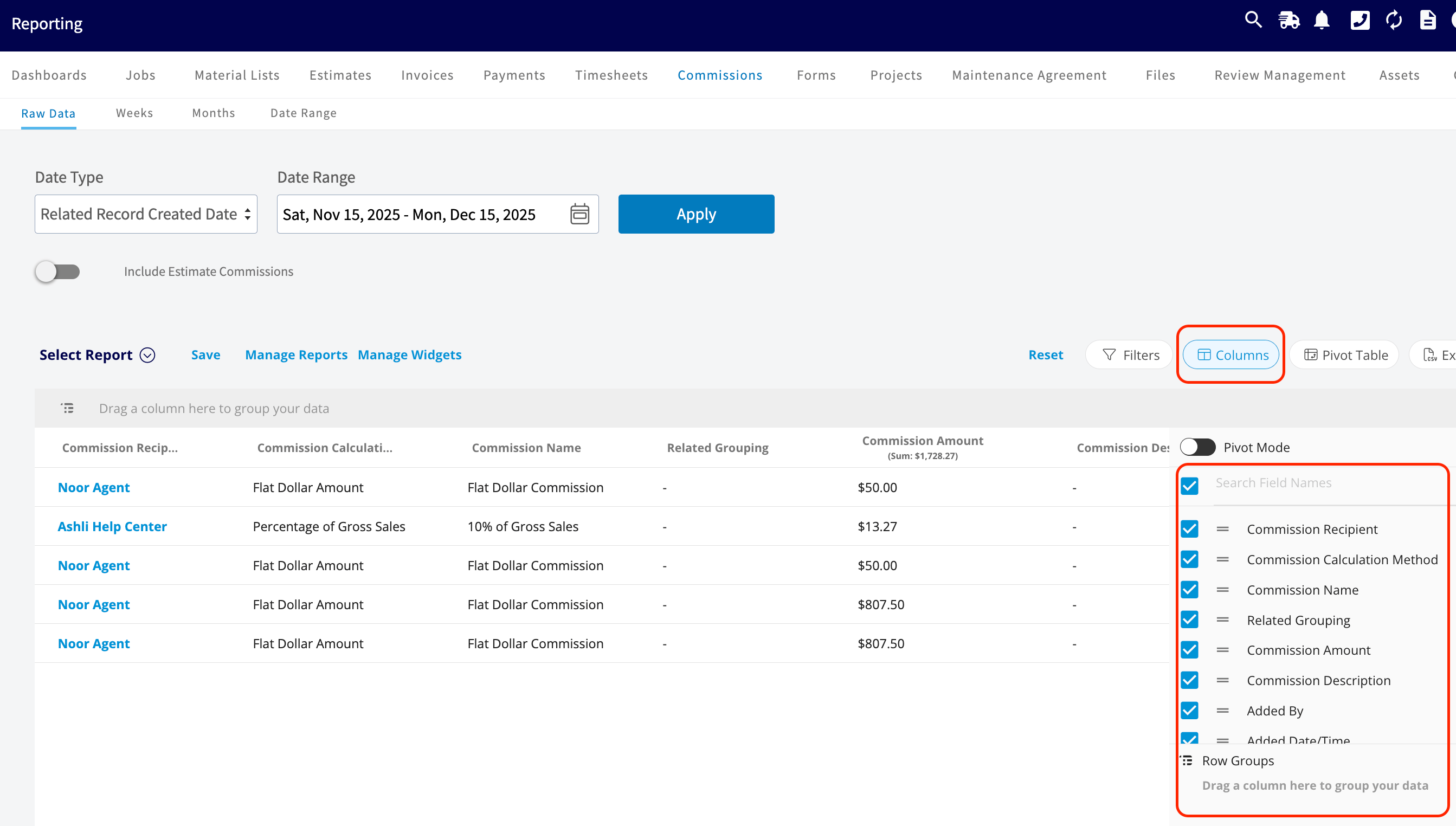
Select Columns to choose which commission fields appear in the report table and the order they appear in. Use the check boxes to decide which columns to include. A commission report includes these columns by default:- Commission Recipient
- Commission Calculation Method
- Commission Name
- Related Grouping
- Commission Amount
- Commission Description
- Added By
- Added Date/Time
- Related Estimate
- Related Invoice
- Related Invoice Status
- Related Job
- Related Job Status
- Related Customer
Group by commission recipient and related job
Grouping collapses the report’s rows under the unique values of a column. Drag a column header into the Drag a column here to group your data bar above the table to group by that column. To see each team member’s commissions broken out by the job attached to them, group by Commission Recipient first, then add Related Job as a second grouping. You can also use Quick Reports to display total commission received each week grouped by the team member who received it. For the full detail on groupings, quick reports, and pivot tables, see How to Use Raw Data Reporting. Your commission report is working when the table returns commissions for the date type and date range you chose, shows the columns you selected, and totals by team member once you group by Commission Recipient.Tips
- FieldPulse recommends reporting commissions only on fully paid invoices, so the commission you pay your team matches the commission FieldPulse calculated. See Commission Structures Overview.
- For a payout list, keep Commission Recipient, Commission Amount, and Related Invoice selected, clear the columns you don’t need, then group by Commission Recipient.