
Overview
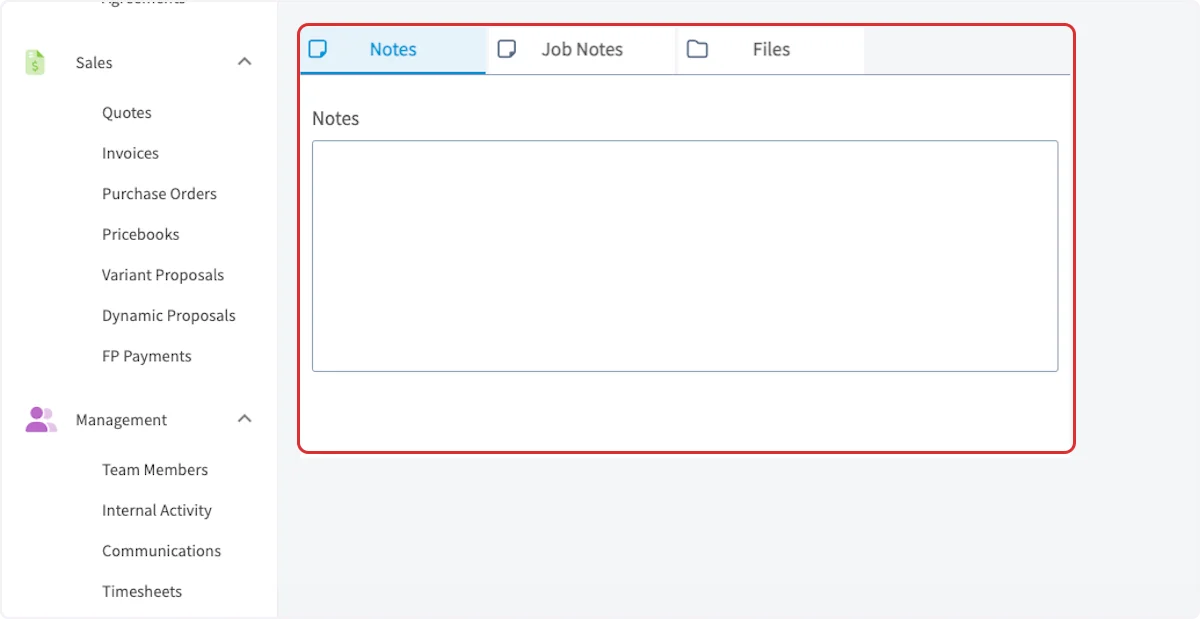
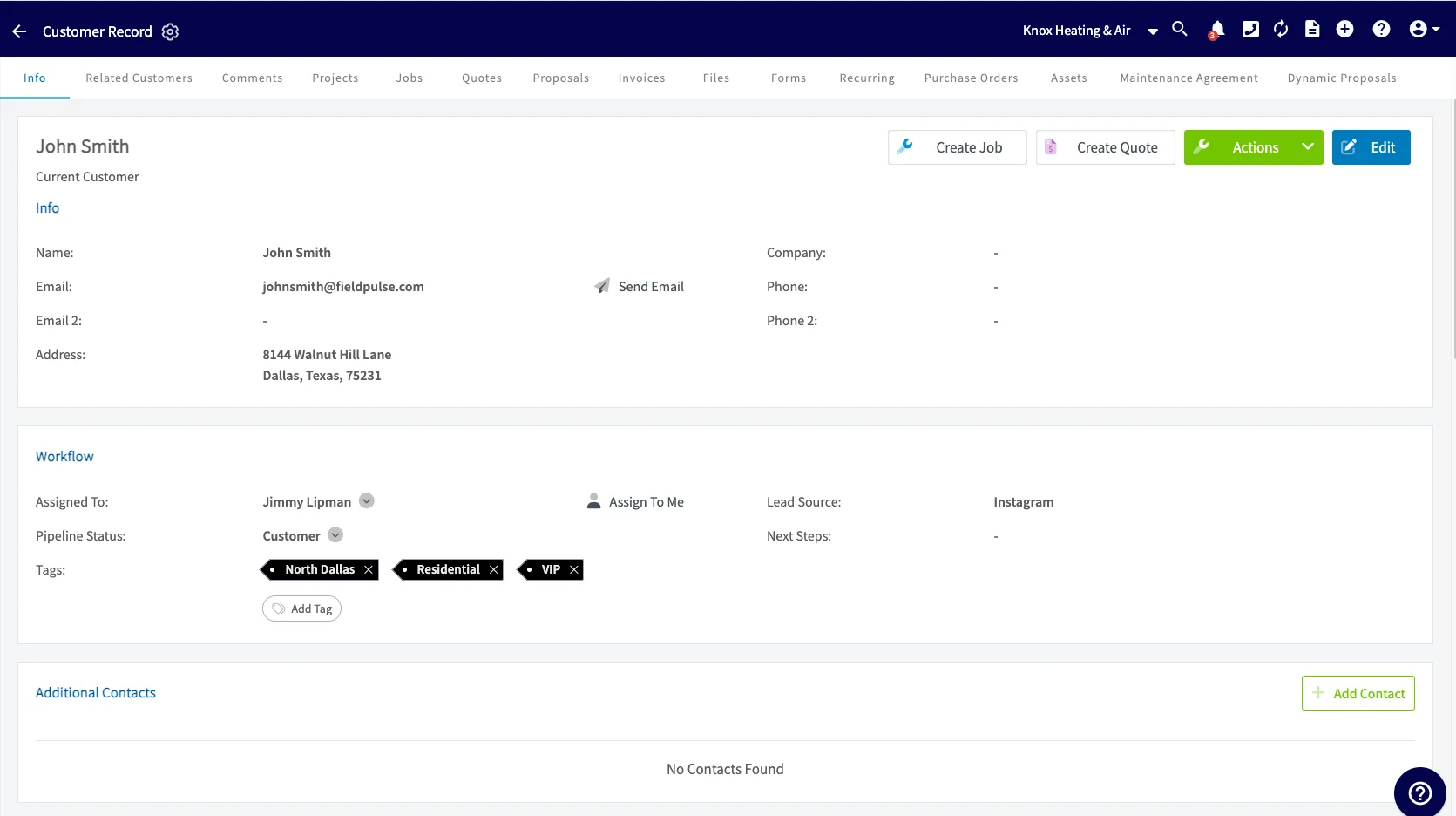
FieldPulse offers a simple Customer Relationship Management system that makes storing and finding related customer information easy. You can create and edit customer profiles to store detailed customer information, notes, and related records such as: Jobs, Estimates, Invoices, and Files. A customer profile is required in order to create a job, estimate or invoice for a customer. To track the lifecycle of a customer, FieldPulse allows you to indicate whether a customer is a current customer, lead, opportunity, or lost customer.On Web: Admin Experience
Creating a Customer Profile
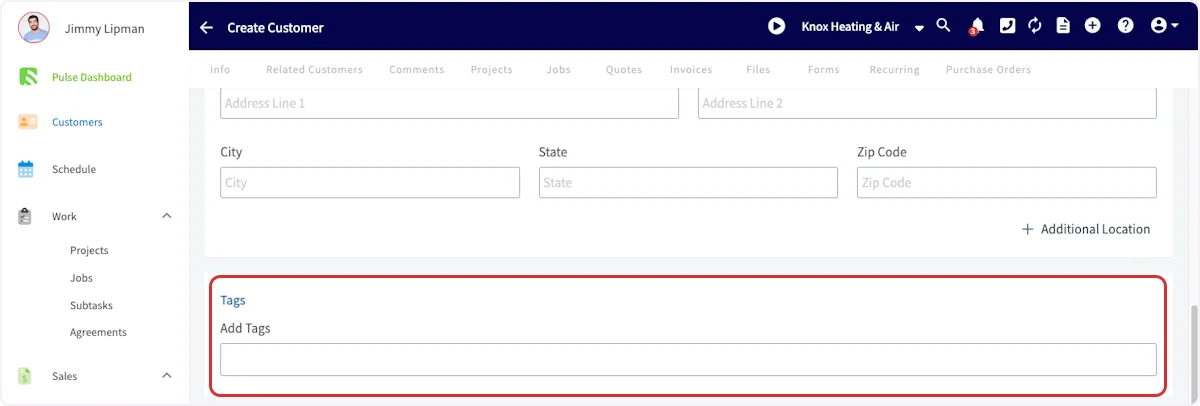
Customers can be created in different ways, but the most common method is via the Customers tab in the menu on the left-hand side of your screen. You then click the Create Customer button to begin creating a customer. You can also create customers while creating new jobs, estimates, or invoices.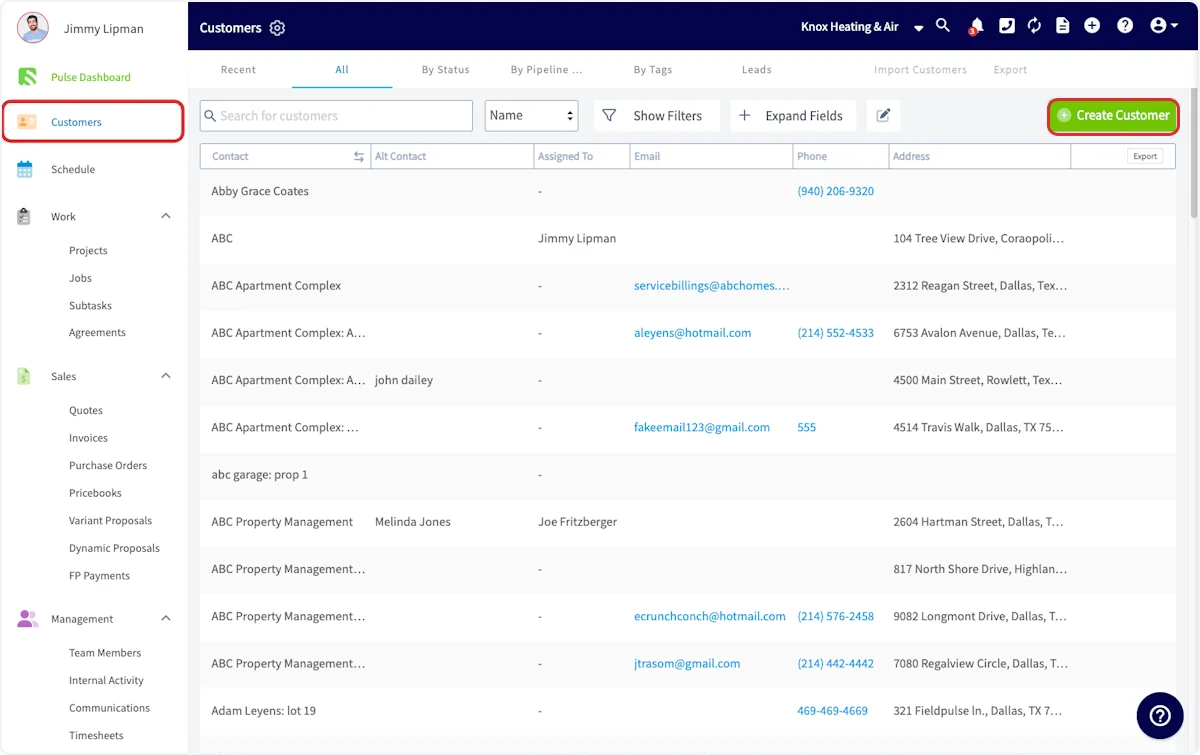
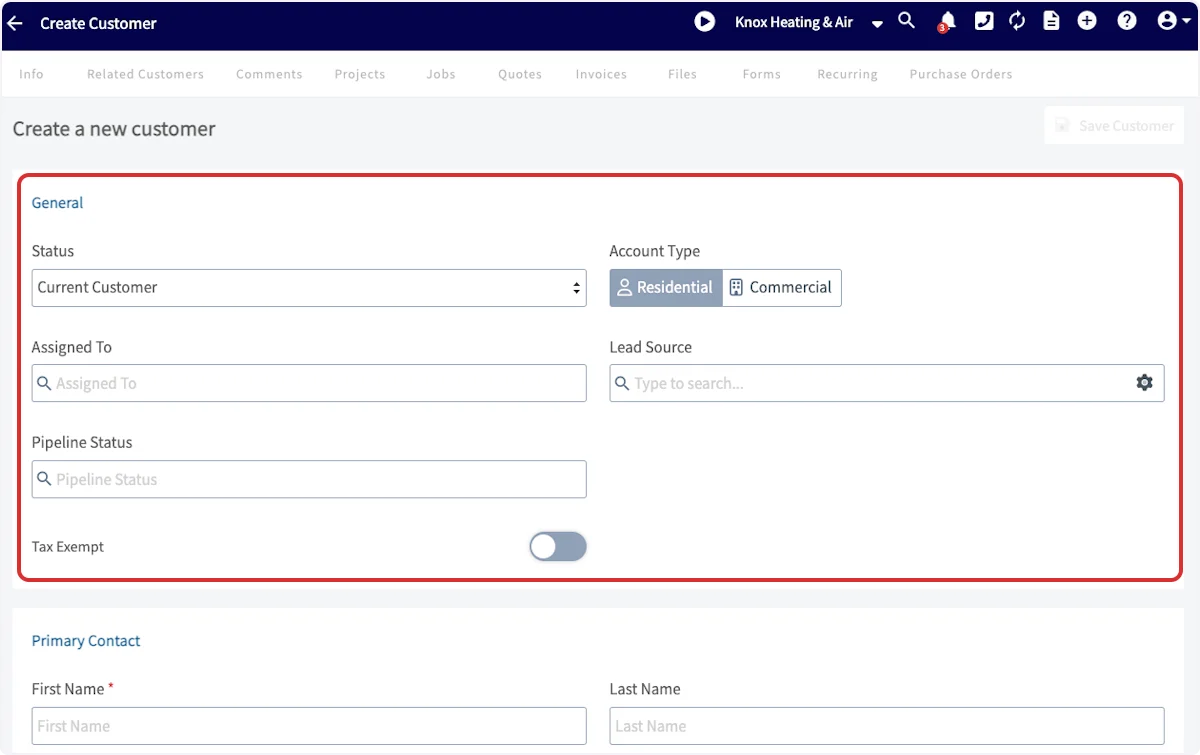
- Status: select and update the status of your customer as your relationship progresses.
- Account Type: select whether your customer is residential or commercial.
- Assigned To: select a team member to assign the customer to.
- Lead Source: select the lead source (if applicable) for this customer. You can always adjust the lead sources in Company Settings. To learn more about lead sources, the lead sources guide.
- Pipeline Status: select and update the status as your relationship progresses. Use the FieldPulse provided pipeline statuses or customize your own in Company Settings. To learn more about customizing statuses, the custom sales pipeline guide.
- Tax Exempt: toggle on or off to ensure tax is appropriately charged on estimates and invoices.
On Mobile: Field Experience
There are several ways to create a customer in the mobile app:- You can create a customer from the Pulse Dashboard
- You can create a customer from the Customers tab in the bottom menu
- You can create a customer from the Full Menu tab
Method 1: From the Pulse Dashboard
To create a new customer from the Pulse Dashboard, select Create Customer or Create New under Recent Customers.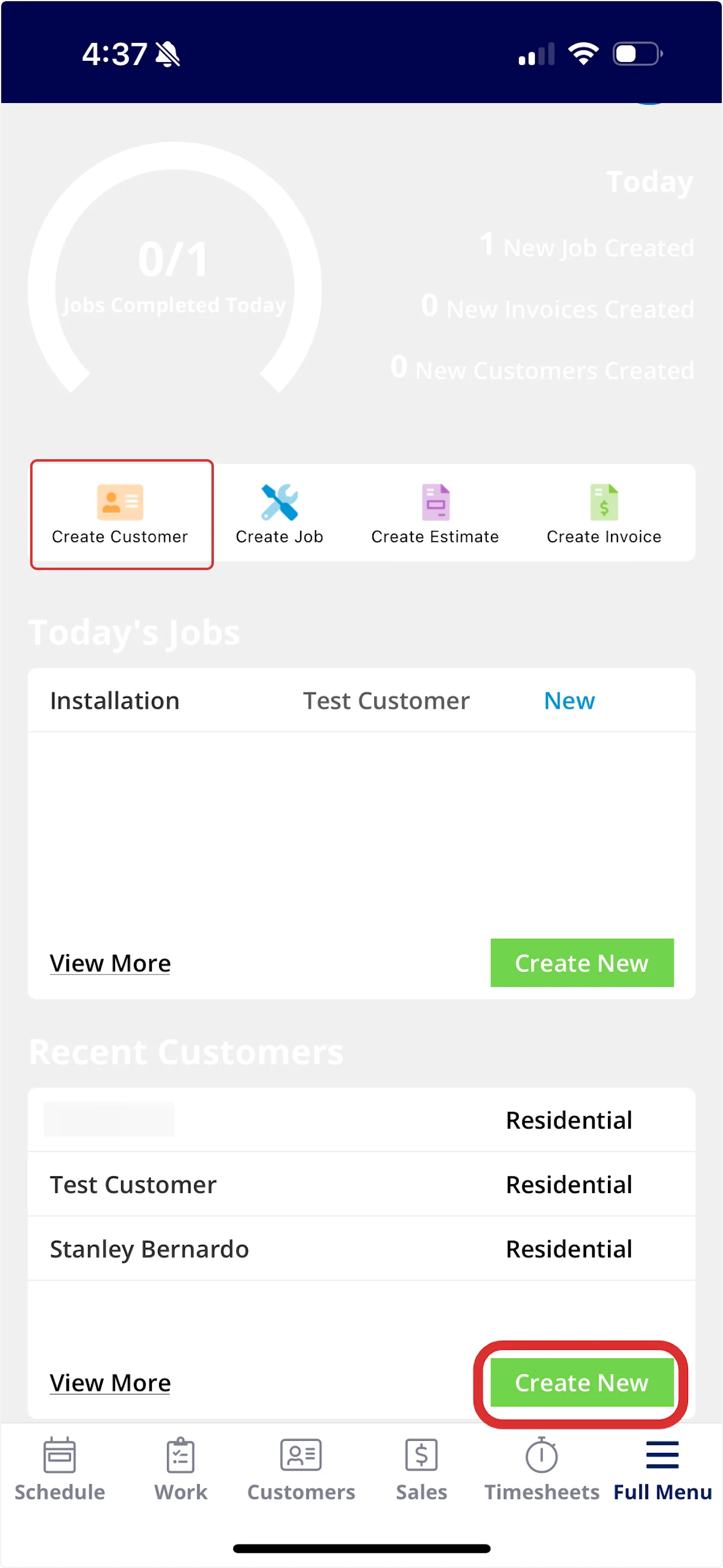
Method 2: From the Customers Tab
To create a new customer from the Customers tab, select Customers from the menu at the bottom of the screen. Then click Create New.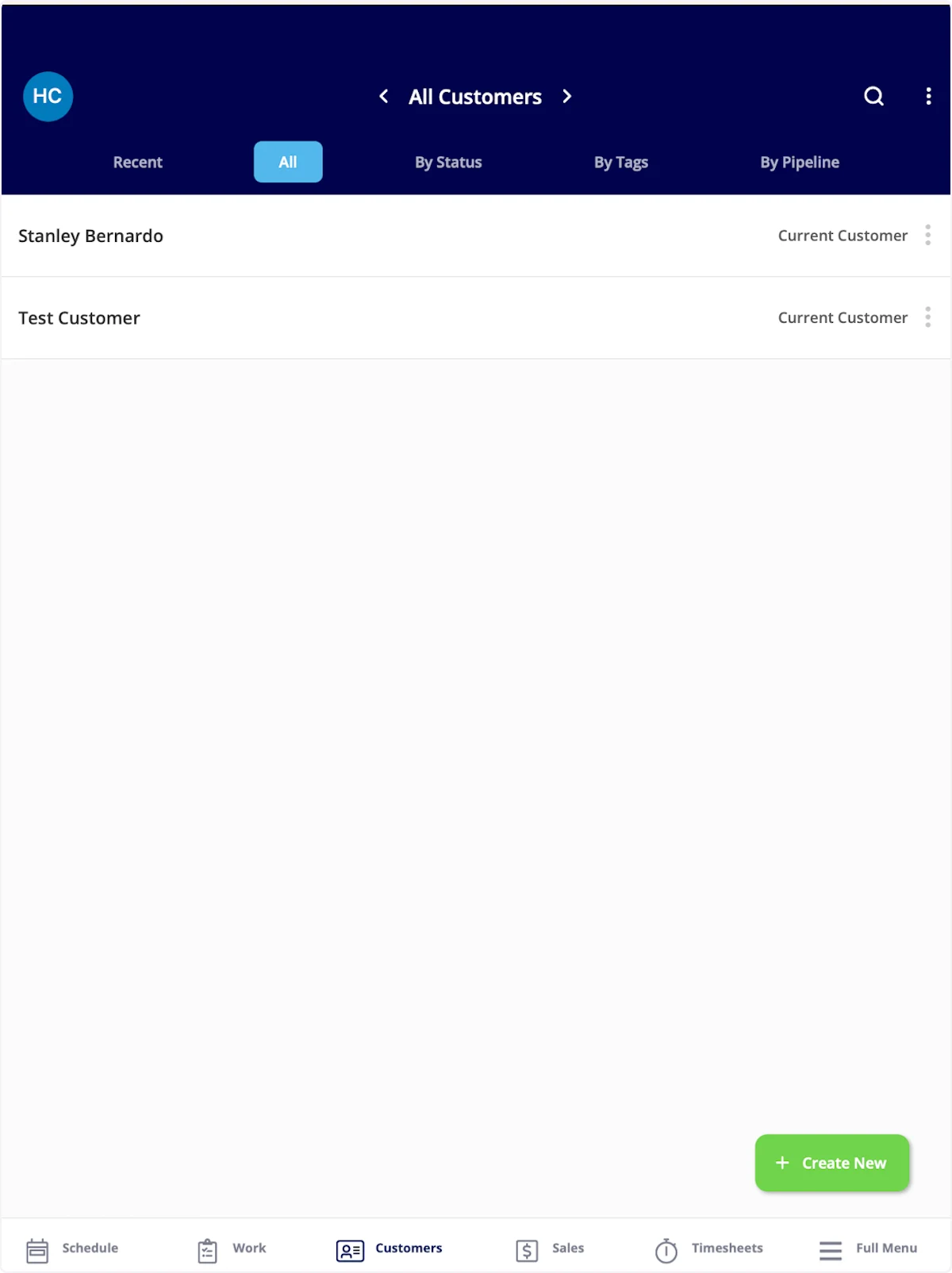
Method 3: From the Full Menu
To create a new customer from the full menu, select Full Menu from the menu at the bottom of the screen and then click Customers.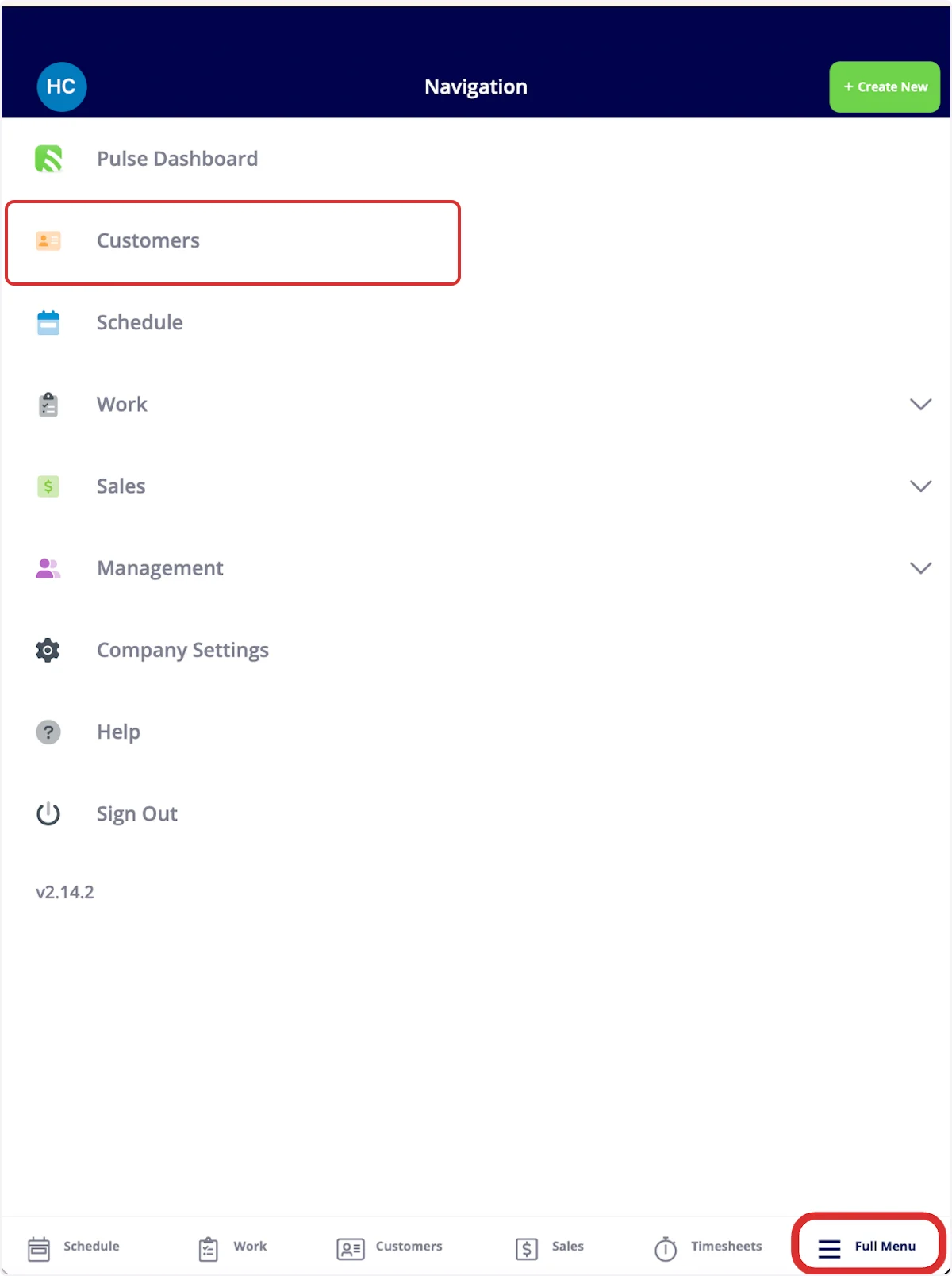
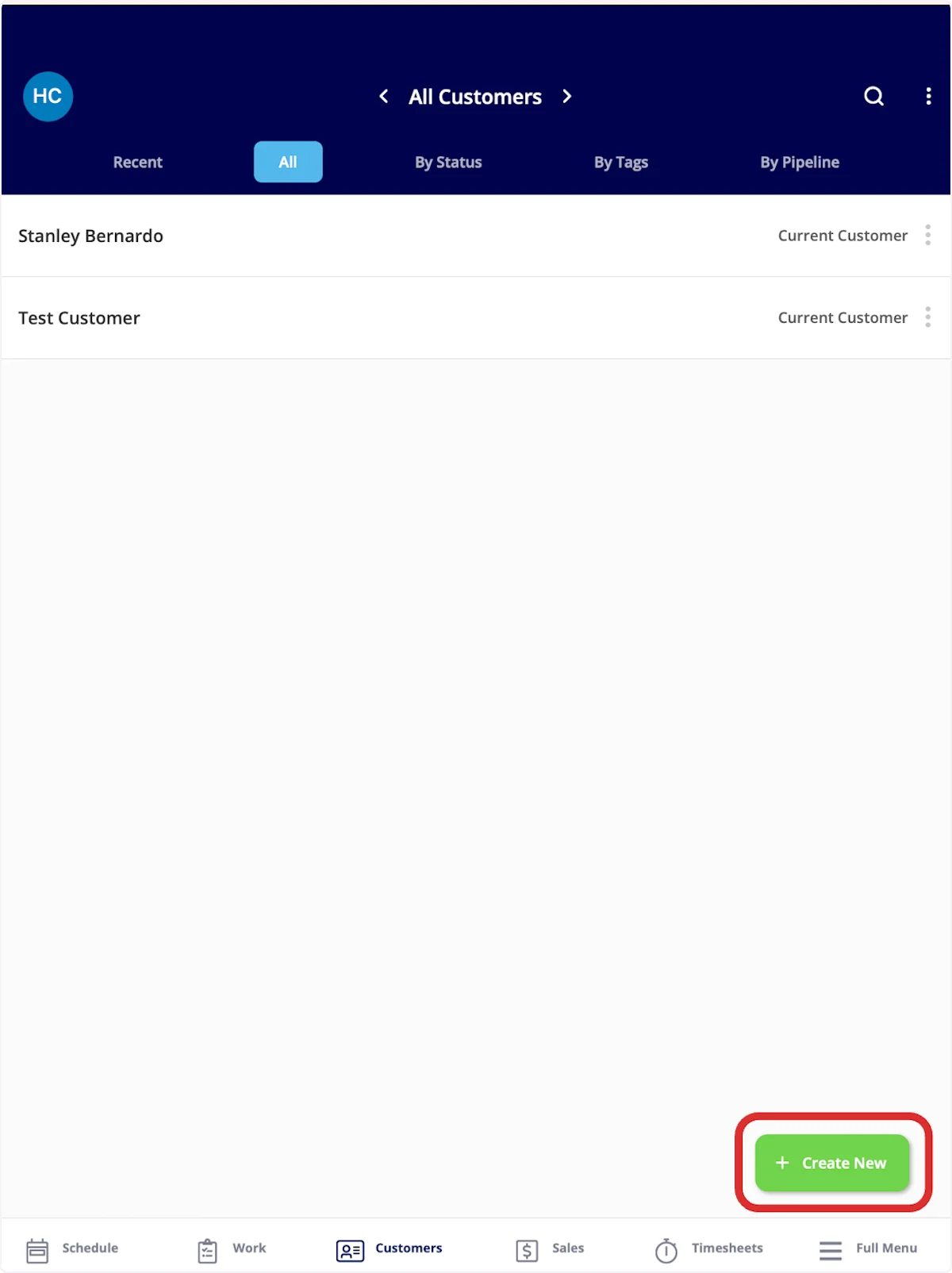
Adding Customer Details
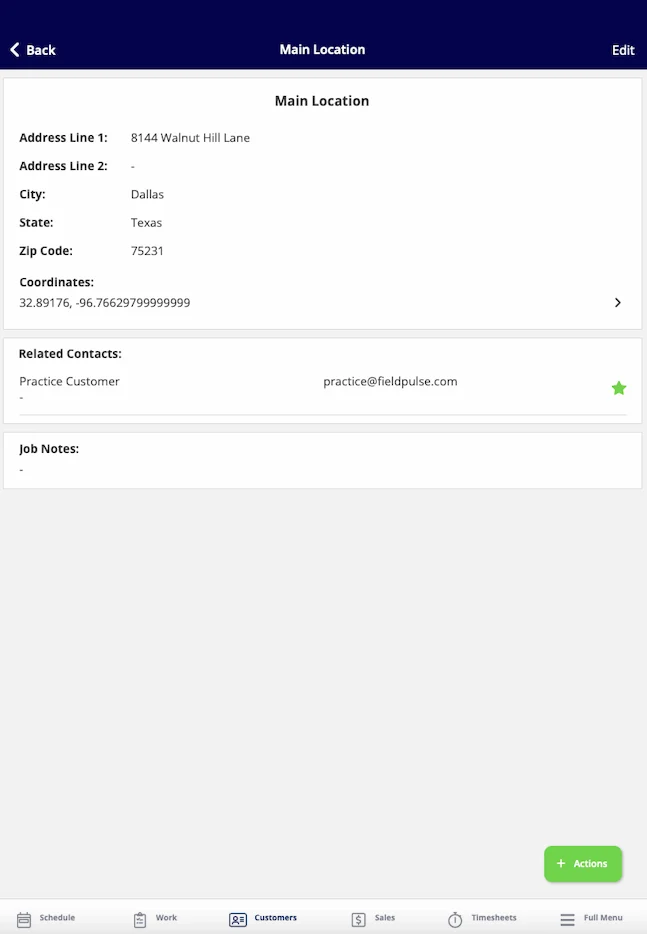
From here, you can begin to fill out the Account Status, Pipeline Status, Account Type, if you’d like to assign this customer to a specific team member, Lead Source and Primary contact information. Once you are finished entering the information, click Save in the top right corner.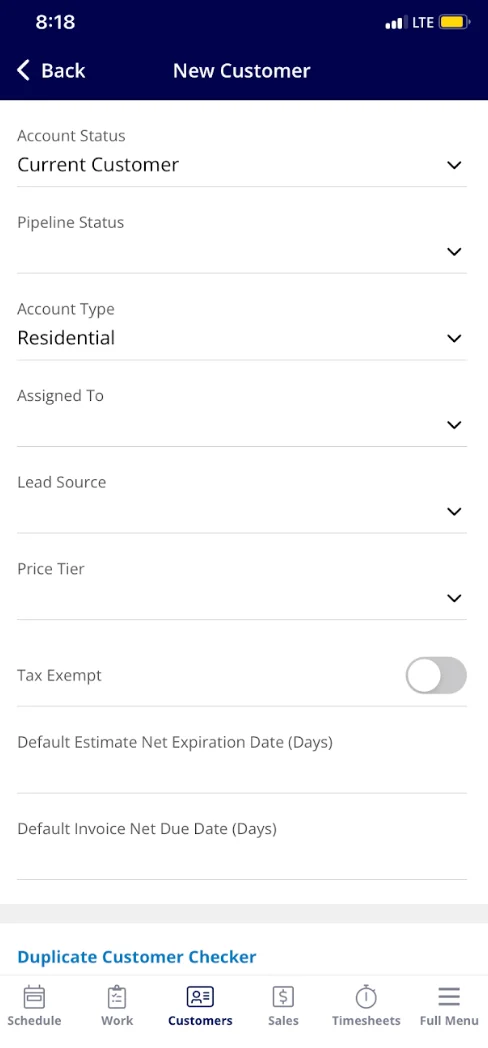
Video Tutorials
Web App
Mobile
FAQs
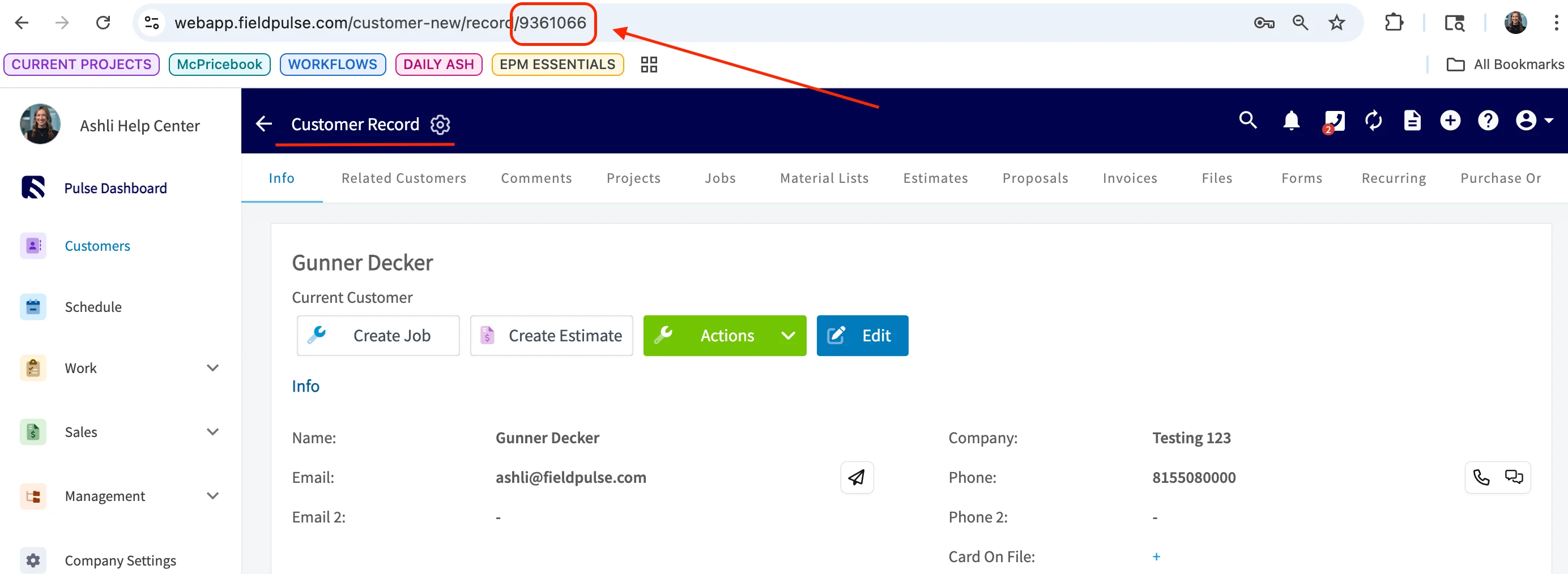
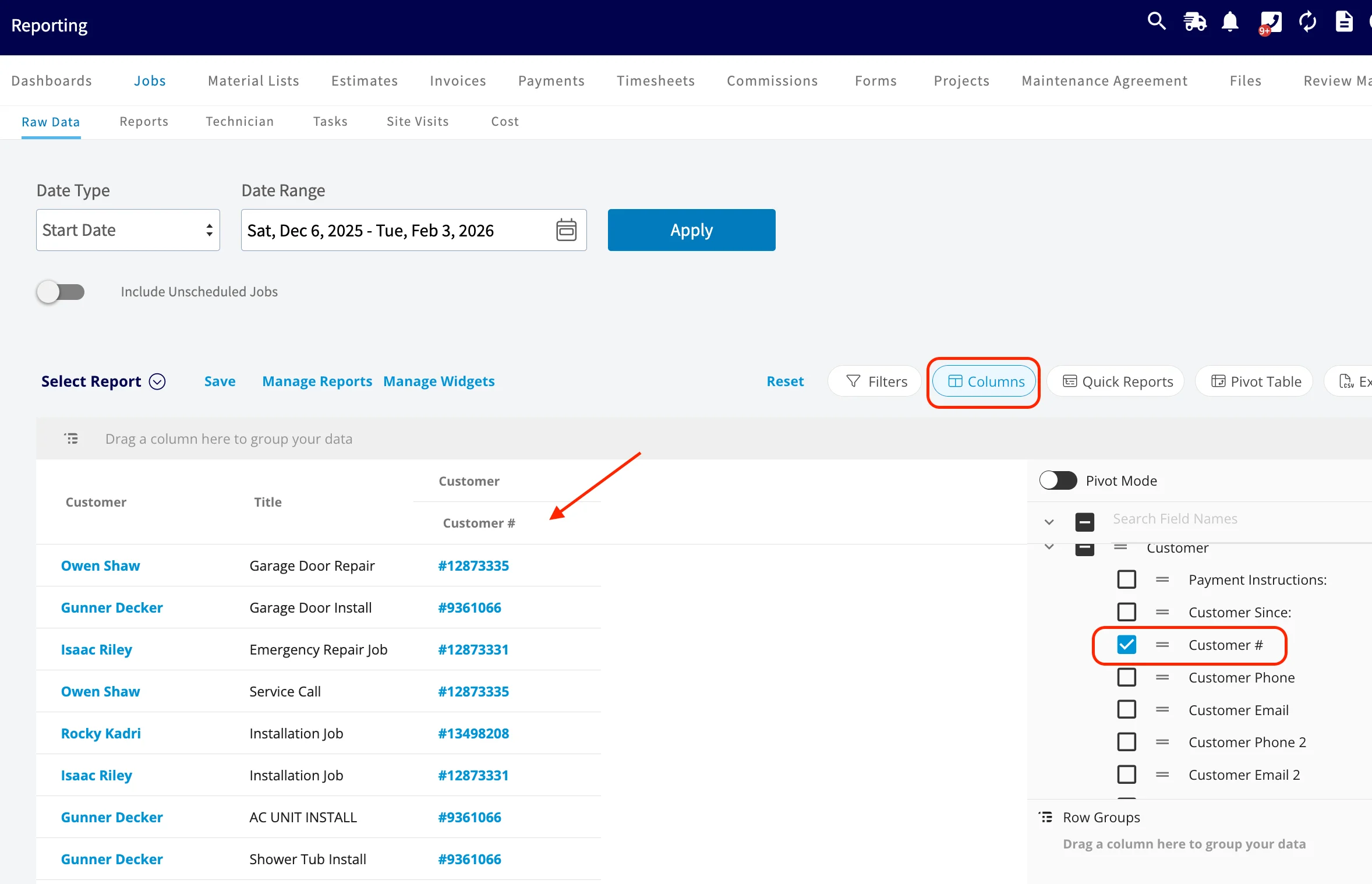
Is a unique customer ID assigned to each customer? Yes. The ID isn’t shown on the customer record itself, but you can find it in three places:-
In the URL. Open a customer record in the web app — the customer ID appears in the browser address bar.
-
In any report. A Customer # column is available on every report in FieldPulse.
- In a customer export. Use the Export button on the Customers tab, or go to Company Settings → Customers → Export Customers. The CSV includes the customer ID for every record.
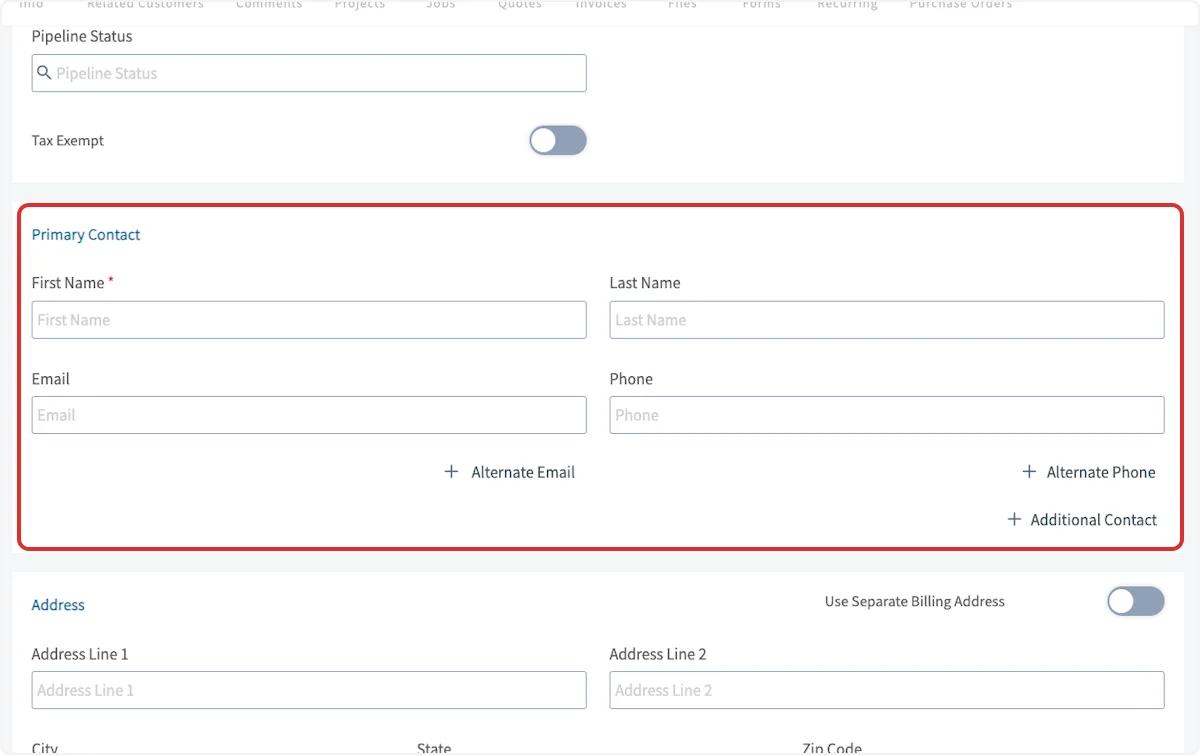
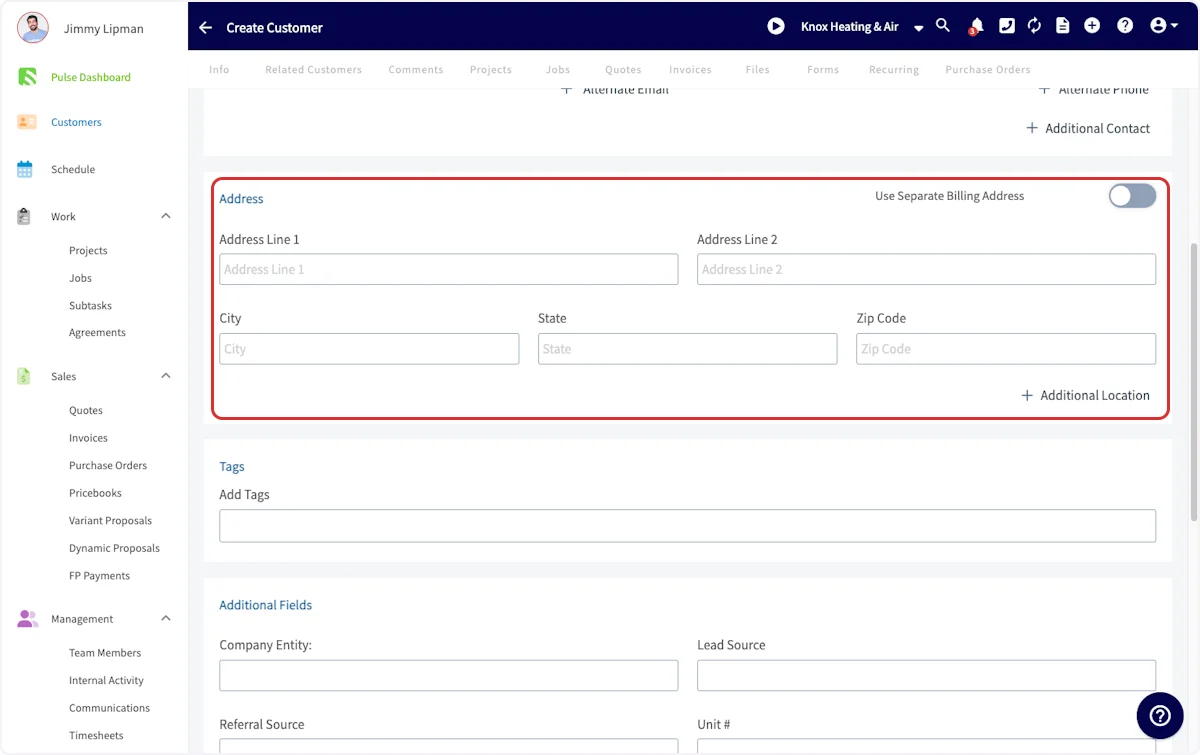
What system suggests addresses as I type a customer’s location? FieldPulse uses Google Address Verification to suggest matching addresses as you type in the Address fields.
Have additional questions? Contact us at support@fieldpulse.com or use the chat feature in the bottom right corner of your screen.