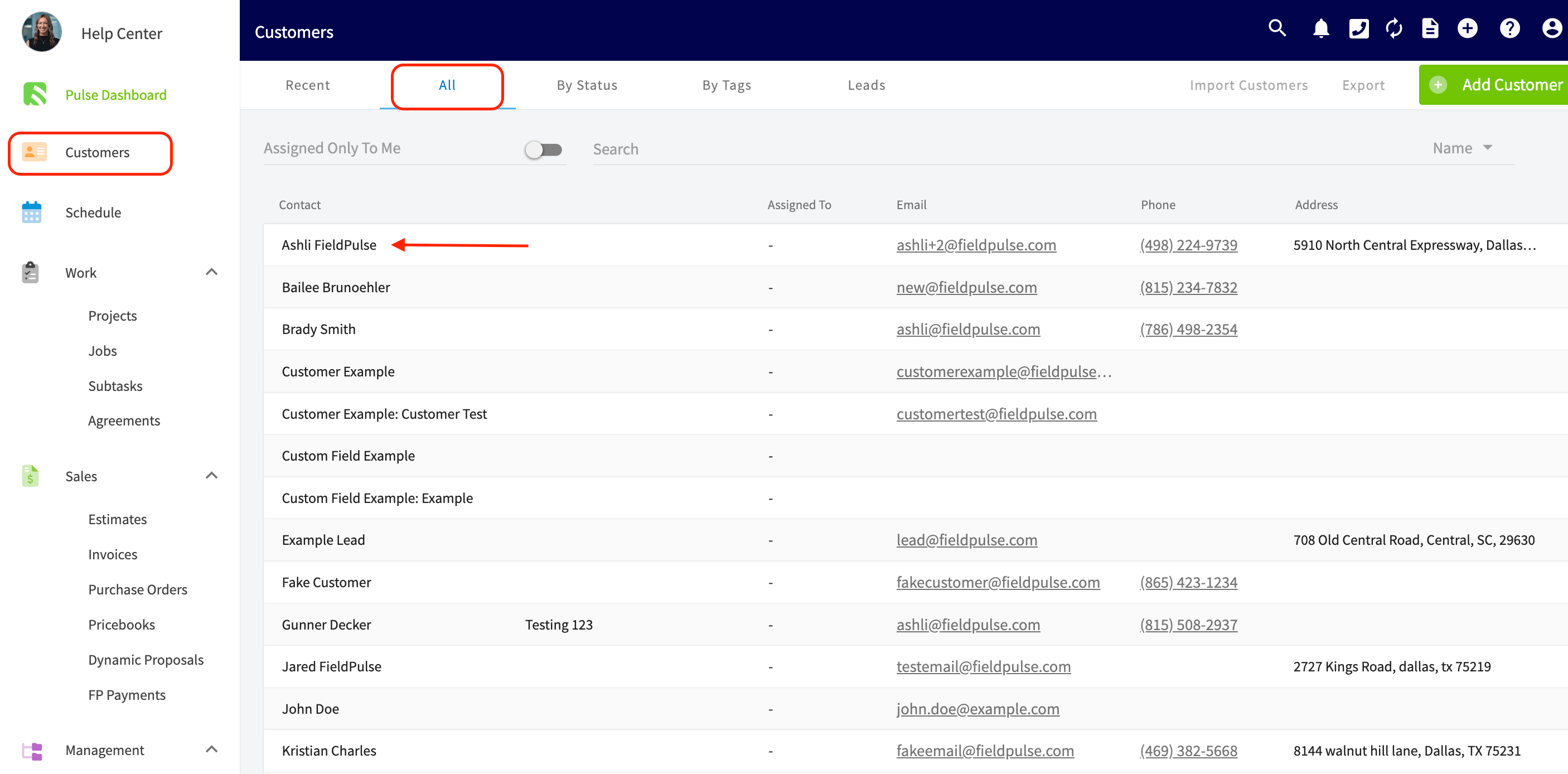
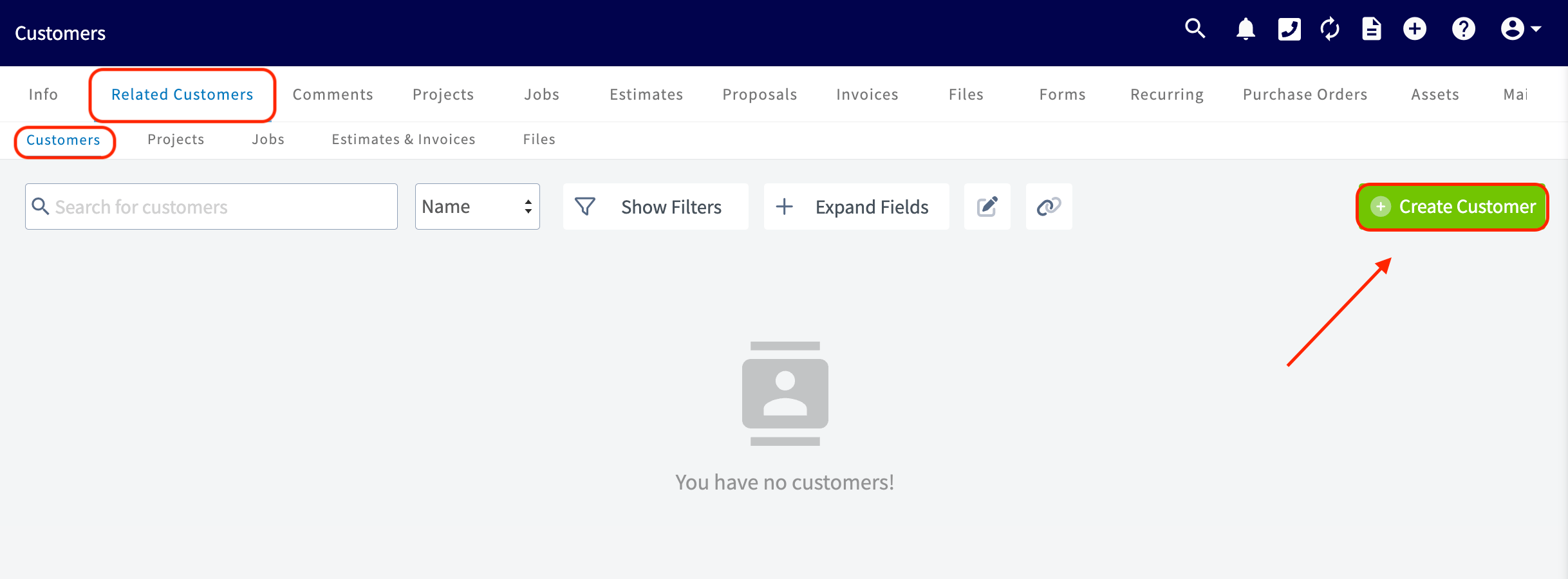
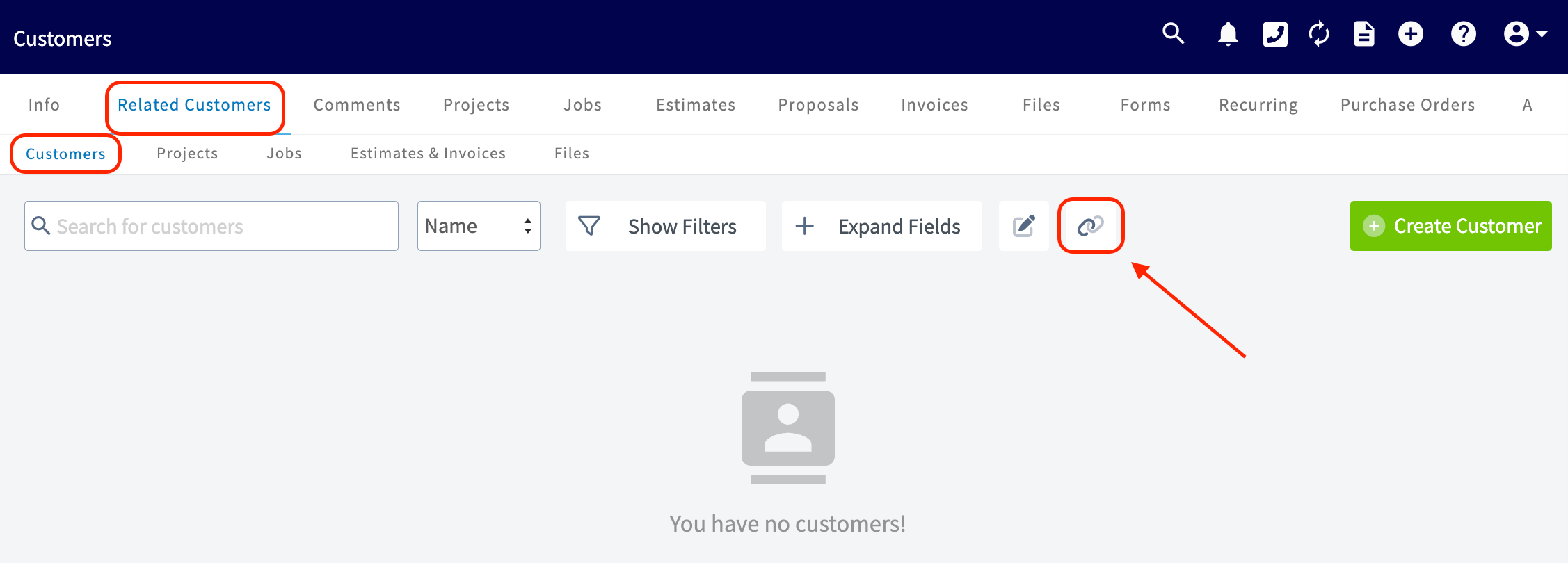
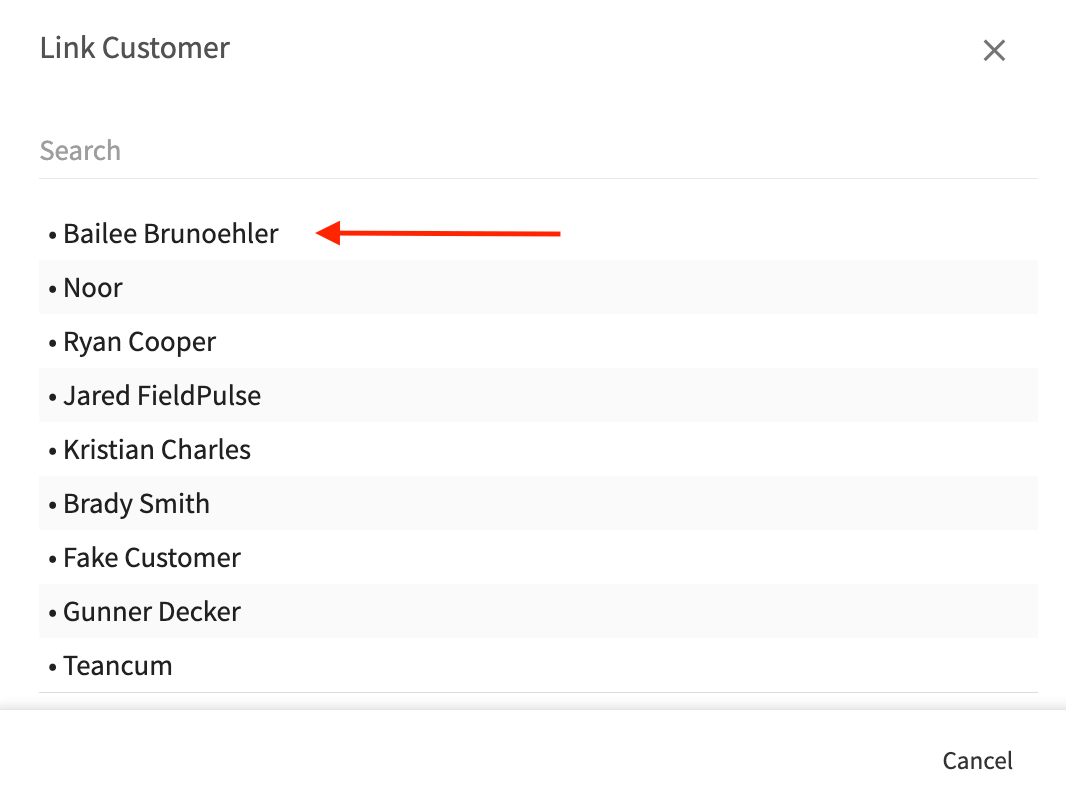
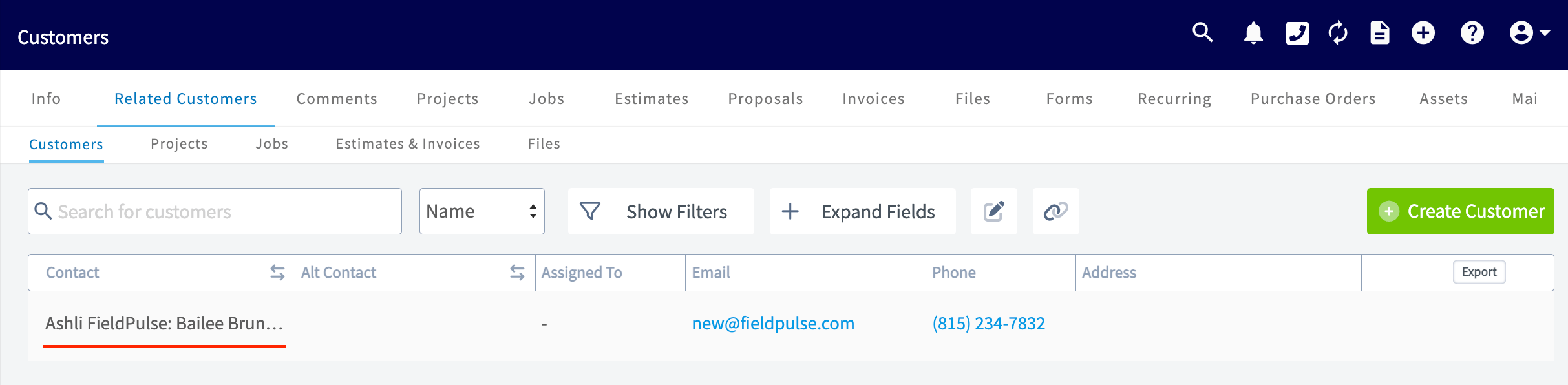
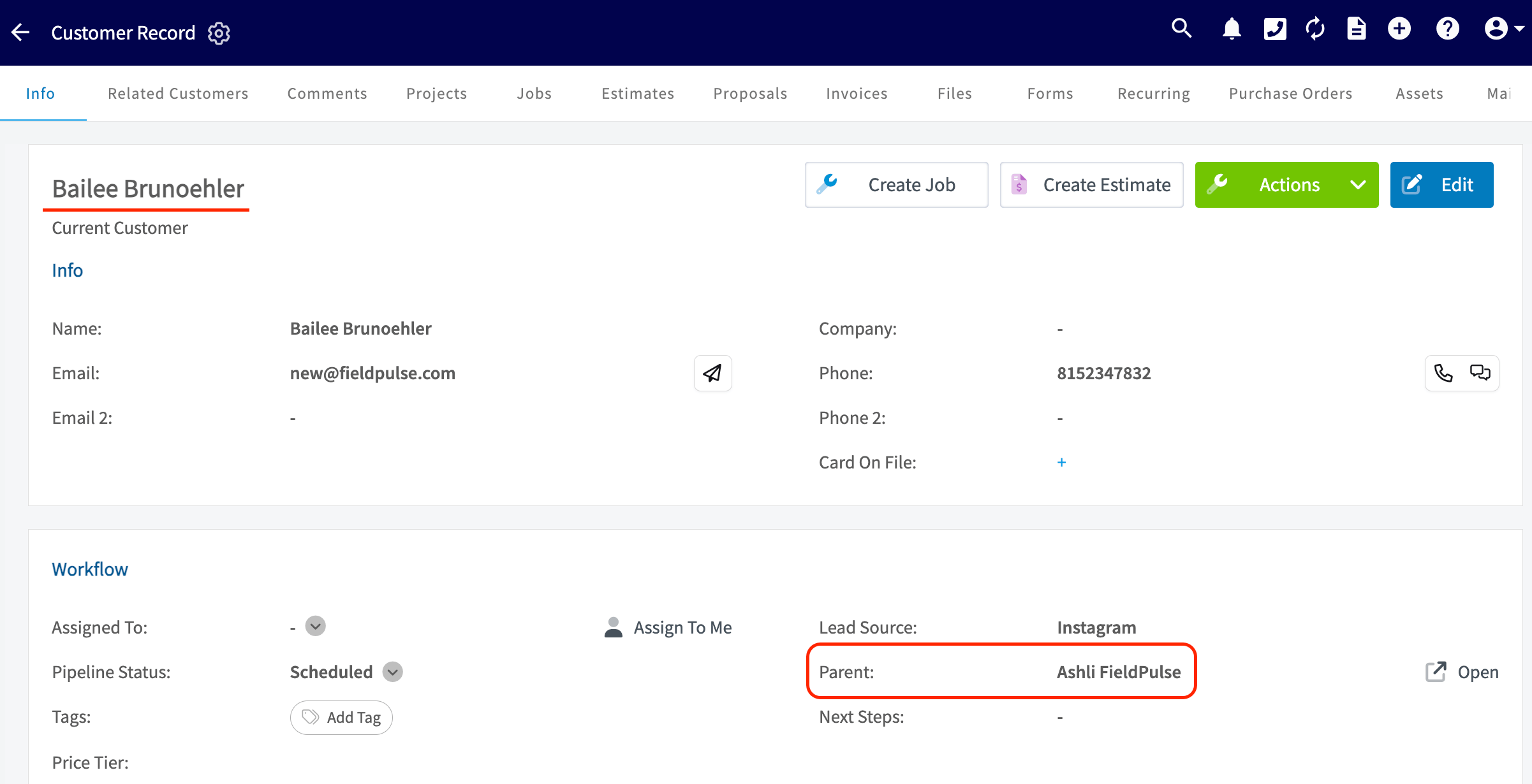
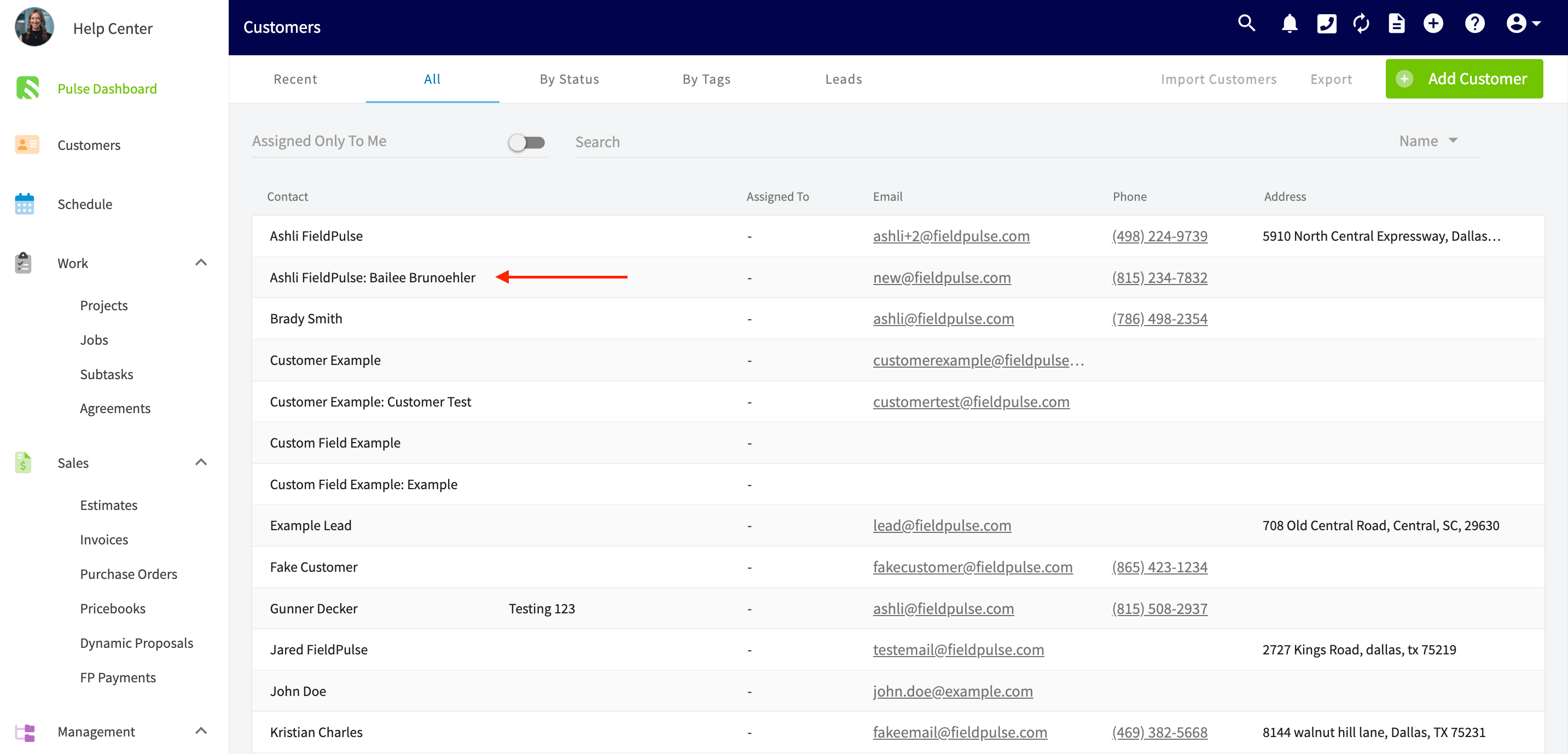
If you have one customer with multiple locations that you service, you can set the customer up as a Parent Customer and set up their various locations as Related Customers. This allows you to keep all of the locations organized under one central customer while still setting up individual jobs for each location. To do this, go to your Customers list on the left hand menu, then select the company that you want to set up multiple locations for. Related Customers link in the parent customer record header On the customer record for the Parent Customer, click on Related Customers in the header. On the Related Customers page, click on Create Customer. Create Customer button on the Related Customers page This will allow you to create a new customer that is linked to the parent customer. You can also choose to link an existing customer as a Related Customer using the Link Customer button. Link Customer option to attach an existing customer as related You’ll then select which pre-existing customer you want to link to the Parent record from the pop-up. Pop-up for selecting an existing customer to link to the parent You will then see that Child Customer is linked under the Related Customers tab for that Parent Customer. Child customer listed under the parent's Related Customers tab On the Child customer record, you’ll see the Parent Customer linked underneath the name of this location. Child customer record showing linked parent customer name (Note: you can add as many related customers as needed.) In the main customer list, the name of related customers will be displayed as: “Parent Customer: Related Customer.” Customer list showing related customers as Parent: Related Customer

Video Tutorial


Have additional questions? Contact us at support@fieldpulse.com or use the chat feature in the bottom right corner of your screen.