
Enabling the Customer Portal
To begin using the Customer Portal, you’ll first need to enable it. Start by clicking on Company Settings and selecting Features & Plugins. Navigate to Customer Portal and select Enable. Now you’re ready to begin customizing and automating your communications!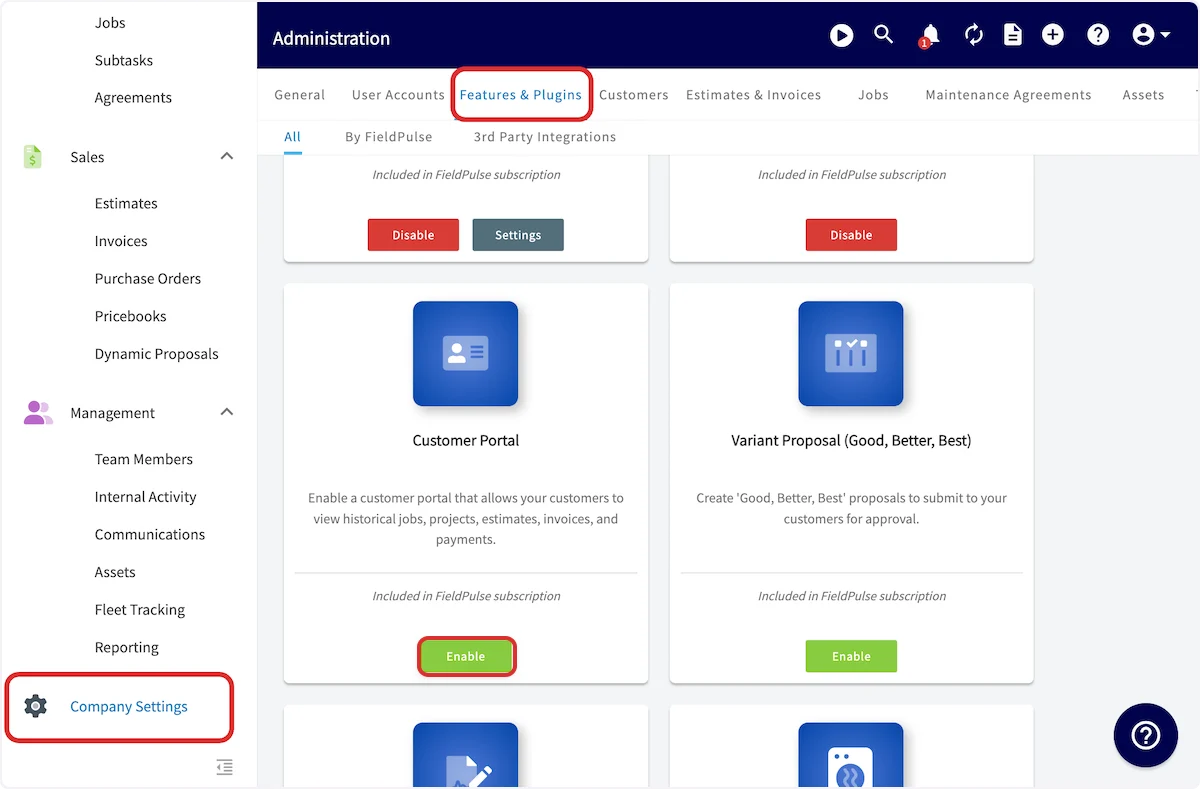
Customizing What Customers See
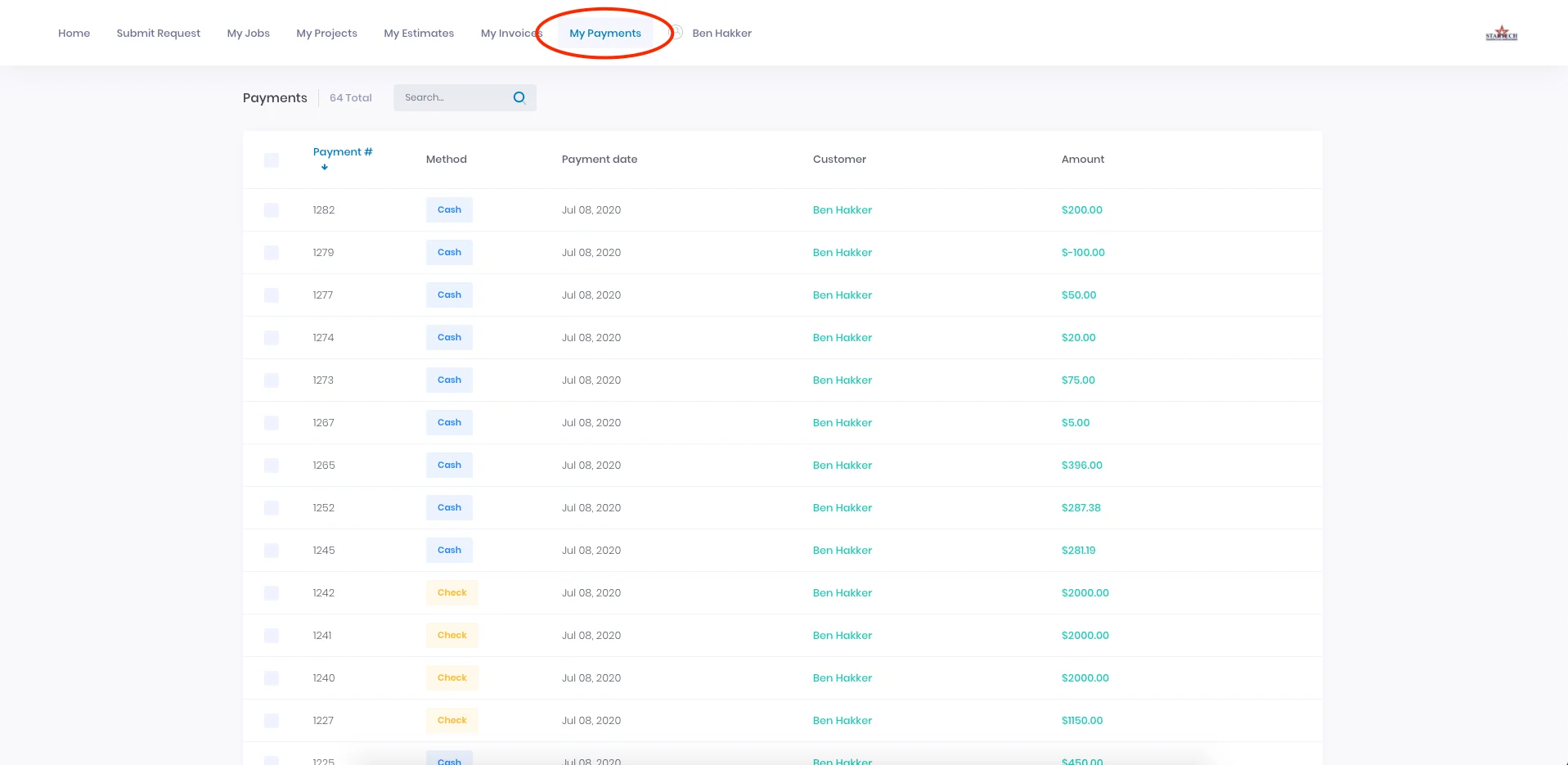
Once the Customer Portal is enabled, you can control exactly what your customers have access to from Company Settings > Customer Portal > Customer Portal Permissions. The settings are organized into five groups. Every toggle defaults to ON for new accounts. Turn off any toggle to hide that section or detail from all customers on your portal. General Settings
Jobs
Projects
Billing, Estimates & Invoices
Assets
Note: These settings apply globally to all customers on your account.
Sharing the Customer Portal
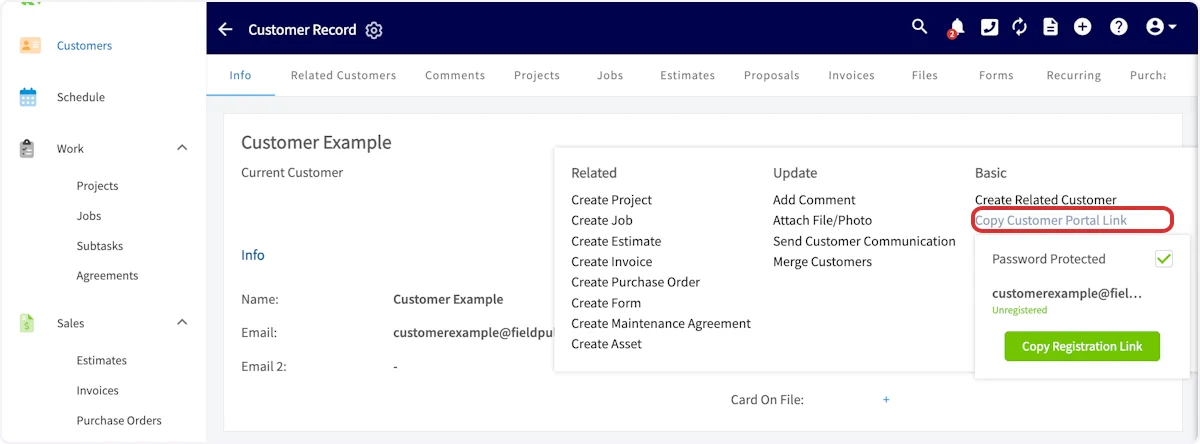
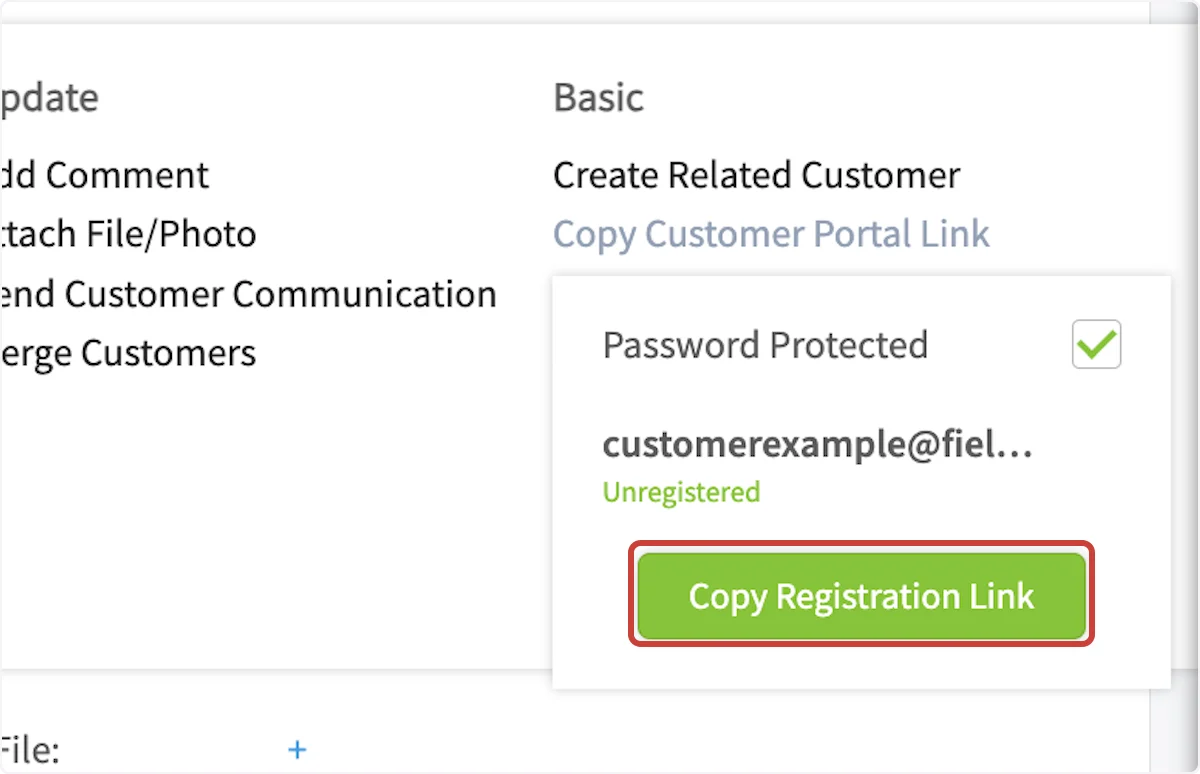
To get started, you need to share a link with your customer to their personal portal. To do this, open a customer’s profile in FieldPulse and click the Actions button.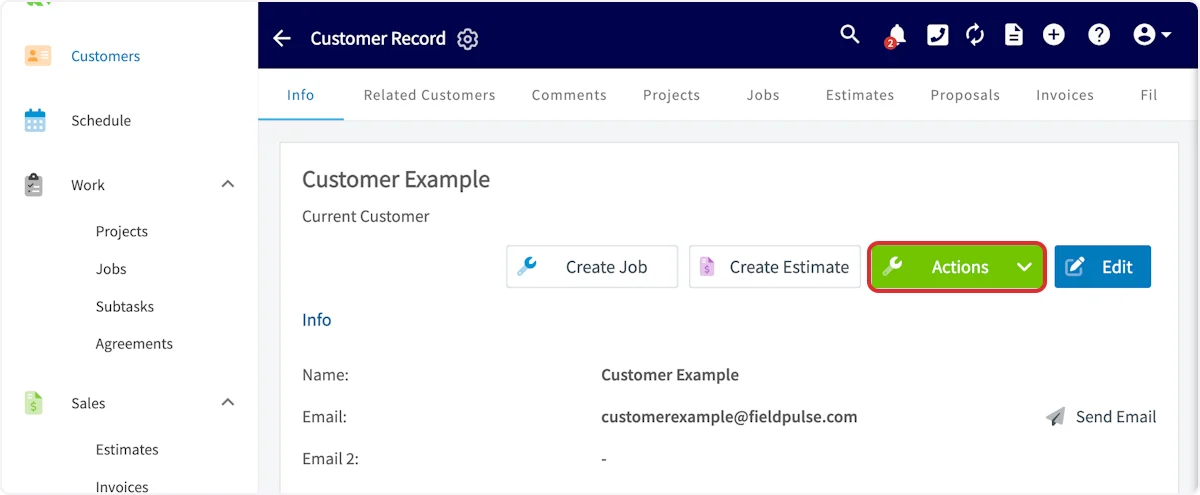
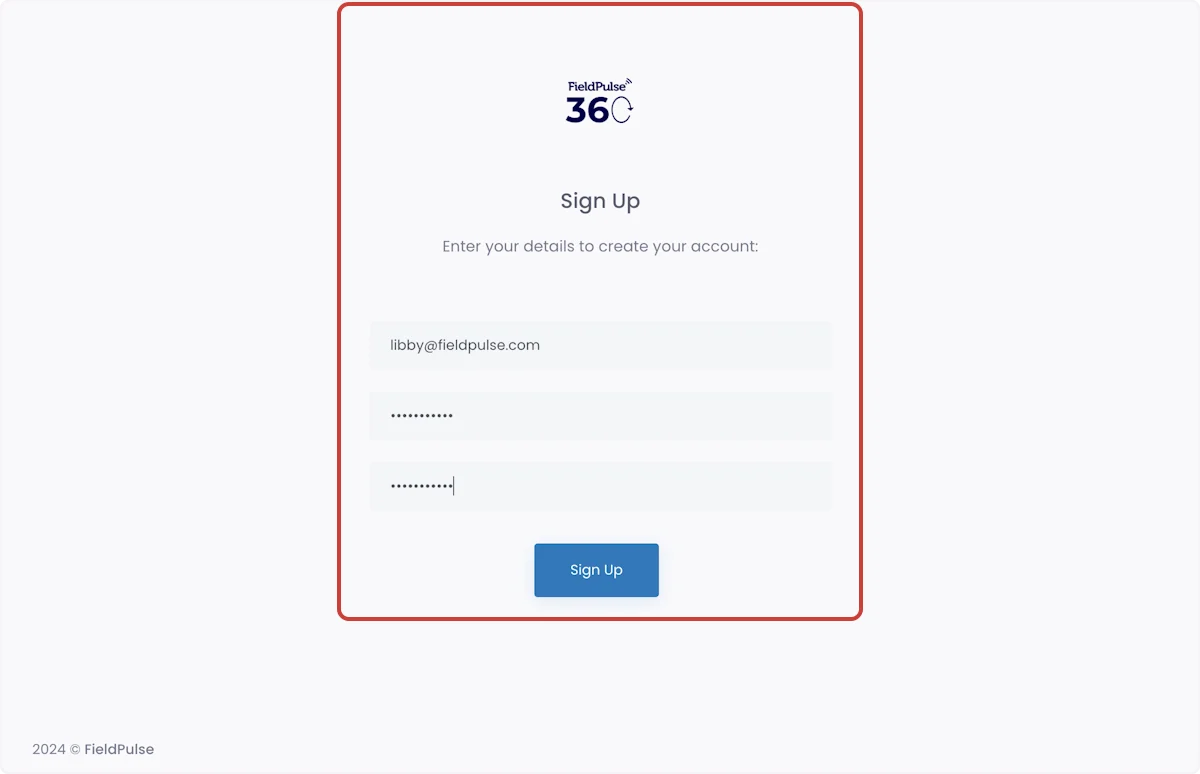
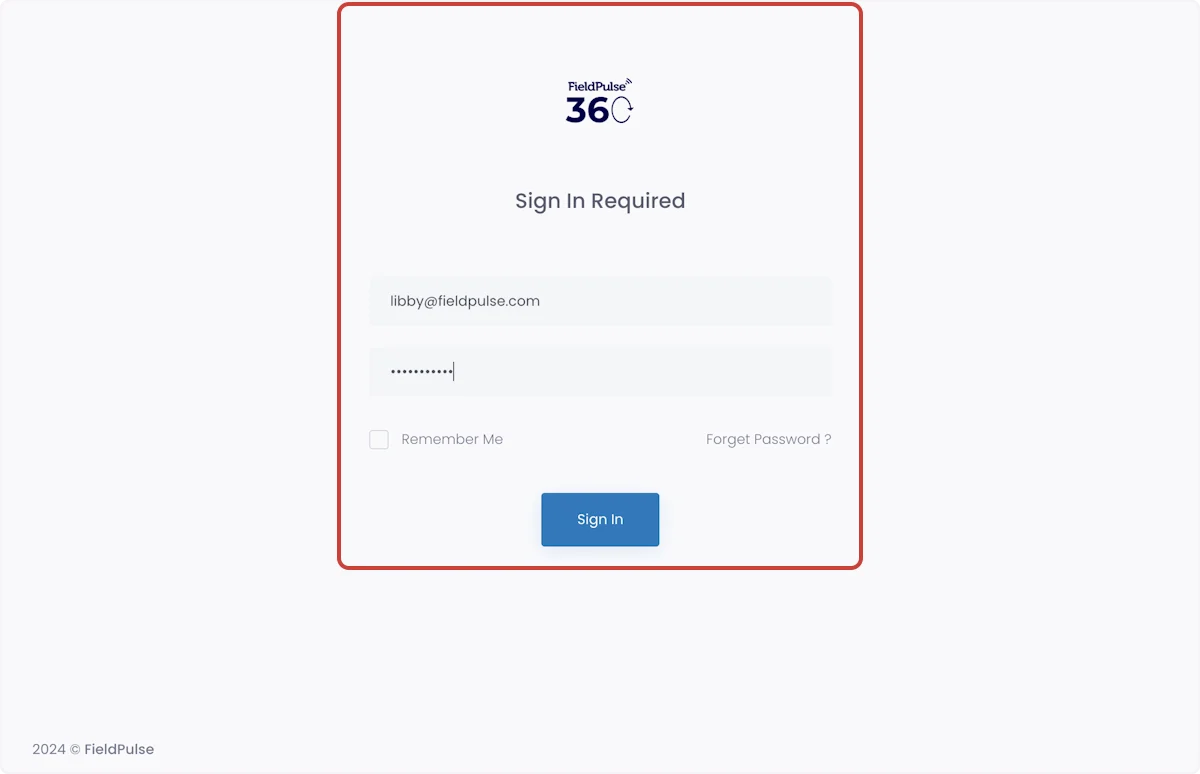
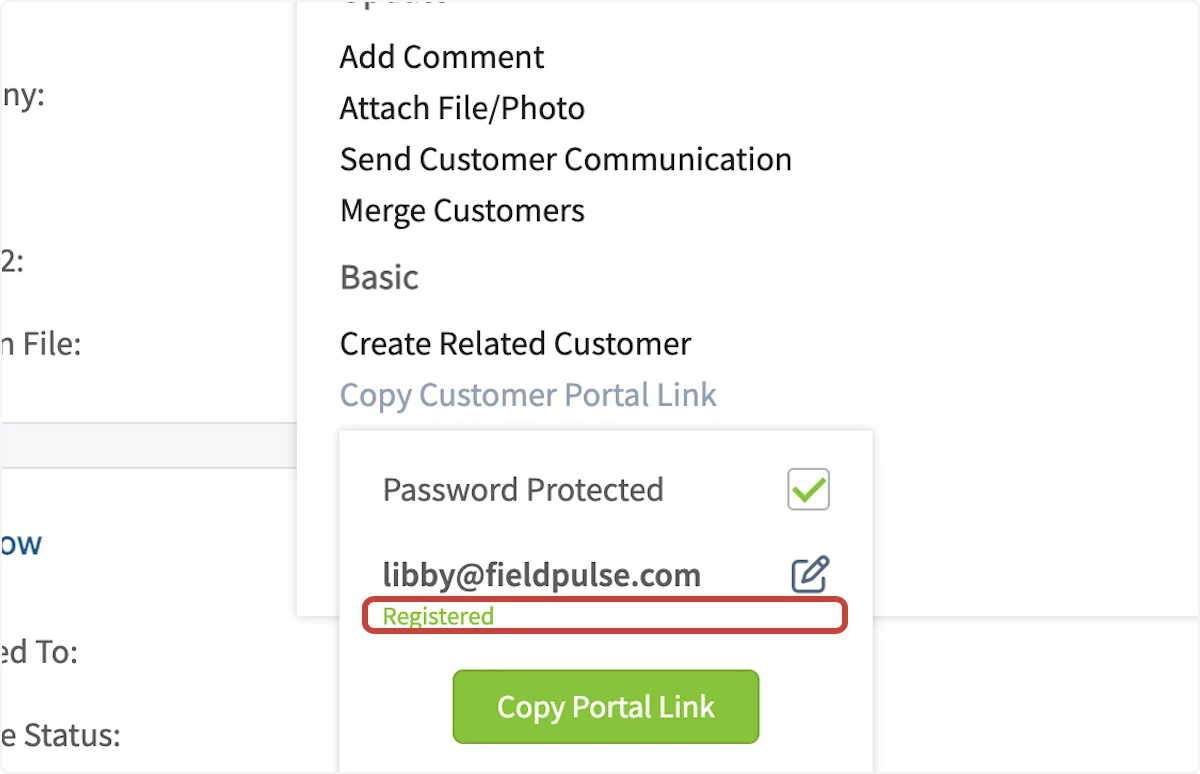
Customer Portal & Customer Communications
When creating a customer communication email or SMS template, you can input a variety of field values. The customer portal link and password-protected customer portal link can be included in your customer communication templates. Simply select Insert Field Value and select the component you’d like to include. To learn more about Customer Communications, the Customer Communications guide.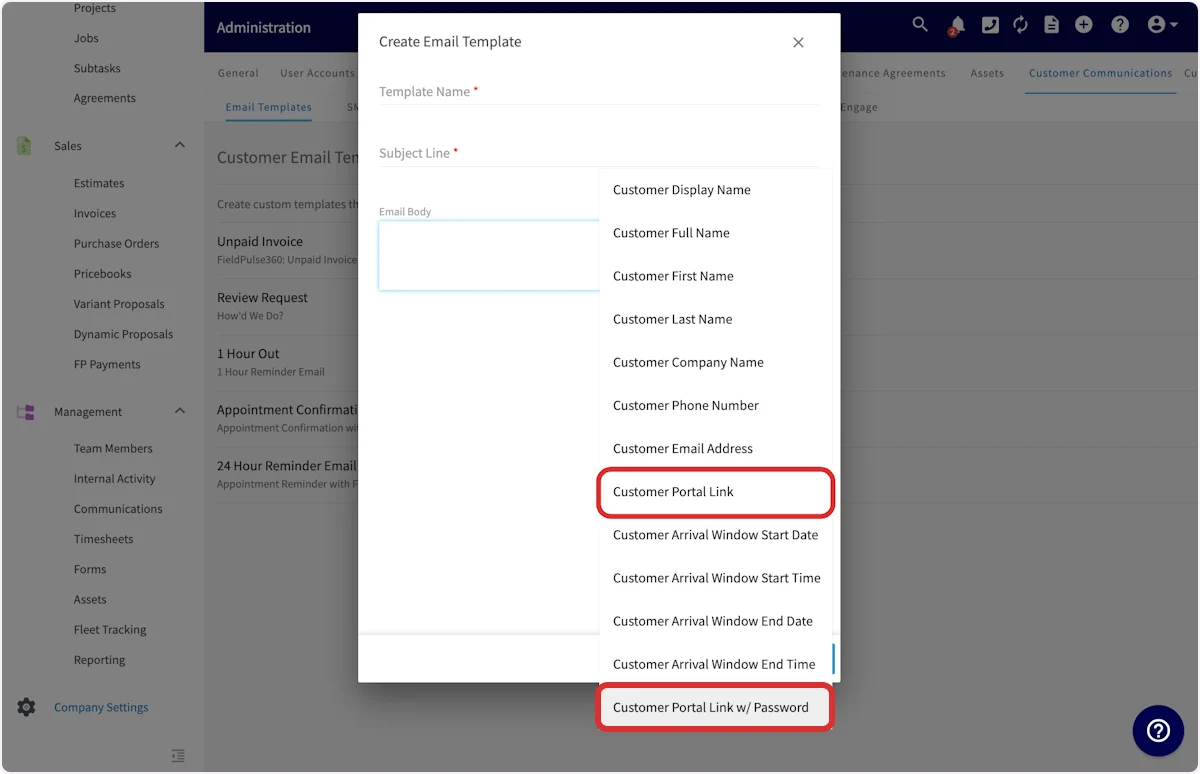
Using the Customer Portal
When your customer opens the URL, they will see the main page with their contact details displayed. They can edit these personal details if needed. They can click in any field, make changes, and then press Save Changes .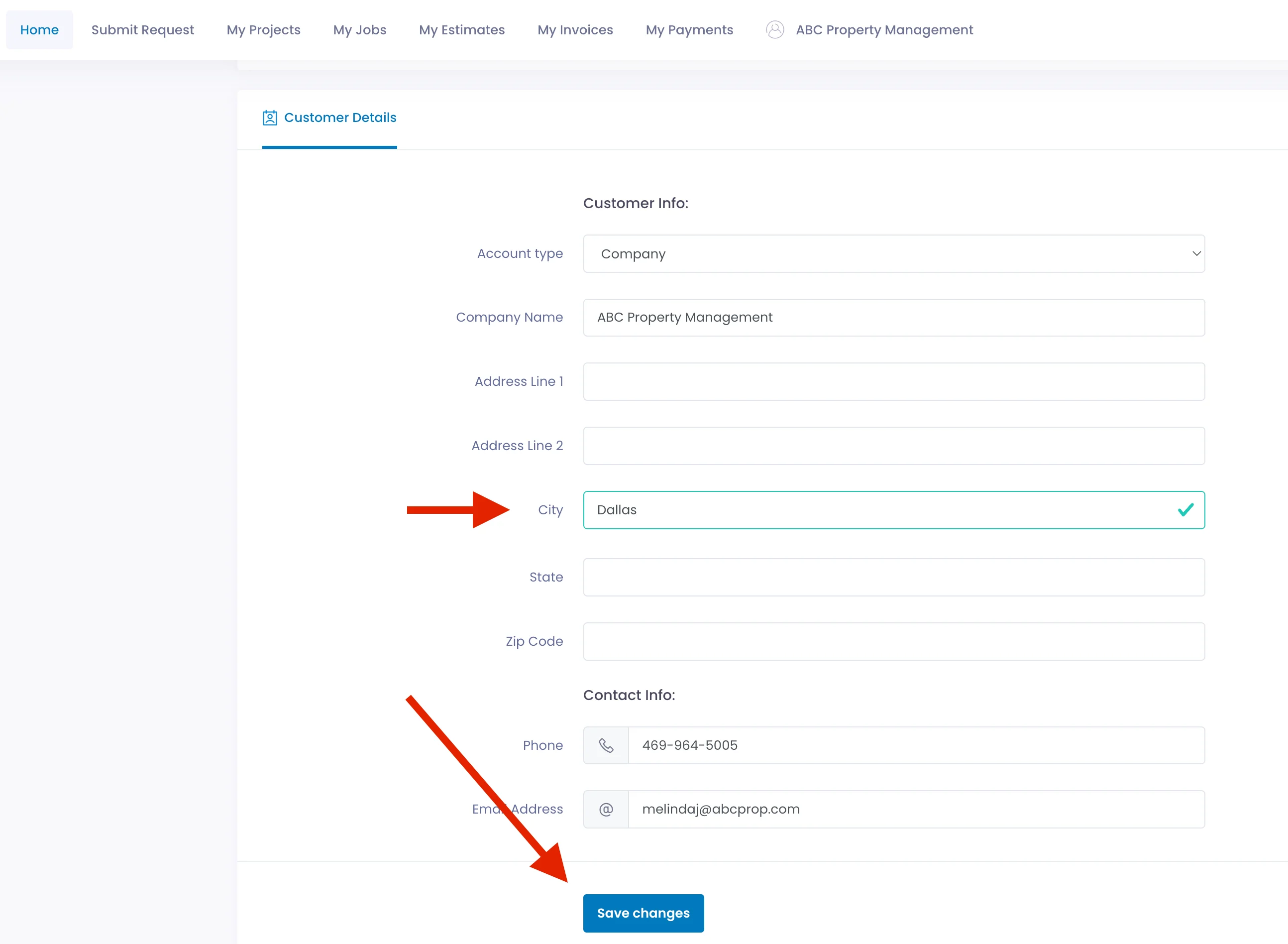

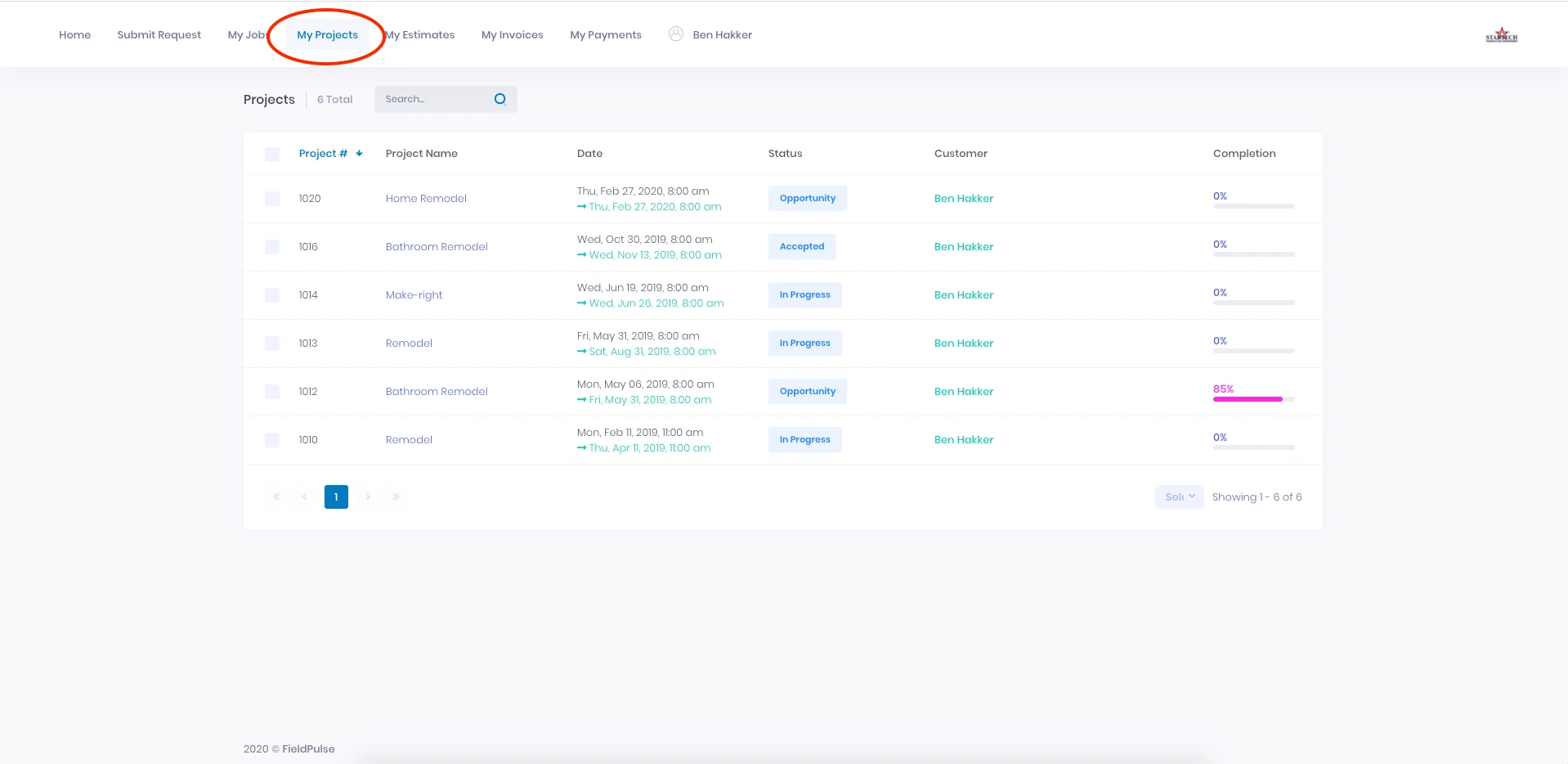
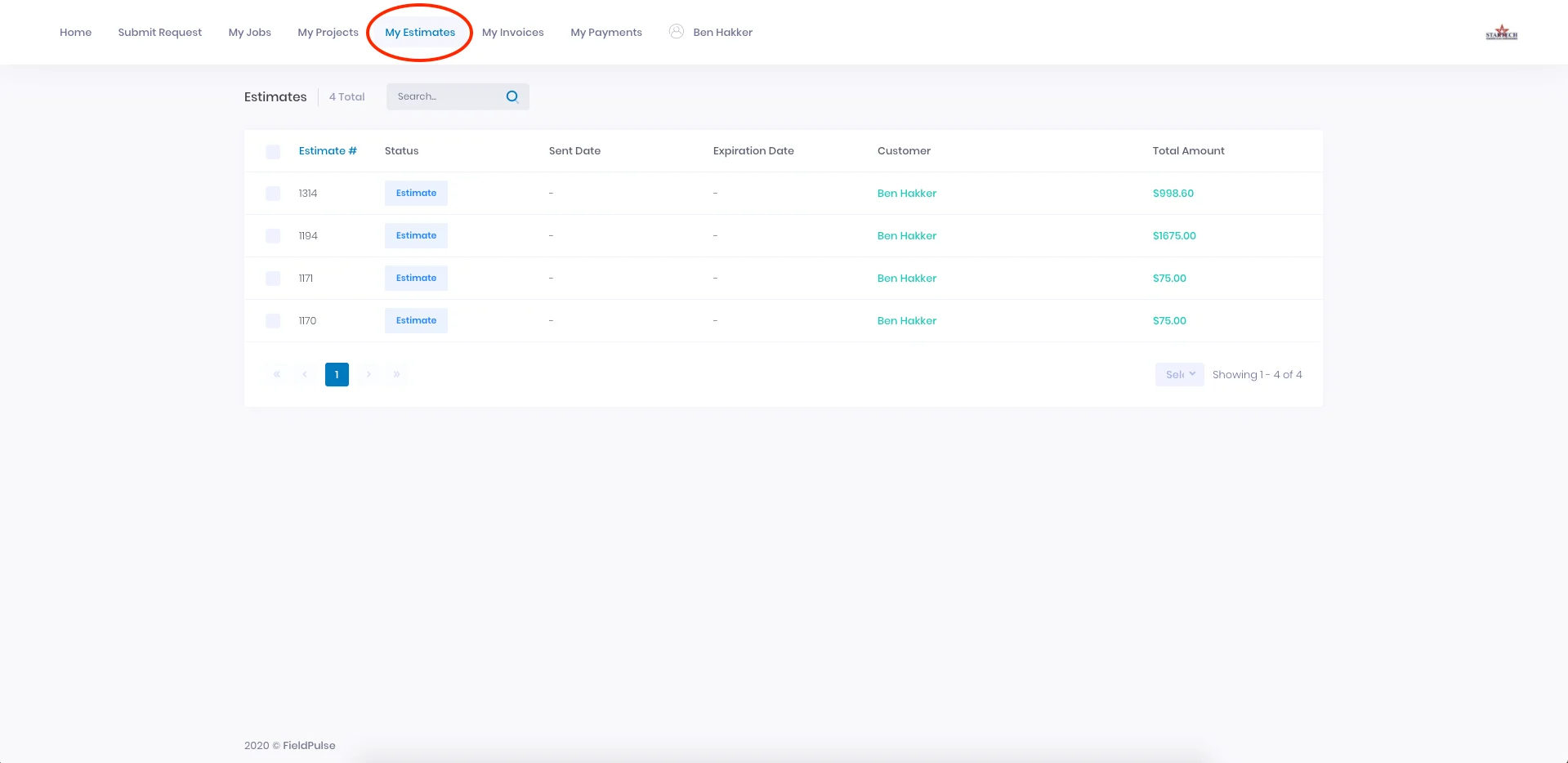
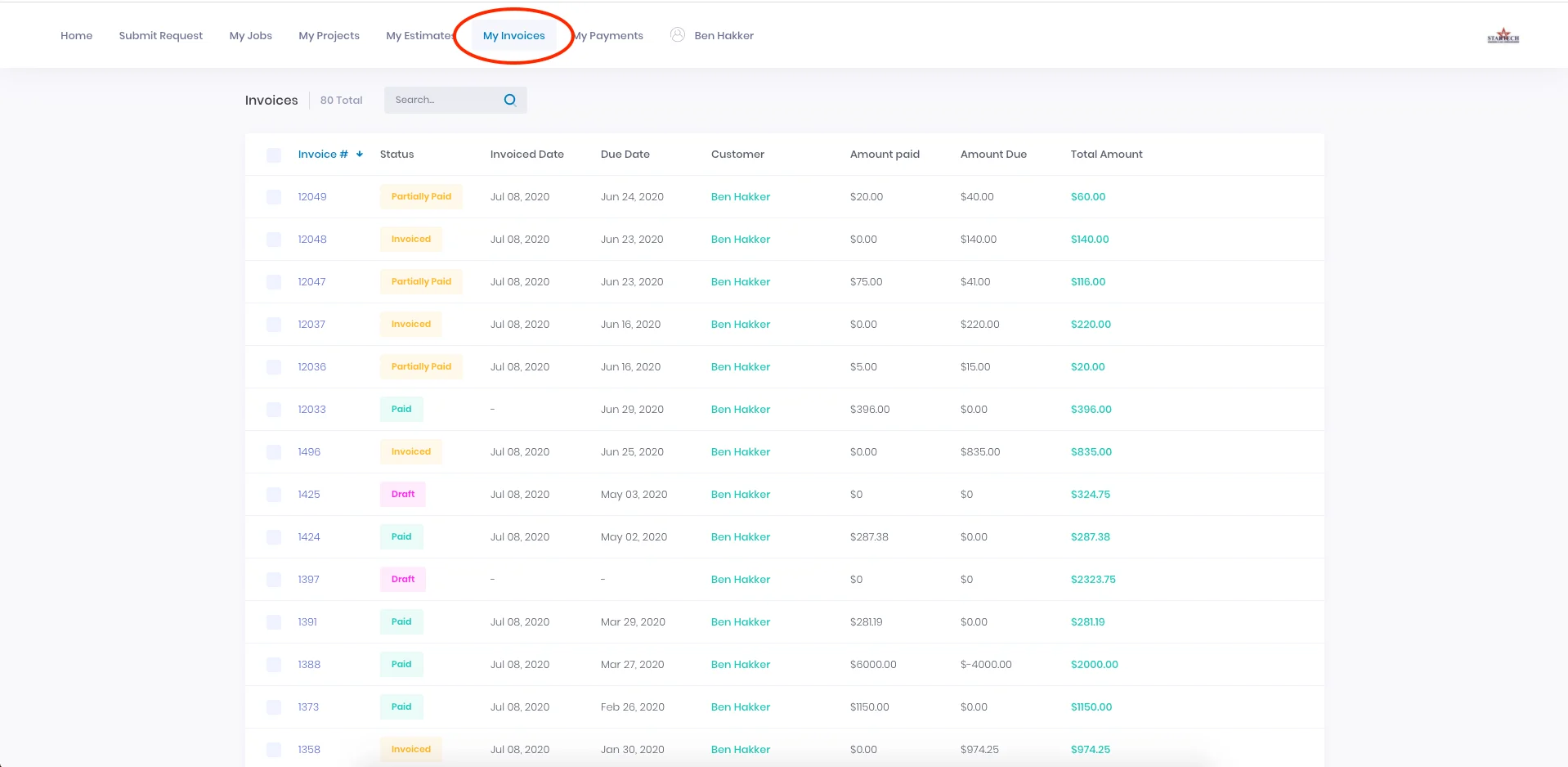
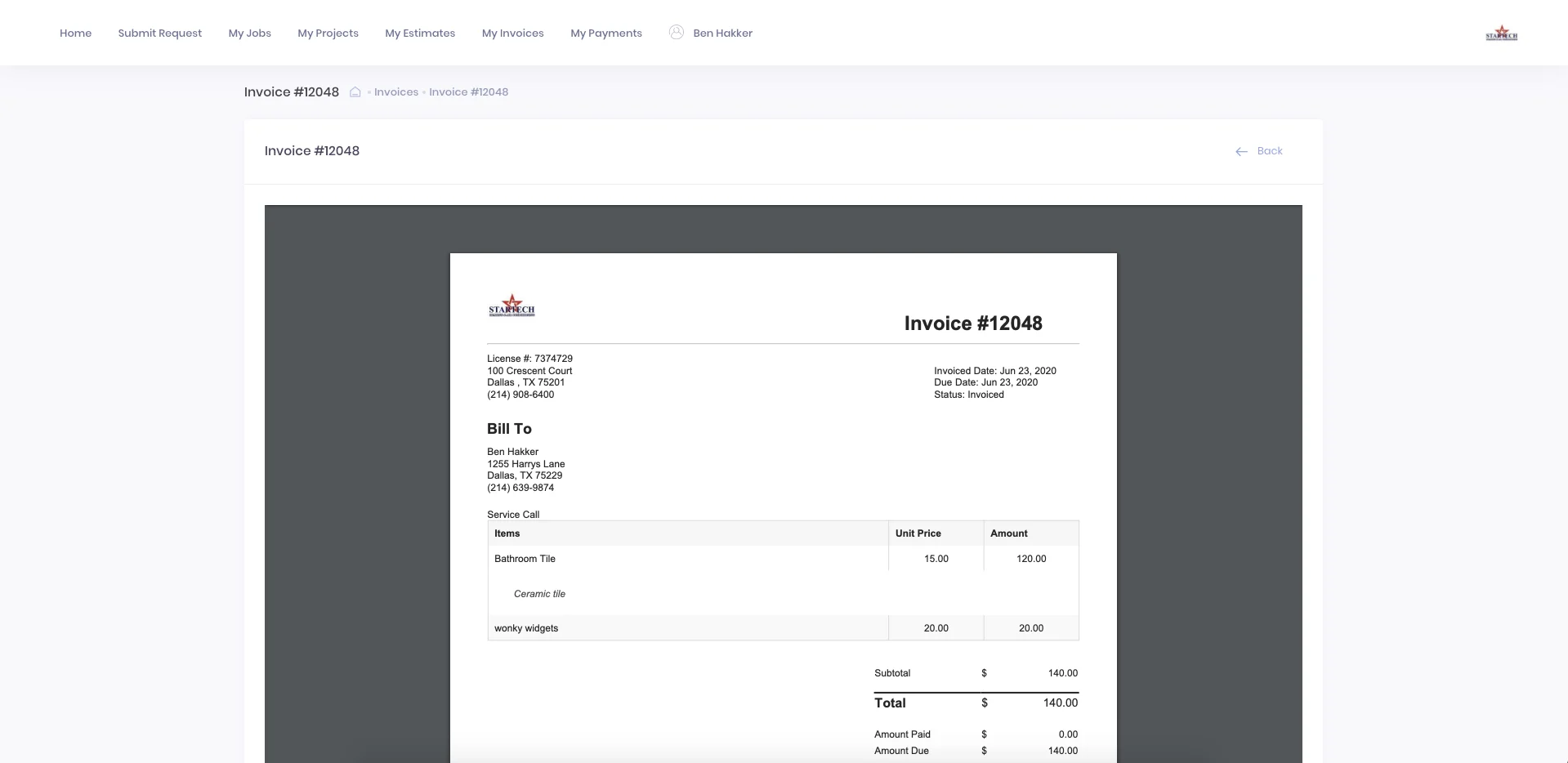
Customer Portal Comments
Comments left on Job and Project records can also be sent to the Customer Portal, making them viewable by your customers. This allows you to use the Customer Portal as a communication medium while automatically documenting these communications within the related Job and Projects in FieldPulse.FAQs
If the “Disable Estimates if Expired” setting is enabled in Company Settings, will the expired estimate be hidden in the Customer Portal? No, the “Disable Estimates if Expired” setting only applies to the dynamic link of the estimate (the link sent to your customer via email or SMS). If the estimate has previously been sent to the customer, the PDF will still display in the Customer Portal even after expiration.Have additional questions? Contact us at support@fieldpulse.com or use the chat feature in the bottom right corner of your screen.