
Who uses this: Admins and Team Managers create, edit, archive, and view assets; Service Agents can archive assets and can create, edit, and view them when an Admin enables that permission; Limited Agents have no asset access. Transferring ownership requires a role selected under Ability to Transfer Assets (Admin and Team Manager by default). Availability: All regions · included in the FieldPulse subscription; Asset Management must be enabled in Company Settings > Features & Plugins.An asset is the record that holds everything about a piece of equipment — model, install date, warranty, photos, and every job it’s been part of. When the asset is tied to a customer, you build a service history you can pull up on the next call instead of piecing it together from memory.
Overview
Asset Management tracks both customer equipment and your own company gear at the same level of detail. You enable the feature once, then create assets, save templates for equipment you handle often, link assets to jobs and maintenance agreements, transfer ownership when a property changes hands, and generate reports to send to customers. Each asset also totals how many times it’s been serviced and how much the customer has spent on it over its lifetime.Video walkthrough
Video walkthrough: Managing assets in FieldPulse
Before you begin
Enable Asset Management first. Go to Company Settings > Features & Plugins, find Assets, and select Enable. Once it’s on, you can start creating assets.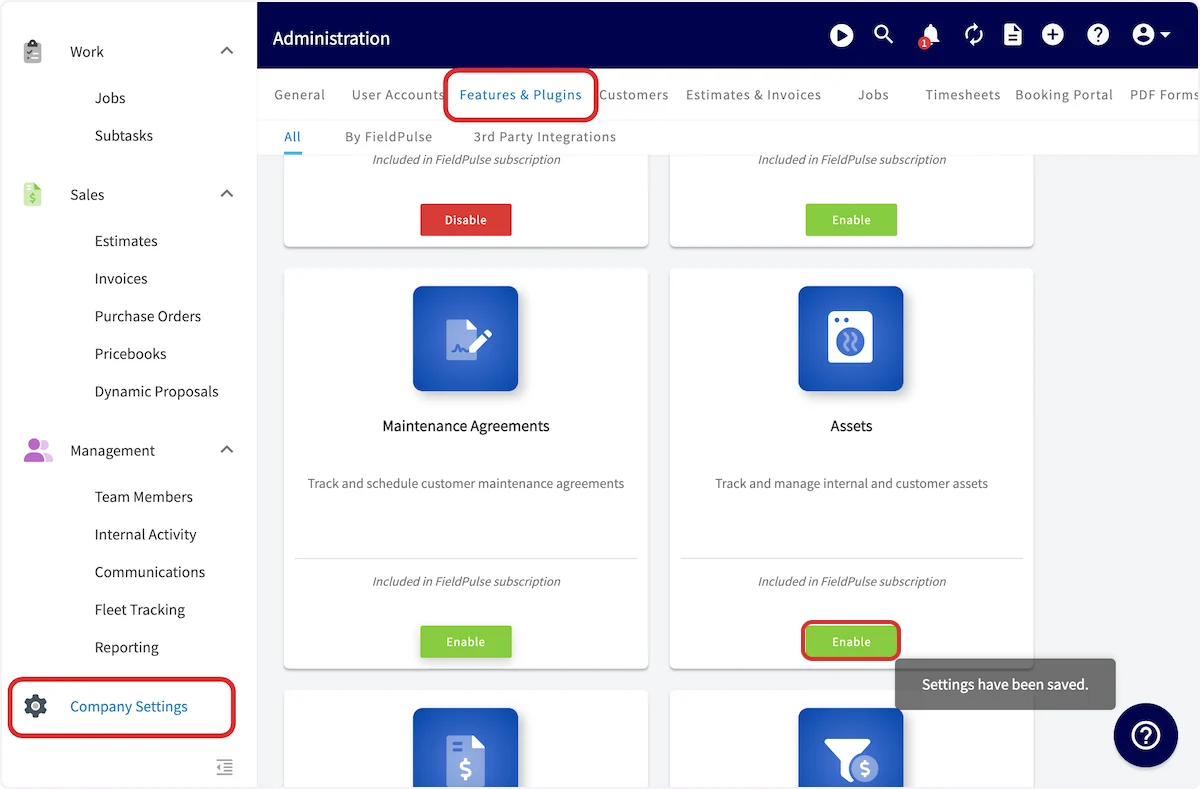
Create an asset
-
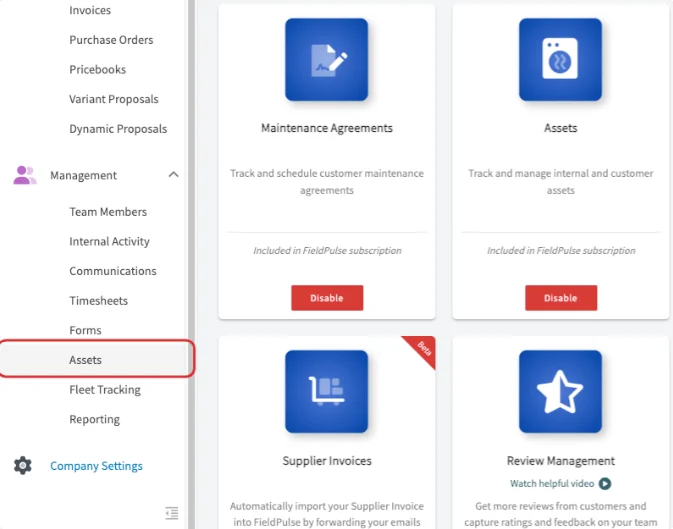
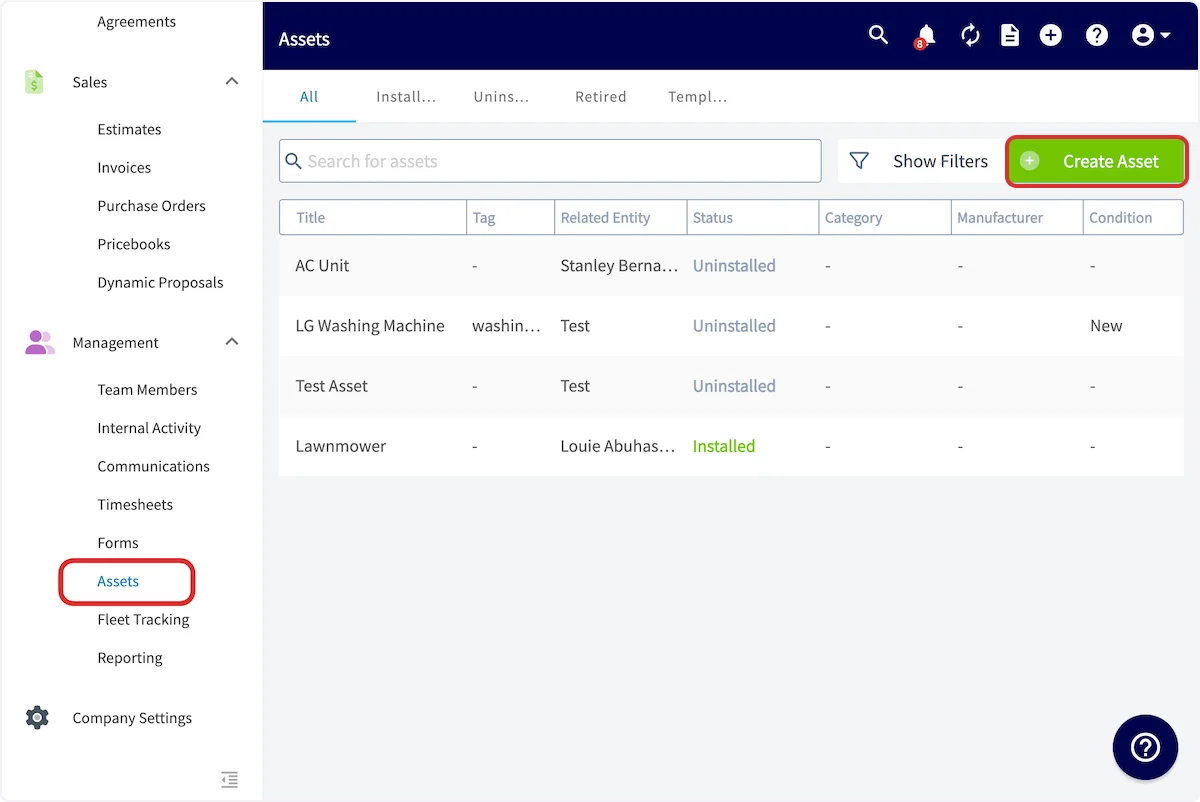
Select Assets in the left-side menu.
-
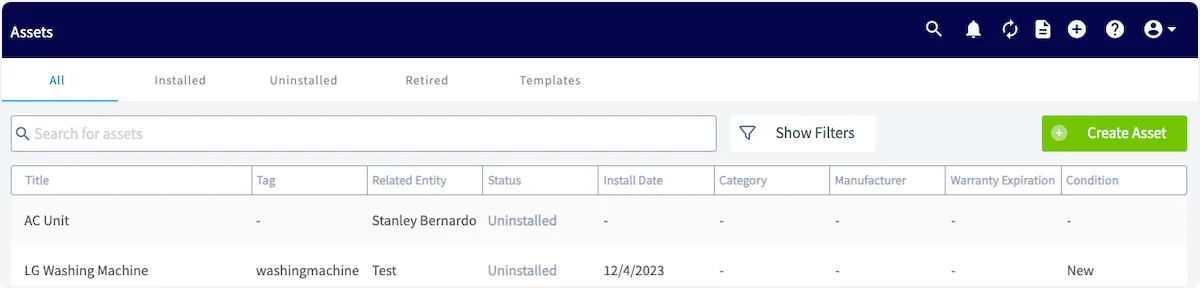
Select Create Asset. The Assets page sorts your assets into categories at the top of the screen — All, Installed, Uninstalled, Retired, and Templates.
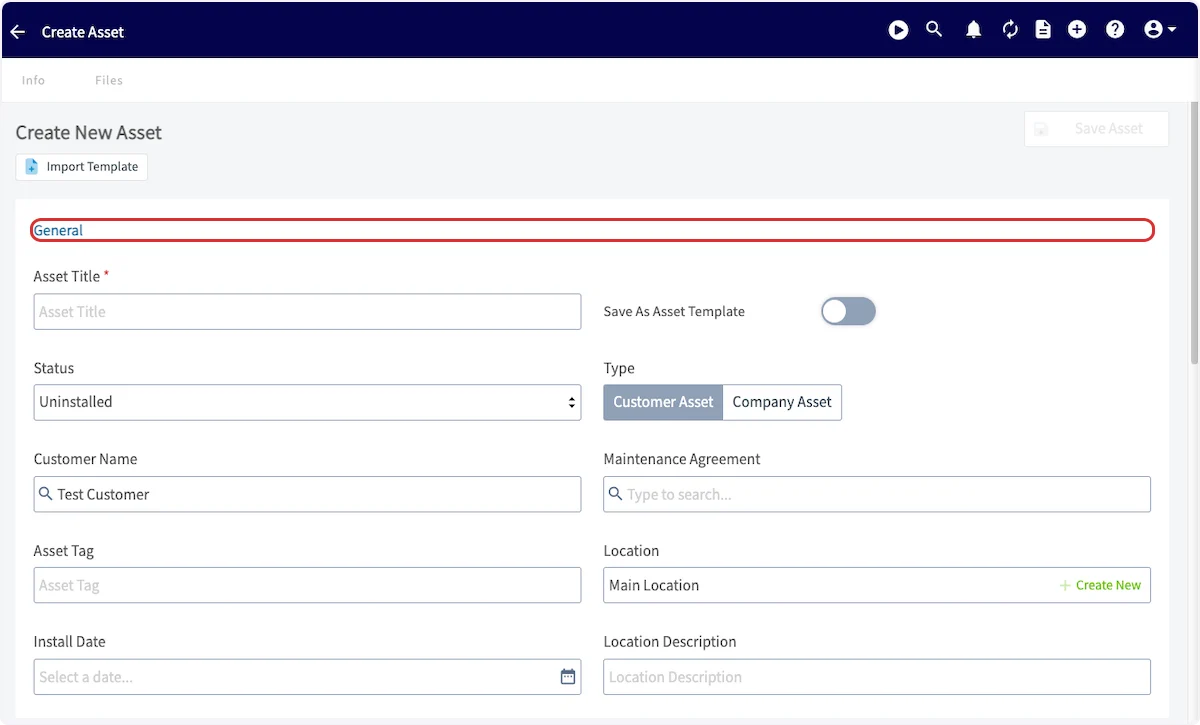
- Add a title for the asset.
- Choose whether it’s a Customer Asset (becomes your customer’s property) or a Company Asset (owned, used, and maintained by you). For a Customer Asset, you’re prompted to link a customer, which auto-populates their location as the asset’s location.
- If you want to set coordinates yourself, enter them in Decimal Degrees (for example, 34.0522, -118.2437) or Degrees, Minutes, Seconds (for example, 34°03’08”N, 118°14’37”W).
- Set the status — Uninstalled, Installed/In Use, or Retired.
-
Add asset tags to sort and categorize. Attach an existing maintenance agreement if there is one. Set the install date and a location description if they apply.
-
Enter the equipment details. Add as many or as few as you need.
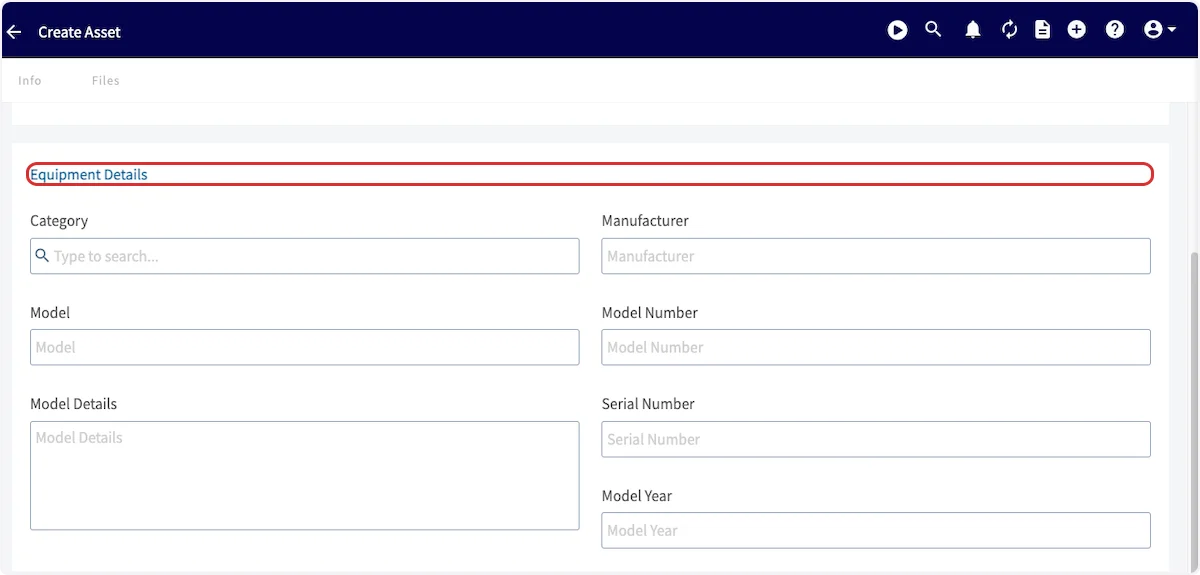
-
Add a warranty expiration date and warranty details if applicable, and name and describe the asset’s condition.
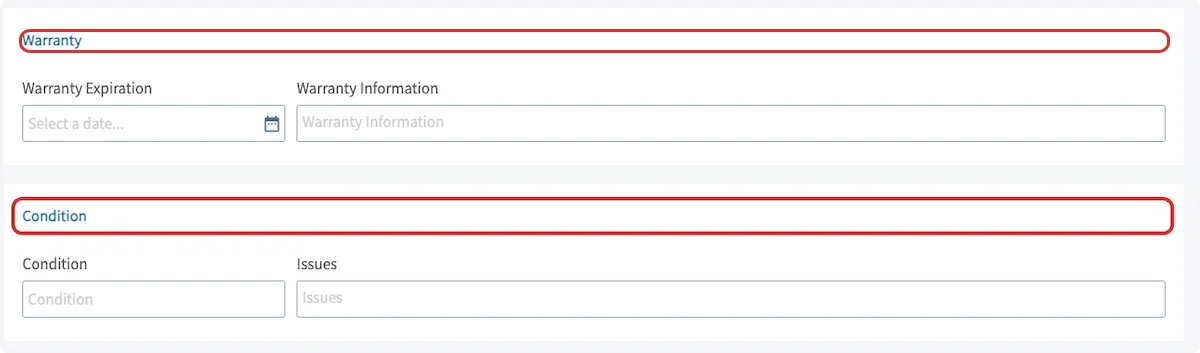
-
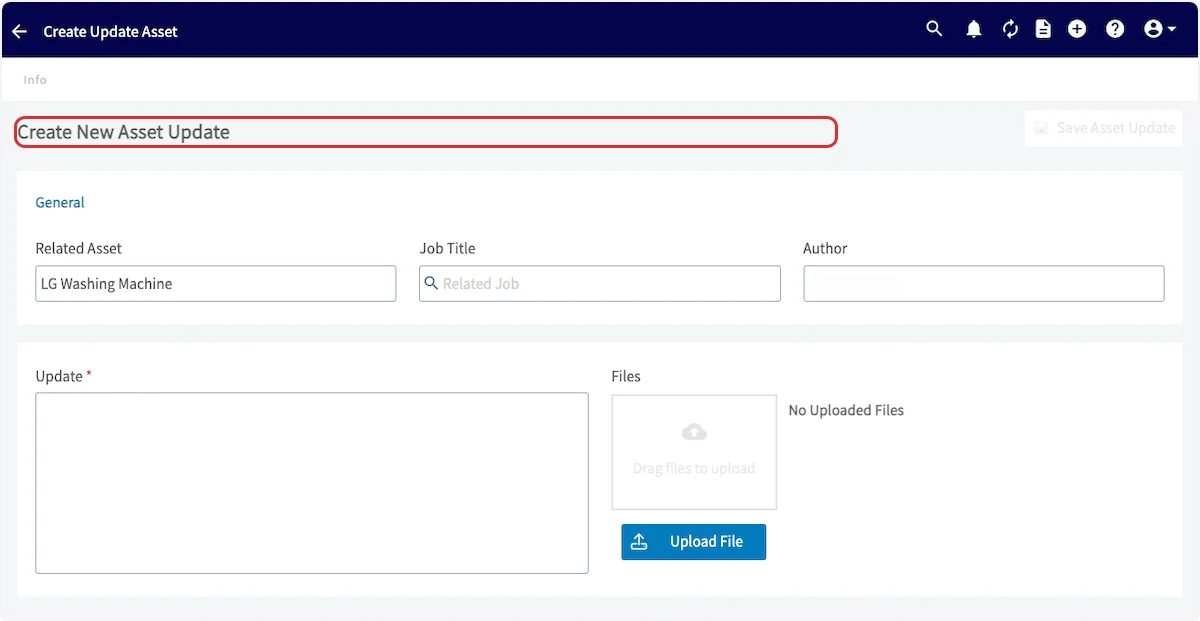
Add notes and files as needed.
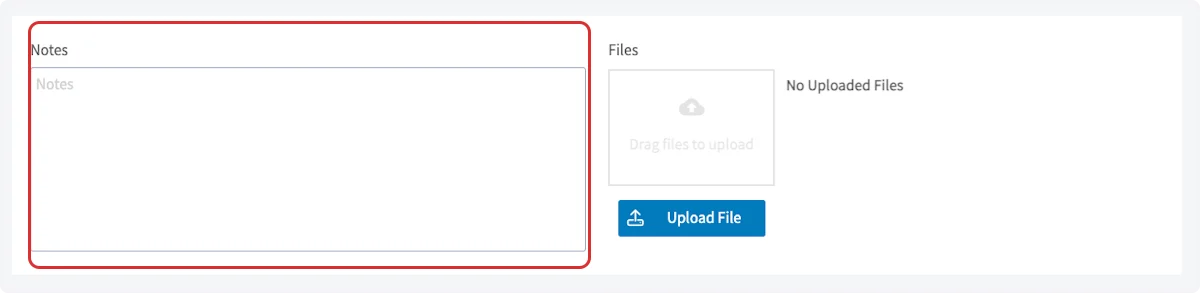
- Select Save.
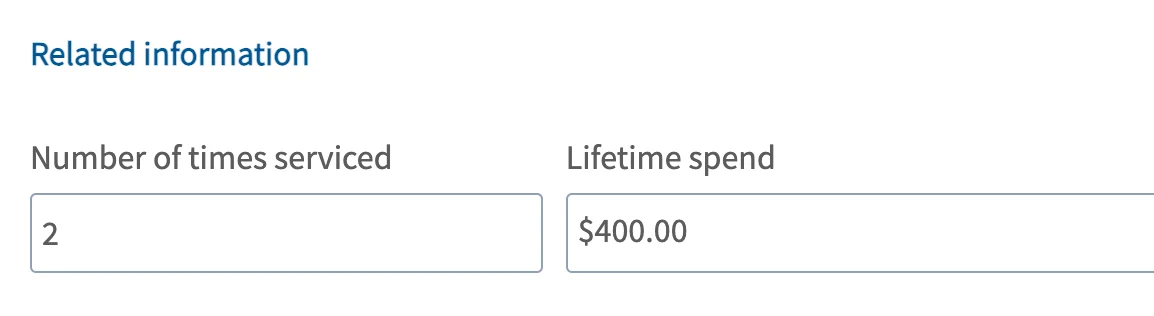
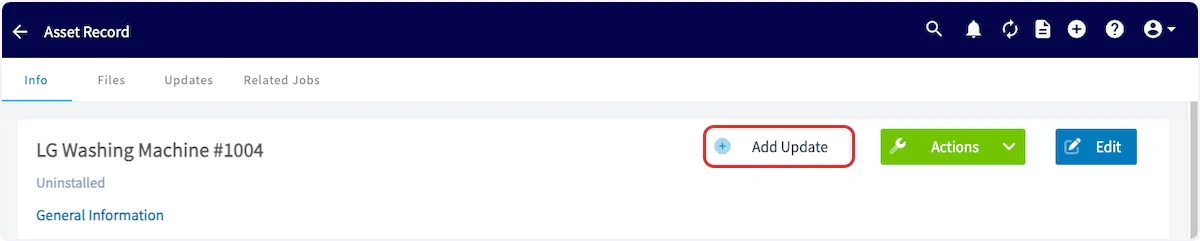
- Number of Times Serviced — counts every Job and Site Visit record linked to the asset.
- Lifetime Spend — totals the invoice value from completed jobs tied to the asset. Draft and Void invoices are excluded.
Save and reuse asset templates
If you handle the same kind of equipment often, save a template so you’re not re-entering the same details every time.Create a template
-
Go to Assets and select Create Asset.
-
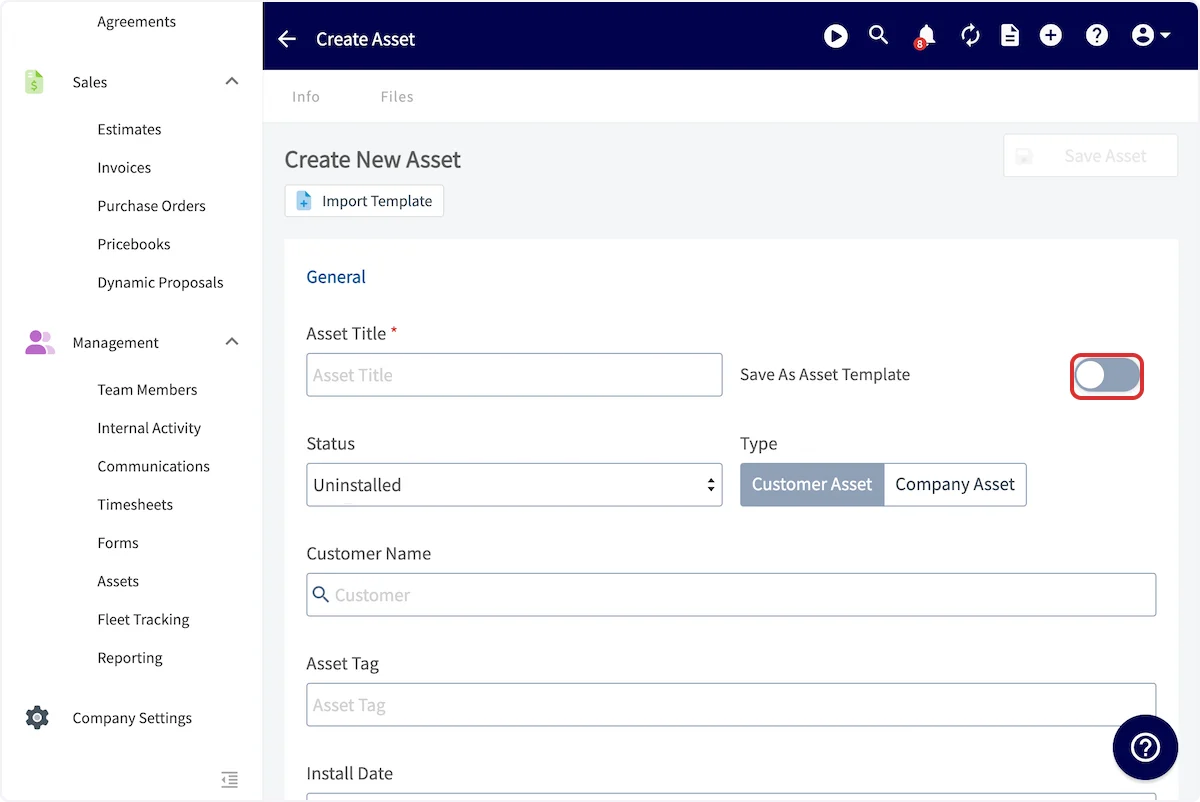
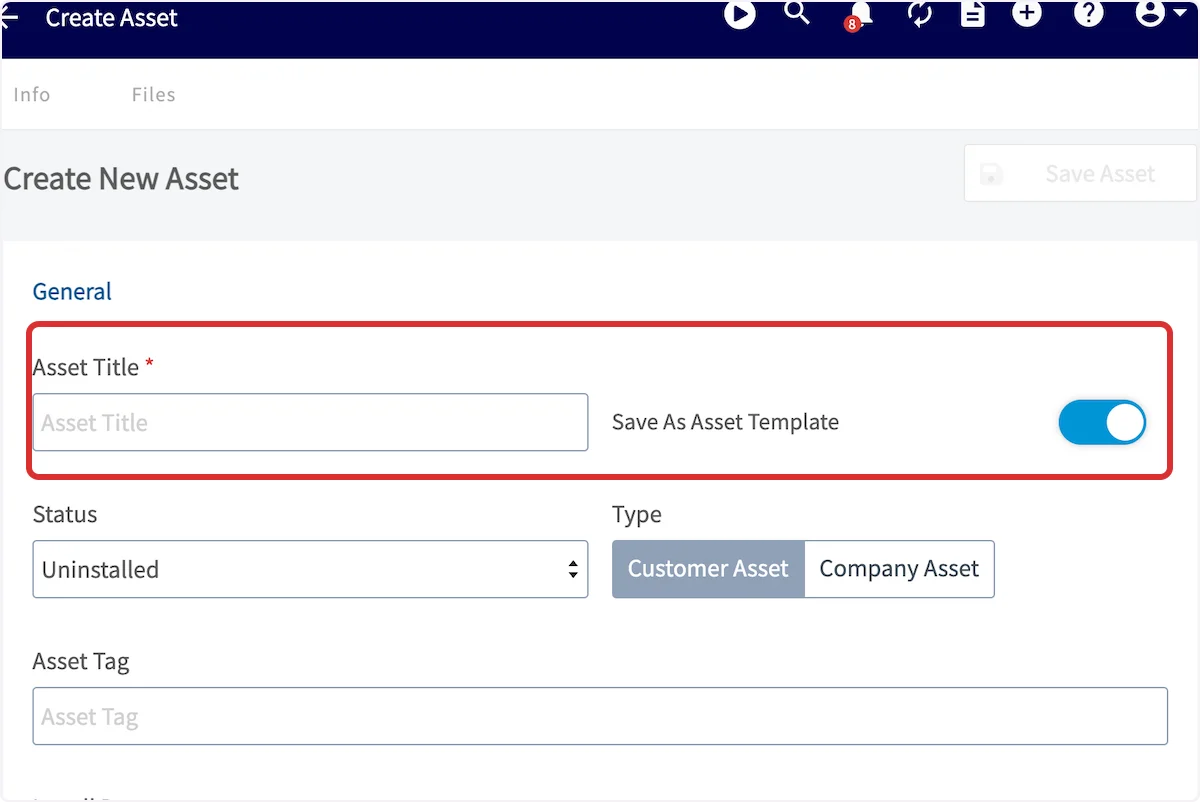
Before adding any information, turn on Save As Asset Template.
- Title the template.
- Enter the details you want to reuse — condition, warranty, and notes.
- Select Save.
Use a template
- Go to Assets and select Create Asset.
-
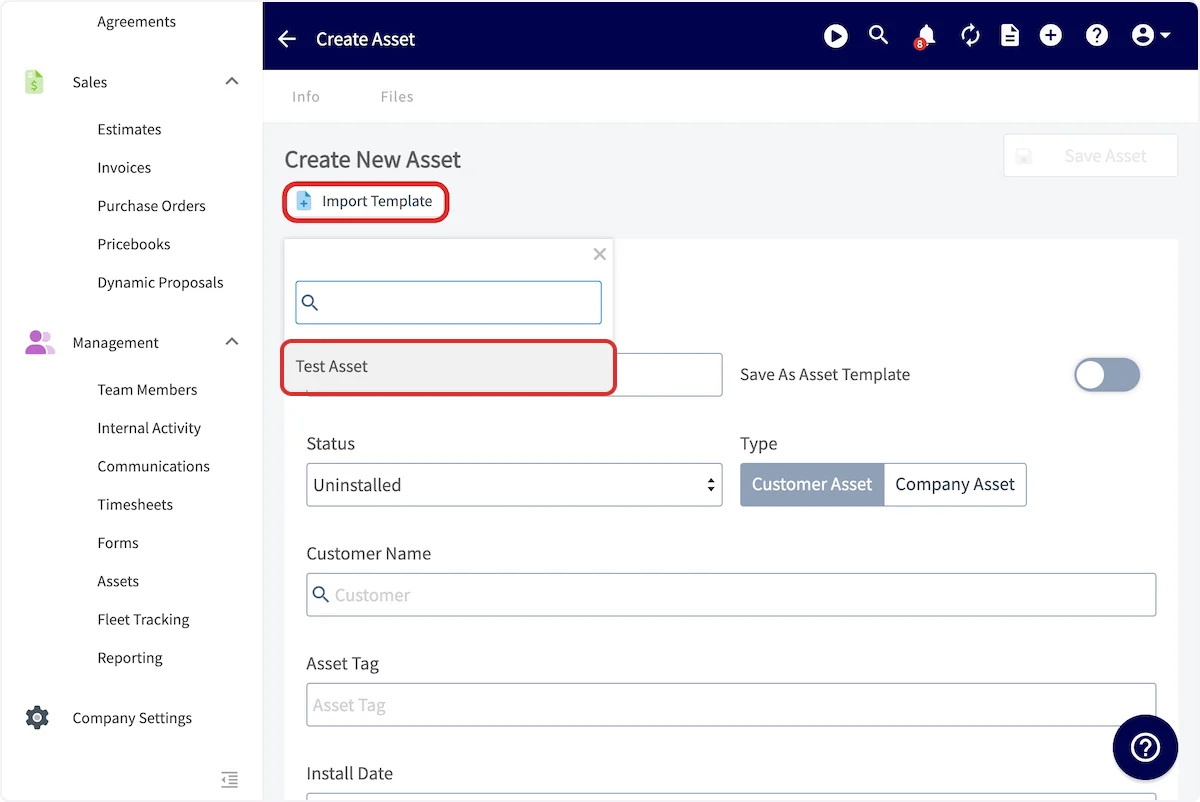
Before entering any details, select Import Template and choose the template.
- The saved details fill in automatically. Adjust anything that’s different for this asset.
- Select Save.
Link an asset to a job, customer, or maintenance agreement
From a job
Create or edit a job. Directly above Save Job, attach an existing asset with Select Asset or create a new one with Add Asset.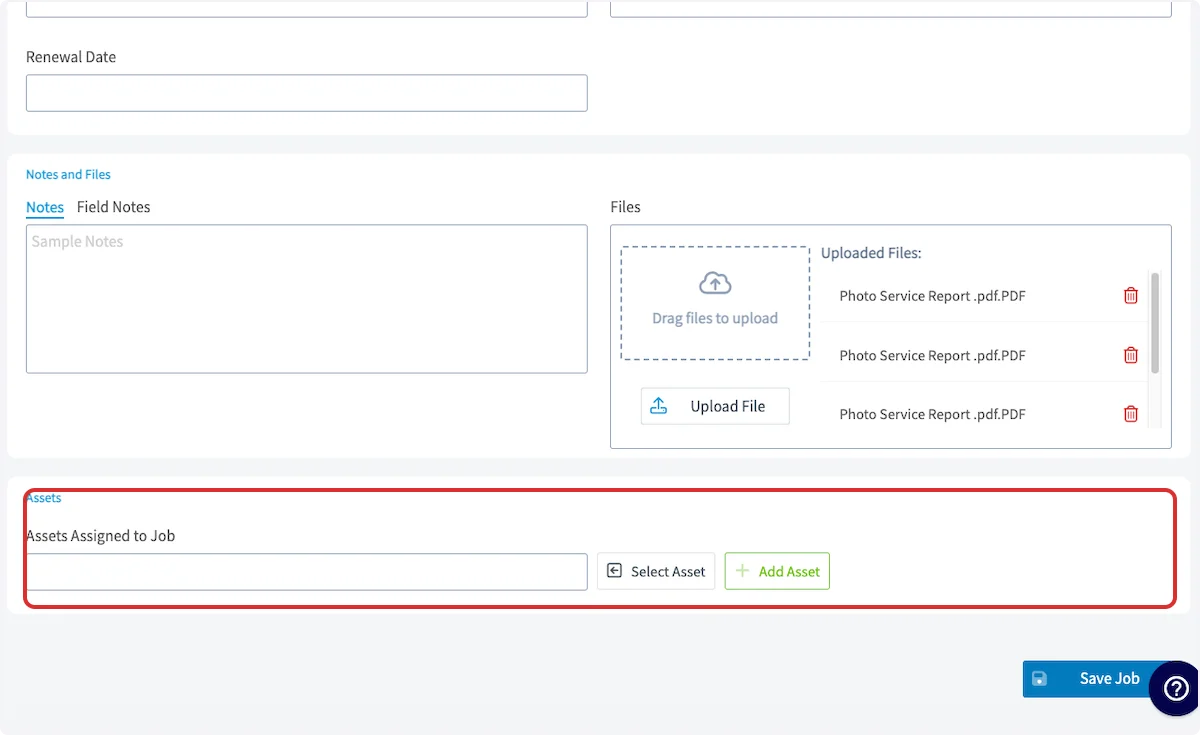
From a customer
Open the customer record and select the Assets tab at the top of the screen.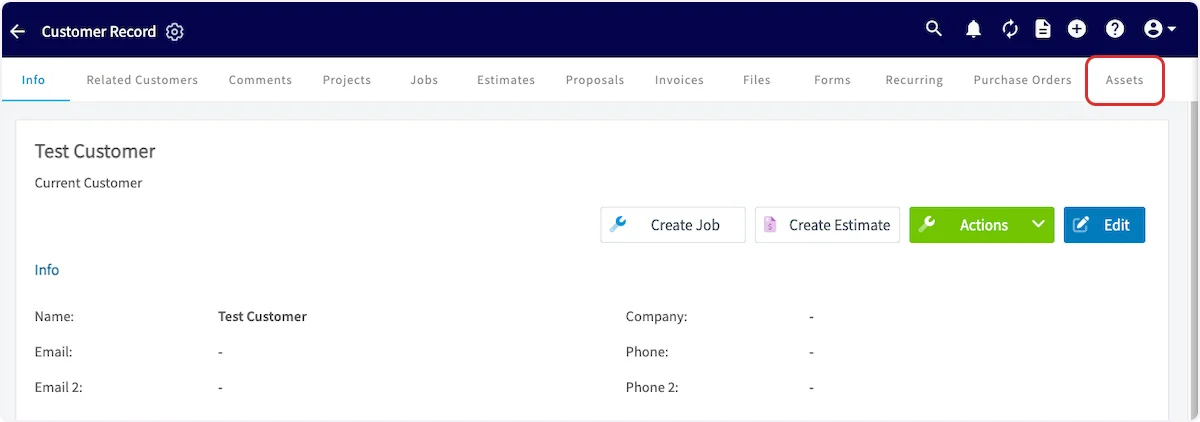

From a maintenance agreement
Open the agreement record and select the Assets tab at the top of the screen, then use the green Actions button to create a new asset or connect an existing one.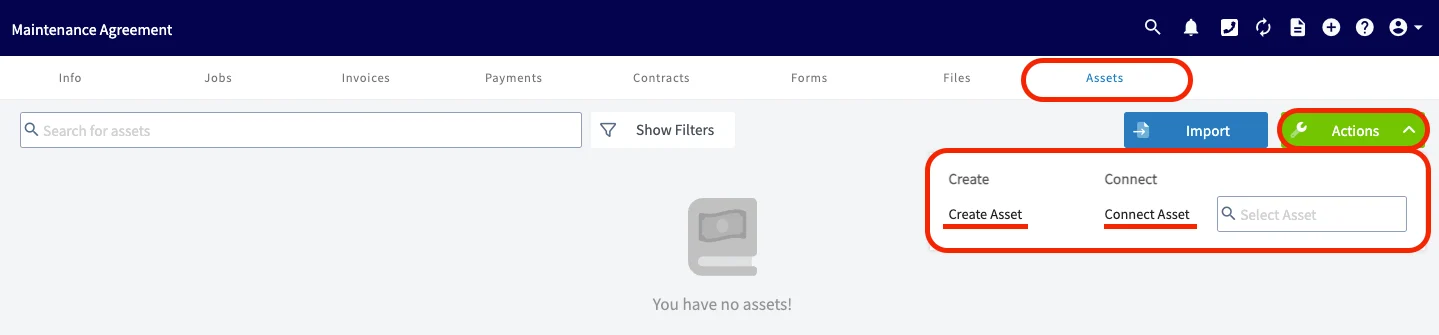
Create or connect jobs from the asset record
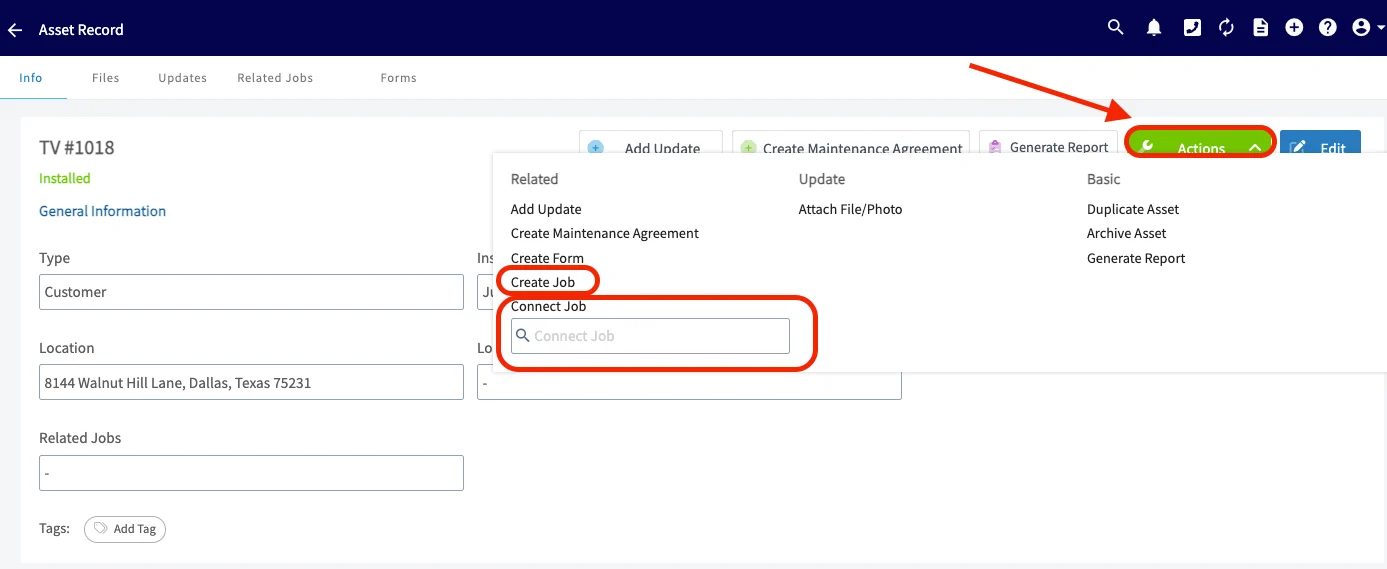
Two actions on the asset record let you work in the other direction:- Create Job — opens the job creation page with the asset already linked. If a maintenance agreement is linked to the asset, it links to the job too.
- Connect Job — lets you search for and select an existing job. If a customer is selected, the search is limited to that customer’s jobs. Once you pick a job, the asset and any linked maintenance agreement connect to it automatically.
Remove an asset from a job
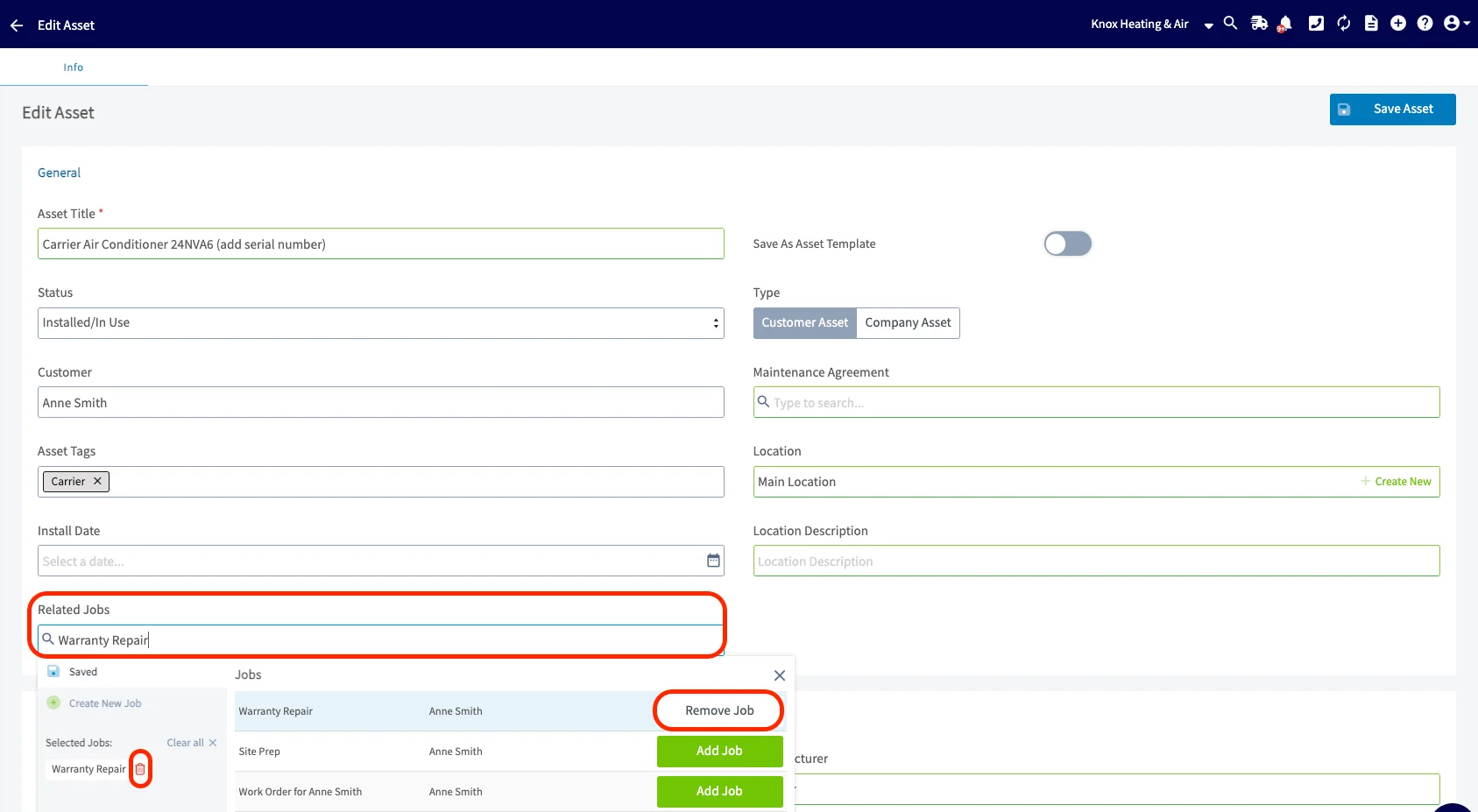
- On the asset record, select Edit.
- Select the Related Jobs field.
- Remove the job with the red trash icon or the Remove Job button.
Scan asset barcodes
You can scan the barcodes on your assets from the field. Scanning lets you add a new asset or pull up an existing one to update details like its condition — useful when you’re picking up or dropping off equipment on site. On the mobile asset form, the barcode scan icon sits next to the Serial Number field.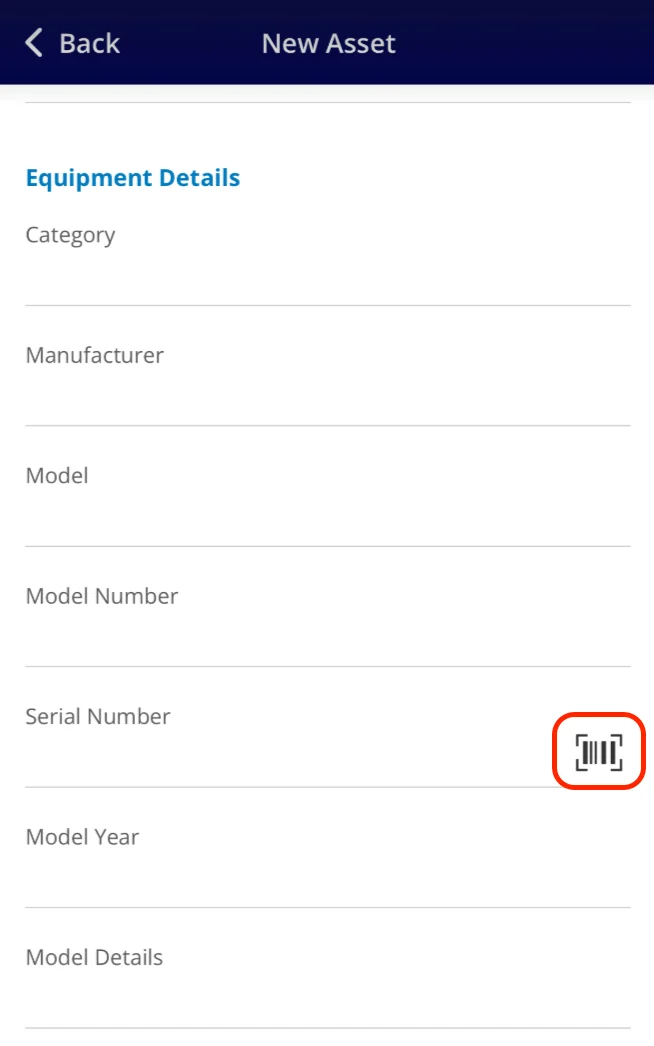
Video walkthrough: Scanning asset barcodes
Generate asset reports
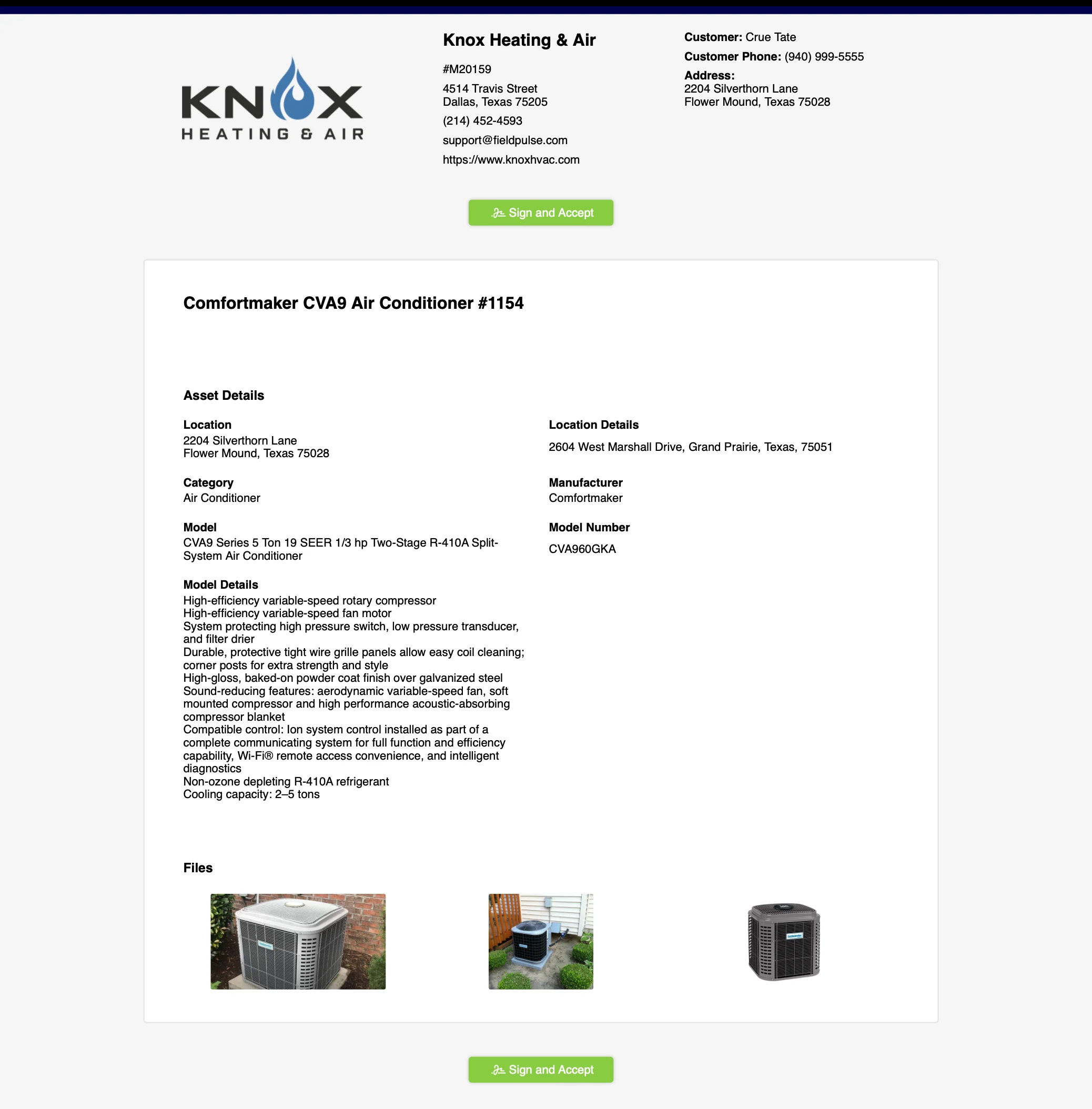
Turn the data on your asset records into a report you can send to a customer, as a dynamic URL or a PDF. You can combine multiple assets into a single summary report, customize which details show, and link reports to dynamic estimates and invoices.FieldPulse Pro Tips:
- Generate an asset report after finishing a new equipment installation. It gives your customers a useful reference and helps them identify who to reach out to if any issues arise in the future.
- Add company-branded contact stickers to the installed equipment so your customers have quick access to your information whenever they need assistance.
Single-asset report
-
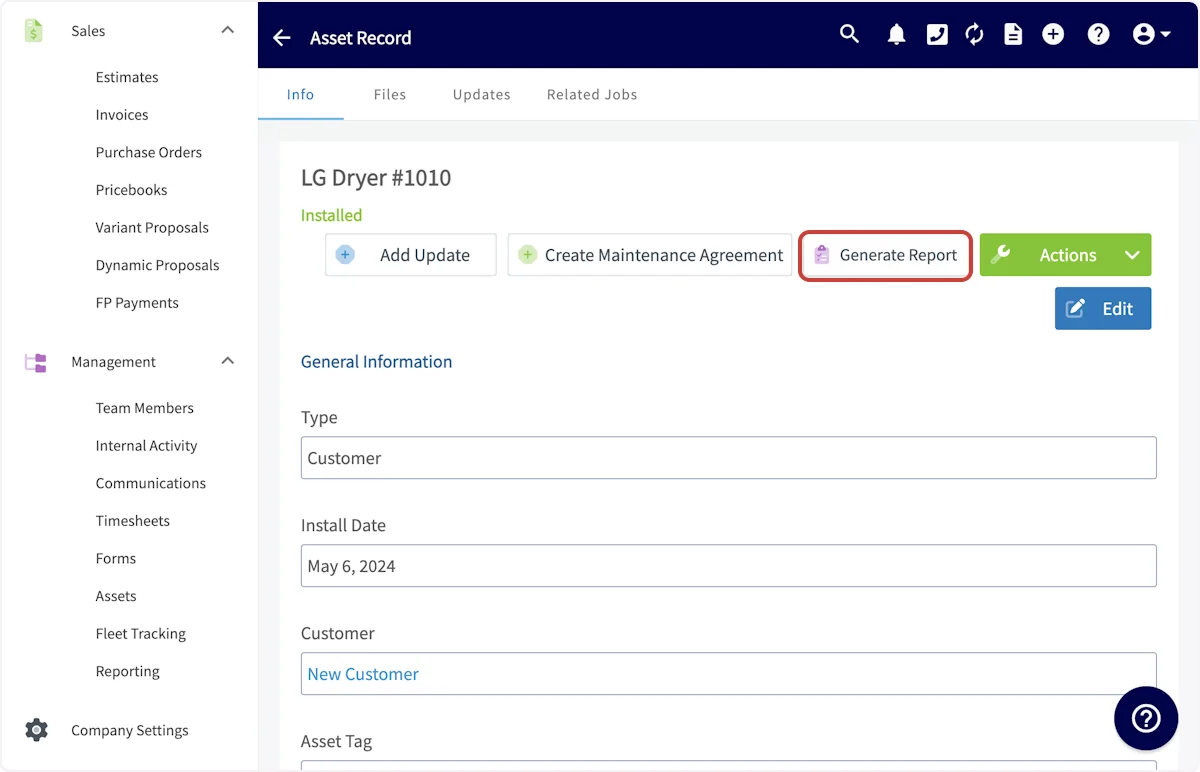
Open the asset record and select Generate Report.
-
Choose Dynamic URL or PDF at the top of the preview.
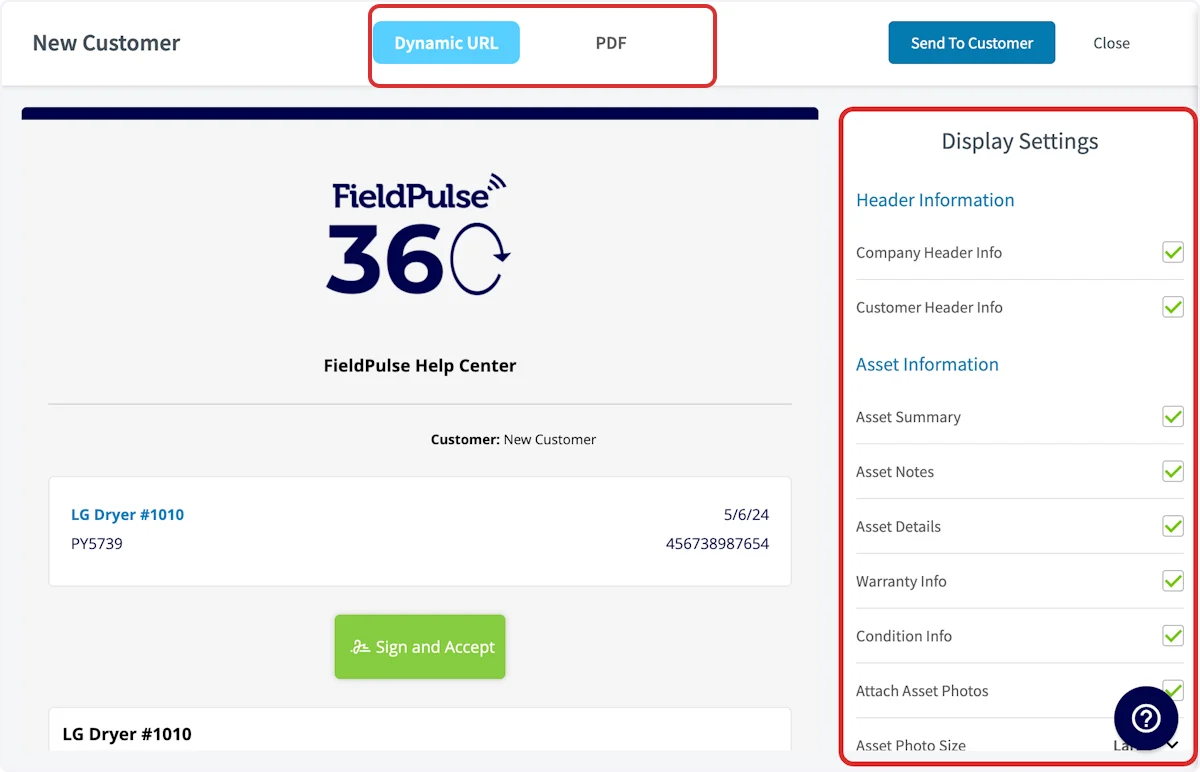
- Use the display settings on the right to show or hide sections — asset summary, notes, details, and photos.
-
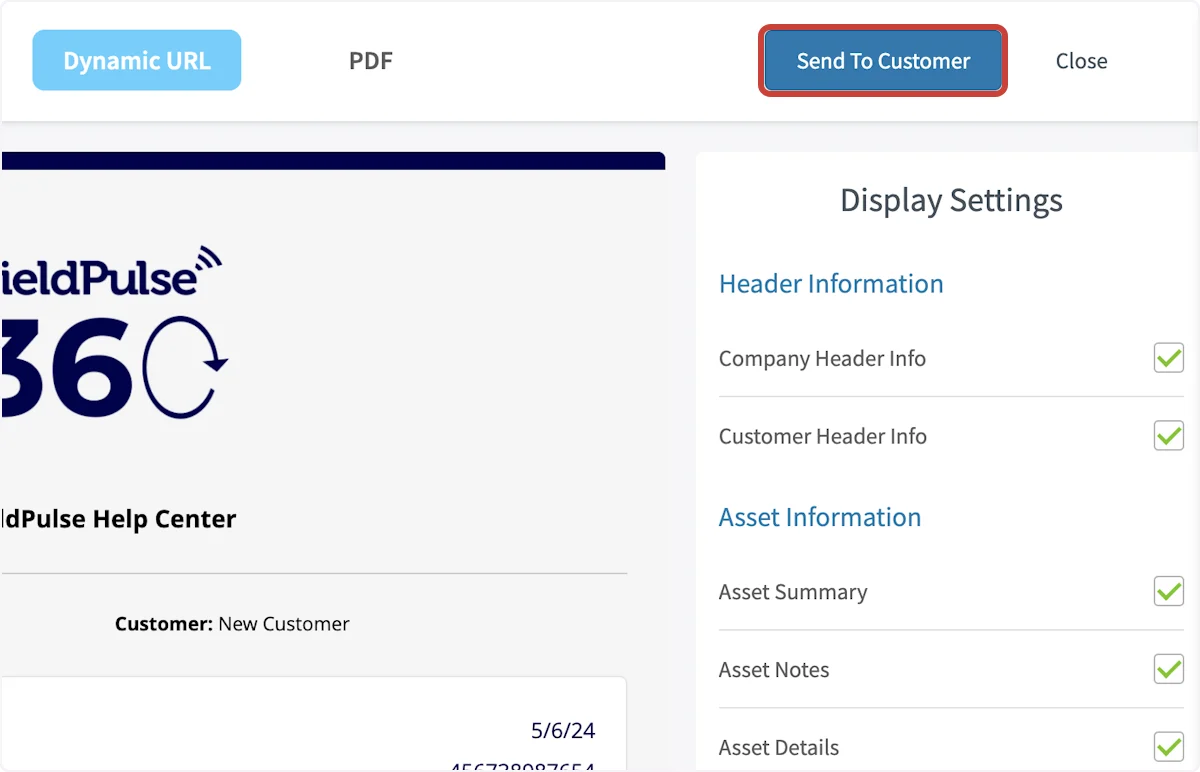
Select Send to Customer.
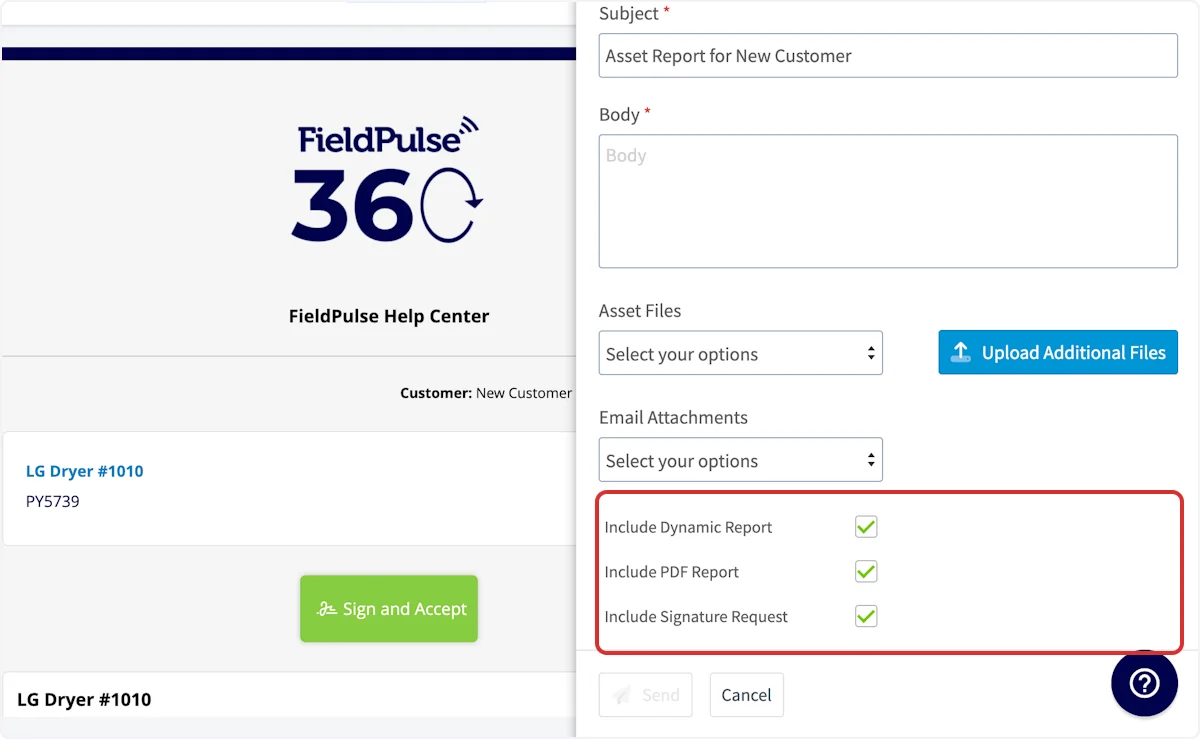
- Set the recipient, subject, and body. Attach any files, and choose whether to include the Dynamic Report, PDF Report, and a Signature Request.
Multi-asset report
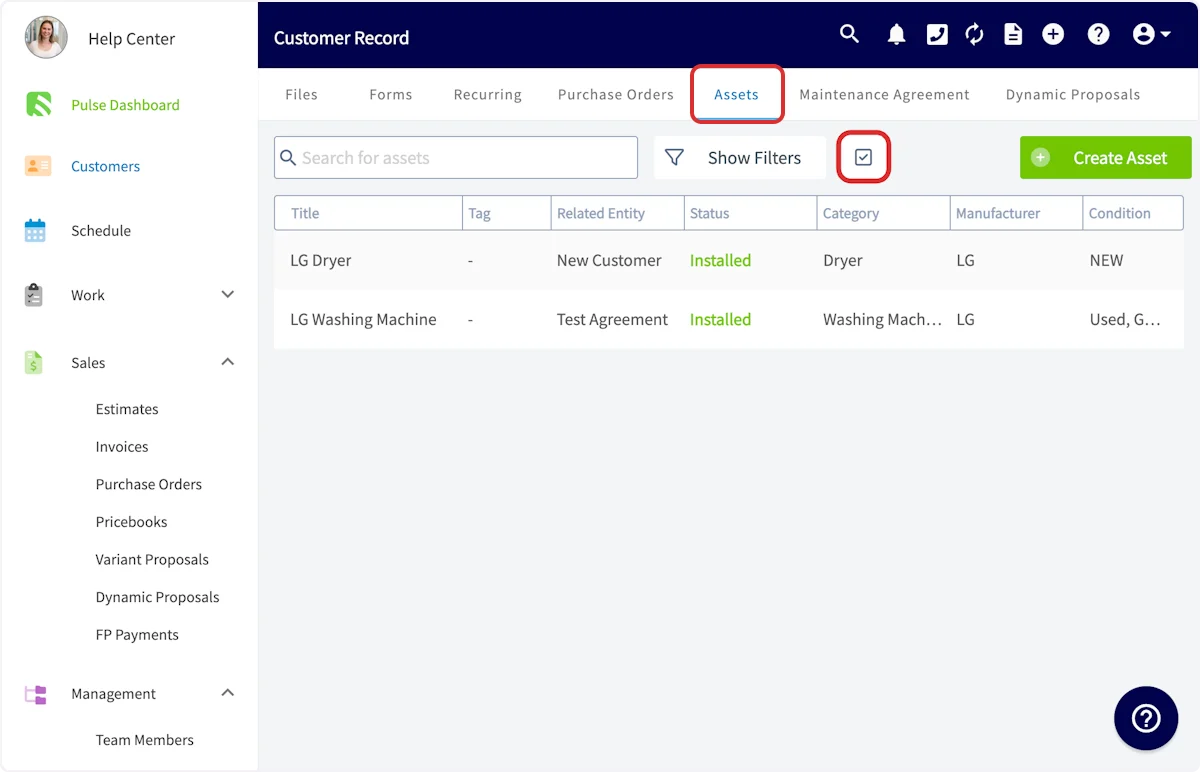
- Open the customer record tied to the assets and select Assets from the top menu.
-
Select the checkbox icon.
-
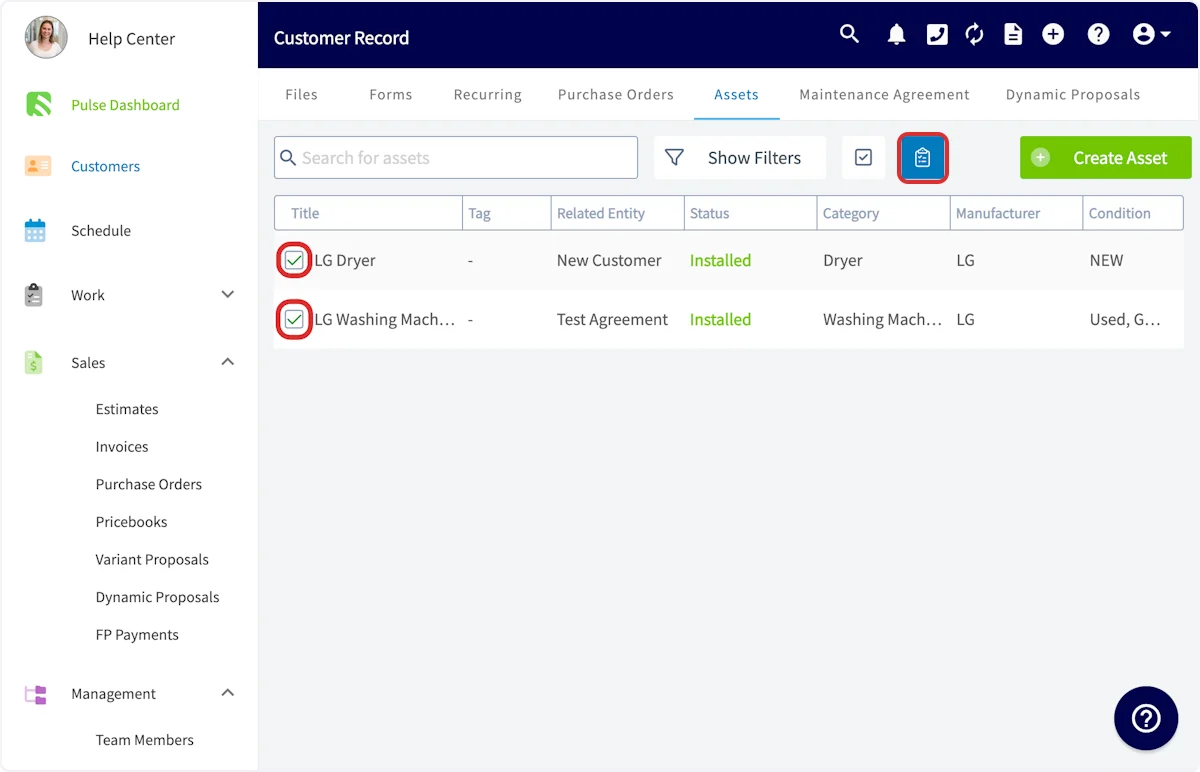
Choose the asset records to include, then select the clipboard icon to generate the report.
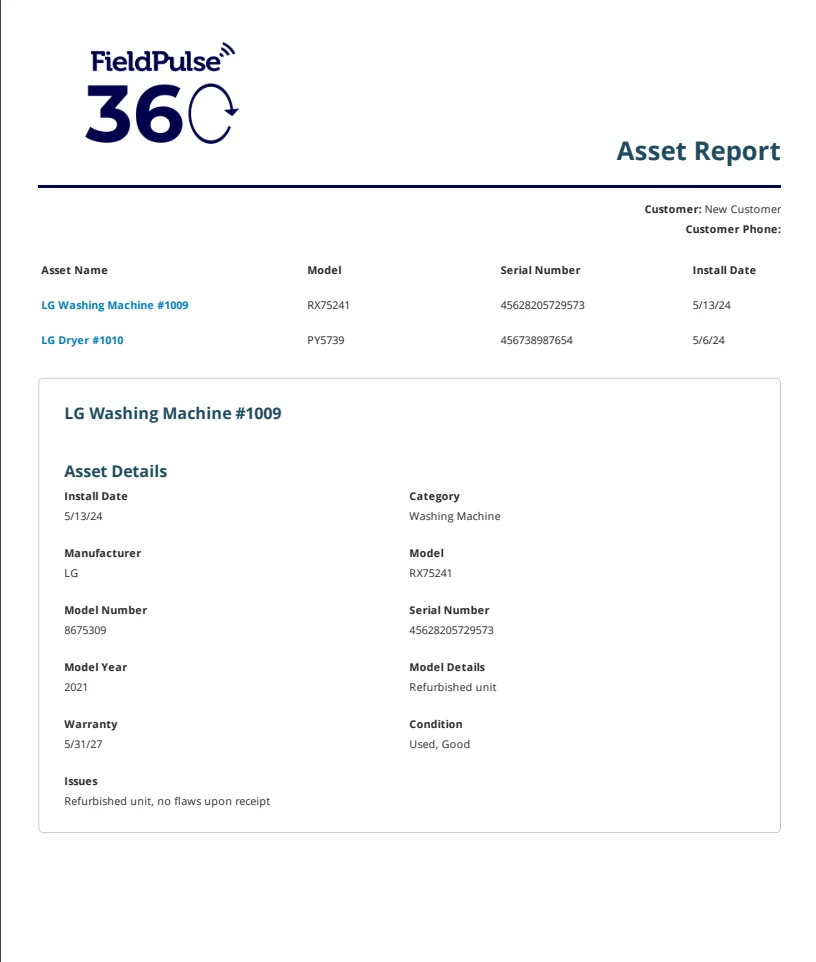
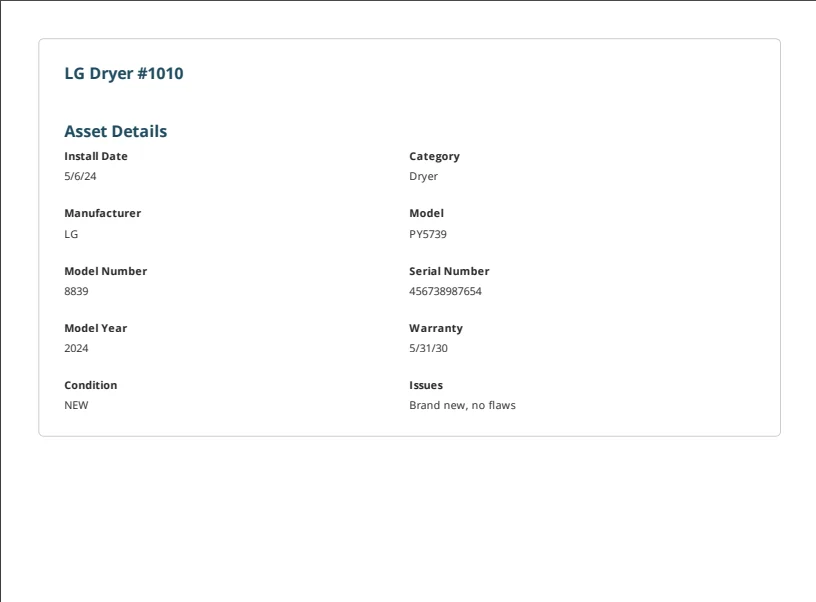
- Customize the display options and send the report the same way as a single-asset report. Here’s an example of a multi-asset report:
Transfer asset ownership
Ownership transfer is available for Customer Assets only. The action appears on the asset record once a customer is linked, and every transfer is logged so you keep a full audit trail.Set up transfer permissions
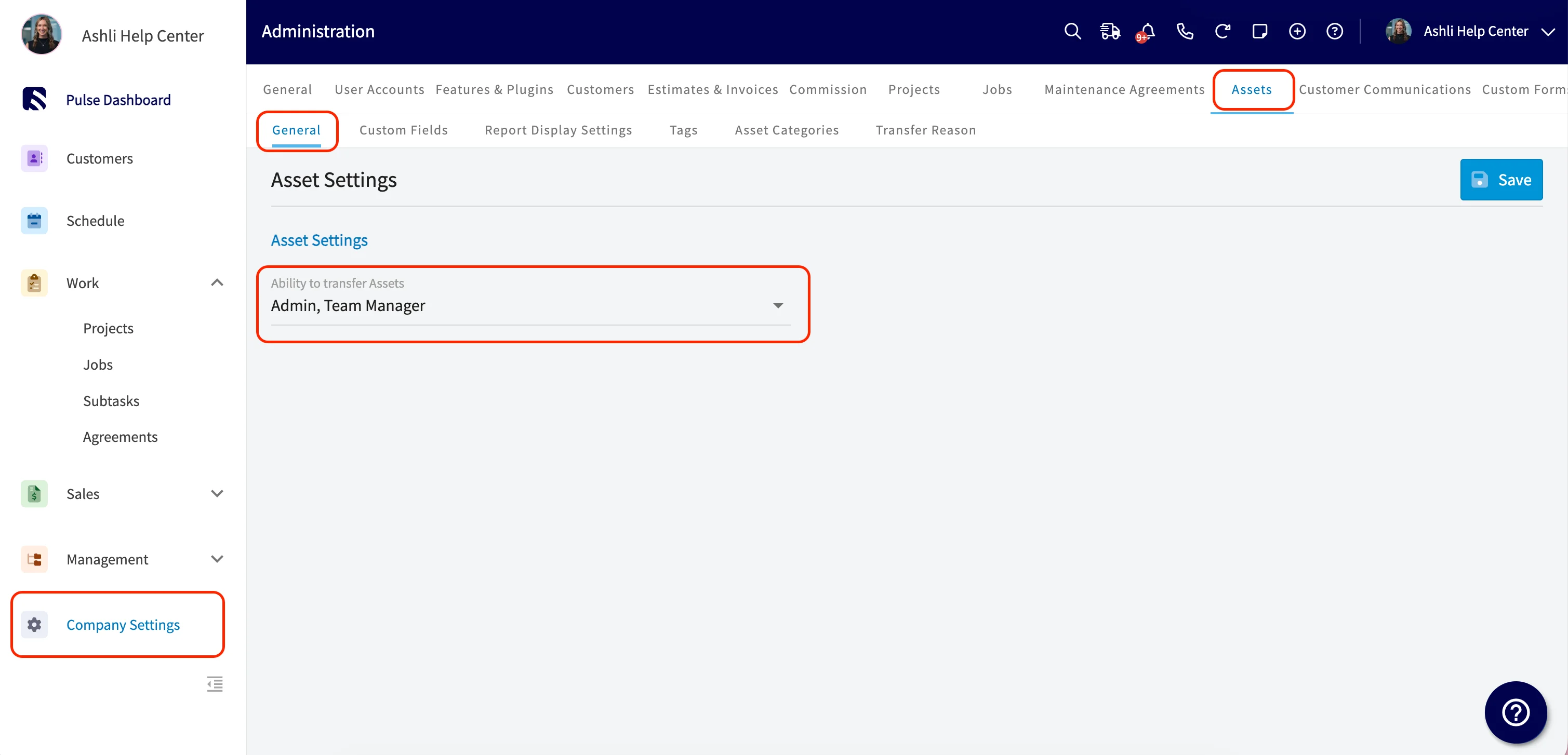
- Go to Company Settings > Assets > General.
-
Under Ability to Transfer Assets, select the roles that should have access. By default, Admin and Team Manager are on and Service Agent is off. You can select more than one role.
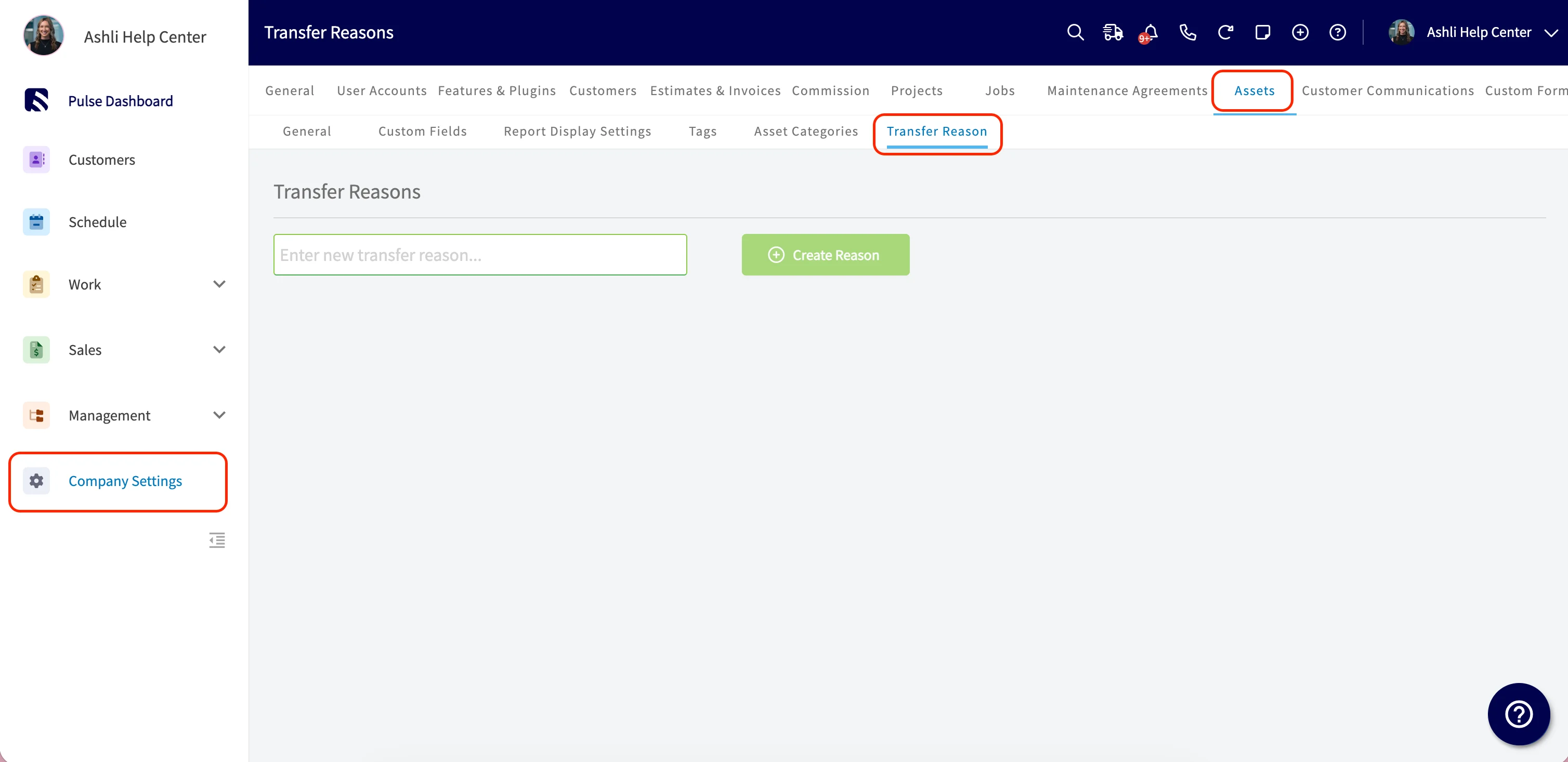
- Go to Company Settings > Assets > Transfer Reason to set up the reasons your team picks from during a transfer. Common ones include Change of Ownership (Home Sale), Builder to Homeowner Transfer, Landlord to Tenant Transition, Tenant Turnover, and Property Management Change.
Transfer an asset
-
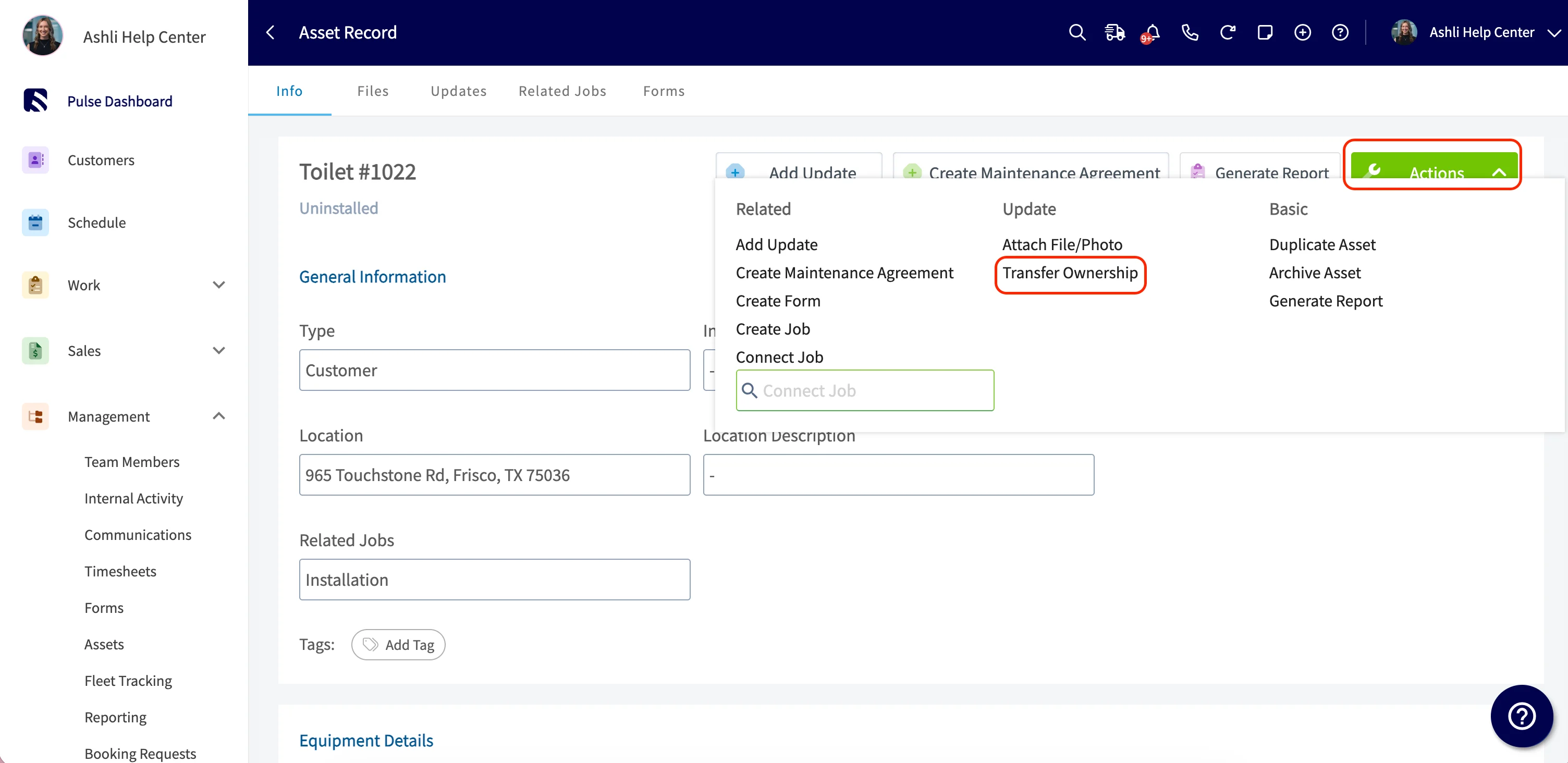
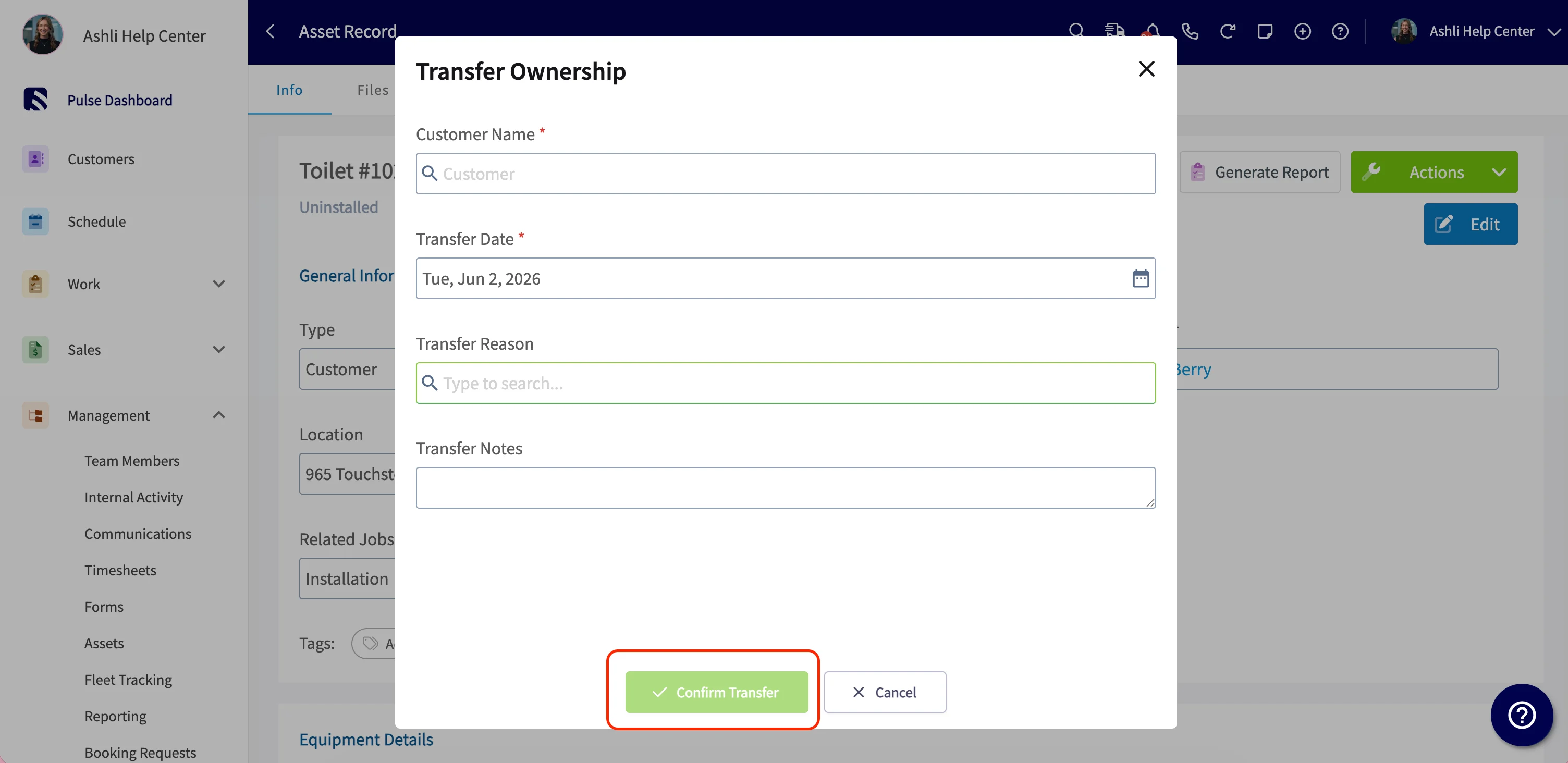
Open the asset record and select Actions > Transfer Ownership.
- Fill in the transfer details — the new customer, transfer date, transfer reason, and any notes — and select Confirm Transfer.
Review ownership history
Open the asset and find the Ownership History section — it appears once the asset has at least one logged transfer. Each entry shows the From Customer, To Customer, Transfer Date, Transferred By, Reason, and Notes, so you have the full trail no matter how many times the asset has changed hands.FAQs
Can I archive assets?
Yes. Open the asset record, select the green Actions button in the top-right corner, and choose Archive Asset.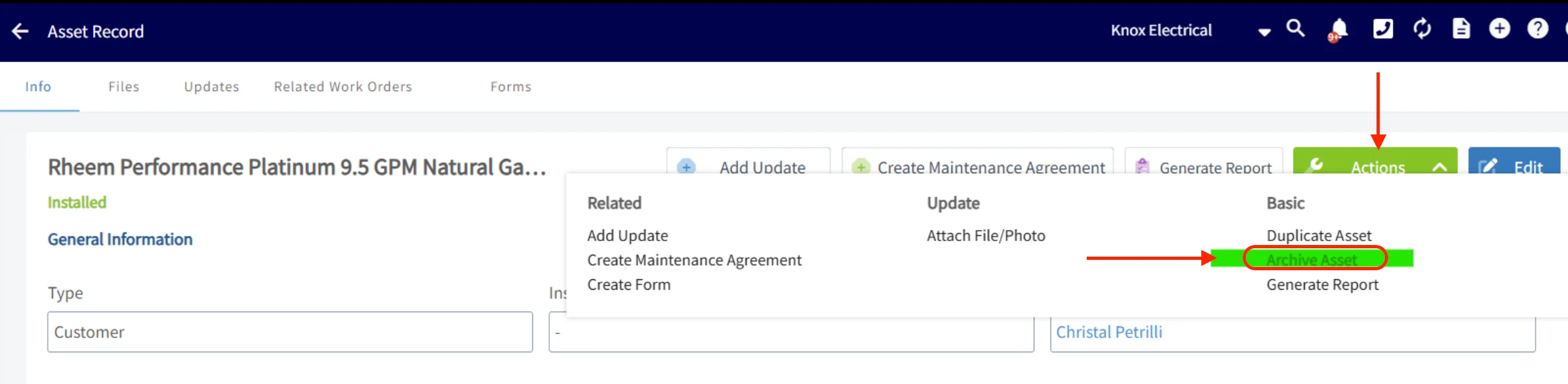
Related articles
- Company Equipment & Asset Tracking Overview
- How to Create a Maintenance Agreement
- How to Create a Job