

Documentation Index
Fetch the complete documentation index at: https://fieldpulse.mintlify.app/llms.txt
Use this file to discover all available pages before exploring further.
View Your Franchisees
As the franchisor, you have access to the Franchises tab from the menu on the left hand side of the screen. Here you can see at a glance a list of all of the franchisees. In the example below you can see there is a franchisee in the following locations: Nashville, Salt Lake, Santa Fe, Philadelphia, Dallas.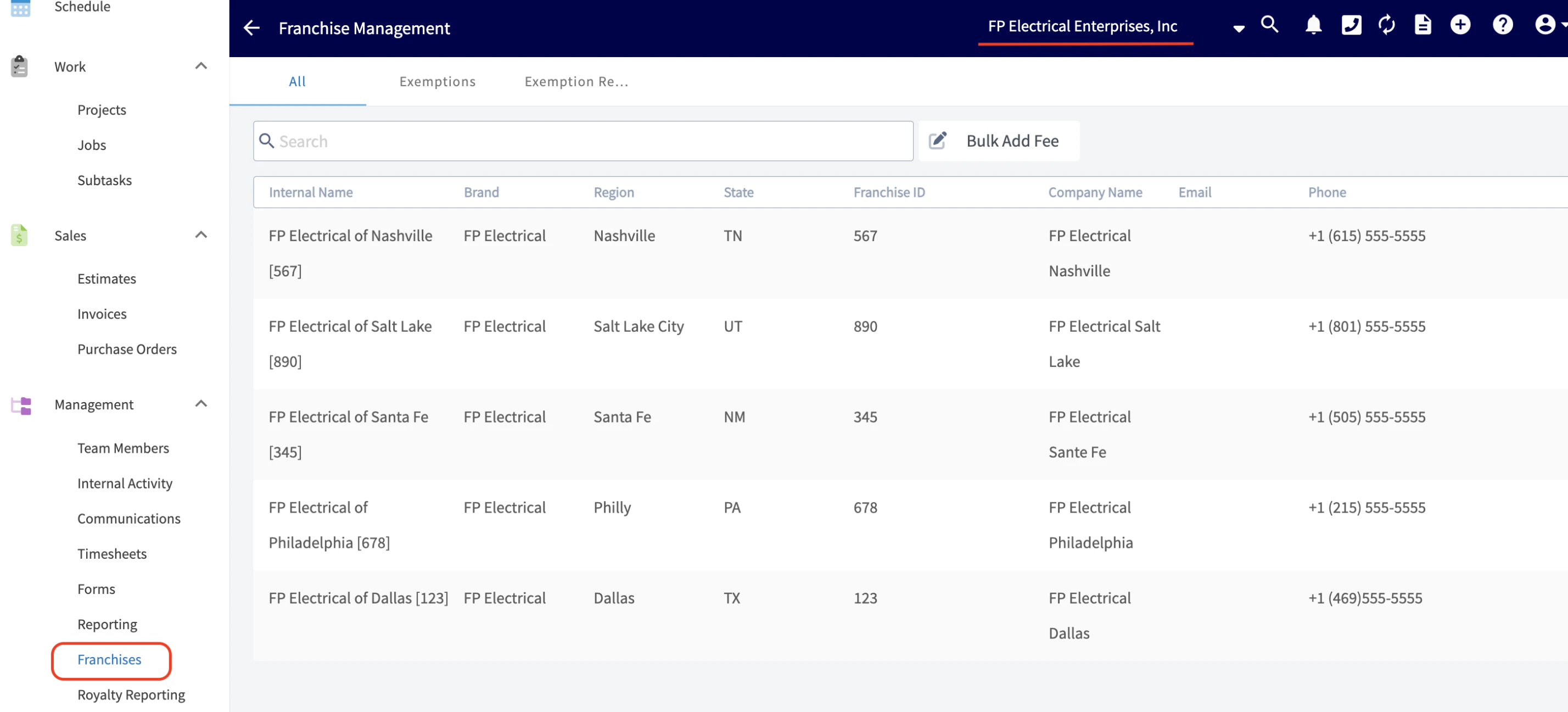
Edit/Login to Your Franchisees
The franchisor has the ability to make edits or login to any of the franchisee accounts at any time. To make edits/changes the franchisor would click on the paper/pencil icon. To login to the franchisee account the franchisor would click on the arrow/door icon.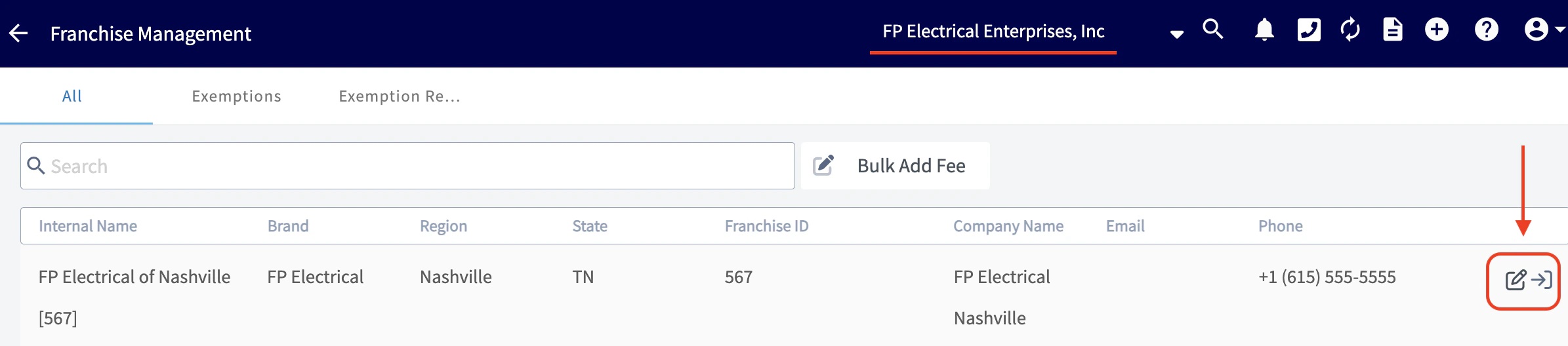
Franchisee Information
By clicking on the arrow/door icon mentioned above, a tab will pop up with various fields you can edit for your selected franchisee. See these fields pictured below.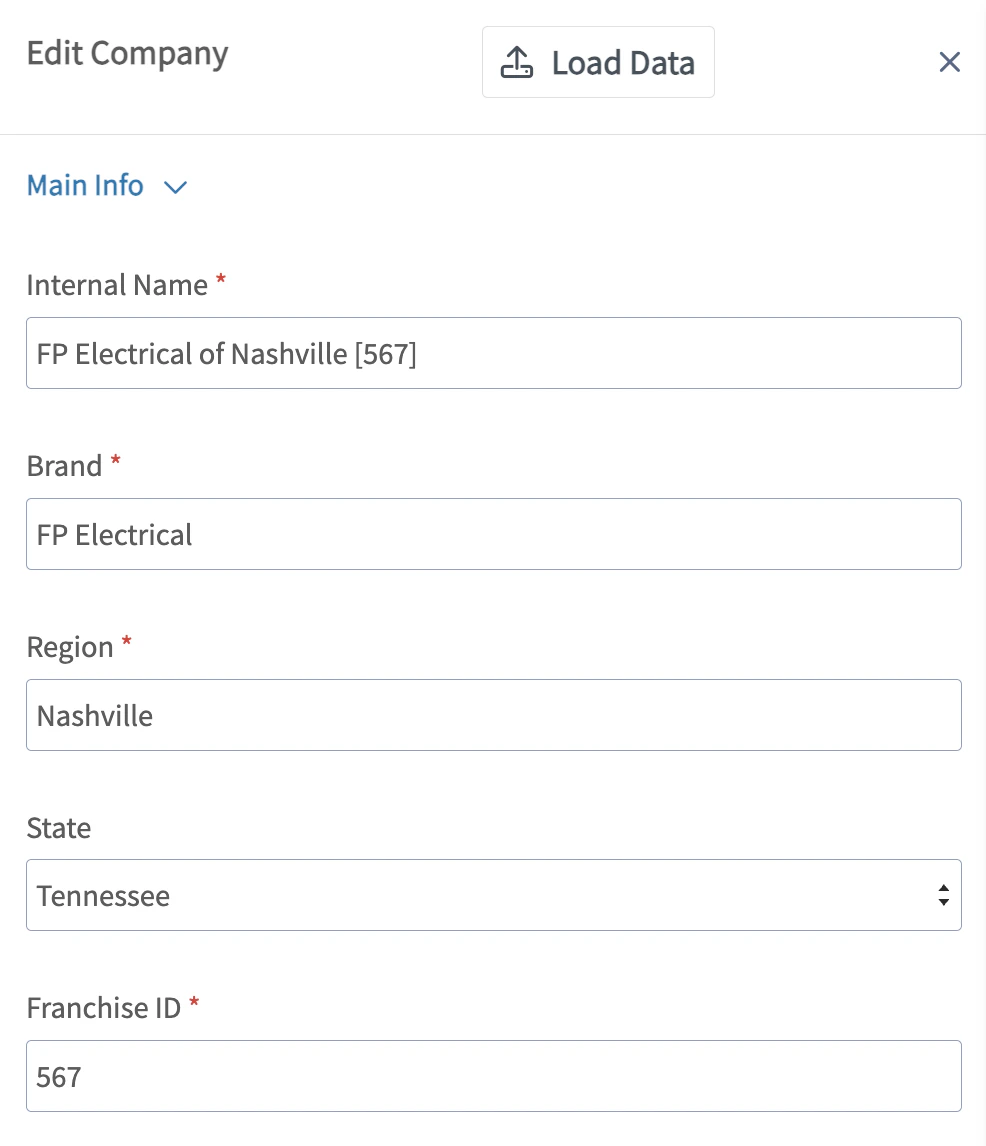
Setting Up/Adjusting Fees
When you scroll down after the fields pictured above, you will see the fields where you can create, and, and/or edit the fees you wish to charge your franchisees. As the franchisor you will need to name the fee, associate the type, and enter in a flat dollar amount or a percentage. Once those detail are sorted out, you will simply select the Add Fee button to apply it to this franchisee.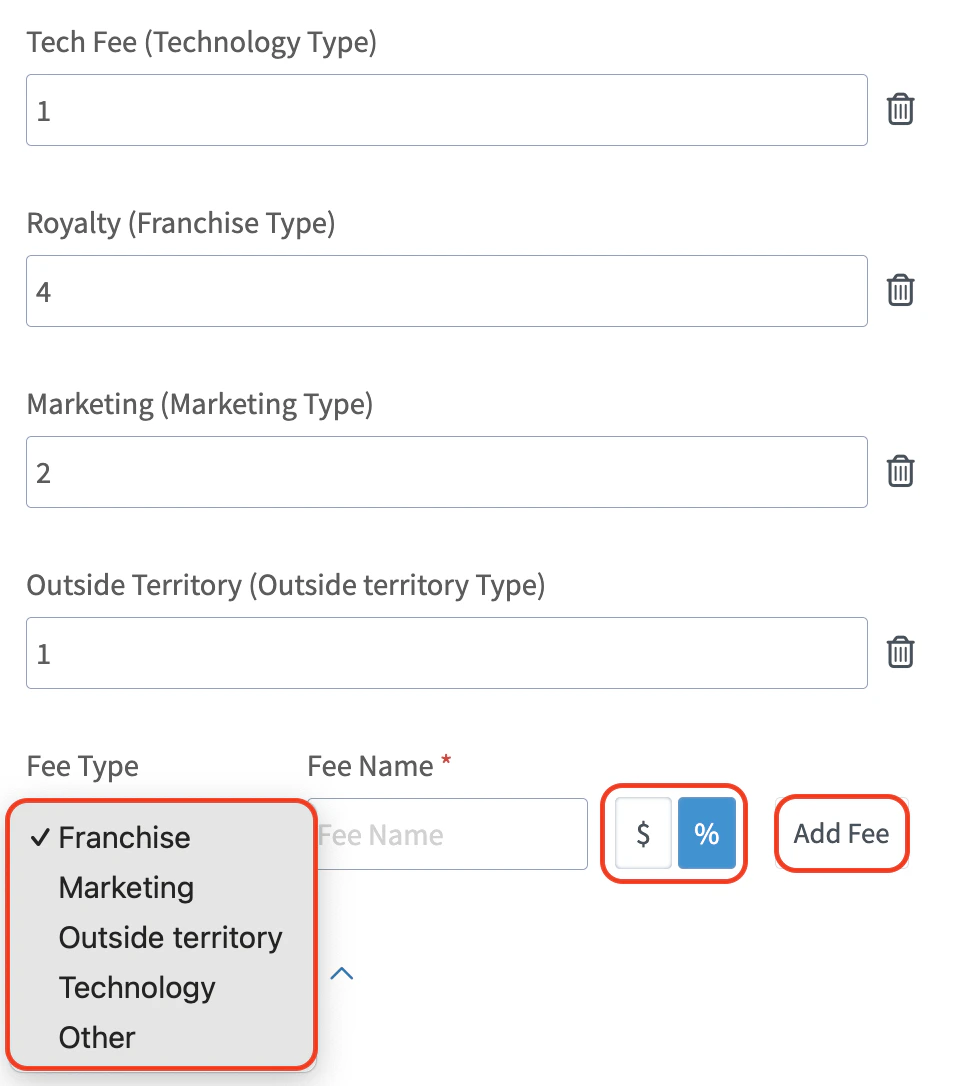
Territory Management
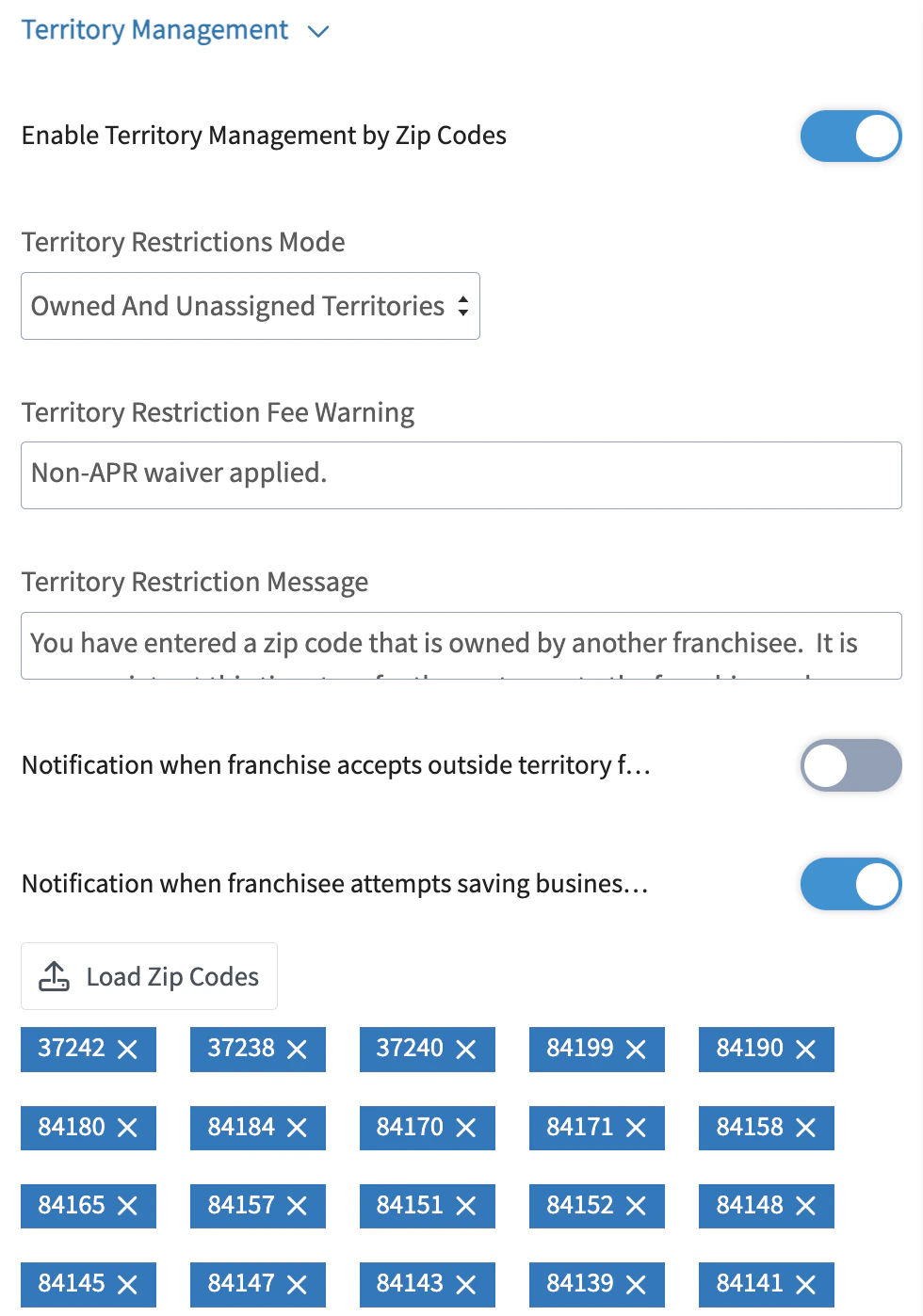
We understand that territory management is essential for franchises as it ensures strategic market coverage and minimizes competition among franchisees - fostering a cohesive & positive brand environment. Within FieldPulse, the franchisor can customize the Territory Restriction Fee Warning as well as the Territory Restriction Message. You can set notifications to be sent in two instances:- Notification when the franchise accepts outside of territory fees
- Notification when the franchisee attempts saving business outside of their territory
Adding a Disclaimer
The last field you as the franchisor can edit is the disclaimer message. This disclaimer message can be added here and will display on all of the estimates and invoices created by the franchisee’s account that you are editing.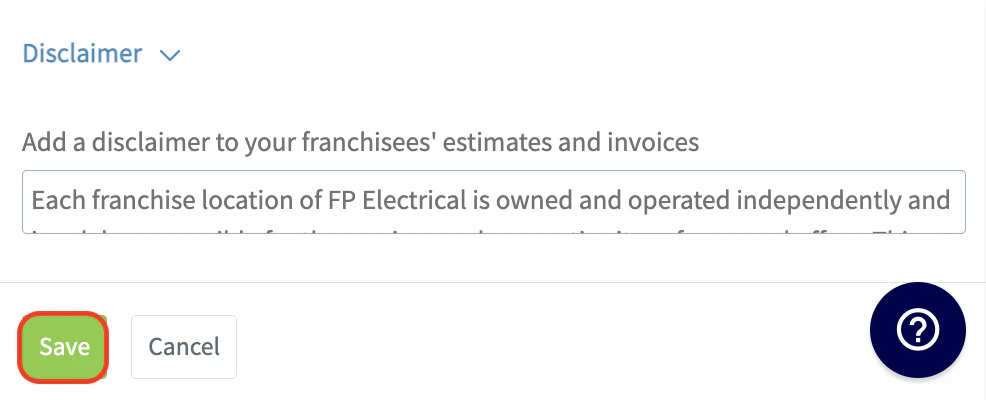
Have additional questions? Contact us at support@fieldpulse.com or use the chat feature in the bottom right corner of your screen.