Documentation Index
Fetch the complete documentation index at: https://fieldpulse.mintlify.app/llms.txt
Use this file to discover all available pages before exploring further.
How to Adjust Screen Contrast and Themes for Eye Sensitivity on Windows and macOS
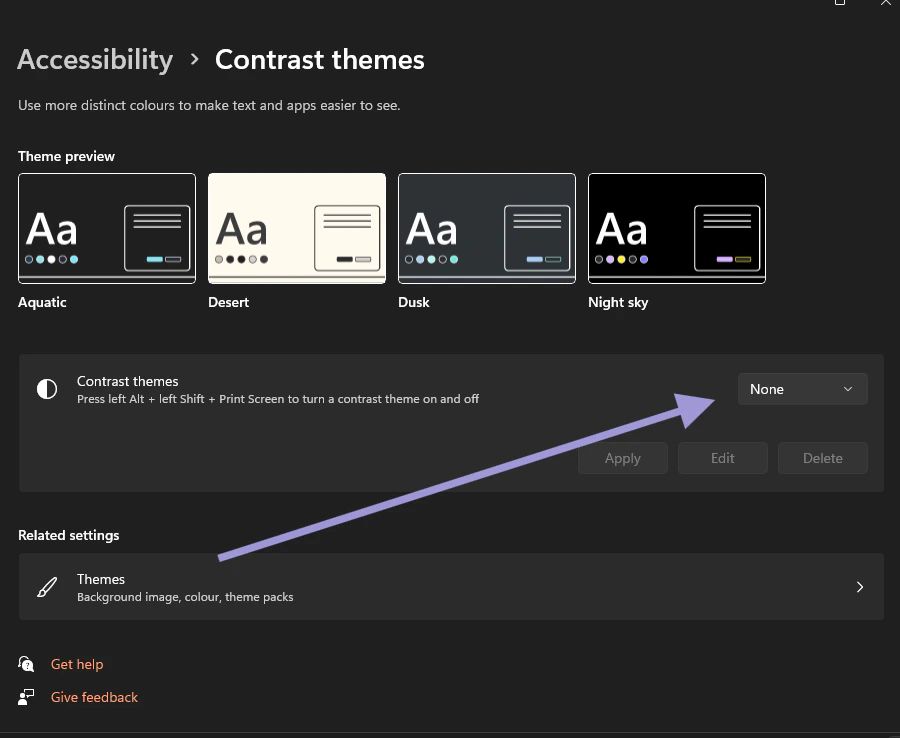
If you prefer a darker theme to reduce eye strain, both Windows and macOS offer settings that can help. While FieldPulse doesn’t currently have a built-in dark mode, you can adjust your device’s overall display to create a more comfortable experience. Here’s how to set it up on both Windows and Mac:For Windows:
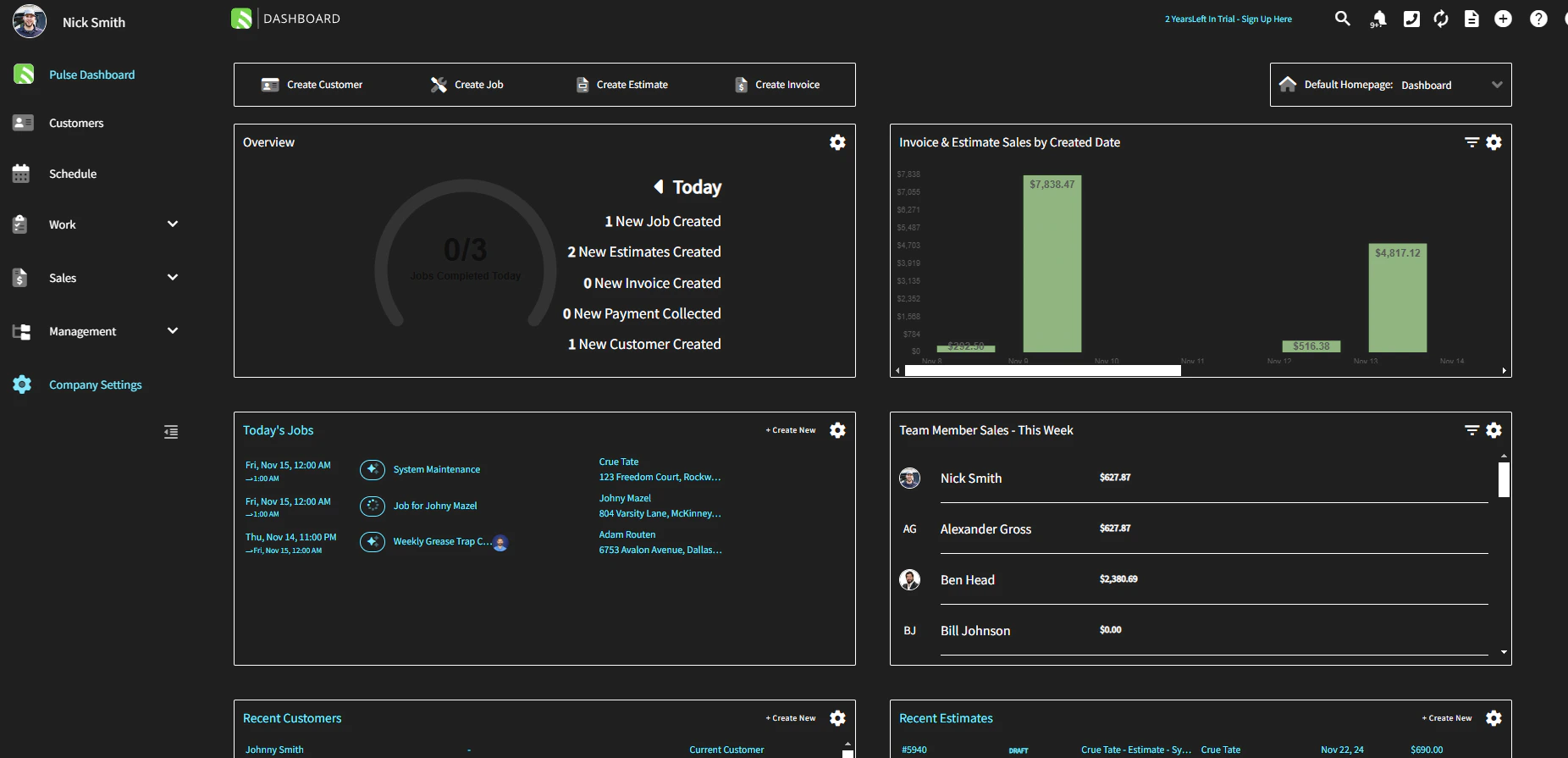
1. Enable Dark Mode: - Go to Settings > Personalization > Colors. - Scroll down and select Dark under Choose your color. This will change most system apps and the taskbar to dark mode. 2. Adjust High Contrast Settings: - Open Settings > Ease of Access > High Contrast. - Select a high-contrast theme, like High Contrast Black or High Contrast White, to make text and backgrounds easier to read. 3. Adjust Brightness and Color Settings: - You can adjust brightness from the Action Center or go to Settings > System > Display to enable Night Light, which reduces blue light for a warmer display. 4**. Windows Accessibility - Contrast Themes:** - Go to Settings > Ease of Access > High Contrast to choose a theme that enhances visibility for those with eye sensitivity. Example: FieldPulse when the Contrast theme is set to Aquatic on Windows.