

Using filters to narrow your searches in FieldPulse makes it easy to find what you need. While the available filters vary between record types, we will overview the common filter qualities to best prepare you to utilize filters in your account!Documentation Index
Fetch the complete documentation index at: https://fieldpulse.mintlify.app/llms.txt
Use this file to discover all available pages before exploring further.
Filtering
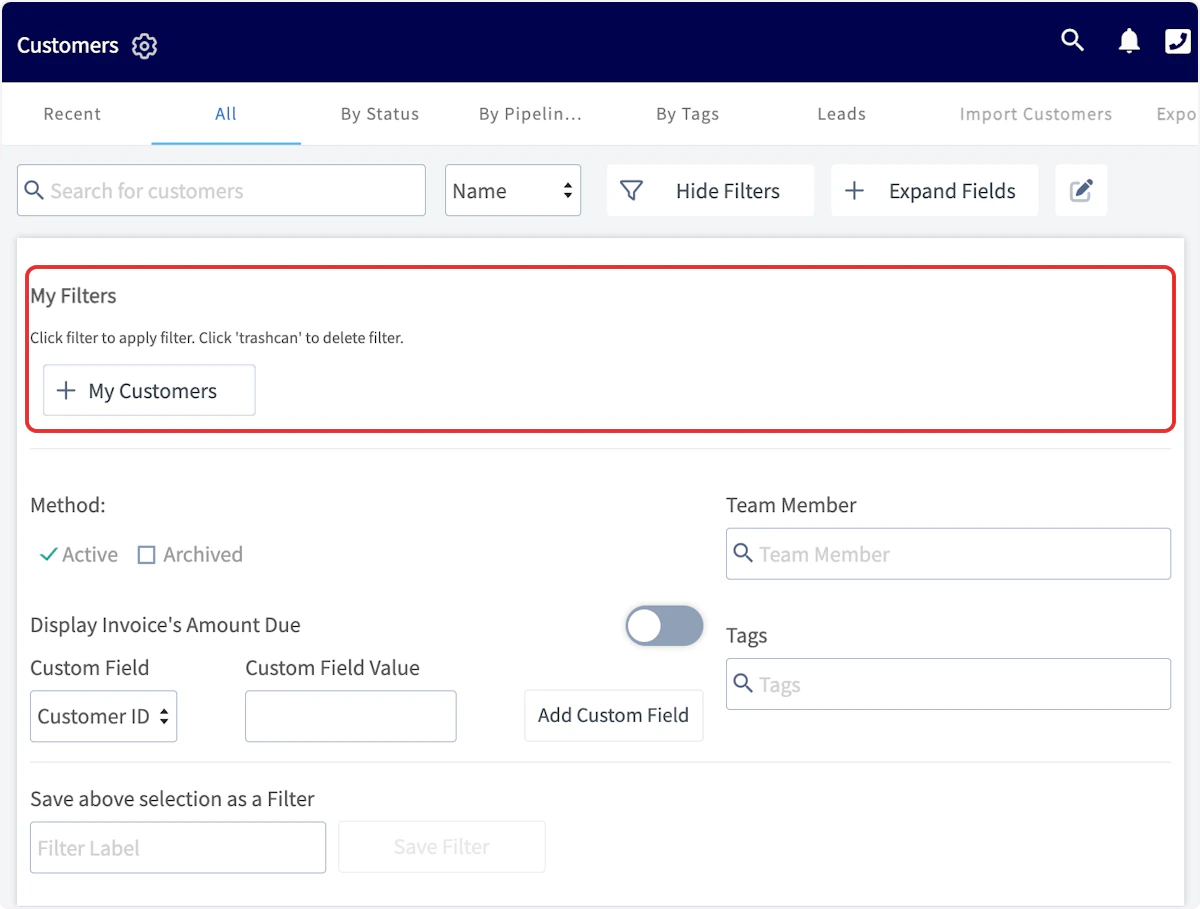
To begin, select Show Filters.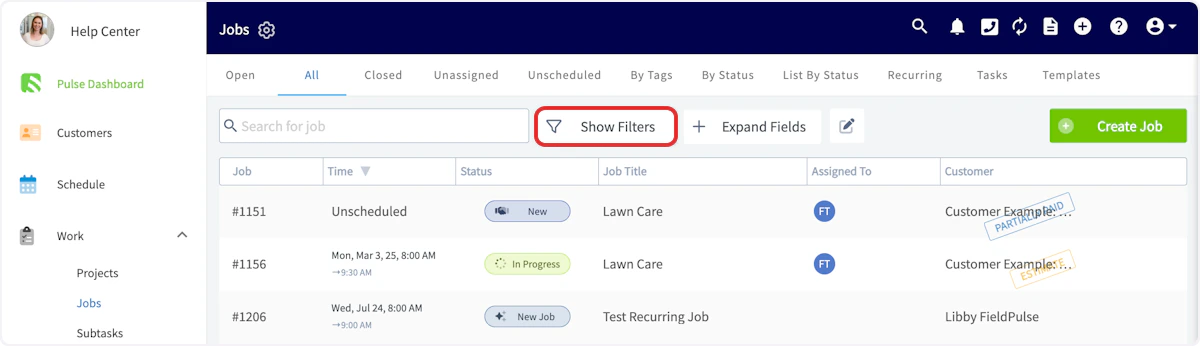
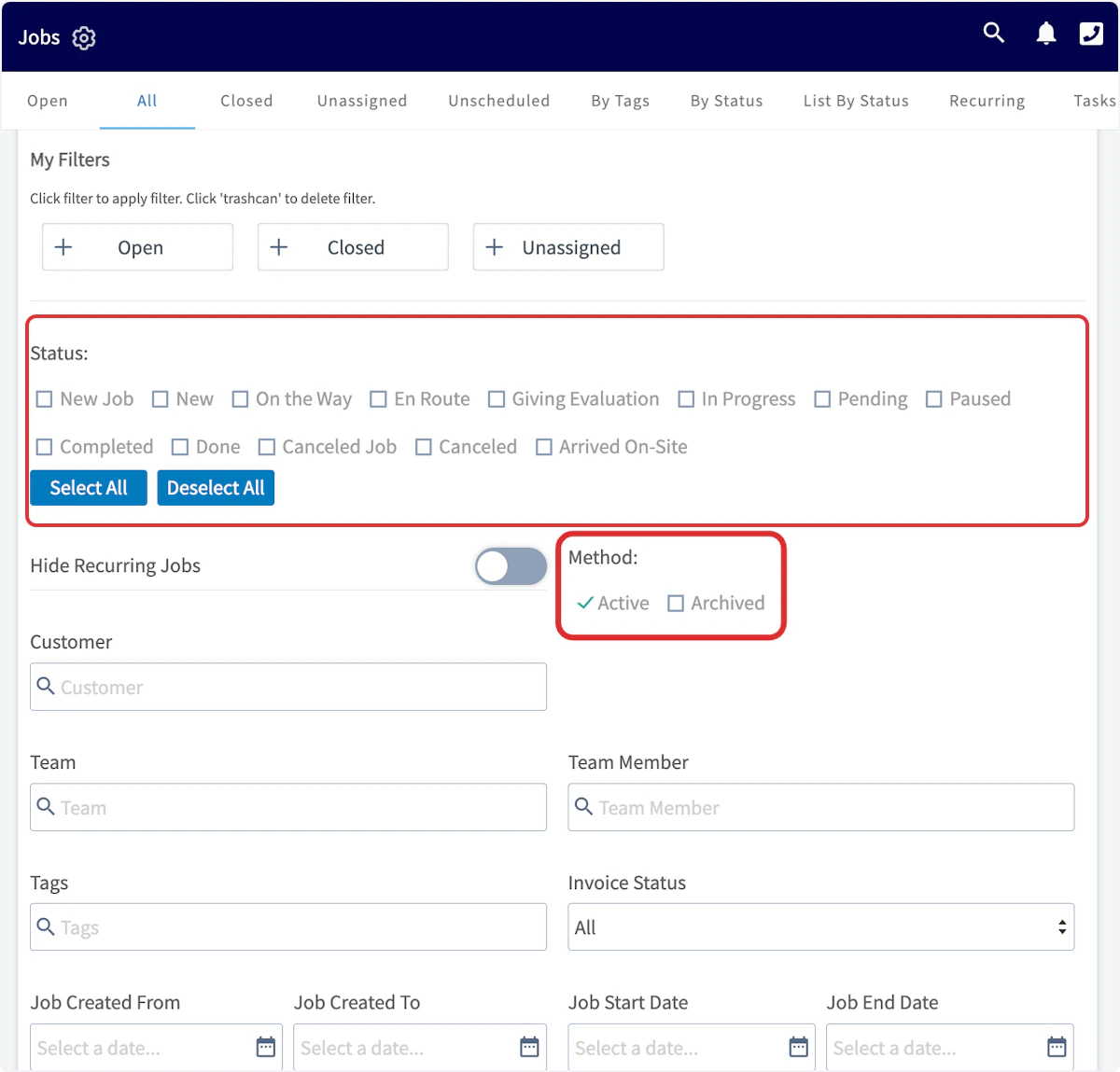
Custom Fields
To filter by custom fields, begin by selecting the custom field you’d like to use. Then, type the field contents you’d like to filter by under Custom Field Value. This will only show results that have these contents. When you’re finished, press Add Custom Field. You can repeat this process with multiple custom fields until you’re happy with the way you’ve filtered your search.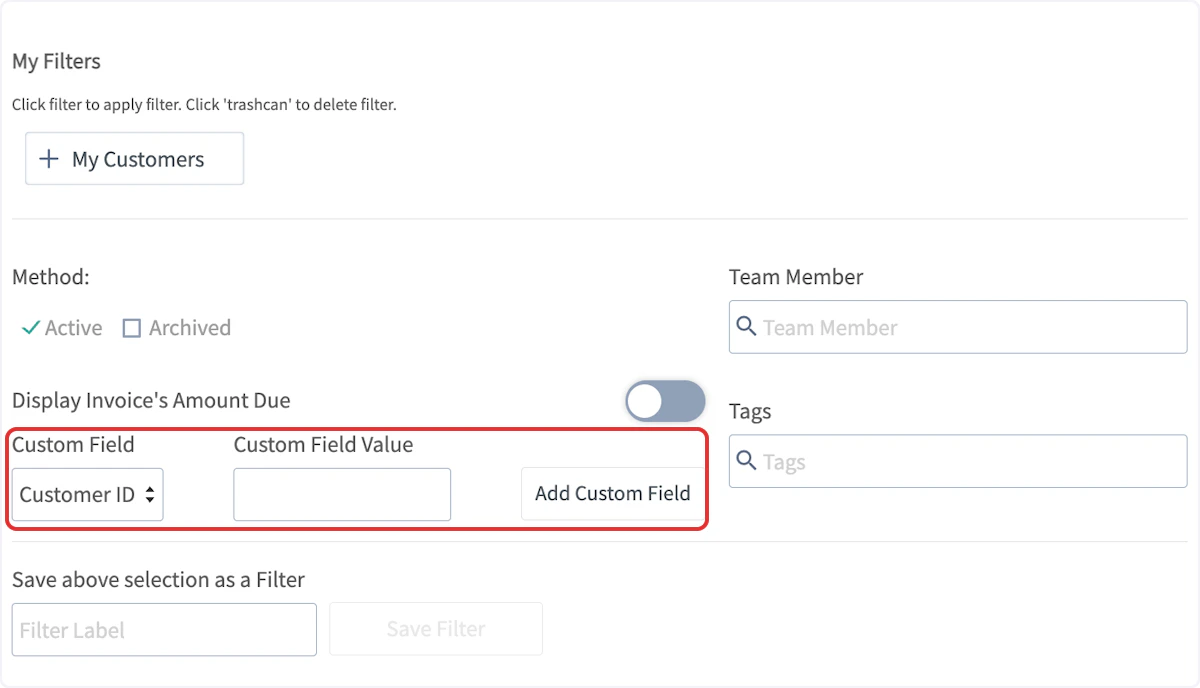
My Filters
After filtering by a variety of fields, you can easily save your filter for future use. Name your filter under Save above selection as Filter, then press Save Filter.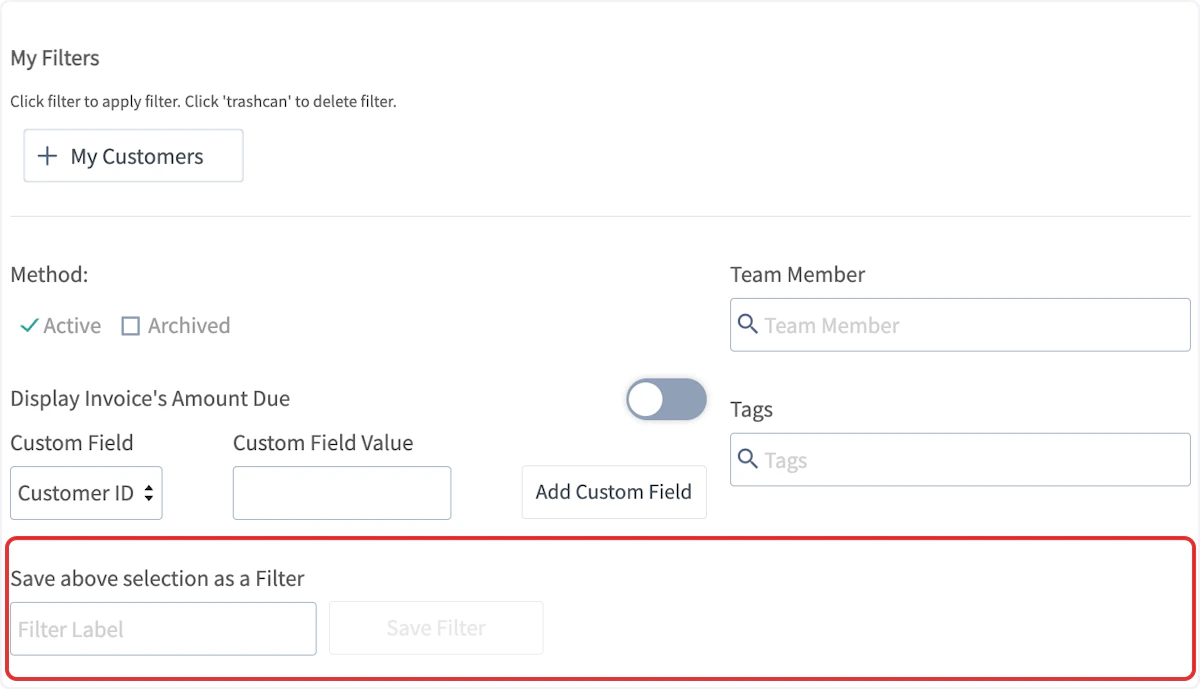
New Job & Project Filters
Step 1: Open Filters
Navigate to the Jobs or Projects tab. Click the Filters button and a panel will slide open on the right side of your screen.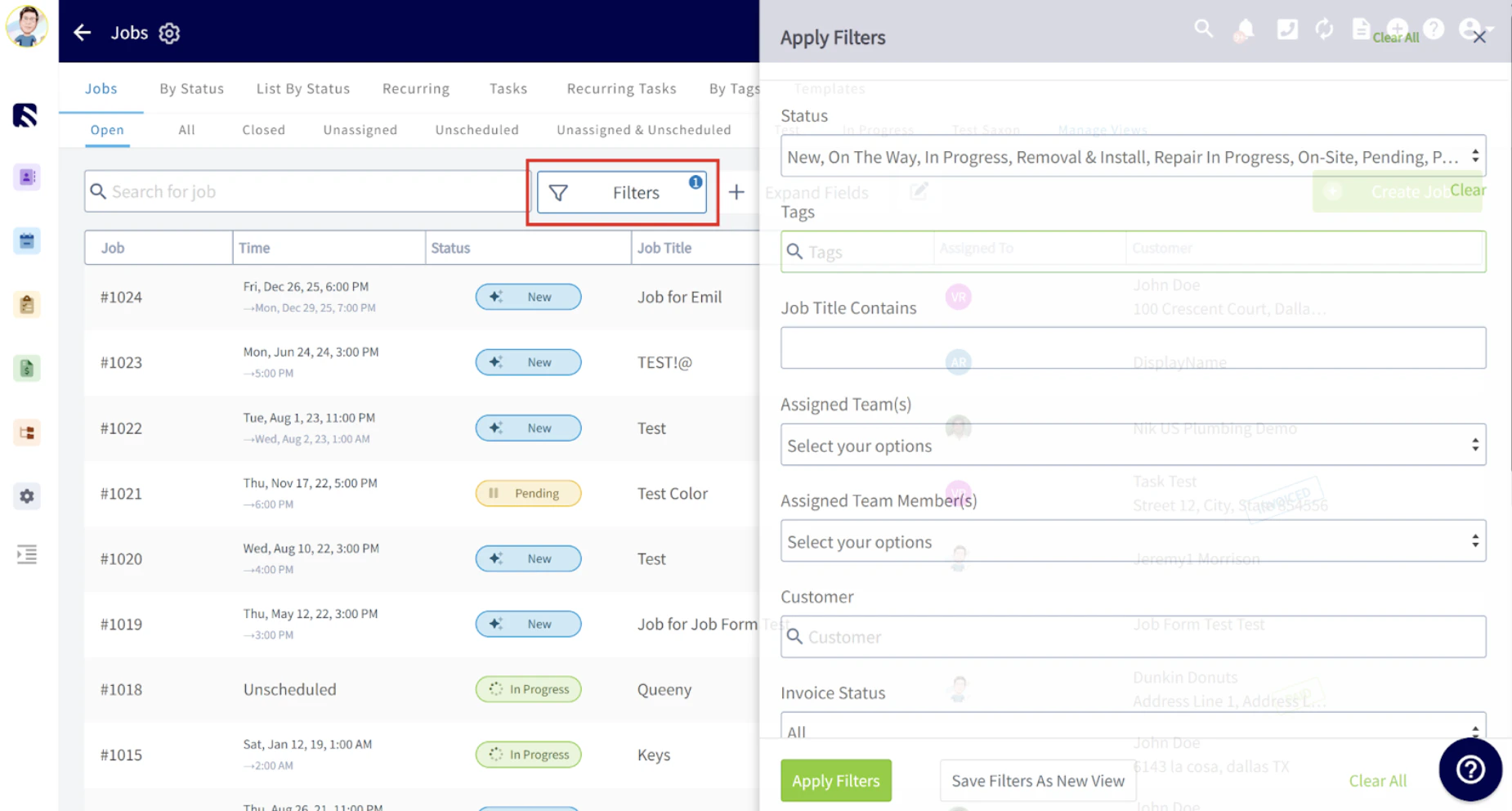
Step 2: Apply Your Filters
You can filter by the following options:- Statuses – Scroll and select the relevant statuses.
- Tags – Search and select one or multiple tags.
- Job Skills- Search and select one or multiple tags.
- Job Title Contains – Enter text to search within job titles.
- Assign Team – Search and select a team.
- Customers – Search and select customers.
- Invoice Status – Select from the dropdown.
- Is Active / Is Archived- Select from the dropdown.
- Job Notes Contain – Text search.
- Job Field Notes Contain – Text search.
- Created From / Created To – Set a date range.
- Recurring Jobs - Select from the dropdown.
Step 3: Save Your Filters
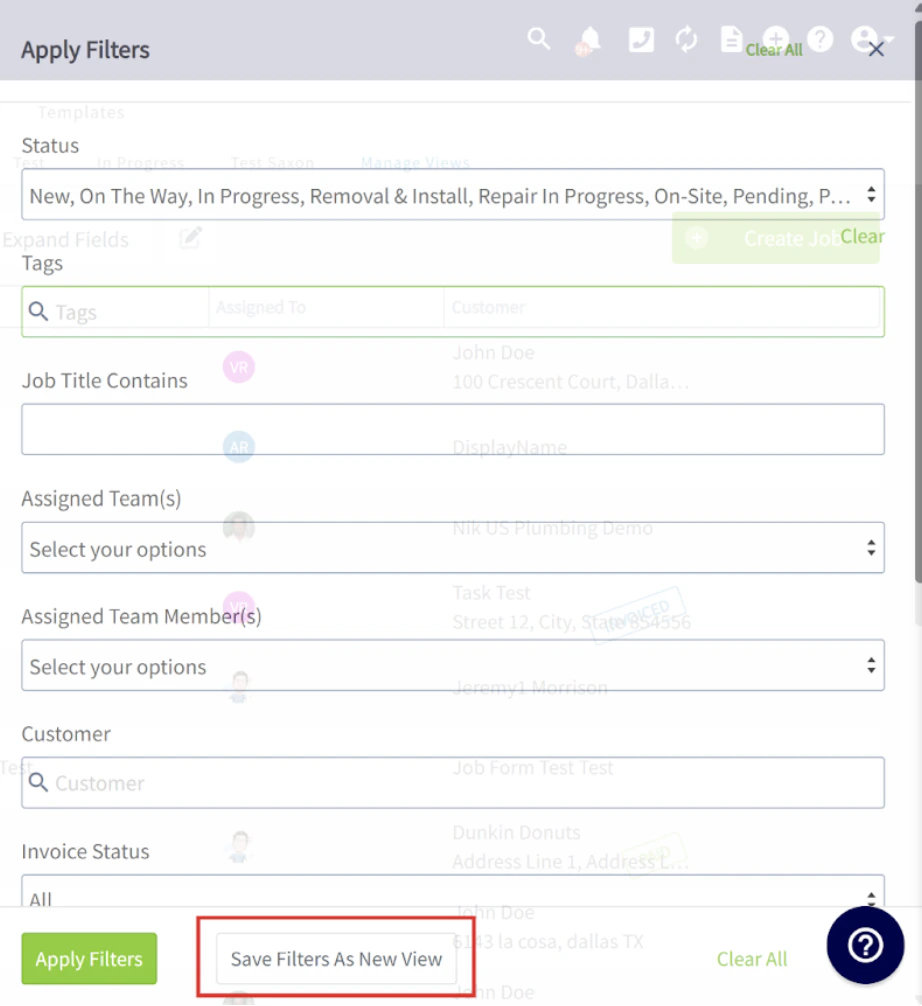
To enhance your workflow and quickly access your preferred filters:- Click the Save Filters As New View button.
- Name your new filtered view something easily recognizable—this will help you identify it later.
Manage Your New Job & Project Filtered Views
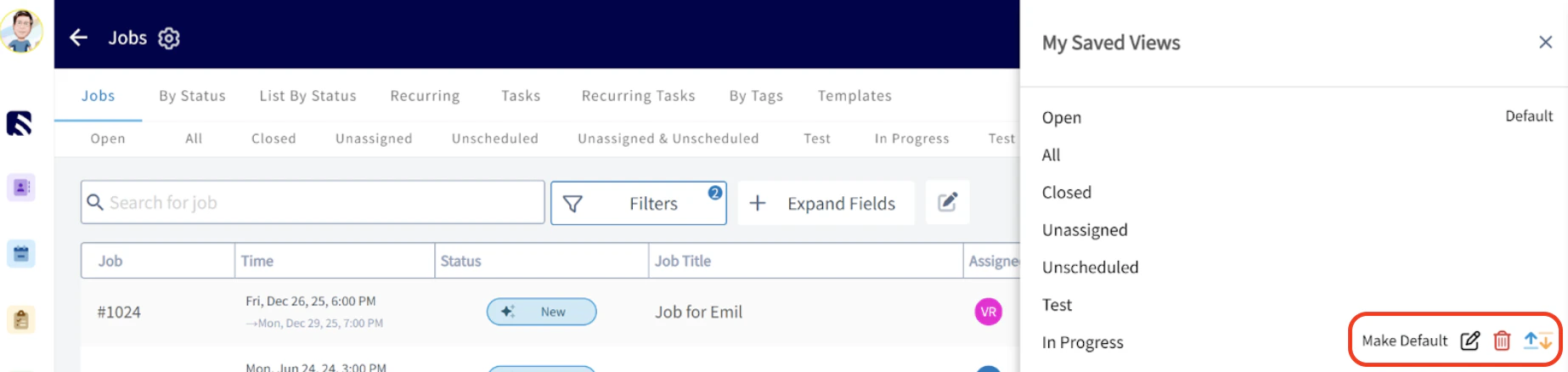
On the Job or Projects page, click the Manage Views subtab.
- Adjust the order of your filtered view tabs.
- Rename your saved views for easier identification.
- Delete any saved filters you no longer need.
Have additional questions? Contact us at support@fieldpulse.com or use the chat feature in the bottom right corner of your screen.