

With the Review Management feature in FieldPulse, you can now get more reviews from customers and capture rating and feedback on your team members. Review Management gives you the ability to capture more reviews on Google, Yelp, HomeAdvisor, Facebook, or other sites with ease! You can also gather internal feedback from your customers to improve performance.Documentation Index
Fetch the complete documentation index at: https://fieldpulse.mintlify.app/llms.txt
Use this file to discover all available pages before exploring further.
Enabling Review Management
To begin using Review Management, you’ll first need to enable it. Start by clicking on Company Settings and selecting Features & Plugins. Navigate to Review Management and select Enable. Now you’re ready to begin customizing and automating your review requests!
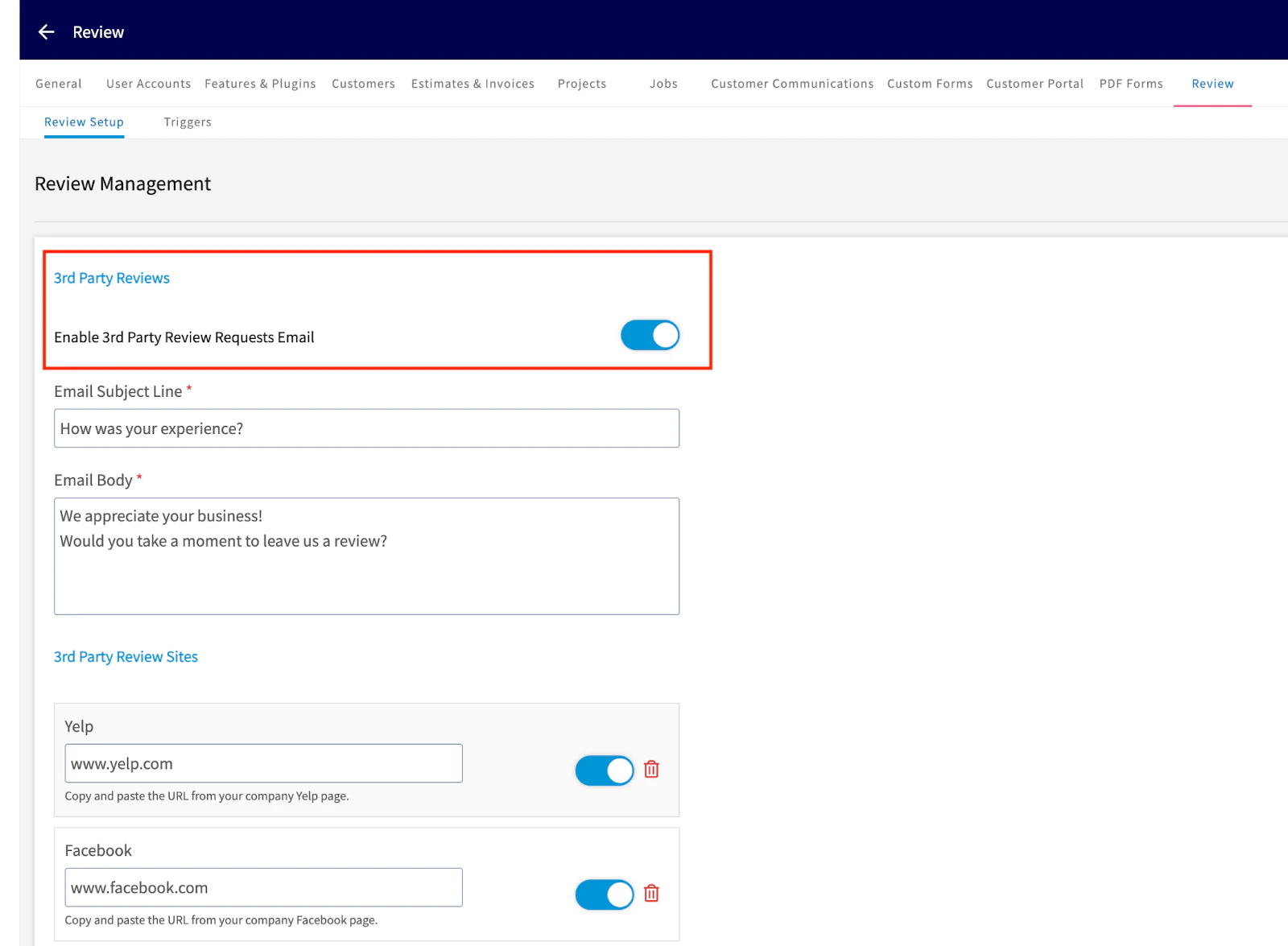
Setting Up 3rd Party Reviews
3rd Party Reviews will send requests to your customers to publish reviews on external websites such as Google, Yelp, and more. Once enabled, you can begin customizing your review management under Company Settings, then click Review at the top of your screen.

Setting Up Internal Feedback
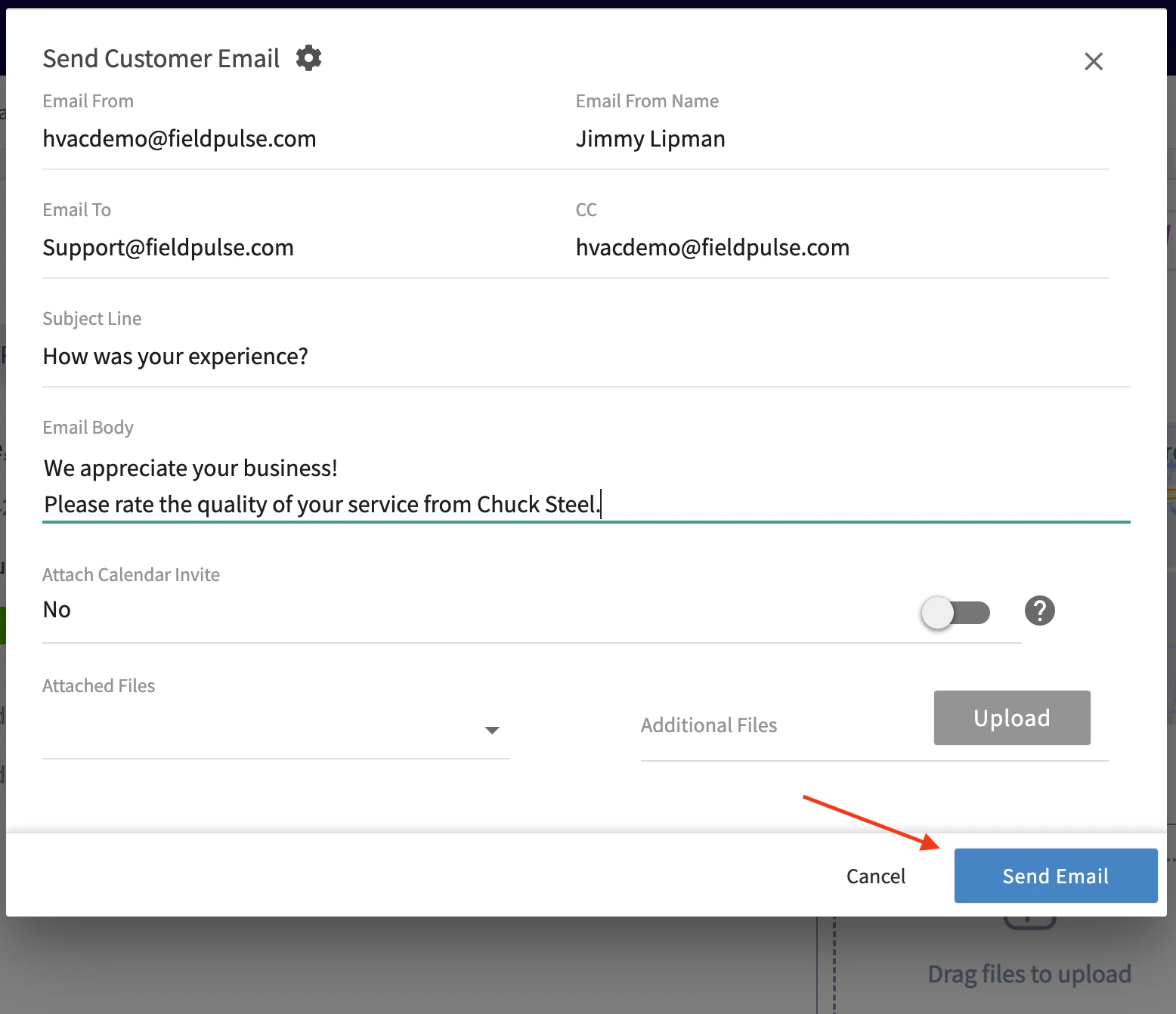
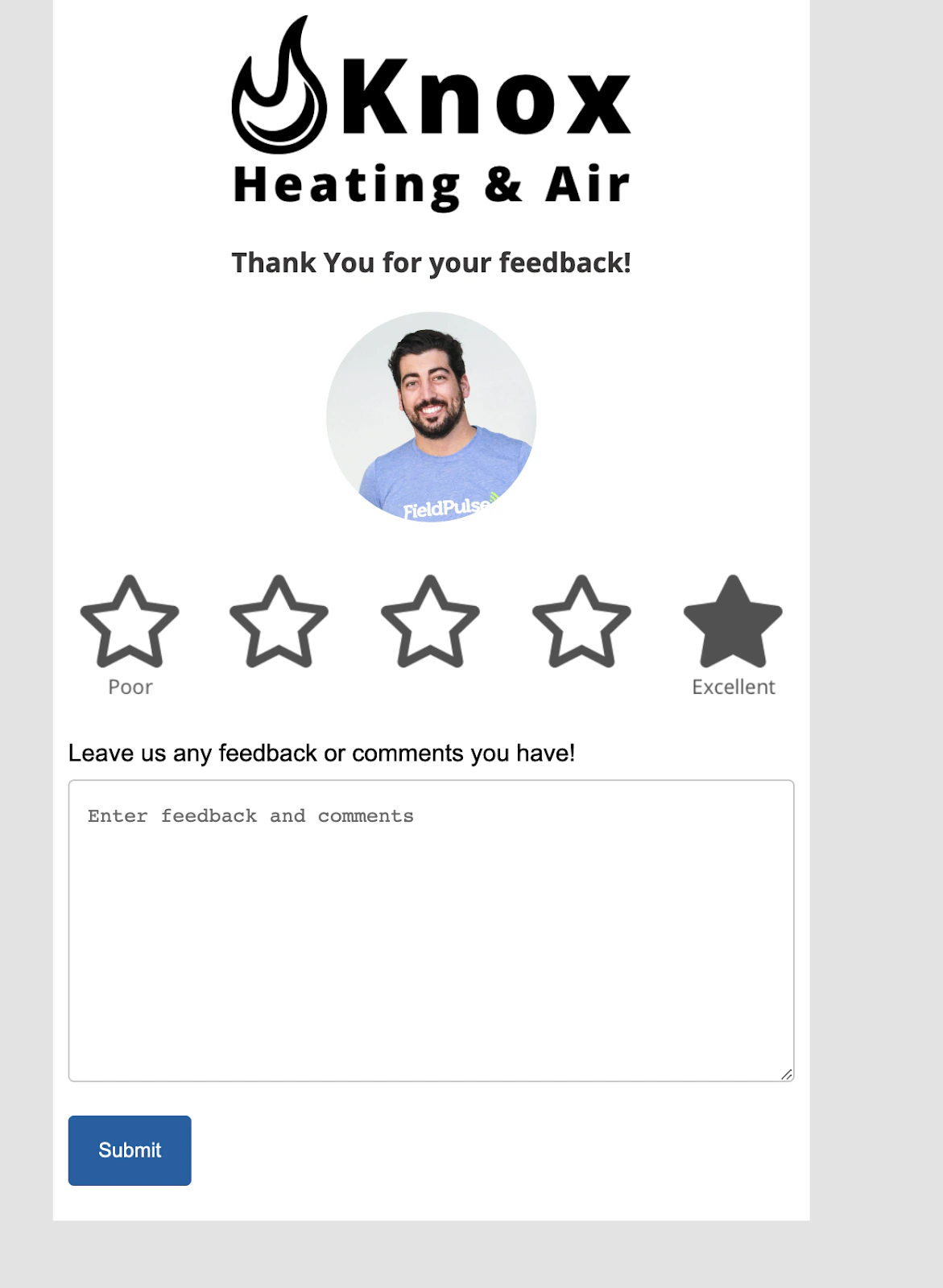
Internal feedback will send requests to your customers to give internal feedback intended to help your company and/or your service agents improve. Begin by toggling on Enable Internal Feedback Scores Email. A standard subject line and email body will appear, but please customize your subject line and email body as these will be included with each feedback request.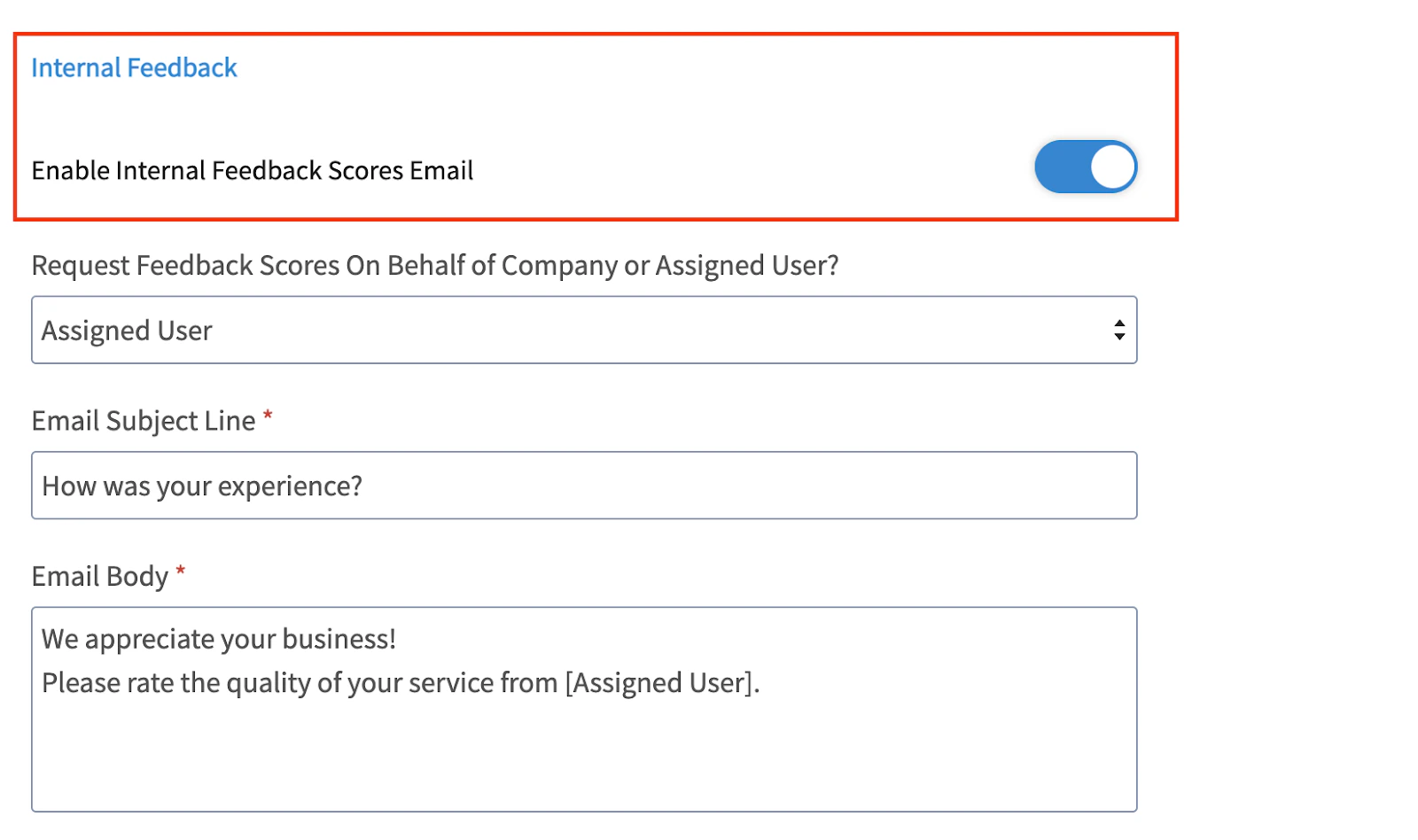
Setting up Automatic Triggers for Review Management
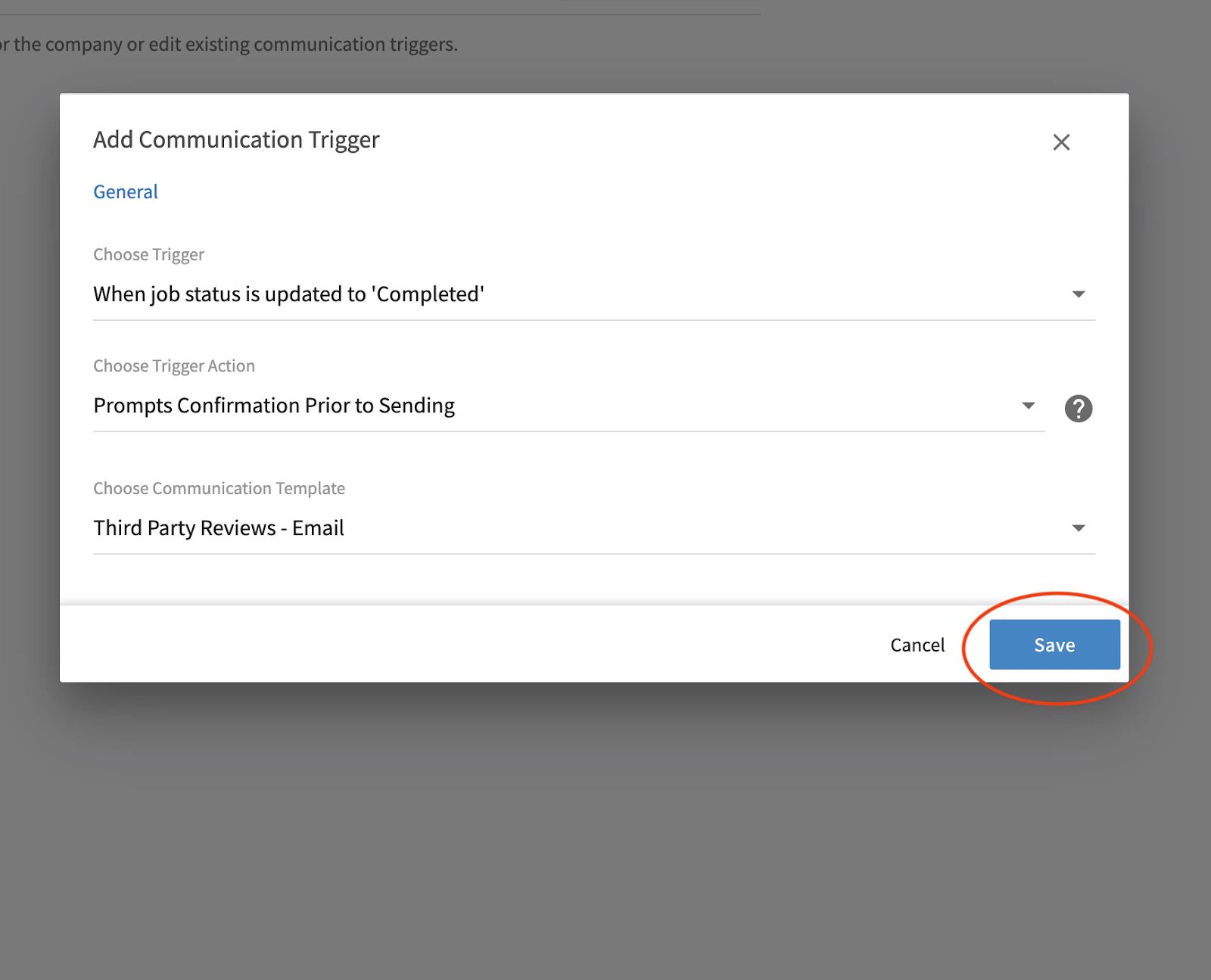
You can use the automatic triggers feature to send out review requests automatically to customers. Before you set up automatic triggers, you have to set up email templates. To learn more about this, visit the Customer Communications article. Under Company Settings, click on Review. Then click on Triggers. To create a new trigger, click Create New.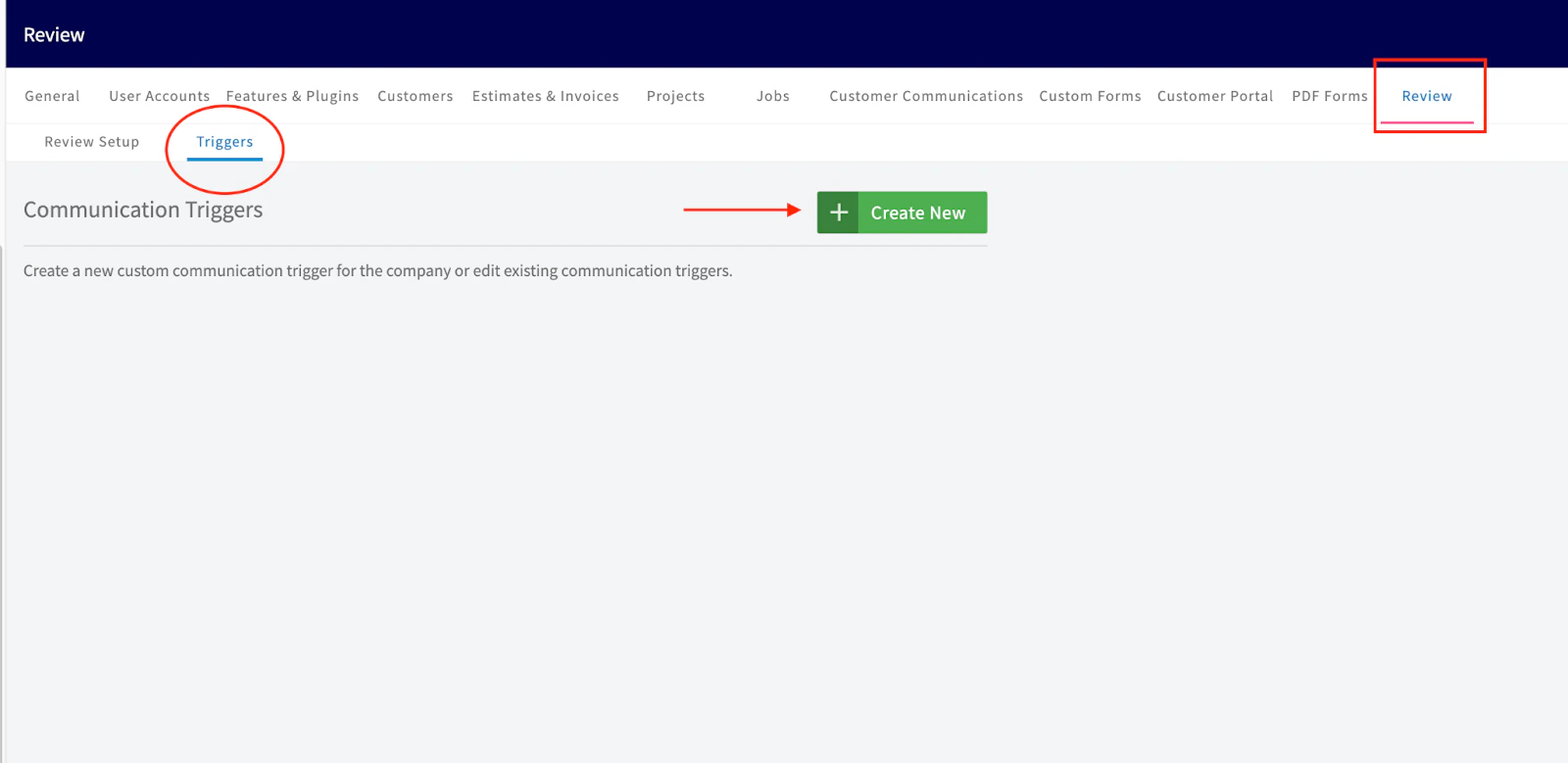

- Automatically Sent - Choosing this option will automatically send the customer communication immediately after the trigger is triggered without a preview or confirmation.
- Prompts Confirmation Prior to Sending - Choosing this option will open a pop-up after the trigger is triggered for you to confirm that you want to send this customer communication prior to sending.
- Scheduled Based On Timing - Choosing this option will automatically send the customer communication based on a scheduled timing sequence that you specify.


Manually Sending Review & Feedback Requests
If you prefer not to use automatic triggers, you can also send these requests manually. Once a job has been completed, navigate to the job record and click on Customer Communications.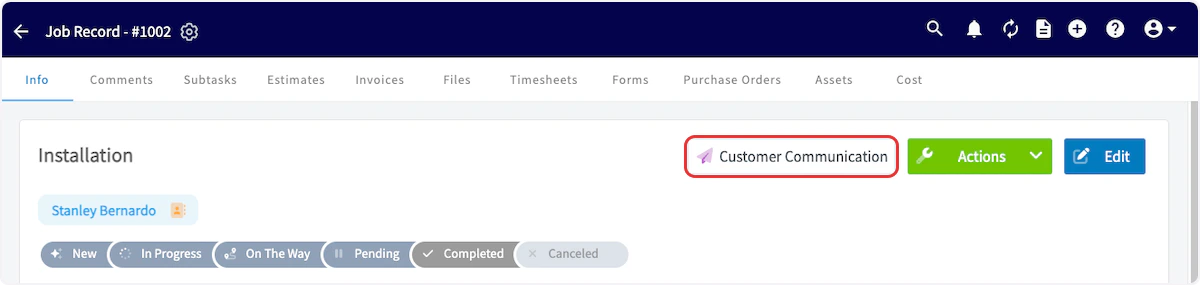

Customer Experience
Here is a sample 3rd party review request email: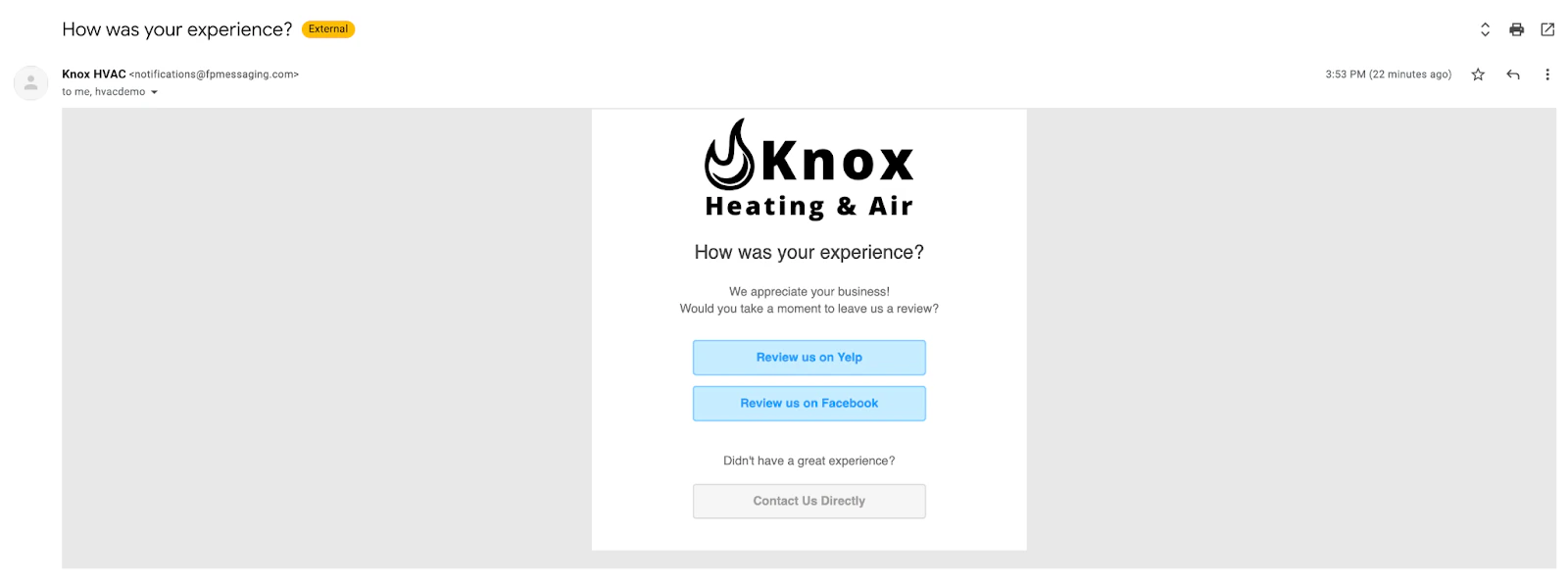
Video Tutorial
Have additional questions? Contact us at support@fieldpulse.com or use the chat feature in the bottom right corner of your screen.