

Documentation Index
Fetch the complete documentation index at: https://fieldpulse.mintlify.app/llms.txt
Use this file to discover all available pages before exploring further.
Why We’ve Released This Feature
Capturing images directly within the Estimate and Invoice Drafts has been a long-standing challenge for users. The traditional method of navigating back and forth between different sections to take photos has proven inefficient and time-consuming. By introducing this feature, we aim to streamline the process, allowing you to:- Reduce Clicks: Eliminate the need to switch between screens, making it easier to build estimates and invoices quickly.
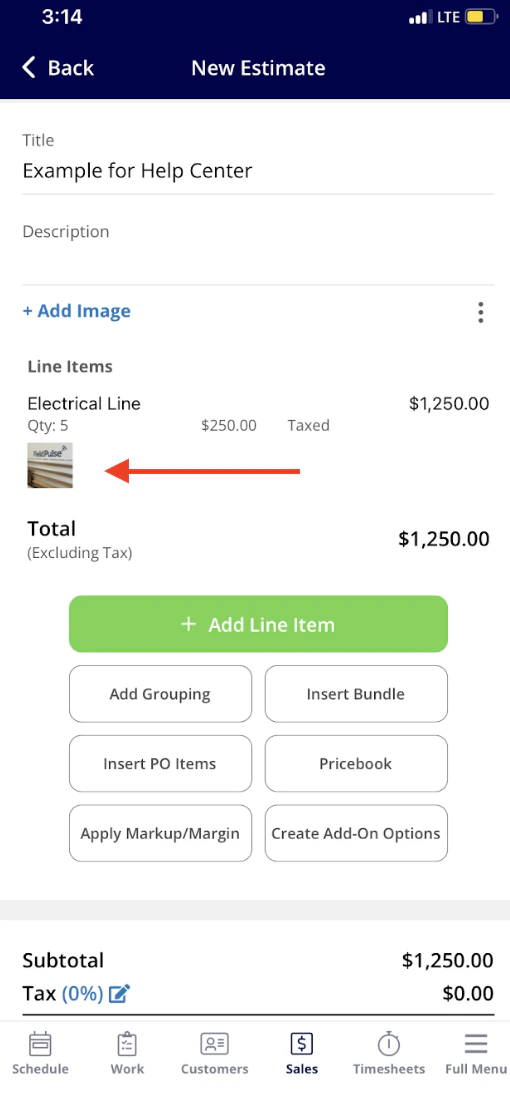
- Enhance Professionalism: Provide more comprehensive and visually appealing estimates by associating images directly with your line items.
See it in Action
To take advantage of the new image capture feature, follow these simple steps: Step 1: Access the Estimate or Invoice Draft: Open the relevant record where you want to add your line items and images. Begin by clicking the green Add Line Item button.
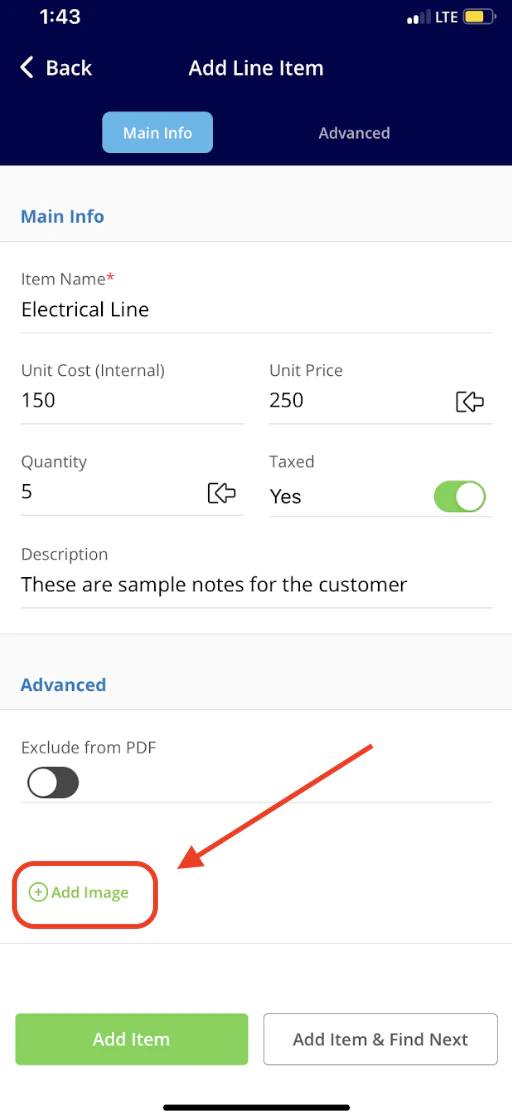
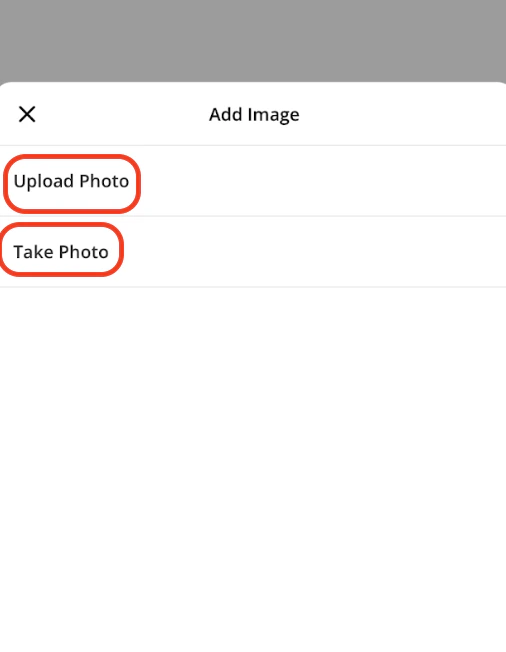
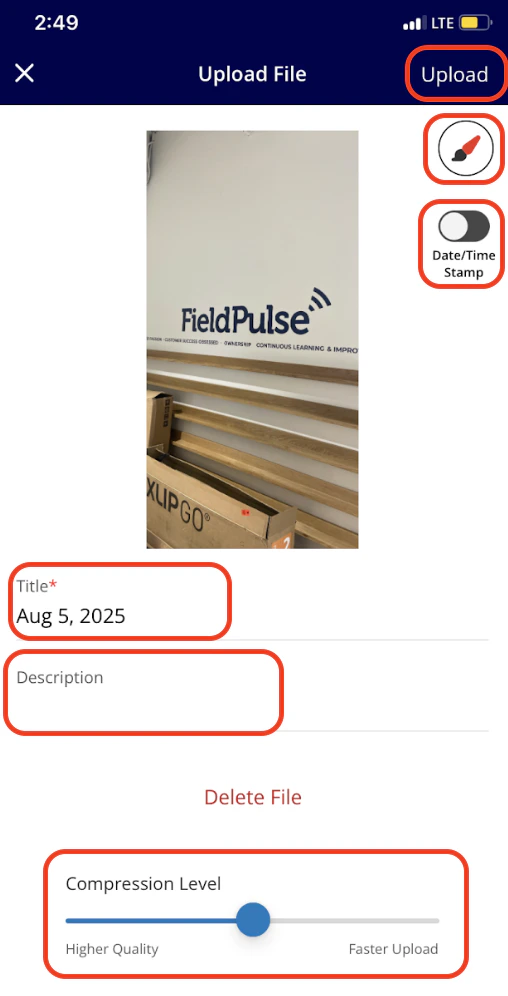
- Upload Photo: Select this option to choose an existing image from your device.
- Take Photo: Choose this option to open your camera and capture a new image directly related to the line item.
FAQs
Is this feature accessible on all devices? The image capture feature is specifically designed to function exclusively within the FieldPulse mobile app. Can I upload multiple images for a line item? Yes, you can add more than one image if needed. Will the images automatically sync to other sections? Absolutely! Once you save the estimate or invoice, the images will automatically cascade to the related Estimate and Service Record Files sections. Can I edit or remove images after they’ve been added? Yes, you can edit or remove images from the Estimate or Invoice Draft at any time before saving the document.Have additional questions? Contact us at support@fieldpulse.com or use the chat feature in the bottom right corner of your screen.