

You can create custom fields for your Inventory Item Records to store and display any data you wish. With the ability to set the order of your custom fields and add different visibility permissions by role, you can control how your custom fields are displayed to your team members. The Inventory Item Custom Fields are specifically designed to appear only for Inventory Items, in addition to your Item Custom Fields. These custom fields enable you to capture more detailed information about your inventory, allowing you to track the exact location of items within your storage area, similar to how items are organized at Home Depot. For example, you can specify the following details for each item:Documentation Index
Fetch the complete documentation index at: https://fieldpulse.mintlify.app/llms.txt
Use this file to discover all available pages before exploring further.
- Aisle: The aisle where the item is located.
- Shelf: The specific shelf on which the item can be found.
- Bin: The bin or container that holds the item.
Adding a New Custom Field
To create a custom field, navigate to Company Settings, click on Estimates & Invoices and then the Inventory Custom Fields tab. On the Inventory Custom Fields page, click Create New.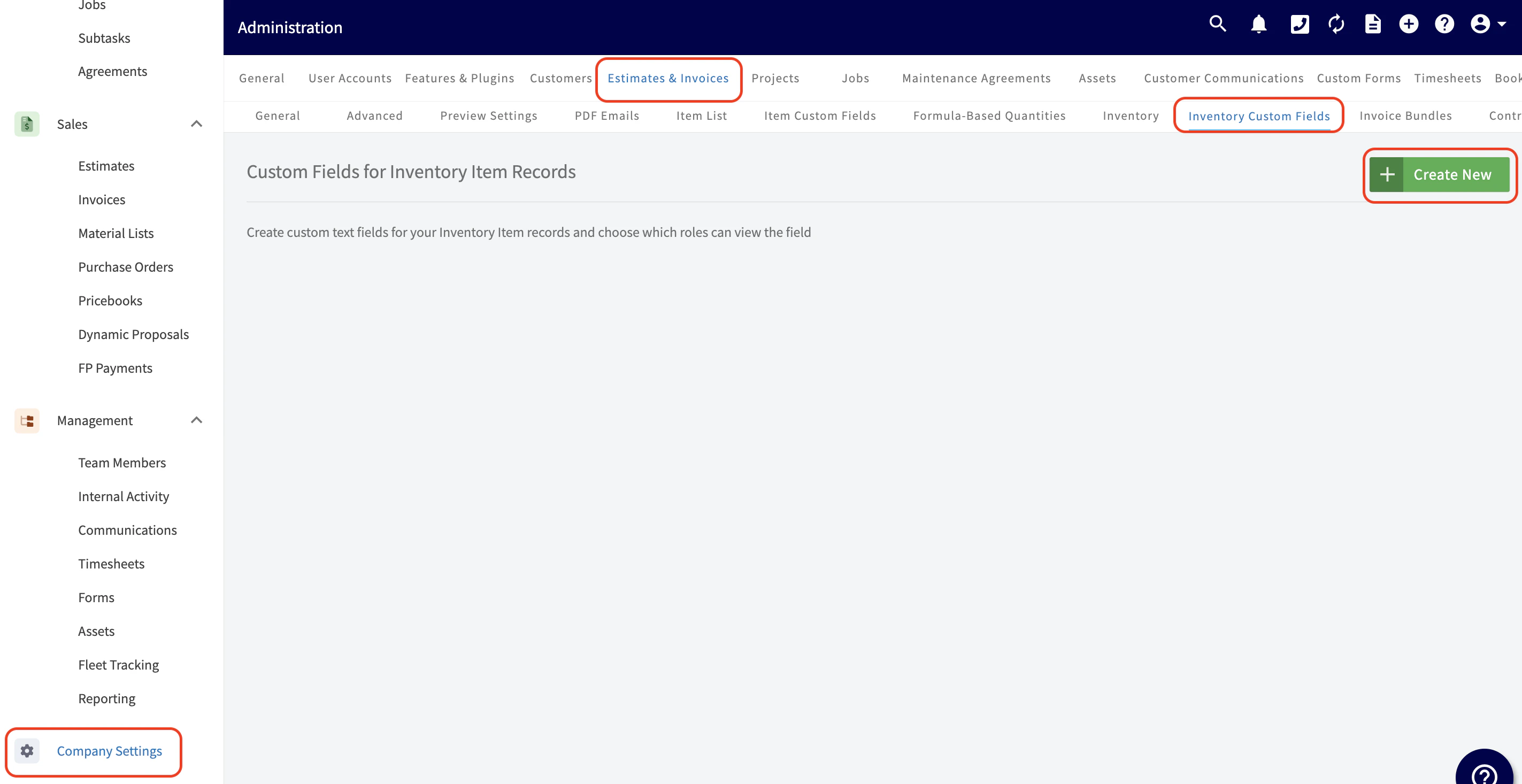


- Free text: Here you have the option to add “free text”, allowing you to type freely in your own words.
- Number: By selecting this, you can easily indicate the number or quantity for this line item.
- Date: This option allows you to easily autofill the date in by clicking on the small calendar icon.
- Date & Time: This option allows you to easily autofill the date in by clicking on the small calendar icon. The time will default to today’s date at 8 am, but you can manually adjust the time.
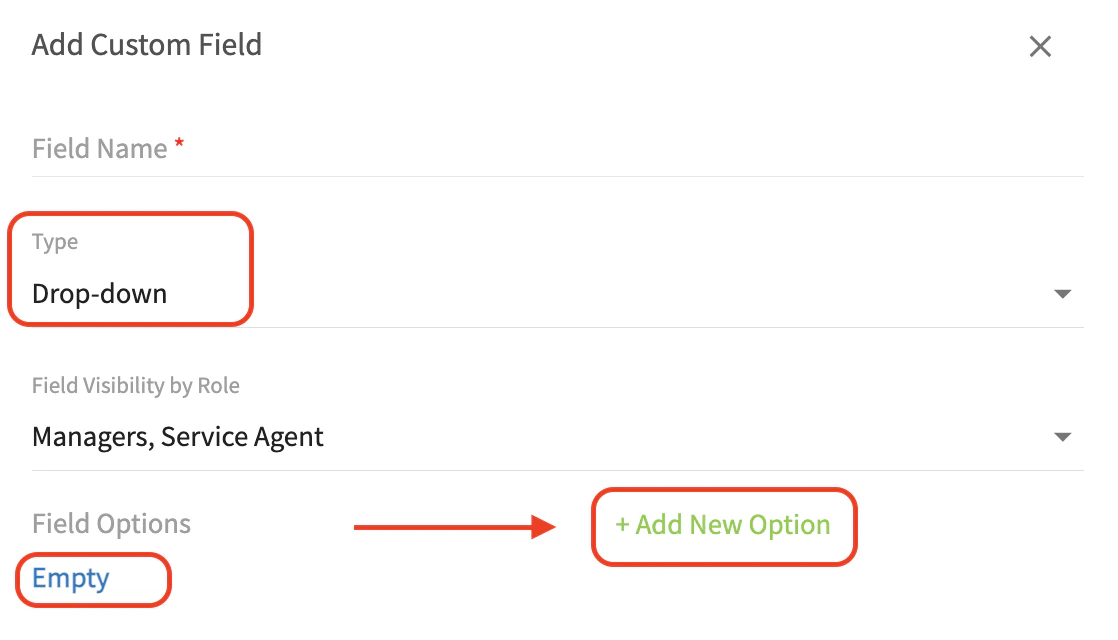
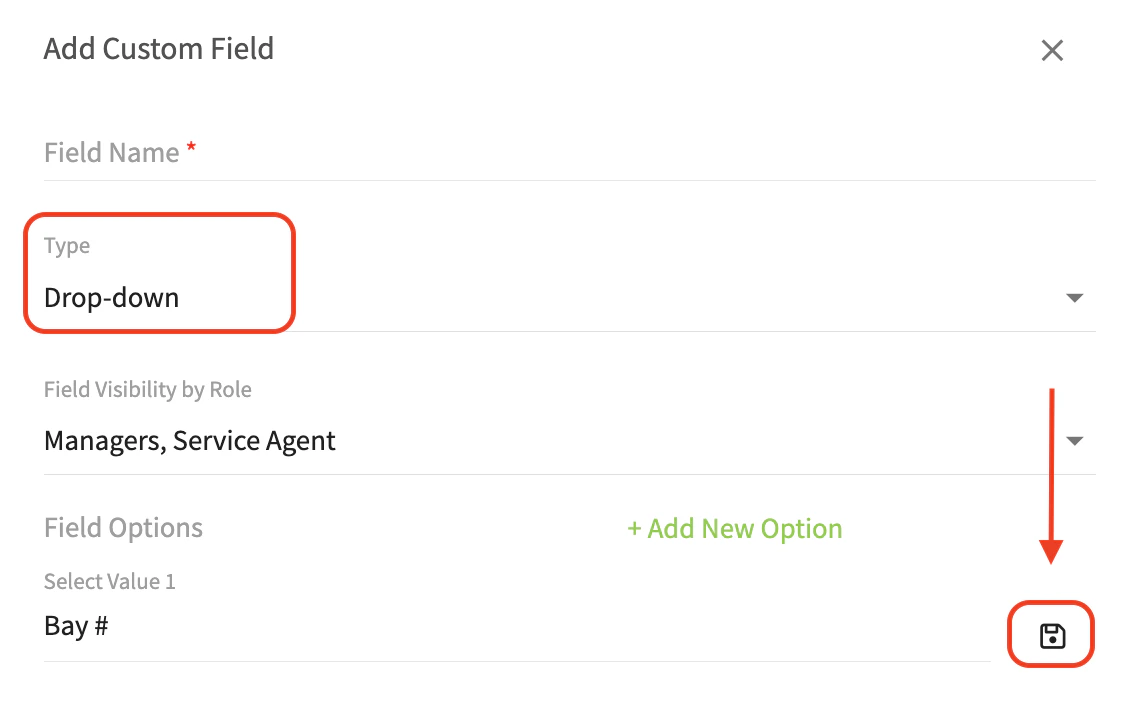
- Drop Down: Upon selecting this option, you will be asked to Add New Field Options (see the first picture below) and edit them. After assigning a name to each option, ensure that you click on the save icon (see second picture below). By adding all of the options here, when on your item you will then select a single option from a dropdown list.
Have additional questions? Contact us at support@fieldpulse.com or use the chat feature in the bottom right corner of your screen.