

Serialized Inventory is a powerful tool that allows for accurate tracking of individual items or equipment in your inventory by assigning unique serial numbers. Unlike generic quantity tracking, Serialized Inventory ensures detailed monitoring and traceability for each specific item, enhancing accuracy and accountability in your inventory management.Documentation Index
Fetch the complete documentation index at: https://fieldpulse.mintlify.app/llms.txt
Use this file to discover all available pages before exploring further.
Importing Your Serialized Inventory
You can easily import your serialized inventory items into FieldPulse for use when creating Estimates and Invoices by utilizing our mass import tool. Click here to learn how!Creating Serialized Inventory
As a reminder, Serialized Inventory can only be applied to line items marked as Product - Inventory, not Services or Products - Non Inventory. To get started, create a new line item or edit an existing one. Be sure that the Item Type is Product - Inventory.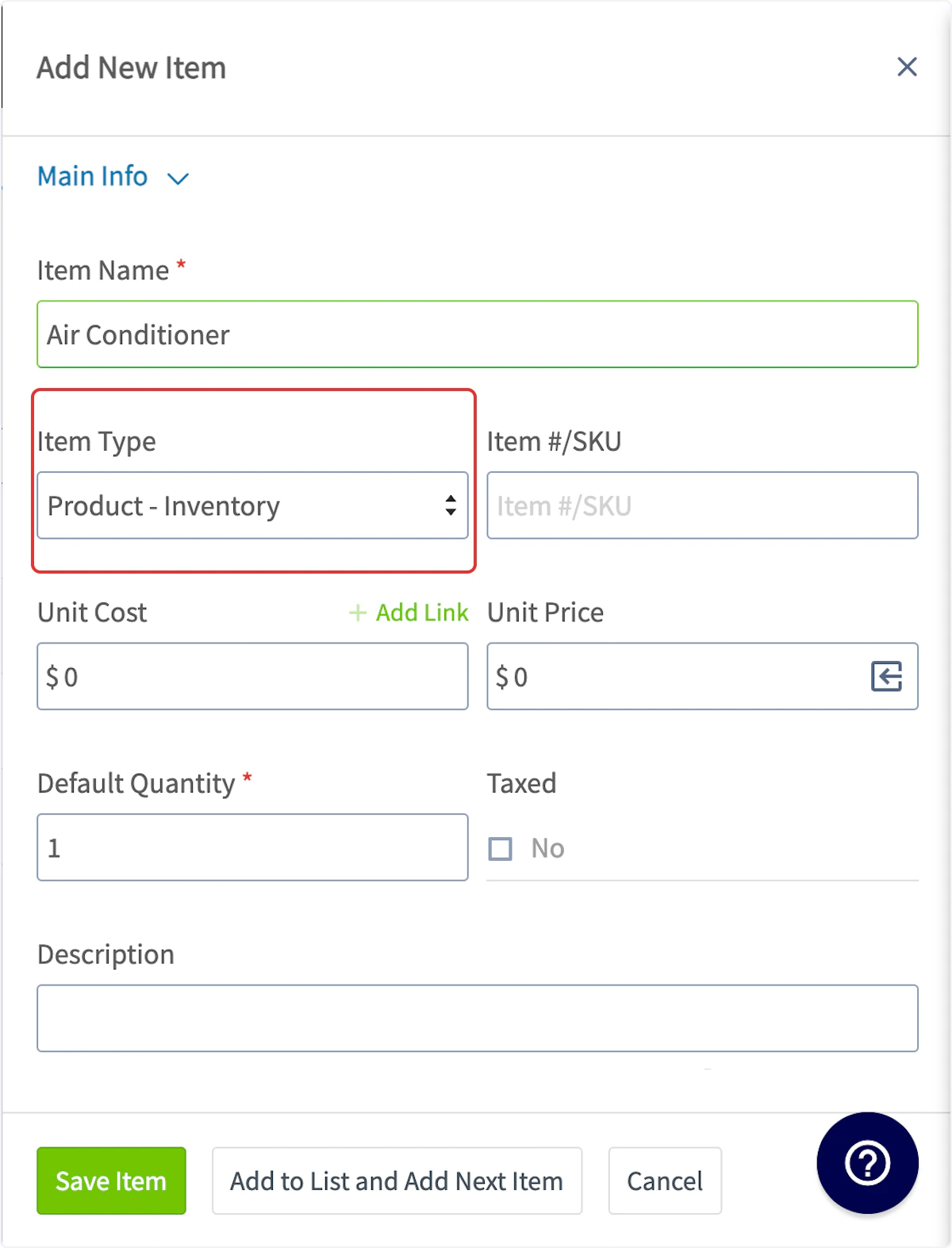


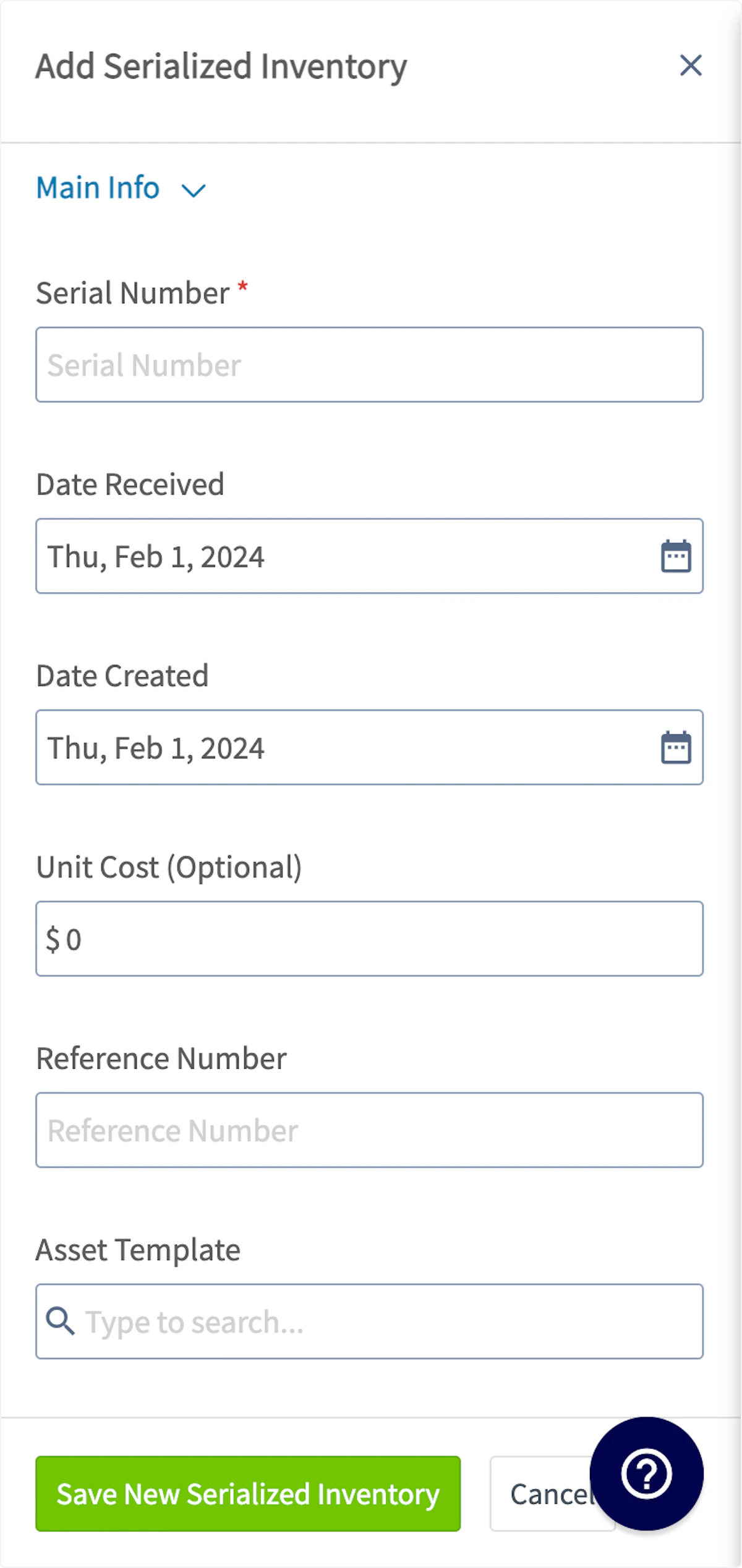
Adding Serialized Inventory to Invoices
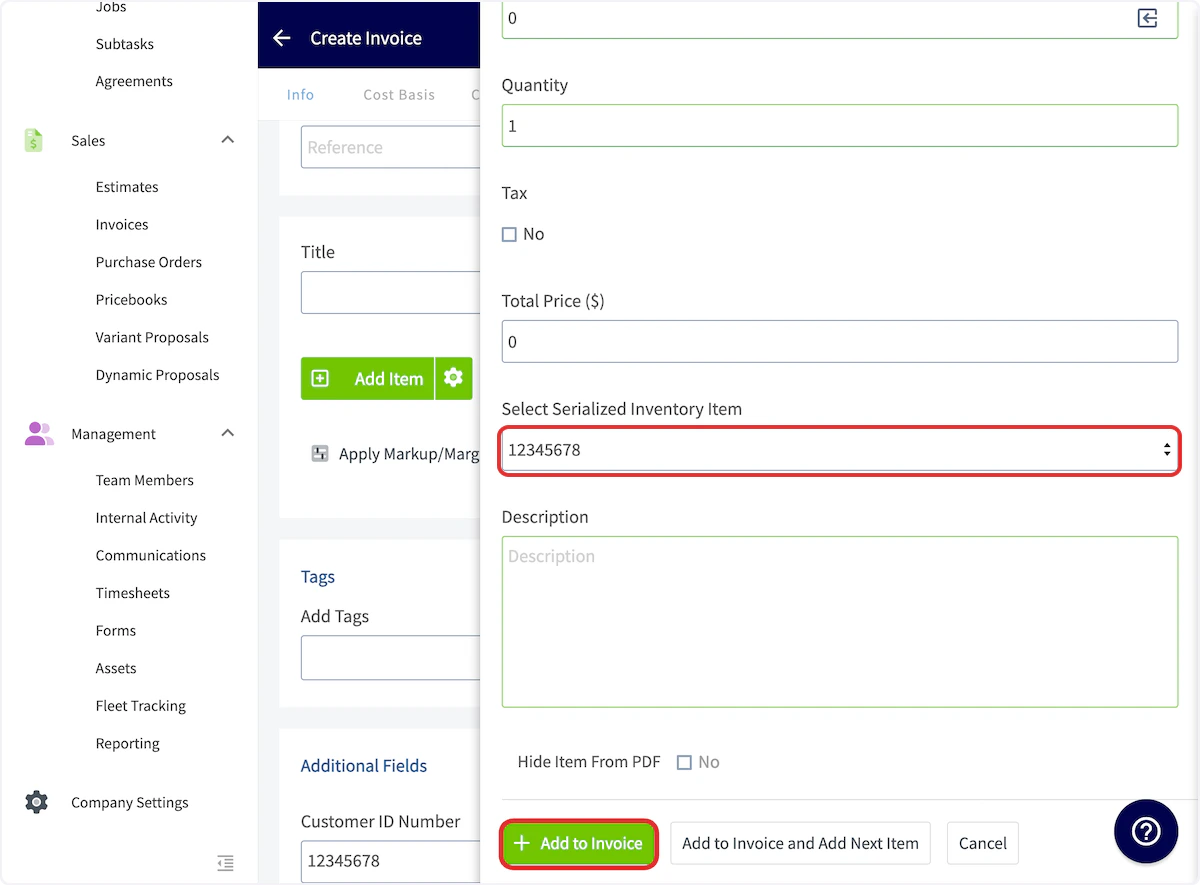
To add serialized inventory to an invoice, begin by creating a new invoice, then selecting Add Item.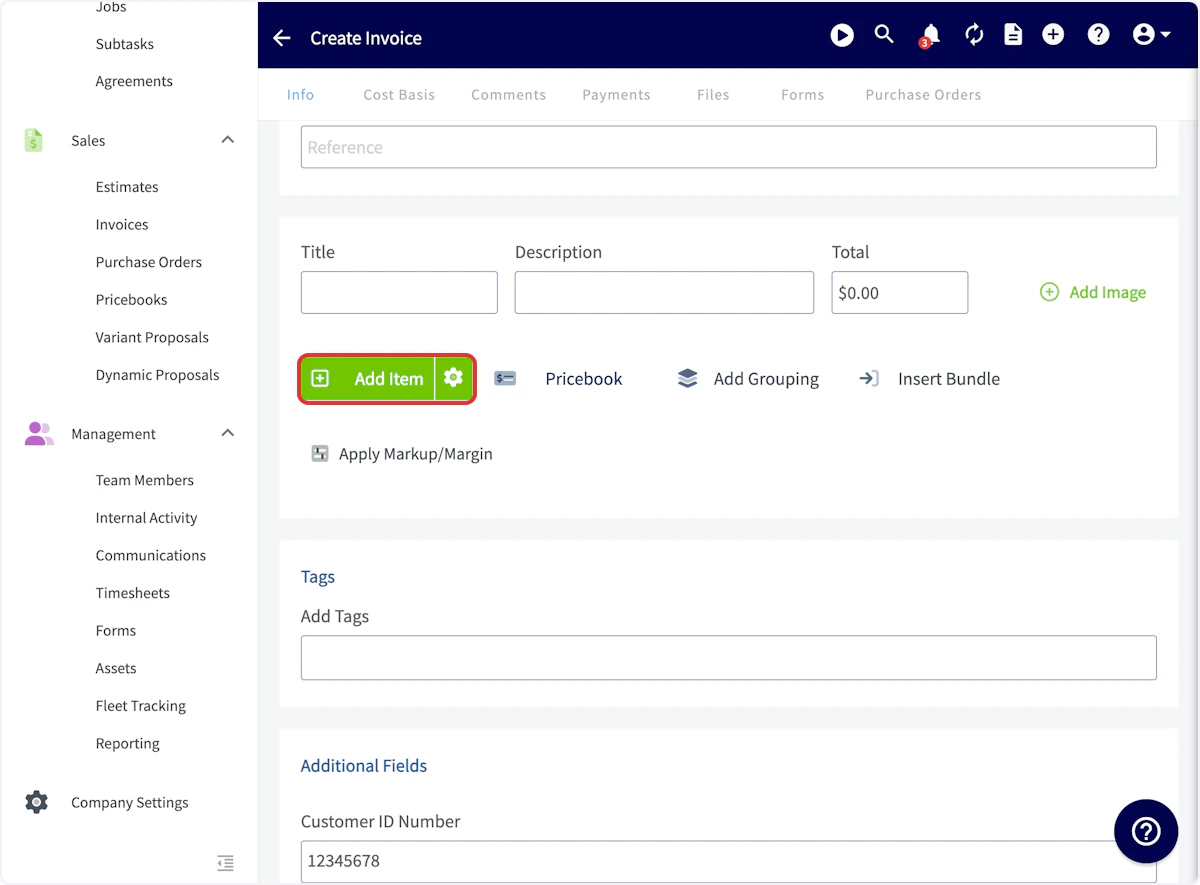
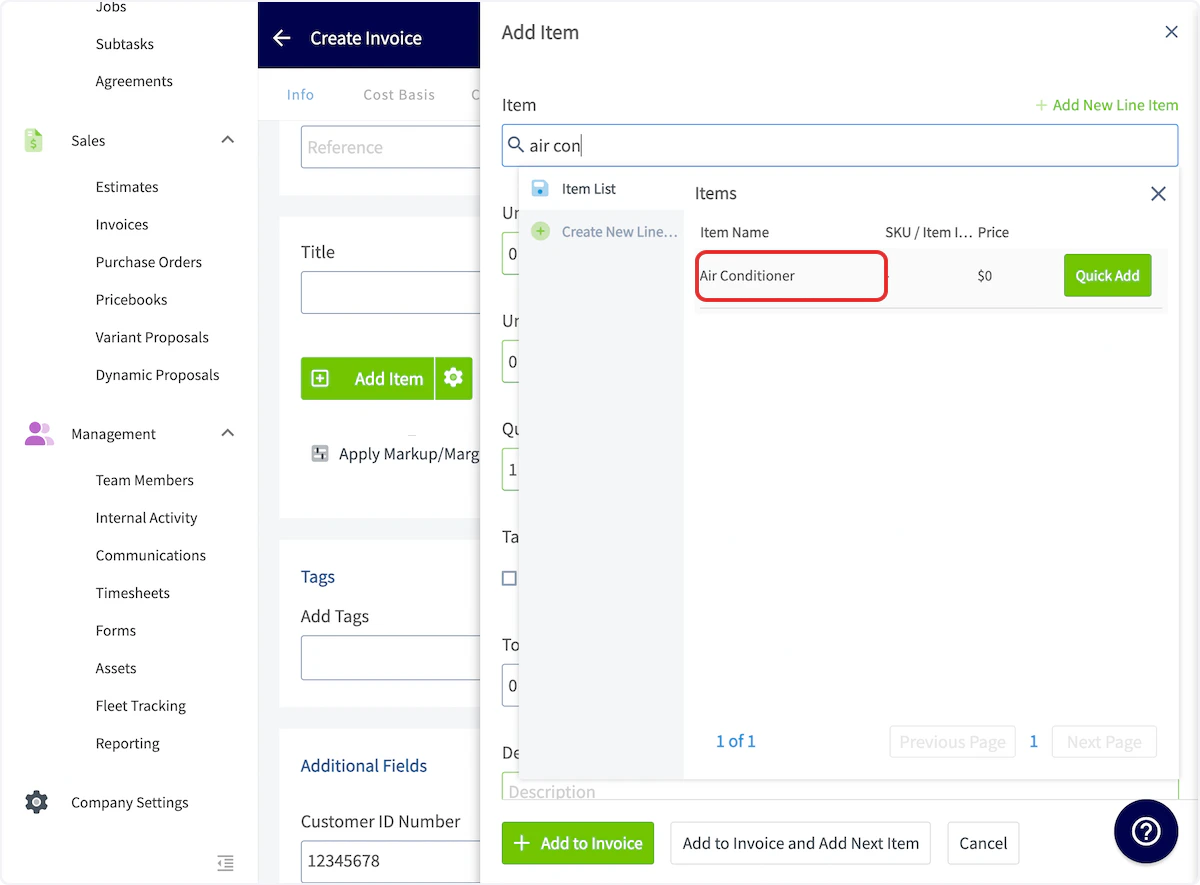
Creating an Asset from a Serialized Inventory Item
After adding a serialized inventory item to an invoice, you can create an asset record directly from the invoice without navigating away.- Open the invoice that contains the serialized inventory item.
- Scroll down to the serialized item you need to create an asset from.
- Click “Create Asset” next to the line item to generate an asset record directly from that serialized item.

Video Tutorial
Have additional questions? Contact us at support@fieldpulse.com or use the chat feature in the bottom right corner of your screen.