Who uses this: Admins and Team Managers — the Deduct Inventory toggle on a record is available to those two roles. Availability: All regions. Inventory Settings and template configuration are web only; the record toggle and the inventory count tool work on web and mobile.Inventory deduction is the moment FieldPulse subtracts stock from your hubs, and you decide when it happens — when a Material List is completed, or when an invoice is finalized. When the office and the field disagree about which record spends the parts, on-hand counts drift and nobody trusts the numbers. One deduction trigger, plus a per-record override for the jobs that do not fit it, keeps your hub quantities matching what is actually on the shelf and in the van.
Overview
FieldPulse deducts inventory from your hubs at one of two moments: when a Material List reaches a Completed-type status, or when an Invoice reaches the Invoiced / Finalized status. You set a company-wide default in Inventory Settings, carry that setting onto Material List and Invoice templates, and override it on any individual record. The inventory count tool is separate from deduction. It compares the number of an item you actually have in a hub against the number FieldPulse expects, records who counted and when, and corrects the hub quantity when the two do not match.Before you begin
- Set up inventory in your account first, including hubs and any serialized items. See Setting Up Item List & Inventory.
- Sign in as an Admin or Team Manager to use the Deduct Inventory toggle on a record.
- Use the web app for your initial setup. Inventory Settings and template configuration live in the web app only, even if your team counts stock and flips toggles from mobile.
- To control which users reach which hubs, see Setting Up Inventory Permissions.
On web
Set your default deduction method
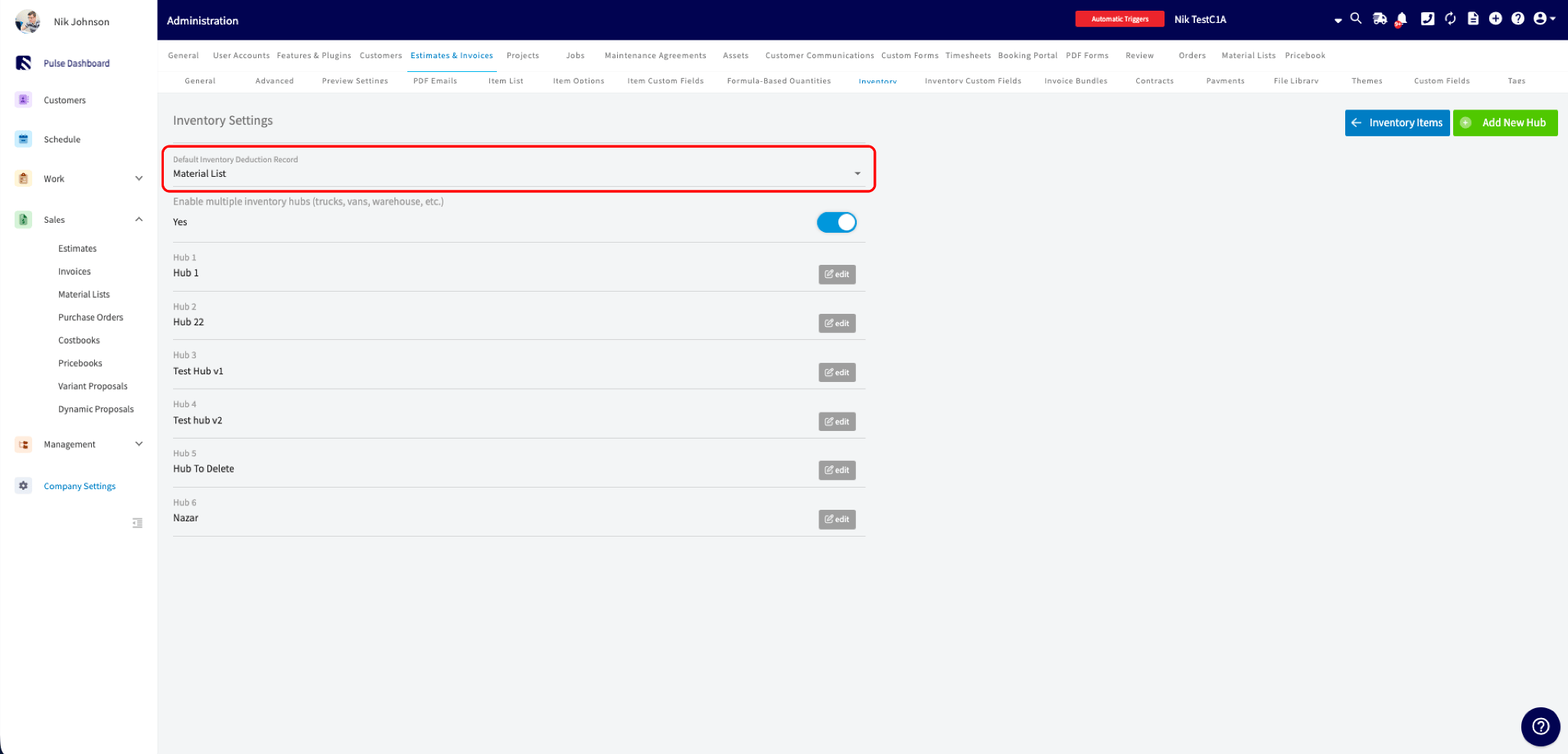
The default deduction method decides which record type subtracts stock for every new record going forward.- Select Company Settings in the left-side menu, then open the Estimates & Invoices tab and the Inventory subtab.
- Select Inventory Settings in the top-right corner.
-
Set Default Inventory Deduction Record to your preference:
- Material List — inventory is deducted when the Material List reaches a Completed-type status.
- Invoice — inventory is deducted when the Invoice reaches the Invoiced / Finalized status.
Set toggle defaults on templates
If you build Material Lists or Invoices from templates, set the toggle on the template so every record built from it inherits the right behavior.- Open a Material List or Invoice template.
- Switch on Deduct Inventory from Material List or Deduct Inventory from Invoice.
- Save the template.
Override the deduction method on a record
When you create or edit a Material List or Invoice, the record carries a Deduct Inventory from Material List or Deduct Inventory from Invoice toggle. Use it to override your company default for that one record. For example, you might deduct from Material Lists as your default, and then hit a fast, straightforward job where you skip the material list and go straight to the invoice. The toggle lets you deduct according to that job’s needs without changing your company setting.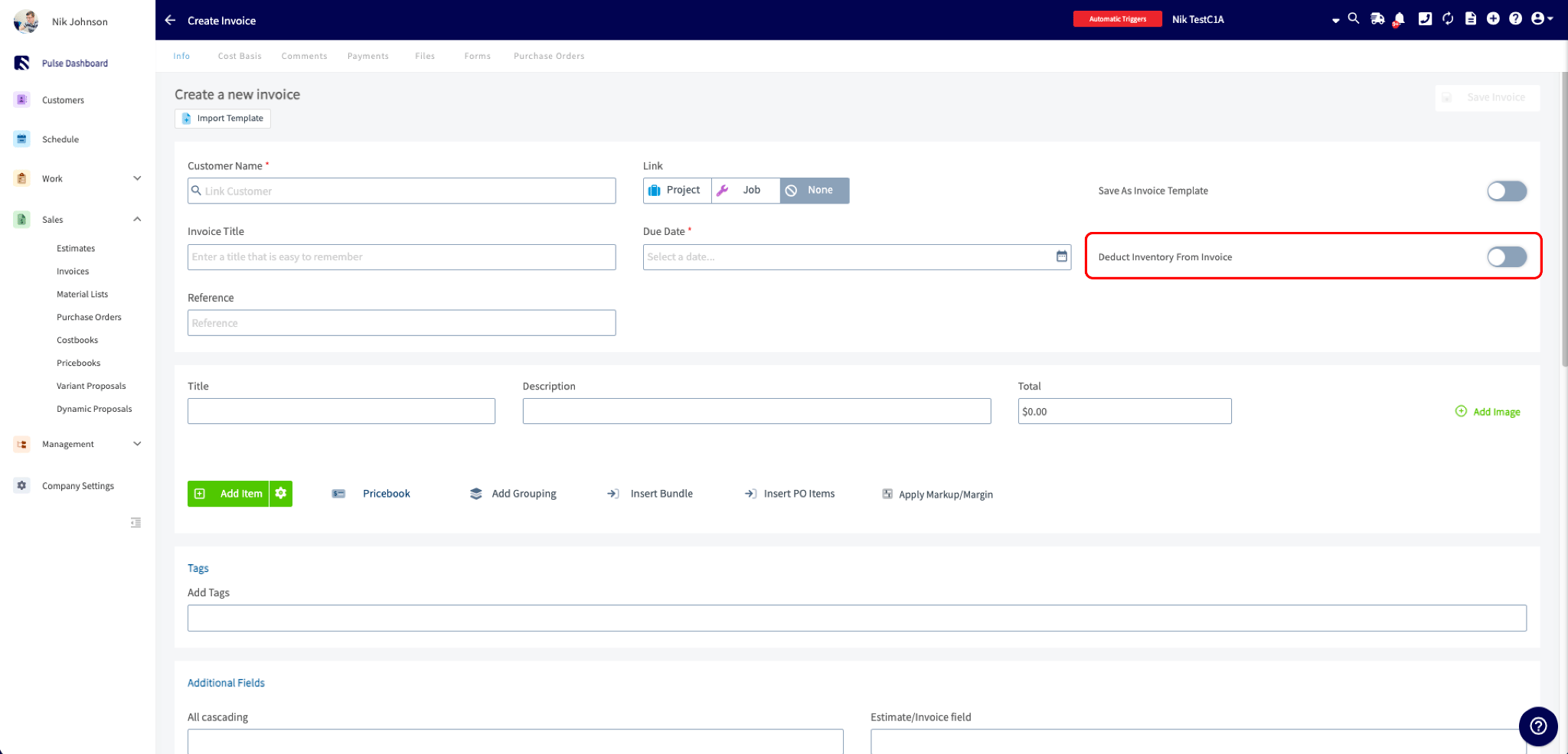
How the toggles behave together
A few rules govern linked Material List and Invoice records:- The toggle is editable only while inventory has not been deducted yet. Once a record reaches a Completed-type status (Material List) or Invoiced / Finalized status (Invoice), the toggle locks.
- If a record moves back to Draft, inventory is returned and the toggle re-enables.
- When a Material List and Invoice are linked, FieldPulse keeps them in sync so inventory is never deducted twice. Turning on Deduct Inventory from Invoice automatically turns off Deduct Inventory from Material List on the linked Material List.
- Items added to an already-completed record — a change order — are deducted when the record is re-completed.
Serialized inventory behavior
Serialized items follow the same trigger rules as regular inventory, with extra safeguards so the same serial number is never deducted twice:- When a record is completed, the serial numbers on it lock and cannot be edited.
- If a serial number that has already been deducted on another record is added to a new record, an error icon appears next to that line item.
-
If you try to complete a record that still contains an already-deducted serial number, the Serial Number No Longer Exists pop-up appears with two options:
- Continue Editing — keeps the record in Draft so you can swap in a valid serial number.
- Proceed Without Deducting This Item — completes the record and deducts everything else.
Count inventory
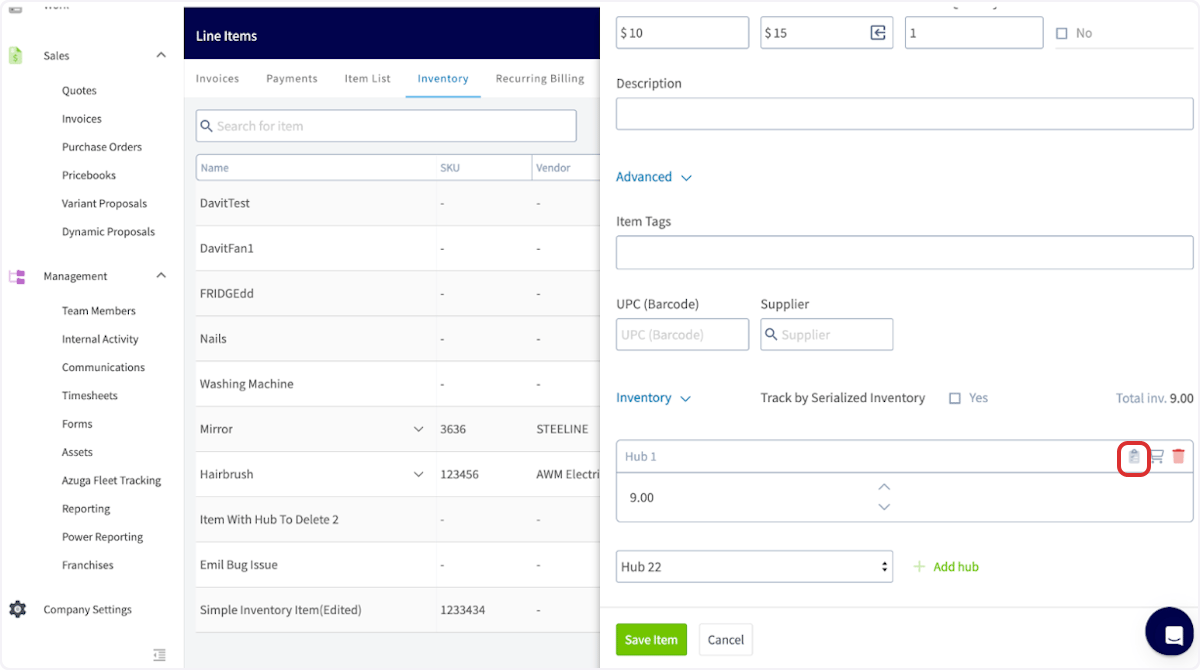
The inventory count tool tracks and corrects on-hand quantities across your hubs, one item at a time.- Open the inventory item you want to count from your item list.
-
Select the clipboard icon next to the hub you are counting.
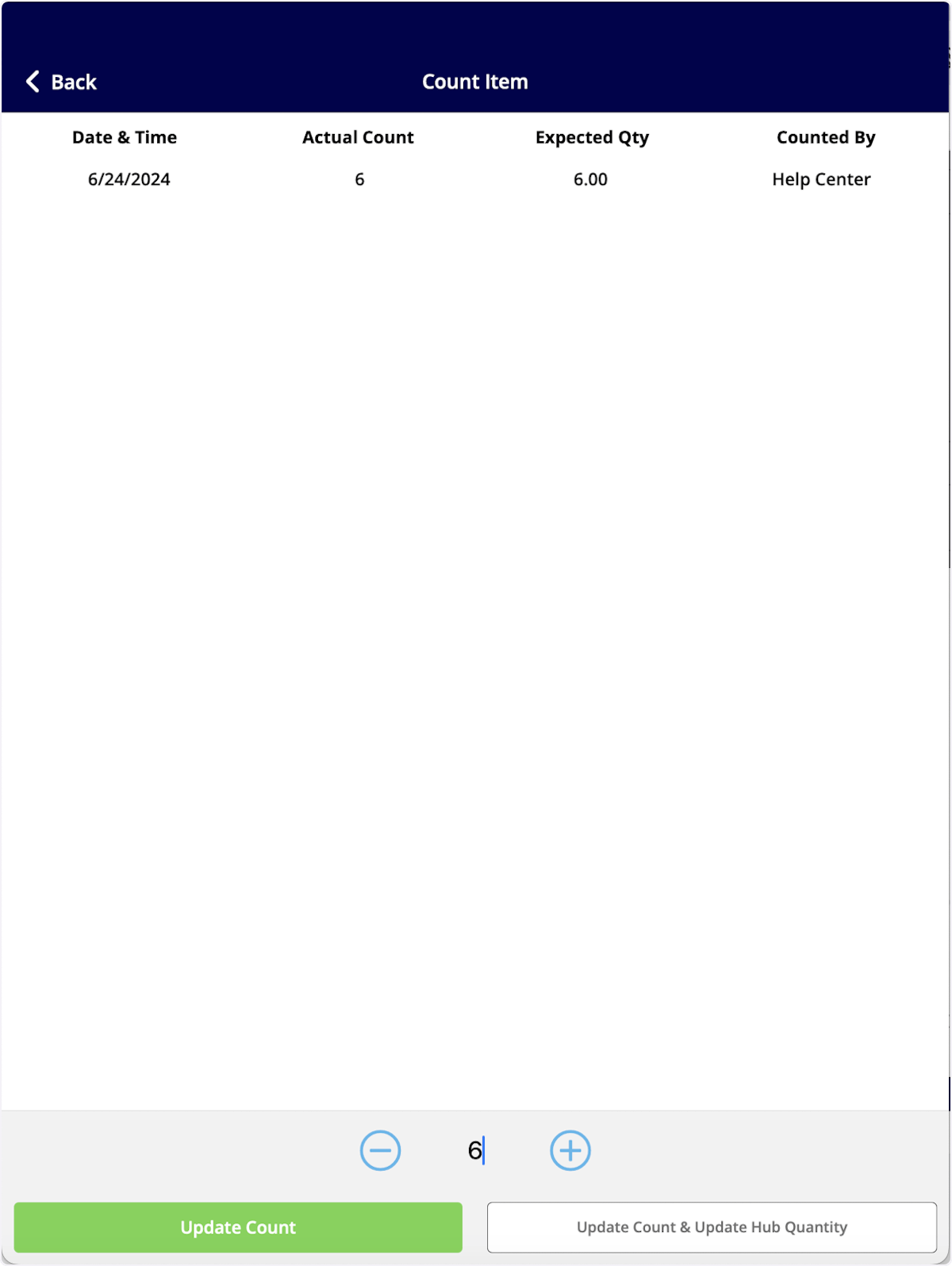
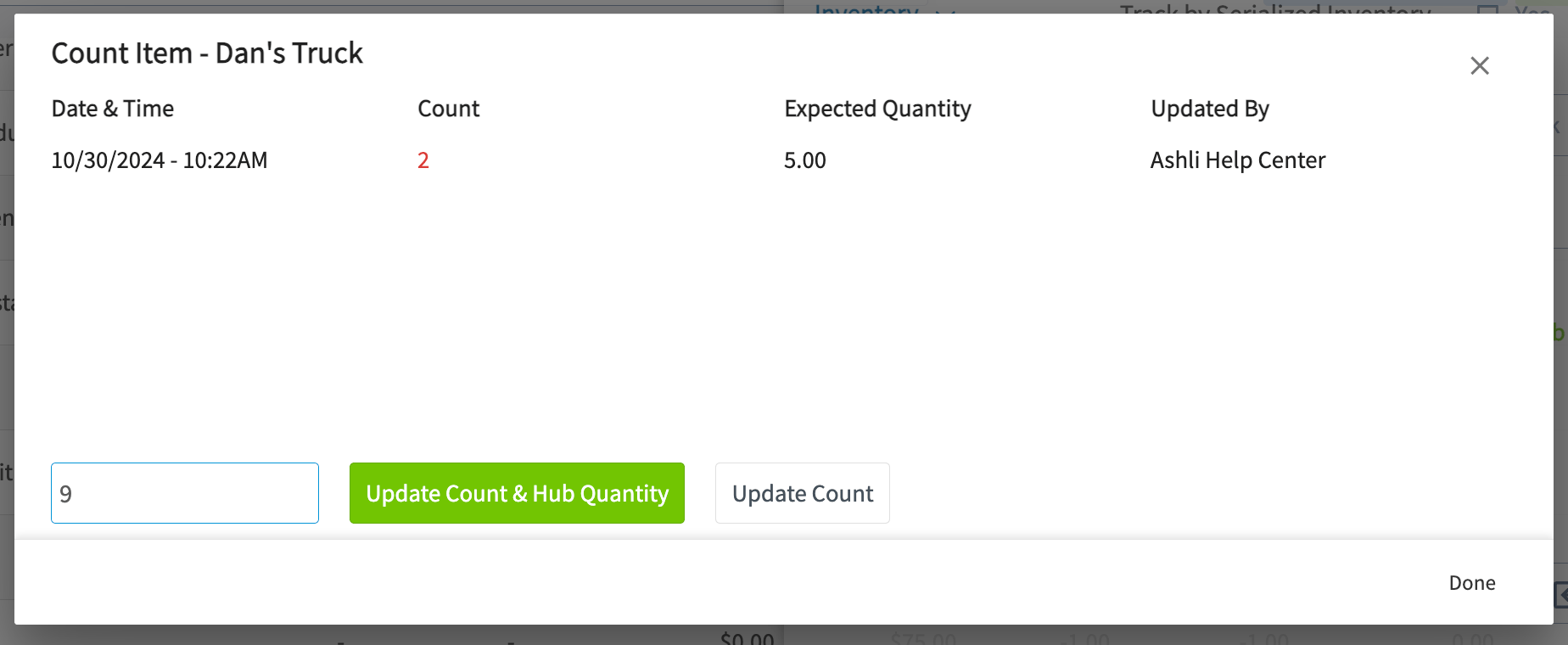
- Date & Time — when the count was submitted.
- Count — the number of items counted.
- Expected Quantity — the number of items you are expected to find, based on the hub’s current on-hand quantity.
- Updated By — the team member who submitted the count.
- Enter the number of items you counted.
-
Select the button that matches what you want to record:
- Update Count & Hub Quantity — logs the count and updates the hub’s on-hand quantity to match, closing the variance.
- Update Count — logs the count only. The hub’s on-hand quantity is unchanged and the variance stays open.
Review counts in reporting
To review counts across items and hubs, select Reporting in the left-side menu, select Invoices, then select Inventory Count.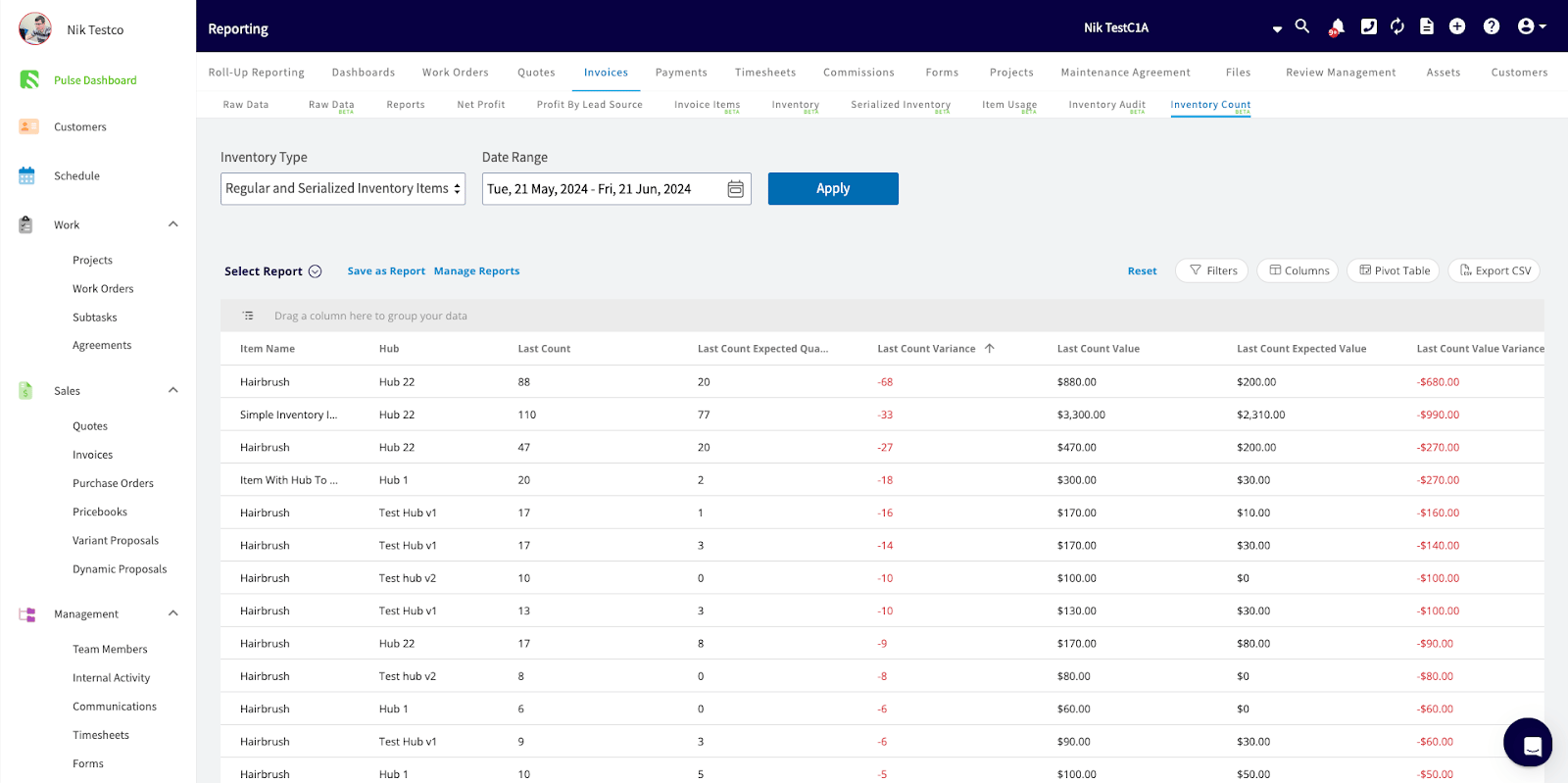
On mobile
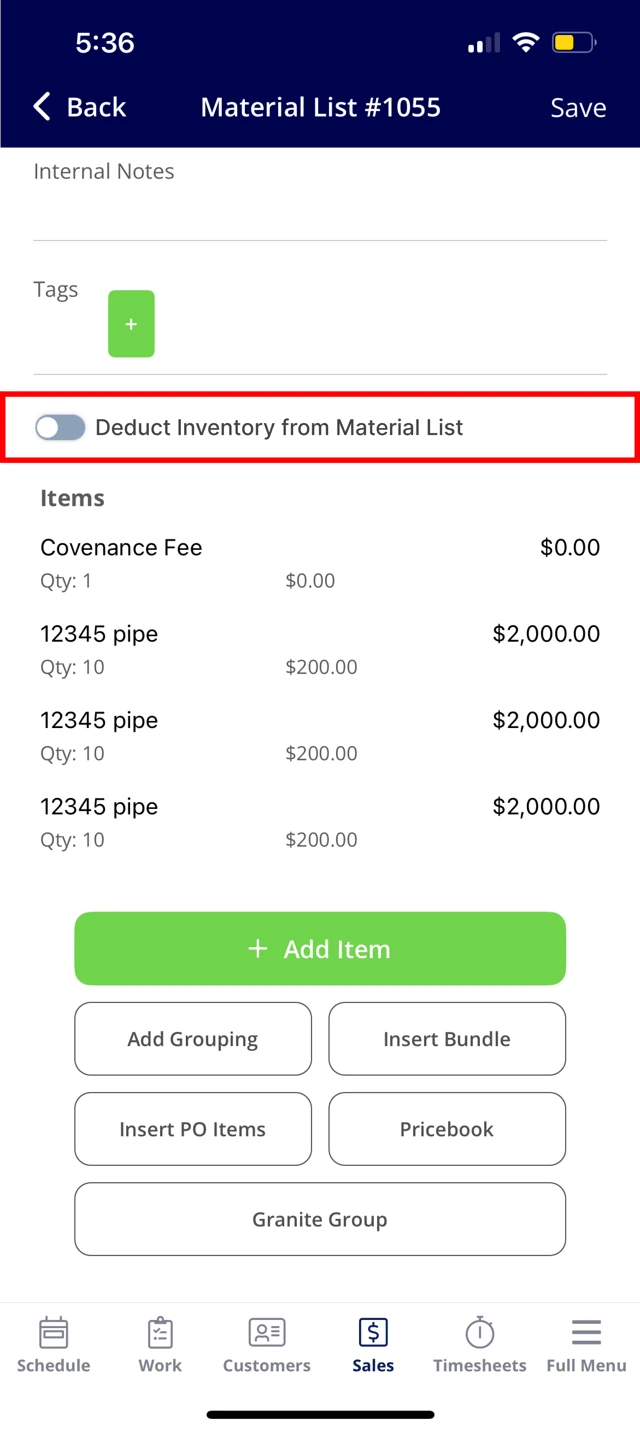
The Deduct Inventory toggle and the inventory count tool are both available in the mobile app. Inventory Settings and template configuration live in the web app only, so set those up on web first.Toggle deduction on a record
- Open the Material List or Invoice in Draft status.
- Tap the Deduct Inventory from Material List or Deduct Inventory from Invoice toggle.
- Tap Save.
Count an item with the barcode scanner
- Scan the barcode of your inventory item.
-
Tap the clipboard icon next to the hub you are counting.
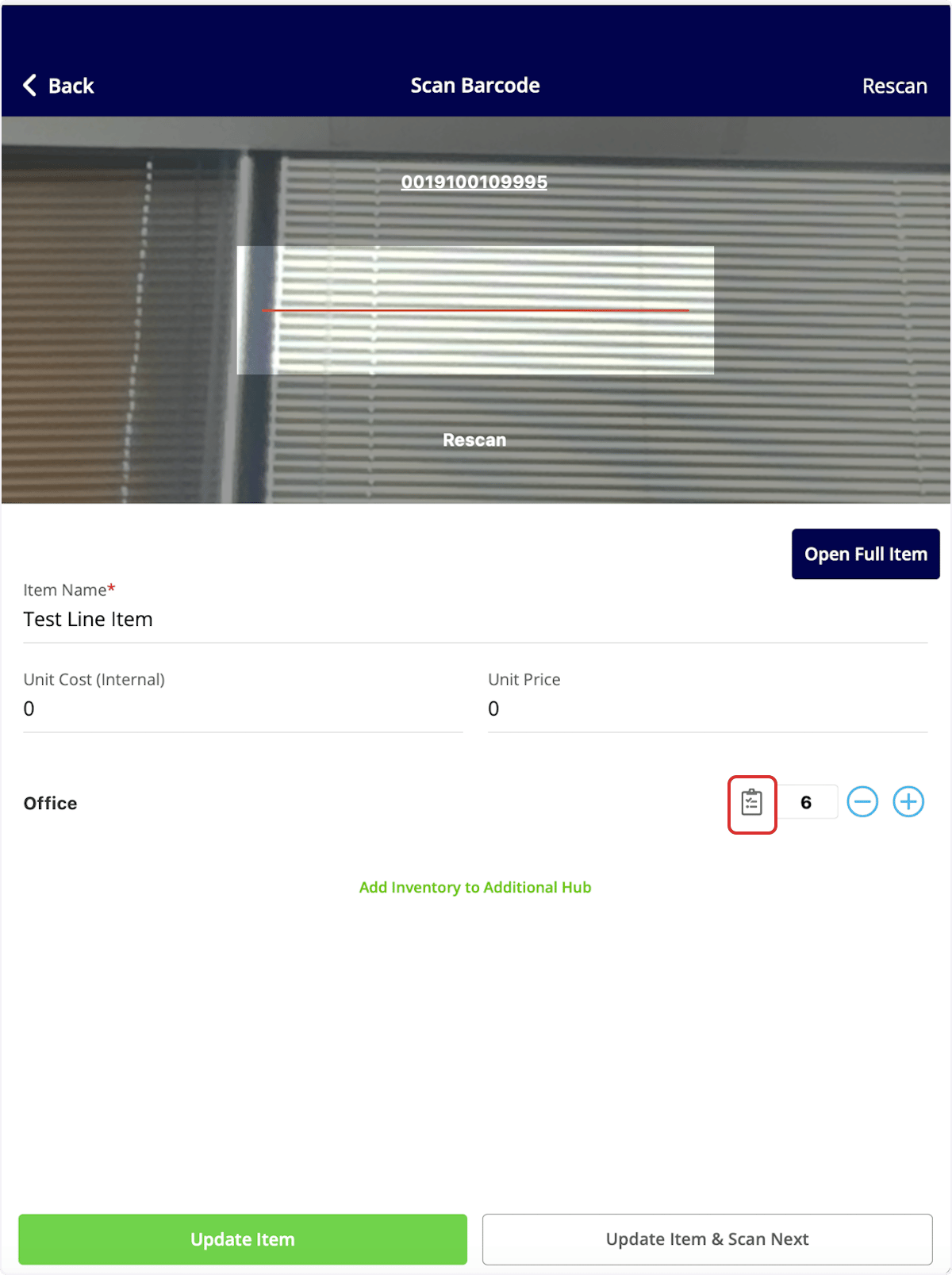
- Enter the number of items you counted.
- Tap Update Count to record the count on its own, or Update Count & Update Hub Quantity to record the count and correct the hub quantity at the same time.