
Who uses this: Admins and Team Managers who manage Engage phone lines. Availability: Requires the Engage add-on; Engage is available in the United States and Canada.Audio samples are custom audio messages you record or upload in Engage, FieldPulse’s integrated phone system, to use as voicemail greetings or hold music. You create them under Engage > Settings > Audio Samples, then select a sample wherever Engage offers the Audio Recording option — this one library feeds every greeting that plays your own audio.
Overview
An audio sample is a recorded message in your own voice instead of a text-to-speech read. When you want callers to hear a real person — not a synthesized voice — you record or upload the audio once, then reuse the same sample anywhere Engage plays custom audio:- The voicemail greeting on a phone line — see Setting Up Voicemail.
- The after-hours message for calls outside your working hours — see Setting Up Working Hours.
- The hold music callers hear while on hold — see How to Put a Caller on Hold.
Before you begin
- Confirm the Engage add-on is active on your account. The FieldPulse team enables Engage — contact support@fieldpulse.com or use the chat feature to turn it on.
- Confirm your role has access to Engage — Limited Agents cannot open Engage.
- Have your audio file ready in a supported format (see the Settings reference below), or be ready to record directly in Engage.
Step-by-step setup
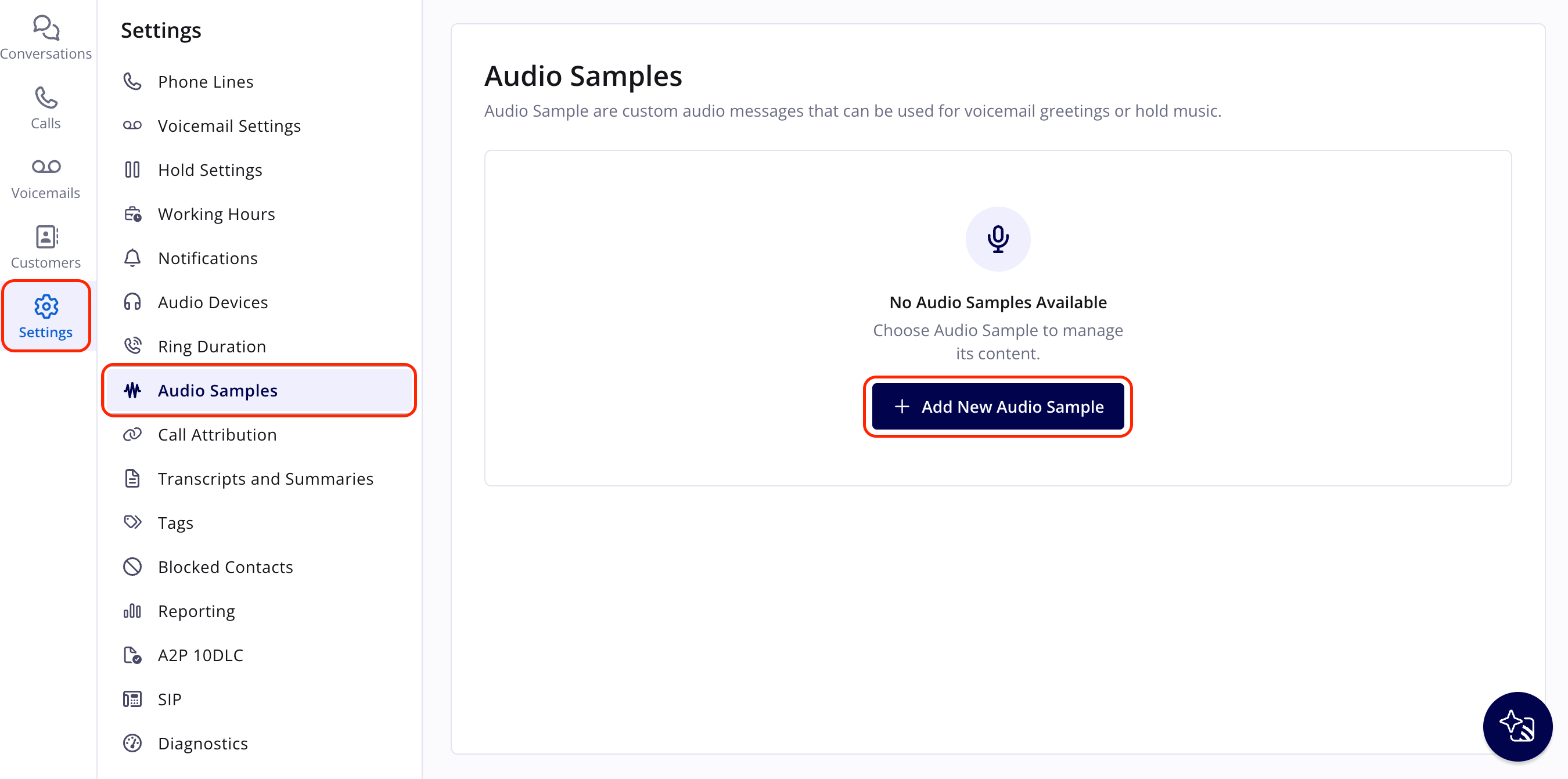
- Go to Engage > Settings > Audio Samples.
- Select Add New Audio Sample.
-
Record your message, or upload an existing audio file.
- To set the sample as a line’s voicemail greeting, go to Phone Numbers and select the phone line.
- Choose Custom Voicemail Greeting > Audio Recording.
- Select your audio sample.