
Who uses this: Admins, Team Managers, and Service Agents. Limited Agents don’t have access to Engage. Availability: United States and Canada · Engage add-on.Putting a caller on hold parks a live Engage call so you can keep working while the caller waits. You can hold a call on both the web and mobile apps, and you can manage several calls at once in any mix of active and held, so you can take a new call without dropping the one you’re on.
Overview
When you place a call on hold, you don’t hear the caller and the caller doesn’t hear you. If hold music is set up in your Hold Settings, the caller hears it while they wait. While a call is on hold, you can move around Engage, send SMS, and accept or make new calls. Managing multiple calls works differently on web and mobile, and you can have up to three concurrent calls at a time.Place a call on hold
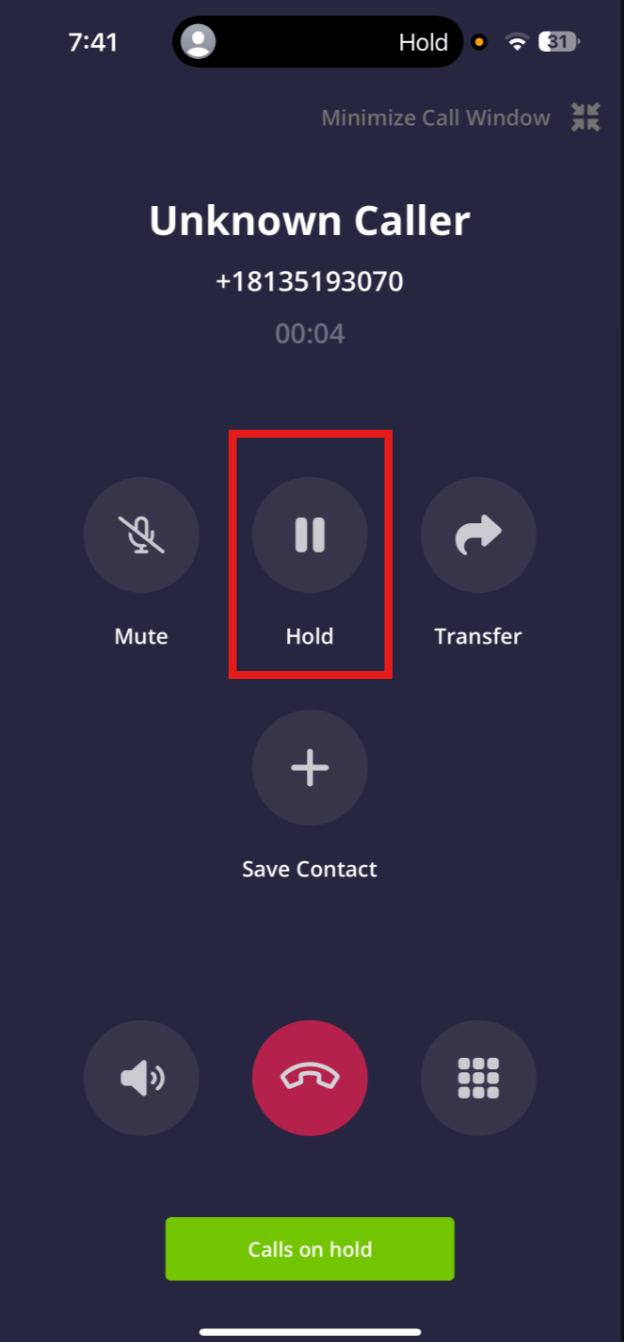
On both web and mobile, select the Hold button during an active call to place the call on hold. Select Hold again to resume the call.
Manage multiple calls
You can handle multiple calls at a time in any mix of active and on-hold calls.On web
When you have multiple calls, they appear across the top of your FieldPulse screen, with each new call added to the right. Select any call to display it in the main call window. Use the Hold button to place a call on hold, or select it again to resume.
On mobile
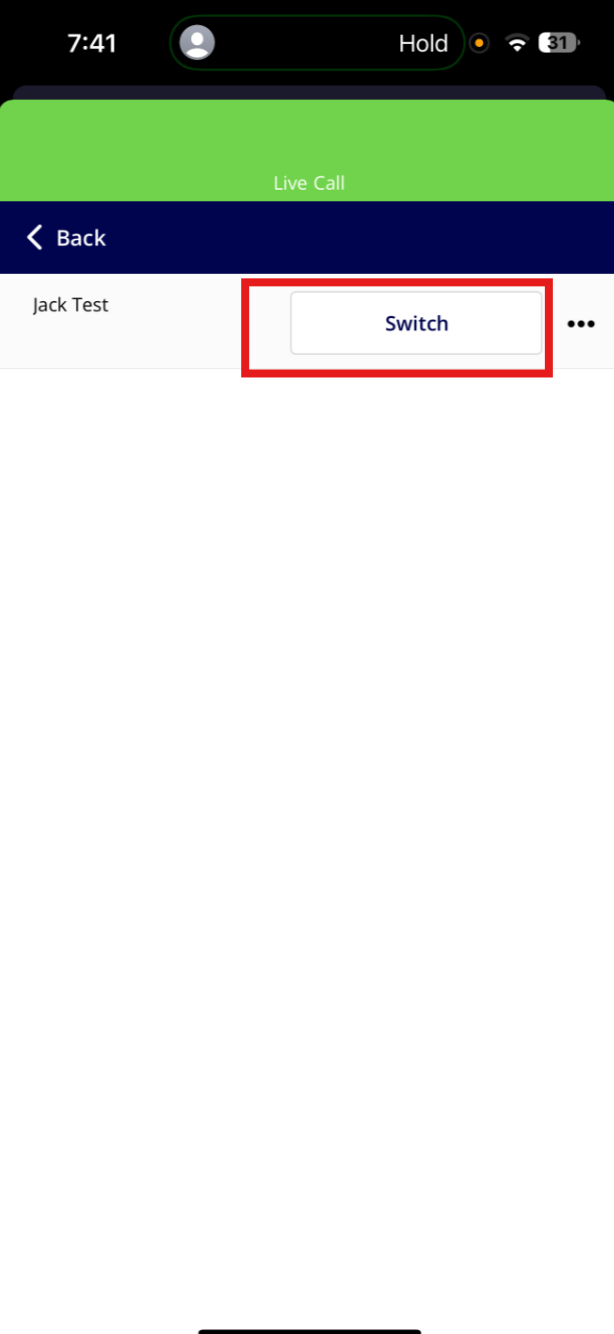
When you have multiple calls, a Calls on Hold button appears at the bottom of your screen. Tap it to view all held calls, then use the Switch button to swap your active call with one on hold. The current call is placed on hold automatically.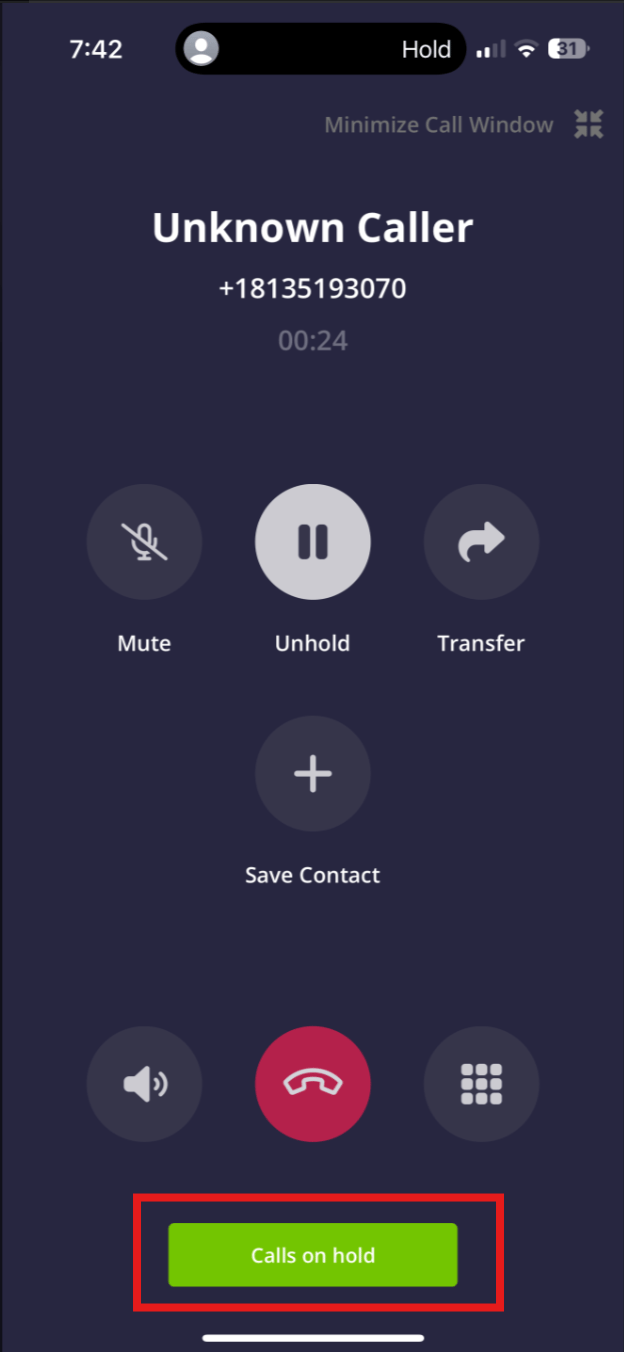
Set up custom hold music
You can customize what callers hear on hold: music, a promotion, or a message about your services. The audio plays on loop until you return to the call.The web app supports .mp3 audio files. The mobile app supports both .mp3 and .wav audio files.
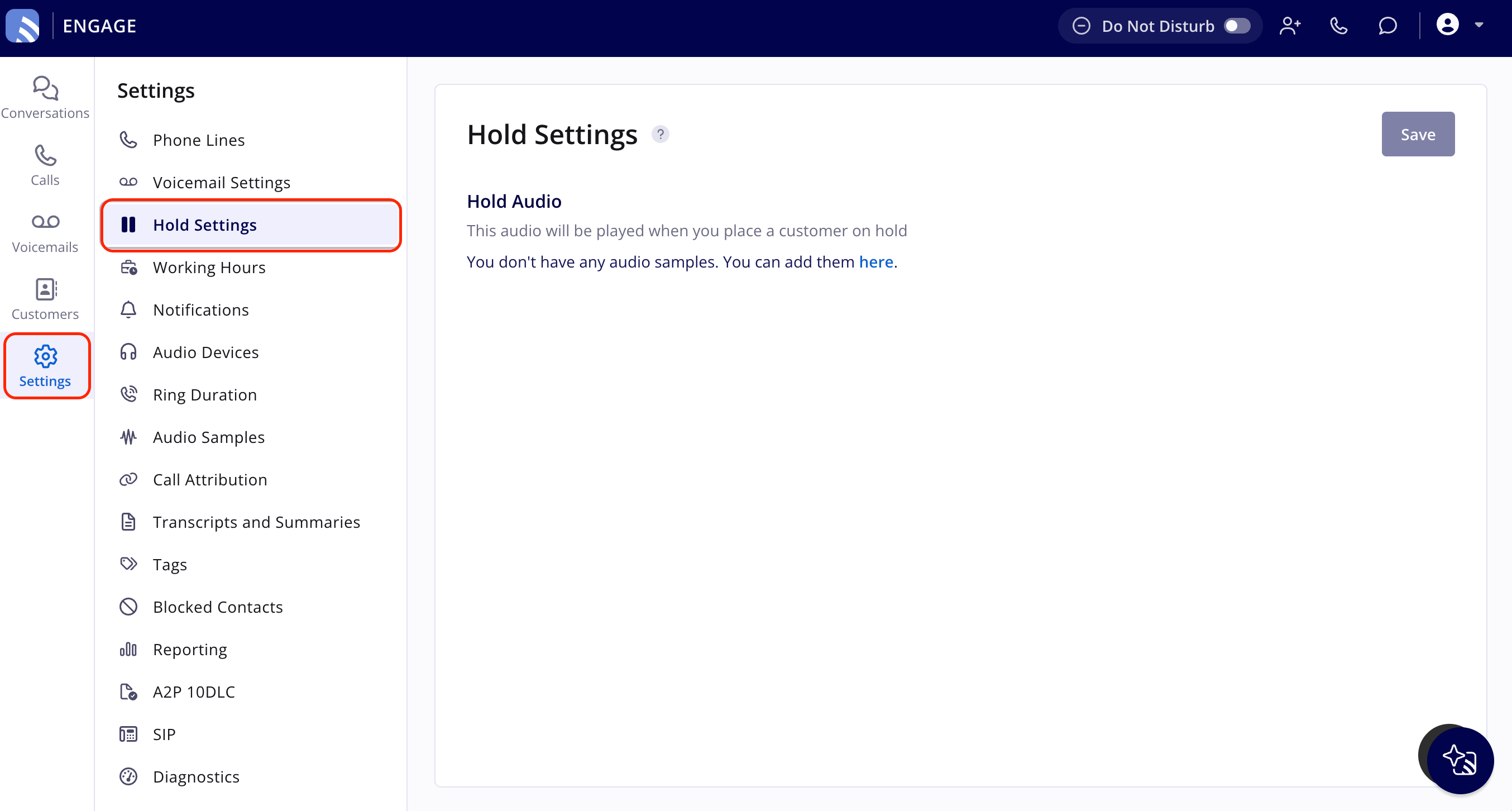
- Select Settings in the left navigation bar, then Hold Settings.
-
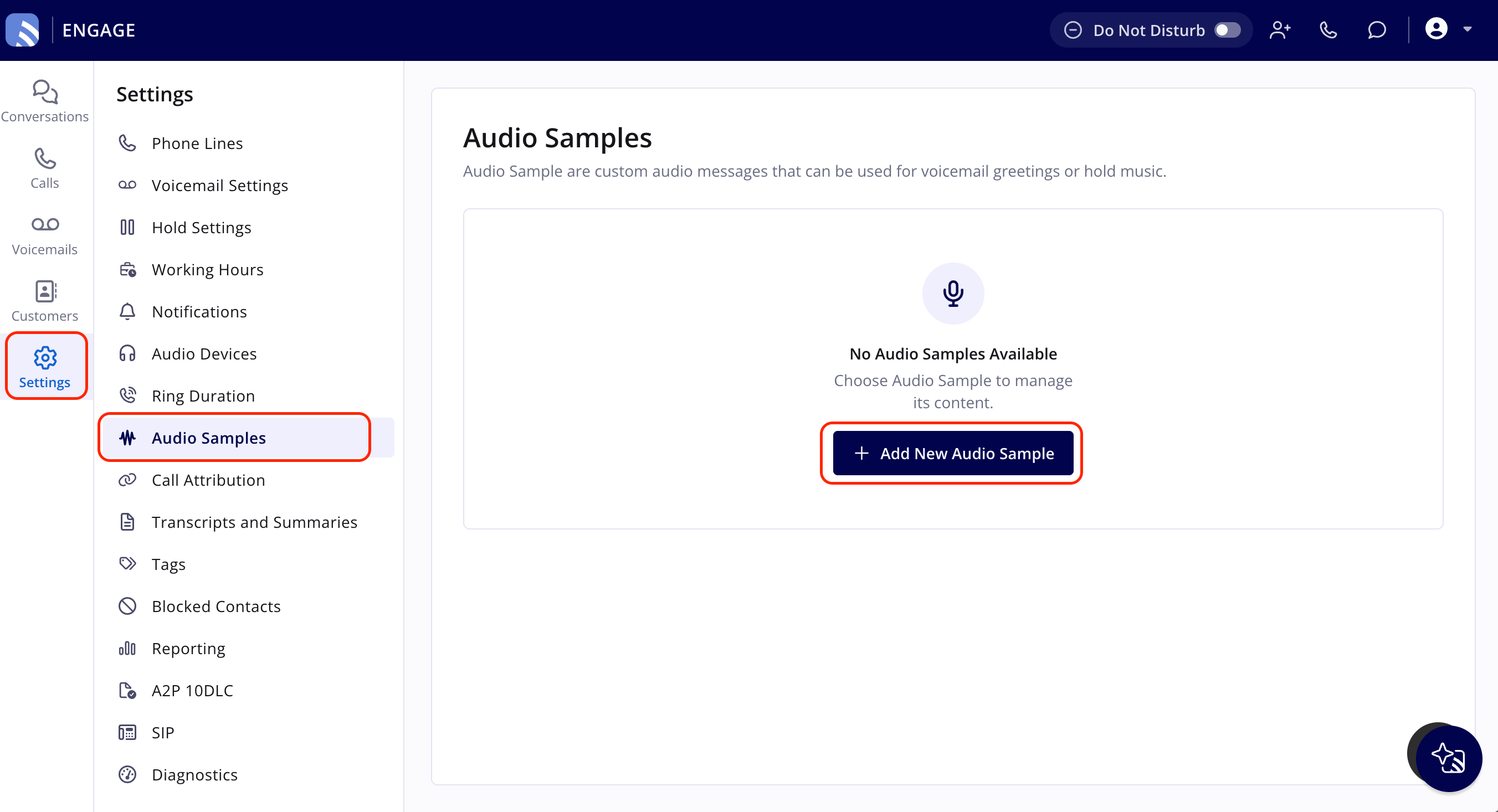
To upload your own audio, select Audio Samples, then Add New Audio Sample. See Setting Up Audio Samples for more on managing your audio files.
-
Return to Hold Settings and select your new audio under Hold Audio.
Limits and best practices
- Transfers need an active call. You can only transfer an active call. Resume a held call before transferring it. See How to Use Transfers in Engage (non-SIP).
- Call limit. You can have up to three calls at once, in any mix of active and on-hold calls. If you try to take a fourth call, a popup notifies you that you’ve hit the call limit. End one of the existing calls to continue.