
Who uses this: Any user making or taking calls in Engage. Availability: Requires the Engage add-on.A crackling line in the middle of a booking call is usually the network, not Engage. Engage cannot fix a slow connection or a failing microphone, but it can detect problems involving your network, your microphone, or carrier services such as Twilio, and it warns you during the live call so you can adjust before the customer gives up.
Overview
During a live call, Engage watches for audio delay, low or unstable quality, lost data, and lost connections. When it detects one, a warning appears with a title and a short message describing what Engage noticed. Each warning below lists the exact text you will see and the steps that most often clear it. The causes are external to Engage (your internet connection, your device, or your carrier), so the fixes are on your side of the call.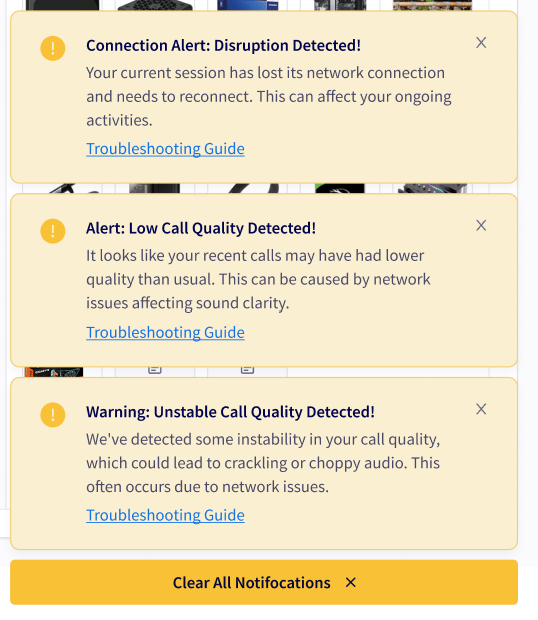
Common issues
Attention: Network Delay Detected
Title: “Attention: Network Delay Detected!” Message: “We’ve noticed that your calls might be experiencing some audio delays. This usually happens due to a slow network connection.” Cause: A slow network connection is delaying the audio. Fix:- Check your internet connection. Make sure you are connected to a stable Wi-Fi network. If you are using mobile data, switch to Wi-Fi.
- Restart your router. Restarting your router can improve your connection speed.
- Close unused apps. Apps running in the background can slow down your connection.
Alert: Low Call Quality Detected
Title: “Alert: Low Call Quality Detected!” Message: “It looks like your recent calls may have had lower quality than usual. This can be caused by network issues affecting sound clarity.” Cause: Network issues are reducing sound clarity. Fix:- Check your network speed. Use a speed test to confirm your internet speed meets the minimum requirements for high-quality calls.
- Limit bandwidth usage. Reduce the number of devices and applications using your network during calls.
- Improve your Wi-Fi signal. Move closer to your Wi-Fi router or remove obstacles between your device and the router.
Warning: Unstable Call Quality Detected
Title: “Warning: Unstable Call Quality Detected!” Message: “We’ve detected some instability in your call quality, which could lead to crackling or choppy audio. This often occurs due to network issues.” Cause: An unstable network connection is causing crackling or choppy audio. Fix:- Stabilize your internet connection. Avoid moving around if you are on a mobile device during the call.
- Use a wired connection. If possible, switch from Wi-Fi to a wired Ethernet connection.
- Restart your network devices. Rebooting your modem and router can stabilize the connection.
Caution: Potential Call Disruptions Detected
Title: “Caution: Potential Call Disruptions Detected!” Message: “Your call quality might be affected due to some data not reaching its destination. This can cause choppy audio or even dropped calls.” Cause: Some data is not reaching its destination, which can cause choppy audio or dropped calls. Fix:- Check internet connectivity. Confirm your internet connection is active and stable. If it is unstable, restart your modem and router.
- Reduce network load. Limit the number of devices and applications using your network to free up bandwidth.
- Use a wired connection. If one is available, switch to a wired Ethernet connection for more reliable performance.
Alert: No Data Received
Title: “Alert: No Data Received!” Message: “It appears that your device is not receiving any data, which might interrupt your current session. This can happen if your network connection is lost.” Cause: Your device has stopped receiving data, usually because the network connection was lost. Fix:- Check your internet connection. Confirm the device is connected to the internet. Check that Wi-Fi is on or that mobile data is available.
- Restart your device. A restart can restore connectivity.
- Contact your ISP. If the issue persists, there may be a service disruption. Contact your internet service provider.
Warning: Data Transmission Issue Detected
Title: “Warning: Data Transmission Issue Detected!” Message: “We’ve noticed that no data is being sent from your device, which may cause communication problems. This typically indicates a connection or software issue.” Cause: No data is being sent from your device, which points to a connection or software issue. Fix:- Check your network connection. Confirm you have a stable internet connection. On Wi-Fi, move closer to the router or switch to a wired connection.
- Restart your device and router. Rebooting both often resolves data transmission issues.
- Check for software updates. Make sure your device and any relevant software are up to date.
Connection Alert: Disruption Detected
Title: “Connection Alert: Disruption Detected!” Message: “Your current session has lost its network connection and needs to reconnect. This can affect your ongoing activities.” Cause: The session lost its network connection and needs to reconnect. Fix:- Wait for automatic reconnection. Engage attempts to restore the connection on its own. Give it a moment.
- Check your network settings. Confirm your internet connection is active, and restart your modem or router if the issue persists.
- Restart the application. If reconnection delays continue, restart Engage to start a new connection attempt.