
Who uses this: Admins and Team Managers. Service Agents can use Engage but can’t open Reporting. Availability: United States and Canada · Engage add-on.An Engage report shows your call activity over a date range — who answered, whether each call was incoming or outgoing, the outcome, the duration, the lead source, and more. You build the report from Settings > Reporting in Engage, then choose the columns and filters that answer the question you’re asking.
Overview
The Engage report shows how your team handles calls instead of leaving you to guess. Set a date range and run the report, then narrow it with columns and filters — for example, calls by the user who answered, missed calls over a period, or calls tied to a specific lead source. The report reads Engage call data, so every incoming and outgoing call on your Engage lines is available to report on.Before you begin
- Engage must be enabled on your account. Contact the FieldPulse team through the in-app chat or at support@fieldpulse.com to turn it on — see Engage Overview.
- You need the Admin or Team Manager role. Reporting appears in Engage settings for these roles only. See Engage User Roles Details.
Which lines your report covers
The lines included in your report depend on your role. Your access follows your FieldPulse role, so there’s nothing to turn on.
Report content, columns, and filters work the same way for every role. A Team Manager’s report only includes calls from their own lines, so call outcomes, durations, and the user who answered reflect those lines alone. Team Managers never see data from other lines in the account.
Create an Engage report
- In Engage, select Settings in the left navigation bar, then select Reporting in the Settings menu.
-
Under Call Date Range, set the From and To dates you want to report on.
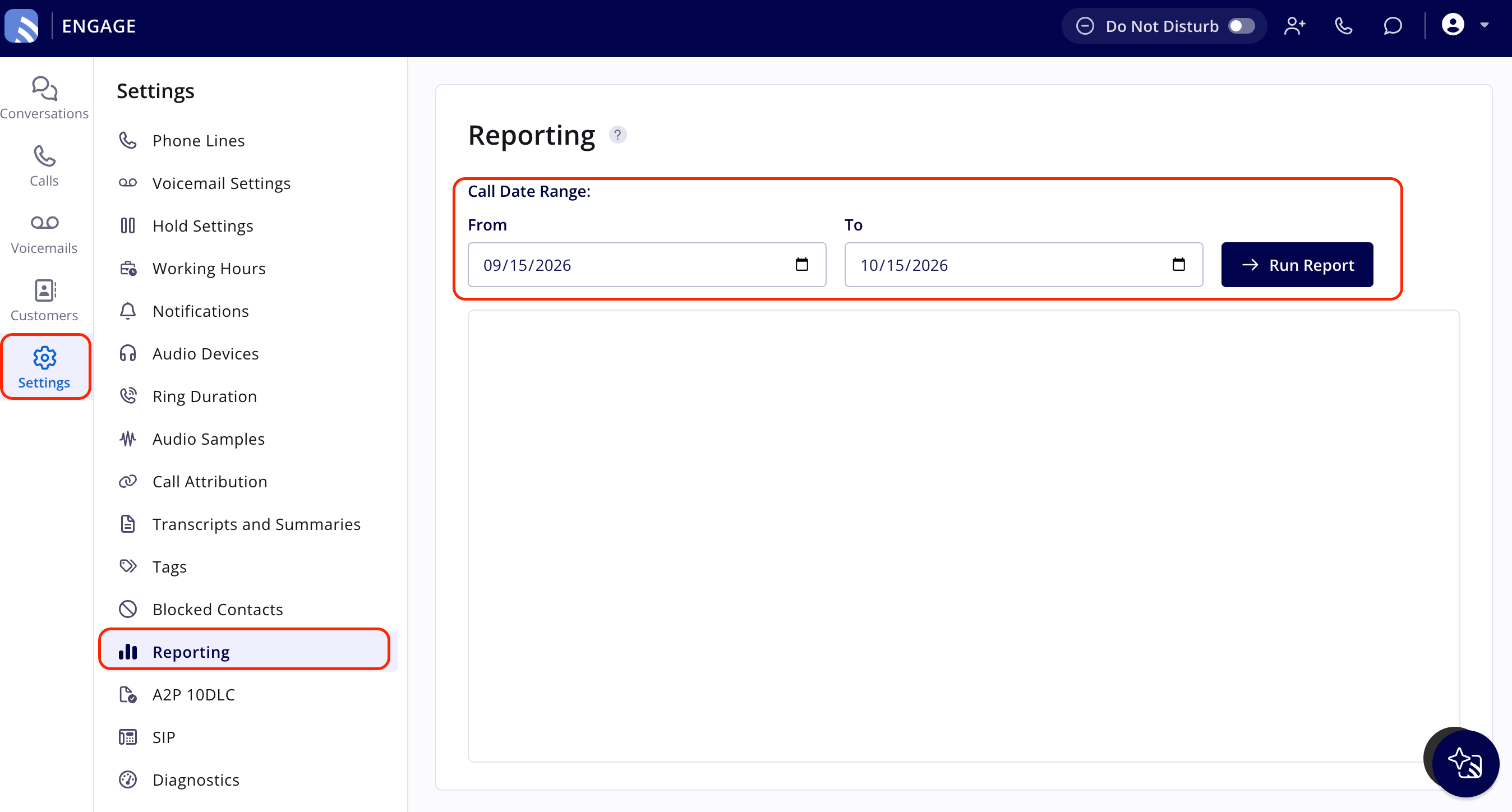
- Select Run Report.
- Select Columns to choose which columns appear in the report. See the Default columns table below.
- Select Filters to narrow the results. See the Filters section below.
Default columns
The Engage report includes these columns by default. Select Columns to turn any of them on or off.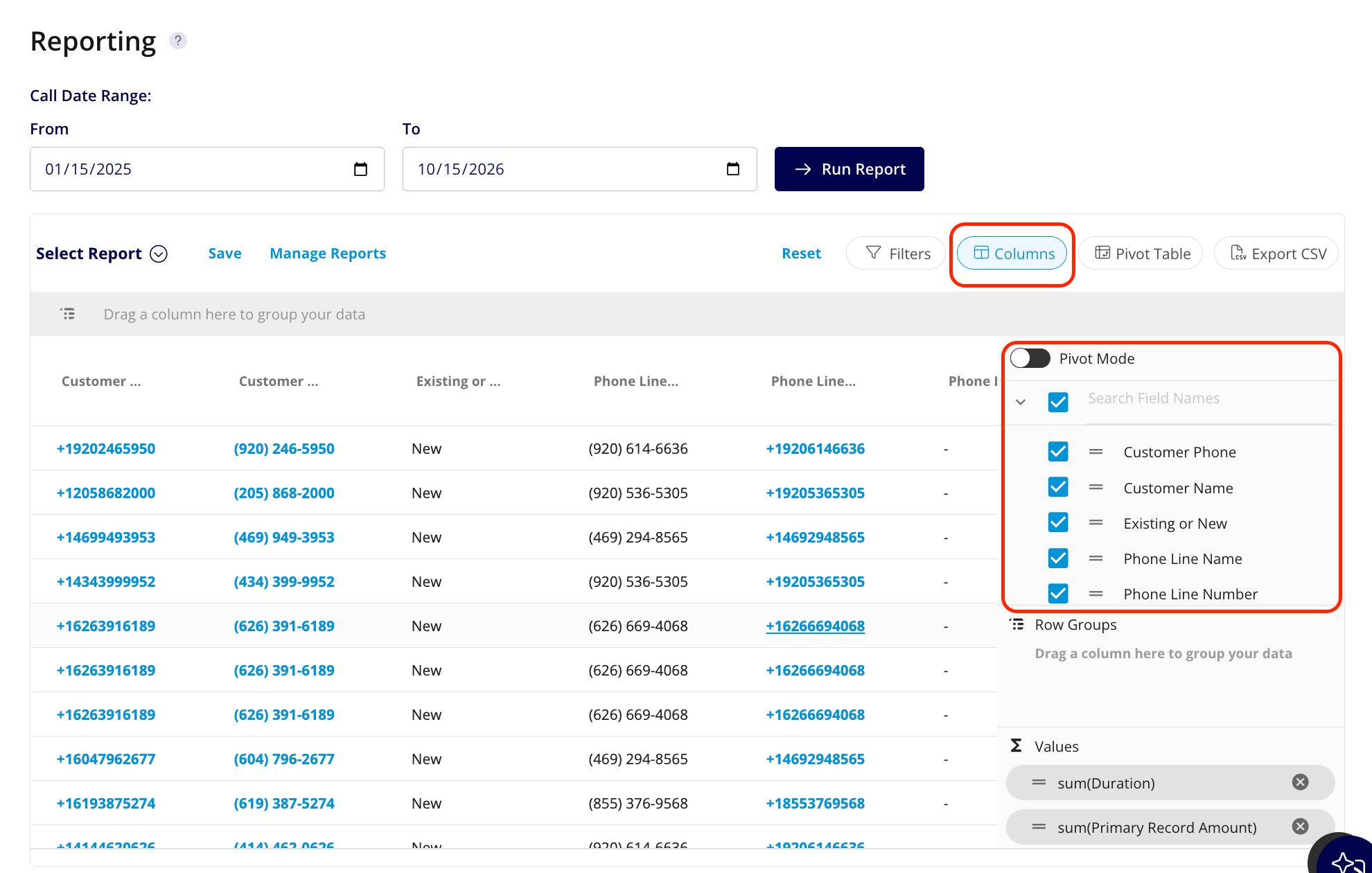
Related Records
The Related Records columns show the records linked to each call. Turn them on from Columns:
- Primary Call’s Phone Number: the phone number of the record’s primary call
- Primary Record ID: the primary linked record’s ID, as a clickable link to that record
- Primary Record Status: the primary record’s current status
- Primary Record Amount: the primary record’s total amount, populated only when the primary record is an Estimate or Invoice
- Other Related Records: every non-primary linked record
- Primary Record’s Related Invoice Status: the status of the primary record’s most recently created child invoice
- Primary Record’s Related Invoice Amount(s): the total amount of the primary record’s child invoice(s), added together if there’s more than one
- Primary Record’s Related Proposal Amount: the primary record’s child Estimate amount, added together if there’s more than one
Filters
Set filters to narrow your results. Select Filters, then choose how to filter each field: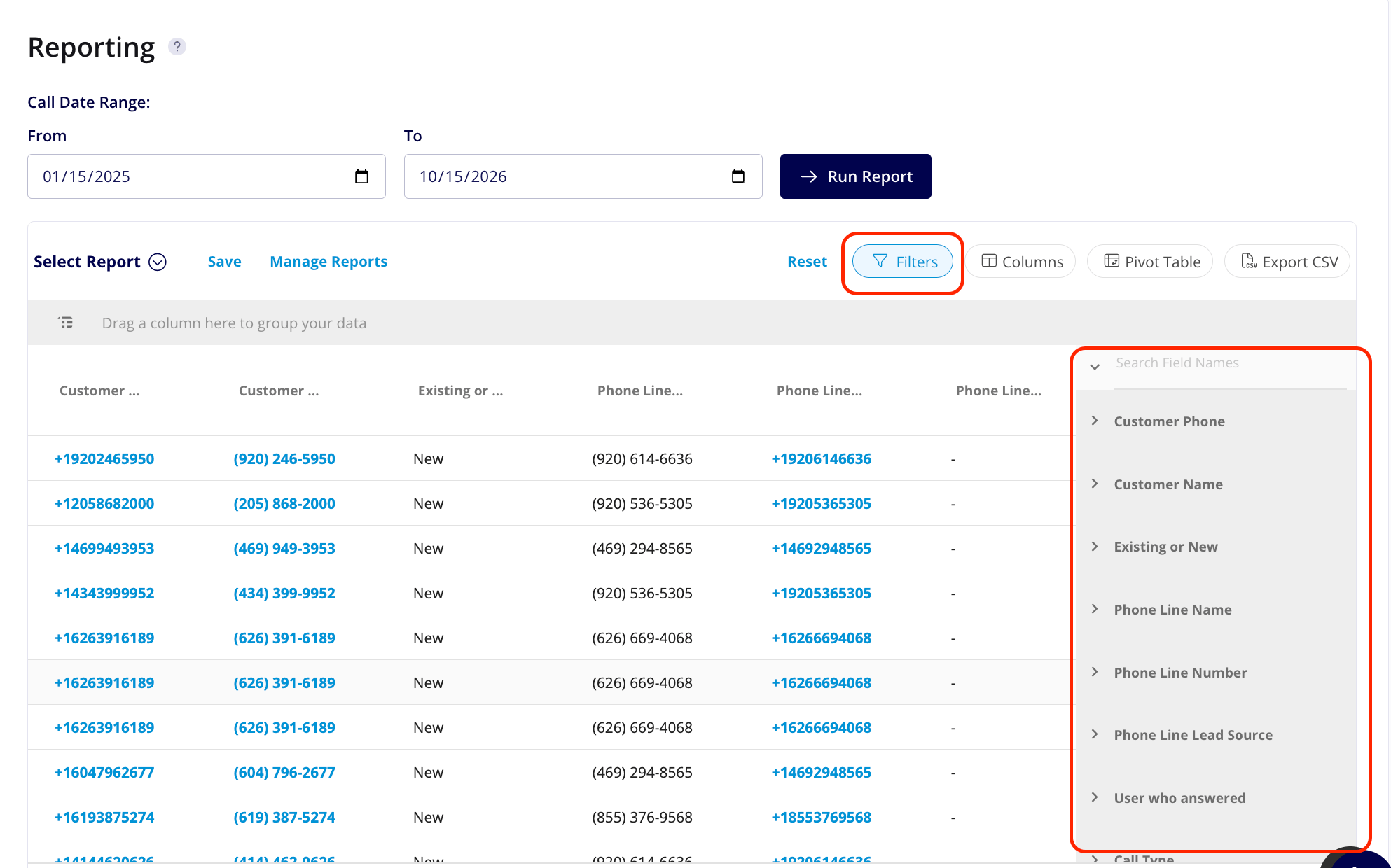
When you filter by contents, choose an operator and then enter the values to match. The operators work the same way across FieldPulse reports, so some examples below use fields from other reports:
Your Engage report is working when you set a date range, run it, and the columns and filters you chose narrow the call data to the exact question you’re answering — like which lead source drove the most answered calls last month.
Report on revenue by phone line
Find out how much revenue each of your Engage phone lines produced by grouping your report by the phone number of each record’s primary call. Revenue comes from records linked to calls, so this report shows which lines are bringing in paid work, not only which lines get the most calls. Each record’s amount is credited to the phone line of its primary call. When a record is linked to more than one call, only the primary call counts toward a line’s total. See How to Link Calls to Records in Engage for how to choose a primary call.- In Engage, select Settings in the left navigation bar, then select Reporting in the Settings menu.
- Under Call Date Range, set the From and To dates you want to report on.
- Select Run Report.
- Select Columns and turn on Primary Call’s Phone Number and Primary Record Amount.
- Sort or group the report by Primary Call’s Phone Number. Each phone line’s records appear together.
- Add up the Primary Record Amount values for each phone number to see that line’s total revenue.